
If you have recently done some upgrade work on your WordPress site, and you cannot login due to the following message, I have the fix for you.
Briefly unavailable for scheduled maintenance. Check back in a minute.
What Causes This Problem
This problem is caused by a failed automatic update on one or more parts of your WordPress site.
When WordPress is automatically updating the core WordPress files, plugins or themes, your site is marked as under maintenance.
This problem occurs when the under maintenance is not marked as done at the end of the process. This can be caused by an interrupted update, the updating taking so long that it times out or browser crashes.
How To Fix It
Fortunately the fix is fairly simple, you need to attach to your site using ftp or with the file manager in your hosting account, and in the root of your installation you will see a file called .maintenance, simply delete this file and you site will come back to life.
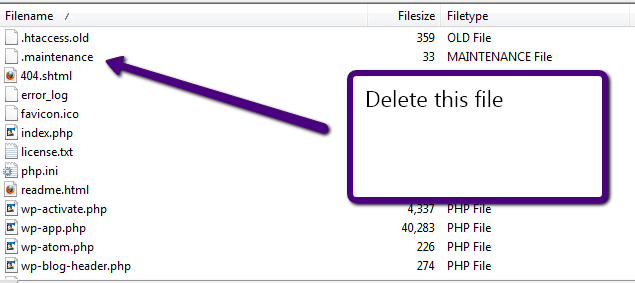
SPECIAL NOTE: files which start with a full stop/period are marked as hidden files on unix/linux, you may need to enable show hidden files on your FTP client before you can see this file, for example on filezilla you need to go to server->force show hidden files.
If At First You Don’t Succeed
Once you have deleted the .maintenance file it is a good idea to re-apply the updates you were doing to make sure they have been completed correctly.
Comments
22 responses to “How To Fix: Briefly unavailable for scheduled maintenance. Check back in a minute.”
This is a good piece to write up. I totally panicked the first time this happened on my WordPress site!
Thank you! Saved me a lot of time 🙂
Hi Dude! Thanks for this post. It helped and saved me from a terrible situation.
You are more than welcome, it has caught quiet a few people out
Neil
it worked
gratz
Unfortunately I cannot find the .maintenance even in hidden files – what do I do?
Make sure your FTP is configured to show hidden files
I would use something like Filezilla for an FTP program. I think it auto shows all files. I could be wrong though.
Great info, once delete the maintain file, it works.
I totally panicked the first time this happened on my WordPress site!
Thanks for your solve… 😀
There is no .maintenance file. I use Total Commander with ”show hidden files and folders” option checked. Is there a new way of sorting this in WP 3.3.2?
if you delete the root it might remove the .maintenance and re-install 3.3.2, but .maintenance will be there causing the problem, try another ftp client like filezilla or cyberduck
thanks for the quick reply. i am trying the FileZilla as we speak, no .maintenance file again. The trouble i am having is updating WordPress to 3.3.2. When i click update, it times out and i get a 500 internal server error. This is so frustrating.
Why not manually upload the new files. Download them from wordpress.org unpack them on your local drive then upload them with filezilla
Yes i am doing it right now. But i try to avoid that if i can. Thanks for the help. The FIleZilla has the option to force show hidden files and folders on the server. That did the trick, although the maintenance message is automatically removed after 5 or so minutes..
Oh my GOD! Thank you! LOL
Superb advice, saved me a lot of hassle thanks.
Thanks very much, I didn’t know what I had done for a second there. My mistake was to click on another link before all of the updates had finished installing, just impatience really!
Thank you for highlighting this easy fix Neil!
Thanks so much for this information. I updated the Jetpack plugin and suddenly got this message. Found you on Google and fixed it within 10 minutes. Very pleased. Thank you
HUGE lifesaver! Thanks a ton for posting this one. I was about to freak out… thinking I’d have to reinstall wordpress. Thanks again!
Thank you for this write-up. I was able to find you quickly and make the necessary changes. The site was back up in under 5 minutes. Thanks again.