
Neil Matthews

Category: How To

  • WordPress How To:Disable Comments

    WordPress How To:Disable Comments

    WordPress How To Disable Comments

    In this post I want to teach you the two ways to disable comments on your site.  You can disable comments site wide or you can disable comments on a post by post (or page) basis.

    What Are My WordPress How To Posts?

    I am building a library of small how to tutorials to solve common WordPress issues, check out the library of how to tutorials.

    If you need a particular how to just drop me a line using the contact form above

    Site Wide

    To disable comments across your entire site you need to make two changes go to settings -> discussion and uncheck “
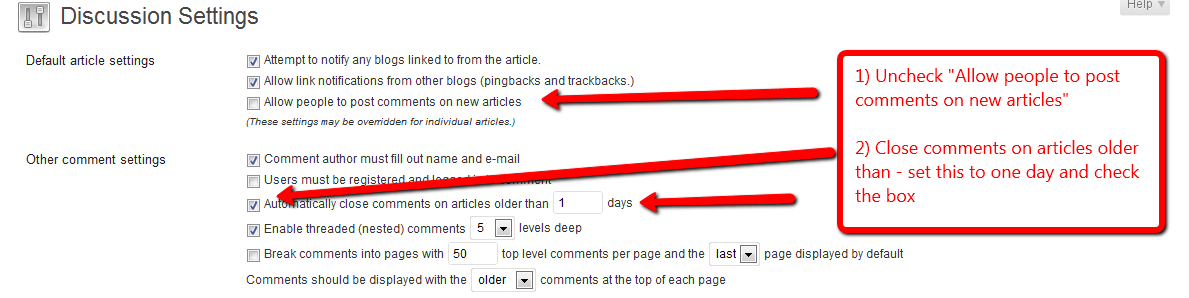
    Click to see full size image

    Post by Post

    If you would rather disable comments on a post by post (or page) basis you can do this too.

    Open up your post in the visual editor and scroll down to the discussion box and uncheck “Allow comments.”  See screen dump for full details

    Click for full size image

    Image by hmk

  • WordPress How To: Find Page ID

    WordPress How To: Find Page ID

    WordPress How To: Find Page ID

    In this post I will show you how to find the page ID of a WordPress Page.

    What Are My WordPress How To Posts?

    I am building a library of small how to tutorials to solve common WordPress issues, check out the library of how to tutorials.

    If you need a particular how to just drop me a line using the contact form above.

    Why Would I need A Page ID?

    Pages IDs are used by a number of themes to control postition of co ntent, or to control which pages appear in the navigation.

    How To Find A WordPress Page ID.

    Use the following process to find your desired page ID.

    1. Edit your page page ->edit
    2. Open Up The Visual editor
    3. The Page ID will be shown in the URL of the page in question.
    4. See the image below for details on finding the page ID.
    Click on image for full size view

    Image by horiavarlan