Neil Matthews

Category: How To

  • Get Rid Of Unwanted Checkout Fields

    Get Rid Of Unwanted Checkout Fields

    How to remove WooCommerce checkout fields.

    In this video I will show WooCommerce store owners how to remove checkout fields with a plugins, this requires no coding and is ideal for the non-technical store owner.

    The plugin we used today can be downloaded from https://wordpress.org/plugins/woo-checkout-field-editor-pro/

    If you need help with your WooCommerce store head on over and get a no obligation quote.

  • How I Find Royalty Free Images For My Blog Posts – The Next Generation

    How I Find Royalty Free Images For My Blog Posts – The Next Generation

    This is take two of this blog post, I used to use a service called compfight.com to find image for my blog, but sadly it has been taken offline and redirects to paid stock photo company.

    Here’s the old post about compfight https://dev.neilmatthews.com/find-royalty-free-images-blog-posts/

    So I went on a search for a new service where I could search for free images for my blog posts.

    My search found unsplash.com which I’ve found to be even better than compfight.com

    Here’s a video tour of unsplash.

    Video

    Wrap Up – How I Find Royalty Free Images For My Blog Posts

    Like I said this is even better then the original service I used Compfight, and I’m really happy with my find, happy image searching to you all.

    If you need help with your WordPress site please head over to the work with me page to get a no obligation quote.

    Photo by Ryan Kwok on Unsplash

  • How To Add WordPress Code Snippets The Easy Way

    How To Add WordPress Code Snippets The Easy Way

    In this video post I want to show you how to add code snippets the easy way to your WordPress site.

    You’ve probably seen recommendations to add code to your functions.php file to fix an errors on your site, to add functionality or to make a change of some sort.

    You will be presented with a wall of php code and you are told to add this to your functions.php file.  All well and good if you are a developer but what if you are not that technical and don’t want to mess with code files.

    There are some issues with “simply adding code to functions.php”, here is what you need to be aware of:

    • If there are errors in the code, you can crash your site.
    • When you change your theme the code also needs to be migrated.
    • A site with lots of snippets can become a pain to manage and remember what each piece of code does

    Video Demo – How To Add WordPress Code Snippets The Easy Way

    In this demo I’ll show you how to use this plugin to add code

    The Plugin

    Here’s a link to the plugin I used
    https://en-gb.wordpress.org/plugins/code-snippets/

    The Code Snippet

    And if you want to change your add to cart button to buy now, here is the code.

    // To change add to cart text on single product page
    add_filter( 'woocommerce_product_single_add_to_cart_text', 'woocommerce_custom_single_add_to_cart_text' );
    function woocommerce_custom_single_add_to_cart_text() {
    return __( 'Buy Now', 'woocommerce' );
    }

    Wrap Up – How To Add WordPress Code Snippets The Easy Way

    To wrap up this plugin is great when you are developing a site and need to manage lots of custom code, and not have it break your site during testing.

    A highly customised site with lots of snippets can become messy when a few months later you cannot remember what each piece of code does, so descriptions and tagging make things much easier to maintain.

    If you are still not happy adding custom code to your WordPress site you can always hire me to do it for you.

    Photo by Alexander Sinn on Unsplash

  • How To Speed Up Font Loading

    How To Speed Up Font Loading

    In this video post I want to show you how to optimize your fonts and load them locally. In this tutorial we will show you  how to speed up font loading.

    The problem is that google fonts are loaded from remote servers for each page load, they are not cached or set with headers, if we load them locally we can speed up page load.

    Video Tutorial

    Plugin Used

    We use the following plugin in this video:

    https://wordpress.org/plugins/host-webfonts-local/

    Wrap Up

    This does not work with every theme so please test thoroughly after installing this plugin

    If you need help speeding up your WordPress site check out our services.

    Photo Credit: Andrei! Flickr via Compfight cc

  • What Is Minify?

    What Is Minify?

    what is minify

    What Is Minify?


    In this post I want to answer a question, what is minify?

    If you have taken my free mini course How Slow Is your Site you will probably have seen that one of the results is to minify javascript and CSS.  In this post I want to explain what Minification is and why you should be doing it.

    Minify or Minification

    Minify sometimes called minification is teh process of compressing javascript or css files.


    These files are often static and once written they don’t need to be touched,

    Write a script For People To Read

    When you are developing a script of CSS style sheet you need to code it in a human readable format.  Lots of white space and  carriage returns.

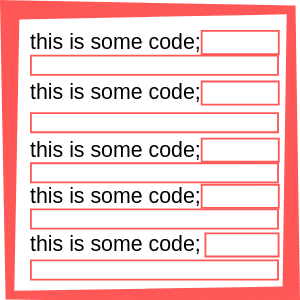
    Tabs to indent things to make sense BUT all the space and carriage returns also add invisble characters to your code.  For example a carriage return adds the control+M or ^M hidden character to your file.

    This takes up space and adds time to your download.  See this diagram, the red boxes are all hidden characters that add size to your file.


    Now this makes 100% sense when developing your code it needs to be human readable, but when you package up your theme or plugin and deploy it for people to run, we don’t need that overhead.

    Deploy That Script For Computers To Run

    Computers don’t need that white space,  that’s a human weakness, and the reason the computers will rise up and become our digital overlords.

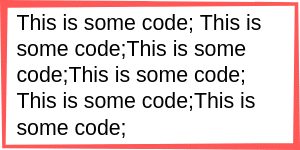
    When the scripts is ready for prime time is should be compressed and the red boxes removed.  This is what a compressed file would look like, and you can see from the graphical representation the same information is conveyed in less space.

    what is minify

    You may think a few characters is not a big deal, but multiply all the scripts and stylesheets from all the plugins and theme on your site and this can add up to a lot of hite space that needs to be downloaded for each site visitor.  It created a real load on your site.

    Not All Scripts Are Deployed Minified.

    Our problem begins.  Not all scripts and style sheets are not minified.

    Why Minify?

    We need to minify for the following reasons

    • The file is compressed
    • This reduces  size
    • The file is quicker to load

    We need to speed up our site to keep the SEO gatekeepers at Google happy and for the real people visiting our sites.  Slow sites are very annoying and will make people abandon carts of leave your site in frustration.


    How To Minify Files

    There are a couple of ways you can minify the files on your site.

    Manually

    There are a number of tools out there to compress and minify your scripts manually.  I like this one

    https://www.minifier.org/

    Copy the contents of the script or CSS in question ( again check my mini course you will be give a list of files that need to be minified). paste them into the tool and download it.

    Replace the uncompressed file with the minified file.

    This may be a bit much for normal site owners, so there is always a plugin …

    Plugins

    Of course there are plugins out there to minify your scripts.

    Add one of these to your site and check the documentation on how to minfy your sites.

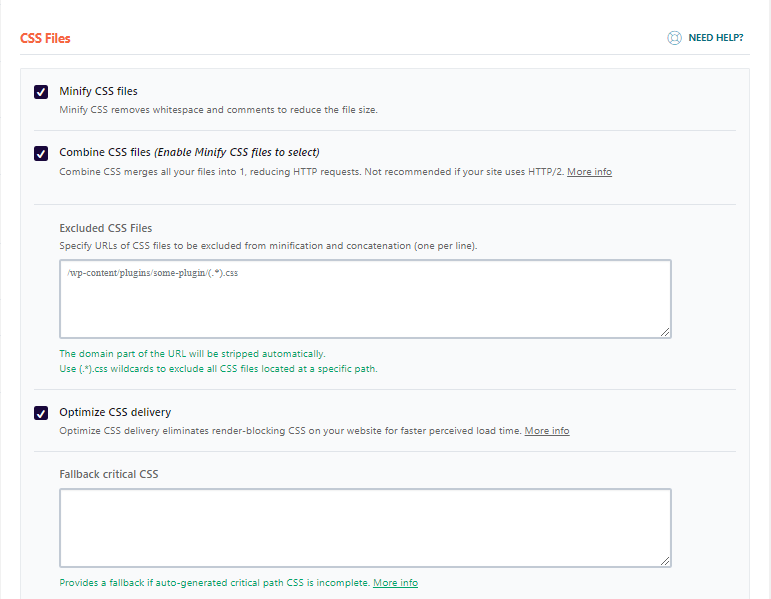
    W3-Total-Cache is complex, but WP-Rocket is super simple with two check boxes

    Careful now, it can break things!

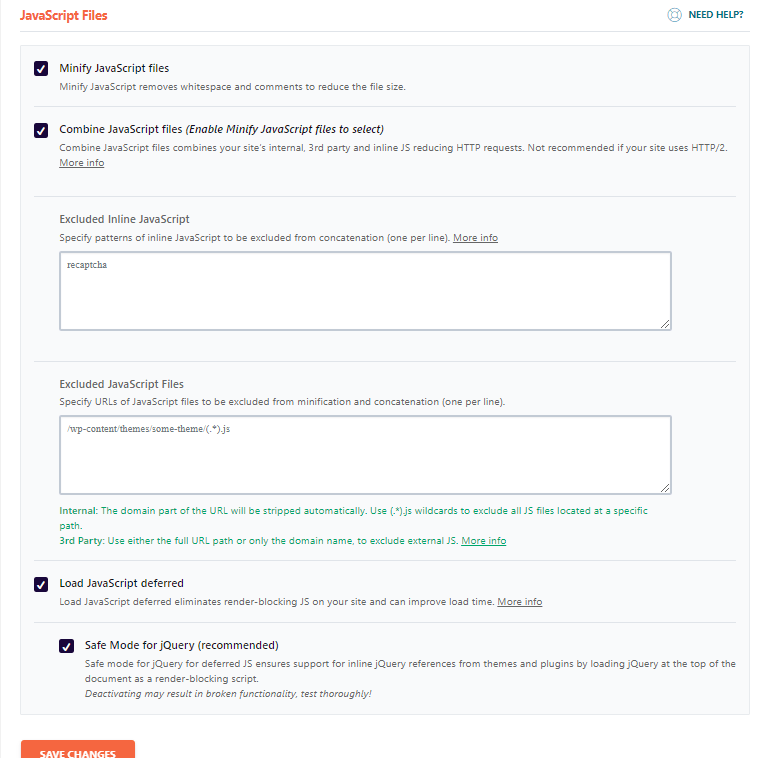
    Once you have minified check your site, this process can sometimes make things break.

    Locate which scripts or style sheet is acting up and exclude it from the minification process.

    Wrap Up – What Is Minify?

    Minification should be one of your performance tuning ingredients.  Performance tuning is a recipe, you need a pinch of this and a cup of that.  If you have minification, caching, CDN and optimized images it’s gonna taste real good.

    If you would like me to speed up your slow loading site, get in touch and I’ll send you a no obligation quote.

    Photo Credit: rvandermaar Flickr via Compfight cc

  • New Mini Course – How Slow Is Your Site?

    New Mini Course – How Slow Is Your Site?

    I’ve created a new (free) mini course where I teach you how to create a baseline on the speed of your WordPress site.  It’s called “How Slow Is Your Site”.

    A baseline is an objective score on how fast/slow your site loads as opposed to a subjective one; it feels like it is loading slowly.

    Once we have that baseline we can do some performance tuning work and test to see if things are getting faster with our efforts.

    The course takes less than 30 minutes to complete and the outcome is an understanding of why your site is loading slowly.

    This information can then be use when you start to performance tune and speed up your site (or sent to your local friendly WordPress consultant to do if for you).

    Sign Up For The Mini Course

    To get instant access to the course complete the form below

    [gravityform id=”138″ title=”false” description=”false”]

    Photo Credit: *_* Flickr via Compfight cc

  • How To Redirect To Another Page After A YouTube Video Finishes Playing

    How To Redirect To Another Page After A YouTube Video Finishes Playing

    How To Redirect To Another Page After A YouTube Video Finishes Playing

    How To Redirect To Another Page After A YouTube Video Finishes Playing

    I was asked by a client if this was possible to redirect to another page after a YouTube video finished playing (and it is).  In this post I will teach you how to redirect to another page after a YouTube video finishes playing.

    The example below from my homepage video show that.

    What It Does

    Once a video is started code is added to your WordPress site that monitors for the completion of the video.  At that point more code is activated that tells your browser to redirect to another page of your choosing, in my use case I want to send people to the work with me page to request a quote.

    Why Do It?

    You can add a call to action at the end of your video such as saying “Get a no obligation quote now” and rather than having people click on a button or link, they are automatically taken to that page.

    So people see your video message and they are taken directly to another page where they can complete an action.  Dynamic call to action, in action 🙂

    How It Does It

    YouTube has an API which we can tap into.

    The videos on your site send signals that can be accessed and one of them is video completed.  We monitor for this action with some javascript code and on this event trigger a javascript redirect with the window.location function to redirect to a URL of your choosing.

    The Code

    To make this work, embed the YouTube video in a post or page in the normal fashion via an iFrame.  In the code of your website just before the closing /body tag add the following script

    If that last sentence made absolutely no sense scroll down the the wrap up section and check out the done for you part.

    Video Embed

    
    <iframe class="player" src="http://www.youtube.com/embed/sOS9aOIXPEk?autoplay=1" frameborder="0" width="560" height="315"></iframe>


    Script
    <script>
    var tag = document.createElement(‘script’);
    tag.src = “https://www.youtube.com/iframe_api”;
    var firstScriptTag = document.getElementsByTagName(‘script’)[0];
    firstScriptTag.parentNode.insertBefore(tag, firstScriptTag);

    var player;
    function onYouTubeIframeAPIReady() {
    // first video
    player = new YT.Player(‘player’, {
    events: {
    ‘onReady’: function(){ alert(“Ready!”); },
    ‘onStateChange’: onPlayerStateChange
    }
    });
    }

    function onPlayerStateChange(event) {
    if (event.data == YT.PlayerState.ENDED) {

    window.location = ‘https://dev.neilmatthews.com/wordpress-technical-support/’;
    }
    }
    </script>

    Example

    Here’s my home page “work with me” video with a redirect.

    Wrap Up – How To Redirect To Another Page After A YouTube Video Finishes Playing

    Done for you, if you would like to to setup a video from YouTube on your WordPress site that redirects to another page after it’s completed click on over to the Work With Me page and get a no obligation quote.

    Photo Credit: Mitchell Haindfield Flickr via Compfight cc

    Doing the seo dance How To  Redirect To Another Page After A YouTube Video Finishes Playing

  • WP Rocket Review – Speed Up Your Site With This Plugin

    WP Rocket Review – Speed Up Your Site With This Plugin

    wp rocket review

    WP Rocket Review

    I do a lot of performance tuning work for my clients.  Speeding up a slow loading site is one of my favourite type of job. Here is my WP Rocket review.

    In the past I would use the W3 Total Cache plugin, but I’ve moved over to WP Rocket, this post explains why I think this is the best cache plugin out there.

    Why Load Speed Is Important

    There are two key reasons why you need to have a fast loading site

    1. Site visitors; if your site loads slowly, visitors will become frustrated and click away, there will be no add to cart
    2. Google; part of the ranking algorithm is site load speed, if you don’t load quickly, Google will reduce your rank.

    Is Your Site Running Slowly?

    Jump on over to GTMetrix and put your sites domain name into the tool and analyse.  If you score is not As and Bs  you have a problem.

    https://gtmetrix.com

    What Is A Cache Plugin

    At it’s most basic a cache plugin loads up your website pages and makes a static version of them.

    When a site visitor comes to your site, the cache plugin serves up this pre-built page rather than serving up a page generated for each visitor.

    Serving up a static version of a website page is much faster than running scripts, accessing the backend database and serving up the page.

    WP Rocket ( and the other cache plugins) do this but they also offer more services than just caching.

    Why I’m Converting To WP Rocket

    After using this plugin on a couple of client projects, I’ve also installed it on my own sites.  It’s really good.  Here are the reasons I’ve stumped up the cache cash to use WP Rocket.

    I used to recommend W3 Total cache, but WP Rocket is better.

    It Does All The things The Other Plugins Do And Then Some

    Just to get this out of the way, WP Rocket does page caching, minify of CSS and Javascript, browser caching and CDN support.

    These are the standard features of all cache plugins, but WP Rocket has some extras and they are why I’m swapping.

    Super Simple To Setup

    Unlike other plugins (I’m looking at you W3 Total Cache), it’s really simple to setup.

    You step through a series of pages and click on check boxes to enable features in the plugin.  There are big warning boxes if you click on something that could break your site.

    You don’t need to know which expired cache heading you need to select, just click on a button.

    Separate Desktop & Mobile Cache

    This is huge.  It’s a problem I see a lot with the other cache plugins and I often have to disable caching on mobile devices.

    Here’s the issue.  Site visitor A visits your contact page on desktop and a cache is created.  The cache is of the css and setup for a desktop visitor.  Visitor B visits your contact page on their phone, the site says there is a cache of that page and serves that up to speed up the process BUT is serves up the desktop code to a mobile.

    The page looks terrible, it does not render for a phone and visitor B leaves your site confused and unable to contact you about a possible project.

    Does The Job Of Five Plugins

    WP Rocket replaces five other plugins that I usually use to speed up sites,  Fewer plugins means fewer resources used which is good performace tuning

    1. W3 Total Cache – cache plugin
    2. Autooptimize – Javascript and CSS optimisation
    3. WP Optimize – database optimization plugn
    4. Resmush IT – image optimisation
    5. Jetpack – it replaces the jetpack lazyload image optimisation and CDN
    6. Heatbeat Control – the plugin

    One Plugin to rule them all and in the performance bind them – JRR Tolkien

    Fixes Nagging Issues With Common Remote Scripts

    One of the really annoying things I see when optimising sites is that common scripts we add to our site are not optimised.  This includes Google analytics and the Facebook pixel.

    WP Rocket realised this was a problem and it has a feature to optimise and serve these scripts locally.

    Built In Image Optimisation

    WP Rocket integrated with the Imagify service.  This is the material for another blog post, but in short, you can oslleslly compress your images inside the

    Heartbeat Control

    Another plugin can be discarded with WP Rocket.  It has in built Heatbeat API control.

    The WordPress Heartbeat API is a great feature that provides real-time communication between the server and the browser when you are logged into your WordPress admin panel. It uses the file /wp-admin/admin-ajax.php to run AJAX calls from the browser. By default, AJAX requests are sent every 15 seconds on post edit pages, and every 60 seconds on the dashboard.

    Controlling the heartbeat API limits how often admin-ajax is run.  The admin-ajax can take a lot of time to load.

    Super Charge WP Engine

    If you use WP Engine for you hosting, many cache plugins are disabled.  They have built in caching out of the box.

    WP Rocket is compatible with their server level caching and adds even more speed to a WordPress site hosted by wpengine.

    JQuery Not Optimized

    I often disable javascript optimisation on sites that use Jquery for things like home page sliders, if jquery is loaded in the footer or optimized it breaks jquery and the slider will not work correctly.

    WP Rocket allows us to optimise JS but ignore jquery with the click of a button – genius.

    My Results

    Here are my scores from GTMetrix, I’m really happy with the results, the B score from YSlow is due to me not having a CDN in place, I’m currently getting that in place so it will be much faster soon..

    wp rocket review


    Wrap Up – WP Rocket Review

    If you want a really good cache plugin for your site then I recommend WP Rocket.

    If you need help speeding up your WordPress site I have a fixed price performance tuning package.  Get a quote to see how much it would cost to speed up your WordPress site.

    Photo Credit: Greenwich Photography Flickr via Compfight cc

    Doing the seo dance WP Rocket review.

  • How To Customise Your WooCommerce Checkout Fields

    How To Customise Your WooCommerce Checkout Fields

    How To Customise Your WooCommerce Checkout Fields

    In this video I talk about how to customise your WooCommerce checkout fields.  These are the pieces of information collected on your WooCommerce checkout page.

    If like me you sell virtual products, all of the physical delivery details are not required and may add to cart abandonment.  I suggest you trim the fields that are not required on your checkout.

    Video Notes

    Past the following code in the theme functions file, go to appearance -> editor and open functions.php.

    You can remove some of the field exclusions if you want to keep them in

    add_filter( ‘woocommerce_checkout_fields’ , ‘nm_simplify_checkout_virtual’ );

    function nm_simplify_checkout_virtual( $fields ) {

    unset($fields[‘billing’][‘billing_company’]);
    unset($fields[‘billing’][‘billing_address_1’]);
    unset($fields[‘billing’][‘billing_address_2’]);
    unset($fields[‘billing’][‘billing_city’]);
    unset($fields[‘billing’][‘billing_postcode’]);
    unset($fields[‘billing’][‘billing_country’]);
    unset($fields[‘billing’][‘billing_state’]);
    unset($fields[‘billing’][‘billing_phone’]);
    add_filter( ‘woocommerce_enable_order_notes_field’, ‘__return_false’ );

    return $fields;
    }

    If you are a Wuss there is a plugin to do the same 🙂

    Flexible Checkout Fields for WooCommerce – WooCommerce Checkout Manager

    List of checkout fields

    Wrap Up – How To Customise Your WooCommerce Checkout Fields

    If you need help customizing your WooCommerce checkout please do get in touch.

    Doing the seo dance again how to customise your WooCommerce checkout fields.

    Photo Credit: Barta IV Flickr via Compfight cc

  • Automate Your WooCommerce Marketing With Mailchimp

    Automate Your WooCommerce Marketing With Mailchimp

    In this video post I show you how to automate your WooCommerce store marketing with Mailchimp.

    Do this work once to bring back customers to your WooCommerce store, up-sell more products and recover abandoned carts.

    Links in Video

    emilianofelicissimo Flickr via Compfight cc

  • Scheduling Posts To Publish In The Future

    Scheduling Posts To Publish In The Future

    As you read this post I’m on holiday (vacation for my American chums) in Spain.  I’m probably on a beach, or taking a boat ride on the glorious Mediterranean sea.

    This post was written on the 19th July, but using a technique built into WordPress,  I can schedule the post to publish in the future (or was it the past because I did this work last week, even Dr Who will get a headache with this).

    In this post I want to take you through the process of scheduling posts for future publication.

    Setting Publish Date

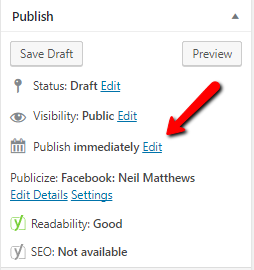
    On the right hand side of the post editor you will see this section


    Where is says publish immediately, click on edit and you can set the time and date.  Click on the schedule button and your posts will go live on that date and time.

    The WordPress cron or scheduler is a little weird, a person needs to visit your site to kick off the schedule checker, so it might not be exactly the time you say, rather when the next visitor hits your site after the date and time set.

    Wrap Up – Scheduling Posts To Publish In The Future

    Scheduling posts is a great way to keep your content fresh even when you are not available to click publish. anyway I’m off for a glass of sangria, this relaxing ain’t going to get done by itself.

    I may be on holiday but I’m still sending out quotes for projects when I get home, get a no obligation quote to fix thay annoying WordPress issue now.

    Photo Credit: Winniepix Flickr via Compfight cc

  • Navigating The Vastness Of Themeforest

    Navigating The Vastness Of Themeforest

    I was  in the market for a new theme to refresh the look and feel of WPDude, I was scouring Themeforest for a great new look and I thought I would share my experience.

    What Is ThemeForest

    If you have not used themeforest before, it is a marketplace for premium themes, both WordPress and stand alone website themes.

    You can browse and find some really good designs on their site.

    The Problem

    Themeforest is absolutely massive there are tens of thousands of themes available out there.

    Once you start browsing you can very quickly become overwhelmed.  This post is really to help you overcome the frustration of too many choices.

    Before You Start

    Don’t just start browsing, have a clear picture in your mind of the functionality you need.  Do you need a portfolio, do you need a team page, do you need services.  Have a brain storming session and throw all your requirements onto a sheet of paper.

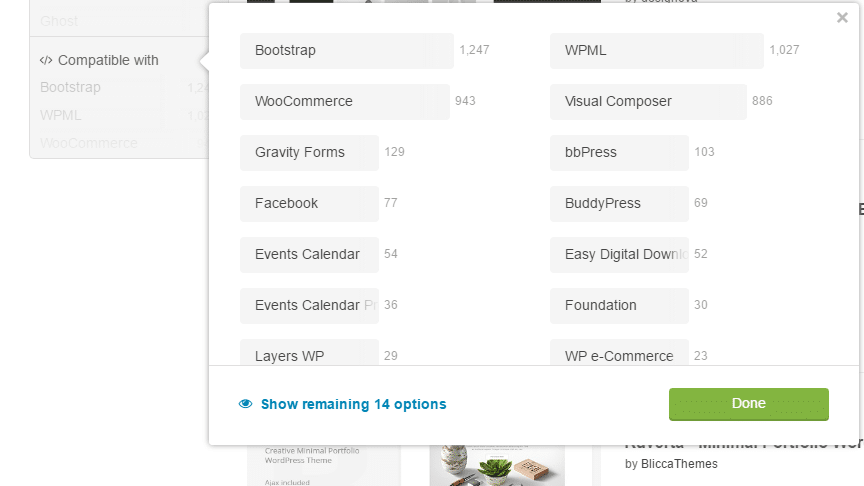
    If you have specific complex plugins like WPML or Woocommerce you will need to find a compliant theme.

    What I Am Looking For

    The main reason I am looking for a change is the mobile navigation of my current theme is not great, there is a massive header area that covers everything above the fold on mobile.

    I am looking for a minimal design, pretty monochromatic.  Lots of white space.

    I need a services function to highlight what I do for my clients.

    It needs to work with gravity forms, my testimonials plugin.

    Narrowing The Search

    You main job when you start looking for a new theme is to narrow the search to reduce overwhelm (and you will be overwhelmed with the huge choice of themes).

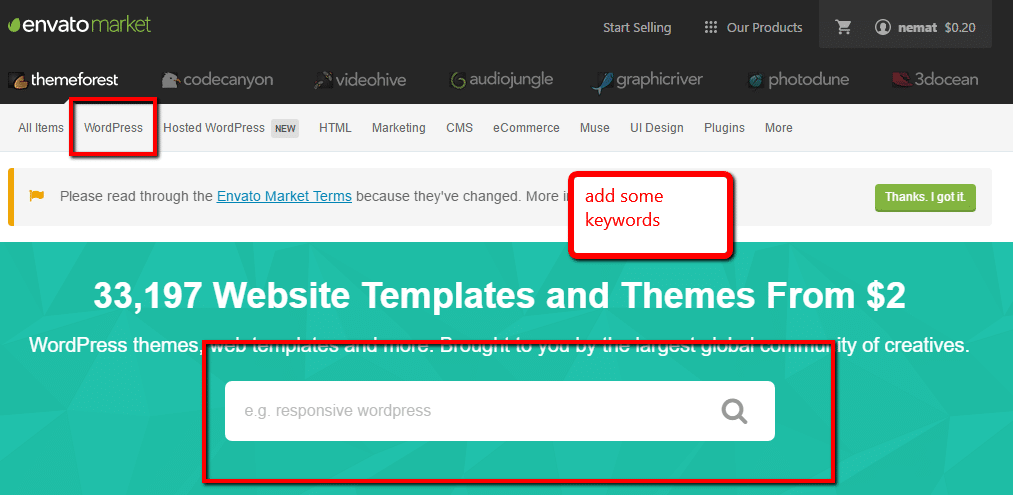
    The first thing to do is select WordPress naturally, then under the menu item are a series of pre-made types. If you are looking for a magazine style perhaps this is a good starting point.

    You can also use the search function and throw in some keywords, I went with wordpress minimal.
    Compatible With

    The next step in narrowing down your search is to use the compatible with option.  This is really important if you use pugins like woocommerce or buddypress which need very specific theme files.
    My Results

    I returned 2,398 results, erghh!!  I need more pruning.

    Live Demo

    We will be testing the theme before we buy it. so if the theme does not have a live demo ditch it.

    As you browse through your search results if you hover over a theme you like and it does not have a live demo i would consider this a red flag not to choose that theme.

    Thumbnails

    Each theme has a small thumbnail on the search results, this will allow you to get a feel for that theme

    A word to theme developers, give us a glimpse of your theme in the thumbnail don’t add some abstract links for “designery” nonsense, we are searching for a needle in a haystack, just give us a glimpse of your theme.

    Testing Your Theme

    Once you have found a theme you like click through and give it a test drive on the live demo.  Ask yourself the following questions.

    • Do you like the design?
    • Does it have all the features you need?
    • Does it work on mobile?
    • It is fast enough?
    • Is it compatible with your current site’s plugins?
    • Is support good? Look at the developers support forum, are thye responsive, look at the updates are they still developing this theme.

    Mobile

    Get out your phone and your tablet and test the demo site on multiple devices, does it still look good on a mobile device.  Remember mobile usage is growing and you must have a site that looks good on mobile and desktop.

    Run the demo site through this google checker https://search.google.com/search-console/mobile-friendly.

    Performance

    Will the new theme load quickly and perform well.

    Run the demo site through Google page speed insights at https://developers.google.com/speed/pagespeed/insights/

    Bookmarking

    If after all that testing you have a potential candidate, please please remember to bookmark it on Themeforest.

    You will be looking at an awful lot more themes so create a shortlist by bookmarking the theme and add it as a favourite.

     

    Congratulations

    You have your new theme, buy and download the files (but don’t get me started on Themeforest’s ridiculous credits and charges for using PayPal).

    You Pay Before You Test

    Themeforest (rightfully so) has a no refund policy if you don’t like the theme so you need to play with and learn to love the demo or you will pay for a theme you might not want to live with.

    I spent an entire evening navigating and getting a feel for my new theme before committing to it.

    Making It Look Like The Demo

    This is often the most disappointing aspect of your new them, you install it and it looks nothing like the one on the demo.

    Before you buy check to see if there is a demo install option where you can make your site look like theirs.  Dig into the downloads most themes come with an import file.

    Staging Site

    I highly recommend you install your new theme on a staging site before you make it live so you can tweak and get the look just as you want it.  Moving themes is not as quick as you may think, you may need to setup new custom posts, portfolios, the list goes on, you don’t want you live site looking like a shambles while you build it out.

    Check out this post on the options for a staging site. How To Build A WordPress Staging Site

    Wrap Up – Navigating The Vastness Of Themeforest

    In the end I went for the Breal theme.  What do you think?

    It’s hard to see the wood for the trees in the virtual Themeforest, it’s a good idea to have a plan before you start searching for a new theme or you will experience analysis paralysis.

    UPDATE: The new theme was not gelling with me, so I rolled back my search continues.

    Photo Credit: Henry Hemming Flickr via Compfight cc