
Neil Matthews

Category: Shipping

  • Tailoring Shipping Rates: How to Charge Different Shipping Rates per Product in Your WooCommerce Store

    Tailoring Shipping Rates: How to Charge Different Shipping Rates per Product in Your WooCommerce Store

    Introduction:
    When running an online store with WooCommerce, offering flexible shipping options is crucial to meet the diverse needs of your customers. While WooCommerce provides standard shipping rate settings, you may encounter situations where you need to charge different shipping rates for specific products. In this blog post, we will explore how you can set up and charge different shipping rates per product in your WooCommerce store, ensuring accurate shipping costs and improved customer satisfaction.

    1. Understanding WooCommerce Shipping Zones:
      Before diving into charging different shipping rates per product, it’s important to understand the concept of shipping zones in WooCommerce. Shipping zones are geographic regions that you define to determine specific shipping methods and rates. WooCommerce allows you to set up multiple shipping zones to cater to different locations and shipping preferences.
    2. Installing a Shipping Plugin:
      To enable charging different shipping rates per product, you will need to install a suitable shipping plugin that offers advanced shipping rate options. Two popular plugins for this purpose are:
    • WooCommerce Advanced Shipping – This plugin provides robust features to customize shipping rates based on various criteria, including product-specific rates.
    • Table Rate Shipping for WooCommerce – With this plugin, you can create complex shipping rules based on factors like product dimensions, weight, quantity, and destination.
    1. Configuring Product-Specific Shipping Rates:
      Once you have installed and activated a shipping plugin, you can configure product-specific shipping rates. Start by defining shipping classes for your products. Shipping classes allow you to group products with similar shipping requirements. For example, you may have classes like “Small Items,” “Medium Items,” or “Heavy Items.”
    2. Assigning Shipping Classes to Products:
      Next, assign the appropriate shipping classes to your products. Edit each product in your WooCommerce dashboard and assign the corresponding shipping class in the product settings. This step ensures that each product is associated with the correct shipping requirements.
    3. Creating Shipping Rules and Rates:
      Using the shipping plugin, create shipping rules and rates based on the assigned shipping classes. For example, you can set different rates for products in the “Small Items” class, “Medium Items” class, and so on. Configure the rates according to your preferred shipping methods, such as flat rates, weight-based rates, or quantity-based rates.
    4. Testing and Fine-Tuning:
      Once you have set up the product-specific shipping rates, it’s essential to thoroughly test them. Add different products to your cart and proceed to the checkout page to verify that the correct shipping rates are applied based on the product’s shipping class. Make any necessary adjustments or fine-tuning to ensure accurate shipping calculations.
    5. Communicating Shipping Rates to Customers:
      Transparently communicate the shipping rates to your customers. Display the shipping costs on the product pages, cart page, and during the checkout process. This helps customers understand the shipping charges associated with their selected products and reduces any potential surprises or confusion.
    6. Monitoring and Adjusting:
      Regularly monitor your shipping rates and make adjustments as needed. Take into account changes in carrier rates, product dimensions, or any other factors that might impact shipping costs. Continuously optimizing your shipping rates ensures accuracy and competitiveness in the market.

    Conclusion:
    By charging different shipping rates per product in your WooCommerce store, you can offer accurate shipping costs tailored to the specific requirements of each item. With the help of suitable shipping plugins like WooCommerce Advanced Shipping or Table Rate Shipping for WooCommerce, setting up product-specific shipping rates becomes a straightforward process. Enhancing the accuracy and transparency of your shipping charges improves customer satisfaction and encourages

    repeat purchases. Implement these steps and provide a seamless and personalized shipping experience for your customers in your WooCommerce store.

    Debugging shipping is a tricky thing in my next post I’ll show you how to enable shipping debugging, if you have shipping issues, why not hire us.

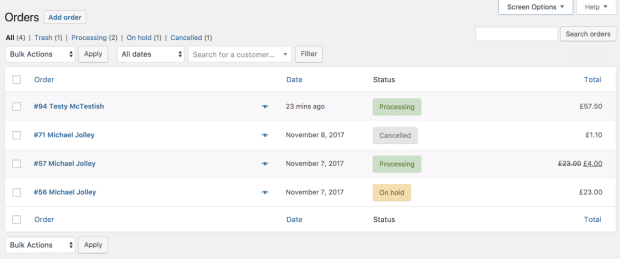
    Photo by Timelab on Unsplash

  • Case Study: WooCommerce Fulfilment by Amazon, Never Lick A Stamp Again

    Case Study: WooCommerce Fulfilment by Amazon, Never Lick A Stamp Again

    I recently added WooCommerce to a site and part of the build was to use WooCommerce Fulfilment by Amazon I thought a case study to explain what that is all about would be useful.

    What Is FBA?

    Fulfilment by Amazon is a service unsurprisingly offered by Amazon, in brief you put your products in their warehouses and they will pick and ship your items for you when you send them an order.

    The charge a fee for storage of your stock and another fee for shipping and handling, the prices are here if you are interested.

    Let’s ignore their shocking staffing policies and realise that Amazon are pretty awesome at getting physical stuff from their warehouses to your door, so this seems to be a no brainer if you are looking to outsource your shipping and handling of products.

    You can stock your products in multiple locations so if you sell Europe wide or Across all states in the US you can put your products in the East and West coast locations to speed up delivery time and reduce shipping costs.

    You will send your stock into Amazon they will scan it in and store it in their warehouses.

    How WooCommerce Fulfilment by Amazon Works

    To make this work we need a premium addon for WooCommerce this costs $129 per site

    Amazon Fulfillment (MCF) for WooCommerce

    The key to making this work is SKU code that matches on FBA and your WooCommerce product, when an order is created in Woo, it is automatically sent to FBA once payment has been approved.

    You can switch FBA on and off, so perhaps you only need a few of your major sellers to be fulfilled you can do that,.

    The stock levels in FBA and WooCommerce are automatically synced so you don’t create an order that cannot be fulfilled.

    A really cool feature of this setup is that your customers can track their package from their account page.  They login to their account and the two way sync of Woo and FBA will show your customers where their package is.

    FBA creates a series of email alerts when items are shipped so you always know the status of your fulfilment, a brilliant feature for control freaks like me.

    Fulfilment statuses are also synced back to your order dashboard in WooCommerce so you don’t have to login to two dashboard to monitor your orders.

    Cancelling an order in Woo will stop the shipment, again only one dashboard is required.

    Setup is fairly simple you add a couple of API keys from Amazon into the plugin are all that is required,

    What Are The Benefits Of FBA

    Time!

    It frees up your time to not pack, ship and post your products.

    Cost!

    It frees you up from having to rent storage space or it gives you back your garage which is currently full of your stock.

    Proven Systems!

    You know that Amazons are Boss Level at shipping stuff to customers.

    Wrap Up – Case Study: WooCommerce Fulfilment by Amazon, Never Lick A Stamp Again

    Do people lick stamps anymore or do they all have an adhesive backing?  Am I showing my age?

    If you are getting to that point in your eCommerce journey that you are struggling to ship all your orders I would recommend FBA over getting your own storage space and staff to do the shipping and handling.

    If you need help setting up a fulfilment or shipping service for your WooCommerce store give me a shout.

    Photo by Cameron Venti on Unsplash

  • Case Study: WooCommerce Fulfilment by Amazon, Never Lick A Stamp Again

    Case Study: WooCommerce Fulfilment by Amazon, Never Lick A Stamp Again

    I recently added WooCommerce to a site and part of the build was to use WooCommerce Fulfilment by Amazon I thought a case study to explain what that is all about would be useful.

    What Is FBA?

    Fulfilment by Amazon is a service unsurprisingly offered by Amazon, in brief you put your products in their warehouses and they will pick and ship your items for you when you send them an order.

    The charge a fee for storage of your stock and another fee for shipping and handling, the prices are here if you are interested.

    Let’s ignore their shocking staffing policies and realise that Amazon are pretty awesome at getting physical stuff from their warehouses to your door, so this seems to be a no brainer if you are looking to outsource your shipping and handling of products.

    You can stock your products in multiple locations so if you sell Europe wide or Across all states in the US you can put your products in the East and West coast locations to speed up delivery time and reduce shipping costs.

    You will send your stock into Amazon they will scan it in and store it in their warehouses.

    How WooCommerce Fulfilment by Amazon Works

    To make this work we need a premium addon for WooCommerce this costs $129 per site

    Amazon Fulfillment (MCF) for WooCommerce

    The key to making this work is SKU code that matches on FBA and your WooCommerce product, when an order is created in Woo, it is automatically sent to FBA once payment has been approved.

    You can switch FBA on and off, so perhaps you only need a few of your major sellers to be fulfilled you can do that,.

    The stock levels in FBA and WooCommerce are automatically synced so you don’t create an order that cannot be fulfilled.

    A really cool feature of this setup is that your customers can track their package from their account page.  They login to their account and the two way sync of Woo and FBA will show your customers where their package is.

    FBA creates a series of email alerts when items are shipped so you always know the status of your fulfilment, a brilliant feature for control freaks like me.

    Fulfilment statuses are also synced back to your order dashboard in WooCommerce so you don’t have to login to two dashboard to monitor your orders.

    Cancelling an order in Woo will stop the shipment, again only one dashboard is required.

    Setup is fairly simple you add a couple of API keys from Amazon into the plugin are all that is required,

    What Are The Benefits Of FBA

    Time!

    It frees up your time to not pack, ship and post your products.

    Cost!

    It frees you up from having to rent storage space or it gives you back your garage which is currently full of your stock.

    Proven Systems!

    You know that Amazons are Boss Level at shipping stuff to customers.

    Wrap Up – Case Study: WooCommerce Fulfilment by Amazon, Never Lick A Stamp Again

    Do people lick stamps anymore or do they all have an adhesive backing?  Am I showing my age?

    If you are getting to that point in your eCommerce journey that you are struggling to ship all your orders I would recommend FBA over getting your own storage space and staff to do the shipping and handling.

    If you need help setting up a fulfilment or shipping service for your WooCommerce store give me a shout.

    Photo by Cameron Venti on Unsplash