Neil Matthews

Category: Plugin Review

  • Plugin Review: Widget Logic

    Plugin Review: Widget Logic

    Here’s a very hand little plugin for you, it’s called widget logic http://wordpress.org/extend/plugins/widget-logic/ and it lets you control where or when a particular sidebar widget is displayed by adding some conditional logic to the widget config.

    WTF Give me Some Examples

    It’s probably easier to use examples to explain what the plugin can do:

    • You may only want an email sign up widget to appear on the home page
    • You may only want your twitter link to display on a blog post not a page
    • You may want your categories widgets to appear on your contact page (running out of examples already)

    WordPress Conditional Logic

    Sorry but this plugin requires a little understanding of WordPress conditional logic to work, but once you have mastered that you can control which widgets appear where.  Full details of WordPress conditional logic can be seen using the following links

    http://codex.wordpress.org/Conditional_Tags

    Some Examples

    Here are some examples of the logic in action

    • is_home() – this will check for the home page
    • is_page(‘contact’) – check for the page called contact
    • is_sigle() – this will check for an individual blog post

    Hello Operator

    There are a number of operators available in WordPress so you can join logical statements to create more complex tests, here are some example operators.

    • && – and
    • || – or
    • ! – not

    So you could say I want to display a widget on the home page or the contact page, the statement would look like this

    is_home() || is_page(‘contact’)

    Installation & configuration

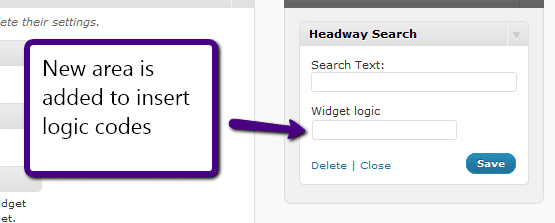
    The plugin is install as any other plugin, once activated a new form field is added to the bottom of your sidebar widgets.

    Compose a logical statement and add it to the widget logic form field and you will only see that widget when the conditions are met.

    Wrap Up

    Widget logic is an excellent plugin to help control where widgets are displayed, if you are using WordPress as a CMS, and not a blogging platform this is an excellent tool to add to your toolbox.

    If you need help building your logical statement you know which link to follow hint this one https://dev.neilmatthews.com/wordpress-technical-support

  • Plugin Review: My FTP

    Plugin Review: My FTP

    One of my favourite tools as a WordPress techie is a tiny plugin called MY FTP, is has helped me too many times to remember, I thought a quick post on this excellent utility would be a good idea.

    Here is the download link http://wordpress.org/extend/plugins/myftp/

    What Is MY FTP

    It is a plugin that creates an FTP console inside of your WordPress dashboard.  FTP standard for file transfer protocol, and once this bad boy is installed you get the ability to navigate your WordPress file system, upload files and even edit files.

    One limitation of MY FTP is that it uploads only, there is no download function.

    The Real Power of MY FTP

    The real power of MY FTP is not it’s FTP capability, rather it is that is allows you to edit WordPress files without the need to have FTP credentials.

    Imagine you need to edit the wp-config file and don’t have ftp access to a site, just install MY FTP and there you go, open up the file browser, navigate to the file in question and click on the edit button, excellent.

    Imagine you need to add some plugin code to a theme file, but cannot get access to that file because it is buried deep in the file system, bingo fire up MY FTP browse to that file and make your changes.

    Installation

    The plugin has a standard installation, either search for “my ftp” note the space there is a clone with no space from the plugin dashboard or download it from http://wordpress.org/extend/plugins/myftp/

    A Word Of Warning

    Absolute power corrupts absolutely, you can really screw up your site with MY FTP if you don’t know what you are editing. Use it with caution, if you don’t know what you are doing, call in the experts, you have been warned.

    Wrap Up

    As I have said MY FTP has gotten me out of all sorts of technical support pickles, check it out.

    Image by trainor

  • Plugin Review: Login Lockdown

    Plugin Review: Login Lockdown

    Here’s a screen cast presentation demonstrating the security plugin login lockdown.  This is one of my recommended security plugins

    This is my first attempt at screen casts to demonstrate plugins, please let me know how this format works for you.

    About Login LockDown

    Security plugin to stop mullitple unauthorised access attemps

    Download from http://wordpress.org/extend/plugins/login-lockdown/

    Image by chrissy575

  • Plugin Review: wp-malwatch

    Plugin Review: wp-malwatch

    A plugin I have found recently is wp-malwatch, and it has quickly gone onto my must have list of plugins.  Let me tell you about it and urge you to get it installed on your system.

    What is wp-malwatch?

    It’s like an anti virus scanner for the files on your WordPress install.  So if someone has hacked your site and installed malware code on your system, wp-malwatch will help you find it.

    Installation

    wp-malwatch is much like any other plugin, you can either search for it and install it or download it from here http://wordpress.org/extend/plugins/wp-malwatch/

    Configuration

    Once installed there are a number of config options, plus one special hint I will give you.

    To configure the plugin goto the wp-malwatch-> configure option.

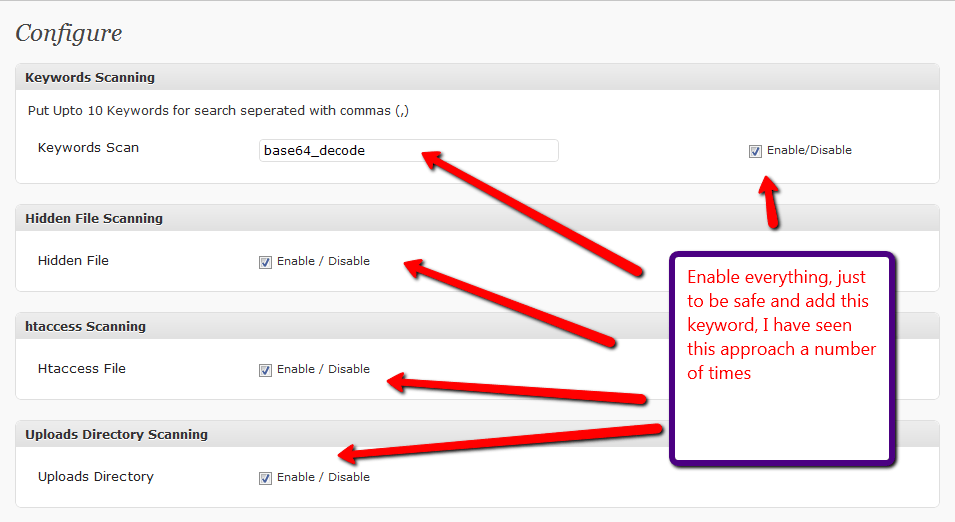
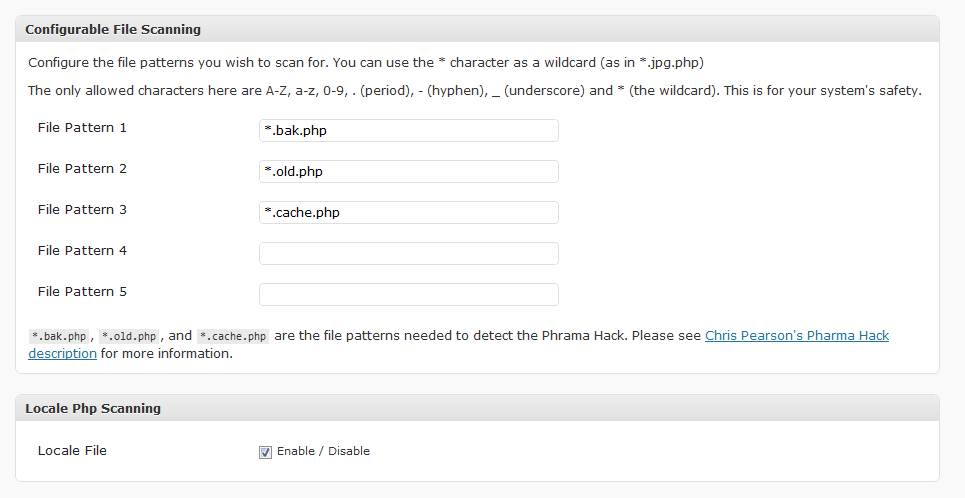
    bizarrely, not all of the options are enabled, I say switch everything on.  See the screen dumps.

    Keyword scan – this check inside of your WordPress files for particular strings, as you can see from the screen dump I have added base654_decode.  An increasingly popular way to hide hackers code is to encrypt it, if you see files with base64_decode and huge strings, this is probably malware code.

    Hidden files scan – hackers often setup hidden files which contain suspect code, this option will find those files.

    .htaccess scanning – another trick is to add malicious re-directions to .htaccess files, wordpress normally has these files, but you should be wary of the contents of these files, and any additional .htaccess files you find

    uploads directory – this is a favoured technique to hide php script files deep within your upload file structure, this is not an easy thing to find, but this excellent plugins searches for the miscreants.  This has found issues on a couple of my clients sites and saved me hours of searching.

    File pattern scanning – like virus signatures, some hack attacks have specific file patterns, these are the known attack signatures.

    Locale scanning – the file locale.php is often targeted by hackers and rogue redirects added, this needs to be scanned

    Running the Scan

    A widget is added to the dashboard home page of your site, or you can run the scan from wp-malwatch->detailed report.

    IT WILL RETURN HITS DON’T PANIC

    The plugin will now return a list of files which are suspicious, review each file, and view it’s contents.

    False Positives

    WP-Malwatch errs on the side of caution and brings back anything matching  your search patterns, which is good, but requires that you have the ability to review and understand what it has returned.  There will be some false positive results.

    For example there will be a .htaccess file in the root of your site, this will be flagged up.

    Remove Malware Files

    If you have been infected, I recommend re-installing a clean version of WordPress, and any plugins or themes that have been infected, and deleting any files which should not be there for example in the uploads directory.

    Then change all of your passwords; database, ftp and WordPress users.

    How Often should Your Test Your Site

    I recommend once a week, it does not take very long.  A function I would like to see on the plugin is an automated weekly or monthly check that send you an email of the results, but hey you cannot have everything in a free plugin.

    My  Results Are Freaking Me Out!!

    If you need help translating the results of wp-malwatch to see if you have been infected, why not book a coaching session with me and I can take you through the results.

    Image by jlwalker

  • Lightweight WordPress Visitor Stats

    Lightweight WordPress Visitor Stats

    If you are anything like me, you like to look at the stats on your site.  Which posts are popular, where your visitors are coming from.  I want to tell you about a nice lightweight stats package that I use to give you this information at a glance.

    Google Analytics

    I have google analytics installed on my site, and I will use this less than once a month.  It gives you very detailed and in-depth stats about your sites, and I DO recommend that you use GA, it’s free and easy to install, but for at  a glance day-to-day stats I want something less detailed and easier to use.

    WordPress.com stats

    I have the wordpress.com stats plugin installed on my system.  This plugin was developed for hosted wordpress.com blogs, but has been made available to the wider WordPress community.

    You install it like any other plugin, and it gives you a dashboard widget and a more detailed site stats page.

    The plugin can be downloaded from http://wordpress.org/extend/plugins/stats/

    API Key

    The stats program uses your wordpress.com api key, the same one used by Akismet.  To get an API key visit wordpress.com and sign up for a free account, then go to the dashboard and retrieve your API key.

    It is not he easiest thing to find, have fun.

    So what does it give me?

    Using WordPress .com stats I can get an “at a glance” overview of my sites performance.  I can then drill down on the various stats to get more details information.  My at a glance screen gives me

    • Total site visitors for the last 30 days
    • Top ten referrers (where the  traffic came from) for yesterday and today
    • Top ten posts or pages for yesterday and today
    • Top ten search engine terms for yesterday and today
    • Top then click aways (useful for people watching affiliate sales) for yesterday and today
    • Recent incoming links

    For me this is more than enough information to get a quick overview of how my site is working, if a new blog posts is resonating with people, if my marketing is bringing people to my services page.

    Check out these screen dumps for an idea of the graphs and stats http://wordpress.org/extend/plugins/stats/screenshots/

    You can click into any of the stats and get more detailed over time results.

    Give It A Go

    It is not the most powerful stats package out there, if you need details such as bounce rate or segments from where your visitors are coming from you definitely need something like google analytics, but a quick check to see if people are reading your stuff, and wordpress.com stats will suit you down to the ground.

    I’m keen to know which other stats packages people use, drop me a line in the comments if you are using something not mentioned.

    Image by kevinzhengli

  • Using Gravity Forms to Create Blog Posts

    Using Gravity Forms to Create Blog Posts

    I did a review of Gravity forms the other day, but missed off one of the best features of this tool, and thought an update was required.  Here is my original review https://dev.neilmatthews.com/plugin-review-gravityforms

    You Can Have Site Visitors Create Blog Posts from Contact Forms!

    How cool is that, in the past I have done this type of work in a very convoluted manner by setting up post by email, but all you need to do when you have Gravity Forms is setup a form, and using the special form fields, you can pull together all of the

    User Generated Content

    If you have a lot of guest posts or for some reason need user generated content, then this may be for you.

    How It Works

    You setup a contact form as normal, but using the special fields in Gravity form, you add post title, post content categories tags etc (see bottom of this post).

    A visitor to you site can now add a blog posts from this form without logginng into your backend dashboard.

    Approval Process

    Once the post has been added it is held as a draft and then an admin or editor level user needs to approve it before it appears on your site.

    Check Out Gravity Forms

    If you want user generated content, but don’t want to give users access to you backend dashboard, then check out gravurity forms for this task.

    If you found this review useful please use my affiliate link – buy Gravity Forms.

    Write A Post

    If you feel like writing a guest post for me, please use the form below

    [gravityform id=14 title=false description=false]

  • Plugin Review: Maintenance Mode

    Plugin Review: Maintenance Mode

    When you are making changes to your site such as implementing a new theme, you may not want visitors to see your site as a work in progress.

    People will make a snap decision about your site, if it is not looking at it’s best you risk loosing that visitor as a subscriber or as a customer for your products or services.

    Guess what there is a plugin to solve this problem.

    Maintenance Mode

    My favourite plugin to solve this problem is called maintenance mode http://wordpress.org/extend/plugins/maintenance-mode/.

    This plugin allows you to intercept all visitors to your site and display a maintenance message to them letting them know your site is offline for a short period of time.

    How It Works

    The plugin checks to see if the site visitor is logged in, if they are, they can see the site as normal, if they are not logged in, a special message is displayed, telling people the site is offline for essential maintenance.

    Set Your Own Splash Page

    The message displayed to visitors is completely configurable, but be aware this is an html page so some understanding of the markup tags is required.

    There is a default message you can tailor.

    Options

    There are a number of options for this plugin including:

    Make certain pages / posts available during your maintenance mode.  This is very useful if you have vital pages you need available during your downtime.  An example of this may be your services sales page if you are running an advertising campaign.  You don’t want to pay for advertising clicks that cannot connect to their target page

    There is an option to set a search engine friendly 503 service not available code, this tells the search engines your site is down for maintenance and not to attempt to re-index.  This may protect your site rankings if you are planning to take your content offline for an extended period of time.

    Disable back end access to admins only.  If you have users on your site, if they login they could get access to your content, if you want to lock everyone out, use this option.

    The Nagging Message

    One great feature of maintenance mode is the red nag box, it is very easy to forget that your site is locked down when you are logged on and can see the site as normal

    I have fallen foul of this a number of times, please remember to deactivate the plugin as soon as your site is back up.

    See it In Action

    I am currently working on a project with Jonathan Woodward , we are not ready to take the covers off our venture, so the site is wrapped with maintenance mode.

    I customised the message by adding a sign up form for our email list.

    Get an idea of what the plugin looks like at premiumheadwayskins.com

    Wrap Up, Keeping It Under Wraps

    If you have a need to stop access to your site for a short period of time, consider using the maintenance mode plugin.

  • Plugin Review: Gravity Forms

    Plugin Review: Gravity Forms

    I recently changed the contact form plugin I use on my site and I want to let you know about a great new plugin I have found called Gravity Forms.

    DISCLOSURE: links to gravity form are affiliate links.

    What Was I Using

    I was happily using contact form 7, an excellent and slick little plugin which provides most of the contact form requirements I need, but there was still the last 20% i needed which  couldn’t get from my current plugin.

    What Was The Problem

    I need a little more from a contact form than contact form 7 supplies me.  I needed the following:

    The ability to capture the php referer variable and the query string to see where my contact requests were coming from, is something I really wanted, there is no simple way to code contact form 7 to do this.

    Redirection to another page upon completion.  I need the redirection to enable a conversion tracking script. I was able to hack the plugin and re-code it to do this, but every time I updated the plugin, I had to re-code it,what a pain.

    What Gravity Form Brings To The Table

    Gravity form is a premium plugin that meets my needs and then some, using Gravity form will greatly streamline my service business estimation process by adding new clients to my Freshbooks system, and creating a draft estimate, add all new potential clients to my mail chimp mailing list, let me capture where my leads are coming from, let me automate my referral payment system, redirect to my conversion script page, send out an autoresponder message to my clients to let them them know they are in the system, I am one happy bunny.

    This is one feature rich plugin,a full list of Gravity form features can be seen at Gravity Forms.

    Integration Movement

    There is an excellent thing going on in the software as a service industry which allows service to integrate with one anther, this is where Gravity Forms really won me over was that I can integrate a contact form with the other systems I use to run my business.

    From one contact form I can:

    1. Add the person to my mailchimp email list
    2. Create a new user and prepare a draft estimate in my freshbooks account.
    3. Capture the querystring – I use this to mark my estimates with affiliate IDs (want to join my affiliate system)

    This may not seem a big deal to you, but I prepare quite a few quote each week for my services business and having to re-type contact details into freshbooks and then importing these contacts into my email list is a time consuming and dull, and if you are anything like me dull tasks get overlooked.  As a result I was not recording new clients some of the time.

    Cost

    This is a premium plugin,but I think the functionality it adds over free plugins makes it worth the while.

    • single site: $39
    • multi site: $99 (up to 5 sites)
    • developers: $199 (unlimited sites)

    Need A Better Contact Form?

    I purchased the developers license of Gravity Forms so I can build my clients cool interactive forms, request a quote for me to do this for you on my WordPress helpdesk (powered by Gravity Form)

    Alternatively why not buy a copy if you found this review useful please use my affiliate link – buy Gravity Forms.

  • Plugin Review: After the Deadline

    I was griping the other day on Twitter that the default spell checker that comes with WordPress throws a typo up for each instance of WordPress I type, this irony was not lost on me.

    When I shake my fist at the universe and have a good old grump on Twitter, I usually find someone who will tell me a solution, this time I was not disappointed.

    Stop The Presses

    I have found a replacement for the standard visual editor spell checker, and this is called After The DeadLine.  The name comes from a review process the Times runs which picks up and highlights typos, grammatical errors and style errors which have gone to print, the deadline has gone, so the errors were published.

    Letter To The Editor

    After the deadline has been acquired recently by Automattic the lovely people who wrote WordPress, so you know it is going to be good.  I’m reading between the lines here, but I guess they saw the need for a better spell check solution.

    You are not going to cough up your hard-earned money to buy a solution if it is not up to par.

    Hold The Front Page

    After the deadline is a spell check and  plugin for WordPress with a little more added on, it also has a grammar checker and a style guide.

    You are probably familiar with spell checkers and grammar checkers, but style guide for those of you who have not studied journalism is a standard style of writing something so it is consistent across your publication.  For example if you date style if October 21st, an incorrect style would be 21st of October.

    Is Your Source Reliable?

    You can download After The Deadline here http://afterthedeadline.com/

    Installation Insanity Ensues

    Installation is a standard affair, upload th plugin to your wp-content directory and activate it.  The plugin requires an API key, this is where I cam a little unstuck.  I presumed since it was an Automattic plugin it would be the usual API key I use for Akismet and WordPress.com stats, but no it is a separate api that you need to register at afterthedeadline.com to retrieve.

    Come on Automattic, how you make my life difficult, I am of course joking,I am sure this will be transitioned in due course, this is a fairly new acquisition for Automattic.

    What The Plugin Does, More On Page 13

    The plugin is a direct replacement for the existing spell checker and is activated from the visual editor by clicking on the spell check icon

    spellcheck

    The plugin will underline the perceived errors, red for typos, green for grammar and blue for style issues.

    Clicking on teh highlighted word or phrase provides a drop down of suggested replacements, standard fare for a spellchecker.

    My Two Cents The Weekly Column of WP Dude

    I really like this replacement spell checker, it has a slicker interface, and a bigger database of words.  As an Englishman, is appears to cater for my spelling style (s instead of z in words like utilise) and the style guide will help to keep my “blog voice” standardised.

    Using After the deadline is more like the spellchecker of a word processors than an after thought to the visual editor.  Check it out you will not be disappointed.

    Other Plugins By Automattic, Struggling to Get A Print Journalism Cliche in Here

    Here are some of the other excellent plugins supplied by Automattic

  • WordPress Membership Plugins

    WordPress membership plugins and the sites they help  you to build are the new hip way to make money as a blogger.  This is largely thanks to the hugely successful programs from Yaro Starak  Membership Site Mastermind and Brian Clark Teaching Sells.

    In this post I want to talk about what WordPress membership plugins do, the criteria I use when selecting a plugin and lastly I stack three popular plugins up against each other using my criteria to see how they perform.

    What Is A WordPress Membership Plugin?

    A WordPress membership plugin is an extension of your existing blog which allows you to protect certain areas of your blog and only let registered users read or download content. You can then charge for that content, whilst giving away other posts for free.  This is also know as the freemium business model.  This is great as you can prove your authority over time with quality free blogs posts and then create a premium section.  Your existing readers are already sold on your knowledge and are likely to take up the premium section.

    Why is this good for bloggers?  Well you can create your own products to monetise your site rather than relying on adsense or other peoples affiliate programs.  This creates an income and increases the value of your blog if you want to sell it on in the future as a going concern.

    The plugin will deal with the complex process of signing up new users, integrating with a payment processor such as Paypal, granting access to content and protecting content if someone leaves your membership site.

    These plugins are inevitably premium and you should expect to pay in the region of $50-$100 for your membership site config.

    What To Look For In A WordPress Membership Plugin

    I have worked with quiet a few membership site plugins,  here is my shopping list of features you should look for:

    Payment Processing

    You want to look for a plugin which can handle the major payment gateways, by that I mean Paypal,1Shopping Cart, Clickbank etc.  Your plugin developer should already have done the hard work integrating with a credit card processor, you should only need to supply your credentials so money is deposited to your account.

    You should also look for a membership site plugin which will deal with cancellations of the recurring payment on you site and automatically remove premium content from users who do this.  An example of this is Paypal IPN integration.  If a user creates a subscription and then cancells it, there should be a system in place for paypal IPN to contact you site and mark a user as unsubscribed and be removed from access to your system.

    Affiliate Marketing.

    Ideally the plugin you choose should allow you to record affiliate sales.  Affiliate sales are when you partner with other site owners to promote and sell your membership site.  In return you will pay them a commission for each sale made.

    Affiliate marketing is one of the most powerful way to market your site to a wide audience, and since a membership site is a write once, sell many model, you can quite happily sell in bulk and pay your affiliates a decent commission.

    The way an affiliate marketing system works is that your partner will signup and be given a specific URL to direct people to your site e.g.

    wpdude.com/?aff=bob

    Your affiliate software will pickup that the visitor is from Bob’s site and setup a cookie, if a sale is made, another script is run, if the cookie is set then a sale is attributed to bob.

    The thing to look out for in your membership plugin is the ability to run that second script which records the sale. There is an alternative to this, and that is to use a payment processor which has an inbuilt affiliate system such as Clickbanks or 1shoppingcart

    For more details on affiliate marketing, I suggets you read Darren Rowse’ category on affiliate programs http://www.problogger.net/archives/category/affiliate-programs/

    Protecting Content

    Your membership site must have the ability to protect content from none paying site visitors, this is an obvious thing, but content can be protected in a number of ways.

    Protection of pages – restrict if a visitor can see a particular page

    protection of posts – have the ability to mark a particular post as premium content

    Partial protection of posts – Does you plugin have the ability to provider a teaser of a page or posts content and have the rest password protected.

    Categories – Other things you may want are to protect whole categories

    Downloads – If you site has multimedia content, you may want to protect what can be downloaded from your site, check to see of your plugin of choice can protect a link to a file on yoru system.

    Membership Levels

    You may want various levels of content protection in your program for example there may be some free basic protected content and then a gold level membership.

    Another area to consider are free trials, does your plugin give you x days free before locking down asking for payment?

    Integration with email autoresponders

    Conventional internet marketing wisdom says get someone onto your email list and you can convert that users much more easily, so is there the ability to integrate your membership site with an autoresponder?

    Sequential content delivery

    Membership sites attempt to retain members for as long as possible and recharge them with a recurring subscription fee.  I like a membership site config which allows me to drip feed users with content allowing a controlled delivery of content rather than informaiton overload which can cause people to drop off your membership site.

    After sales support

    These types of plugins are complex.  You need to have confidence in the after sales support of the team who developed the plugin.  You are fundamentally changing the way your site works when you install a membership site plugin, can you be confident that there is support at the end of an email to help you out of your site goes phutt once the plugin has been installed.

    The Plugins I have used And How they stack up

    I have worked with three of the top wordpress membership plugins, they are:

    • Your Member
    • WP-Member
    • WishList Member

    Here is a matrix of how they stacked up using my critera above:

    Your Member Wp-Member Wishlist Member
    Price $50 $44.99 $97
    Payment processing all main suppliers covered all main suppliers covered all main suppliers covered
    Affilaite Marketing You can run scripts on payment completion You can run scripts on payment completion You can redirect to a specific page which can contain your
    code upon payment completion
    Protect Pages Yes Yes Yes
    Protecdt Posts Yes Yes Yes
    Particl Protection Yes Yes Yes
    Pay per post Yes Yes No
    Download protection Yes Yes Yes
    Autoresponder support need to code or use their premium autoresponder plugin No Yes – aweber and autoresponse plus
    Sequential content delivery Yes, No Yes
    Multiple levels of membership Yes Yes Yes
    Support Not the fastest, but answers were there after a couple of
    prompting emails.The support forums are a bit cumbersome
    I have not used their customer support Excellent customer support, my query was answered quickly
    and the resolution was excellent
    URL newmedias.co.uk wpmember.com member.wishlistproducts.com
    Misc. Notes Stouts lads from the north of England just like me. Caused me problems creating a page with the same name as a
    deleted protected page, Annoying nvaligation nosises on their site:)

    My Recommended Plugin

    I recommend wish list members, it is a very close call with Your Members, but the after sales support is more slick.  It is the most expensive, but the native Aweber support makes up for that cost.

    Need Help Building A WordPress Membership Site?

    If you need help integrating your blog with a membership site plugin, I would be happy to give you a quote, please visit my service page and let me know your requirement.

  • Plugin Review: All In One Seo Pack

    WordPress does a greate job of SEO out of the box, but when you add in a dash of All In One Seo Pack, and a sprinkling of SEO theory, you are heading for organic search heaven.

    Many of the new breed of plugins such as Thesis and Headway are SEO ready out of the box, but in case you are not using one of these themes, you should check out all in one seo.

    What Is All In One SEO Pack

    It’s a plugin which takes the key areas of your site and allows you to add the keywords which will bring visitors to your site.

    Just in case you are not 100% sure about keywords, this is the word or phrase that someone will type into Google which should match them to your site.  For example if you run the red widget blog, you may want to attract peoples attention with the keyword “metal red widget”  If you can optimise key areas of your site with that phrase.

    Where you Need To Optimise

    Here are the areas you need to consider and optimise with your keywords.

    Page Title – This as the name suggests is the title of the particular page of your site, this is the single most important area where you need to optimise yoru site,.  You can see it from the top of your browser bar, here is the page title of the root of my site.  Here is the game, can you tell what my desired keyword is?  Leave a comment.

    pagetitle

    Site Meta Description – This is the description which appears on the results page of a search on Google or one of the other search engines.  Here is the meta description for my home page

    metadescriptionAre you any closer to my main keyword yet?

    Site Meta Keywords – There is a lot of discussion in the SEO world that adding keywords to your site no longer works.  People caught onto this, stuffing  hundreds of keywords in their code and “gamed” the system, but still it does no harm to add your keywords here,.   The meta keywords are pieces of code on your page which are not displayed but tell the search engine something about that pagee, if you do a view source of my home page you will see my keywords meta as

    <meta name="keywords" content="wordpress help, wordpress support, wordpress technical support" />

    Come on I’ve spelled it out for you now.

    How All In One SEO Pack Can Help

    Once you have installed and activated the plugin, you can begin to optimise your site as described above and add descriptions and titles which are useful both to your readers and contain your desired keywords using an easy GUI tool.

    There are two ways to modify your site, on a post by post basis or site wide.

    Site Wide Settings

    From the settings -> all in one seo pack menu, you are given an area where you can set your home title, site metas description and keywords.

    The plugin comes with some other advanced options such as canonial URL support to stop duplicate content problems but using the 80/20 rule, put your effort into the areas mentioned above for the most effect.

    Per Post SEO Settings

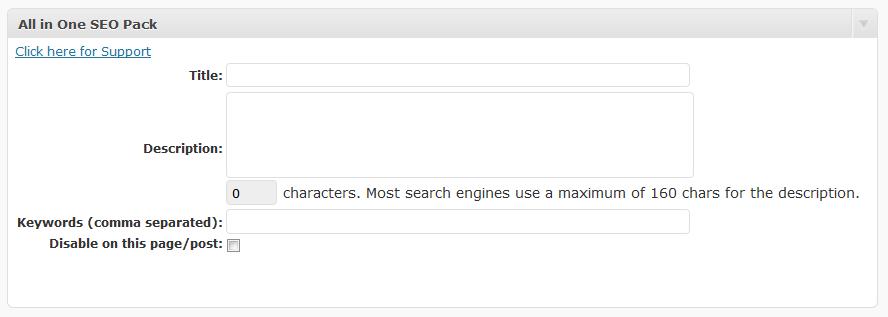
    You can change your posts individually, SEO pack allows you to create a keyword rich title and description.  This will overide the title you set when writing your post.

    The following SEO section is shown at the bottom of post editor screen.
    perpostseo

    How I Use All In One SEO Pack

    This is my seo plugin of choice, I have my site optimised for a particular keyword and I am working on my offsite configurations to rank for this, at the time of writing I am on page three and climbing.

    I also pay particular attention to my per post configurations to get my keywords into titles and metadescriptions.

    KeyWord Research

    One more thing to consider before you stuff your sections with keywords is the competitiveness of the keyword you are planning to use.  you may think your widget site needs to rank for widget, but in reality you only sell red widgets.  Go for the more specific keywords relating to your site.  The second thing to consider is the competitiveness of your keyword.  If everyone and their dog is trying ot rank for widget and have been for years, you as a newbie to SEO will not have much of a chance without years of hard work.

    Here are some tools to help you research your keywords:

    Google Adwords KeyWord Tool – inside of the adwords pay per click systme you can research keywords to see how often they are called from the google index, and how many other people are advertising on them to get an idea of hte competitive nature of the keyword

    Wordtracker – use this tool to anaylse prospective keywords and use it to give you less competitive search phrases.  This is a paid tool, but there is a seven day trial period.

    Get All In One SEO Pack

    The plugin is available to download and install from http://wordpress.org/extend/plugins/all-in-one-seo-pack/

    A Disclaimer On SEO

    The search algorithm used by Google is one of the most closely guarded secrets, it’s like what herbs and spices go into KFC coating or the recipe for Coke.  No-one really knows what Google looks for, rather all of the suposition is from testing done by people trying to decipher this riddle and what they have seen work.

    Google changes their algorythm on occasions so what is SEO best practise now will not be in the future.  The information provided here is the current thinking of what makes up good on site optimisation.

    Further Reading

    SEO is a huge topic and there are other areas you need to consider over and above what All In One SEO Pack does.  I have not touched on permalinks, keyword density, optimising images alt text, use of keywords with your h1 .. h6 header titles.  Lastly I have not touched on off page SEO, getting links to you with the correct anchor text to backup your work.

    You may want to check out my post on changing your slug for SEO, this is another very important area

    The man who wrote the book or blog post on WordPress SEO is Yoast, he takes these ideas and add some more tweaks over and above what all in one seo does.   Here’s an idea of how good he is, type wordpress seo into Google and see who comes out tops.  Say no more

    Lastly I would like to point you to a couple of paid resources, Namoi Dunford the potty mouthed owner of Ittybiz wrote the e-book Seo School, this is the resource which finally gave me the lightbulb moment on seo.  The other resource I want to point you to is Michael Martine and his e-book WordPress SEO Secrets.  Either of these will help you to get seo for WordPress.

    My Final Thought On SEO

    Write for people not for search engines, but where you can tweak for search engine spiders, if you stuff your titles and descriptions with keywords and it makes no sense, what use is that to your readers?

    We blog for people not rankings.

    UPDATE: WordPress SEO Training Available

    I have recorded a video training session about WordPress SEO for my WordPress training and support community the WP Owners Club.

    I’ve got a 14 day free trial at the moment, why not take out trial membership and check out the training, here’s what you need to do

    1) Sigup for a 14 day free trial account at wpownersclub.com/sign-up

    2) Go to http://wpownersclub.com/wordpress-seo and watch your training

  • PLUGIN REVIEW: My Backup Plugins

    I am always harping on that you need to backup your WordPress installation, check out my post on when I think you need to backup your blog at 6 Key Times You Should Backup Your WordPress Blog

    This posts is a review of  the two plugins I use to backup my blog.

    Why Do I Need A Backup

    Computer systems go phutt on an all too regular basis, having a backup allows you to rebuild your blog with the minimum effort.  Consider the time and effort you have put into developing your posts and your cool theme, this needs to be archived so you can recover in the event of a catastrophic failure, hacking attack or user error – bugger did I really click drop from my MYSQL console.

    What You Need To Backup

    There are two components you need to consider when doing a WordPress backup, the data in your MYSQL database and what I call the codebase or the files which make up a WordPress install.

    The database is commonly backed up by most people, but who considers their codebase?  This includes all of your uploaded media, any mods you make to your theme or your blog code and the latest natty plugin you added to your blog.

    How Often

    The frequency of backup should be done in line with how often you update your blog, if you write posts daily, backup daily, if you are uploading lots of media, backup the codebase frequently.  Do it often, and do it early.

    My preference is once daily for my database and weekly for my code base.

    The Plugins ..

    I use the following two plugins:

    WordPress Backup (By BTE) – for codebase backup

    WordPress Database Backup – for database backup (no shit Sherlock, I can tell that from the name)

    There are many more at the WordPress plugin directory, have a look at http://wordpress.org/extend/plugins/tags/backup

    WordPress Baclup (By BTE)

    This is a great little plugin which takes a copy of my plugin, theme and upload directories and copies them into a directory under wp-content as a zip file.  The zip file is then sent out via email.

    I have this set to run once a week, but you can set it to daily or monthly.  There is no on-demand option.

    To restore from this backup, unzip the files and FTP them back to your host.

    WordPress Database Backup

    I did a quick straw poll on Twitter and the majority of repliers were using this plugin to backup their database.  The same poll suggests people are not backing up their codebase.

    WP Database backup allows you to backup all, or a selction of your MYSQL tables, and have that backup saved to your hosting server, downloaded or sent via email.   Like WordPress backup there is a scheduler but there is also an on-demand function, useful if you want a quick back before a change to your blog.,

    The output is a SQL command file which when run against the database to recreate the tables and data.  Please note a certain level of MYSQL knowlege is required to recover from this method.

    Archiving My Backups

    I use Gmail as a sneaky way to archive my backups, I have a rule to move the emails to my archive automatically, this means I have a number of checkpoitns with my backups so I can do a point in time recovery.

    Testing Your Backup

    It is all well and good having a backup, but have you tested your recovery process, I wrote a guest post on Problogger about this subject, check it out at http://www.problogger.net/archives/2009/02/12/testing-your-blog-backup.

    The Missing Link

    My complete WordPress install i..e wp-includes, wp-admin and the files in my blog root are not backed up by these two plugins so I keep a copy of my latest WordPress install files to hand, just in case.

    Conclusion

    There are a number of backup plugins out there, please please get some installed before your blog goes tits up and you end up attempting to recover your blog using this technique – Feck Arse and Google Cache