Neil Matthews

Category: Plugin Review

  • Plugin Review: BackWPup

    Plugin Review: BackWPup

    I want to take you through a review of a plugin I highly recommend called backwpup.  This is a plugin which takes regular scheduled backups of your site.

    http://wordpress.org/extend/plugins/backwpup/

    I used to go on about the benefits of backupbuddy but I’ve gone off that plugin because I’ve seen it failing to take backups 0n a number of sites due to size, timeouts and other php issues.  This is not something you can have working some of the time an not others when you are talking about backups so I went looking for an alternative.

    Backwpup also has the added bonus that it is free, the other quality backup plugins and services are usually premium.

    You Are Taking Backups Aren’t You?

    It still amazes me to see the number of sites that are not taking backups in the mistaken understanding that their hosting company is doing it for them.  This is not always the case you should always take a backup.

    Install a backup plugin now and starting taking your own backups on a regular basis.

    File And Database Backups

    It is very important to remember that WordPress is made up of two components  the database which contains all your data and variable settings and the file base which contains your WordPress scripts, themes, plugins and any uploaded media such as images, videos, pdf etc.

    Many plugins backup the database, but only a few do both, backwpup is one of those.

    Scheduled Jobs

    The plugin allows you to schedule backup jobs which run automatically, if you are anything like me, you will forget to run backups and right when you need an archive you wont have one.

    I recommend have a backup routine of daily database backups and weekly full backups of database and file base.  BackWPup allows you to do this.

    Offsite backups

    Another great facility is the ability to push your archive files off your site.  This means you have an offsite copy of your data in case anything catastrophic happens to your hosting account.

    With an offsite backup you can always rebuild your site.

    BackWPup allows you to push your archive to an ftp site, amazon s3, your drop box account and a number of other services.

    Alerting

    The system has email alerts if anything goes wrong, please please check your backups, during my days in corporate IT I can remember three or four times when I came to do restores only to find the archives had failed and we were not aware of that.

    The alerting email systems tells you about completed backups but also reports on an issues found during the backup.

    Restoration

    Backwpup comes with a restoration script, fingers crossed I’ve not had to restore a backup yet, and I haven’t use this script so I cannot comment on how good it is.

    The documentation suggests it will take the database files and restore them automatically for you.  It’s very important to know how to recover in the event of a failure.

    Wrap Up

    If you don’t have a backup schedule in place or you only have a partial backup I recommend you download and install BackWPup.   I’m using it on all my sites now, and with my clients too.

    http://wordpress.org/extend/plugins/backwpup/

    Photo Credit: Daniel Leininger via Compfight cc

  • Plugin Review: Premise Membership Sites

    Plugin Review: Premise Membership Sites

    You are all probably aware of the premium plugin Premise and it’s landing page functionality, but did you know if also has membership site abilities too?

    I used the membership site functionality on my latest WordPress Performance Tuning Course and found it really effective.

    If you are looking to sell your content, then Premise is well worth a look.

    An Overview Of Premise

    In it’s first incarnation, Premise was a premium plugin designed to build landing page.  It was designed to build and test sales pages, video landing pages etc.

    They have extended the plugin and added membership site features so you can build landing pages then deliver your information products all in one neat little suite.

    The team behind Premise are the Copyblogger people, they also build Scribe the SEO plugin and various information products such as Teaching Sells.

     What It Costs

    As mentioned Premise is a premium plugin it costs $165, which is more expensive than it’s competitors, but that is a one off price for unlimited sites and matches it’s competitors multi site license costs.

    It’s more than just a membership site plugin as it has the landing page stuff, but a lower priced single site option would be  a good idea.

    It has a 30 day money back guarantee.  I did a test drive of the original Premise and did not like it and found getting my money back very simple.

    Installation

    Installation is fairly simple, you install the plugin, add your license key and then there is a little bit of configuration.

    You need to create and configure three pages, checkout, login and members page which involves creating pages and adding short codes.  The documentation is good, but hidden away.  You have been warned.

    A word to the Premise team – a setup wizard for none-techies may be a good idea to get people up and running quickly.

    Shopping Cart Integration

    Premise integrates with Paypal and Authorize.net.  Not as many as the competition,  I always use Paypal so that is not an issue for me, but 1shopping cart people may be put off.

    Paypal uses IPN for recurring payments, a much better method than Wishlist member uses and a great way to ensure your recurring payments are processed correctly, and for closing down access if people cancel or payments fail.

    Problem with payments when using Wishlist member was my main reason for trying Premise, I’m happy to say I had none during my course launch.

    Mailing List Integration

    Premise integrates with Aweber, Mailchimp and Constant Contact.

    I was very very impressed with the Mailchimp integration.  It uses something called single optin so I can be sure that once someone has joined my membership site they are also added to the mailing list for the course.

    Imagine the scene,  you’ve just joined my membership site, Paypal has sent you an email, my website has sent you and email and my mailing list has also sent you a double optin request.  Too many emails,  and in my experience, 50%-60% do not complete the double optin process and are not added to your membership site email list.  A list you may use to tell your members when new content is ready etc.

    With Wishlist Member I found I had to manually export users and import them into Mailchimp to ensure they were in my list.

    Content Protection

    Nothing earth shattering in this section,  it works very much like any other membership site.

    You setup a membership access level which integrates with what Premise calls a product.  A product is the sale price which integrates to your shopping cart.

    On your sales page you create a link to a product which upon payment integrates with an access level.  Sounds complex but it’s not.

    On posts and  pages there is a check box to protect that content for members of a particular access level – pretty standard fare if you have used a membership site plugin before.

    There are short codes to partially protect content on a page, for example you can setup a piece of teaser copy and only protect a download or video.

    Talking about downloads, you can setup links to pdfs or other downloadable goodies which are protected for logged in users.  So Premise is a great way to sell you ebooks or video downloads.

    You can drip feed new content to your people over days or weeks to stop  information overload and extend the lifetime of your membership content.

    All of this is implemented in a very slick way and I found it very simple to protect my content.

    Forum Integration

    A featured I’m not using is members integration with the forum software Vbulletin.  This is a premium forum product that I don’t use.

    I would like to see the team extend this and add other forum systems.  A protected members only forum is a great way to add value to your membership sites.

    Personally I use the simple-press plugin and protect the pages it is on.

    Downsides

    There are a couple of features missing in this first edition of Premise membership sites:

    • Your cannot protect categories
    • Notification of new member signups, you need to login and review an orderes report
    • On the landing page side, the need to get the new Google experiments split testing setup asap
    Not major faults but a little annoying.

    Wrap Up

    Premise is playing catch up with more established competitors like Wishlist Member but I enjoyed the plugin because of it’s solid payment collection process and ease of use for content protection makes it a winner in my opinion.

    I’ll be using Premise going forward for my courses and I’m in the process of reverse engineering my old courses to use Premise.

    You can checkout Premise at getpremise.com all links are affiliate links

     Image by tara_siuk

  • Plugin Review: Compfight

    Plugin Review: Compfight

    If you are anything like me,  finding free quality images for your blog posts is a real pain.  Enter Compfight an image search engine for Flickr.

    What Is Compfight?

    It is an image search engine that allows you to find images from the Flickr photo sharing service against a keyword that matches your content.

    That is Compfight.com. there is also a WordPress plugin for Compfight which allows you to do all of this inside of WordPress and to give the correct attribution to the person that created the image.

    http://wordpress.org/extend/plugins/compfight/

    Licensing

    All of the images are licensed under the creative commons license, so they are free to use as long as you give an attribution link back to the original creator of the image.

    There is a standard creative commons and a commercial license, since this is a business site I opted for the commercial license, this means the images are still free, but I have fewer images to choose from.

    Settings

    There are a series of settings you can make on the plugins to control which images are returned.  This is done from settings -> compfight.

    You can set the license as discussed above, set safe search so adult content is never returned, and lastly the most useful function is to set image sizes you want.  I use a standard image size for all my posts of 240 x 180 pixels, setting this as my preference ensures I am only shown images that fit in my theme correctly.

    Getting Images

    There is a new camera icon in the insert tool bar, click on that and you are granted access to a search panel.

    Click for larger image


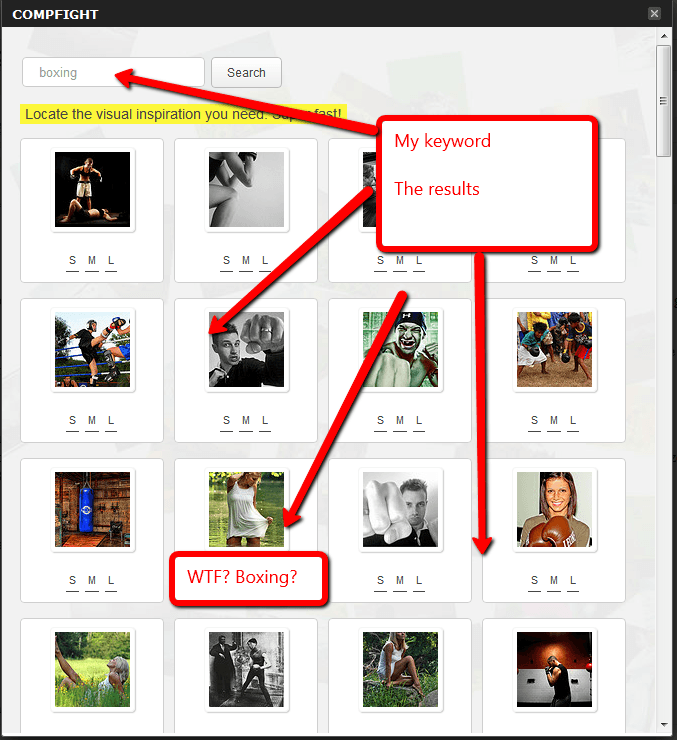
    Type your desired keyword in that panel and your search results are presented.  The algorithm may need some work, but it is far better than the existing search function that comes with Flickr.  If you have ever used that, you will know the search results are very random.

    Click for larger image

    Review the images retrieved for you, click on the one you like, with the size you like and it is automatically inserted into your post or page.  An automatic attribution link will also be added so you comply with the appropriate licensing.

    Major Downside

    One major flaw of the plugin, in my opinion, is that you cannot add an image to the featured image section of a post, only insert it into the body.

    The way my theme works is to take the featured image and show it next to a post and on the blog home page.

    As a result downloading files from compfight.com instead of using the plugin is far more effective for me.

    Wrap Up

    If you struggle to find high quality images to go with your high quality posts then this is a brilliant service or plugin for you .

    Image via Compfight by davehogg

  • Plugin Review: WordPress Editorial Calendar

    Plugin Review: WordPress Editorial Calendar

    I would like to give you a review of the WordPress editorial calendar,  an excellent new plugin I’m using.  Download it at the following URL WordPress Editorial Calendar

    WordPress editorial calendar; What Does It Do?

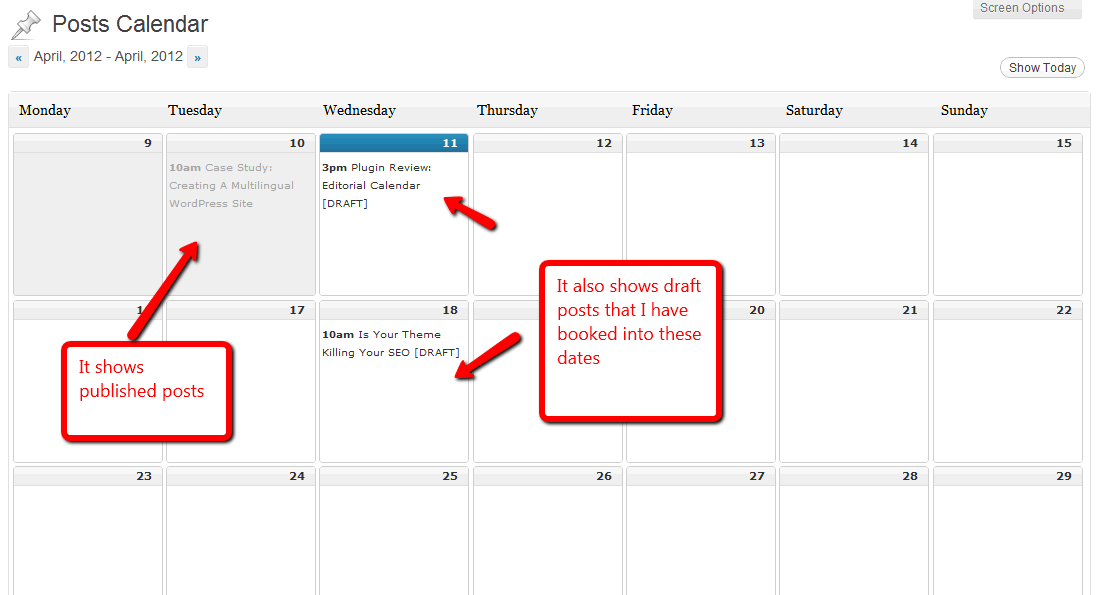
    The WordPress editorial calendar allows you to setup a schedule of posts to publish or write in the future.  It also allows you to create a schedule of posts that are in outline or draft that you intend to write at a later date.

    A new tab is added to the posts menu called calendar, and underneath that you have a wordpress editorial calendar layout of posts, these can be draft, scheduled or published.  You can editr you posts from this screen but I don’t recommend this, rather use editorial calendar as a drafting tool and edit your posts from the normal post editor.

    The Problem Is Solves

    I often get excellent ideas for a blog post and I immediately drop it into WordPress as a draft post, it will sit there for some time and often it is forgotten about.

    Once it drops off the front page of the list of posts, that idea is lost, but with editorial calendar I can set a time when I want to write that post and I’m reminded about it from the visual editor.

    I can drag and drop my ideas to different dates if I change my mind, a great post publishing tool all in all.

    If you have time sensitive offers or content that needs to go out at a particular time of the year the WordPress editorial calendar will be an excellent tool for you.

    Imagine sitting down at the start of the year and planning out all of your content and dropping it into the editorial calendar.

    Here’s What It Looks Like

    Click for full size image

    How I’ve Been Using It

    I use it to draft out an idea, and drop it into a publishing slot, you can then spread your ideas out over a period of time.

    I brainstorm lots of posts and leave them as drafts and the trouble I have is that they drop off the front page of the post editor and they are lost.

    I have not been scheduling my posts through it, but I can see how that would be very useful if I had time sensitive content that I could write now and drop into a calendar in the future (of course you can also use the schedule date function on the normal post editor).

    Get A Copy

    Editorial calendar is a free plugin available at the plugin repository at this URL

    http://wordpress.org/extend/plugins/editorial-calendar/

    Image by 42931449@N07

  • Case Study: Creating A Multilingual WordPress Site

    Case Study: Creating A Multilingual WordPress Site

    In this post I want to give you a case study on how to build a multi language blog to serve site visitors who do not speak your base language.

    I’ve been called in by a number of clients recently to build these types of sites and I want to share with you the easiest way to do this.

    (more…)

  • Plugin Review: Cart66

    Plugin Review: Cart66

    I’m building a new e-commerce setup here at wpdude to sell my downloadable video courses, and as part of that project I’m using a new plugin called Cart66.

    I thought a plugin review was due.

    (more…)

  • How To Create A Multi Lingual WordPress Site

    I recently had the chance to work on a multi lingual WordPress  site for a client in Canada, and I want to tell you about an excellent plugin which will help you to keep multiple versions of your content in different languages.

    My client is based in Canada, so he needed a site which was accessible to English and French speakers, I got my first chance to use an excellent plugin I had seen in passing.

    Introducing WPML

    The plugin I used is WPML, this allows you to create content, and then to add a translation of that content. Then when the language is selected on the front end of your site the appropriate translation is provided. Very neat and very easy to implement.

    The plugin can be downloaded from wpml.org, it also supports multiple languages as you would expect so you can see the plugin in action.

    Installing The Plugin

    The installation is just like any other install, add the plugin and activate it.

    Once activated you need to add your language support.  This involves setting the base or default language, in my example this was english, then you need to add your additional languages.

    You can select multiple additional languages, and there are many to choose from.

    The Language Switcher

    There is a widget which can be added to your sidebar which provides a drop down to select your desired language.  There are a couple of styling options to add flags to represent languages.

    Adding Translated Content

    Here is the function I thought was really handy.  Instead of adding additional blog posts, you add a translation to an existing post.  This keeps the management of your content very neat. When someone switches language, then that version of the content is displayed.

    There is also a switch on your dashboard which switches the admin languages excellent if you have site contributors working in different languages.

    Translation Services

    The company behind WPML Icanlocalize also provides professional translation services, so if you want to provide multi language support but do not have the expertise to create the content, there is a service for this.

    It’s A Big Old Plugin

    I’ve only scratched the surface of WPML, there are many other features such as supporting themes, and plugins in multiple languages, if you have a requirement for multiple languages, I highly recommend this plugin.

    Here’s the link again wpml.org

    Plugin Price

    WPML recently went premium, you will have to pay $29-$79 for this plugin

    Still Need Help?

    My team and I are available to help you build a WPML multi language  site, get a no obligation quote from my WordPress Technical Support Page.

  • Why I Use Mailchimp As My Email Provider

    Why I Use Mailchimp As My Email Provider

    I use Mailchimp to send out my weekly newsletter and numerous one-off email messages (I can hear you groaning already he’s on the sell again :)) I thought I would write a quick blog post saying why I use this over other systems such as Aweber or Contant Contact,

    Free For First 2000 Signups

    I bet that caught your attention, yes Mailchimp is completely free for the first 1000 subscribers you have.  You can send out 6000 emails per month, with a cap on 1000 emails in any 24 hour period.

    This is great if you are just building your list and don’t want to be hit by the fees other email providers impose.

    RSS Integration

    One of the great featured of Mailchimp is the ability to create a recurring campaign based upon the RSS feed of a site.  I use this for my weekly newsletter.  I publish my content at my blog, then once a week, my RSS feed is automatically packaged up as a newsletter and sent to everyone on my list.

    Easy Integration With WordPress

    There are an array of plugins out there to integrate WordPress and Mailchimp.  I use a combination of Gravity forms and the Mailchimp integration, but I have also used this excellent one from Mailchimp themselves http://www.mailchimp.com/plugins/mailchimp-wordpress-plugin/ which allows you to create an easily customisable widget in your sidebar.  There is also a function to call which allows you to place the code anywhere in your theme files.

    Integration With Other Systems

    Mailchimp and a lot of the other software as a service supplies are working together to make integration very easy, for example I used Freshbooks for my invoicing, this integrates with Mailchimp so I could export data from one system into another

    There is a big old list of integration providers, check out this page http://www.mailchimp.com/features/extras/

    Ease Of Use

    I’ve tried systems like Aweber, Constant contact and found them to be pretty un-intuitive, Mailchimp has none of those problems, I found it very easy to use, and they have some very good online training and documentation.

    CAVEAT: I found it pretty difficult to get my head around the concept of groups within a mailing list, watch the videos before segmenting your list with groups.

    It Does Everything You Would Expect

    It has all the other good things you would expect from an email provider, autoresponders, list segmenting, reporting on your campaigns, import lists etc etc.

    Give It A Go

    I cannot stress how important my email list is to my business, it is the most important way to contact your clients or followers (if you are a pure blog) in a manner that they will give you their attention.  The sooner you start an email list the sooner you will see real growth in your business because of the offers you can make.

    Sign up for a free account

    Disclosure

    If you sign up for Mailchimp I will receive something called monkey rewards, these entitle me to free upgraded on my Mailchimp account.  I can exchange monkey rewards for things such as spam checks, and an increased number of daily sends.

  • Plugin Review: Serverbuddy

    Plugin Review: Serverbuddy

    One of my favourite techie plugins is serverbuddy.  This excellent little plugin collects a load of information from your hosting and WordPress config

    What Does It Do?

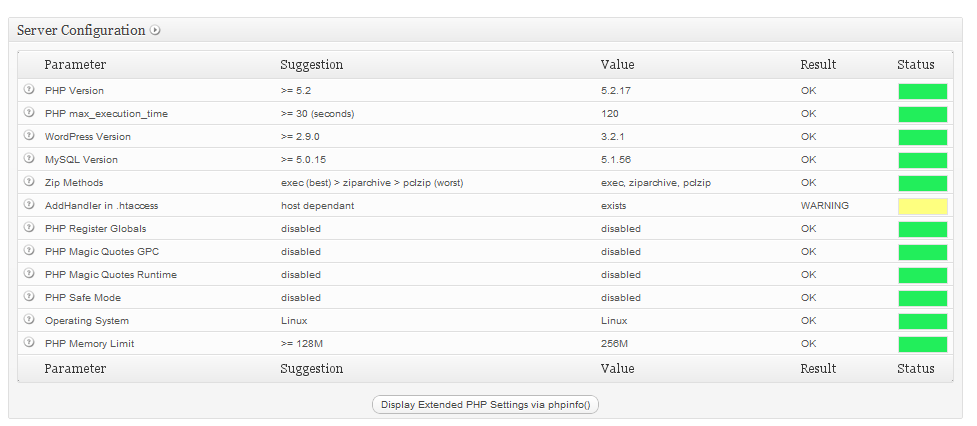
    Serverbuddy collects a series of server configurations from your hosting setup and makes them available for you to review them.

    This is very handy if you are troubleshooting setup configuration issues such as out of memory problems.

    It also gives you a dashboard and highlights any problematic configurations it finds, the dashboards and ranks them like a traffic light green being good, yellow being suspect and red as a problem (see screen dump).


    Click for full size image

    How I Use It

    I use it in a number of ways, here are the main things I do

    • Memory Usage and Available Memory
    • Quick security check on file permissions
    • Check The PHP config of a client site
    • Check the cron for upcoming items.

    Get A Copy Of ServerBuddy

    Serverbuddy is a free plugin from the premium plugin shop http://pluginbuddy.com, you can download the plugin from the WordPress.org plugin repository at:

    http://wordpress.org/extend/plugins/serverbuddy-by-pluginbuddy/

  • Validating Plugins

    Validating Plugins

    One of the biggest problems with plugins in my opinion, is that they are not certified in any way.  It is hard to tell what is a good plugin, and what will cause you issues.

    The majority of crashed sites I am called upon to fix are caused by plugin problems.  The good news is that there is a community moderation process so you can get other WordPress users’ opinions on particular plugins.

    Only Get Plugins From WordPress.Org

    The community moderation only happens on WordPress.org, and my recommendation is that you only download or install plugins from that site not a plugin authors site.

    If a plugin is not hosted on Wp.org this should raise a red flag in your mind, why are they not submitting their plugin for peer review, is it of poor quality, does it contain malware, legitimate plugins will be on WordPress.org.

    The exception to this are premium plugins, they will generally not make their plugins freely available on WordPress.org

    The Moderation System

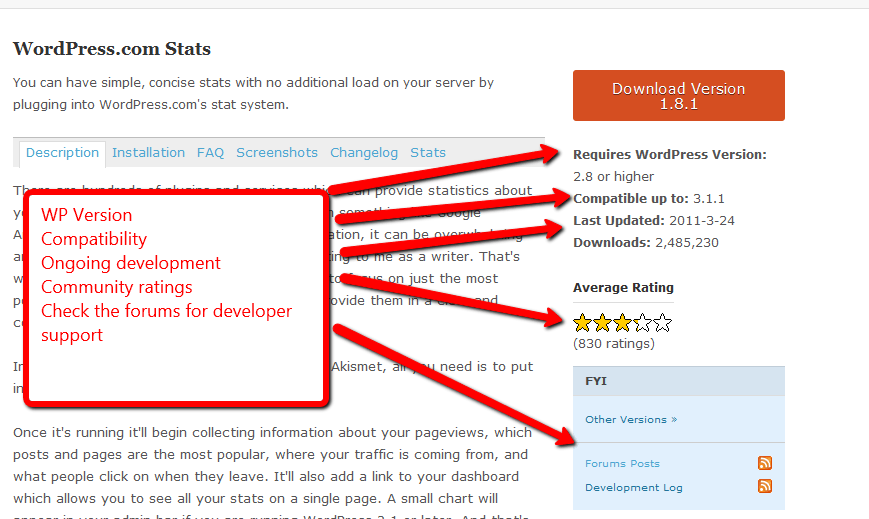
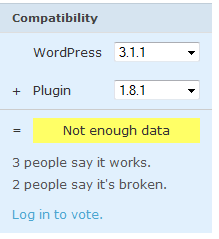
    On WordPress.org next to each plugin held in wordpress.org/extend/plugins you will see the moderation system,see the screen dump below to see how you can check on a plugins quality.


    Click to see full size image


    WordPress Version

    YOu can check to see if the plugin you are about to use is compatible with your current version of WordPress.  This is a good indicator of the on-going development of the plugin.  If the author is not keeping their plugin in line with new releases of WordPress this could be an issue.

    Around about WordPress 2.5 there was a fundamental change in the core WordPress files and I saw many plugins fail because their authors did not keep their plugins in line with WordPress releases.

    Last Updated

    If a plugin is not being actively developed and frequent updates uploaded to WordPress.org (be it bug fixes or new functionality).

    A plugin more than 12 months without an update should make you cautious.

    Number Of Downloads

    High quality plugins are downloaded more frequently as word of mouth marketing gets out about a plugin and more people opt to use  it.

    Average Rating

    This is the key community indicator in my opinion, this is the average rating of a plugin.  Visitors to WordPress.org leave a rating from 1-5 on the quality of that particular plugin

    On another note, please register and start leaving votes for your favourite and less than favourite plugins so the number of valid votes help to increase the voting population to give more accurate results.

    Forums

    The majority of plugins available to download from wp.org also have their own support forum on wp.org, visit the forum and get a feel for the support available. Ask yourself the following questions

    • Are replies timely
    • Are replies courteous, or are they brusque expecting a certain level of expertise
    • Are problem being fixed or do people come back complaining
    • Are requesting going without a reply/solution
    • Are there a large number of requests

    You can get a good feel for the quality of a plugin and it’s authors suport from teh support area.

    Authors Site Forum

    Sometimes you will see that plugin authors host their own support forums on their own sites, it is well worth this trouble to check this forum too.

    In the case of premium plugins this is crucial, you are paying for support as part of the ourchase price, check that the support is frequent and of good quality, are people waiting a long time for responses?

    Compatibility Voting

    A second way wordpres.org visitors can vote on a plugin is to leave a comment if a plugin works or is broken at a particular version.  Check to see if other people are experiencing problems at teh same WP version you are using.

    There is always more than one Solution

    There is always more than one plugin to fix a problem, if you find a plugin and any red flags are raised, move on and find another.

    Installing Over The Net

    If you install your plugins from your WordPress dashboard, you also have access to the modeation system, and you are also assuring your self that you are downloading code from WordPress.org.  If you search and install over the net, please use these processes to check the quality of the plugins you are about to install.

    Plugins Are Free

    Plugins are suppplied as is, and at no cost you should not expect support, but the majority of plugins are well supported by their authors.

    The WP Owners Club

    I have an entire module all about understanding plugins and a video demonstrtation of the concepts I talk about here.  The WP Owners club is my WordPress support and training community, you can get more details including how to join at my WP Owners Club Page.

    Image by andymangold

  • Plugin Review: WP-Overview

    Plugin Review: WP-Overview

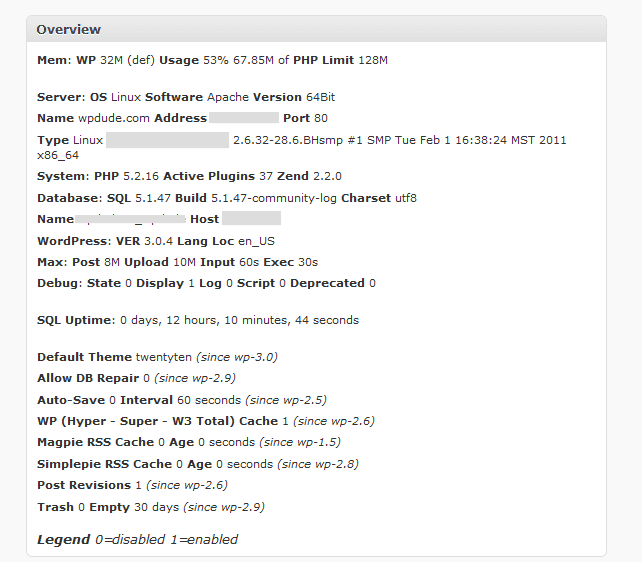
    This one is for the techies out there, WP-Overview is an excellent plugin which give you an overview of the memory usage and configuration of your site.  This in turn helps you to diagnose any problem you may be having.

    What It Does

    Once you have installed WP_Overview it give you a new dashboard widget which gives you a point in time report on memory usage, and various other configuration options for your site.

    Download WP-Overview

    You can get a copy of wp-overview from the following URL

    http://wordpress.org/extend/plugins/wp-overview-lite/

    Installation

    There is no special inssallation instructions for this plugin simply upload or search for wp-overview

    Here’s What You Get.

    Here is a screenshot of wp-overview from my site.  I’ve blank out some of the sensitive information

    Click on image for full size view

    How I Use WP-Overview

    I use it on performance or memory troubleshooting projects.  This give me a feel for the available memory and how much is being allocated to WordPress.

    WP Troubleshooting

    There will be a detailed video on using wp-overview in my WP Troubleshooting course along with detailed instructions on how to diagnose memory errors.

    Image by wilcozpics

  • New Year Blog Tidy Up 2011 Version

    New Year Blog Tidy Up 2011 Version

    This time last year I wrote a post on a doing a new years blog tidy up, you can read it here https://dev.neilmatthews.com/year-blog-tidy/.

    I think the post still stands and I want to update it by telling you about a new plugin I have been alerted to.

    Plugins Garbage Collector

    The plugin I have found is called Plugins Garbage Collector, it can be downloaded from http://wordpress.org/extend/plugins/plugins-garbage-collector/

    It’s an incredibly useful plugin that helps to find redundant tables in your database which can then be tidied up.

    What It Does

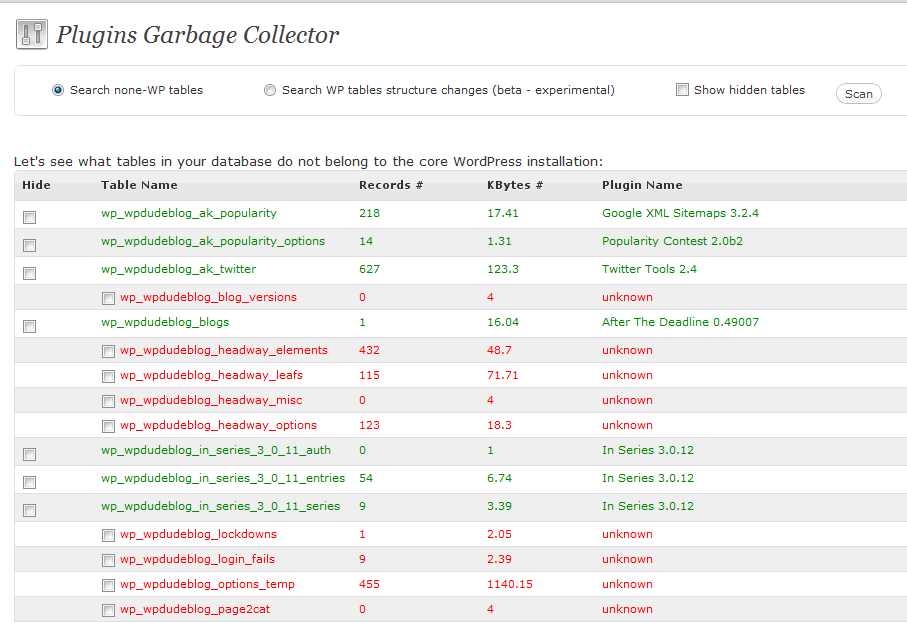
    This clever little plugin references your installed and active plugins looking for table references, it then matches known and used tables up.  The remaining tables are marked as suspect and a list of tables you can delete are offered.

    Running The Clean Up

    A new menu option is added to tools-> Plugins Garbage Collector, click on scan and a list of suspect tables is presented.

    Click to see full size image

    Select the tables you want to remove and click on the delete button at the bottom of the page.

    Backup Backup Backup

    It does without saying (hopefully!)  that you should backup your database before running a plugin which will delete data from your site’s database tables.

    For example the tables used by my theme headway have been flagged up, if I deleted them my site’s look and feel would be corrupted.

    Follow the wise words of Spiderman “with great power comes great responsibility”.

    Wrap Up

    If you need help identifying if your tables are valid or not give me a shout. Hat tip to Michael Martine at Remarkablogger who brought this to my attention.

    Image by paulk/