Neil Matthews

Category: Plugin Review

  • How To Customize Your WordPress Emails

    How To Customize Your WordPress Emails

    The standard emails WordPress sends  out are just okay.  Nothing more nothing less, in this post I want to show you how to customize your WordPress emails and jazz them up a little.

    Every interaction with your site visitors is a marketing opportunity and a way to promote your brand chance to promote your brand.

    They are a little bit lacklustre and don’t promote your brand very well.

    What Emails Are Sent?

    WordPress sends out a number of emails, here are some examples

    • New user registrations (to the admin and to the new user)
    • New comments
    • Password reset
    • Admin emails (new comments, new users but why you would need to edit these are beyond me).

    Why Customise Emails

    The emails WordPress sends out are not that great, they are plain text, have standard responses.

    The emails use your standard WordPress admin email and name, sometimes you want to change those.

    You might want to add a logo, call to action or just bring the WordPress emails in line with other emails you send out, you need to customise your WordPress emails to do this.

    There’s A Plugin for that

    As always if there is a problem to be solved in WordPress, there is a plugin for or, or quite a few, here are my two favourite plugin to customise the emails

    WP Better Emails

    You can download this plugin from https://wordpress.org/plugins/wp-better-emails/

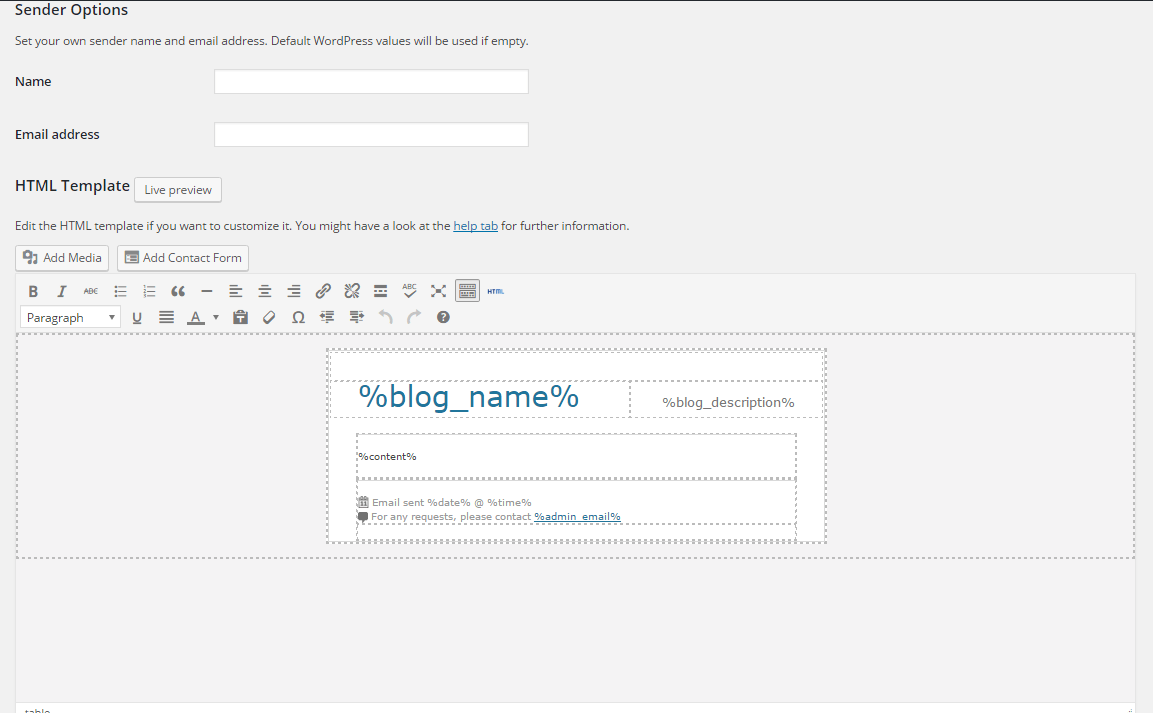
    WP Better email creates a template to wrap around the default email content.  You cannot change the content of the emails but you can wrap a good looking template around it.  WP Better Emails also allows you to change the name and from email of the email sender.

    Click for full size image
    Click for full size image

    Email Templates

    This plugin can be downloaded from https://wordpress.org/plugins/email-templates/

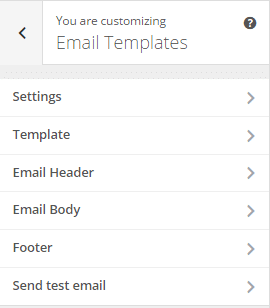
    This plugin adds an area into the theme customizer area (not a fan of that area, but that’s a different post).

    This plugin has a few more options you can change, such as header footer and email content, the last point is where this plugin is more powerful.

    email_template_001

    Wrap Up – How To Customize Your WordPress Emails

    If you want to customize your WordPress emails to keep them more on brand I recommend these plugins.

    If you site has lots of client logins such as an e-commerce store or membership site, branding your emails is a good marketing idea.

    Photo Credit: studentofrhythm via Compfight cc

  • Plugin Review: Payments With Gravity Forms

    Plugin Review: Payments With Gravity Forms

    Most readers of this site will know about the excellent contact form plugin Gravity forms.  It is a premium plugin that allows you to collect information from your site visitors, but did you also know it can be used to take payments with gravity forms for products or services?

    How It Works

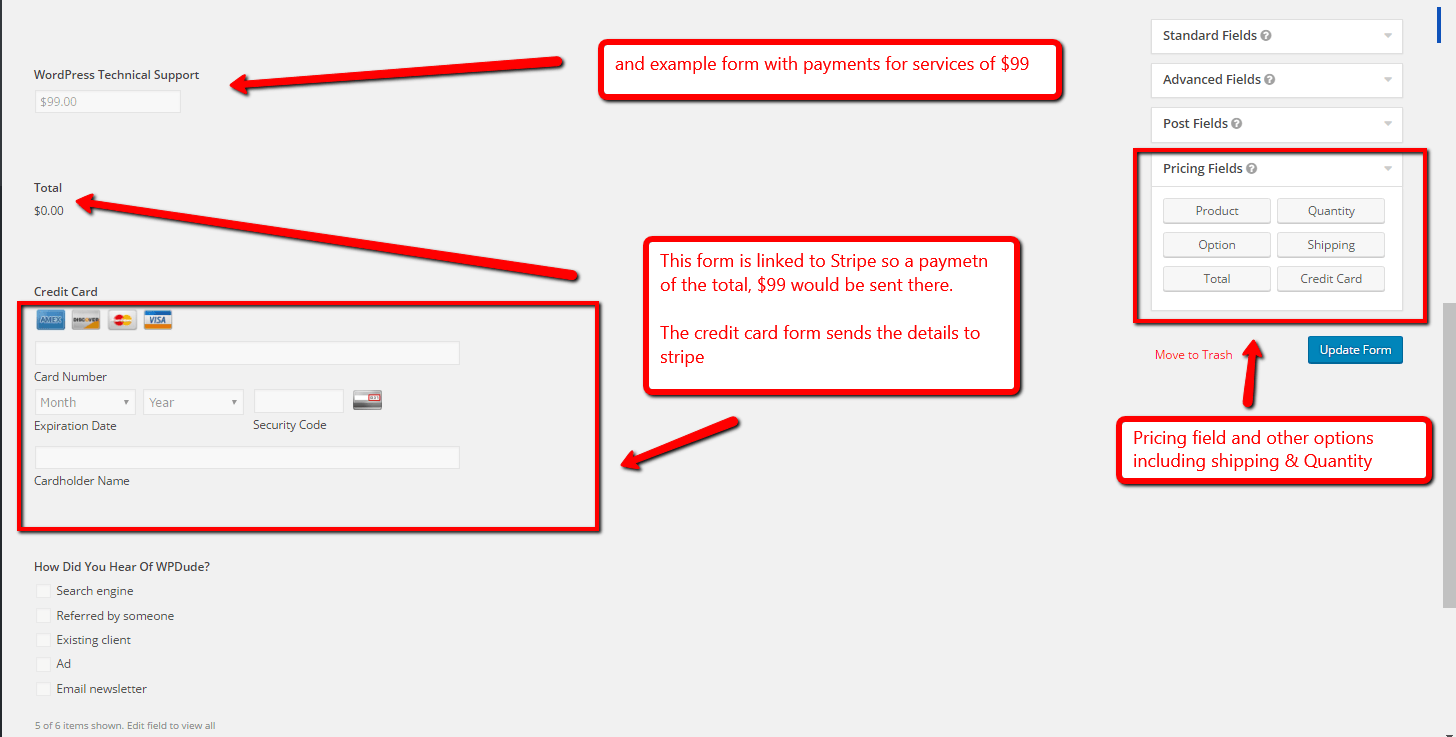
    When a site visitors goes to send a message to you via a form, you can add a payment option.  You can add one – off payments, a drop down list of different amounts or even setup a subscription.

    You can embed a credit card payment form into your gravity form or use a service like paypal where you would collect form details then send them to Paypal for payments.

    Here is an example form with a single payment for $99.

    payments with gravity forms
    Click for full size image

    Uses

    How would you use this functionality I hear you ask, here are some examples:

    Subscriptions – you can setup a subscription payment via gravity forms, for example I could setup a subscription for my maintenance service via a form using gravity forms so each month a payment is taken for this service.

    Donations – take donations for you not for profit organisation, along with your donators name and address

    Payment for services – you could add a drop down on services people can buy from you, payment is taken when the form asking for that service is submitted.

    E-commcerce – for a smaller e-commerce setup with a limited number of products you could use gravity forms, but I would opt for something like Woocommerce for bigger stores.

    Pay to submit – if the form adds an entry to a directory or allows people to add content to your site you could charge them before the content is submitted.

    Payment Gateways

    Gravity form integrates with a number of different payment gateways including:

    • Authorize.net
    • Stripe
    • Paypal – standard and pro (pro is where you can take payments on your site).

    These add-ons come with the development license for gravity forms.

    Remember HTTPS

    If you are planning to capture credit card information on your own site, remember you will need to install an SSL certificate on your site so the details are encrypted before being sent to your payment gateway, see your host for details of SSL certificated.

    Wrap Up – Payments With Gravity Forms

    Gravity form is much more than just a contact form, it can take payments, do surveys, add content, register users, the list goes on, GF is one of my all time favourite plugins and I use it on all the sites we build.

    Photo Credit: greggman via Compfight cc

  • Software Stack – The Tools We Use At WP Dude

    Software Stack – The Tools We Use At WP Dude

    I love to read blog posts about the software stack other business use to manage their work.  As a globally distributed team with clients all over the world, we use online tools for all our work.

    I thought I would write a post to share the software stack we use, the cost and how we use them.

    Groove

    Groove is a helpdesk ticketing system, if you ask us to do any work for you, it will be raised as a ticket in Groove.

    We have a number of helpdesks or silos for our tickets. One for people asking for one-off projects and one for our maintenance clients to ask for ongoing support tasks.

    We also automate tasks such as downtime monitoring and security monitoring, if any issues are noted tickets are raised in the appropriate helpdesk.

    We have processes and canned responses in Groove so you always get a consistent working process from us.

    To our clients, Groove just looks like email, no logins, no creating accounts but a transparent way for us to collaborate on work.

    Check out my Review of Groove

    Cost – $15 per user per month.

    Trello

    Trello is my preferred tool of choice to manage our workload and get an instant view on who is working on what.

    I’ll write a post soon on Kanban, a project management system that has revolutionized the way we work.  But in essence we have different silos for different stages of a projects life cycle form new request, estimate process, accepted scheduling and service delivery.

    I use Trello to manage and move our work through those silos so I always have my finger on the pulse with regards to who is working on what.

    Freshbooks

    I’ve been using Freshbooks for about 6 years and I love it.  Freshbooks is an estimation, invoicing, expenses and reporting tool. We use it to:

    • Send quotations for projects.
    • Send out invoices for work.
    • Take Payment for projects.
    • Chase up late payments automatically.
    • Record expenses; recurring and one off.
    • Produce reports so I can prepare tax returns.

    If a tool cannot play properly with Freshbooks, it is not included in my stack.

    Cost – $29 per month.

    Skype

    I don’t have a telephone number for WPDude, all telephone communication is done via Skype. If you are not aware of Skype its a desktop and mobile app that allows voice over IP or internet calls.  There are no costs to make calls, which is great if you have international clients and team like me.

    I also use it for our Morning stand up meeting via IM with my team to distribute work and I’m available at any time during the day via IM for my team to ask questions and get support from me.

    Cost – FREE

    Managewp

    We have going on for 100 maintenance clients at the moment, and managewp is the tool we user to manage those sites.

    It stops us having to remember passwords when we want to login, it does transactional backups and allows us to do updates and monitoring.  A brilliant tool all round and the new iteration Orion is really good.

    Costs – depends upon the number of sites you manage

    Live Chat & Zopim

    I’m flip flopping between the two live chat serves at the moment, I’ll not go over old ground here is my review Experiements with live chat software.

    Costs – currently using free Zopim account

    Mailchimp

    My email management system of choice is Mailchimp, I use it to collect email from my lead magnets and clients are funnelled into a client list.

    I send out regular blog posts notifications and the occasional sales message.

    I have an automated email sequence attached to my lead magnet.

    I use mailchimp over the other because it integrated with everything else, are you getting the message I don’t like to do manually tasks when an automation can be setup.

    Costs – dependant on list size I pay $29 per month

    PayPal

    I take all payments via Paypal. It’s universally trusted online payment processor.

    I get to withdraw my payments as they are made, whereas other make me wait for a week (I’m looking at you Stripe.com).

    It integrated with everything, it’s a no-brainer when coming to payment processing in my opinion.

    Costs – transaction fee per payment $0.05 + 2%

    Zapier

    Not really a tool but the glue that holds everything together via automation.

    When you raise a call from the form at wpdude.com/wordpress-technical-support it creates a ticket in Groove.  At the same time a blank estimate is created in Freshbooks ready for me to complete.

    When a ticket is created in Groove a card is added into Trello so I can manage  my Kanban project management.

    I have daily scheduled tasks that tell my team to check backups and updates, these are created as tickets in Groove.

    It may sound small but these small integrations save me hours of tedious manual re-typing each week.  It also allows me to automate and control my process much better.

    Check out my Zapier review

    Costs – depends upon numner of zaps I pay $15 per month.

    My Search for A CRM

    My constant search for a good CRM continues.  I really like Contactually but it is so expensive.  I tried Highrise but there are no automated reminders I have to setup tasks.

    What I’m looking for is a tool that automatically adds new contacts from Gmail or a Zapier Integration and them prompts me to follow up every 90 days.

    All suggestions welcome.

    Notable Mentions

    There are a few tools I have trialled and are excellent but we are not using

    Basecamp 3 – I would move over to basecamp 3 in a second but there is no API yet.

    Helpscout – a great helpdesk system but a bit to heavy in addons compared to Groove.

    Wrap Up – Our Software Stack

    I’m constantly evaluating new tools with a view to improving our software stack and  project management processes.

    What is in your stack, what software as a service could you not do without, answers in the comments below I would love to know.

    Would you like to hear more about building a service agency like WP Dude? Again comment are open below.

    Photo Credit: Tavallai via Compfight cc

  • Plugin Review: Better Search And Replace

    Plugin Review: Better Search And Replace

    In a previous post about migrating to WP Engine I talked about having to do a search and replace across the whole database to change a temporary URL wpdude.wpengine.com to wpdude.com, to do this I used a plugin called Better Search And Replace.

    https://wordpress.org/plugins/better-search-replace/

    What Is Better Search And Replace

    You have probably used search and replace in a word processing document where you can select  a phrase in a document and change it for something else with a bulk exercise.

    Better search and replace does the same thing, but across then entire database of your WordPress site.

    So I can search for the name Neil and replace it with Bob, we can choose to do this on just the content of your site, or across everything, so any mention of Neil is our posts or pages will be updated and perhaps any users called Neil will also be updated.

    When You May Need To Do A Search And Replace

    There have been a number of cases where I’ve needed to run a search and replace:

    • When migrating my site (or clients sites)
    • When moving a staging development site live
    • When I’m bulk changing URLs, for example one of the products I’m an affiliate for changed the URL of their affiliate link.
    • When I found corruptions with characters sets and needed to do a bulk change on the corrupt characters.
    • The list goes on.

    Warning

    Search and replace will change your database directly, please please take a full backup first.

    Video Demo

    Here is a video demo to show you how to use Better Search And Replace, please note the video dies for about 15 seconds around the 4 minute mark and there is audio only.

    Tables To Edit

    As mentioned in the video, the post and page tables are wp_{TABLE_PREFIX}_posts and wp_{TABLE_PREFIX}_postmeta

    Photo Credit: Todd Chandler via Compfight cc

  • Can I Smush It, Yes You Can!

    Can I Smush It, Yes You Can!

    Large images slow down the load speed of your WordPress site.

    Clients and Google don’t like slow sites, clients get impatient and click away, Google will affect your rankings if you have a slow site.

    There is a way to compress your images and make them smaller so they load more quickly.  You can do this with the plugin WP Smush https://wordpress.org/plugins/wp-smushit/

    We were asked to tune the performance of one of our maintenance clients sites and one of the things we did was optimize his images.

    How Do I Know If I Have The Issue

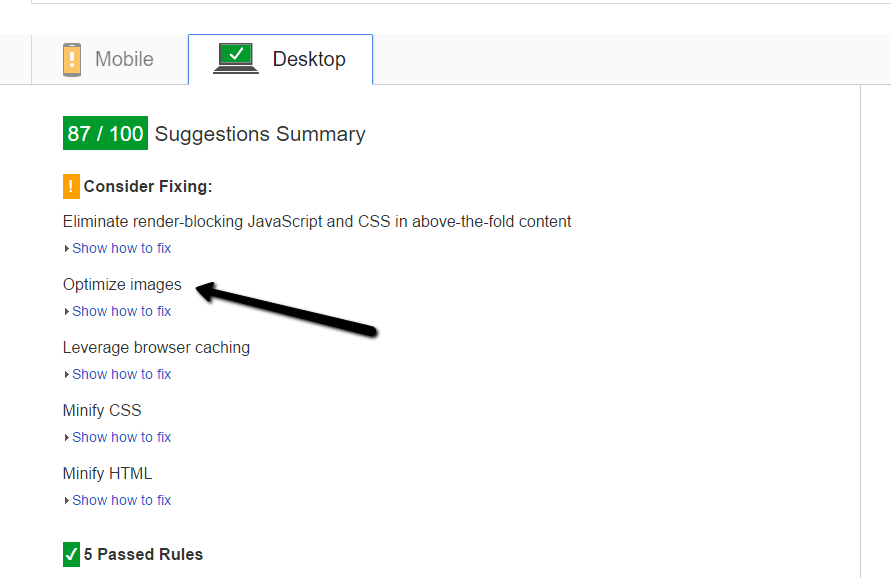
    A quick test to see if you have image load problems is to go to the Google page speed insight page and test your site

    https://developers.google.com/speed/pagespeed/insights/

    If you are told to optimize your images, WP Smush will help.

    pagespeed

    What It Does

    WP Smush losslessly (is that even a real word) compresses your images files.

    Say again; WP Smush removes all the unnecessary stuff contained in your images files such as date and time stamps, device used to take a picture etc, there is a lot of meta data in an image that can be stripped out without affecting image quality, that is why it is lossless compression.

    How It Does It

    Once you have installed WP Smush a new menu item is added under media -> wp smush.

    In there you can batch smush your existing images.

    It’s a pretty slow process, so settle down for the long haul with a nice cup of the beverage of your choice.

    The free version smushes 50 files per pass, the pro version smushes everything in one go.  I’m cheap so I just clicked the smush button 16 times.

    Ongoing Smushing

    As you add new image into your site, they are smushed automatically on upload so the initial bulk smush is a one off process.

    The Result

    Our clients site load speed increased a lot.

    Performance tuning WordPress sites is a bit of a dark art not a science, with a mixture of cache plugins, CDNs, smushed images and decent hosting you can get great speed gains.

    WP Smush is definitely now part of my tuning tool box.

    Wrap Up

    If you need help speeding up your WordPress site check out our maintenance plan, as a matter of course we optimize our clients site speed.

    Photo Credit: Dorsetfella via Compfight cc

  • Plugin Review: Download Monitor

    Plugin Review: Download Monitor

    One of our maintenance clients came to us with a little challenge and asked us to recommend a plugin that counts downloads of PDF files they make available to their customers.

    Added this she wanted to know which individual logged in users also downloaded the file.

    This type of detailed knowledge of what people are doing with your downloads is important in many ways, how are clients using your information?  Is it useful enough that people even want to download it.

    We went on a search and found Download Monitor to fit the bill.

    What Is Download Monitor

    It’s a plugin that lets you create a series of downloadable files in the backend of WordPress.

    It controls who can download them, any user or logged in users.

    It creates a shortcode so you can embed those files in posts or pages

    Finally any most importantly it allows us to log and record downloads as a total per file and by user.

    Adding A File

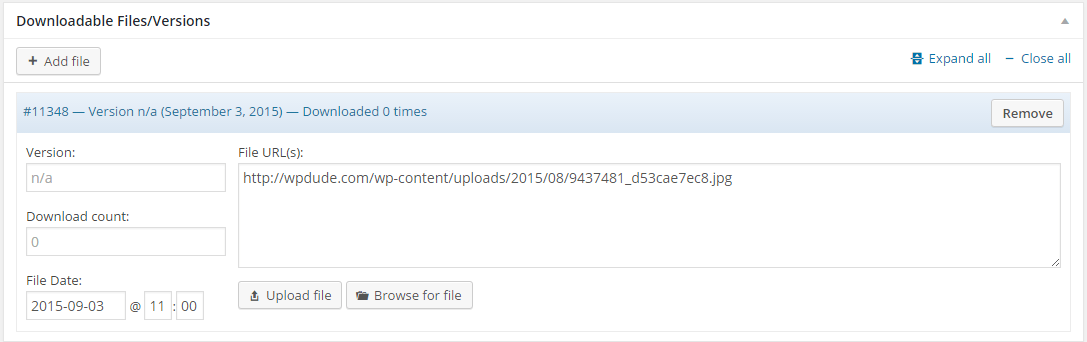
    Adding a download file is much like creating a new blog post, give it a title, add some descriptive text about the file to be displayed.

    Then you upload the actual media file.

    Click for full size image
    Click for full size image

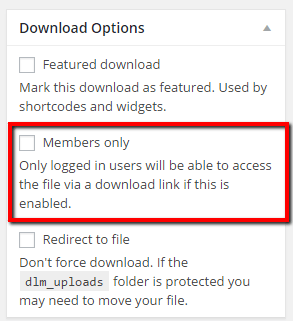
    Once added you can set various options for the file, one very useful one is to restrict logged in users to download only.

    Click for full size image
    Click for full size image

    Embedding A File / Download Links

    The file to be downloaded can be added as a shortcode into a post or page  as an example.

    [download id="11347"]

    Or you can send out a special download link to the file rather than a direct link so downloads can be recorded, here is an example of this.

    https://dev.neilmatthews.com/download/11347/ (don’t click the plugin has been deactivated)

    Logs

    This was the main feature my client needed, a log of who had downloaded a file.  We can see a log of total downloads or we can see a list of individual downloads by user

    Click For Full Size Image
    Click For Full Size Image
    total_downloads
    Click For Full Size Image


    All of this data can be downloaded as a CSV file for deeper analysis.

    Wrap Up

    If you want insights into what is being downloaded by your site visitors or logged in customers Download Monitor is the best out there.  We tested about 12 other plugins and this came out tops for reporting.  Many can create the total download number but none gave us per user logs.

    One of the services we offer to our maintenance clients is a plugin finding and testing service, why not give us a go.

    Photo Credit: 5500km via Compfight cc

  • Plugin Review: WP Awesome FAQ

    Plugin Review: WP Awesome FAQ

    I was looking for a frequently asked question (FAQ) plugin so I could display the questions and answers of regularly asked questions people send to me before buying a WordPress support job from us. I looked through a number of FAQ plugins and eventually settled on WP Awesome FAQ.

    In this post I’ll tell you why I selected it.

    What Is  A FAQ

    An FAQ are those questions you find potential customers asking over and over again.

    These are obviously questions you have not addressed correctly in your sales copy and are creating objections in your clients mind before they buy your product or service.

    Creating a list of frequently asked questions (and of course answers) helps to overcome those potential custom objections and cuts down your customer support time.

    What I Needed In An FAQ Plugin

    I always approach hunting for a new plugin with a series of requirements in the back of my mind.  I wanted the following:

    • Easily create a series of FAQs on the back-end of WordPress
    • Ability to add new FAQs as they become available after client questions
    • An accordion functions to hide answers people don’t need so people can quickly scan through the questions
    • Short codes to embed the FAQ on sales pages and other pages

    WP Awesome FAQ Does All This

    As you might be guessing WP Awesome FAQ does all this and a little more, it also has FAQ categories so I can control which FAQs are displayed  and where.

    Downsides?

    I’m not 100% thrilled with the styling of the drop down content, for example I have some bulleted lists in there and the bullet point is dropped, I’m going to have to spend some time recoding the styling to get it 100% as I need it.

     See It In Action

    I’ve got the FAQ plugin installed on my home page, click through and have a look

    As you can see the shortcode presents a list of FAQs click on one and it opens up in accordion stylie for you to see the answer to your question.

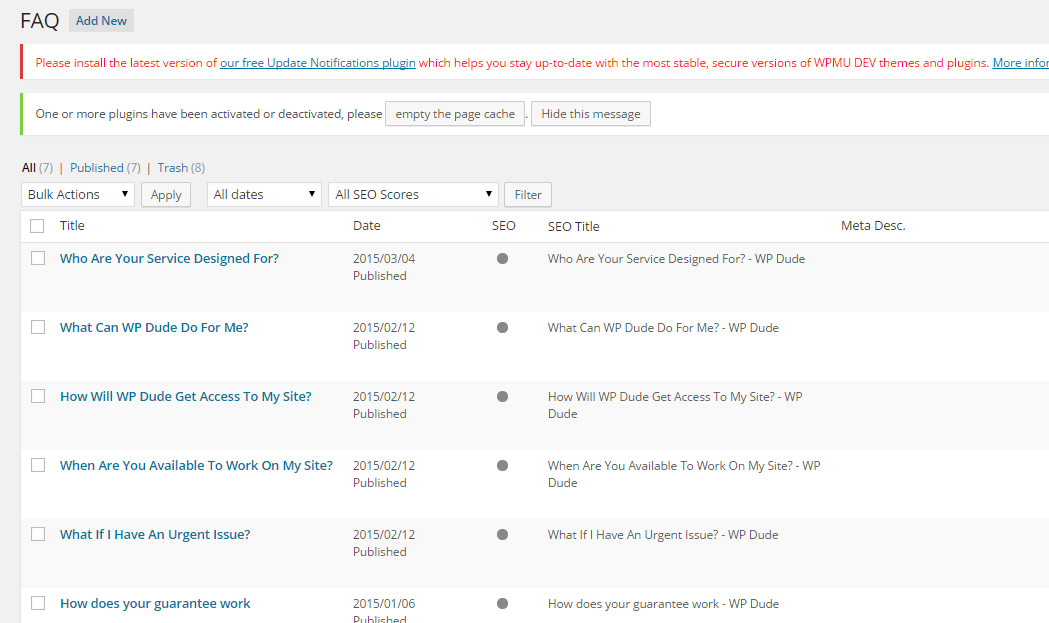
    Here is a screen dump of the back end editor for your FAQs

    faq
    Click for full size image


    Outro

    Awe – noun – a feeling of reverential respect mixed with fear or wonder

    Can a plugin be really awesome?  Nah, but this fills the functionality hole on my site to perfection.

    If you have any questions about our services not covered in our FAQ please ask away and I’ll add them in.

  • Plugin Review: WP Mobile Detect

    Plugin Review: WP Mobile Detect

    One of my clients came to me with an interesting issue.  She was embedding ads into her blog posts. they were wide ads 728 x 9 px and these looked great on desktop devices, but terrible on mobile devices.  Most of the ad was being cut off.

    She wanted a way to easily embed both mobile and desktop versions of her ads in her posts.

    You Can Code it up

    It’s a relatively simple job for a code monkey like me to write some scripts to do this, WordPress has a built-in function call wp_is_mobile that does exactly that.

    My client wanted to do this easily without coding so following my mantra of “there’s always a plugin to do that” I went hunting.

    Enter WP Mobile Detect

    The solution to the problem was WP Mobile Detect https://wordpress.org/plugins/wp-mobile-detect/.

    What this clever little plugin does is to provide a series of short codes that let you show or hide content based upon the device a user is using .

    You can target phones, desktops or tablets.  You can target operating systems like Android, iOS or Windows mobile.  You can also have combinations of them too.

    How It works

    You add a short code into your post wrapping the content you want to change, I’m not using the plugin on my site but here is an example

    [phone]

    This text would be displayed on phones

    [/phone]

    [notphone]

    This text would be displayed on desktops and tablets

    [/notphone]

    Other Short Code Available

    As I have mentioned there were other combinations available, here is a list of what you can do.

    • [phone]Put content here that you only want displayed on Phones NOT Tablets or Desktops[/phone]
    • [tablet]Put content here that you only want displayed on Tablets NOT Phones or Desktops[/tablet]
    • [device]Put content here that you only want displayed on Phones OR Tablets NOT Desktops[/device]
    • [notphone]Put content here that you only want displayed on Tablets OR Desktops NOT Phones[/notphone]
    • [nottab]Put content here that you only want displayed on Phones OR Desktops NOT Tablets[/nottab]
    • [notdevice]Put content here that you only want displayed on Desktops NOT Phones OR Tablets[/notdevice]
    • [ios]Put content here that you only want displayed on iOS devices[/ios]
    • [iPhone]Put content here, that you only want displayed on iPhones[/iPhone]
    • [iPad]Put content here, that you only want displayed on iPads[/iPad]
    • [android]Put content here, that you only want displayed on Android devices[/android]
    • [windowsmobile]Put content here, that you only want displayed on Windows Mobile devices[/windowsmobile]

    Not Just For Ads

    You can wrap any type of content in these short codes, for example a mobile friendly contact form as opposed to a long form that would be difficult to fill in on a phone.

    You could have a click to call button that only appears on phones that would be useless on desktop.

    Outro

    I love the fact that the WordPress community is developing solutions for nearly every issue there is and then distributing it as a free plugin.

    90% of the time building and maintaining a WordPress site is very easy, it’s the final 10% we are here for.

    Photo Credit: eatmorechips via Compfight cc

  • Speed Up Your Site With Plugin Organizer

    Speed Up Your Site With Plugin Organizer

    I’ve been using a plugin that is new to me called Plugin Organizer to speed up slow loading client sites and my own sites.

    I just wanted to share this knowledge with you, if you have a slow loading site.

    What Is Plugin Organizer?

    Plugin organizer is a plugin (no Sh!t Sherlock) that allows you to control where and when plugin are loaded.

    It allows you to control the order plugins are loaded, load plugins only for particular post types or not load a plugin on particular URLs.

    I’m writing a couple of posts to cover what it does, but in this on I want to look at excluding plugins to speed up page load times.

    Using Plugin Organizer to Speed Up Sites

    The way WordPress normally works is to load plugin code for a plugin across all pages,  the more plugin code loaded, the longer a page takes to render in a web browser.

    Why not stop plugins loading where they are not required.  Less plugin code = faster page load time.

    Finding What Plugins Are Loading On Your Page

    So the next challenge is to find out what plugins are loading on particular pages.

    There are lots of in-browser add-ons that allow you to see what plugins are being loaded, but my favourite is httpwatch.com.  You only need the free version BTW.

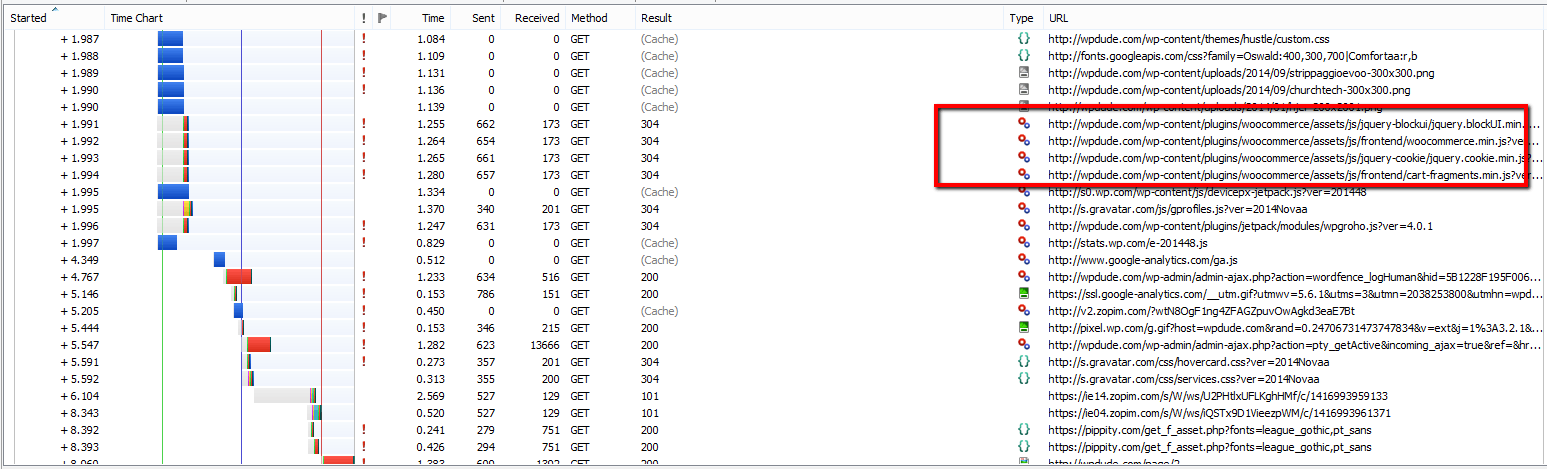
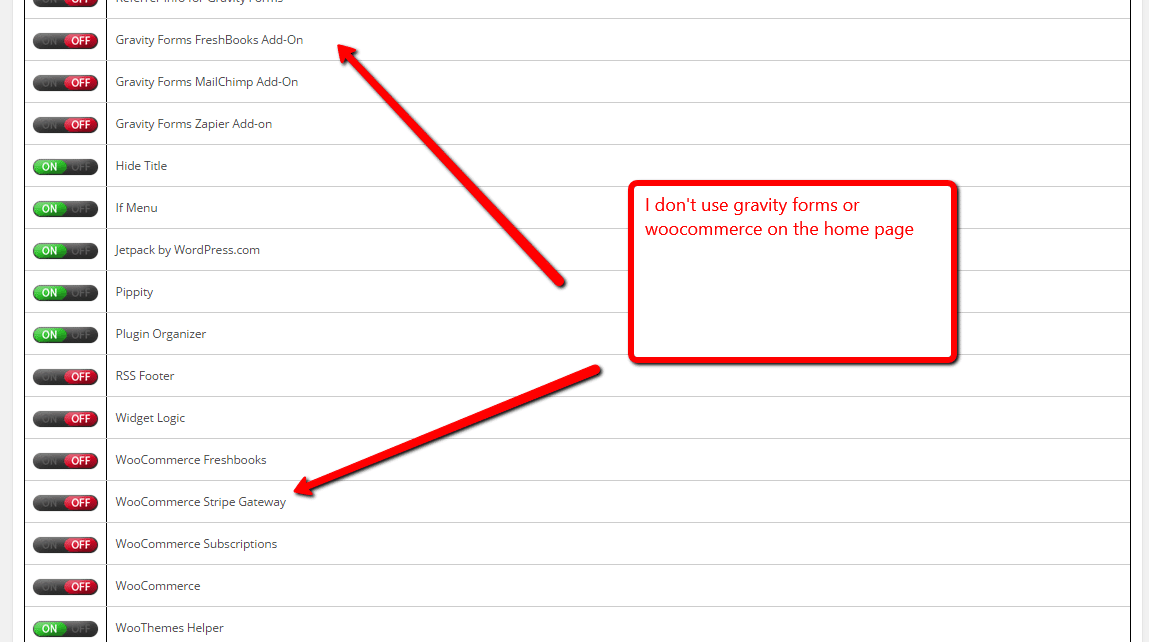
    Once loaded into your browser you can record what scripts and components are being loaded.  Use this list and search for anything under wp-content/plugins/{PLUGIN-NAME} and you will see plugin code.  Here is a screen dump from my home page with some plugin code highlighted.

    pluginorganiser
    Click for full size image

    Example

    On my site I use Woocommerce, but I don’t need Woocommerce to load on my main pages such as home, about hire us etc.  So I set about excluding this plugin from certain URLs.

    Step One – Install the plugin

    Step Two – Enable selective plugin loading, go to Plugin Organizer -> Settings, and check the box Enable -> Selective Plugin Loading:

    Step Three  – Add a plugin filter, go to Plugin Organizer -> Plugin Filter, add a new filter, give it a name, set the page URL and deselect the plugins from the list.  I was able to disable a large number for my home page

    Click for full size image
    Click for full size image


    Test Test Test

    We are fundamentally changing the way plugins work with these changes so this knowledge comes with a caveat to test, test and test again to make sure you posts and pages retain the functionality you need after excluding plugins.

    Wrap Up

    Next up I’ll show you another cool way to use plugin organizer when you get a plugin clash.

    If you are looking to speed up your WordPress site, I have a performance tuning package, why not get a no obligation quote for my fixed price performacne tunining package

    Hat tip to David Risley for alerting me to Plugin Organiser on this post

    Photo Credit: ahh.photo via Compfight cc

  • Plugin Review: If Menu

    Plugin Review: If Menu

    I found a really useful plugin last week while working on a problem for a client.  The plugin is called If Menu, I’m going to review the plugin and tell you why it’s so useful.

    Conditional Menu Items

    Using If Menu you can use conditional logic to decided if and when a menu items is displayed.

    This allows you to decide what pages or conditions a menu item is displayed on.

    This is really useful if you want your menus to be different for pages or posts or different site visitors.

    How It Works

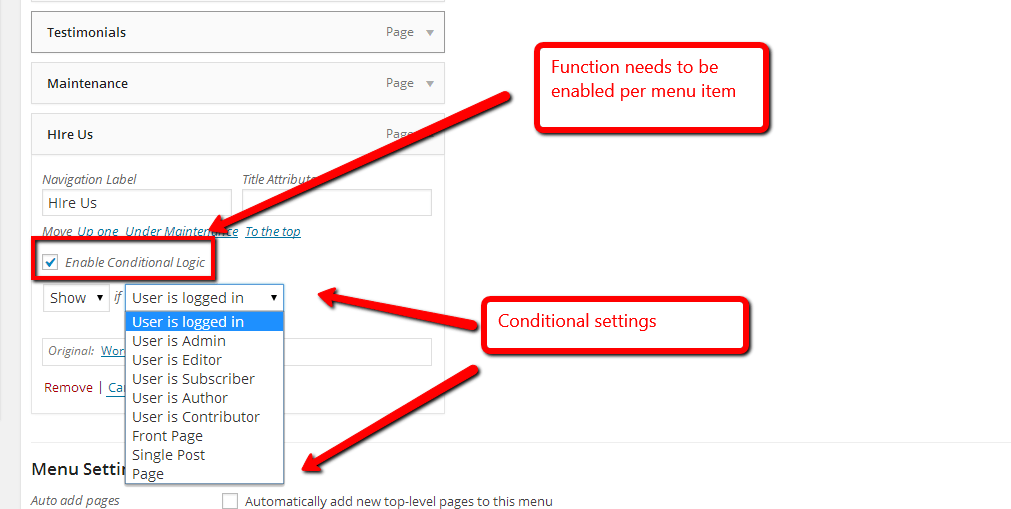
    Once installed there is a new drop down on each menu item, you can select which conditional logic to apply to that item.

    This is an opt in, you need to click a check box next to the menu item in question.

    There are two states, you can either hide or show a menu item, and the conditions are:

    • User Logged in / Out
    • Is a particular user level e.g.. admin, editor, subscriber
    • Is the front page – so hide or show menu items on the home page (great for landing pages)
    • Is a single page
    • Is a single post
    Click For Full Size Image
    Click For Full Size Image

    My Clients Requirement

    The site in question is a membership site and certain menu items should only appear for logged in users.  Using If Menu we set those items to “show” if a user is logged on.

    Extending The Plugin

    At first glance I was a little bit disappointed with the range of conditions available, I would have liked to see an option to only show a menu item on a particular page or post, but there is a relatively simple way to extend the plugin by writing your own filter to add new conditions.  It’ requires coding but the logic can be extended.  See this page for details.

    http://wordpress.org/plugins/if-menu/faq/

    Wrap Up

    If you want to control your menu items then If Menu will be a great extension to your site.

    If you want a more complex implementation get a quote from us to write the additional filters.


  • Have You Heard About BuddyPress?

    Have You Heard About BuddyPress?

    There’s a really great plugin out there called BuddyPress which has been active for a few years, but to my surprise not many people know about it.

    I’m going to tell you all about BuddyPress and what it can do for  your site. https://buddypress.org/

    Your Very Own Private Social Network

    Buddypress allows you to build your very own private social network on WordPress.

    Buddypress is a plugin you add to your site and it extends WordPress allowing you to create your very own social network to rival Facebook.

    The plugin was started by the People behind WordPress but it has morphed off into it’s own open source project,but it is still tied very closely to WordPress.

    buddypress_logo[1]

    Why Reinvent The Wheel; Facebook Duh!

    I know you are probably thinking why would I re-invent the wheel with my own social network, when there’s this 500 kilo Gorilla in the room called Facebook already?

    Facebook is okay but there are times when you want Facebook functions without the Facebook baggage.  I’m thinking:

    • Ads
    • Trolls
    • No control over users
    • None ownership of your content
    • Potentially being kicked off for not following their orders T & Cs
    • Policy updates for example limiting users, charging to promote content etc.

    Facebook is good, but Facebook owns the pitches, ball, players and rules of the game, and they can change any and all of those when they see fit.  Having your own controlled social network make sense.

    Features of BuddyPress

    Once you have installed BuddyPress, here are the functions you will get.

    • User  profiles
    • Groups for users to join
    • Activity Steam (think Facebook wall or twitter feed)
    • Notifications of member interactions
    • Forums
    • Friending people
    • Private messaging
    • Share text, video, audio and images

    Nothing radical here is you have used any of the other platforms, but this is on your own site.

    Themes

    One thing to be aware of is that you will probably need a none standard theme for a decent looking Buddypress site because of the new functionality you have added.

    If you look at themeforest.net there is a whole category dedicated the BuddyPress compliant themes http://themeforest.net/category/wordpress/buddypress . It’s probably a good idea to have a look at the sites to see some of the BP features too.

    Making It Pay

    You can also make your new niche social network a paid one.  Membership plugins like s2member or WPMUDEV Membershipo Pro allow you to charge people on a one off or recurring basis to join you

    If you can add member benefits you could use BuddyPress as an income generator.

    The Downsides

    The downsides of BuddyPress are that the documentation is not up to the level of WordPress yet and it is very technical.

    I don’t say that as a criticism of the great people developing BuddyPress, but the less technical documentation that was developed for WordPress hasn’t been created yet.

    You need to be a “code monkey” to extend and make it do anything unusual.  There are plugins but not to the same degree as WordPress.

    How You Could Use BuddyPress

    Here are some of the ways BuddyPress.org suggests you can use their plugin

    • A campus wide social network for your university, school or college.
    • An internal communication tool for your company.
    • A niche social network for your interest topic.
    • A focused social network for your new product.

    Wrap Up

    Looking to create your own niche social network, then you should  check out BuddyPress.org.


  • This Two Minute Security Fix Could Save Your Site

    This Two Minute Security Fix Could Save Your Site

    How To Rename Your WordPress Admin User

    I’m going to review a very simple plugin called Admin Renamer, but it could add a powerful new layer of security to your WordPress site for only two minutes of effort.

    I will show you how to rename your WordPress admin user for an additional layer of security against hackers.

    What Is Admin Renamer Extended?

    It is a plugin that will change the user name of your admin accounts from admin to wpdudeadmin for example.

    Why Do I Need It?

    The majority of WordPress sites I work on use the default super user login of “admin”. I know this and so do the hackers.  They already have half of the problem solved trying to get into your site.

    There is a hack attack doing the rounds right now that uses a bot network to perform a brute force attack on WordPress sites by entering admin then trying a dictionary of common passwords.  It is working, people are getting hacked by having a default admin user name.

    If you change your admin to something else, you are removing a backdoor from your site and increasing your security controls.

    You cannot do this from the user menu for the main admin user, in the past when I have done this for clients I have manually edited the various database tables ( it’s not easy there are a number of entries to edit) this plugin has changed a 20 minute job into a 2 minute one.  There is no excuse for not implementing this very simpel changed.

    Download The Plugin

    You can get a copy of the plugin here

    http://wordpress.org/plugins/admin-renamer-extended/

    Adding The Security Layer

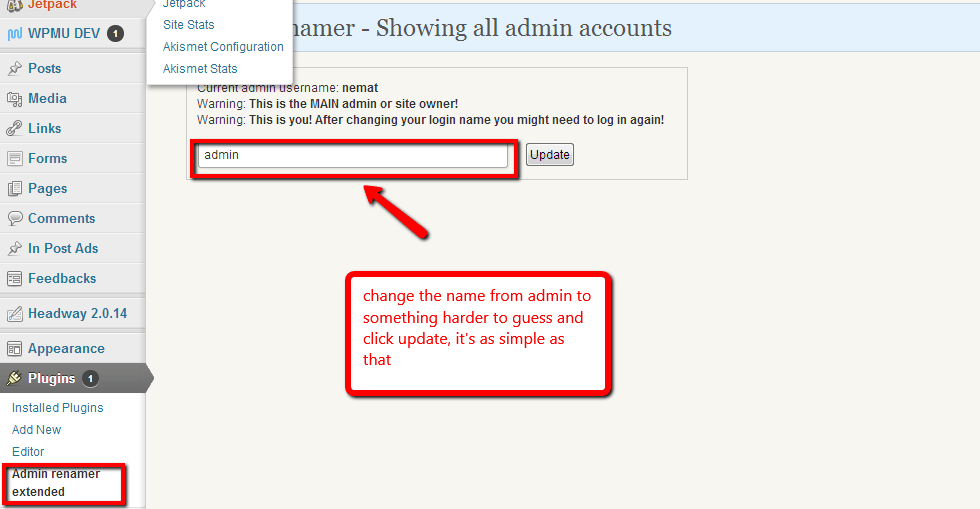
    The process of changing your admin user is incredibly simple, install the plugin and then go to plugins -> admin renamer extended.

    There is a simple box which will show al your admin users, change the name and click on update, job done.  Two minutes of effort one huge leap in security.

    Click For Full Size Image
    Click For Full Size Image

    Bonus Tip

    Always opt for a hard password for your admin users, don’t go for something simple like password or abc, these are in the dictionaries of the hackers and they will repeatedly try and try again with a bot network with different passwords.

    When you change the password of a user, WordPress has a password strength indicator, never settle for a weak password.  Always add numbers and special characters like &%£~@! to make passwords harder.

    Bonus Plugin

    I’m sounding like an infomercial now (for $29.99 we will double it up and give you a bonus set of faux leather gimp masks; his and hers) .

    A great additional plugin is Login Lockdown, which will lock down the login system after three failed login attempts, here is my review of that plugin.

    https://dev.neilmatthews.com/plugin-review-login-lockdown

    Wrap Up

    This brute force attack has been doing the rounds for some time, I urge you to go and make this change now before you are attacked.

    Oh and don’t forget to backup before you do this, you are messing with the database after all.

    Photo Credit: Diego3336 via Compfight cc