Neil Matthews

Category: Misc

  • Demystifying WooCommerce Variable Products: Everything You Need to Know

    Demystifying WooCommerce Variable Products: Everything You Need to Know

    Introduction – Demystifying WooCommerce Variable Products
    WooCommerce is a versatile e-commerce platform that empowers online businesses to sell a wide range of products. One of the key features that sets WooCommerce apart is its support for variable products. In this blog post, we will delve into the concept of WooCommerce variable products, explaining what they are and how they can benefit your online store. Let’s explore the world of variable products!

    What are Variable Products?
    Variable products in WooCommerce are products that come in different variations or options. Rather than creating individual product listings for each variation, variable products allow you to group similar products under a single product page. Customers can then select different options, such as size, color, or material, to customize their purchase.

    For example, imagine you sell t-shirts. Instead of creating separate listings for each size and color combination, you can create a variable product and define the available attributes (e.g., size and color). Each attribute can have multiple options (e.g., small, medium, large for size; red, blue, green for color). This way, customers can choose their desired size and color from a dropdown or radio buttons on the product page.

    Benefits of Variable Products:

    1. Simplified Product Management: With variable products, you can avoid cluttering your store with numerous individual product listings. By grouping variations under a single product, you can easily manage inventory, pricing, and product descriptions, saving time and effort.
    2. Enhanced User Experience: Variable products provide a streamlined and user-friendly shopping experience. Customers can conveniently select the desired attributes, such as size or color, from dropdowns or radio buttons, eliminating the need to navigate through multiple product pages.
    3. Efficient Inventory Control: WooCommerce’s inventory management system integrates seamlessly with variable products. You can track and manage stock levels for each variation, ensuring accurate inventory control and preventing overselling.
    4. Dynamic Pricing and Discounts: Variable products offer the flexibility to set different prices for each variation. You can assign unique prices or discounts based on attributes, such as size or color. This allows you to implement tiered pricing strategies or offer discounts for specific variations.
    5. Comprehensive Reporting: WooCommerce provides detailed reports on variable product sales, including insights into individual variations. You can analyze which attributes or options are popular among customers, enabling you to make data-driven decisions for your product offerings.

    Creating Variable Products in WooCommerce:
    To create a variable product in WooCommerce, follow these steps:

    1. Log in to your WordPress admin dashboard and navigate to “Products” > “Add New” to create a new product.
    2. Select “Variable Product” from the “Product Data” dropdown in the product editor.
    3. Configure general product settings such as title, description, and featured image.
    4. In the “Attributes” tab, define the attributes for your product variations (e.g., size, color). Set the options for each attribute (e.g., small, medium, large for size).
    5. In the “Variations” tab, generate variations based on the defined attributes. Set specific prices, stock levels, and other attributes for each variation.
    6. Customize the product page by adding additional information, images, or product-specific details.
    7. Save the product, and it will be ready for customers to choose their preferred options and make purchases.

    Demystifying WooCommerce Variable Products
    Variable products are a powerful feature of WooCommerce that allow you to offer customizable options to your customers without creating separate product listings for each variation. By leveraging variable products, you can simplify product management, enhance the user experience, control inventory efficiently, and implement dynamic pricing strategies. Whether you sell clothing, electronics, or any other customizable products, variable products can streamline your operations and provide a seamless shopping experience. Embrace the flexibility and convenience of variable products in WooCommerce to

    If you need help setting up variable products on your store why not hire us as your woocomnmerce webmaster

    Photo by Mika Baumeister on Unsplash

  • How to Change “Add to Cart” to “Buy Now” in WooCommerce

    How to Change “Add to Cart” to “Buy Now” in WooCommerce

    Introduction:
    In WooCommerce, the default button text for adding products to the cart is “Add to Cart.” However, you may want to experiment with different call-to-action labels to optimize your conversion rates and create a sense of urgency. In this blog post, we will guide you through the process of changing the “Add to Cart” button text to “Buy Now” in WooCommerce. By making this simple adjustment, you can potentially encourage more immediate purchases and improve your overall sales. Let’s dive in!

    Video

    1. Install and Activate a Customization Plugin:
      To modify the button text in WooCommerce, we recommend using the WooCommerce Customizer plugin. Install and activate the plugin on your WordPress site.
    2. Access the WooCommerce Customizer Settings:
      Once the plugin is activated, navigate to WooCommerce > Customizer in your WordPress dashboard. The WooCommerce Customizer provides an intuitive interface for making various customizations to your WooCommerce store.
    3. Modify the Button Text:
      In the WooCommerce Customizer settings, locate the option to customize the “Add to Cart” button text. It may be under a section like “Button Labels” or “Product Display.” Enter “Buy Now” or any other desired text in the designated field.
    4. Save and Preview Changes:
      After updating the button text, click the “Save” or “Publish” button to save your changes. To see the modifications in action, visit your WooCommerce store and browse a product page. You should now see the updated button text reflecting the new label, such as “Buy Now.”
    5. Test and Monitor Conversion Rates:
      Once the button text is changed, it’s essential to monitor the impact on your conversion rates. Track the performance of your product pages and compare the conversion rates before and after the modification. Analyze the data to determine if the “Buy Now” button text positively influences customer behavior and purchasing decisions.
    6. Experiment with Different Button Texts:
      Changing the button text to “Buy Now” is just one option. Feel free to experiment with other actionable phrases like “Get It Now,” “Shop Now,” or “Add to Bag.” Consider A/B testing different button texts to gather more insights into what resonates best with your audience.

    Conclusion:
    By changing the “Add to Cart” button text to “Buy Now” in WooCommerce, you can create a sense of urgency and encourage more immediate purchases. Install the WooCommerce Customizer plugin, customize the button text, and monitor the impact on your conversion rates. Remember to experiment with different call-to-action labels to find what works best for your specific audience. Start optimizing your WooCommerce store today and drive more sales with a compelling “Buy Now” button.

    Optimize your conversion rates by changing the “Add to Cart” button text to “Buy Now” in WooCommerce. Make the buying process more enticing and seamless for your customers, and watch your sales soar.

    Note: Keep in mind that altering button text is just one aspect of optimizing your store’s conversion rates. Consider other factors such as pricing, product descriptions, and overall user experience to create a compelling shopping environment.

    If you need help customising your buttons you can hire us as your webmaster to do that for you.

    Photo by Kelly Sikkema on Unsplash

  • Mastering Email Testing: How to Test WooCommerce Emails with Woo Preview Emails Plugin

    Mastering Email Testing: How to Test WooCommerce Emails with Woo Preview Emails Plugin

    Introduction:
    Testing WooCommerce emails is crucial to ensure that your customers receive accurate and visually appealing communications from your online store. One handy tool for testing these emails is the Woo Preview Emails plugin. In this blog post, we will guide you through the process of testing WooCommerce emails using the Woo Preview Emails plugin. By leveraging this plugin’s features, you can review and optimize your email templates, ensuring seamless delivery and enhancing the overall customer experience.

    1. Install and Activate the Woo Preview Emails Plugin:
      Start by installing and activating the Woo Preview Emails plugin from the official WordPress repository. You can find it by searching for “Woo Preview Emails” in the plugins section of your WordPress dashboard. Once activated, you’ll have access to its testing functionalities.
    2. Configure the Plugin Settings:
      After activating the plugin, navigate to the “WooCommerce” tab in your WordPress dashboard and select “Woo Preview Emails.” Here, you can configure the plugin settings according to your testing requirements. Set up the recipient email address, choose the email template to preview, and select the email type you want to test (e.g., order confirmation, shipment notification, etc.).
    3. Preview and Review Email Templates:
      With the Woo Preview Emails plugin, you can now preview and review your email templates without sending them to actual customers. Select the desired email template from the drop-down menu and click the “Preview Email” button. This will display a preview of the email in your browser, allowing you to review the design, content, and overall appearance.
    4. Test Different Email Scenarios:
      The Woo Preview Emails plugin offers the flexibility to test various email scenarios. You can simulate different order statuses, shipping methods, and payment methods to see how your email templates respond. This enables you to identify any issues or inconsistencies in the emails and make necessary adjustments.
    5. Optimize and Refine:
      While previewing your WooCommerce emails, take note of any areas that require optimization or refinement. Pay attention to elements such as the email layout, formatting, images, branding, and personalization. Ensure that all dynamic content, such as customer names and order details, is accurately populated.
    6. Test Across Devices and Email Clients:
      To provide a seamless experience to your customers, it’s important to test your WooCommerce emails across different devices and email clients. Use the Woo Preview Emails plugin to send test emails to various email addresses and check how the emails render on different devices, browsers, and email platforms.

    Conclusion:
    By utilizing the powerful features of the Woo Preview Emails plugin, you can easily test and optimize your WooCommerce email templates. Ensure your emails are visually appealing, accurately populated, and consistent across various email scenarios. By conducting thorough testing, you can deliver professional and engaging email communications, enhancing the overall customer experience on your WooCommerce store.

    If you need help getting your email testing up and running why note hire our experienced team of woocommerce developers,

    Photo by Mari Helin on Unsplash

  • Mastering Personalization: How to Customize WooCommerce Emails

    Mastering Personalization: How to Customize WooCommerce Emails

    Introduction:
    In the world of e-commerce, creating a personalized and memorable shopping experience is key to engaging customers and building brand loyalty. One effective way to achieve this is by customizing the emails sent by your WooCommerce store. By tailoring the design, content, and branding of these emails, you can leave a lasting impression on customers and enhance their overall experience. In this blog post, we will guide you through the process of customizing WooCommerce emails to align with your brand and provide a unique touch.

    1. Understand the Anatomy of WooCommerce Emails:
      Before diving into customization, it’s essential to understand the structure and components of WooCommerce emails. These emails typically include elements such as the header, logo, order details, customer information, product thumbnails, call-to-action buttons, and footer. Familiarizing yourself with these components will help you effectively customize each email.
    2. Utilize Email Templates:
      WooCommerce provides pre-built email templates that serve as a starting point for customization. To access these templates, navigate to your WooCommerce settings, click on the “Emails” tab, and choose the email you wish to customize. From there, you can modify the HTML, CSS, and content to match your brand’s aesthetics and messaging.
    3. Customize Design and Branding:
      Make your emails visually appealing and on-brand by customizing the design elements. Consider the following customization options:
    • Logo and Header: Include your store’s logo in the header section of the email template. This instantly establishes brand recognition and creates a cohesive experience.
    • Colors and Fonts: Modify the color scheme and fonts to align with your brand’s visual identity. Choose colors that resonate with your brand personality and select fonts that are legible and consistent with your overall style.
    • Images and Product Thumbnails: Add high-quality product images or thumbnails to showcase the purchased items. This enhances the visual appeal and reinforces the customer’s purchase decision.
    • Call-to-Action Buttons: Customize the buttons within your emails to stand out and entice customers to take desired actions, such as reviewing their purchase or exploring related products.
    1. Personalize Content:
      Tailor the content of your emails to make them feel more personal and relevant to each customer. Consider these customization tips:
    • Greetings and Salutations: Address customers by their names in the email greeting to create a personalized touch.
    • Order Details: Provide clear and concise order information, including item names, quantities, prices, and shipping details. Make it easy for customers to review their purchase.
    • Upsell and Cross-Sell Opportunities: Leverage personalized recommendations by suggesting related products or accessories based on the customer’s purchase history. This encourages additional purchases and boosts sales.
    • Social Proof and Reviews: Incorporate customer reviews or testimonials to build trust and reinforce the quality of your products. Include links for customers to leave their own reviews and share their experiences.
    1. Test and Optimize:
      After customizing your WooCommerce emails, thoroughly test them to ensure they display correctly across various devices and email clients. Send test emails to different email accounts and verify that the design, layout, and content appear as intended. Make any necessary adjustments based on your testing results.

    Conclusion:
    Customizing WooCommerce emails allows you to create a personalized and branded experience for your customers, leaving a lasting impression and enhancing engagement. By understanding the email structure, utilizing templates, customizing design elements, personalizing content, and thoroughly testing your emails, you can create a seamless and tailored communication strategy that aligns with your brand identity. Remember, effective customization enhances customer satisfaction and strengthens the relationship between your store and its valued customers.

    There are plugins or these customisations that can be done via code, your webmaster can code these templates up for you.

    Photo by Kaleidico on Unsplash

  • Demystifying WooCommerce: Understanding the Different Types of Store Emails

    Demystifying WooCommerce: Understanding the Different Types of Store Emails

    Introduction:
    Running a successful WooCommerce store involves effective communication with your customers. Understanding the various types of emails sent out by your store is crucial for maintaining customer engagement, providing updates, and ensuring a smooth shopping experience. In this blog post, we will explore the different types of emails that a WooCommerce store sends out and their significance in building customer relationships.

    1. Order Confirmation Emails:
      Order confirmation emails are among the most important communications your store sends out. These emails confirm that an order has been successfully placed, providing customers with important details such as order number, purchased items, billing and shipping information, and payment confirmation. Order confirmation emails instill confidence in customers, assuring them that their purchase has been processed.
    2. Shipment and Delivery Notifications:
      Shipment and delivery notification emails keep customers informed about the progress of their orders. These emails typically include tracking information, expected delivery dates, and any relevant updates regarding the shipping process. By providing timely and accurate information, shipment and delivery notification emails enhance transparency and customer satisfaction.
    3. Account Creation and Registration Emails:
      When customers create an account or register on your WooCommerce store, they receive account creation or registration emails. These emails serve as a welcome message and provide login details, encouraging customers to access their accounts and take advantage of personalized features like order history, saved addresses, and wishlists. Account creation emails help foster customer loyalty and facilitate future interactions.
    4. Password Reset Emails:
      Password reset emails are triggered when customers request to reset their account passwords. These emails contain a secure link or verification code to enable customers to reset their passwords securely. Password reset emails play a vital role in maintaining account security and ensuring a smooth user experience.
    5. Abandoned Cart Emails:
      Abandoned cart emails aim to re-engage customers who have left items in their carts without completing the purchase. These emails serve as gentle reminders, often including personalized messages, product images, and enticing offers to encourage customers to return and complete their purchases. Abandoned cart emails help recover potentially lost sales and improve conversion rates.
    6. Review Requests:
      After a customer receives their order, it is common for stores to send review requests. These emails encourage customers to provide feedback and share their experiences by leaving reviews on the products they purchased. Review requests help build social proof, enhance credibility, and influence potential customers’ purchasing decisions.
    7. Newsletter and Promotional Emails:
      Newsletters and promotional emails are a means of staying connected with your customers, sharing updates, product launches, exclusive offers, and relevant content. These emails help nurture customer relationships, increase brand awareness, and drive sales through targeted marketing campaigns.

    Conclusion:
    Understanding the different types of emails sent out by your WooCommerce store is vital for effective communication with customers. Order confirmation emails, shipment notifications, account creation emails, password reset emails, abandoned cart emails, review requests, and newsletters all play unique roles in engaging customers, fostering loyalty, and driving sales. By optimizing these email communications, you can enhance the overall customer experience and strengthen your brand’s presence in the online marketplace.

    If you need help customising your customer emails, we can help, hire us as your webmaster.

    Photo by Justin Morgan on Unsplash

  • Enhance Your WooCommerce Product Descriptions with Engaging Videos

    Enhance Your WooCommerce Product Descriptions with Engaging Videos

    Introduction:
    In today’s visual-driven world, incorporating videos into your WooCommerce product descriptions can significantly enhance the shopping experience for your customers. Videos allow you to showcase your products in action, demonstrate their features, and engage your audience on a deeper level. In this blog post, we will explore how you can easily add videos to your WooCommerce product descriptions and recommend some plugins to help you get started.

    1. Choose the Right Video Hosting Platform:
      Before adding videos to your product descriptions, you need a reliable video hosting platform. There are several popular options available, including:
    • YouTube: A widely-used video hosting platform with robust features and easy embedding capabilities.
    • Vimeo: Known for its high-quality videos and customization options.
    • Wistia: A professional video hosting platform that offers advanced analytics and marketing tools.
    1. Embedding Videos in WooCommerce Product Descriptions:
      Once you have your video hosted on a platform, follow these steps to embed them in your WooCommerce product descriptions: a. Install a Video Embedding Plugin: To simplify the process, consider using a dedicated video embedding plugin. Some popular options include:
      • WP Video Lightbox: Allows you to embed videos in a responsive lightbox that opens when clicked.
      • YotuWP: Specifically designed for embedding YouTube videos, it offers customizable display options and video gallery features.
      • EmbedPress: Supports embedding videos from various platforms, including YouTube, Vimeo, and Wistia.
      b. Configure the Plugin Settings: Once the plugin is installed and activated, configure the settings according to your preferences. You may be able to customize the video player, autoplay settings, and appearance to match your website’s design. c. Embed the Video in the Product Description: In your WooCommerce product editor, switch to the “Text” or “HTML” mode and paste the video embed code provided by your video hosting platform. Save the changes, and the video should be visible in the product description.
    2. Video Production Tips for WooCommerce Product Descriptions:
      To create compelling videos that enhance your product descriptions, consider the following tips:
    • Keep it concise: Keep your videos focused and concise, highlighting the key features and benefits of your product.
    • Demonstrate the product in action: Show your product being used or showcase its unique features to provide a better understanding to potential customers.
    • Include a call to action: Encourage viewers to take the next step, such as making a purchase, subscribing to your newsletter, or exploring related products.

    Conclusion:
    Adding videos to your WooCommerce product descriptions can significantly enhance the shopping experience for your customers. By following the steps outlined above and utilizing video embedding plugins, you can easily incorporate engaging videos that showcase your products effectively. Remember to choose a reliable video hosting platform, select a suitable plugin, and follow best practices for video production. Embrace the power of videos to captivate your audience and drive more conversions in your WooCommerce store.

    So, go ahead and start enhancing your WooCommerce product descriptions with compelling videos to stand out from the competition and provide an immersive shopping experience for your customers.

    We can install and config the plugins you need to add video to your product descriptions. Take a free trial of our webmaster plan

    Photo by Jakob Owens on Unsplash

  • How To Automatically Detect and Change Your Website Language

    Do you know that it is possible to automatically detect and change your website language based upon the local language used by your site visitors?

    In this post I’m going to explain how this can be done.

    How Can You Know What Language A Person Wants?

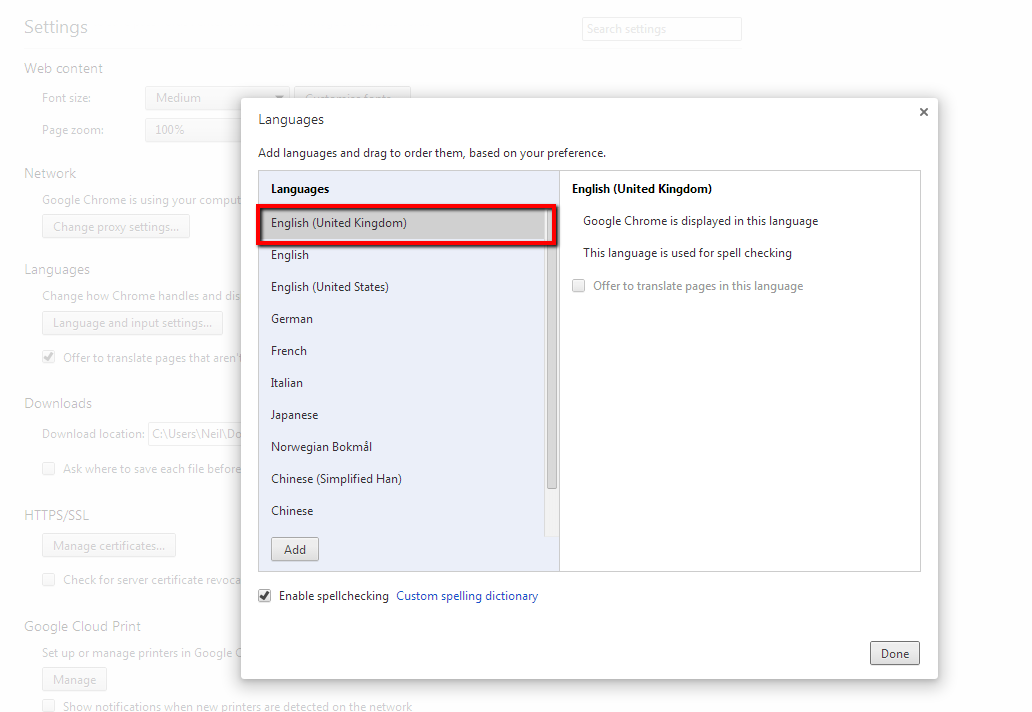
    Well, it’s very simple really,  when you install software you also set the langauge you would like to use. And the web browser we install has our desired and default language set.  Here is a screen shot of my chrome config, as you can see my base language is set to English – United Kingdom.

    Click for full size image
    Click for full size image

    Using javascript we can get the default language and use that to display our website automatically in their preferred language to that visitor.

    Do I Need To Code This Up?

    You can if you want, but I use a piece of software called WPML on all my multi language builds.  This software has this functionality built right into it.

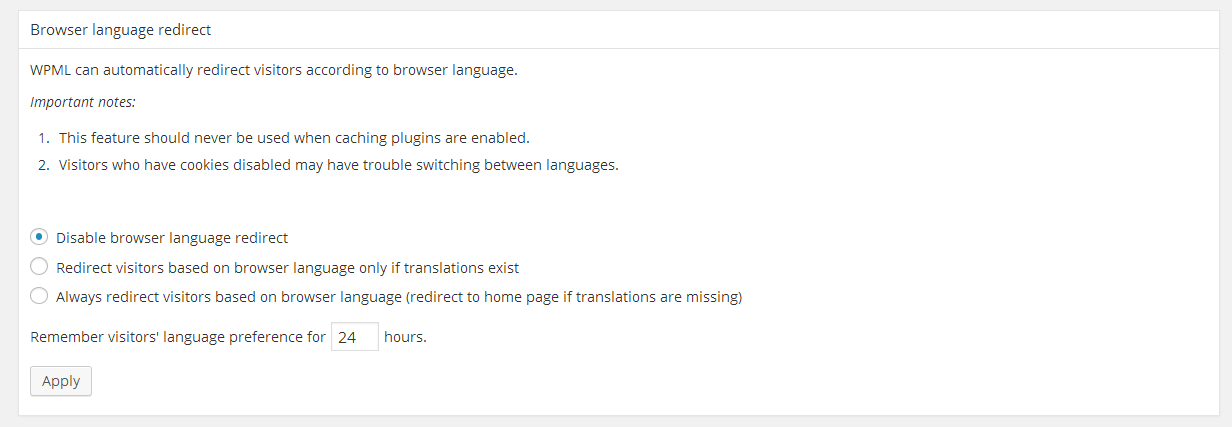
    From the language setup pages we can set the site to automatically redirect based upon browser language.  Why code your own solution when there is one out there already.

    Click for full size image
    Click for full size image

    Why Do This?

    As with all multi language work the “WHY” is to make your site as understandable as possible to your site visitors.

    Say I speak French and I come to your English language website, already there is a barrier to entry based upon my ability to read and speak English.  If you tear down that barrier and present me with your site in French I’m already engaged more.

    It Will Only Work If You Have The Correct Languages Translated.

    This is not magic, your site will only redirect if you have the appropriate languages installed and translated.

    This means you need the exact language specification, my browser is set to en-gb, so you would need en-gb as a language not en-us or any other version of English.

    This may seem a small point but if you install FR for French and your visitor has fr-ca or French Canadian as their language, your redirect will not work.

    It’s Not Just Languages It’s For Territories Too.

    You can also use this functionality to redirect to a different territory based on their language settings.

    Say I’m a US based company selling into Australia and I have different copy for that market, I could install en-us and en-au as my languages and automatically redirect to a different English version based upon location.  This allows me to add different prices / copy etc to the Australian site.

    Wrap Up

    Getting your message to your site visitor in the most convenient way is the main reason to have a multi language site, why not remove that need to click over to their desired language with an automatic browser detection.

    If you need help automatically redirecting your site based upon language, why not get a quote from us.