Neil Matthews

Category: General Blogging

  • Integrating WordPress With Twitter

    Photo nicked from Twitter
    Photo nicked from Twitter

    I ran a poll last week asking if you were planning to , or already had integrated your blog with Twitter.  The results polarised into two camps, either you were already inhtegrating or you were looking into it.  This post is for the later group of readers.

    Why Integrate WordPress with Twitter

    Darren Rowse from Problogger brought to my attention the idea of a Homebase and Outposts approach to blogging and social media sites. This is something I strongly belive in this approach, read the post for a full descrption, but in brief it says that yoru home base (or blog) is your main property from where you do your main work, and the outposts are areas you push your work to.  Using twitter integration tools you can simplfy pushing blogs posts from your home base out to your outputs.

    The three main reason I integate with twitter are:

    • The main reason I integrate with Twitter is to market my blog content to a wider auduence, this is made much more steamlined with Twitter plugins.
    • Increasing productivity is another reaso0n to integrate, most bloggers spend a huge amount of time developing and marketing their site, if this can be made more efficient that time can be spent on other more important taks such as content development.
    • You do not own our content on Twitter/facebook or any of the other social sites, you need a place to call your own where you house your original content.  If you have a business blog, this will be where your call to action to generate income will be.

    Enter The Plugin

    There is always a plugin, and my Twitter integration plugin of choice that I use it Twitter tools by Alex King, it is a bi-directional post to tweet, tweet to post and tweet to widget fun fest

    Download Twitter Tools

    Download and install the plugin as you would any other, then the only other bit of configuration is to add your twitter user ID and password.

    If you use other plugins, please feel free to tell me about them in teh commnets of thsi post.

    Posts as Tweets

    The main feature I use in this plugin is the ability to push posts as tweets into Twitter.  Using this fucntionality I create a tweet which says “new at my blog Integrating Twitter with WordPress http://tinyurl.com/xyc” this tiny URL then send Tweepl back to the original post.

    You can push all posts to Twitter, or opt them out.  I only push out my key work in this way not every little post I publish on my blog.

    Tweets Summarised into A post

    The plugin allows bi-directional updates so you can then republish your tweets as a post.

    Due to the small nature of tweets you can opt to publish single tweets or a digest of daily or weekly tweets into a post.

    This is not a function I use, but If you are pushing out a lot of short valuable content into Twitter it will make sense to expose this to yoru non-twittering readers.

    Tweets in a Sidebar Widget

    Last but by no means least is the ability to push your tweets into a sidebar widget rather than a blog post.

    BONUS Integration

    I don’t want to sound like an infomercial, but you get all of the twitter integration plus a bonus Facebook integration when you read thsi post.

    Twitter has created a Facebook application.  If you install the app on your Facebook page it will pull your tweets and stick them on your Facebook  profile as updates.

    I have decided which outpost to concentrate on (Twitter) but I always like an automated outpost with which I can expand my blogs audience.

    UPDATE: WordPress Social Media Integration Training

    I have recorded a video training session of this social media integration methodology for my WordPress training and support community the WP Owners Club.

    I’ve got a 14 day free trial at the moment, why not take out trial membership and check out the training, here’s what you need to do

    1) Sigup for a 14 day free trial account at wpownersclub.com/sign-up

    2) Go to http://wpownersclub.com/integrating-social-media-with-wordpress and watch your training

     

  • POLL RESULT: Are You Integrating Your Blog With Twitter?

    Photo By a Barber Shop
    Photo By a Barber Shop

    I have been running a poll this week on my blog (and on Twitter) asking the question, are you integrating your blog with twitter?

    The results were quite interesting, approximately 50% of respondants were already integrating their blog posts into twitter using plugins, another 50% were looking into how to do this, and one grumpy Guss said NO, I’m not integrating.

    So with this in mind, in the very near future I will be writing the definitive guide  (not to put too much pressure on my shoulders) on how to integrate your blog with twitter.  Post to tweets, tweets to posts, widgets full of Twittering and a bonus guide on how to integrate all of  this into your facebook account.

    Stuff that one one in your pipe and smoke it 🙂

    Can I suggest you subscribe to my RSS so you don’t miss out on this earth shattering experience.

  • What Is Comment Spam?

    Photo by arndog

    Photo by arndog

    You may have noticed very weird comments appearing on your blog.  The comments usually don’t make sense and they link to bizzare domain names.  These comments are probably spam left by people (or automated spam bots) in an attempt to increase the target domains visibility on the search engines.

    Why Do People Commit Comment Spam?

    In one word links.  Every comment on a blog creates a a link back to the target blog.  The game is to create as many links back to a site as possible in an attempt to improve organic rankings on search engines.  This is a black hat SEO technique.

    What Do Links Mean?

    It sounds like a game show host’s catch phrase, what do links mean? (audience reply) Google Juice! One of the measures of a site to improves it’s position on the search engines is the number of links it has from other sites.

    How Much Of A Problem is It?

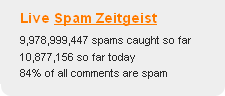
    The numbers are huge, a picture tells a thousand words, so see this screen from Akismet (more about this later).

    spamzeitgeist

    How To Spot Comment Spam

    It is usually very easy to spot comment spam, the comment usually is meaningless or off topic, the domain names will be random connections of letters or look very suspect.

    What Can You Do About It

    As always if there is a problem in WordPress, there is a plugin to solve it.  In this case my preffered anti spam plugin is Askimet.

    This excellent little plugin analyses all comments left on your blog and any suspect ones are quarantined in a holding area to be deleted (automatically after 30 days if you configure it so) or to be marked as not spam (or ham as it is know).

    The system reports back to a central database so the spam engine is always adapting to new methods of spamming.

    Review Your Commenting Configuration

    Another way to control comment spam is to ensure you control who can comment and how.

    From your WordPress dashboard review settings -> discussion

    Review these configurations and tighten these controls if you are suffering from a lot of comment spam.

    Conclusion

    If 80% of comments left on blogs are spam, there is a huge problem which must be helping sites gain traction on the search engines.  Help to can the spam by installing pluigns such as Akisment and delete all spam on site.

  • POLL: Are You Integrating Your Blog With Twitter?

    Photo By a Barber Shop
    Photo By a Barber Shop

    [poll id=”3″]

  • If Your Names Not Down …

    vip1

    I’ve been added to the Automattic list of WordPress consultants.

    Who Are Automattic?

    Automattic are the company behind WordPress. They have this to say about their list:

    In response to a steady stream of requests, we’ve compiled a list of web design and software development firms who have experience with WordPress based projects.

    http://automattic.com/services/wordpress-consultants/

  • Plugin Audit

    audit

    I’m a plugin junkie, I am forever installing new plugins to test them out and see if they can help my blog.

    The trouble with my obsession is that I install and often do not use the plugins.  As a result I need to give my blog a regular plugin audit.  Any plugins I am not using, I deactivate and delete.

    Why Should you Audit Your Plugins

    Every plugin you add to you blog comes with an overhead.  The overhead can come in three types:

    • A page load overhead
    • A database overhead
    • Disk Space

    Performace of Page Load

    Certain plugins add additional components to the page, and every extension of the normal page load will comewith an ocerhead.  If you don’t need it remove it and speed up page loads.

    There is school of though in SEO land that Google will rank a fast loading page over a slow loading page.

    Data base size

    Plugins with database functions will write data to tables, and increase the size of your database.  The bigger the database, the longer it will take to recover data, backup and require more disk space.

    If your hosting company limits your database size, you may exceed your quota more quickly with the plugins installed.

    Disk Space

    The more plugins you stuff onto your blog, the more disk space they will require.  Some plkugins are tiny, but others are quite large, your disk quote may be at risk if you don’t keep an eye on your plugins.

    Deactivate and Delete

    Once you have have identified the unwatned plugins, deactivate and delete them. Disabling a plugin still leaves the files on disk, so not all of your problems are fixed.

    Deleting the Tables

    When you remove plugins they don’t always delete the tables from your database.  Using an admin tools such as MyPHPAdmin, review your database and delete any unwanted tables.

    CAUTION: If You don’t understand the WordPress database layout, do not delet tables without the help of a techie chum.

    Audit Regularly

    Audit on a regular basis and you will be surprised how many redundant plugins you have installed over time.

  • Keep Your plugins up to date

    Photo by dave_apple
    Photo by dave_apple

    Most users of WordPress are fairly well acustomed with the plugin tab glowing red telling them to update on of their plugins, but do you know why it is important to keep your plugin versions up to date?

    Why Would A Plugin Developer Update Their Code?

    There are a number of reasons a plugin developer will update their code they are:

    • To fix bugs
    • To add new functionality

    Bug Fixes

    As you can imagine, a plugin which has bugs is not a good thing, once a developer finds a bug in his or her code, they will develop a fix and then deploy it to the community.  If a plugin requires a bug fix, update it to the new version ASAP or you risk having a failing plugin.

    Additional Features

    It is not necessatry to update a plugin for a feature release, this is an expansion of existing functionality.  If you are happy with your plugin as is don’t update, but lets admit it, bloggers love their tech, and if there is a new watch-u-me-callit we want it.  You will probably be updating.

    How Do you Know Type The Release Is?

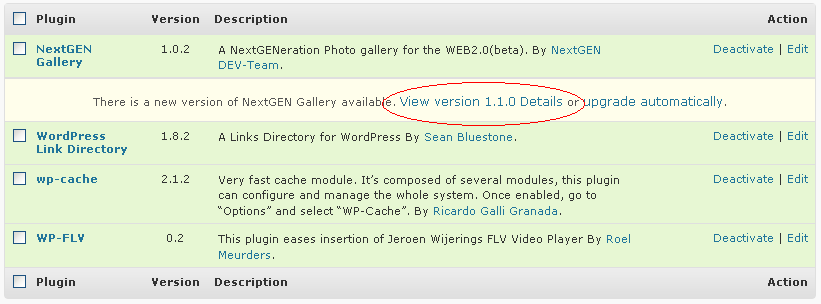
    When you view the plugin page, underneath the plugin to be upgraded will be a link saying something along the lines of View version x.y.z details, click on the link and all will be revealed.

    pluginupdate

    A Word On WordPress Updates

    I have seen a number of plugins fail after an upgrade of WordPress.  The plugins use depreciated functions within WordPress which means that when an upgrade occurs, the functions they call will fail and the plugin will no longer work.

    If your plugins stop working after an upgrade check your plugin devlopers site, see of there is a know issue with the WordPress version and update to the version they recommend, note this may require a manual install.

    It’s Been A While Since I last Said It But ….

    Backup your system before you update any plugins.  A few plugins make changes to your database.  It is highly advisable to have a backup of your database before installing or updating a plugin which could potentially corrupt your database. Check out my post 6 Key times you should backup your blog.

    The Upgrade Process

    After WordPress 2.7, updating your plugins is an incredibly simple process, once the alert is raised, click on teh button, the plugin is downloaded to your server and automatically installed, it’s as easy as pie.

    My Advice

    If a plugin tab goes red backup and then update.  If you have problems with software the developer will always say upgrade to the latest version.

  • Not All Themes Are Created Equal

    Photo by pagedooley
    Photo by pagedooley

    There was a time (not too long ago) when a WordPress theme was a very simple thing. You uploaded a few files, selected the theme and bingo you had a new look and feel for your blog.

    Things have changed, battalions of dedicated and skilled theme designers are creating more and more excellent, but complicated looks for your WordPress blog. I thought a post was in order to talk about how these advanced themes should be used.

    RTFM

    RTFM or read the “effing” manual is something I advise to everyone who has purchased a premium theme with a wide range of functionality.  The small print will show you how to use your shiny new theme to the best of it’s ability.  I have had a number of clients pulling their hair out trying to get a theme to work, thinking it is just like their old install and forget look and feel.

    Plugins

    Many of these themes are reliant on plugins. The plugins are usually packaged with the theme, so install and activate them as instructed.

    Custom Properties

    Another popular thing amongst theme designers is to use custom properties. Next time you write a post, scroll down to the bottom of the page and you will see an area to create custom properties. These are little pieces of variable information which are specific to the post, in the case of my theme design (Ice Cream Dream from WordPrezzie), they are used to add little flourished to each post. My theme may look fairly simple, but to have the list of thumbnail images running down the page,  I need to add a custom property called thumbnail to each post, this is populated with the URL of my thumbnail images so.

    Categories

    Many themes take advantage of certain categories to place content in specific areas, pay attention to these cats, and remember the spell the category name exactly as it says in the documentation, I recently spent hours trying to fix a theme which required videos to be in a videos category rather than video as had been configured by the blog owner.

    My thoughts On Themes

    Themes are hugely important to entice readers into your blog, spend time on the initial build of your blog to get the right look and feel, and then let it go, spend time on your content rather than tweaking every little nuance of design. It is important to understand that your long term readers will probably sign up for your RSS feed, and this never looks pretty.

  • I Would Like to Thank …

    Photo by nostri-imago
    Photo by nostri-imago

    I have been away for a week with my family and when I check my stats,I noticed traffic coming in from a link on the Blog WP Themes Gallery.  I checked it out and I have been added to their top 40 blogs about WordPress.  I am pretty stoked about this.

    I would just like to thank my manager, my agent (WP Dude begins to cry) my wife, my family without whom none of this would be possible .. {FULL ACCEPTANCE SPEECH AVAILABLE FOR DOWNLOAD FROM ITUNES}

    Check out the list at:

    http://wpthemesgallery.com/top-blogs-about-wordpress-update-021509/

    Thanks again to the very nice people at WP Themes Gallery, this type of recognition is really touching.

  • Migrating from Blogger to WordPress

    photo by Conner395

    photo by Conner395

    It”s a piece of p!ss migrating from blogger to a self hosted WordPress installation.  I have done it for a couple of my own blogs and for clients, so I speak from experience.

    Importing the Posts, Comments, Tags & Kung Fu WotNots

    If you scroll down the menus in your WordPress dashboard, you will see the tools section, and under there is an import function, and under the import is a huge list of competing blog platforms from which you can import, it should comes as no great mental leap to know that blogger is one of these platforms.

    Authorize Authorise

    It’s spelled with an S for flip sake.

    Once you reach the point of import, the first stage is to authorise your new WordPress blog with the Blogger API.  This means you are giving permission to Blogger to allow access to your posts from a remote server namely your new WordPress host.

    Click and Button and There You Go

    Once authorised, you simple click on the go button and a progress bar of the import is shown.  Once it is complete, a notification of the number of posts and other data imported is shown.  As long as you have the number you can reconcile the export/import.

    Google Juice and Gin

    If you have built up some links to your Blogger blog and are getting organic search traffic (AKA Google juice) then you don’t want to loose it.  There are ways to redirect this traffic to your new site.

    I use a 301 redirection javascript.  From your Blogger dashboard, add a javascript widget which does a 301 redirect to your new site.  A 301 tells the search engines your data has been moved.

    Never one to re-invent the wheel, I found an excellent article on this subject:

    http://laffers.net/howtos/howto-redirect-blogger-to-wordpress

    The Genius of An Easy Migrate

    It is a stroke of absolute genious to make migrating from the competing blog to WordPress as easy as can be.  Remove all obstacles to using your code and people will flock to it.  Make the move to WordPress you know it makes sense.

  • WordPress 2.7.1 Upgrade

    photo by lifeintoronto

    Many of you have probably noticed that the upgrade bar has appeared at the top of your WordPress blog notifying you to update to 2.7.1

    I have written in the past about the imporance of keeping your code base at the highest level in Should You Update Your Version of WordPress. I want to expand about this and talk about the  automatic upgrade process.

    Back It Up – How Many Times Do I have To Say It!

    I feel like a broken record, recently all I have done is write about backup.  Back it up before you do any upgrade [link to 6 times]

    Site Vault

    I just thought I would spend a few minutes writing about a new utility I am using to do my blog backups.

    The tool is Site Vault, and excellent little utilty which backs up your code base and database in one go.

    You setup the utility to backup ftp and upload a small script to backup your database.  One click backup and one click restore – excellent.

    It costs $19 for a full version, but comes with a 30 day trial, check it out, it comes highly recommended by me.

    Site Vault Demo (p.s. I don’t do affiliate links)

    Automatic Upgrade

    Part of the new 2.7 fucntionality is an automatic upgrade.  Normally I am a bit jittery allowing systems to upgrade automatically, I am old school I guess and like to see exactly what is being changed, and have the power to roll it back easily.

    But intrepid exploter that I am, I dedided to do it automatically so you dear readers can learn of my exciting voyage.

    Press The Button Cross Fingers

    I clicked on the button with my fingers crossed hoping that nothing would go wrong and to my extreme pleasure nothing did, the files were downloaded and applied to my code base with no fuss.

    The automaic upgrade does exactly what it says on the tin, one click automatic upgrade.

    My Experience

    Upgrading is a very simple process now, very much like upgrading plugins, I was very very impressed by the whole process, it takes a lot of the administrative burden away from maintaining your blog.

    I would like to see some sort of rollback process to take your blog back to the previous version, but I guess that may be in the future.

    I will definetly be using the automatic upgrade from now on.  Did I mention to backup before you start?

  • Guest Post on Problogger

    photo by timothymorgan
    photo by timothymorgan

    The most amiable Darren Rowse of Problogger.net gave me the opportunity to write a guest post on testing your backup strategy.

    I want to encourage people to test their backups before they need to do an emergency restore.

    See the full post at:

    http://www.problogger.net/archives/2009/02/12/testing-your-blog-backup