Neil Matthews

Category: Customisation

  • Troubleshooting WooCommerce Checkout Errors

    Troubleshooting WooCommerce Checkout Errors

    Experiencing issues on the checkout page of your WooCommerce store can be frustrating for both you and your customers. Troubleshooting checkout errors effectively helps maintain a smooth shopping experience. Here are steps to identify and resolve common problems:

    1. Enable Debugging

    First, activate debugging in WooCommerce. Navigate to WooCommerce > Settings > Advanced > Log. Enable log entries to see errors that occur during checkout, which can provide crucial clues to underlying problems.

    2. Check for Plugin Conflicts

    Deactivate all plugins except WooCommerce to determine if another plugin is causing the issue. Reactivate each plugin one-by-one, checking the checkout page each time, until the conflicting plugin is identified.

    3. Theme Issues

    Your theme may not be fully compatible with WooCommerce. Temporarily switch to a default theme like Storefront or Twenty Twenty-Three. If the issue resolves, your theme may require updates or support.

    4. Outdated Software

    Ensure that WordPress, WooCommerce, and all plugins and themes are fully updated. Outdated files can lead to compatibility issues and errors during checkout.

    5. JavaScript Conflicts

    Use your browser’s developer tools to check for JavaScript errors that might affect the checkout process. Console errors can guide you to the source of the problem, often pointing to faulty scripts or enqueue issues.

    6. Payment Gateway Issues

    If the error relates to payments, check WooCommerce payment settings. Verify that credentials for gateways like PayPal or Stripe are correct and that the accounts are active.

    7. Cart and Checkout Page Setup

    Ensure that your Cart and Checkout pages are configured correctly by visiting WooCommerce > Settings > Advanced. Double-check that the correct shortcodes are used on these pages.

    8. PHP Errors

    Check your server error logs to find any PHP errors occurring during checkout. These errors might require adjustments in your PHP settings or changes by your hosting provider.

    9. Contact Hosting Support

    If all else fails, reach out to your hosting provider for support. They can check server-side issues or resource limitations that might affect checkout performance.

    Troubleshooting checkout errors is key to maintaining customer satisfaction and sales. With these steps, you can diagnose issues and ensure a seamless buying process for your users.

  • Best Reporting Plugins for WooCommerce in 2024

    Best Reporting Plugins for WooCommerce in 2024

    Introduction

    As the world of e-commerce continues to accelerate, having efficient reporting tools is crucial for business owners. WooCommerce, a leading platform for online stores, boasts a wide range of reporting plugins that can help you stay on top of your sales, inventory, and customer data. In this post, we’ll explore some of the best reporting plugins for WooCommerce in 2024.

    1. Metorik

    Metorik stands out for its comprehensive reporting and analytics functionalities. Its user-friendly interface provides detailed insights into sales trends, customer habits, and product performance. With real-time reports and dynamic dashboards, Metorik is a top choice for WooCommerce store owners aiming to leverage data for growth.

    2. WooCommerce Analytics

    WooCommerce Analytics is an integrated option that comes with a powerful suite of tools right out of the box. Offering a range of customizable reports from sales to customer demographics, this plugin makes it simple to track and analyze critical data without additional overhead.

    3. Advanced Reporting for WooCommerce

    This plugin provides detailed analysis through a range of customizable reports covering sales, products, categories, and more. Advanced Reporting for WooCommerce allows users to filter data with ease, making it ideal for businesses seeking tailored insights.

    4. Putler

    Putler integrates with WooCommerce, offering extensive reporting capabilities with a focus on customer analysis and forecasting. The platform delivers actionable insights on customer lifetime value, churn rates, and sales metrics, making it a robust choice for data-driven decision-making.

    5. Actionable Google Analytics for WooCommerce

    This powerful plugin bridges Google Analytics with WooCommerce, offering enhanced e-commerce tracking features. It helps businesses efficiently monitor user behavior and improve their marketing strategies based on comprehensive data analysis.

    Conclusion

    Choosing the right reporting plugin for your WooCommerce store can significantly impact your business operations and growth strategies. Whether you need basic sales reports or in-depth analytics, these plugins offer a variety of features to meet different reporting needs in 2024. Evaluate your specific requirements and opt for the tool that best aligns with your business goals.

  • How to Set Up Conversion Tracking in WooCommerce

    How to Set Up Conversion Tracking in WooCommerce

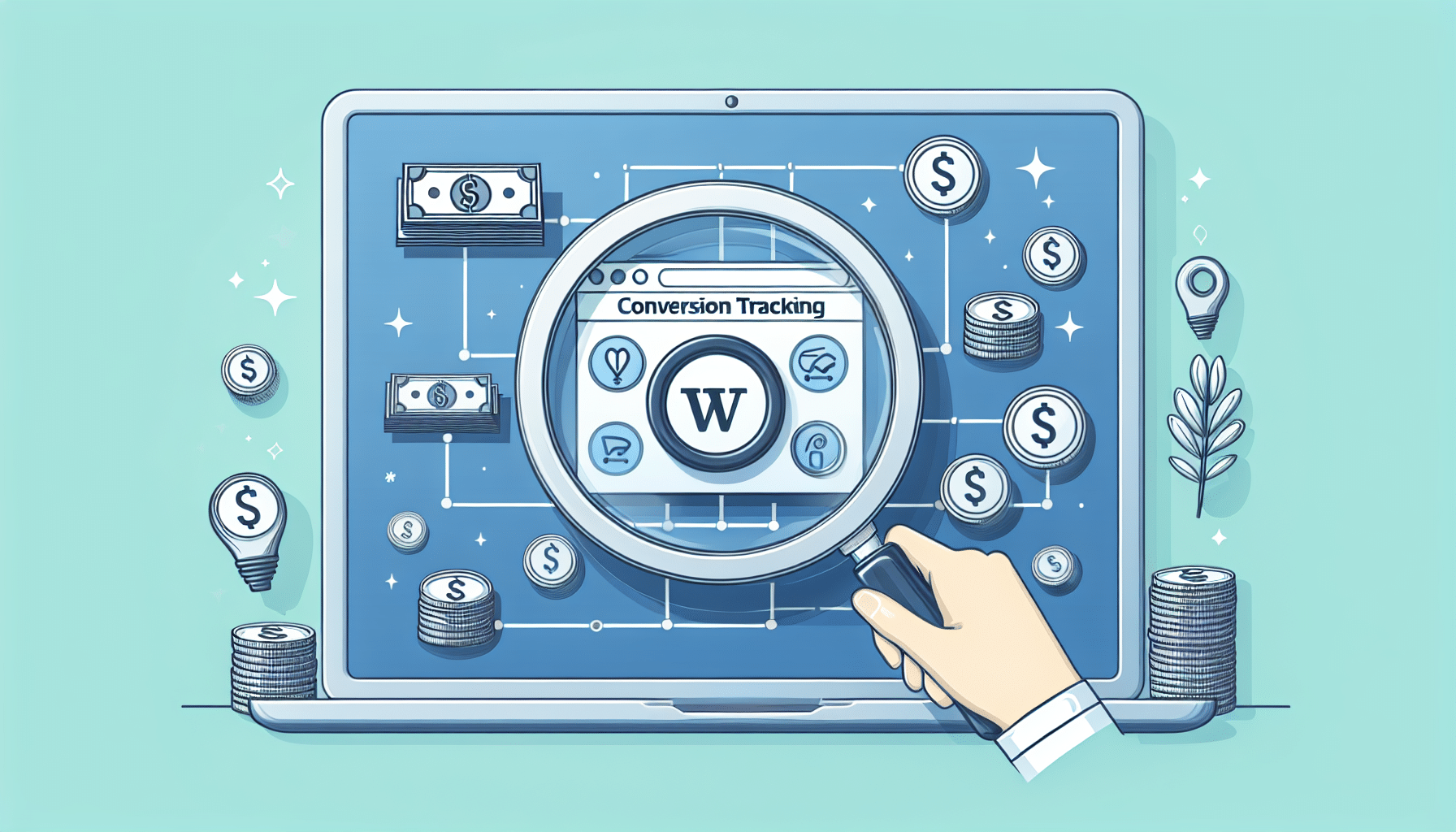
    Setting up conversion tracking in WooCommerce is crucial for analyzing the performance of your online store and optimizing your marketing strategies. Here’s a step-by-step guide to get you started.

    Step 1: Install a Conversion Tracking Plugin

    To begin, install a conversion tracking plugin like WooCommerce Google Analytics Pro, which integrates seamlessly with WooCommerce and Google Analytics, allowing you to track detailed conversion data.

    Step 2: Create a Google Analytics Account

    If you haven’t already, sign up for a Google Analytics account. Once your account is set up, create a property for your WooCommerce store. Ensure that you enable Enhanced Ecommerce for a detailed view of customer transactions.

    Step 3: Connect Google Analytics with Your WooCommerce Site

    After installing the necessary plugin, navigate to your plugin settings. You’ll typically need to enter your Google Analytics tracking code or property ID to link your store to Google Analytics.

    Step 4: Set Up Goals in Google Analytics

    Goals help you evaluate if specific actions, like purchases, are occurring on your website. In Google Analytics, navigate to the ‘Admin’ section, select ‘Goals’, and create a new goal tailored to track your conversion objectives.

    Step 5: Monitor Your Conversion Data

    With tracking enabled, start monitoring your conversion data. Use the Google Analytics Ecommerce reports to gain insights into sales performance, customer behavior, and much more.

    Additional Tips:

    • Test Your Set Up: Make sure your setup is working by performing a test transaction and checking if it reflects in your analytics reports.
    • Utilize Google Tag Manager: Consider using Google Tag Manager to add and manage tracking codes more efficiently.
    • Focus on Conversion Rates: Beyond just tracking sales, analyze conversion rates and refine your strategies for better performance.

    By following these steps, you’ll optimize your WooCommerce store for better insights into customer behavior, leading to better-informed business decisions and improved sales performance.

  • Top Google Analytics Metrics for WooCommerce Stores

    Top Google Analytics Metrics for WooCommerce Stores

    Running a successful WooCommerce store requires more than just great products and stellar customer service. To truly excel, store owners need to dive deep into data to understand their customers and optimize their offerings. Google Analytics, when properly utilized, can provide a trove of useful insights. Here’s a look at the top Google Analytics metrics every WooCommerce store should monitor to boost performance and increase sales.

    1. Customer Acquisition

    Understanding how customers find your store is crucial for optimizing marketing strategies. Google Analytics provides reports on channels and sources bringing traffic to your website, such as organic search, paid ads, social media, and direct visits. Identifying high-performing channels helps allocate your marketing budget effectively.

    2. Conversion Rate

    The overall conversion rate shows the percentage of visitors that make a purchase, but digging deeper into product-specific, channel-specific, and device-specific conversion rates can reveal where you might improve. Look for barriers that prevent conversions and work on those areas for growth.

    3. Average Order Value (AOV)

    AOV is a key metric that reflects the average amount your customers spend on a purchase. Tracking AOV helps in crafting strategies to encourage larger purchases, like bundling products or offering free shipping on orders over a certain amount.

    4. Cart Abandonment Rate

    Understanding why customers leave without completing their purchases is vital. A high cart abandonment rate suggests friction points in the checkout process. Google Analytics can help track the shopper’s journey, allowing you to improve the experience to lower this rate.

    5. Customer Lifetime Value (CLV)

    CLV estimates the total revenue you can expect from a customer during their lifetime. Tracking CLV helps identify and nurture the most profitable customer segments. Use this information to refine engagement strategies and improve retention rates.

    6. Site Speed

    Fast loading times lead to better user experiences and can significantly impact both bounce rates and conversions. Utilize Google Analytics’ Site Speed reports to identify areas requiring optimization, ensuring your store loads swiftly on all devices and connection speeds.

    7. User Demographics and Interests

    This data gives you insights into the age, gender, location, and interests of your site visitors. Understanding your customers enables more personalized marketing and can guide product development to better align with customer preferences.

    Conclusion

    Monitoring these metrics can greatly enhance the strategic decision-making process for WooCommerce store owners. By understanding and acting upon these insights, you can drive improvements in customer experience, marketing effectiveness, and ultimately, your bottom line. Leveraging Google Analytics effectively is a powerful way to ensure sustained growth and competitive advantage in the crowded e-commerce landscape.

  • Understanding WooCommerce Analytics: What to Track

    Understanding WooCommerce Analytics: What to Track

    In the ever-evolving world of e-commerce, understanding your store’s performance is crucial for success. WooCommerce, a popular e-commerce platform, offers a robust analytics tool that can help you track key metrics and make informed decisions. Here’s a breakdown of what you should focus on when analyzing your WooCommerce analytics.

    1. Sales Performance

    Sales performance is at the heart of understanding your business. Track metrics such as total sales, average order value, and sales by product to see which items are performing well and which need attention. Regularly reviewing sales trends can help you identify patterns and optimize your product offerings.

    2. Customer Insights

    Gaining insights into your customer base can inform your marketing strategy. Look at customer data such as total customers, new vs. returning customers, and customer lifetime value. This information can help tailor your promotions and improve customer retention strategies.

    3. Product Analytics

    Knowing which products are your top sellers is essential for inventory management and marketing strategies. Analyze metrics like top-selling products, products with the highest conversion rates, and those with the most page views. This data can guide your inventory stocking and promotional efforts.

    4. Traffic Sources

    Understanding where your traffic is coming from can shape your marketing decisions. Track metrics such as traffic by source, referral rates, and conversion rates by channel. This information helps you allocate your marketing budget more effectively and focus on high-converting channels.

    5. Cart Abandonment

    High cart abandonment rates can signal friction in your checkout process. Monitor the cart abandonment rate and identify where users are dropping off. Implement strategies such as retargeting emails or simplifying the checkout process to reduce abandonment rates.

    Conclusion

    WooCommerce analytics provide invaluable insights into your store’s operations. By tracking sales performance, customer insights, product analytics, traffic sources, and cart abandonment, you can make data-driven decisions that grow your business. Regularly reviewing these metrics will help ensure your e-commerce store remains competitive and successful.

  • How to Remove a Tab from the WooCommerce Single Product Pages

    How to Remove a Tab from the WooCommerce Single Product Pages

    WooCommerce product pages are packed with useful information for your customers, displayed through various tabs such as Description, Reviews, and Additional Information. However, depending on your store’s needs, you might find some of these tabs unnecessary or want to remove them entirely. In this blog post, we’ll explore different ways to remove tabs from WooCommerce single product pages, both using a plugin and via code snippets.

    Why Remove a Tab?

    You might want to remove a WooCommerce tab if:

    • You don’t need the Additional Information tab (e.g., if your products don’t have attributes or dimensions).
    • You prefer to show product reviews elsewhere on the page, making the Reviews tab redundant.
    • You want a cleaner, more streamlined product page that eliminates unnecessary information.

    No matter the reason, WooCommerce makes it simple to manage tabs with plugins or code.


    Option 1: Removing Tabs Using a Plugin

    If you’re not comfortable editing code, using a plugin is the easiest way to remove tabs from your WooCommerce product pages.

    Recommended Plugin: WooCommerce Tab Manager

    WooCommerce Tab Manager is a powerful premium plugin that allows you to remove, add, and reorder tabs on your product pages without touching any code.

    Steps to Remove a Tab Using WooCommerce Tab Manager:

    1. Install and activate the plugin: Head over to the WooCommerce marketplace or your WordPress admin panel, search for the WooCommerce Tab Manager plugin, and install it.
    2. Go to the Tab Manager settings: Navigate to WooCommerce > Tab Manager in your WordPress dashboard.
    3. Customize tabs: You’ll see a list of all default WooCommerce tabs. From here, you can easily remove any tab (e.g., Description, Reviews, or Additional Information) by disabling it.
    4. Save Changes: Once you’ve removed the unwanted tabs, click Save, and those tabs will no longer appear on your product pages.

    This plugin offers a straightforward interface to manage all your tabs, making it an excellent solution for users who prefer a no-code approach.


    Option 2: Removing Tabs Using Code Snippets

    For users who want more control or don’t wish to use a plugin, WooCommerce allows you to remove tabs by adding a few lines of code to your theme’s functions.php file. Below are the code snippets you can use to remove individual tabs.

    How to Remove the Description Tab

    The Description tab is one of the default tabs in WooCommerce. To remove it, follow these steps:

    1. Go to Appearance > Theme File Editor in your WordPress dashboard.
    2. Edit your theme’s functions.php file (preferably in a child theme to avoid losing changes during theme updates).
    3. Add the following code to remove the Description tab:
    // Remove the Description tab
    add_filter( 'woocommerce_product_tabs', 'remove_description_tab', 98 );
    function remove_description_tab( $tabs ) {
        unset( $tabs['description'] ); // Remove the description tab
        return $tabs;
    }

    This code removes the Description tab from all WooCommerce product pages.

    How to Remove the Reviews Tab

    If you don’t need the Reviews tab, you can remove it using a similar process. Add the following code to your theme’s functions.php file:

    // Remove the Reviews tab
    add_filter( 'woocommerce_product_tabs', 'remove_reviews_tab', 98 );
    function remove_reviews_tab( $tabs ) {
        unset( $tabs['reviews'] ); // Remove the reviews tab
        return $tabs;
    }

    This will disable the Reviews tab globally across all products.

    How to Remove the Additional Information Tab

    The Additional Information tab usually displays technical details about the product, such as attributes or dimensions. If your products don’t use these fields, you can remove this tab with the following code:

    // Remove the Additional Information tab
    add_filter( 'woocommerce_product_tabs', 'remove_additional_info_tab', 98 );
    function remove_additional_info_tab( $tabs ) {
        unset( $tabs['additional_information'] ); // Remove the additional information tab
        return $tabs;
    }

    This code removes the Additional Information tab across all products.


    Remove Multiple Tabs at Once

    If you want to remove more than one tab, you can combine the snippets into a single function. For example, to remove the Description, Reviews, and Additional Information tabs simultaneously, use this combined snippet:

    // Remove multiple WooCommerce tabs
    add_filter( 'woocommerce_product_tabs', 'remove_multiple_tabs', 98 );
    function remove_multiple_tabs( $tabs ) {
        unset( $tabs['description'] );           // Remove the description tab
        unset( $tabs['reviews'] );               // Remove the reviews tab
        unset( $tabs['additional_information'] ); // Remove the additional information tab
        return $tabs;
    }

    This method is efficient and keeps your functions.php file tidy.


    Conclusion

    Customizing the WooCommerce product page by removing unnecessary tabs can help improve user experience and streamline your product pages. Whether you opt for a plugin or prefer using code snippets, WooCommerce provides flexible ways to manage tabs.

    Quick Summary:

    • For non-coders: The WooCommerce Tab Manager plugin provides an easy way to manage, add, or remove tabs with a user-friendly interface.
    • For developers: You can remove specific tabs like Description, Reviews, or Additional Information by adding simple code snippets to your theme’s functions.php file.

    With these methods, you’ll have full control over the appearance of your WooCommerce product pages, creating a more tailored shopping experience for your customers.

    If you need help customising your WooCommerce store get in touch.

    Photo by Andrew Pons on Unsplash

  • Adding Custom Tabs to the WooCommerce Single Product Page

    Adding Custom Tabs to the WooCommerce Single Product Page

    WooCommerce, one of the most powerful e-commerce platforms for WordPress, offers great flexibility in customizing product pages. Sometimes, you might need to add more information to your product pages—details that don’t fit into the standard description, reviews, or additional information sections. This is where custom product tabs come in handy. In this post, I’ll show you how to add custom tabs to WooCommerce single product pages using plugins and code snippets.

    Why Add Custom Tabs?

    Custom tabs allow you to:

    • Provide additional product information (e.g., specifications, care instructions).
    • Add a FAQ section or display customer reviews in a separate tab.
    • Integrate downloadable documents or guides.
    • Showcase special offers, warranties, or customer testimonials.

    Adding custom tabs not only enhances the user experience but can also improve product page layout and readability.

    Option 1: Using Plugins to Add Custom Tabs

    If you’re not comfortable with coding, WooCommerce provides several plugins that allow you to add and manage custom tabs on your product pages.

    Recommended Plugins for Custom Tabs

    1. WooCommerce Custom Product Tabs Lite
    • This free plugin allows you to easily create custom tabs for individual products. You can set custom tabs per product, reorder tabs, and remove default WooCommerce tabs.
    • The premium version offers features like global tabs that apply to multiple products.
    1. Custom Product Tabs for WooCommerce
    • Another popular plugin, which lets you add custom tabs that are product-specific or global (appearing across multiple products). The user interface is simple and effective.
    1. WooCommerce Tab Manager
    • This premium plugin allows complete customization of product tabs. You can create global tabs, reorder default WooCommerce tabs, and even add tabs via shortcodes. If you need more control over the tab content, this is a great option.

    How to Add a Custom Tab Using WooCommerce Custom Product Tabs Lite

    1. Install and activate the WooCommerce Custom Product Tabs Lite plugin from the WordPress plugin repository.
    2. Go to the WooCommerce product editor page.
    3. Scroll down to the “Product Data” section, and you’ll notice a new ‘Custom Tabs’ option.
    4. From here, you can add a new tab, define its title, and add content (text, images, videos).
    5. Hit Save and view your updated product page with the new tab.

    This method is easy, fast, and ideal for users who don’t want to deal with coding.


    Option 2: Adding Custom Tabs via Code Snippets

    If you’re comfortable editing code, WooCommerce also allows you to manually add custom tabs through your theme’s functions.php file or a custom plugin. The advantage of this approach is that you have full control over the layout, content, and style of your tabs.

    Code Example: Adding a Custom Tab

    Here’s a step-by-step guide to adding a custom tab using code:

    1. Open your WordPress dashboard and navigate to Appearance > Theme File Editor.
    2. Edit your theme’s functions.php file or create a child theme (to prevent losing changes during theme updates).
    3. Add the following code snippet to create a custom tab:
    // Add a custom product tab
    add_filter( 'woocommerce_product_tabs', 'custom_product_tab' );
    function custom_product_tab( $tabs ) {
    
        // Add a new tab
        $tabs['custom_tab'] = array(
            'title'    => __( 'Custom Tab', 'your-textdomain' ),
            'priority' => 50,
            'callback' => 'custom_product_tab_content'
        );
    
        return $tabs;
    }
    
    // Content for the custom tab
    function custom_product_tab_content() {
        echo '<h2>Custom Tab Content</h2>';
        echo '<p>Here is the content for your custom tab.</p>';
    }
    1. Save the changes. When you view a product on the frontend, you’ll see a new tab labeled “Custom Tab” with the content defined in the custom_product_tab_content() function.

    Adding Conditional Tabs

    You can also make the custom tab appear conditionally, based on product categories, tags, or other criteria. For example, to show a custom tab only for products in a specific category:

    add_filter( 'woocommerce_product_tabs', 'custom_tab_by_category' );
    function custom_tab_by_category( $tabs ) {
        global $product;
    
        // Check if the product belongs to a specific category
        if ( has_term( 'special-category', 'product_cat', $product->get_id() ) ) {
    
            // Add the custom tab
            $tabs['special_tab'] = array(
                'title'    => __( 'Special Info', 'your-textdomain' ),
                'priority' => 50,
                'callback' => 'special_tab_content'
            );
        }
    
        return $tabs;
    }
    
    // Content for the special tab
    function special_tab_content() {
        echo '<h2>Special Information</h2>';
        echo '<p>This tab appears only for products in the "Special Category".</p>';
    }

    Styling Custom Tabs

    You might want to customize the appearance of your custom tabs to match your site’s design. Use the following CSS snippet to style your custom tabs:

    /* Custom Tab Styling */
    .woocommerce-tabs ul.tabs li.custom_tab a {
        background-color: #f5f5f5;
        color: #333;
    }
    
    .woocommerce-tabs .panel#tab-custom_tab {
        padding: 20px;
        background-color: #fafafa;
    }

    Add this CSS to your theme’s style.css file, or use a customizer tool.


    Conclusion

    Customizing product pages with additional tabs can greatly improve the user experience, help you communicate more detailed product information, and drive conversions. Whether you prefer using plugins for a simple solution or coding your tabs for full control, WooCommerce provides the flexibility you need.

    Quick Summary:

    By following these steps, you can easily enhance your WooCommerce product pages and provide more value to your customers.

    If you need technical help with your WooCommerce store get in touch.

    Photo by Davi Mendes on Unsplash

  • Did You Know You Can Create your Own Custom WooCommerce REST API Endpoint?

    Did You Know You Can Create your Own Custom WooCommerce REST API Endpoint?

    I was recently working with a client to develop a custom WooCommerce rest API endpoint, they wanted to get a list of orders for a customer, and ONLY that customers data, so we restricted access to the normal order endpoint and created a custom endpoint to authenticate users.

    In this video I’ll show you how you can create your own custom REST API endpoint on your WooCommerce store to send custom data back to users using REST API call.

    You may want to do this when you want to send custom data to third parties or restrict what the WooCommerce rest api offers.

    Video

    Code

    Here’s the code I walk through.

    /* custom end points Neil Matthews Aug 2024 */
    
    
    add_action( 'rest_api_init', function () {
    	register_rest_route( 'nm/v1', '/listorders/', array(
    	  'methods' => 'GET',
    	  'callback' => 'nm_list_orders',
    	   'permission_callback' => '__return_true'
    	) );
       } );
      
      
       function nm_list_orders($request){
    	   
    	
    	$jwt_issuer="";
        $queryParams = $request->get_query_params();
        $token=$queryParams['jwt'];
     	$jwt_decode=json_decode(base64_decode(str_replace('_', '/', str_replace('-','+',explode('.', $token)[1]))));
        $jwt_issuer=$jwt_decode->iss;


       $jwt_valid_issuer = get_field('jwt_valid_issuer', 'option');
    
      
      if($jwt_issuer){
      
      if(!str_contains($jwt_issuer, $jwt_valid_issuer)){
    	$error=array("jwt_error","JWT Issuer incorrect");
    	return $error;
      }
      
      }
      
      
      if(strtotime("now") > $jwt_decode->exp){
    	 $error=array("jwt_error","JWT Token has expired");
    	 return $error;
       }else{


       $useremail=$jwt_decode->email;
       $userid =$jwt_decode->id;
    
    	  
      }
    	   
    
    	echo nm_get_customer_orders($userid);
    
    	   
       }


       function nm_get_customer_orders($customer_id) {
       
    	$store_url = "https://dev.neilmatthews.com/";
    	$consumer_key = "REMOVED in the real code I added these as ACF Fields";
    	$consumer_secret = "REMOVED in the real code I added these as ACF Fields";
    
    
        // API endpoint to fetch orders by customer ID
        $endpoint = $store_url . '/wp-json/wc/v3/orders?customer=' . $customer_id;
    
       
        $ch = curl_init();
        
        // Set cURL options
        curl_setopt($ch, CURLOPT_URL, $endpoint);
        curl_setopt($ch, CURLOPT_RETURNTRANSFER, true);
        curl_setopt($ch, CURLOPT_USERPWD, $consumer_key . ":" . $consumer_secret);
        curl_setopt($ch, CURLOPT_HTTPAUTH, CURLAUTH_BASIC);
        
        // Execute the request and fetch the response
        $response = curl_exec($ch);
        
        // Check for cURL errors
        if (curl_errno($ch)) {
            echo 'cURL error: ' . curl_error($ch);
            return;
        }
        
        // Close the cURL session
        curl_close($ch);
    
    
        // Return the orders as a JSON string
        return $response;
    }


    Wrap Up

    Next up I’ll talk about disabling certain REST API endpoints depending upon the role a user has.

    If you would like to work with me to develop a custom end point for your WooCommerce store get in touch.

    Photo by Anna Gru on Unsplash

  • How to Extract Your Top Customers by Sales from Your WooCommerce Store

    How to Extract Your Top Customers by Sales from Your WooCommerce Store

    As a WooCommerce store owner, understanding who your top customers are can be crucial for driving business growth. These customers are not only valuable for repeat business, but they can also be excellent advocates for your brand. In this blog post, we’ll guide you through how to extract your top customers by sales from your WooCommerce store using a simple code snippet.


    Why Identifying Top Customers is Important

    1. Targeted Marketing: Knowing your top customers allows you to tailor your marketing efforts towards them, increasing the likelihood of repeat purchases.
    2. Customer Loyalty Programs: You can offer exclusive rewards or discounts to your top customers, strengthening their loyalty.
    3. Personalized Experience: Understanding your top customers’ preferences helps you offer a more personalized shopping experience.
    4. Customer Insights: Analyzing the purchasing habits of your top customers can provide valuable insights for product development and inventory management.

    How to Extract Top Customers by Sales: A Step-by-Step Guide

    To identify your top customers by sales in WooCommerce, you can use a custom SQL query or a PHP code snippet. For this guide, we’ll focus on a PHP solution that you can easily implement.

    Step 1: Prepare Your Environment

    Before proceeding, make sure you have access to your WooCommerce store’s backend, and you’re comfortable editing theme files or using a custom plugin.

    Step 2: Add the PHP Code Snippet

    Here’s a PHP code snippet that you can use to retrieve a list of your top customers based on their total spending:

    function get_top_customers_by_sales($limit = 10) {
        global $wpdb;
    
        // Query to get the top customers by total sales
        $query = "
            SELECT p.ID AS customer_id, 
                   SUM(pm2.meta_value) AS total_spent,
                   CONCAT_WS(' ', um1.meta_value, um2.meta_value) AS customer_name,
                   u.user_email
            FROM {$wpdb->prefix}posts AS p
            JOIN {$wpdb->prefix}postmeta AS pm1 ON p.ID = pm1.post_id
            JOIN {$wpdb->prefix}postmeta AS pm2 ON p.ID = pm2.post_id
            JOIN {$wpdb->prefix}users AS u ON u.ID = p.post_author
            LEFT JOIN {$wpdb->prefix}usermeta AS um1 ON um1.user_id = u.ID AND um1.meta_key = 'first_name'
            LEFT JOIN {$wpdb->prefix}usermeta AS um2 ON um2.user_id = u.ID AND um2.meta_key = 'last_name'
            WHERE p.post_type = 'shop_order'
            AND p.post_status IN ('wc-completed')
            AND pm1.meta_key = '_customer_user'
            AND pm2.meta_key = '_order_total'
            GROUP BY p.post_author
            ORDER BY total_spent DESC
            LIMIT %d
        ";
    
        // Prepare and execute the query
        $results = $wpdb->get_results($wpdb->prepare($query, $limit));
    
        // Output the results
        if (!empty($results)) {
            echo '<h2>Top ' . $limit . ' Customers by Sales</h2>';
            echo '<table>';
            echo '<tr><th>Customer ID</th><th>Customer Name</th><th>Email</th><th>Total Spent</th></tr>';
            foreach ($results as $result) {
                echo '<tr>';
                echo '<td>' . esc_html($result->customer_id) . '</td>';
                echo '<td>' . esc_html($result->customer_name) . '</td>';
                echo '<td>' . esc_html($result->user_email) . '</td>';
                echo '<td>' . wc_price($result->total_spent) . '</td>';
                echo '</tr>';
            }
            echo '</table>';
        } else {
            echo '<p>No customers found.</p>';
        }
    }
    
    // Usage example
    add_shortcode('top_customers_by_sales', 'get_top_customers_by_sales');

    Step 3: Implement the Code

    1. Using a Custom Plugin: You can create a small custom plugin to hold this code. To do this, create a folder named top-customers-by-sales in the wp-content/plugins/ directory. Inside that folder, create a file named top-customers-by-sales.php and paste the code snippet above into it. Then, activate the plugin from your WordPress dashboard.
    2. Adding to Theme’s functions.php: Alternatively, you can paste the code into your theme’s functions.php file. However, using a custom plugin is preferable as it won’t be affected when you update your theme.

    Step 4: Display the Top Customers

    You can display the top customers on any page or post using the shortcode [top_customers_by_sales]. This shortcode will render a table listing your top customers by total sales.

    Step 5: Customize the Output

    You can customize the $limit parameter in the function to control how many top customers you want to display. For example, to show the top 20 customers, change the function call to:

    get_top_customers_by_sales(20);

    Conclusion

    Identifying your top customers by sales is a powerful way to leverage your WooCommerce store’s data for better marketing and customer retention strategies. With the simple code snippet provided, you can quickly extract this valuable information and start building stronger relationships with your best customers.

    By displaying this data, either on the backend or directly on a webpage, you can keep track of your most valuable customers and ensure they receive the attention they deserve.

    Feel free to share this post with other WooCommerce store owners and leave a comment below if you have any questions or need further customization!


    By implementing this solution, you’ll have a clear view of who your top spenders are, allowing you to focus on what matters most—keeping your best customers happy and engaged.

    Photo by Blake Wisz on Unsplash

  • How to Customize WooCommerce Email Templates: A Step-by-Step Guide with Code Samples

    How to Customize WooCommerce Email Templates: A Step-by-Step Guide with Code Samples

    WooCommerce is one of the most popular eCommerce platforms for WordPress, offering robust features and extensive customization options. One of the most critical aspects of any eCommerce store is the emails sent to customers, such as order confirmations, shipping notifications, and more. WooCommerce provides default email templates, but these may not always align with your brand or meet your specific needs. Customizing these email templates can enhance your customer experience and reinforce your brand identity.

    In this blog post, we’ll walk you through the process of customizing WooCommerce email templates with code samples and best practices to make the process smoother.

    1. Understanding WooCommerce Email Templates

    WooCommerce email templates are located in the WooCommerce plugin directory. The path to the email templates is:

    wp-content/plugins/woocommerce/templates/emails/

    Here, you’ll find a range of PHP files corresponding to different types of emails, such as:

    • customer-processing-order.php
    • customer-completed-order.php
    • customer-refunded-order.php
    • admin-new-order.php

    These templates control the content and structure of the emails sent to your customers.

    2. Creating a Custom Email Template

    Step 1: Copy the Template to Your Theme

    To customize an email template, you shouldn’t modify the core WooCommerce files directly. Instead, you should copy the template you want to customize into your theme or child theme. This ensures that your changes won’t be lost during WooCommerce updates.

    1. Create a new directory in your theme (or child theme) called woocommerce/emails.
    2. Copy the template file you want to customize from wp-content/plugins/woocommerce/templates/emails/ to wp-content/themes/your-theme/woocommerce/emails/.

    For example, if you want to customize the customer-completed-order.php template, you would copy:

    wp-content/plugins/woocommerce/templates/emails/customer-completed-order.php

    to

    wp-content/themes/your-theme/woocommerce/emails/customer-completed-order.php

    Step 2: Customize the Template

    Once the template is in your theme directory, you can open it in your code editor and start making changes.

    For example, let’s say you want to add a custom message to the completed order email. Open the customer-completed-order.php file and locate the area where you want to add the message. You might find a section like this:

    <?php
    /**
     * Customer completed order email
     *
     * This template can be overridden by copying it to yourtheme/woocommerce/emails/customer-completed-order.php.
     *
     * @see https://docs.woocommerce.com/document/template-structure/
     * @package WooCommerce/Templates/Emails
     * @version 3.7.0
     */
    
    if ( ! defined( 'ABSPATH' ) ) {
        exit;
    }
    
    echo $email_heading . "\n\n";
    
    echo __( 'Thanks for shopping with us. We hope you enjoy your purchase!', 'woocommerce' ) . "\n\n";
    
    do_action( 'woocommerce_email_before_order_table', $order, $sent_to_admin, $plain_text, $email );
    
    // Add your custom message here
    echo __( 'Here is a special message from our team: Thank you for being a valued customer!', 'your-textdomain' ) . "\n\n";
    
    do_action( 'woocommerce_email_order_meta', $order, $sent_to_admin, $plain_text, $email );
    
    echo "\n****************************************************\n\n";

    In this example, the custom message “Here is a special message from our team: Thank you for being a valued customer!” has been added just before the order details.

    3. Customizing Email Styles

    WooCommerce emails use a base template (email-styles.php) for styling, located in the same emails directory. To customize the styles, follow the same process of copying the email-styles.php file to your theme’s woocommerce/emails/ directory.

    After copying, open the file and customize the CSS to match your branding. For example, you can change the primary color, font size, or add custom fonts:

    body {
        background-color: #f5f5f5;
        color: #333;
        font-family: 'Helvetica Neue', Helvetica, Arial, sans-serif;
        font-size: 14px;
    }
    
    #body_content {
        background-color: #ffffff;
        color: #333;
        font-size: 14px;
    }
    
    #header_wrapper {
        background-color: #000;
        border-radius: 3px 3px 0 0;
    }
    
    h1 {
        color: #ffffff;
    }

    4. Using WooCommerce Hooks for Dynamic Content

    WooCommerce provides various hooks that you can use to inject dynamic content into your email templates. Here’s an example of how to use a hook to add custom content to the email:

    add_action( 'woocommerce_email_before_order_table', 'add_custom_email_content', 20, 4 );
    
    function add_custom_email_content( $order, $sent_to_admin, $plain_text, $email ) {
        if ( $email->id == 'customer_completed_order' ) {
            echo '<p style="color:#333;">Thank you for your purchase! As a token of our appreciation, use the code THANKYOU10 for 10% off your next order.</p>';
        }
    }

    In this example, the woocommerce_email_before_order_table hook is used to add a promotional message in the completed order email. This is a powerful way to tailor emails to specific customers or orders without hardcoding content.

    5. Testing Your Custom Emails

    After making changes, it’s crucial to test the emails to ensure they appear correctly across different email clients. WooCommerce has built-in testing features, or you can use third-party plugins like Email Template Customizer for WooCommerce to preview and test your emails.

    6. Best Practices for Email Customization

    • Backup Your Site: Before making any changes, always back up your WordPress site to avoid losing data.
    • Use a Child Theme: If you’re customizing templates in your theme, ensure you’re using a child theme to prevent losing changes during theme updates.
    • Test on Multiple Clients: Email clients like Gmail, Outlook, and Apple Mail all render HTML differently. Test your emails on multiple platforms to ensure consistency.
    • Keep Content Dynamic: Use WooCommerce hooks to keep content dynamic and relevant to each customer, which can enhance engagement.

    Conclusion

    Customizing WooCommerce email templates allows you to deliver a branded, personalized experience that resonates with your customers. By following the steps outlined in this post, you can easily modify email templates, add custom messages, and adjust the styling to align with your brand identity.

    Whether you’re adding a simple thank-you note or redesigning the entire email layout, the flexibility of WooCommerce ensures that you can create emails that not only look great but also drive customer loyalty and repeat business.

    If you need help to customise your WooCommerce emails you can hire me to do it for you.

    Photo by Thanhy Nguyen on Unsplash

  • Adding Custom Shipping to WooCommerce Checkout for Heavy Products

    Adding Custom Shipping to WooCommerce Checkout for Heavy Products

    When running an e-commerce store, shipping logistics can be a crucial aspect to consider, especially when dealing with heavy products. WooCommerce provides a flexible platform that allows you to customize shipping rules based on various conditions. In this blog post, we will walk you through the steps to add custom shipping to the WooCommerce checkout if a product in the cart weighs more than 1000kg.

    Step 1: Add the Custom Shipping Function

    First, you need to add a function that checks the weight of the products in the cart and applies a custom shipping fee if any product exceeds the specified weight limit. Place this code in your theme’s functions.php file or a custom plugin.

    // Add custom shipping fee for heavy products
    add_action( 'woocommerce_cart_calculate_fees', 'add_custom_shipping_for_heavy_products' );
    
    function add_custom_shipping_for_heavy_products() {
        global $woocommerce;
    
        // Define the weight limit
        $weight_limit = 1000; // Weight in kg
    
        // Define the custom shipping fee amount
        $custom_shipping_fee = 50; // Change this to the desired fee amount
    
        // Check if any product in the cart exceeds the weight limit
        $heavy_product_found = false;
        foreach ( WC()->cart->get_cart() as $cart_item ) {
            $product = $cart_item['data'];
            $product_weight = $product->get_weight();
    
            if ( $product_weight > $weight_limit ) {
                $heavy_product_found = true;
                break;
            }
        }
    
        // If a heavy product is found, add the custom shipping fee
        if ( $heavy_product_found ) {
            WC()->cart->add_fee( __( 'Heavy Product Shipping', 'woocommerce' ), $custom_shipping_fee );
        }
    }

    Step 2: Customize the Shipping Fee and Weight Limit

    In the code snippet above, you can customize the following parameters:

    • $weight_limit: Set this variable to the weight limit (in kg) for which you want to apply the custom shipping fee.
    • $custom_shipping_fee: Set this variable to the amount you want to charge as a custom shipping fee.

    Step 3: Add the Custom Shipping Label Translation

    To ensure the custom shipping label is translatable, wrap the label in the __() function, as shown in the code above. You can replace 'Heavy Product Shipping' with any other label that suits your needs.

    Step 4: Testing the Custom Shipping Fee

    After adding the code to your functions.php file or custom plugin, it’s important to test the functionality:

    1. Add a Heavy Product: Add a product that weighs more than the defined weight limit (1000kg) to the cart.
    2. Proceed to Checkout: Go to the checkout page and verify that the custom shipping fee is applied correctly.
    3. Remove the Product: Remove the heavy product from the cart and ensure that the custom shipping fee is no longer applied.

    Example Use Case

    Let’s consider an example use case where you sell industrial machinery, some of which weigh more than 1000kg. By implementing this custom shipping rule, you can ensure that customers purchasing these heavy items are charged an additional shipping fee to cover the extra shipping costs.

    Conclusion

    By following these steps, you can easily add a custom shipping fee to the WooCommerce checkout process for heavy products. This customization can help you manage additional shipping costs for specific products and improve your store’s functionality.

    Feel free to modify the code to fit your specific requirements. Happy customizing!

  • Adding a Custom Fee to WooCommerce Checkout Based on Product Category

    Adding a Custom Fee to WooCommerce Checkout Based on Product Category

    WooCommerce provides a flexible platform for customizing your online store. One useful customization is adding a custom fee to the checkout process based on the product category in the cart. This can be particularly useful if you need to charge extra for certain types of products, such as those in a “custom fee” category.

    In this blog post, we will guide you through the steps to add a custom fee to the WooCommerce checkout if a product from the “custom fee” category is in the cart. We will include the necessary code snippets and explanations to help you implement this feature.

    Step 1: Add the Custom Fee Function

    First, we need to add a function that checks if there are any products from the “custom fee” category in the cart and then adds the custom fee accordingly. Place this code in your theme’s functions.php file or a custom plugin.

    // Add a custom fee if a product from the "custom fee" category is in the cart
    add_action( 'woocommerce_cart_calculate_fees', 'add_custom_fee_based_on_category' );
    
    function add_custom_fee_based_on_category() {
        global $woocommerce;
    
        // Define the category for which the custom fee should be applied
        $custom_fee_category = 'custom fee';
    
        // Define the custom fee amount
        $custom_fee_amount = 10; // Change this to the desired fee amount
    
        // Check if any product from the defined category is in the cart
        $category_found = false;
        foreach ( WC()->cart->get_cart() as $cart_item ) {
            $product = wc_get_product( $cart_item['product_id'] );
            if ( has_term( $custom_fee_category, 'product_cat', $product->get_id() ) ) {
                $category_found = true;
                break;
            }
        }
    
        // If a product from the category is found, add the custom fee
        if ( $category_found ) {
            WC()->cart->add_fee( __( 'Custom Fee', 'woocommerce' ), $custom_fee_amount );
        }
    }

    Step 2: Customize the Fee Amount and Category

    In the code snippet above, you can customize the following parameters:

    • $custom_fee_category: Set this variable to the slug of the product category for which you want to apply the custom fee.
    • $custom_fee_amount: Set this variable to the amount you want to charge as a custom fee.

    Step 3: Add the Custom Fee Label Translation

    To ensure the custom fee label is translatable, wrap the label in the __() function, as shown in the code above. You can replace 'Custom Fee' with any other label that suits your needs.

    Step 4: Testing the Custom Fee

    After adding the code to your functions.php file or custom plugin, it’s important to test the functionality:

    1. Add a Product from the “Custom Fee” Category: Add a product that belongs to the “custom fee” category to the cart.
    2. Proceed to Checkout: Go to the checkout page and verify that the custom fee is applied correctly.
    3. Remove the Product: Remove the product from the cart and ensure that the custom fee is no longer applied.

    Conclusion

    By following these steps, you can easily add a custom fee to the WooCommerce checkout process based on the product category. This customization can help you manage additional charges for specific products and improve your store’s functionality.

    Feel free to modify the code to fit your specific requirements. Happy customizing!