Neil Matthews

Category: Case Study

  • Elegant Themes Give Away

    Elegant Themes Give Away

    UPDATE: The competion is now closed

    I used a random number generator to select the winners because there were so many great answers,  They came out with comment number 7 and comment number 12, so Metta Zetty  and Brian C are the winners congratulations.

    Nick over at Elegant Themes has offered you, the good readers of WP Dude  two free passes to all of their premium themes for a year.

    This amazing prize valued at $39 … sorry I lapsed into cheesy game show host for a moment 🙂

    I’ve Worked With These Themes In The Field

    A number of my clients have used Nick’s themes on their own projects and I have spent time under the hood building child themes from them, so I know the quality of the coding is sound.

    I’ve worked with Simplepress (not to be confused with the forum plugin) and Chameleon and both are very good themes, but more importantly they look great. Check out the portfolio the team at elegant themes has put together.

    They have over 70 very well designed WordPress themes just waiting for our lucky readers to win.

    How To Win Free Theme Membership

    Simple leave a comment below on why you think premium themes have changed the face of website design I will pick the two best comments and the winners get access to all of the beutiful designs at Elegant Themes .

  • Securing WordPress With HTTPS

    Securing WordPress With HTTPS

    I’ve worked with a number of clients when providing WordPress technical support who need secure post or  pages on their WordPress site to collect sensitive information.  In this post I want to show you how to setup HTTPS on WordPress.

    What Is HTTPS

    HTTP stands for hyper text transfer protocol, or the standard way web pages are transferred between your browser and the web server you connect to.  HTTPS is HTTP with SSL or secure socket layer.  This is an encrypted and secure way of sending data between your browser and the web server.

    Enough with the “bibbling” techie speak, what does that mean? It means that the information in your web page is sent back to the web server over an encrypted channel rather than in the clear so hackers cannot intercept that data and use it for nefarious reasons.

    Why Would I Want To Use It?

    If you are capturing sensitive information on your post or page and then sending it back to the web server in a normal fashion that information will be sent in “the clear” and as a result it can be intercepted by sniffers or people who setup software to capture internet data and try to extract relevant items such as credit card or login details.

    wherever you need to capture sensitive information, you need to use https not http.

    Two Examples

    You are running a health clinic and part of your process is to collect details of the patients symptoms in a web form before booking an appointment.  Sending confidential patient information in the clear is a terrible idea.

    You capture credit card information on a form before sending it to your payment processor.  Part of your agreement will be to have your pages secured via https before you can accept payments.

    Prerequisite: The Certificate

    The first thing you will need is a certificate on your hosting platform.  This post is a bit of a cop out onm that respect, because this is the hardest part of this process, but each hosting company does it a little differently, so I cannot give you detailed information.

    Bluehost for example allows you to buy a certificate for approx. $50 per year, and Godaddy also has a certificate add-on/upsell.

    If you have your own VPS you will need to create a CSR (certificate signing request) and send that off to a certificate authority and have a custom certificate for your domain created.

    As you can see there are many different ways to get and install a certificate, please consult with your hosting company to find the best way to get an SSL certificate, they will be able to help.

    What The Certificate Does

    The certificate allows you to negotiate a secure channel between your browser and the web server by sending and receiving encryption keys.  I’m not going any deeper than that, but if you want a more thorough understanding check out this article http://www.domainledger.com/secure-ssl-certificate.html

    Posts and Pages Via SSL

    Once your certificate is installed and working we can start securing WordPress resources.

    You can check HTTPS is working  by typing in https://yourdomain.com.  If it returns a valid certificate you will see a padlock in your browser bar.

    To secure particular post or pages I like this plugin.

    http://wordpress.org/extend/plugins/wordpress-https/

    It very simply and neatly adds a force https check box on the post editor.  Click on this and the plugin will redirect any visitors to this page to the https version rather than http.

    There are also additional options to make your entire site run over https, but unless you are running a bank via WordPress the performance hit will slow down your site considerably as each page will need to be encrypted.

    Admin Via SSL

    Another option you may want to consider is securing the admin dashboard of your site.   All passwords and admin commands are sent in the clear.  You may want to consider forcing all admin work over HTTPS.

    Please note the above plugin also does this, but here is an alternative  using wp-config.

    By adding two commands to the wp-config file you can secure the admin or login areas.

    a) Force all admin work over https

    b) Force just logins over https.

    define(‘FORCE_SSL_LOGIN’, true);
    define(‘FORCE_SSL_ADMIN’, true);

    For further information, please see this article on wordpress.org http://codex.wordpress.org/Administration_Over_SSL

    Wrap Up

    If you need to collect sensitive information on a WordPress please consider installing a certificate and forcing HTTPS on your posts, pages or admin dashboard.

    Image by declanjewell

  • The Rise Of WordPress Managed Hosting

    The Rise Of WordPress Managed Hosting

    I’m seeing an interesting development in the hosting world and that is the rise of specialised managed WordPress hosting. If you are having trouble with hacks, slow performance or poor support from your hosting company read on…

    What Is Managed Hosting?

    This is where a hosting setup is created and optimised just for WordPress sites.

    There are 1001 different types of hosting and website packages, a commodity hosting company like Godaddy or even the one I use Bluehost, is configured to keep as many people happy as possible.

    WordPress managed hosting companies focus on WordPress, and WordPress alone.  They provide a highly optimised service just for good old WP.

    Here are the ways managed hosting companies are optimised:

    Security

    Hacking of WordPress sites is a major problem, I’m called in all too often to tidy up hacked WordPress sites.  It’s expensive, time consuming and embarrassing for site owners.

    These hosting companies monitor for and repair any hack attacks as they happen.  They are also very tightly secured to stop the hackers getting access in the first place.

    All of the services I mention below also offer a full backup and recovery services.  There is no need to manage your own backup it’s done for you.  Peace of mind in a working archive of your site is priceless.

    Performance

    Many commodity hosting platforms are slow, they are slow because they share resources (often limited resources) with a large number of sites.  The web servers are not optimised or cached for WordPress requests.

    Once your site begins to get some traffic you need to upgrade and this begins to costs.

    These hosting services are optimised and performance tuned just for WordPress.  They are all very fast.

    Load time matters both to your site visitors and Google.

    Support

    Have you ever contacted your hosting support only to be treated like an idiot, or find that they have no understanding of your site config?

    WordPress managed hosting companies are staffed by WP techies who understand how WordPress works.  They will be able to help you solve your problems because they understand your platform.

    Plus there webservers are optimised for WordPress and only run WordPress so they will do exactly what it says on the tin – host a WordPress site correctly.

    Managed Migration

    All of the companies below offer a managed migration service, they will take your site and migrate it into their platform (for a fee) so you know the migration will go smoothly.  This is a sticking point with many people they don’t know how to move hosting so they stick with the shitty old system they are used to.

    The Downside

    Specialisation costs, these managed hosting companies have created a none standard environment.  Expect to pay 2-3 times the amount you would for a commodity hosting package.  If you have a more advanced hosting package you will find these companies comparable.

    Charge per domains is a common model whereas a standard hosting company lets you host as many domains as you like.

    The Players

    There are three key players that I can see at the moment and they are:

    • wpengine.com – my preferred company
    • page.ly (no link added I do not recommend this company see below)
    • websynthesis.com/ – this is operated by the people who built Genesis theme, and as a result it is super optimised for

    My Recommendation

    I was pretty blown away by what I saw at wpengine.com, I migrated a client’s site into their environment and immediately it was super fast and optimised for WordPress and their support was great.

    I’ve seen a lot of hosting companies and I am very, very reticent to recommend one but wpengine.com comes with my stamp of approval.

    When my Bluehost hosting is up for renewal I will probably be moving over to wpengine.com.

    If you have been hacked, your site is running slowly and want technical support from people who understand your site go for a WordPress managed hosting solution.

    A word about Page.ly – I had nothing but trouble working with their technical support and the domain getting “domain provisioning errors” this may just be my experience, but when someone is joining your premium hosting for the first time I expect it to work first time you dropped the ball Page.ly guys.  I’m more than happy to heare positive page.ly reviews from people in the comments, but I cannot recommend something that fell over (several times) during the migration.

     Image by bluesparrowhawk2008

  • Case Study: Flash Video and iThings

    Case Study: Flash Video and iThings

    I was working with a client recently who has a lot of traffic to his blog from mobile devices such as iPhones and iPads, he also has a lot of video which was being displayed in a flash player.

    The problem – site visitors could not see his videos.

    Flash Doesn’t Work On iThings

    Apple and Adobe agreed to have a battle, said Apple to Adobe you broke my brand new rattle (excerpt from Apple through the looking glass).

    Apple and Adobe had a big falling out recently when Abode created a development process where applications could be run in flash on iThings.  The problem is, they could circumvent the Apple app store with this process.

    Apple protected their platorm/spat the dummy to stop uncontrolled |un monetised apps (delete as applicable) and as a result removed support for flash from their mobile devices. Here is what Apple have to say http://www.apple.com/hotnews/thoughts-on-flash/.

    A lot of WordPress video plugins which use flash will not show video on iThings.

    How Much Traffic Is Mobile?

    You may be thinking meh! I don’t get much traffic from mobile devices, but I think you will find you do, a quick check of my stats in Google Analytics shows that 3% of my traffic is from mobile devices.  Not a huge amount, but significant enough to take notice.  Some of my clients have mobile traffic at 10-15% now that is worth taking note of.

    This will be growing at an alarming rate over the next few years so it is imperative that you make your site mobile ready.

    Many Video Plugins Use Flash

    Many of the popular video plugins like WordTube or any of the flowplayer plugins use flash to show the videos on your WordPress site.  They take the native format wrap it in a video player then stream that content in flash.

    Try to view that on an Apple product and you will get an error.

    The Solution

    You need to stream your video in a format iThings play nicely with, this could be a native foramt like mp4 or from a platform the Apple likes.

    Here are some of the ways you can get around this

    YouTube – embed your videos directly from YouTube rather than using a flash player.  Appel devices recognise YouTube content and open it in the YouTube app that comes with the device.

    Stream in a format acceptable – You could encode and stream your videos with Apple’s Quicktime format http://wordpress.org/extend/plugins/embed-quicktime/ but this may cause you issues on other browsers without the correct plugin

    Find An HTML Video Plugin – A quick search on the plugin repository and you will find plugins like this one http://wordpress.org/extend/plugins/html5-and-flash-video-player/ (caveat I’ve not used this one before, don’t give me grief if it does not work).

    HTML5 For The Rescue

    The new HTML5 standard has video streaming built in, thsi will solve our problems eventually. many plugin developers are scrambling to to an html5 re-write, but this doesn’t help us right now.

    This will be the way forward but the plugins are not here yet.

    What I Did For My Client

    We swapped out the videos to embed YouTube.  I installed and configured the Jetpack plugin and we used the YouTube embed short codes.

    He was already using YouTube to host his videos and JW Player to play them, so the chaneg was not that huge just a little tedious to swap over all the code.

    Wrap Up

    Even the most ardent Apple Fan Bois cannot think banning flash is acceptable, it’s a format generally accepted across the net, but when you buy inot a closed eco-system like Apple’s Apps they get to call the shots.

    People love their iThings (I’m and iPhone fan) so you are swimming against hte current if you try to make them match your site choices, my suggestion adapt and make your site mobile ready.

    A Mobile Ready WordPress Site

    I’ll be talking more about making your site mobile ready in the very near future, it’s a huge thing as more and more people consume internet content, why not join my mailing list to keep up to date with my new posts.

  • Case Study: Finding Out How Much Memory Is Available to WordPress

    Case Study: Finding Out How Much Memory Is Available to WordPress

    A number of projects we work on as part of our WordPress Technical Support service we find that there is not enough memory to run WordPress correctly.  Your site will display out of memory errors and stop working correctly.

    Hosting Companies Are Mean By Default

    It has been my experience that hosting companies will be mean with their memory allocation by default.  It is not uncommon for hosting companies to give you 32mb of memory.

    This may be fine for a static site, but throw in a couple of complex plugins and your site will very quickly run out of memory.

    Testing Memory Limit

    The quickest way to test your memory limit is to run the PHP command phpinfo().  Please click on the link to download a zipped copy of phpinfo.php which will run the command for you.

    Download phpinfo.zip>>

    Upload the unzipped php file to the root of your site and run http://yourdomain.com/phpinfo.php.  You will see a screen filled with various PHP config variables, the one we are looking for is memory_limit.  You will see your current memory value, as you can see from my example, it is 32M (32 megabytes).

    NB: This exposes a lot of your site config information which could be useful to a hacker so delete this file once you’re done.

    Increasing Memory

    This will really depend upon your hosting company, but many allow you to edit the memory value, look for a file called php.ini on your site, edit and increase the memory_limit to 48 or 64M and see if that stop your out of memory issues.

    If you are not happy editing your config files I would refer this to your hosting company, the majority are more than happy to help you do this.

    Image by brainblogger

  • How To Fix: Briefly unavailable for scheduled maintenance. Check back in a minute.

    How To Fix: Briefly unavailable for scheduled maintenance. Check back in a minute.

    If you have recently done some upgrade work on your WordPress site, and you cannot login due to the following message, I have the fix for you.

    Briefly unavailable for scheduled maintenance. Check back in a minute.

    What Causes This Problem

    This problem is caused by a failed automatic update on one or more parts of your WordPress site.

    When WordPress is automatically updating the core WordPress files, plugins or themes, your site is marked as under maintenance.

    This problem occurs when the under maintenance is not marked as done at the end of the process.  This can be caused by an interrupted update, the updating taking so long that it times out or browser crashes.

    How To Fix It

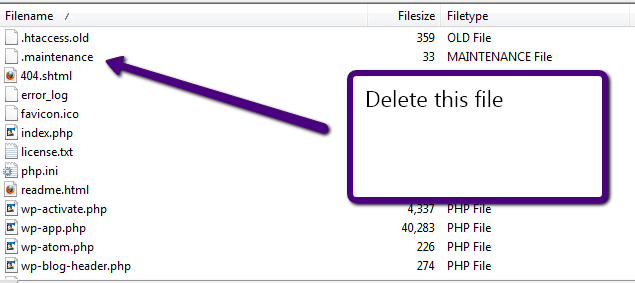
    Fortunately the fix is fairly simple, you need to attach to your site using ftp or with the file manager in your hosting account, and in the root of your installation you will see a file called .maintenance, simply delete this file and you site will come back to life.

    SPECIAL NOTE: files which start with a full stop/period are marked as hidden files on unix/linux, you may need to enable show hidden files on your FTP client before you can see this file, for example on filezilla you need to go to server->force show hidden files.

    If At First You Don’t Succeed

    Once you have deleted the .maintenance file it is a good idea to re-apply the updates you were doing to make sure they have been completed correctly.

  • Case Study: Migrating From WordPress.com

    Case Study: Migrating From WordPress.com

    In recent months I have been asked by a number of clients to migrate them from hosted WordPress.com sites to their own self hosted versions.

    This post is designed to talk you through that process and to point out any pitfalls.

    Why Move?

    Good questions, hosted WordPress takes all of the burden of supporting your site, applying updates, fighting with miss behaving plugins and the whole shebang. If you want a low overhead, no trouble site where you create content and publish I suggest you stay with wp.com.

    You only need to move to wordpress.org if you want the flexibility of your own themes, any plugins you want and ownership of your data.  (WP.com has been guilty of censoring any sites which don’t comply with their T & Cs).

    Themes

    You should have no problems keeping the look and feel of your site as most of the themes available on wp.com are available to download and install on wp.org.  Check the bottom of you site to get the theme name from the footer and search in http://wordpress.org/extend/themes/ for that theme.

    I say this with a small caveat, nearly all of the projects I have worked on required small tweaks on the theme to make them exactly the same, for some reason the code used on wp.,com is not the same as the downloadable version.  These are very minor typographic things usually, but my clients have noticed them immediately and asked for fixes.  Not a game stopper but a little annoying.

    Plugins

    WP.com limits the number of plugins available to you, and all of the plugins on .com are available to download from http://wordpress.org/extend/plugins/ and a whole lot more.  Don’t get too giddy .com’ers when you see how many new plugins are available to you :).

    Export/Import of Data

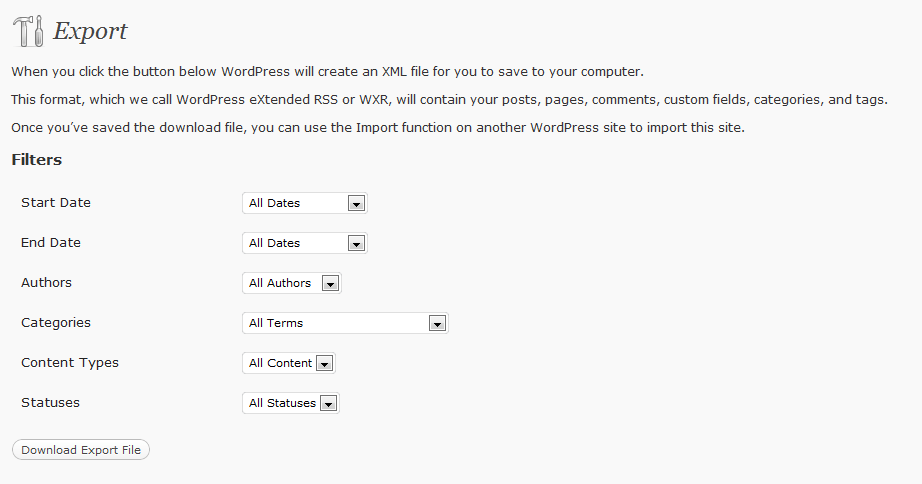
    WordPress has a built in export and import function.  Using the export function on your wp.com site you can greate an XML file which contains all of your posts, pages, categories, comments and tags in fact all of your user generated data.

    This is under the tools -> export function.

    You can export all of the data, or subsets on authors, dates, categories etc

    Click to see full size image


    Take this import file to your new wp.org site and run the import from tools->import.

    If it is a new site you will need to go through a process to install the importer, this is just like adding a plugin.

    During the install process there is an option to download and import any attachments, click on this to bring over any images / other content on your old site.

    Something to note, you can import wp.com data to an existing site so this can also be used as a tool to reconcile two sites.

    Things to watch; if you have a lot of data on your wp.com site and the export file is large, some hosting companies have a cap on the file upload size and you may need to make multiple exports using the export function, for example export two files of different date ranges.

    Redirection

    Once you have moved all of your data, the last thing to consider is a redirection to send all of your site traffic from wp.com to your new shiny.org site.

    This is much easier to do than it once was, WordPress have created an upgrade option for $12 to do this for you.  Purchase the update and setup the redirect to your new site.

    This is a 301 redirect so any listings in the search engine indexes will be updated with your new location.

    Wrap Up

    Moving to self hosted has been made deliberately simple, it is the obvious next step for bloggers as they become more confident with WordPress, follow this process and not much can go wrong.

    If you are still a little unsure of this process feel free to get a quote from my on my WordPress technical support page.

    Image by jmichaeltracy

  • Case Study: Change Your URL Kill Your Site

    Case Study: Change Your URL Kill Your Site

    I get the odd email from anxious people wanting to hire me because they have changed the domain name of their site and suddenly they cannot login in any more.

    Here’s What They Do

    They think that by changing the site URL and leaving the files where they are, they can change the URL structure of their site, this is wrong, you need to copy your files to the new location before you make the changes.  If you don’t WordPress redirects requests to fields that do not exist and your site will crash.

    These are the options under settings->general

    Here’s The Fix

    To get your site back online you need to edit the wp-config.php files, this is in the root of your WordPress install, and add the following two lines with your original URL. These options overwrite anything in your database added by accident.

    define(‘WP_SITEURL’, ‘http://{your original URL.com}’);
    define(‘WP_HOME’, ‘http://{your original URL.com}’);

    Connect to your site with ftp, or use the file manager in your hosting account, and edit the file wp-config.php

    Now You Need to Edit the Database

    If you want to revert back to your previous entries permanently you need to edit your database.  If you go to settings -> general now, you will see that your site and blog URL options are greyed out you cannot change these back.

    Load up phpmyadmin or other tool provided by your hosting company, and open up the wp-options table and look for the siteurl and home options, edit these and roll back to the old URL.

    WPTroubleshooting Will Feature This Fix

    If you sign up for my WPTRoubleshooting members only course, I will be adding a screen cast video on fixing this issue very soon.

    Image by rhysasplundh

  • My WordPress Troubleshooting Methodology

    My WordPress Troubleshooting Methodology

    When I am called in by clients using my WordPress technical support services for a crashed site, I have a particular troubleshooting methodology I use which incrementally removes layers from a WordPress site so I can pin point the root cause.

    I want to tell you about my methodology and give you a chance to learn more about it my my new mini course WP Troubleshooting

    How My Methodology Works

    WordPress is built up of many layers, core WordPress files, plugins and themes.  I like to strip away and isolate the various layers of WordPress so I can find which layer, be it themes, plugins or the core files is causing the problem.

    I do it in a top down manner eliminating each layer and testing as I go in this order.

    One: Disable / TroubleShoot Plugins

    Because the majority of problems I see are with plugins, I start at this layer first.  I disable all of the plugins on a site, and check to see if the issue is resolved.  If it is I can fairly confidently say the problem is with a plugin.

    Next I re-enable the plugins one at a time, checking after each enable to see if the problem comes back, when it does I have isolated the problem plugin.

    I then re-enable all of the other plugins and test again (just in case there are multiple plugins causing the issue)  if the problem is gone I have isolated and identified the problem plugin.

    Two:Disable / Troubleshoot Themes

    If after disabling all of the plugins I still have an issue, I then move down a layer to the theme files.

    To troubleshoot a theme, I disable the currently active one and enable a default theme supplied with WordPress.  These default themes are approved by the team who developed WordPress and should not cause any issues (unless you have edited them and introduced errors).

    So I enable a default theme and re-test the site, if it is okay, I re-enable he plugins and (you guessed it ) re-tested, if at that point there are  no errors, I can safely say the problem is with the theme and I begin to investigate the theme.

    Three: Re-Install a Clean Version of WordPress

    At this point, the plugins are offline, I’m working with a default theme.  My final option is to re-install a clean version of WordPress.

    I have seen occasions when WordPress files do become corrupted, or deleted, this can cause problems with a site.

    I can a clean copy of WordPress from wordpress.org.  I download it, unpack it and attach to the site in question via FTP.

    I then do the following:

    • Take a copy of wp-config.php (just in case it gets overwritten)
    • Rename wp-includes
    • Rename wp-admin

    The renames ensure that you have a completely clean copy of the WordPress core files and everything you upload is in play.  I have seen times when a file is corrupted, and it cannot be overwritten by the upload which means the corrupt file is still present on your site.

    Then I test, hopefully this has solve your problem.

    What Type Of Errors Can This Solve

    I use my methodology to solve all kinds of issues, in particular the following problems:

    • The dreaded WordPress “white screen of death”
    • Header already sent errors
    • Plugin and Theme Fatal errors
    • Out of Memory Errors
    • … many other WordPress problems too

    What About When The Dashboard is Unavailable

    Sometimes if you experience any of the above errors, the dashboard is also unavailable so you cannot disable the plugins or themes, there is a way around this, you need to FTP to your site and manually disable the theme or plugins, all of this is explained in detail in my course.

    Backup First

    I always recommend that you take a full backup of your site (whatever condition it is in) so that you can restore back to a point in time before you began troubleshooting just in case you introduce more errors.

    Want To Learn More About My Methodology?

    I have created a WordPress troubleshooting course over at wptroubleshooting.com this includes detailed video tutorials to teach you how to trouble shoot crashed WordPress sites using my methodology.

    It’s a members only site with screencast videos, downloadable resources and support from me via comments.  If you would like to learn my methodology in more details please visit wptroubleshooting.com

  • Add A Follow Me Sidebar Widget

    This is something I am asked to do all the time by clients, I thought I would write this up for the more DIY orientated amongst you.

    What We Are Going To Do

    We are going to setup a series of sidebar widgets that will link to twitter, facebook and linkedin.  This can be used for any other social media site such as YouTube by simply changing the image and URLs used.

    Social Media Images

    The first thing we need is a series of social media images, there are hundreds available to download, do a google search for social media images and you can find many that will match your site.

    Here is a zip file for you to download with various sizes and platoforms

    social media logos>>

    Create a text Widget

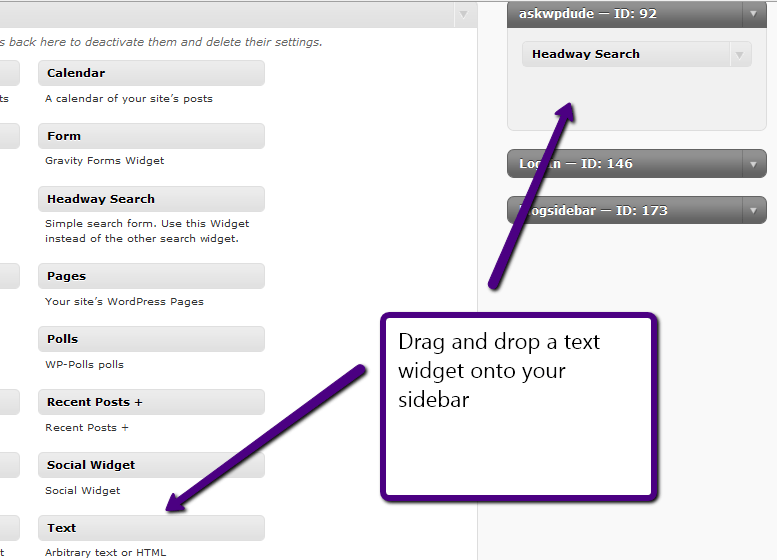
    Once you have decided which logos you like you need to add them into your sidebar, so go to appearance-> widgets and drag a html/text widget onto your sidebar

    Insert The HTML Code

    We need to add some HTML code into the text widget, I’ve done all the hard work for you all you need to do it cut and paste this into your text widget created above.

    <!-- Twitter -->
    <a href="http://twitter.com/wpdude">
    <img src="https://dev.neilmatthews.com/wp-content/uploads/2010/10/twitter_sidebar_green.png"/></a>
    <!-- Facebook -->
    <a href="http://en-gb.facebook.com/people/Neil-Matthews/1105047622">
    <img src="http://dev.wpdude.com/wp-content/uploads/2010/10/facebook_sidebar_green.png"/></a>
    <!-- Linked In -->
    <a href="http://uk.linkedin.com/pub/neil-matthews/23/324/a87">
    <img src="http://dev.wpdude.com/wp-content/uploads/2010/10/linkedin_sidebar_green.png"/></a>

    Set The Widget Title

    Set the title of the widget, it seems like most peoople use follow me or elsewhere online

    Add your Own Profile URLs

    The html code provided links to my social profiles you will need to edit these and replace them with your own details. The red items after a href

    Point To Your Chosen Images

    Again I am pointing to my chosen images, upload your desired image through the media uploader and link to that instead (red item after img src)

    That’s It

    I hope that has helped you to build out wordpress as your social media hub.

    Image by 42106306@N00

  • Ask WP Dude (beta) E-Coaching

    Ask WP Dude (beta) E-Coaching

    Many of you will be aware that I offer one on one WordPress coaching session.  I deliver my coaching via a shared screen over the internet and I show people how to solve their WordPress problems.

    My problem is that I am based in the wrong time-zone for the majority of my coaching clients, so I cannot book as many coaching sessions as I would like.

    I am therefore trialing an e-coaching program which I call Ask WP Dude.  This will allow me to provide a coaching service to a much wider audience by conducting the coaching via email.

    How It Works

    Tell me your burning WordPress problem and I will teach you how to solve that problem with coaching emails.

    The emails will contain descriptions, screen shots and perhaps video how to tutorials to take you through your problem.

    The system is designed for people who want to learn more about WordPress, but need a little hand holding.

    What’s With The Beta

    I’m want to work out all of the bugs in the system before I go live (that means charge for the service).

    While it is still in beta, all coaching is free, but please be aware it is a beta test and there may be some delays in getting your coaching reply back to you.

    Give It A Go

    Pop over to Ask WP Dude and ask me your burning WordPress problem.

  • Case Study: Cut and Paste from Word Processor

    One of my clients approached me to say that his visual editor was not working since he created a new page on his blog. It was fine when he created new posts and pages, the problem only happened when he tried to edit one particular page.

    The Problem

    I reviewed the page in question and it looked fine but when I switched to the html mode I saw what the problem was, the page was packed full of spurious html code.  A quick check with my client revealed that he had written his page copy in a word processor then cut and pasted it into the page.

    Why is this a problem?  Because it brings over a whole host of html encoding, and this encoding was causing problems with the text editor.

    Think for a minute that the text editor is also an html page inside of your blog, add additional codes and you can screw up the web page.  Some og the html code was effecting the way the editor worked and the page could not be edited.

    What’s The Solution?

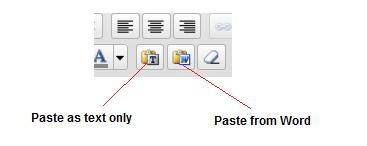
    The solution to this problem is to only paste text into the WordPress, and fortunately WordPress has a solution for you.  If you check out the toolbar you will see two clipboard icons, one with a T and one with a W (see image below).

    This takes the contents of the clipboard and pastes them into the editor.  The T clipboard takes the clipboard content and strips all encoding pasting only text, the second clipboard takes the contents and teats them as a word document, converting this to the appropriate HTML retaining any enhancements you have made; bold, italic, H1-H6 headings etc.

    paste

    Writing Your Posts OffLine

    If you prefer to write your posts offline, you may want to check out my post How to Write WordPress Posts Remotely this shows you a number of techniques to write posts outside of your visual editor without the need to cut and paste text.

    Testimonial

    So happy was my client he gave me the following testimonial:

    Neil Matthews came to the rescue with my WordPress problem. He was not only swift, professional and courteous, but he was very determined to do whatever it took to make my website work again (I had some major issues not working on my WP site).

    Neil would constantly check in with me to show me that he had identified the issues and was working on them, not just leave me wondering and hoping that he was “on it.” He went above and beyond my expectations and treated me the
    way a customer wants to be treated — like a real person who is in a bad situation and needs help right away. He DID NOT just treat me like some anonymous customer out in cyberspace who he just wanted to collect a payment from for the minimal amount of effort and move on to the next guy.

    Thanks, Neil. I will definitely be calling on you in the future with any WP issues (even though I hope I don’t have any more).

    Doug R, Los Angeles, CA – USA