Neil Matthews

Category: Case Study

  • So Someone Tried To Hack My Website

    So Someone Tried To Hack My Website

    So someone tried to hack my website, here’s what I did.

    Thursday afternoon, I started to get an influx of dodgy contact form entries, this made me suspicious and I started an investigation on my own site.

    I’ve got security hardening in place so happily the hacker was not able to get into my site.

    Here’s a video of my investigation and how I cut the script kiddie off at the knees.

    Video

    Plugins And Software Mentioned

    The security plugin I use is Wordfence and my CDN / Firewall software is cloudflare.

    Wrap Up – So Someone Tried To Hack My Website

    The moral of the story is to harden security before the hackers turn their attention to your site.  Get a decent security pugin in place and consider cloudflare for the nuclear option to block an entire country.

    If you need help hardening the security of your WordPress site, click here to get a no obligation quote.

    Photo by Clint Patterson on Unsplash

  • Case Study: Password Protected Podcast

    Case Study: Password Protected Podcast

    In this video walk-through I’ll take you through a password protected podcast setup I created for a client in WordPress.

    The site is Qiological.com owned by Michael Max

    Plugins / Extensions Used

    Here is a list of the plugins / extensions used in this project.

    Photo Credit: seefit Flickr via Compfight cc

  • WordPress Is Not The Only Game In Town

    WordPress Is Not The Only Game In Town

    I’m going to be black balled from the Guild of WPers when I publish this post, but here we go anyway! WordPress is not the only game in town, sometimes WordPress is not the best tool for every project {sharp intake of breath from the audience}.

    If there is a pre-made website solution for a particular project you are planning, then please look into that before you try and build a custom solution from WordPress plugins and a theme.

    WordPress is of course open source and free but any complex problem you are trying to solve probably needs some custom plugins and a decent looking theme and that’s not free.

    Don’t get me wrong I’m a huge fan of WordPress and I’ve based my business around it but I have found certain situations pre-made single solutions software as a service is better.  Here are some examples:

    Training – If you are looking to create a members only training site, there are plugins out there but they are pretty complex and expensive. There are software solutions to create your training business (more later).

    Helpdesk – the plugins out there are not that great, and require a lot of setup, it’s far easier to assign a custom domain to Helpscout.

    E-Commerce – I’ve talked about my love/hate relationship with  WooCommerce in Why I’m Breaking Up With WooCommerce if you want a simple robust e-commerce site look to Shopify, I built a test drop shipping store in a few hours.

    CRM / Project Management – this is an area that plugin developers have not touched in my experience Basecamp and the rest do a better job.

    .com vs .org – WordPress itself has two versions, if you want a simple blogging solution look to WordPress.com rather than creating a custom site with WordPress.org.

    Case Study – A Course Website

    I’m build a course to expand upon my idea of a µAgency, the free introduction course will be coming out soon and the paid version a little later this year. I was looking into the best plugins to use for a learning management system or LMS.

    Here are my requirements:

    • Protected course material (video)
    • Student registration
    • Payment gateway
    • Email Integration to up sell courses and keep in contact with students
    • Responsive out of the box
    • User only forums for questions about content
    • Integrates with Freshbooks so my accounts are done automatically
    • Nice to have – affiliate program so students can refer me and earn a fee.

    WordPress solution

    For a WordPress solution I would need:

    • Custom theme $50,
    • Learndash plugin $150 (learn dash has zapier integration for Freshbooks)
    • Private video subscription with Vimeo $100 per annum,
    • wp affiliate plugin $99 per annum

    So the total cost to build this site per year would be about $400 plus my time to bring all these disparate systems together and build the site.

    While searching for LMS plugins I saw some ads for Teachable.com a single solution website builder, I decided to investigate.

    Teachable solution

    For a teachable solution I would need:

    • 1 subscription to teachable $39/month

    All of my requirements are built in plus some additional item such as author sharing, automatic affiliate payments.

    Teachable is designed out of the box to sell courses. That’s all it does it has design back end features I need.

    I signed up for a free account and my site was built, I added a few stock photos and voila a “school” in their terms to sell courses, it looks good has lots of great features and will enable me to build my course with ease.

    They host my videos securely, manage students have back end email facilities, affiliates with auto payments, they handle refunds and payments through their system and give me a monthly payout.

    The have zapier integration so I can add invoices to my system to automate my accounts.

    Neil is a happy chappy, site built in about an hour, custom domain assigned.  My course structure is built I just need to drop in my videos.

    I’m busy creating my content once that is done I’ll sign up for a premium subscription at $39 per month or  $468 per annum, so the price is similar but the effort was way less.  That payment is monthly rather than a large up front payment for plugins.  One sale per month will pay for this project.

    Wrap Up – WordPress Is Not The Only Game In Town

    Choose the best tool for the job, if you need a hole in a wall choose a drill if you need to dig a hole it’s a spade.

    WordPress will do the job, but sometimes the effort outweighs results. I love WordPress and I’ll always provide WordPress technical support, but sometimes I tell my clients no, use this instead.

    MicroAgencySchool.com will be opening it’s doors soon. I could have built it with Learndash but the quickest route to market is Teachable. I’m using the correct tool!

    Are there any single solution website builders you prefer over WordPress? Discussion in the comments below.

    Photo Credit: grahamsholt Flickr via Compfight cc

  • WoodPecker Review

    WoodPecker Review

    I’ve been trialling a new tool to reach out to old clients this month and I wanted to share my Woodpecker Review.

    What Is WoodPecker?

    It’s an email outreach system where you can contact people on your list.

    It has a drip facility where you can send a series of emails, if someone replies they are taken out of the drip.

    It sends like a human would, a few requests per day not a bulk outreach.

    It sends from your gmail account.

    It monitors replies, auto replies, bounces and cleans your list up.

    I’m using woodpecker to reach out to old clients I have not contacted in some time, so it’s a “warmish” email to generate leads.  My main goal is to send out new quotes for WordPress technical support.

    Setup

    I exported all the entries from my gravity form database.  This contains a list of people who have contacted me in the past to get a quote for WordPress technical support.

    I took their name, email, WordPress site URL and the body of their last request (more about this a little later).

    The import process was really simple and I was able to quickly build a database of prospects to contact.

    It sanitised my contacts and removed duplicates.

    Campaigns

    At the core of Woodpecker is a campaign. A campaign is one ore more emails that are sent out to your list.

    You can control when the email is sent and upon which day.  I’m sending Monday to Friday 9am – 7pm my time.  I’ve set a block of time so I’m available to reply to any responses I get in a timely manner.  I’ve excluded weekends for the same reason.

    The campaign has a sending limit of 25 people per day.  The reasons for this are:

    1. It looks more like a human is sending the messages.
    2. It does not get me banned from gmail for sending too many emails, they limit to 250 per day.
    3. I am able to cope with the number of replies, generating quotes and the work this creates.

    A campaign can contain a series of emails, they are sent out in a drip fashion.  A really useful feature is that if someones replies they are not sent the nexy email in the series.

    I’m trying to generate leads, if I get the lead I don’t want to bug the client with another email.

    A gentle drip with a nudge is a great way to get on the radar of busy people who may need help but

    Personalisation

    The key to this type of outreach is personalisation.  I’ve got the persons name, website and their last interaction with me.  Using this information I can make the outreach much more personal.

    I’m personalising the email like this:

    Subject

    Do you need any help with {WEBSITE URL}

    Body

    Hi {FIRST NAME}

    I’m reaching out to see if you need any help with your WordPress site {WEBSITE URL}.
    If you do simply reply do this email with details of your project and I’ll send you a no obligation quote.
    Thanks
    Neil Matthews
    WPDude.com
    You are getting this email because you have requested a quote or worked with me on a previous project, see your last request to my business:
    {{SNIPPET_1}}

    The last bit is important for cold outreach, some people on my list have not been in contact for a few years and they might not even remember working wiht me

    Where It Beats Other CRMs I’ve Used

    There are a number of really good features which makes Woodpecker stand out from the crowd of other CRMs

    It manages bouces – people change emails all teh time, and old emails bounce, Woodpecker detects this and marks the contact.  This makes the quality of yoru prospect list that much better.

    It has an easy to use drip campaign system, that stops on reply.

    It has a unsubscribe feature.  CRMs don’t allow your list members to opt out for some reason, I’ve spent a lot of time managing contacts that don’t want or need my services.

    Stats, Woodpecker has really good stats on the performance of your campaign.

    Why This Beats Mailchimp Or Other Email Provider

    Setting up automation in mailchimp will give me the same results but they are really difficult to create in my experience.

    Mailchimp sends in one big batch, whereas Woodpecker is more graceful and sends in small batches which allows for control over creating quotes and replying properly to client requests.

    Integrations

    Although I’m not using the integrations, Woodpecker works with Zapier so potentially I could automate reachout to clients by adding people who reequest a quote to a campaign to reach out every 6 months or so.

    Pricing

    It’s about the same as other CRMs I’ve used in the past I’m on the $40 per month plan.  There is a $50 plan for the integration option.

    One thing I did not like was their charge per email I want to send from. Two emails = 2 x $40.

    Does It Work?

    I’m running two campaigns in tandem to test if Woodpecker works for my offerings,  One campaign is for a one off project quote, the other is for my maintenance service.

    I’ve generated 16 leads for quotes and several have been confirmed into live projects.

    I’ve had 21 requests for details of my maintenance plan and 9 signups.

    Does it work, YES!

    Downside

    I did not validate my list very well and I’ve reach out to people who have unsubscribed or do not wish to work with me.

    I’ve had a couple of angry replies, sorry about that if you are reading this, I hold my hands up I’m at fault there.

    14 Day Free Trial

    Woodpecker has a 14 days free trial, I would recommend you run a test campaign to see if this service will work for you.

    Wrap Up – WoodPecker Review

    I’m enjoying this, it is automated unlike my old CRM, it looks at replies and bounces and auto updates my list which was a huge time suck and it works, I’ve generated leads and new business.  It’s still early days but I’m liking what I have seen so far.

    I think the data I’m collecting on who opens and replies will make my future campaigns even more effective.

    Long term I think this will be a very useful tool to automate reach out to past clients to keep my name in their mind if they need WordPress help.

    If you are a service business with a list of past clients, reaching out to them regularlly with a check in to see if they need help is a no brainer.  This software automates that.

    Disclosure, all links to woodpecker are affiliate links and I’ll get a referral fee if you become a paying customer.

    Photo Credit: mjeedelbr Flickr via Compfight cc

    SEO nonsense to increase Woodpecker review density, woodpecker review 🙂

  • Gravity Forms Dynamic Content

    Gravity Forms Dynamic Content

    Last week I wrote about a client project where I setup gravity form routing, today I want to write about gravity forms dynamic content.

    We can dynamically pass data into a form to add to an entry, this is how you can do this.

    What Is Dynamic Content?

    Dynamic data is content that changes each time the form is loaded, it can be used on the display of the form or on the notification sent out when the form is completed.

    An example; my client has a single form but wants to send a different PDF to form completors based upon which page they complete the form on, so we dynamically pass this data into the form so the notifications can be different.

    Types Of Dynamic Content

    There are two ways to pass data into a form and use them dynamically, query strings an via the shortcode.

    Query String

    A query string is a piece of data passed into the form on the URL of the page, here is an example.

    https://dev.neilmatthews.com/wordpress-technical-support?referrer=somedata

    In this example we are passing in a parameter name called referrer, and the data will be “somedata”.

    The time you would use query string is if there is a single contact form page and you want to vary the data.

    Shortcode

    We can also pass data into the form via the shortcode we use to embed the form, again here is an example.

    gravityforms id=1 field_values='referrer=somedata'

    Again we are passing in some referrer data and that is “somedata”.

    You would use the shortcode id if you had one form used on several pages and wanted different data based upon where it is embeded.

    Setting Up  A Field For Dynamic Content

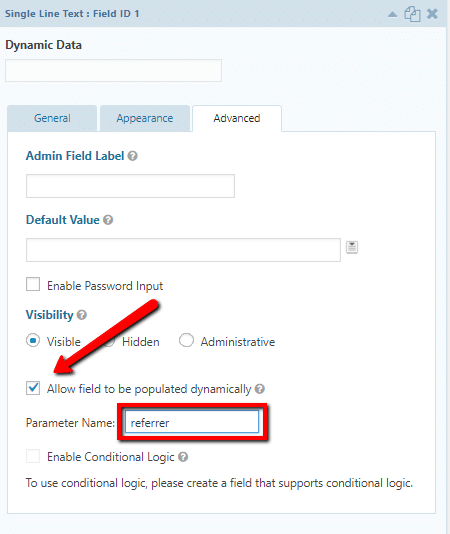
    When you add a field into a form you can make it populated dynamically.

    Go to the advanced settings and there is a check box to make it dynamic then you add the parameter name you want to collect data from.


    gravity forms dynamic data

    You can have multiple dynamic data fields on a site.

    Using Dynamic Data

    Once you have captured your dynamic data you can use it in logic on the form for example to set prices, or pass it into notifications.

    In my example above I passed a download link to the customer notification email

    Wrap Up – Gravity Forms Dynamic Content

    If you need to pass data into your form before it is submitted dynamic data fields is the thing you need.

    If you need help setting up a complicated gravity forms get a no obligation quote.

    Photo Credit: Diari La Veu – http://diarilaveu.com Flickr via Compfight cc

  • Routing Gravity Forms Notifications A Case Study

    Routing Gravity Forms Notifications A Case Study

    I was working on a client project recently where they wanted to send notifications to different teams depending upon a selection made in the form, in this post I want to talk about routing gravity forms notifications.

    The client is a property developer and they need to route emails to the sales team of each scheme   This is where we are two countries divided by a common language, I think this would be described as a housing sub division in USA speak.  When I read route it sounds like root in my head not rowt.

    What Is Routing?

    Routing is the process of testing fields from your form and then sending notifications to different emails based upon form content.

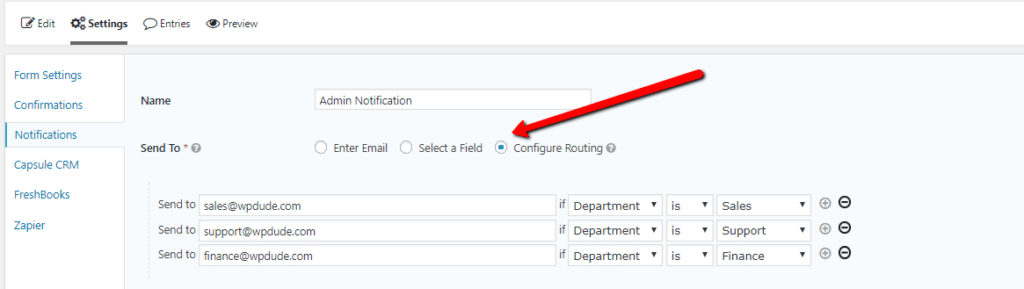
    I’ve created a test form on my site to highlight this.  There is a drop down for department.  The options are sales, support and finance.

    Once the form has been built move over to the notification section of the gravity form setup, that’s where the routing magic happens.  On “send to”, click routing then you can add the options to route to an email address based upon the drop down value.

    routing gravity form


    Bonus Tip

    If you want the email to also go to a central place such as a CRM system or a central support desk, add a BCC email address.

    Wrap Up – Routing Gravity Forms

    The same project also needed a PDF download based upon the scheme, but I’ll tell you how to dynamically pass data into a form in my next post.

    Gravity form never ceases to amaze me with it’s great features and integrations, if you are still dabbling with free form plugins like Contact form 7 please give Gravity Forms a look.

    If you need help developing a complex gravity form setup, get in touch for a no obligation quote.

    Photo Credit: Pikaluk Flickr via Compfight cc

  • Compressing Images For WordPress

    Compressing Images For WordPress

    A lot of my clients have been getting reports from Google about page speed performance recently.  This tells me Google are taking site performance as an increasingly important factor in their ranking algorithm.

    You can get a feel for your site performance by running a test from Google Page Speed Insights.

    One of the indicators nearly every site is being flagged with is image optimisation or image compression.  In this post I’ll talk about some options you have to compress your images.

    Compression Types

    There are two types of image compress lossy and losslessly.  These are not real words I’m 100% sure but they are used routinely when talking about image compression.

    Lossy – this is a compression type that will reduce your file size and impact a little on quality.

    Losslessly – this compression type removed meta information and compresses the file but retains quality.

    Resizing Images

    No amount of compression is going to fix a massive image 5000 pixels wide that is uploaded to your site.

    Before you add an image into your site, scale it down using your image manipulation software.

    Compression Plugins

    There are a number of plugins out there which compress images as they are uploaded to WordPress.   I highly recommend you install one to compress files as you upload them automatically.

    wp-smush – I’ll not talk too much about this plugin in this post I wrote a full write up Can I Smush It, Yes I Can

    kraken.io – this is a new premium service to me, it has a plugin like wp-smush that comprsses images as you upload them, but it also has an online service where you can compress images offline before uploaded.  I’m using this for my clients when I speed up wordpress sites.  This has a free trial plan and starts at $5 per month based on the amount of images compressed per month.

    Online Image Compression Services

    Sometimes images are outside of your media library and cannot be compressed by plugins.  Examples of this are images held inside of your theme directory or inside of plugins.

    For a number of clients I have been using a great free service called Compressor.io.

    Simply upload your image, select the compression type lossy or lossless and your image will be compressed.  Download it and re-upload it to your theme or plugin directory.

    I’ve been getting some really good results with this tool.

    Wrap Up – Compressing Images For WordPress

    Google are taking image compression as a ranking indicator, I strongly advise you to compress your images.

    I offer a fixed price top to bottom performance tuning service, including image compression,  if you would like a quote please let me know.

    Photo Credit: will668 Flickr via Compfight cc

  • Why I’m Breaking Up With WooCommerce

    Why I’m Breaking Up With WooCommerce

    Sorry Woo it’s me not you, we just cannot be with each other any more, this is why I’m breaking up with WooCommerce.

    It started out as a great thing, we made excellent e-commerce sites together and you still do that for other people, but there are some issues…

    Fragile

    When ever there is a major update to your software you break on me.

    It’s generally not you but your mates, the extensions that cause the crash, they are not sufficiently tested with the new you and major updates to yourself will inevitably cause a crash.

    I’ll have to restore to an earlier version of you and wait a couple of weeks for your mates development to catch up before I can apply that update.

    Cost

    Let’s face it you are not costly but your entourage costs a bomb, and we cannot do any real e-commerce without all your friends hanging around.

    Once I  have a payment gateway, a subscriptions, bookable products, integration with my accounting software and mailchimp costs are mounting up.

    For open source software you are very expensive.

    Complex

    Sorry to have to tell you this but you are very high maintenance.

    It started out that your deep complexity was something I loved about you, but once you have more than a handful of products the difficulty of variable prices, complicated shipping fees, issues with pending payments and email not being delivered, it just too much.

    Too Hard To Change

    If I want to make even small changes to the way you are it’s a nightmare.

    They say you cannot change the people around you, but you can change the people around you –  hat tip theminimalists.com

    Take that time we talked about your checkout and how I wanted to move some of the items around the page, you lost it on me, you started telling me I couldn’t simply edit the template files, nooo! I had to write scripts that interfaced with your hooks and actions.

    Anyone else would have some simple code but that’s not good enough for you.

    I Hate Your Friends

    I’ve touched on the extensions already but I’ve begun to hate some of your friends, they are dragging you down.

    They make money sitting on your coat tails but they have no personal development.  They said they would work with you but when you made that change they dumped on you and stopped working bringing the whole relationship to a crash.

    Some of the other are untested and of questionable quality, they tagged along from weird locations rather than the extension store (I’m looking at you Code Canyon) they worked for the you, several versions back, but didn’t change and are still on sale, what’s that all about.

    Is There Someone Else?

    No you are still the main player in my life, some of my friends are saying Shopify is a nice girl, and that Gumroad is sweet if you are selling virtual stuff but I have a lot of friends still living at WordPress and I need to stay there.

    Wrap Up – Why I’m Breaking Up With WooCommerce

    I hope we can remain friends after this break up, if you could just sort out your friends with perhaps a certification process where an extension is tested and proven to work with you I would be happy.  If you had an upfront costs and a simpler on-going support charge that was lower, again I would be happy.

    All joking aside Woocommerce is good but these are real bug-bears I have with using and working with Woocommerce what has your experience been?

    Photo Credit: cogdogblog Flickr via Compfight cc

  • Navigating The Vastness Of Themeforest

    Navigating The Vastness Of Themeforest

    I was  in the market for a new theme to refresh the look and feel of WPDude, I was scouring Themeforest for a great new look and I thought I would share my experience.

    What Is ThemeForest

    If you have not used themeforest before, it is a marketplace for premium themes, both WordPress and stand alone website themes.

    You can browse and find some really good designs on their site.

    The Problem

    Themeforest is absolutely massive there are tens of thousands of themes available out there.

    Once you start browsing you can very quickly become overwhelmed.  This post is really to help you overcome the frustration of too many choices.

    Before You Start

    Don’t just start browsing, have a clear picture in your mind of the functionality you need.  Do you need a portfolio, do you need a team page, do you need services.  Have a brain storming session and throw all your requirements onto a sheet of paper.

    If you have specific complex plugins like WPML or Woocommerce you will need to find a compliant theme.

    What I Am Looking For

    The main reason I am looking for a change is the mobile navigation of my current theme is not great, there is a massive header area that covers everything above the fold on mobile.

    I am looking for a minimal design, pretty monochromatic.  Lots of white space.

    I need a services function to highlight what I do for my clients.

    It needs to work with gravity forms, my testimonials plugin.

    Narrowing The Search

    You main job when you start looking for a new theme is to narrow the search to reduce overwhelm (and you will be overwhelmed with the huge choice of themes).

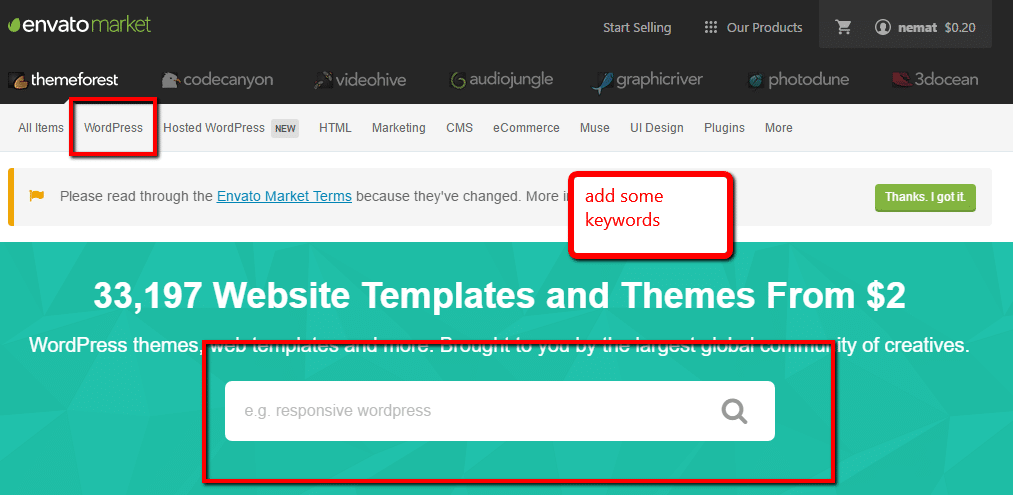
    The first thing to do is select WordPress naturally, then under the menu item are a series of pre-made types. If you are looking for a magazine style perhaps this is a good starting point.

    You can also use the search function and throw in some keywords, I went with wordpress minimal.

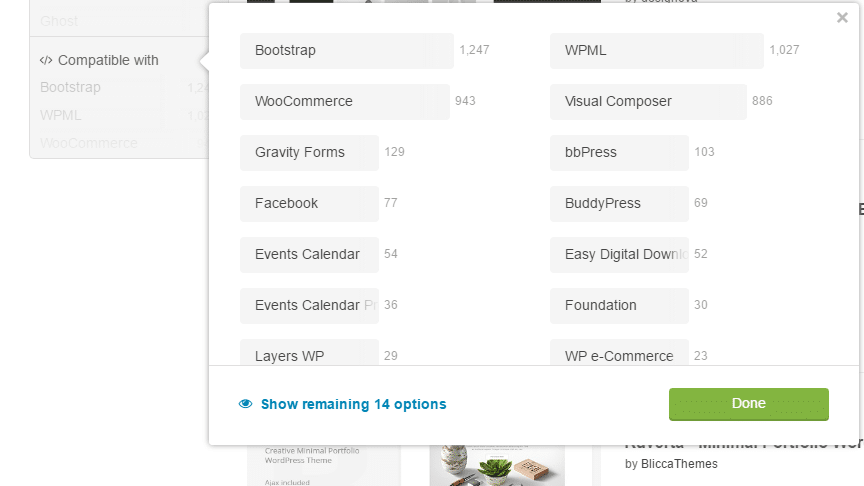
    Compatible With

    The next step in narrowing down your search is to use the compatible with option.  This is really important if you use pugins like woocommerce or buddypress which need very specific theme files.

    My Results

    I returned 2,398 results, erghh!!  I need more pruning.

    Live Demo

    We will be testing the theme before we buy it. so if the theme does not have a live demo ditch it.

    As you browse through your search results if you hover over a theme you like and it does not have a live demo i would consider this a red flag not to choose that theme.

    Thumbnails

    Each theme has a small thumbnail on the search results, this will allow you to get a feel for that theme

    A word to theme developers, give us a glimpse of your theme in the thumbnail don’t add some abstract links for “designery” nonsense, we are searching for a needle in a haystack, just give us a glimpse of your theme.

    Testing Your Theme

    Once you have found a theme you like click through and give it a test drive on the live demo.  Ask yourself the following questions.

    • Do you like the design?
    • Does it have all the features you need?
    • Does it work on mobile?
    • It is fast enough?
    • Is it compatible with your current site’s plugins?
    • Is support good? Look at the developers support forum, are thye responsive, look at the updates are they still developing this theme.

    Mobile

    Get out your phone and your tablet and test the demo site on multiple devices, does it still look good on a mobile device.  Remember mobile usage is growing and you must have a site that looks good on mobile and desktop.

    Run the demo site through this google checker https://search.google.com/search-console/mobile-friendly.

    Performance

    Will the new theme load quickly and perform well.

    Run the demo site through Google page speed insights at https://developers.google.com/speed/pagespeed/insights/

    Bookmarking

    If after all that testing you have a potential candidate, please please remember to bookmark it on Themeforest.

    You will be looking at an awful lot more themes so create a shortlist by bookmarking the theme and add it as a favourite.


    Congratulations

    You have your new theme, buy and download the files (but don’t get me started on Themeforest’s ridiculous credits and charges for using PayPal).

    You Pay Before You Test

    Themeforest (rightfully so) has a no refund policy if you don’t like the theme so you need to play with and learn to love the demo or you will pay for a theme you might not want to live with.

    I spent an entire evening navigating and getting a feel for my new theme before committing to it.

    Making It Look Like The Demo

    This is often the most disappointing aspect of your new them, you install it and it looks nothing like the one on the demo.

    Before you buy check to see if there is a demo install option where you can make your site look like theirs.  Dig into the downloads most themes come with an import file.

    Staging Site

    I highly recommend you install your new theme on a staging site before you make it live so you can tweak and get the look just as you want it.  Moving themes is not as quick as you may think, you may need to setup new custom posts, portfolios, the list goes on, you don’t want you live site looking like a shambles while you build it out.

    Check out this post on the options for a staging site. How To Build A WordPress Staging Site

    Wrap Up – Navigating The Vastness Of Themeforest

    In the end I went for the Breal theme.  What do you think?

    It’s hard to see the wood for the trees in the virtual Themeforest, it’s a good idea to have a plan before you start searching for a new theme or you will experience analysis paralysis.

    UPDATE: The new theme was not gelling with me, so I rolled back my search continues.

    Photo Credit: Henry Hemming Flickr via Compfight cc

  • What Is Jetpack Photon?

    What Is Jetpack Photon?

    Jetpack photon, she’s a character from the new Star Wars film isn’t she?

    No Jetpack photon is an image accelerator you can use to speed up the load times of your WordPress site.

    You can add photon to your site by installing the Jetpack plugin.

    Jetpack – WP Security, Backup, Speed, and Growth


    How It Works

    Images uploaded to your posts and pages are duplicated to a super fast content delivery network hosted on the WordPress.com servers.

    Filters are added and your images are served up in parallel from that server rather than your local hosting server speeding up image delivery.

    As your page loads the scripts and files from wpdude.com for example, images will be loaded in parallel from wp.com reducing load and speeding up the total page load time.

    See it in Action

    The image attached to this post has been uploaded to wp.com via the photon plugin, it’s URL looks like this

    https://i1.wp.com/wpdude.com/wp-content/uploads/2017/03/14479013777_0c1abb1ccf_b-200x200.jpg

    Activating Photon

    To enable photon, install jetpack, and then go to jetpack -> settings, click on the appearance tab and enable photon.
    jetpack photon

    That’s it, Photon is a simple way to speed up your page load speed.

    There is a Downside

    Once they are uploaded that’s it, you cannot clear the cache if you need to edit the image you will need to rename the image and re-upload it.

    I have worked with a couple of clients where Photon has messed up posts because of this.

    No Compression

    Photon does not losslessly compress your images so it’s a good idea to do that before they are sent to the cloud (see my post on WP Smush)

    Wrap Up: Jetpack Photon

    Google rewards fast loading websites with better listing position.  Any thing you can do to improve page load speed is a good thing.

    Jetpack is super simple but if it messes up the only way to fix it is to disable the feature on the plugin.

    Photo Credit: IPASadelaide Flickr via Compfight cc

  • Uptime Monitoring For WordPress

    Uptime Monitoring For WordPress

    Let’s face it you are not monitoring your WordPress site 24/7 for uptime, you are running a business and having a life.

    Today I want to talk about some automated uptime monitoring tools for your site which will alert you if it goes down.

    Downtime Is Not A Good Time

    Having a potential customer / client visit your site only to find error messages or the site completely offline is not good, your reputation could be ruined and you could lose new business or repeat orders.

    Being the first to know your site is down is pretty important, so I’ll tell you some good tools to use.

    Don’t remind me of the day I was running Facebook ads and the site was crashing, It would have felt better to set fire to a pile of cash. I know from first hand experience what downtime without alerts is like.

    Two Types Of Monitoring

    There are two main types of uptime monitoring available, we need both in place for a good monitoring solution.

    Ping monitoring – this is where a tool connects to your website and checks for a valid return code. “Oh no he’s bibbling in techie again !”I can hear you say.  Each time your browser connects to a website it also returns a code to the browser along with the content.  Everthing below 400 means every thing is okay, 404 means the page is missing, 500 mean an error there are a whole long raft of these return codes, uptime monitors check for and alert if an error code is returned.

    Content Monitoring – sometimes websites return error codes, but they also return site okay codes so we need to do a double team of a ping with a content monitor.  This tells your uptime monitor to look for specific content in the page.  Let me give you an example, half way down my home page is the following string, if my monitor cannot detect that, then there is definitely a problem with my home page and an alert should be raised.

    Let me do the WordPress technical support
    while you get on with building your business

    Multiple Page Monitoring

    I tend to focus on the home page of sites for monitoring but if you have a high value e-commerce store you should  also consider monitoring the cart page and the checkout page too, the home page could be up but internal pages could be down.

    Alerting

    Most of the tools send email alerts, but some also alert to slack or even SMS, you can decide how critical uptime is.

    Repeat Checks

    It is important that the tool you choose keeps checking and alerts you if your site comes back online, it is not unknown for a host to crash and be back up in a few minutes.  Guess what they won’t tell you there has been an outage (Godaddy I’m looking at you here).

    Uptime Monitoring Tools

    All uptime monitoring needs to be external to your site, it will send pings and content monitor pulls from an external server as if a client was connecting to your site.

    Here are the tools I recommend:

    Jetpack

    The multipurpose plugin created by the team at Automattic.  One of the features is a monitor.

    You will need an account at WordPress.com for this system to work.  Jetpack is a ping only monitor, there is no content monitoring, read this for more details on how they monitor https://jetpack.com/support/monitor/

    Cost – free

    URL – https://en-gb.wordpress.org/plugins/jetpack/

    Uptime Robot

    This is an external system where you setup one or more sites or multiple pages within one site, I used this for many years.

    It has pings and content monitoring, the pro version has SMS alerts.  There are some advanced monitors such as ports and http specific monitors.

    There is a plugin for WordPress where you can pull in uptime stats into your WordPress dashboard.

    Cost – the first 50 monitors are free then you pay for pro versions at about $5 per 50 monitors.  A monitor is a single check, so on one site ping would be 1, a content check would be another.

    URL – uptimerobot.com

    ManageWP

    My preferred uptime monitor for my own and maintenance client sites.

    Managewp uptime monitor checks for http codes and for custom strings on a page, it sends alerts via email, SMS or slack if that is your thang.

    Cost – managewp is free but the uptime monitor is an addon at approx $1.50 per month (managewp billing is super complex).

    URL – managewp.com

    Wrap Up

    I recommend an uptime monitor even the free ones above are really good and the 5 minutes it takes to activate can help your online reputation.

    Photo Credit: MaartenB Flickr via Compfight cc

  • Controlling How Facebook Sees Your WordPress Posts

    Controlling How Facebook Sees Your WordPress Posts

    I was recently hired by one of my clients to help control the way his shared posts looked on Facebook.

    I thought it might be useful to share the information I learned on that project in a blog post on controlling how Facebook sees your WordPress posts.

    Your Theme Has No Say Here

    Once you share a post on Facebook, your lovingly crafted theme no longer comes into play.

    Facebook gathers information from a series of meta tags called open graph.  If you don’t have any tools in place to set the appropriate open graph information, Facebook will make a best guess and grab the information it can, this is often not how you want to display your posts.

    Open graph is a set of instructions that are hidden in your page that tells Facebook (and the other social media sites) what to show, I’ll refer to these as OG information going forward.  Here are some examples:

    <meta property="og:title" content="Workday Sets Price Range for I.P.O." />
    <meta property="og:url" content="http://www.myfavnews.com/2013/1/1/workday-price-range" />

    Plugins To Set OG: Information

    You are probably already using a tool that will set OG tags for you, but didn’t realise it. The big SEO plugins already do this for you if configured correctly.

    The plugins I’m talking about All on One SEO pack and Yoast SEO.

    All in One SEO – Best WordPress SEO Plugin – Easily Improve SEO Rankings & Increase Traffic

    Yoast SEO

    I’m going to focus on Yoast SEO in this post but both do the same job.

    Enabling OG Tags

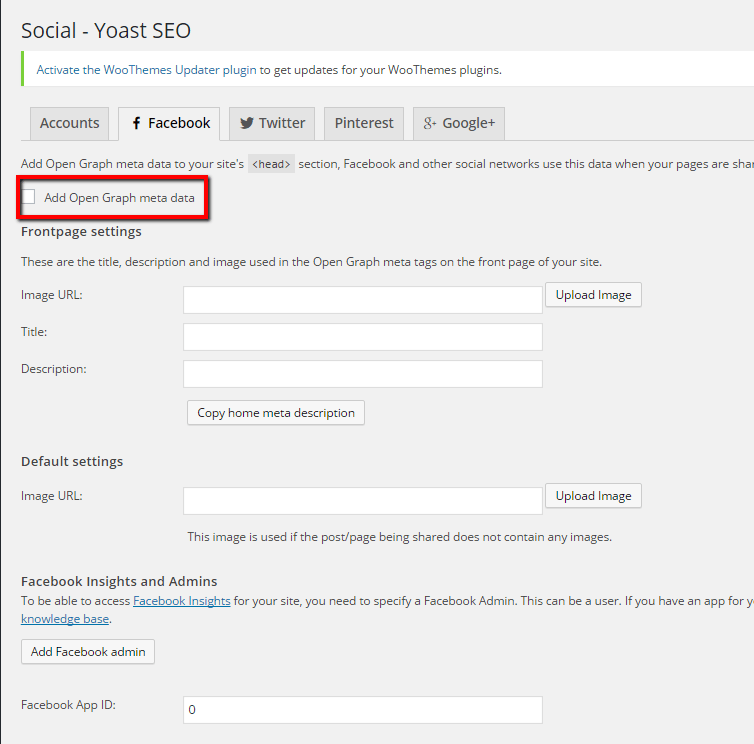
    To enable your OG tags in Yoast SEO go to  SEO -> Social and click on the Facebook tab, under there is an option to enable OG data

    2015-11-05_0953
    Click for full size image

    As you can see we can also set the default information for your home page, this is very useful if your theme generated the homepage page.

    We also get the option to set a default image to be used if one is not set on a post or page.

    Once this is set any SEO information you set on your posts and pages will also be used as the title and description for Facebook shares.  In the case of this post, this is what will be added to OG information

    Click for full size image
    Click for full size image


    Image Styling Sizes

    A quick word on image sizes and how they are displayed on Facebook.

    By default the plugins take the featured image of your post or page and uses that as the share image.

    Images need to be at least 600 x 315 pixels to display full width on your share, if they are smaller they will be displayed as a thumbnail.

    If your image is less than 200 x 200px it will not be displayed at all.

    See this link for full width and thumbnail examples. https://developers.facebook.com/docs/sharing/best-practices#images

    My recommendation is you decide which look you prefer and always upload your featured images at a standard size for consistency.

    Debugging How Your Pages Look

    A really useful tool to debug your pages and see how Facebook see them is the developers debug tool.

    https://developers.facebook.com/tools/debug/

    This tool will show you the OG information Facebook is using.

    One thing to note, this uses cached data so it can be a little frustrating to use if you are making changes.

    Wrap Up

    By adding a few little changes to your site you can greatly increase the control you have over social shares and keep your brand on course.


    Photo Credit: FACEBOOK(LET) via Compfight cc