Neil Matthews

Blog

  • Write Now Post Later

    Photo by Bexross
    Photo by Bexross

    One of the functions of WordPress many newbies miss is the post later function.

    What is The Post Later Function?

    In a nutshell it allows you to write a post, and set a publish date some time in the future or even the past (more on that later).

    Why Would You Use That?

    Rather than rattling out a large number of posts and publishing them all in one go, you can write a post, set a date in the future to make your article available.

    Some people also use this function topublish at an optimum time.  For example if the blogger lives in one time zone and the majority of his or her readers live in another, it makes sense to publish in line with the reader time zone.

    How Do I use the Function

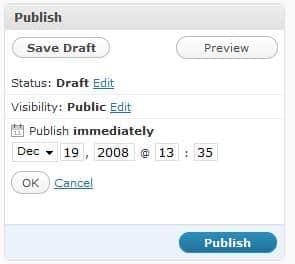
    Here is a screen dump from a wordpress 2.7 blog (this on in fact).  By default the publish time is set to immediately, but if you click on edit, you can set the date and time of  publication.

    publishlater

    Going Back In Time

    You can also set posts to be published in the past, I have used this for blogs which are building an archive of how to articles that don’t want to interupt the flow of more topical posts.

  • QuickPress and WP 2.7

    Photo by dorothyhess-pictures
    Photo by dorothyhess-pictures

    One of the new features of WP 2.7 is QuickPress, a small visual editor on the dashboard.

    I am using Quickpress to rattle off this post, as you can imagine it does not replace the main user interface to write content, but if you need to write a quick note for your blog, this is probably the place.

    Downsides, it does not have a facility to add categories or to use custom fields, something I need to do with the theme I use.

    All in all I will probably not use QuickPress to write posts, rather I will use it to quickly capture ideas as a draft post.

  • Should You Update Your Version of WordPress?

    I’ve been rattling on about the update to version 2.7 on twitter and in a post here on my blog, I just thought I would write up a post saying why I think it is important to keep your code up to date.

    Bugs

    Each new release will include a number of bug fixes.  These fixes tend to be rolled out as a 2.7.x update rather than a major staging update.

    What do I mean by that, 2.6 was a major staging update, and so is 2.7.  I will be expecting 2.7.1 in the not too distant future when the bugs found by releaseing the code to the general populace come to light.

    Security

    There are hackers out there constantly probing and testing hte security of WordPress blogs.  Since there are millions of them in existence, it is fairly easy to test the security measures of WP.

    Keeping your code base at the latest level ensures that any security breaches found in the code can be patched and the hackers can be kept at bay (at least for a short while until they find the next vulnerability).

    New Features

    This is for the geeks out there who need the latest and greatest features.  WordPress is not a static platform, it is constantly upgraded and improved.  Upgrade to the latest version and there will be a suite of new toys to play with.

    Support

    If you keep your code level too far behind you risk putting the level of support available to you down a peg or two.  WordPress is a whole community of people developing plugins and themes, most of this development is done near or close to the latest version.  You may find that your favourite plugin stops working if you do not keep up to date.

    Downsides of Keeping up with the Jones

    All the latest bells and whistles of an update also come with a cost.  There are two main downsides:

    Compatibility issues – your update may cause your plugins or theme to stop working.

    Introduction of errors – as you update code, there is an increased chance of corrupting your wordpress install or your backend database.  Always backup before you upgrade.  I will cover this in depth in future posts

    Auto Update in 2.7

    Just a quick note on the new autoupdate feature of WP 2.7.  We have had the ability to download and automatically update plugins for some time now.  This has been updated to include the code base as well.   I haven’t seen this in action yet, but I look forward to this and blogging about it very soon.

    My Thinking on Updates

    I don’t take part on beta schemes on my production blogs, they are too “bleeding edge”, but I am considering creating a devblog.wpdude.com to play with new features.  But what I will do is upgrade or patch my wordpress code to the latest version when it is made generally available to the community.

  • Case Study: Migrating from One Domain to Another

    photo by u07ch
    photo by u07ch

    A client of mine wanted to migrate their blog from one domain fraudlent-clicks.com to ClickQualityConsultant.com.  They had received some negative feedback on the use of fraudulent in their domain name, and this legitimate click fraud blog wanted a better image.  They were fighting the click fraud problem not promoting it.

    What Are the Issues?

    The fraudulent-clicks domain was already well established had a page rank and a sizeable number of pages included in the search engine index. This organic traffic was to be retained and forwarded to the new doimain.

    The Solution

    The second blog was built, and I used the migration tool to take all of the old posts into the new blog.  I gave particular attention to the permalink structure in the new blog to ensure it was the same as the previous one.

    Next I installed a redirection plugin to the old blog.  This allowed me to take pages form the old blog and using the 301 redirection method permanently redirect these pages to a new URL on the correct domain.

    Using 301 redirects tells the search engine that a page has been moved permanently and to update their index during the next crawl of your page, in the mean time any traffic landing at your old site will be redirected to the new site.

    Follow Up

    A month later I gained access to my clients Google webmaster tools to check how the old domain was fairing.  There were a couple of 404 issues, but these were quickly amended.  My client reported no real drop in organic traffic after this job.

  • Understanding the WordPress Database:Introduction

    [gravityform id=”5″ name=”Contact Me”]

    [private_database]

    At the core of your WordPress installation is a MYSQL database, in this part of the course, I want to teach you about the database, it’s function, it’s structure and how to keep it optimised.

    This is an advanced tutorial in the course and comes with screencasts to help explain the content in detail as part of the WordPress Owners Club.

    What Is The Database Used For?

    [/private_database]

  • Performance Tuning Your Blog: Introduction

    [private_performance]

    As your blog growns in popularlity and content size, you may suffer from performance problems loading up all of your excellent blog posts.  I will show you how to tune various parts of your blog to make loading faster.  I will also teach you about the dreaded slashdot effect and how you can guard against this phenomenon.

    A picture tells a thousand words, and a screen cast video is more like five thousands to help you understand an issue, there will be video on this tutorial as part of the WordPress Owners Club.

    Peak Performance to Protect Posts & Pages

    [/private_performance]

  • Building a Multi Media Blog: Introduction

    [private_multi media]

    Modern blogs are so much more than text.  I will teach you how to use video, podcasts, images and visual effects on your blog in this series of posts.

    As always I will expand on my posts with screen casts to show you exactly how to use multimedia on your site as part of the WordPress Owners Club.

    What Other Media Can WordPress Serve Up?

    [/private_multi media]

  • Plugins Like A Pro: Introduction

    [private_plugins]

    Plugins are extensiosn to the base functionality of WordPress.  There are hundreds of them out there, I want to teach you how to find them, install them, update them and work with them

    This wordpress tutorial comes with screen casts to show you exactly how to work with plugins as part of the WordPress Owners club.

    Using Plugins Like A Pro

    [/private_plugins]

  • Theme Masterclass: Introduction

    [private_themes]

    The theme masterclass is designed to take you through all of the compoents of WordPress themes.  Choosing a theme, installing, tweaking adding widgets, in fact all aspects of the look and feel of your blog.

    These tutorials come with screencasts as part of the WordPress Owners Club.

    What Your Theme Does

    [/private_themes]

  • Tags ‘n’ Categories: Introduction

    [private_tagsandcategories]

    Your posts are organised with tags and categories, in this series I hope to clear up the differnence between the two, teach you how to use them and more importantly how now to use them.

    I will show you in glorious wpdude-a-rama full colour screencasts how to use tags and categories.

    [/private_tagsandcategories]

  • Managing Your Content: Exercise

    [private_managing content]

    [/private_managing content]

  • Managing Your Content: Comments and Trackbacks

    [private_managing content]

    [/private_managing content]