Neil Matthews

Blog

  • Don’t Miss WooCommerce Sales With Stock Level Notifications

    Don’t Miss WooCommerce Sales With Stock Level Notifications

    Managing inventory effectively is critical for any successful eCommerce business. If you’re using WooCommerce, missing sales due to out-of-stock products can be a significant setback. Thankfully, there’s a simple solution: stock level notifications!

    In this video, I’ll guide you step-by-step on how to set up low-stock and out-of-stock alerts in WooCommerce. These alerts ensure you’re always aware of your inventory levels, enabling you to restock products before they become unavailable to your customers.

    What You’ll Learn in This Video:

    • How to configure WooCommerce to send notifications when stock runs low.
    • The importance of threshold alerts for maintaining a seamless shopping experience.
    • Tips to optimize stock management and avoid losing sales.

    By staying ahead of your inventory needs, you can maintain a consistent flow of sales, enhance customer satisfaction, and grow your eCommerce business without interruptions.

    👉 Watch the video now and start taking control of your stock management today!

    If you need help setting up stock level notification on your WooCommerce store get in touch.

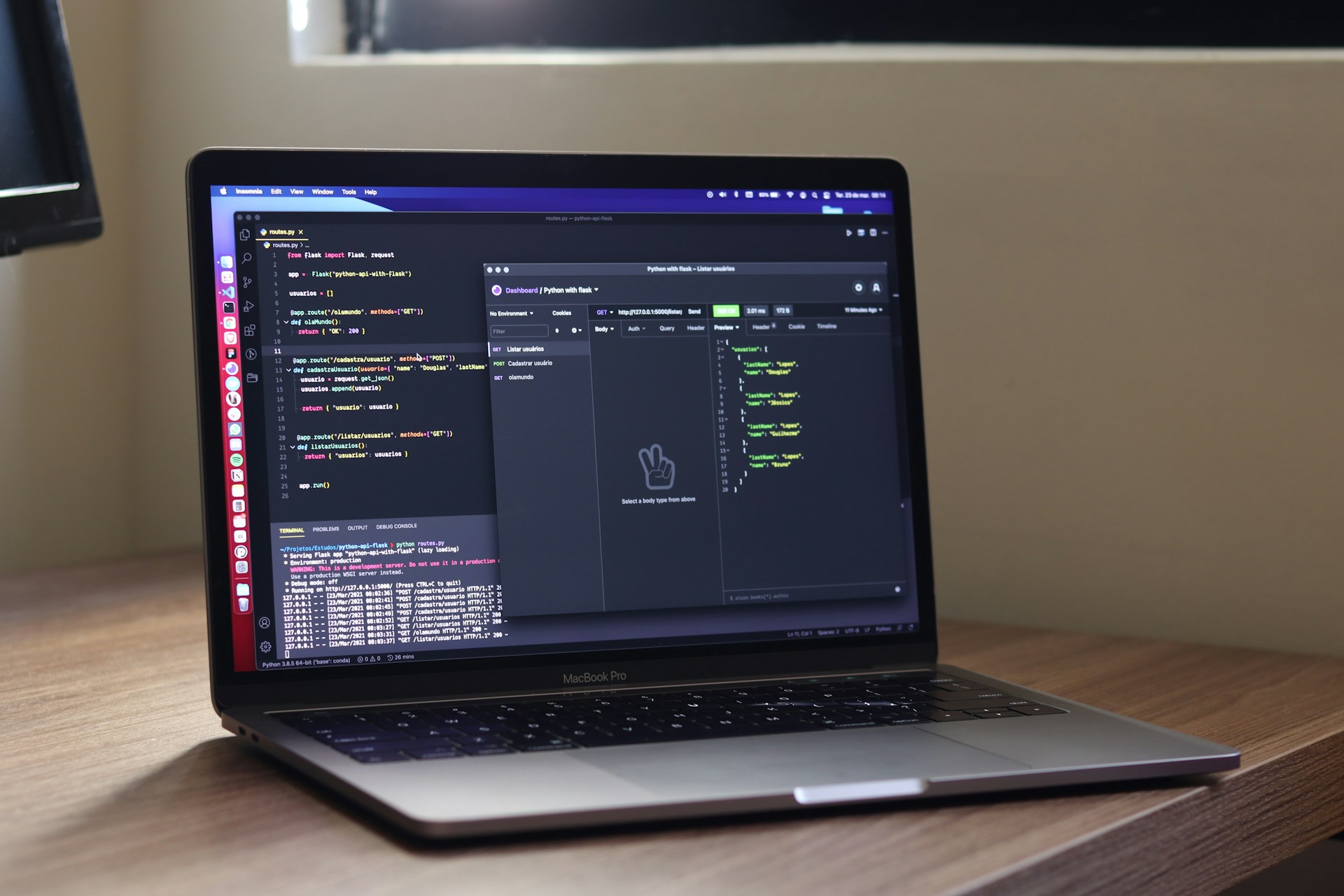
    Photo by Malachi Brooks on Unsplash

  • How to Send WooCommerce Order Details to Help Scout Using Webhooks

    How to Send WooCommerce Order Details to Help Scout Using Webhooks

    Integrating WooCommerce with Help Scout can be a game-changer for customer support. By automatically sending order details to your Help Scout helpdesk, you can provide more personalized and efficient support to your customers. In this blog post, we’ll walk you through setting up a WooCommerce webhook to send order information to Help Scout.


    What Are Webhooks and Why Use Them?

    Webhooks allow WooCommerce to send real-time data to other systems whenever specific events occur. By leveraging this functionality, you can ensure that customer order details are instantly available in Help Scout, making your support team better equipped to handle queries.


    Prerequisites

    Before getting started, ensure you have the following:

    1. WooCommerce Installed: Your WooCommerce store should be fully operational.
    2. Help Scout Account: Make sure you have an active Help Scout account.
    3. Help Scout API Key: This is required to authenticate requests.
    4. Admin Access: You’ll need access to your WordPress dashboard and Help Scout account.

    Step 1: Set Up a Webhook in WooCommerce

    1. Log in to your WordPress admin dashboard.
    2. Navigate to WooCommerce > Settings > Advanced > Webhooks.
    3. Click Add Webhook to create a new webhook.
    4. Configure the webhook:
      • Name: Give the webhook a descriptive name, such as “Send Order to Help Scout.”
      • Status: Set to Active.
      • Topic: Choose Order Created to trigger the webhook when a new order is placed.
      • Delivery URL: Enter the URL of your middleware script or API endpoint that will process the webhook and send data to Help Scout.
      • Secret: (Optional) Set a secret key for additional security.
    5. Click Save Webhook.

    Step 2: Get Your Help Scout API Key

    1. Log in to your Help Scout account.
    2. Navigate to Manage > API Keys.
    3. Click Generate API Key.
    4. Copy the key and keep it secure—you’ll need it to authenticate requests.

    Step 3: Create Middleware or Use a Pre-Built Integration

    You’ll need a way to process WooCommerce webhook data and send it to Help Scout. You can either use a no-code platform like Zapier or write a custom script.

    Option 1: Use a Pre-Built Integration

    If you’re using a tool like Zapier:

    1. Log in to Zapier and create a new Zap.
    2. Select WooCommerce as the trigger app and use the Order Created event.
    3. Authenticate your WooCommerce account.
    4. Add Help Scout as the action app.
    5. Use the Create Conversation action to generate a new Help Scout conversation for each order.
    6. Map WooCommerce order fields (e.g., customer name, email, and order details) to Help Scout fields.

    Option 2: Build a Custom Script

    If you prefer a custom integration:

    1. Create a script to receive webhook data at the Delivery URL you configured earlier.
    2. Use the Help Scout API to create or update conversations with the order details.

    Here’s a sample PHP script:

    <?php
    // Help Scout API Key
    $api_key = 'YOUR_API_KEY';
    $api_url = 'https://api.helpscout.net/v2/conversations';
    
    // Function to handle WooCommerce webhook data
    function handle_webhook($webhook_data) {
        $order_id = $webhook_data['id'];
        $customer_name = $webhook_data['billing']['first_name'] . ' ' . $webhook_data['billing']['last_name'];
        $customer_email = $webhook_data['billing']['email'];
        $order_total = $webhook_data['total'];
        $order_items = $webhook_data['line_items'];
    
        // Prepare Help Scout conversation data
        $conversation = [
            'type' => 'email',
            'customer' => [
                'email' => $customer_email
            ],
            'subject' => "Order #$order_id",
            'status' => 'active',
            'mailboxId' => 'YOUR_MAILBOX_ID',
            'threads' => [
                [
                    'type' => 'customer',
                    'text' => "New order placed:\n\nOrder ID: $order_id\nCustomer: $customer_name\nTotal: $order_total\nItems:\n" . format_items($order_items)
                ]
            ]
        ];
    
        // Send data to Help Scout
        send_to_helpscout($conversation);
    }
    
    // Function to format order items
    function format_items($items) {
        $formatted = '';
        foreach ($items as $item) {
            $formatted .= "{$item['name']} (x{$item['quantity']}) - {$item['total']}\n";
        }
        return $formatted;
    }
    
    // Function to send data to Help Scout
    function send_to_helpscout($data) {
        global $api_url, $api_key;
    
        $headers = [
            'Authorization: Bearer ' . $api_key,
            'Content-Type: application/json'
        ];
    
        $ch = curl_init($api_url);
        curl_setopt($ch, CURLOPT_POST, true);
        curl_setopt($ch, CURLOPT_POSTFIELDS, json_encode($data));
        curl_setopt($ch, CURLOPT_RETURNTRANSFER, true);
        curl_setopt($ch, CURLOPT_HTTPHEADER, $headers);
    
        $response = curl_exec($ch);
        curl_close($ch);
    
        return $response;
    }
    ?>
    

    Step 4: Test the Integration

    1. Place a test order in your WooCommerce store.
    2. Verify that the webhook triggers and sends the order data to your middleware or custom script.
    3. Log in to Help Scout and check for a new conversation with the order details.

    Step 5: Monitor and Optimize

    • Regularly check WooCommerce webhook logs to ensure data is being sent.
    • Review Help Scout conversations to confirm accuracy.
    • Adjust the middleware or script as needed to handle additional order details or updates.

    Conclusion

    By connecting WooCommerce to Help Scout using webhooks, you can automatically provide your support team with the context they need to assist customers effectively. Whether you use a no-code solution or write your own integration, this setup ensures seamless communication between your e-commerce and support systems.

    Have questions or tips to share? Let us know in the comments!

  • How to Send Updated Customer Data from WooCommerce to Mailchimp Using Webhooks

    How to Send Updated Customer Data from WooCommerce to Mailchimp Using Webhooks

    Keeping your email marketing lists up-to-date is essential for effective communication with your customers. Integrating WooCommerce with Mailchimp ensures that any changes to customer data—like updated email addresses, names, or preferences—are automatically synced to your email list. In this blog post, we’ll show you how to use WooCommerce webhooks to send updated customer data to Mailchimp.


    Why Sync Customer Data with Mailchimp?

    Having accurate and up-to-date customer information in Mailchimp allows you to:

    • Send personalized email campaigns.
    • Segment your audience effectively.
    • Improve email deliverability by avoiding outdated email addresses.

    Using WooCommerce webhooks, you can automate this process, ensuring your Mailchimp list stays in sync with changes made in WooCommerce.


    Prerequisites

    Before we start, make sure you have:

    1. WooCommerce Installed: Your WooCommerce store should be active and functional.
    2. Mailchimp Account: An active Mailchimp account with API access.
    3. Mailchimp Audience: Ensure you have an audience (list) set up to receive customer data.
    4. API Key: Generate an API key in Mailchimp for integration.
    5. Admin Access: Access to your WordPress admin dashboard.

    Step 1: Set Up a Webhook in WooCommerce

    1. Log in to your WordPress admin dashboard.
    2. Navigate to WooCommerce > Settings > Advanced > Webhooks.
    3. Click Add Webhook to create a new webhook.
    4. Configure the webhook:
      • Name: Enter a descriptive name, such as “Customer Update to Mailchimp.”
      • Status: Set to Active.
      • Topic: Choose Customer Updated (or Customer Created if you also want to sync new customers).
      • Delivery URL: Enter the URL of the middleware or script that will process the webhook and send data to Mailchimp.
      • Secret: (Optional) Add a secret key for security.
    5. Click Save Webhook.

    Step 2: Generate a Mailchimp API Key

    1. Log in to your Mailchimp account.
    2. Click your profile icon and go to Account > Extras > API Keys.
    3. Click Create A Key and copy the API key.

    Step 3: Create Middleware or Use an Integration Tool

    To handle the data sent by WooCommerce and forward it to Mailchimp, you can either use a no-code tool like Zapier or write your own custom script.

    Option 1: Use Zapier for Integration

    1. Log in to Zapier and create a new Zap.
    2. Set WooCommerce as the trigger app with the Customer Updated event.
    3. Authenticate your WooCommerce account.
    4. Add Mailchimp as the action app.
    5. Select Add/Update Subscriber as the action.
    6. Map WooCommerce customer fields (e.g., name, email, address) to Mailchimp fields.
    7. Test the Zap to ensure it works.

    Option 2: Write a Custom PHP Script

    If you prefer to handle the integration manually, create a script to receive the WooCommerce webhook data and update Mailchimp using their API.

    Here’s an example PHP script:

    <?php
    // Mailchimp API credentials
    $api_key = 'YOUR_MAILCHIMP_API_KEY';
    $list_id = 'YOUR_AUDIENCE_ID';
    $api_url = "https://<dc>.api.mailchimp.com/3.0/lists/$list_id/members/"; // Replace <dc> with your data center (e.g., us1, us2)
    
    // Function to handle WooCommerce webhook data
    function handle_webhook($webhook_data) {
        $email = strtolower($webhook_data['email']); // Mailchimp requires lowercase emails
        $first_name = $webhook_data['first_name'];
        $last_name = $webhook_data['last_name'];
    
        // Prepare subscriber data
        $subscriber_data = [
            'email_address' => $email,
            'status_if_new' => 'subscribed', // Ensure the user is subscribed if they don't exist
            'merge_fields' => [
                'FNAME' => $first_name,
                'LNAME' => $last_name
            ]
        ];
    
        // Update Mailchimp
        send_to_mailchimp($email, $subscriber_data);
    }
    
    // Function to send data to Mailchimp
    function send_to_mailchimp($email, $data) {
        global $api_key, $api_url;
    
        // Hash the email for Mailchimp API
        $subscriber_hash = md5($email);
        $url = $api_url . $subscriber_hash;
    
        $headers = [
            'Authorization: Bearer ' . $api_key,
            'Content-Type: application/json'
        ];
    
        $ch = curl_init($url);
        curl_setopt($ch, CURLOPT_CUSTOMREQUEST, 'PUT'); // Mailchimp uses PUT for add/update
        curl_setopt($ch, CURLOPT_POSTFIELDS, json_encode($data));
        curl_setopt($ch, CURLOPT_RETURNTRANSFER, true);
        curl_setopt($ch, CURLOPT_HTTPHEADER, $headers);
    
        $response = curl_exec($ch);
        curl_close($ch);
    
        return $response;
    }
    ?>
    

    Step 4: Test the Integration

    1. Update a customer’s details in WooCommerce (e.g., their email or name).
    2. Verify that the webhook is triggered and sends data to your middleware or script.
    3. Check Mailchimp to confirm the customer’s information has been updated.

    Step 5: Monitor and Optimize

    • Monitor WooCommerce webhook logs to ensure data is being sent without errors.
    • Periodically test updates to ensure changes in WooCommerce are reflected in Mailchimp.
    • Expand the script to include additional fields, like phone numbers or custom tags.

    Conclusion

    Syncing WooCommerce customer data with Mailchimp ensures your email marketing list is always accurate and ready for targeted campaigns. Whether you use a no-code tool like Zapier or write your own custom script, this integration is an investment in better customer communication and engagement.

    If you have questions or additional tips, feel free to share them in the comments below!

    Photo by Gwendal Bar on Unsplash

  • How to Send New Order Data to QuickBooks Using WooCommerce Webhooks

    How to Send New Order Data to QuickBooks Using WooCommerce Webhooks

    Integrating WooCommerce with QuickBooks can significantly streamline your e-commerce operations, especially when it comes to managing orders and financial data. WooCommerce’s built-in webhook system offers a powerful way to automate this integration by sending new order data directly to QuickBooks. In this post, we’ll guide you through setting up a WooCommerce webhook to send order data to QuickBooks.


    What Are WooCommerce Webhooks?

    Webhooks are automated messages sent from one system to another in real-time. In the case of WooCommerce, a webhook can be triggered when specific events (like new orders) occur, pushing relevant data to an external system—in this case, QuickBooks.


    Prerequisites

    Before we dive in, make sure you have:

    1. WooCommerce Installed: Your WooCommerce store should be live and functional.
    2. QuickBooks Online Account: Ensure you have a QuickBooks account with API access enabled.
    3. A QuickBooks Integration App or Middleware: You’ll need middleware like Zapier, Integromat, or a custom script to handle the data transfer from WooCommerce to QuickBooks.
    4. Admin Access: Access to your WordPress admin dashboard and QuickBooks account.

    Step 1: Set Up a Webhook in WooCommerce

    1. Log in to your WordPress admin dashboard.
    2. Go to WooCommerce > Settings > Advanced > Webhooks.
    3. Click the Add Webhook button.
    4. Configure the webhook:
      • Name: Enter a descriptive name (e.g., “New Order to QuickBooks”).
      • Status: Set to Active.
      • Topic: Select Order Created.
      • Delivery URL: Enter the URL of the middleware or script that will handle the data transfer to QuickBooks.
      • Secret: (Optional) Use this for securing your webhook with a secret key.
    5. Click Save Webhook.

    Step 2: Retrieve QuickBooks API Credentials

    1. Log in to your QuickBooks Online Developer Account.
    2. Navigate to Apps > My Apps > Create New App.
    3. Select QuickBooks Online and Payments API.
    4. Obtain your Client ID and Client Secret. You’ll need these to authenticate API requests.

    Step 3: Build or Configure Middleware

    Middleware acts as a bridge between WooCommerce and QuickBooks, handling data formatting and API communication.

    Option 1: Use a Pre-Built Integration (e.g., Zapier)

    1. Log in to Zapier and create a new Zap.
    2. Set WooCommerce as the trigger app and select the Order Created event.
    3. Authenticate your WooCommerce account.
    4. Add an action step and select QuickBooks Online.
    5. Choose the action (e.g., “Create Sales Receipt” or “Create Invoice”).
    6. Map WooCommerce order fields (e.g., customer name, order total) to QuickBooks fields.

    Option 2: Create a Custom Script

    If you’re coding your own integration:

    1. Write a script to receive the webhook data at your specified Delivery URL.
    2. Use the WooCommerce API response to extract order details like customer information, products, and totals.
    3. Authenticate with the QuickBooks API using OAuth2 and your API credentials.
    4. Format the data to match QuickBooks API requirements and send a POST request to create the order in QuickBooks.

    Here’s a sample PHP snippet to handle WooCommerce webhook data:

    <?php
    // QuickBooks API credentials
    $client_id = 'YOUR_CLIENT_ID';
    $client_secret = 'YOUR_CLIENT_SECRET';
    $redirect_uri = 'YOUR_REDIRECT_URI';
    $auth_url = 'https://oauth.platform.intuit.com/oauth2/v1/tokens/bearer';
    
    // Function to handle incoming webhook data
    function handle_webhook($webhook_data) {
        $order_id = $webhook_data['id'];
        $order_total = $webhook_data['total'];
        $customer_email = $webhook_data['billing']['email'];
    
        // Prepare QuickBooks API request
        $quickbooks_data = [
            'CustomerRef' => $customer_email,
            'TotalAmt' => $order_total,
            'Line' => $webhook_data['line_items']
        ];
    
        // Send data to QuickBooks
        $response = send_to_quickbooks($quickbooks_data);
        return $response;
    }
    
    // Function to send data to QuickBooks
    function send_to_quickbooks($data) {
        global $auth_url, $client_id, $client_secret;
    
        $headers = [
            'Authorization: Bearer YOUR_ACCESS_TOKEN',
            'Content-Type: application/json'
        ];
    
        $ch = curl_init($auth_url);
        curl_setopt($ch, CURLOPT_POST, true);
        curl_setopt($ch, CURLOPT_POSTFIELDS, json_encode($data));
        curl_setopt($ch, CURLOPT_RETURNTRANSFER, true);
        curl_setopt($ch, CURLOPT_HTTPHEADER, $headers);
    
        $response = curl_exec($ch);
        curl_close($ch);
    
        return $response;
    }
    ?>
    

    Step 4: Test the Integration

    1. Place a test order in your WooCommerce store.
    2. Verify that the webhook triggers and sends the order data to your middleware or script.
    3. Check your QuickBooks account to confirm the order data is correctly recorded.

    Step 5: Monitor and Maintain

    • Regularly monitor webhook logs in WooCommerce to ensure data is being sent without issues.
    • Periodically update your middleware or script to accommodate changes in WooCommerce or QuickBooks APIs.

    Conclusion

    By using WooCommerce webhooks, you can automate the transfer of order data to QuickBooks, saving time and reducing manual errors. Whether you use a no-code tool like Zapier or create your own integration, this setup ensures seamless synchronization between your e-commerce store and accounting software.

    If you have questions or run into issues, feel free to drop them in the comments!

    Photo by Neil Kami on Unsplash

  • A Brief Overview of the WooCommerce Webhook Feature

    A Brief Overview of the WooCommerce Webhook Feature

    If you run an online store with WooCommerce, you’ve likely heard of webhooks—but do you know how they can streamline your operations and save you time? Webhooks are a powerful feature in WooCommerce that enable real-time communication between your store and external systems. Whether you’re syncing customer data to a CRM, sending new orders to your accounting software, or automating email campaigns, webhooks make it all possible.

    In my latest video, A Brief Overview of the WooCommerce Webhook Feature, I break down everything you need to know about webhooks. This beginner-friendly introduction covers the basics of what webhooks are, how they work, and why they’re essential for modern e-commerce businesses. I also discuss some practical use cases to help you visualize how this feature can enhance your store’s efficiency.

    You’ll learn about:

    • The Fundamentals of Webhooks: What they are and how they differ from APIs.
    • Common Use Cases: Automating workflows like sending order details to third-party tools or syncing customer updates to your email marketing platform.
    • How to Set Up a Webhook in WooCommerce: A quick look at configuring webhooks directly in your WordPress dashboard.

    Whether you’re a store owner, developer, or someone exploring WooCommerce for the first time, this video offers valuable insights into one of WooCommerce’s most versatile features.

    Check out the video now and discover how webhooks can unlock new levels of automation and integration for your store. Don’t forget to subscribe to my channel for more tips and tutorials to help you get the most out of WooCommerce!

    Ready to dive in? Watch the video here and let me know your thoughts in the comments!

    Wrap Up

    If you need help integrating your WooCommerce store with an external system get in touch.

    Photo by Kasia Derenda on Unsplash

  • Step-by-Step Guide to Setting Up Shipping Zones in WooCommerce

    Step-by-Step Guide to Setting Up Shipping Zones in WooCommerce

    Setting up shipping zones in WooCommerce is a straightforward process that allows you to control where and how your products are shipped. Here’s a step-by-step guide to help you get started:


    1. Access the Shipping Settings

    • Log in to your WordPress dashboard.
    • Navigate to WooCommerce > Settings.
    • Click on the Shipping tab.

    2. Add a New Shipping Zone

    1. Under the Shipping tab, go to the Shipping Zones section.
    2. Click Add Shipping Zone.
    3. Name your zone: Choose a name that reflects the area, e.g., “United Kingdom” or “Europe”.
    4. Select the region(s): Use the dropdown to select countries, states, or specific postcodes for this zone.
    5. Click Save changes.

    3. Assign Shipping Methods to the Zone

    1. Once the zone is created, click Add Shipping Method.
    2. Choose from the following default options:
    • Flat Rate: Set a fixed shipping fee.
    • Free Shipping: Offer free shipping based on criteria (e.g., minimum spend).
    • Local Pickup: Allow customers to collect their orders in person.
    1. Click Add shipping method.

    4. Configure Each Shipping Method

    After adding a shipping method, you’ll see it listed under the zone. Click Edit next to the method to configure it:

    • Flat Rate:
    • Enter a specific amount (e.g., £5.00).
    • You can add rules based on shipping classes for more flexibility (e.g., higher rates for bulky items).
    • Free Shipping:
    • Set conditions like minimum order amount (e.g., “Free shipping on orders over £50”).
    • Local Pickup:
    • Define whether local pickup is free or comes with a handling fee.

    5. Repeat for Other Zones

    If you ship to multiple regions, repeat the process for each zone. For instance:

    • Zone 1: United Kingdom with Free Shipping for orders over £50.
    • Zone 2: Europe with Flat Rate Shipping of £10.
    • Zone 3: Rest of World with real-time carrier rates.

    6. Set a Default Shipping Zone (Optional)

    WooCommerce automatically applies a default zone called Locations not covered by your other zones. This acts as a fallback for customers whose addresses don’t match your defined zones.

    • To configure it:
    • Click Edit next to the default zone.
    • Add a shipping method like Flat Rate or real-time carrier rates.

    7. Test Your Setup

    To ensure everything works as expected:

    1. Add a product to your cart.
    2. Go to checkout and enter different addresses matching your zones.
    3. Verify that the correct shipping methods and rates appear.

    8. Use Plugins for Advanced Features (Optional)

    For more complex shipping rules, consider using plugins:

    • WooCommerce Table Rate Shipping (link): Create advanced shipping rules based on weight, quantity, or other conditions.
    • Flexible Shipping for WooCommerce (link): Adds more customization for shipping methods.

    Conclusion

    By setting up shipping zones in WooCommerce, you can tailor your shipping strategy to fit your business needs and customer expectations. Whether you want to offer free shipping for local orders or real-time rates for international customers, shipping zones give you the flexibility to manage it all.

    Photo by Austin Neill on Unsplash

  • What Shipping Zones Are and Why They Matter

    What Shipping Zones Are and Why They Matter

    Shipping zones are a fundamental feature in WooCommerce that allow store owners to tailor their shipping methods and rates based on customer locations. Whether you’re selling locally, nationally, or internationally, understanding and utilizing shipping zones can help you streamline operations, control costs, and improve customer satisfaction.


    What Are Shipping Zones?

    A shipping zone is a geographic region where specific shipping rules apply. WooCommerce lets you define these regions and assign shipping methods to each. When a customer enters their address at checkout, WooCommerce automatically applies the relevant shipping options based on the zone that covers their location.

    For example:

    • Zone 1: United Kingdom – Free shipping for orders over £50.
    • Zone 2: Europe – Flat rate shipping of £10.
    • Zone 3: Rest of the world – Real-time carrier rates (e.g., DHL or UPS).

    Each zone can include:

    • Entire countries.
    • Specific states, provinces, or regions within a country.
    • Postcodes or zip codes for highly localized rules.

    Why Shipping Zones Matter

    1. Tailored Shipping Rates

    Shipping zones allow you to charge different rates depending on the destination. This ensures you’re not overcharging or undercharging for shipping, which can improve customer satisfaction and profitability.

    • Example: Offering free or low-cost shipping within your home country while charging a premium for international deliveries.

    2. Improved Delivery Times

    By setting up zones with region-specific shipping methods, you can offer faster delivery options for customers closer to your fulfillment center while providing longer lead times for distant locations.

    3. Cost Efficiency

    Shipping to different regions incurs varying costs due to distance, carrier availability, and customs. Shipping zones let you reflect these differences in your pricing, ensuring you don’t lose money on shipping.

    4. Enhanced Customer Experience

    Customers appreciate transparency and flexibility. By displaying accurate shipping costs and options at checkout, you reduce the risk of cart abandonment due to unexpected shipping fees.

    5. Simplified Operations

    Shipping zones help automate logistics. Instead of manually calculating shipping rates for each order, WooCommerce applies the correct rates automatically based on the customer’s location, saving time and reducing errors.

    6. Scalability for Growth

    As your business expands, shipping zones make it easy to adapt. You can start small, offering domestic shipping, and gradually add zones as you target new international markets.


    How to Set Up Shipping Zones in WooCommerce

    1. Go to: WooCommerce > Settings > Shipping.
    2. Add a new shipping zone.
    3. Define the zone by selecting countries, states, or postcodes.
    4. Assign shipping methods to the zone (e.g., flat rate, free shipping, or real-time carrier rates).
    5. Save your changes.

    Conclusion

    Shipping zones are a powerful tool that allows you to manage shipping more effectively, balancing cost control with customer satisfaction. By setting up zones strategically, you can offer competitive shipping rates, improve delivery times, and scale your store as your business grows.

    Photo by Umut YILMAN on Unsplash

  • How to Control Which Countries You Sell To on Your WooCommerce Store

    How to Control Which Countries You Sell To on Your WooCommerce Store

    Managing the countries you sell to in your WooCommerce store is essential for handling shipping logistics, tax compliance, and legal obligations. WooCommerce offers built-in settings to define your store’s geographic reach, and additional plugins can provide more advanced control.


    Why Limit the Countries You Sell To?

    • Shipping Constraints: Certain shipping carriers may not service specific countries or regions.
    • Tax Compliance: Different countries have varying tax laws, making compliance complex.
    • Legal Requirements: Some products may be restricted or prohibited in certain countries.
    • Business Strategy: Focusing on specific markets can align with your business goals and resources.

    Configuring Country Restrictions in WooCommerce

    WooCommerce provides settings to control where you sell and ship products. Follow these steps:

    1. Access General Settings

    • In your WordPress dashboard, navigate to WooCommerce > Settings.
    • Under the General tab, locate the Selling Location(s) and Shipping Location(s) options.

    2. Set Selling Locations

    This setting determines which countries can make purchases on your store:

    • Sell to all countries: Allows purchases from any country.
    • Sell to all countries, except for…: Restricts sales to a specific list of excluded countries.
    • Sell to specific countries: Enables you to define a list of countries you want to sell to.

    Choose the option that aligns with your business strategy.

    3. Set Shipping Locations

    Control where you ship products:

    • Ship to all countries you sell to: Matches your shipping locations with your selling locations.
    • Ship to specific countries only: Further restricts shipping destinations.
    • Disable shipping & shipping calculations: Useful if you’re selling only digital products.

    4. Configure Payment Gateways

    Ensure your payment gateways support transactions from the countries you allow:

    • Navigate to WooCommerce > Settings > Payments.
    • Review each payment method to confirm it supports the selected countries.

    Advanced Control with Plugins

    For more granular control over country-specific restrictions, consider using the following plugins:

    • WooCommerce Country Catalogs – Product Country Restrictions: This plugin allows you to geolocate your WooCommerce store and offer different products based on the user’s country. You can restrict products to specific countries, create country-specific catalogs, and more.
    • Country Based Restrictions for WooCommerce: This plugin enables you to restrict your WooCommerce shop products to be purchasable only in specific countries. It uses WooCommerce’s shipping country settings and geolocation to determine the customer’s country.
    • WooCommerce Conditional Shipping and Payments: This plugin provides a streamlined way to restrict shipping methods, payment gateways, and shipping destinations available to your customers. You can create rules to disable or hide shipping methods and payment gateways conditionally.

    Additional Considerations

    • Tax Setup: Configure tax rates based on the countries you’re targeting. Navigate to WooCommerce > Settings > Tax to set up appropriate tax classes.
    • Shipping Zones: For detailed control over shipping costs, create shipping zones for specific countries or regions under WooCommerce > Settings > Shipping.

    By effectively managing the countries you sell to, you can streamline operations, ensure compliance, and focus on markets that best suit your business objectives.

    Photo by Jakob Braun on Unsplash

  • How I Customise WooCommerce Emails

    How I Customise WooCommerce Emails

    If you’ve ever wanted to add a personal touch to the automated emails WooCommerce sends, customizing these email templates can be a great way to align them with your brand. In my latest video, I walk through the process of customizing WooCommerce emails by copying the template files from WooCommerce’s main directory and placing them into a child theme. This approach keeps your modifications safe from future updates, ensuring your customizations stay intact.

    In this tutorial, you’ll learn how to locate the WooCommerce email templates in woocommerce/templates/emails, copy them over to your child theme, and make specific edits to give your customers a consistent, branded experience in every email. From adjusting the colors and layout to adding extra details, this process will help you create emails that reflect your business identity more closely.

    To preview these changes without the hassle of sending test orders, I also demonstrate the Woo Preview Emails plugin in the video. This handy tool allows you to see your email customizations in real-time, saving you time and making it easier to get the look just right before going live.

    Watch the video to get step-by-step instructions and tips on creating customized email experiences for your WooCommerce store. Custom email templates can help reinforce your brand, boost customer engagement, and provide a more professional, polished look to your automated communication.

    Let’s dive in and start transforming your WooCommerce emails today!

    Wrap Up

    If you need help customising your WooCommerce email, get in touch.

  • Simplify Your WooCommerce Migration to HPOS with My New REST API Logger Plugin

    Simplify Your WooCommerce Migration to HPOS with My New REST API Logger Plugin

    Migrating your WooCommerce store to High-Performance Order Storage (HPOS) can feel overwhelming, especially when it comes to tracking external API calls during the transition. That’s why I developed the WP REST API Logger (External Requests Only)—a lightweight, efficient plugin designed to log external REST API requests directly into a CSV file. This tool is a game-changer for store owners and developers who want a clear view of API interactions during a migration.

    In my latest video tutorial, I’ll walk you through how to install, configure, and use this plugin to monitor your API traffic during the HPOS migration process. Whether you’re syncing inventory, updating customer data, or troubleshooting API errors, this plugin ensures you stay on top of every external request. The clear CSV logs make it easy to identify issues, validate data integrity, and streamline debugging.

    What You’ll Learn in the Video:

    • Installation & Setup: Get the plugin up and running in minutes.
    • Real-Time Logging: See how the plugin captures external API requests in real time.
    • Full URL Logging: Understand how to track the complete request URL, making it easy to pinpoint specific API calls.
    • Migration Insights: Learn how this data can help you troubleshoot and optimize your WooCommerce HPOS migration.

    Important Note: Logging API calls can create overhead and impact performance, especially on high-traffic sites. For this reason, I recommend disabling the plugin once it’s no longer needed to avoid unnecessary strain on your server.

    Ready to simplify your WooCommerce migration? Watch the tutorial below and start leveraging the WP REST API Logger today!

    Download

    Download the plugin for free from my WooCommerce store REST API Logger

    Wrap Up

    If you need help migrating to HPOS get a quote, I have a fixed price package to migrate sites.

    Photo by Douglas Lopes on Unsplash

  • How to Identify Your Best-Selling Products Using WooCommerce Analytics

    How to Identify Your Best-Selling Products Using WooCommerce Analytics

    Knowing your best-selling products can drive more strategic business decisions, from inventory planning to marketing. With WooCommerce Analytics, tracking and analyzing top products is simple and can provide insights to maximize profitability. This guide walks you through the steps to identify and leverage your best sellers in WooCommerce.


    Why Identify Best-Selling Products?

    Understanding which products sell best allows you to:

    • Optimize Inventory: Ensure stock levels match demand.
    • Increase Marketing Efforts: Focus promotions on high-demand products.
    • Improve Product Line: Identify products that may need adjustments based on their performance.
    • Refine Pricing Strategies: Experiment with pricing to boost revenue from popular products.

    Accessing Product Data in WooCommerce Analytics

    WooCommerce Analytics provides an overview of your product sales, enabling you to filter and analyze data in several ways. Here’s how to get started:

    1. Go to WooCommerce Analytics
      In your WordPress dashboard, navigate to WooCommerce > Analytics.
    2. Select the Products Report
      In the Analytics menu, choose Products. This report displays detailed information on product sales, including quantities sold, revenue, and order totals.
    3. Set a Date Range
      Choose a date range to analyze performance over a specific period, whether it’s monthly, quarterly, or annually. For example, if you’re preparing for the holiday season, viewing data from the previous year can help predict this year’s bestsellers.
    4. Sort by Revenue or Quantity Sold
      The Products report allows you to sort data based on metrics like Revenue or Quantity Sold:
    • Revenue: Use this to find the products that generated the most income.
    • Quantity Sold: Useful for understanding which items are in high demand, regardless of their price.

    Analyzing Product Sales Insights

    Once you have your best-selling products identified, analyzing the data can reveal deeper insights:

    • High Revenue, Low Quantity: High revenue products with lower quantities sold may benefit from targeted advertising or special offers to increase purchase volume.
    • High Quantity, Lower Revenue: Products that sell in high volumes but generate lower revenue could benefit from price adjustments or bundling with other items.
    • Seasonal Bestsellers: Identify products with spikes during specific periods, such as seasonal items or holiday bestsellers. This information helps with seasonal promotions and restocking.

    Additional Ways to Filter and Analyze Product Data

    WooCommerce Analytics offers several filters to dive deeper into product data:

    1. Filter by Category
      If you sell different types of products, filter by category to see bestsellers within specific segments. This can help you make decisions about expanding certain categories.
    2. Customer Segmentation
      View best-selling products among different customer segments, such as first-time buyers versus repeat customers, to tailor marketing campaigns.
    3. Analyze Product Variants
      For variable products, such as clothing with different sizes and colors, WooCommerce lets you see which variants sell best. This insight can guide inventory management for specific options.

    Exporting Product Data for Further Analysis

    If you need to analyze product data in more detail or share it with your team, exporting the data is straightforward:

    1. Click on Export
      In the Products report, click Export at the top right to download the data in CSV format.
    2. Analyze in Spreadsheet Software
      Open the CSV file in Excel or Google Sheets to create custom reports, apply filters, or use pivot tables for more in-depth analysis.

    Best Practices for Leveraging Best-Selling Product Data

    Identifying best-selling products is just the beginning. Use this information to refine your business strategies:

    • Inventory Planning: Stock up on bestsellers to avoid missing sales due to low stock.
    • Marketing Strategy: Focus marketing efforts on high-demand products with email campaigns, social media posts, or paid ads.
    • Product Bundling: Bundle best-selling items with lower-performing products to increase sales.
    • Customer Recommendations: Use product recommendations to suggest bestsellers on product pages, cart pages, and checkout.

    Conclusion

    WooCommerce Analytics provides a simple and effective way to track and analyze your best-selling products. With insights into top performers, you can optimize inventory, boost marketing efforts, and make data-driven decisions that enhance overall store performance. By regularly reviewing bestsellers, you’ll be well-positioned to grow your WooCommerce store strategically and profitably.

  • How to Use WooCommerce Analytics to Calculate Tax Collected

    How to Use WooCommerce Analytics to Calculate Tax Collected

    For WooCommerce store owners, tracking sales tax is essential for accurate reporting and compliance with local tax laws. WooCommerce Analytics offers built-in tools that make it easy to calculate and analyze taxes collected across different products, locations, and time periods. This post covers the steps for using WooCommerce Analytics to calculate your tax data efficiently.


    Why Track Taxes in WooCommerce?

    Tracking taxes is vital for businesses to stay compliant with local, state, and international tax laws. WooCommerce’s tax collection settings can automatically calculate taxes based on customer locations, making it easy to charge the correct amount. By regularly monitoring tax data in WooCommerce Analytics, you can prepare accurate reports and simplify tax filing.

    Setting Up Tax Calculation in WooCommerce

    Before accessing tax reports, ensure your tax settings are correctly configured in WooCommerce:

    1. Go to WooCommerce Settings
      Navigate to WooCommerce > Settings > Tax and enable taxes by checking Enable tax rates and calculations.
    2. Set Up Tax Rates
      Set tax rates for different regions under Standard rates, Reduced rate rates, or Zero rate rates. WooCommerce allows you to specify tax rates based on country, state, or postal code.
    3. Choose Display Settings
      Adjust how tax prices display on the storefront under Tax options to ensure customers see accurate prices, either inclusive or exclusive of taxes.

    Accessing Tax Data in WooCommerce Analytics

    Once taxes are enabled, WooCommerce Analytics will track the taxes collected on each sale. Here’s how to access the tax report:

    1. Navigate to WooCommerce Analytics
      Go to WooCommerce > Analytics from the WordPress dashboard.
    2. Select the Taxes Report
      In the Analytics section, select Taxes from the available reports. This report provides a summary of all taxes collected during a specified period, helping you calculate total taxes for reporting purposes.
    3. Filter by Date Range
      WooCommerce lets you view tax data for custom date ranges. For example, you can set a date range to view taxes collected for a quarter, fiscal year, or any custom period, which is useful when preparing tax returns.
    4. View Tax Rates by Country
      The Taxes report shows tax collected for each country and region, allowing you to see the breakdown of taxes by location. This feature is helpful if you need to separate data by states, counties, or countries.

    How to Use WooCommerce Tax Reports for Tax Calculation

    WooCommerce’s tax report provides all essential data points needed for tax reporting:

    • Total Tax Collected: View the total tax collected for a given period to quickly determine how much you owe for sales tax.
    • Net Sales and Tax Amounts: Compare total sales with the tax amounts to understand the tax percentage relative to revenue.
    • Tax by Country and Region: If you need to separate tax data by specific regions, the report provides a breakdown, allowing for detailed reporting by state or country.

    Exporting Tax Data

    To further analyze your tax data or share it with your accountant, WooCommerce allows you to export tax reports:

    1. Click on Export
      In the Taxes report, click the Export button at the top right to download the tax data as a CSV file.
    2. Analyze in Spreadsheet Software
      Open the exported CSV file in Excel or Google Sheets to organize and filter data. This is particularly useful if you need to prepare custom reports or analyze tax trends over time.

    Best Practices for Tax Tracking in WooCommerce

    Here are a few tips for maintaining accurate tax records in WooCommerce:

    • Keep Tax Rates Updated: Periodically review your tax settings to ensure you’re charging the correct rates, especially if you sell to multiple regions with different tax requirements.
    • Schedule Regular Reports: Regularly check your tax reports, especially before quarterly or annual tax deadlines.
    • Consult a Tax Professional: To ensure compliance, consider consulting a tax advisor, particularly if your store collects taxes in multiple jurisdictions.

    Conclusion

    Using WooCommerce Analytics for tax reporting is a straightforward process that saves time and helps maintain compliance. By leveraging tax reports, setting the correct tax rates, and exporting data, you’ll have an organized view of taxes collected and be better prepared when it’s time to file. With WooCommerce’s analytics tools, staying on top of tax obligations is easier than ever.