Neil Matthews

Blog

  • So You’ve Bought Your First Premium WordPress Theme …

    I think it is a big step on your journey as a blogger when you hand over your hard earned for your first premium theme .  It says you are serious about your blog and you want it to stand out from the also ran free themes.

    The problem is, premium themes look excellent and with that excellence comes a complexity of use.  I have been working with a couple of clients recently to coach them using their new themes.  From this experience I thought I would documents the common pit falls premium themes can spring upon you.

    What’s A Premium Theme

    A premium theme is a professionally developed template for your WordPress blog.  They tend to be of a high quality with lots of wizzy features such as video players and featured post rotators.

    They are the middle ground between free themes and custom developed setups, they tend to cost around $100 and for that you will get a customisable theme, support and usually updates.  You will get a fairly unique looking blog, add to that your own logo and bingo a less than ordinary blog look and feel.

    My site uses a premium theme Ice Cream Dream, it’s not as busy as many premium themes but the cleanness and efficiency is something I could never ahve done myseld, I have very little graphic design skill.  That’s why I handed over my money for a premium theme.

    Here is a short list of companies creating premium themes so you can get an idea of what is available, no affiliate links here, just companies themes I have used:

    Premium themes are for bloggers wanting a unique look without the skills or budget to develop their own custom theme.

    RTFM

    The first thing to do when you get hold of your premium theme is to read the f*cking manual.  This sounds obvious but the devil is in the detail, I don’t know how many times I have steamed ahead, installing themes only to have to go back to the PDF packaged in the zip file to learn how to use a complex theme.

    The documentation is usually packaged with the zip as well as being available on the plugin site.  Check out the sites forum as well as the documentation so you are up to speed with any issues before you install.

    A quick tip, look for documentation on the plugin developers site before you buy.  If it is incomprehensible, I recommend you take the advice of Dionne Warwick and walk on by.   If the documentation is poor, it is a sign that the support will be equally poor.  On the same note if documentation on how to install your theme is not on the site, consider if you want to buy this theme.  I learned this from hard experience I was installing a premium theme for a client and the documentation was so poor I had to pull apart the code to understand how it worked.  Techies are notoriously poor communicators, they just expect you to understand what is obvious to them.   If I am paying for a theme I want support and quality documentation.

    Plugins

    Often a premium theme will rely on certain plugins to work properly.  Make sure you have downloaded and activated these or your theme will not work as expected . The plugins will either be included with the theme zip file or be documented in the readme file.   Take notice of versions, sometimes updates to plugins can make themes fall over.

    Custom Fields

    This is one which catches out many people.  A custom field is a small piece of information which you pass into the theme for it to perform a function.  An example of custom field usage from my site is the thumbnail on the front page. For each post I create,  a custom field needs to be created too called thumb which contains the URL of the thumbnail image to be displayed on the front page.

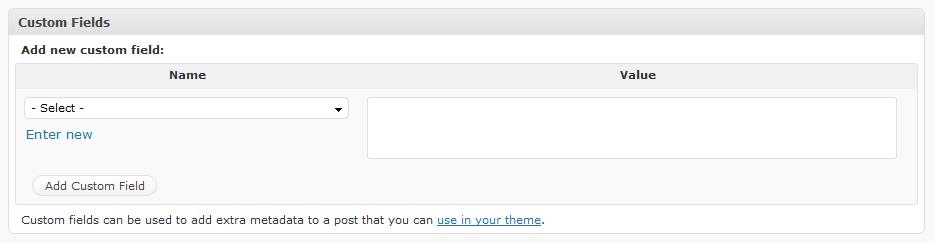
    Custom fields are added from the edit post page, scroll down and near the bottom of the page you will see a section like this:
    customfields

    Enter a new custom field name, then add the value as specified in your documentation, don’t forget to activate it by pressing “add custom field” . Please be aware of the case Thumbnail is not the same as thumbnail with custom fields.  As you add custom fields they are saved (see the drop down) so you can easily create new fields for your posts.

    Categories

    Many premium themes use categories to position items on the page.  For example many of the look and feels will have a featured post section, to get posts into the featured section, you need to add them to a category named featured.

    Again watch the case, I spent hours trying to get some videos to appear by adding the to a category called video instead of Video.

    I Love Premium Themes I Do..

    A premium theme says you are serious about your blogging, but please remember content is still king and your true fans will probably subscribe to RSS and never see you day-glo rotating doo-dad from that point on.  Don’t get too hung up about your look’n’feel.

    Just to re-iterate, read the manual and do exactly as the developer tells you and you site will look as smart as a carrot .

  • Adding a Poll to Your Blog

    When you want to ask your readers a question or are stuck for a quality post nothing beats a poll. In this post I will show you how to add a poll to your WordPress blog.

    What Will a Poll Bring to My Blog?

    A poll is a very easy way to engage your readers, there is not the in-depth need to write a reply like a comment, a simple click on a yes or no answer is far more likely to generate feedback. It helps to engage your audience and make your blog feel more like a conversation than a lecture. Consider this; if someone asks your opinion in a conversation rather than talking at you during the intercourse, what feels better? I think polls add a pause to your conversation where your readers can give their opinion.

    Polls are good for asking questions about your niche, getting feedback from your readers or even for marketing purposes e.g. a poll asking if your readers are interested in a membership side to your blog can be excellent market research.

    I have used polls as way to test if my blog content is pitched at the correct level by asking the technical expertise of my readers, I have used it to test if people want particular services from me.

    Add One Polling Plugin

    Where there’s a poll there is plugin that’s my motto of the minute. Adding a poll to your blog is as easy as finding the right plugin. Below I list the things to consider when choosing your plugin.

    Widget or Post

    If you are running you poll over a number of days it maybe more appropriate to add a widget to your blog’s sidebar rather than containing your poll in a post. This is because posts may drop off the front page of your blog and potential poll results may be missed.

    Check with your particular plugin to see if it is widget ready. I like a plugin which gives me the flexibilty of adding it to a post or page as well as having a ready made widget.

    Posting the Results

    I like a poll plugin which automatically calculates the results at the end of my polling period as well as an ongoing count displayed to my readers. Check to see if your polling plugin presents results to your users or only on the backend to your the administrator.

    My Preferred Polling Preference

    Alliteration always makes me happy 🙂

    As always I would encourage you to check out the available poll plugins from the plugin repository and see which one matches your requirements, there are a number to test at http://wordpress.org/extend/plugins/tags/polls.

    The poll widget I use is called WP-Polls, it is available for download http://lesterchan.net/portfolio/programming/php/#wp-polls

    The plugin has an admin interface where you create your poll, then it is inserted into a post using a tag [~poll id=”n”] the tag is then replaced and the poll inserted for all to see. It comes with a widget built in to drop polls onto your sidebar(s).

    WP-Polls has a template editor so you can match polls to the look and feel of your site and It has a really handy interface in the dashboard so you can analyse the results of your polls.

    I can set a time limit for my poll, and at the end it marks it as closed and only the results are shown. It allows you to set who can vote i.e. guest or registered users, I would not recommend using the registered users option, any barrier to entry will stop people voting in your poll.

    The only thing missing for me is free form fields which would allow me to get more than a yes or no answer to my poll.

    Offsite Polling Solutions

    There are various solutions out there which allow you to host a poll off-site and then display it on your site. Solutions such as Poll Daddy will host your poll. This is of benefit if you poll is a huge multi page thing and you expect housands of results. Of course these tend to work under the freemium model with more advanced options available at a fee.

    Have you used any offsite polling solutions let me know in the comments.

    Other Ideas

    If you want a very quick poll with immediate results, I can wholeheartedly recommend the combination of twitter and polldaddy, in a couple of seconds you can create a poll and put it in front of your twitter followers. This is excellent for asking a quick question and having the results correlated for you. This can be done from http://twitter.polldaddy.com/

    The lazy writers guide to Polls

    I’ll let you into the secret, polls help to fill gaps in your posting schedule if you are stuck for something to write about, first of all you set the poll with a couple of paragraphs of why you are running the poll, post one – check.

    Next you get the result post where you analyse the post bingo two posts, not a great deal of effort. Post two -check, see how it fills the gaps.

    Are You Going to Add a Poll?

    Here’s a sample poll for you, I would appreciate your feedback:

    [poll id=”7″]

  • The WordPress 2.8 50% off Mad Sale

    Mad WPDude here, and have I got a sale for you …. no cannot do it, just cannot be a US car salesman.

    WordPress 2.8 Released

    WordPress 2.8 has eventually been released after much too-ing and fro-ing with bug fixing and slippage in the project.  It was originally due for release last month but that date passed.  The slippage is a good thing it means bugs were spotted (and fixed) before the code was sent into the Blogosphere.

    You will probably see update notifications on your dashboard right now.

    What’s New in 2.8

    Full details of what is new in 2.8 can be seen at http://codex.wordpress.org/Version_2.8, but my particular highlights of this update are:

    • Install theme from dashboard instead of using FTP
    • Hot key to save posts ctrl+s

    What’s the sale about

    I am offerning to update your site including installation of backup plugins,  taking a complete and tested backup, update, post update testing and rollback if required for one hour instead of my usual two that I would quote for this job.

    If you want me to upgrade your site to WordPress 2.8, drop me a line from wpdude.com/hire-wpdude quoting Crazy WPDudes Sale, or just say please update my site, whatever you are more comfortable with.

  • How To Write WordPress Posts Remotely

    Connecting to your blog and writing posts through your dashboard is not the only way to craft your content.  I am going to tell you of a few other methods to write posts and publish them on your blog.

    Why Do I need to Publish Posts Remotely?

    You may not be at your computer or only have a mobile device with you, you may be researching a topic away from your Blog dashboard or you may just hate writing from the WordPress editor.  The ability to publish from sources other than your blog has many uses.

    Email Your Posts

    WordPress has the ability to receive emails as posts to your blog for publication.  In essence you setup a secret email account know only to you and your blog, then any email received by the blog to that account will be accepted as a post.  I am a very lazy man so rather than reinventing the wheel, here is a link to the resource written by the good people at WordPress http://codex.wordpress.org/Blog_by_Email

    Remote Clients

    There are a number of clients out there which allow you to write your posts offline and push them up to your blog at the click of a button.  These tend to be more like client based word processors, and as a result they are more feature rich than the default wordpress editor.

    The remote clients all0w you to draft and prepare posts offline.  Perhaps you like to switch off your net connection when you write to minimise distraction, then this is a method for you.

    The tool I have tried is Windows Live Writer, it is an excellent gui writing tool which allows you to download your theme to give you an idea of what your posts will look like.  Write your posts, save them offline as drafts, then click on publish when you are ready.

    I am a windows boy, are there are mac remote posting clients? Please let me know in comments section.

    Browser Plugins

    There are quite a few browser plugins available for free download which allow you to post directly from your browser.  I guess the idea is that when you are doing your browsing, the idea for a posts comes to you and the plugin allows you to write the posts during your peak of creative musing.  The two plugins I have used are:

    ScribeFire – a firefox plugin which at the press of the f8 button becomes a blog client.  You create an account to your blog and you can write a post directly from firefox.

    Press This – a bookmarklet produced by WordPress, from your blog goto Turbo  and drag the Press This link onto your toolbar, when you have the urge click on it and blog from your browser.

    As always I am always open to new experiences, let me know if there is a blogging browser extension which rocks your world in the comment section.

    Mobile Devices

    All the kids with their new fangled what-ji-mi-call-its are blogging from their handsets.  There are a couple of ways this works:

    For the uber-trendy there are iPhone applications which act as clients on your Appley doodad.  This was developed by the good people at WordPress, just go to the app store and search for WordPress, it is a free app.  It gives you the ability to write posts, and pages as well as moderate your comments.

    The second alternative for smart phones with slower browsers (I am thinking Blackberrys or Windows CE devices) is to adapt your blog to create a reduced interface.  Using the WordPress Mobile Pack plugin you can do this along with creating a mobile device compatible front end.

    A Word About XMLRPC & Security

    If you allow remote updating, you are opening holes in your blog for potential security attacks.  Think about this before you allow remote publishing.  You may wake up one morning and find your site full of posts linking to viagra companies.

    Most of the methods above use something called xmlrpc, which is a standard for remote procedure calls (RPC , did you see what I did there) using XML (stunning RPC + XML = xmlrpc).  In English this means a remote call can be sent to your blog with the data wrapped up as a formatted text file and an update, delete or amend of a blog post can be done.

    By default xmlrpc is disabled on a WordPress installation, to enable it goto settings->writing and click on XML-RPC to enable it.

    I once used hosting company which disabled XMLRPC at a low level by blocking the WordPress php file xmlrpc.php from running. To get around this I renamed the file xmlrpc-remote.php and it worked fine, something to consider if your hosting company is being overzealous with your security.  Most of the remote tools allow you to setup where the xmlrpc file is located.

    Where Am I Writing This Post from ….

    .. you guessed it from the dashboard, I have used many of the methods above, but more as a blog post development tools, I throw my ideas together remotely and sit down in front of the dashboard to write up my post.  You may be different and like to write from your iPhone during your commute, give them a go.

  • PLUGIN REVIEW: My Backup Plugins

    I am always harping on that you need to backup your WordPress installation, check out my post on when I think you need to backup your blog at 6 Key Times You Should Backup Your WordPress Blog

    This posts is a review of  the two plugins I use to backup my blog.

    Why Do I Need A Backup

    Computer systems go phutt on an all too regular basis, having a backup allows you to rebuild your blog with the minimum effort.  Consider the time and effort you have put into developing your posts and your cool theme, this needs to be archived so you can recover in the event of a catastrophic failure, hacking attack or user error – bugger did I really click drop from my MYSQL console.

    What You Need To Backup

    There are two components you need to consider when doing a WordPress backup, the data in your MYSQL database and what I call the codebase or the files which make up a WordPress install.

    The database is commonly backed up by most people, but who considers their codebase?  This includes all of your uploaded media, any mods you make to your theme or your blog code and the latest natty plugin you added to your blog.

    How Often

    The frequency of backup should be done in line with how often you update your blog, if you write posts daily, backup daily, if you are uploading lots of media, backup the codebase frequently.  Do it often, and do it early.

    My preference is once daily for my database and weekly for my code base.

    The Plugins ..

    I use the following two plugins:

    WordPress Backup (By BTE) – for codebase backup

    WordPress Database Backup – for database backup (no shit Sherlock, I can tell that from the name)

    There are many more at the WordPress plugin directory, have a look at http://wordpress.org/extend/plugins/tags/backup

    WordPress Baclup (By BTE)

    This is a great little plugin which takes a copy of my plugin, theme and upload directories and copies them into a directory under wp-content as a zip file.  The zip file is then sent out via email.

    I have this set to run once a week, but you can set it to daily or monthly.  There is no on-demand option.

    To restore from this backup, unzip the files and FTP them back to your host.

    WordPress Database Backup

    I did a quick straw poll on Twitter and the majority of repliers were using this plugin to backup their database.  The same poll suggests people are not backing up their codebase.

    WP Database backup allows you to backup all, or a selction of your MYSQL tables, and have that backup saved to your hosting server, downloaded or sent via email.   Like WordPress backup there is a scheduler but there is also an on-demand function, useful if you want a quick back before a change to your blog.,

    The output is a SQL command file which when run against the database to recreate the tables and data.  Please note a certain level of MYSQL knowlege is required to recover from this method.

    Archiving My Backups

    I use Gmail as a sneaky way to archive my backups, I have a rule to move the emails to my archive automatically, this means I have a number of checkpoitns with my backups so I can do a point in time recovery.

    Testing Your Backup

    It is all well and good having a backup, but have you tested your recovery process, I wrote a guest post on Problogger about this subject, check it out at http://www.problogger.net/archives/2009/02/12/testing-your-blog-backup.

    The Missing Link

    My complete WordPress install i..e wp-includes, wp-admin and the files in my blog root are not backed up by these two plugins so I keep a copy of my latest WordPress install files to hand, just in case.

    Conclusion

    There are a number of backup plugins out there, please please get some installed before your blog goes tits up and you end up attempting to recover your blog using this technique – Feck Arse and Google Cache

  • Find That Plugin

    I am often asked is there a plugin for task X in WordPress, nine times out of ten there is, here is how I go about finding plugins.

    What Are Plugins

    Plugins are extensions of WordPress which allow blog owners to perform a multitude of functions, there are thousands of developers out there beavering away developing code for nearly every eventuallity, they extend WordPress, usually for free, but how do you find the one for your job?

    The WordPress Plugin Directory

    Here is a link to the offical WordPress repository of all things plugable http://wordpress.org/extend/plugins/

    This is a huge database of plugins here are the stats when this post was written:

    5,365plugins, 32,374,772 downloads, and counting

    The directory has a searchable database and a tagging system, so if you know what yiou want you can search for it, or if you have a rough idea use the tags, for example if you want a video player, check out the video tag and review the various offerings.

    Plugins come with recommendations or star ratings from other users , this is very helpful finding really good plugins.

    The same directory can be accessed straight from your WordPress dashboard, if you click on plugins-> add new , there is a search box which feeds into the directory.

    Google It

    I have found that the WordPress plugin directory search function is a little cumbersome so I prefer to use Google for my searches, try a search in the following format, it will usually bring back some hits that will help:

    wordpress plugin {your needs go here}

    There is usually a developers site as well as a entry in the directory for the plugin which is indexed more readily in Google than the WordPress directory.

    Ask Your Network

    I am always asking my social network for hints and tips on WordPress plugins, and I frequently answer others queries on what is the best .  Throw out a tweet on twitter, send out an email, do whatever it is you kids do on Facebook.  There are loads of sociable people wanting to build connections by being helpful to others.

    If you need help finding the right fit plugin, tweet me  @wpdude I will do my best to help you.

    When All Else Fails

    Get one written to your exact specification.  If there is not a cat herding plugin for WordPress write up a specification and post it on one of the freelance sites such as  Elance or Rent-A-Coder.  The pizza munching code monkeys will happily slap togeter some code for you for a reasonable fee.

    Professional Finder

    I’ve just thought I should charge a fee as a plugin finder, I will find install and test plugins to your specification, this time next year I’ll be a millionaire :). 

    Have fun searching for those plugins, but be careful you can get adicted and install too many plugins – what do you mean, of course I need a plugin to capitalise the third e in every sentence.

  • How To Add Video to A WordPress Blog

    Many blogs are moving away from being text only to include multimedia files.  Audio, images and video are all common in WordPress blogs.  In a three part series I would like to give detailed how to’s on adding these type of media to your posts, how to manage the files and the best available plugins to extend WordPress so it can serve up your shiny new content to your readers / viewers or even listeners.

    In the second part of this series I would like to look at how to add video to your blog.

    UPDATE June 2012: Video Tutorial

    Feel free to read the whole blog post, but I’ve created a free video tutorial to show you how to use video with WordPress.


    [leadplayer_vid id=”503506D2E5EE7″]


    A picture Tells a Thousand Words …

    To expand on the cliche;  moving pictures give us a thousand of words a second in infinite detail, video is one of the best forms of communication we have developed, there is no loss of body language (a problem with podcasting) and complex ideas can be communicated fairly easily.

    Many bloggers are mixing video and written content, who would have thought, even ten years ago, that you could create your own broadcast easily and fairly cheaply from your own DIY site.

    Mixed Media Or Vlog?

    A decision you may want to make about your blogging future is if you want to solely produce video content or mix it up with other mediums.

    You can scan a written document to extract the bit you want but not a video, but to write an article which shows the emotion of a video is very difficult,   What is the future?

    There is no definitive answer to this one, personally I prefer to write, I do not feel at ease in front of the camera and as a result my presentations are pretty clunky, the other end of the spectrum is Gary Vaynerchuk, his blog is a true Vlog with a limited amount of text for links to other site.  He is a self confessed poor writer,  but his presentation skills more than make up for that lack, and as a result he has become an Internet video star.

    There is room for both video, images, podcasting and text on one blog, why not mix it up and see what your readers/viewers/listeners respond best to.

    Type of Video You Can Add to Your Blog

    There are a number video types you can add to your blog, here are four potential formats for the blogger:

    Other peoples video – you can add other peoples video to your site.  I did this rather well on a mountain boarding site I used to own, I would take video from YouTube and post it as a feature on the top of my blog.  Check out the big video hosting sites, there is probably some content which matches your niche.

    To camera work – this is where you are presenting to a camera, this can be seen as a blog post to camera where you talk about your subject rather than writing your piece.  Give it a go, you may be a natural or you may be (like me) a gibbering idiot in front of camera, a once loquacious person reduced to errms and ahhss and pregnant pauses.

    Screencasting – My favourite type of video for technical items is a screencast, using this format you record the screen and play it back with a commentary over the top.  This can be used with great effect for showing technical items or for recording and playing back a presentation.

    From Your POV – POV or point of view recording means you are behind the camera recording what you can see, whilst adding a commentary, the uses of this are endless.

    I am no video production expert, so if anyone out there knows the proper technical terms for these types of production, please let me know in the comments section.

    Video Production

    As with the podcasting post I wrote, the subject of producing your media files is too big to go into here on a WordPress blog, but a few words of note, you don’t need a hugely expensive setup to produce content, I use a mid range web cam along with Camtasia to capture screencasts and edit the whole thing together,

    How to Add Video to A post

    Depending upon your method it is a fairly ease task to add video to a post, the three methods of adding your media file are discussed here.

    WordPress Serves Video Out of The Box

    Later versions of WordPress allow you to serve video out of the box, click on the icon shown below and upload your video and it will be inserted into your post in the same way images can easily be added to posts.

    videoupload

    Embedding a Remote File

    Most of the video hosting providers will supply an embedded video code which you can paste into your post from the html section, go to the hosting provider of your choice, and look for embed this video, you should get some code looking like this:

    <object width=”425″ height=”344″><param name=”movie” value=”http://www.youtube.com/v/Al74d0x9RKU&hl=en&fs=1″></param><param name=”allowFullScreen” value=”true”></param><param name=”allowscriptaccess” value=”always”></param><embed src=”http://www.youtube.com/v/Al74d0x9RKU&hl=en&fs=1″ type=”application/x-shockwave-flash” allowscriptaccess=”always” allowfullscreen=”true” width=”425″ height=”344″></embed></object>

    Plugin, Plugin on the Wall, Who’s the fairest One of All?

    I’ve tried numerous plugins for video and I have yet to find the one I am 100%  happy with.  Here are the things I want from my video plugin:

    • Ability to play from numerous sources i.e. Youtube, self hosted, hosted on other sites
    • Counter for the number of plays of a video.
    • Re-sizable – I want to pop the video out to full size.
    • Re-skinable – I want to be able to change the look’n’feel of the player to match my theme

    Here is a link to the WordPress plugin repository which holds hundred of video plugins http://wordpress.org/extend/plugins/tags/video

    The plugin which matches most of my requirements is Word Tube.  If you use other plugins please let me know in the comments section below.

    Most plugins ask you to simply enclose the URL of the video file in a tag, so this can be a locally hosted file you upload from your media section or a remote file on YouTube and Co. Refer to your preferred plugin for full details on how to add a video to a post.

    Video Players

    There are a number of video engines out there, but he one which seems to be used by the most plugins is from Long Tail Video and is called the JW FLV Video Player.  It is an open source player which can be skinned as you like it,  there is also an ad Solution to self monetise your video.  See below on more ideas to make money from your video content.

    Where to Host Your Files

    There are two options to hosting your video, you can self host it on your server or use one of the video hosting services, here are the pros and cons.

    Self hosting

    Pros

    You have complete control of your content, you can decide who sees it i.e. you could limit it to approved registered users, or in the case of membership sites, only approved paying customers.

    Remember, once you pass your video to companies such as YouTube you loose control of your content, if that is an issues opt for a self hosting.

    Cons

    Bandwidth hungry video will quickly exceed your limits or impact on the performance of your site.

    Third Party Hosted

    Pros

    There are two  huge benefit of hosting your video with a third party such as Youtube and they are bandwidth protection, Google and Co take the hit to serve up your files, the second huge benefit are the audiences already in place on these services, if you produce something really good, there is more of a chance of (sorry for what I am about to say) “going viral” than this happening from your home site and it’s smaller reader base.

    Cons

    Loss of control or who views your video or what happens to your video.

    Some of the third party hosting solutions I have used are:

    Monetising Your Video

    Monetising your video content is still in it’s infancy,  there are various options including:

    Pay per click – Viddler runs pay per click ads beneath your videos, and you are paid if someone clicks away from your video to the target site.

    Pay Per Impression – You are paid on the number of impressions or views your video gets with some sort of ad banner attached to to it, Vimeo are offering CPM

    Sell your own content – setup a members only section of your site and sell you videos yourself.

    Good Blog Video Examples

    Here are some examples of video used expertly on blogs

    Gary Vaynerchuck check out the monetisation

    ProBlogger Darren seems at ease before the camera

    Yaro Starak to camera & screencast post

    Wrap Up

    I hope that has given you a taste for video blogging, go on build some content and check out your ability as a presenter, you may be the next news anchor or MTV video jock in waiting.

    Of course I couldn’t create a video post without a video post, here is a good video on resetting a lost password, this is shown using wordTube:

    [media id=3]

    The rest of the posts in this series

    How To Add A Podcast to A WordPress Blog

    How To Add Video to A WordPress Blog

    How to Add Images to a WordPress Blog

    UPDATE: WordPress Video Training Available

    I’m running a live video training session on using video with WordPress for my WordPress training and support community the WP Owners Club.

    I’ve got a 14 day free trial at the moment, why not take out trial membership and check out the training, here’s what you need to do

    1) Sigup for a 14 day free trial account at wpownersclub.com/sign-up

    2) Sign up for the live event from Go to  http://wpownersclub.com/live-events

    I hope to see you on the call.

  • Architecting Your Blog to Keep Your Readers Happy

    I was recently sent a comment from a reader saying that they were about to subscribe to my blog, and would I install a comment subscription plugin asap.

    At first I was a bit taken aback, I’ve never had anyone ask me to extend my blog for them with new plugins or feature. This started me thinking, have I ever dropped a blog because of the way it is configured, and the answer is yes, here are my turn offs, what are yours?

    Register to comment

    You want feedback through your comments section, but you expect me to register, confirm and then login before I can join your conversation.

    No way Jose, you have to remove all barriers to entry to make people comment, this just makes me sad and away I go.

    Partial RSS

    I don’t care that you are trying to up your impression count for your advertisers, when I ask for an RSS subscription I want the full monty to read at my leisure inside of my feed reader, I don’t expect to be propelled back to your site after the first 500 words.

    I have clicked on unsubscribe a couple of times when this tactic eventually wears me down.

    Pop-Up email boxes

    A new fad has being doing the rounds to have popup, pop-over, pop-under and pop goes the weasel email newsletter signup boxes appear after a couple of seconds on blogs.

    If I want to subscribe to your newsletter, give me an incentive, an ebook, a course not an dodgy flying box in front of your content. it makes you look spammy.

    No RSS subscribe button above the fold

    I’ve found a new blog, the content is excellent and I want to read more, don’t make me hunt around your site for an RSS icon, make it big and bold above the fold.

    We are lazy, we know what we expect, join the herd and do as everyone else does please.

    Lets Have A Rant!

    What are your bette-noirs about blogs?  What makes you unsubscribe or stop reading a blog, let’s make a list in the comments (which I am happy to say you can now subscribe to).

    Is there anything else I am not doing which which really annoys you, seriously let me know, I have a hoop ready to jump through all you need to do is ask.  Readers are a precious resource for a blogger, they are your customers so to speak give them what they want.

  • Erin Marcon – blackpanel.com.au

    WPDude not only impressed me with his considerable technical prowess, but also with his integrity and commitment. He really is a pleasure to work with.

  • BOOK REVIEW:ProBlogger: Secrets for Blogging Your Way to a Six-Figure Income

    I was packing for my holidays at the start of this month, and I decided to pick a few books to read around the pool.  My eyes landed on ProBlogger: Secrets for Blogging Your Way to a Six-Figure Income (aff link). and I thought I would like to re-read Darren Rowse and Chris Garrett’s book on blogging for money to see if it stands the test of time.

    My wife gave me that “You have got to be fucking joking look” and icily informed me I was on holiday and not working, so I pushed in two other fiction books which appeared to pass approval as suitable poolside reading.  To cut to the chase I re-read the book when I got home, and thought a review was in order for the good readers of WP Dude.

    Books on Blogging, an Oxymoron Or What?

    Here is my issue, I have read a number of books on blogging and, because of the fairly fast nature of blogging and the slow speed to publish a dead-wood book, there tends to be a time lag which leaves the information out of date.   The Problogger book was first published in spring 2008 which is a long time in tech circles.   Read on to see if this is the case with the Problogger book.

    What’s the Book About?

    I would describe this book as a beginners guide to blogging for money.  How people make money blogging, how to develop a sucessful professional blog via quality content and marketing/networking techniques.

    Who Wrote it?

    The book was written by two of the leading lights of blogging; Darren Rowse, the force behind problogger.net, twitip.com and http://digital-photography-school.com and Chris Garrett, the author of chrisg.com and ubiquitous speaker on all things tinternet.

    Wherever you go in the blogging community their names are whispered with reverence and awe, they could take a dog turd, carve the word blog in it with a stick and the very next day that turd would have 5000 rsss subscribers, they are that good and followed so closely by poeple in the blogging community.

    With this in mind when I first found they were writing a book I dashed over to Amazon and pre-ordered my copy.  I have read it a number of times and still use it for reference often.

    What Do I get for my money

    You get a manual on starting and developing a blog which generated an income.

    THIS IS NOT A GET RICH QUICK PROGRAM!

    This is an insighful practicle guide on how to develop a quality web presence, how to monetise your work, build a network with blog marketing techniques.  This is aimed at bloggers who are  in it for the long haul. drop the $$$$$ now thoughts, this will not help you.

    The chapter by chapter break down goes like this:

    Blogging for money – some background on the writers and what this whole blogging for money malarkey is all about.

    Niche blogging – developing your blogging niche, market research and c0mpetition analysis.

    Setting up your blog – a techie chapter on setting up a blog using free hosted solutions such as WordPress.org or blogger and a section on self hosted installs such as WordPress.

    Blog writing – one of my favourite chapters on copywritting from a blogging perspective, headline writing, the types of posts you can write, the importance of writing from a website and rss reader perspective.  Great stuff.  Going off track if you are interested in developing your writing check out copyblogger.com an excellent resource for web writers.

    Blog income and earning strategies – this is where we get into the nitty gritty of earning some money.  This chapter talks about direct versus indirect strategies, affiliate marketing, ads and developing your attractiveness to potential advertisers with your media kit and much more.   This is timeless stuff and this is how people are making money bloggin right now.

    Personally I use a mix of indirect methods via my WordPress services and affiliate marketing such as this review.

    Buy and Selling blogs – Blogs can be flipped just like real estate, I have developed a number of blogs and then sold them on when I became bored or disillusioned with the niche.  That was done using techniques described in this chapter.

    Blog Networks – The demise of the blog network has been discussed widely recently, but this chapter tells you about the benefits of joining a blog network, the increased traffic and marketing exposure and the downside of shared revenue.

    Blog promotion & marketing – I remember feeling deflated when I first read this chapter, my re-read confirmed that feeling.  This chapter is 20 or so pages long and it attempts to cover a vast topic, and as a result is only highlights the numerous techniques available to market your blog.  My advice, take each in turn and do further research online.  Find what works for you and expand your efforts there.  I do about three of the marketing processes described in this chapter.

    Secrets of Successful blogs – an analysis of some long running and successful blogs, how they did it and where they excel from other similar blogs.

    Creating somthing worthwhile – The wrap up chapter and probably the key, make a blog that is worthwhile to your readers is the real secret to a successful and profitable blog.

    My favourite quote from the book in the marketing section:

    Content might be king,  but without posh clothes and an army to back him up, what is a king but an arrogant bloke in a funny shiny hat.

    My Feel for the book

    When I first read this book I loved  it.  It was a distilled version of problogger.net which I could refer to easily without the need to search the site.  There is so much content on problogger.net I find it really hard to search for a particular post I read x months back.

    My suspicions were bourne out, blogging is such as fast developing media that I saw gaps in the book, some of the most popular marketing techniques such as developing your Twitter presence were mere by-lines, but that in no way depreciates the content, the majority of which was still relevant today.

    I would still 100% recommend this book to beginning and developing bloggers, thats why I wrote a review packed full of affiliate links.  I only put my name and reputation against products I believe in.

    To get your copy from Amazon or to read more readers review, click on the link below:

    ProBlogger: Secrets for Blogging Your Way to a Six-Figure Income (aff link)

  • CASE STUDY: Adding a Forum to a WordPress Blog

    A client of mine wanted to add a forum to her blog so that her readers could create a community they could interact inside of, but away from the comment section of her site.

    She wanted the discussion to be moved away from her comments so she had no moderation overhead and people could discuss to their hearts content without it mixing and being confused with her blog content.

    What Are the Options

    To my mind there are three options, you can have a completely separate forum from the blog, one which plugs into the same users database and closely integrates into WordPress or lastly you can get a forum plugin which works inside of your blog so administration is in one place.

    In this post I want to discuss the pros and cons of the three types of forum solution for integration with WordPress.

    The Distinct and Un-Integrated Forum

    There are a large number of free open source forum solutions, forgive me (or leave a comment) if I miss your favourite off the list, but here are a few I have used.

    Pros

    These are well used and supported forum solutions with a wide range of plugins and themes  to extend your solution to give you exactly what you want. They will have powerful management functions, monetisation and membership plugins.

    Cons

    Not integrated (easily) with WordPress so you will need to keep two separate databases on-line and your users will not have a single sign-on solution.  In other words you will need to manage two distinct websites, your blog and your forum.

    The Closely Integrated Forum

    When I talk of a closely integrated forum solution, I am,of course talking about one solution BBPress, the forum developed by the same team which brought us WordPress.

    It can work as a stand alone solution or it can use the same user DB and login cookies that WordPress uses.  To ungeek this, that means you use one set of user tables and if they login to WordPress they are logged into BBPress.  A very neat solution/

    Pros

    A single singon tightly integrated forum which makes for simpler user management.  Here is a screencast on integrating WordPress and BBPress

    Cons

    A smaller user base than the other big forum solutions so there is not as many plugins out there, but I suspect this will grow in time as it is embraced by the wider WordPress community.  I also suspect that integration will be made much easer in later editions of BBPress.

    The Forum Plugin

    I don’t know how many times I have said it, but where there is a WordPress problem, there is a plugin, forums are not overlooked by our stout community of plugin developers.

    I have used the following forum plugin, let me know of others in the comments section below.

    http://wordpress.org/extend/plugins/wpforum>>

    Pros

    The forum becomes another function of your blog, and is administered from a user interface you are already very familiar with.

    Cons

    Limited extension, you only get the functionality of the plugin, no 3rd party plugins or themes  I’m afraid.

    The Final Solution

    In the end, my client went with BBPress, this was because she wanted a distinct forum rather than a page of her blog with a forum inside of it.

    So if you are looking to create a more interactive community on your blog over and above the comment section why not check out one of these three options.

  • Ben White – itsfyionline.com

    Thank you for making this such an easy experience to move to WordPress from TypePad.

    I found it much easier for you to get me going for a small fee than spend hours trying to go through the WordPress codex.