Neil Matthews

Blog

  • Promoting Your Blog Posts on Twitter

    If you follow me on Twitter (@wpdude) you will know that I promote my own blog posts there. I do this because of the large audience looking for and consuming blog posts on the topics I write about.

    Twitter is a great place to promote your blog and the business behind it.  Here are the ways I promote my blog posts on Twitter.

    As a Blog Post Is Written

    When I publish a post to my blog, I also automatically publish a tweet which links back to my blog post,  to do this automatic integration I use Twitter tools, I wrote a blog post on the subject called Integrating WordPress and Twitter.   The tweet will look something like this:

    New blog post: WordPress Membership Plugins http://bit.ly/Y1is8

    I usually write and publish my blog posts mid morning UK time, the majority of my followers are not in this time zone, so I usually post a second announcement of my blog posts at my peak Twitter time which is about 19:00 UK time.  I am not always available at this time to do a manual update so I write and schedule a tweet using the Tweetlater service. This excellent tool allows you to write your tweet and to schedule it at a time of your choosing.

    As I can craft my own tweets, I usually add more information than the “new blog post” title of the twitter tools integration, here is what I used for the same membership plugin post:

    Thinking of starting a #wordpress membership site? Check out my post on what to look for in a membership plugin http://bit.ly/Y1is8

    One From My Archives

    Another technique I use is a “one from my archives” tweet.  When I do this, I pull up a post from my blog archives which has not seen the light of day for some time and promote it again on twitter.

    I do this to breathe life into the post and to keep adding value to my followers with new (to them) content.  Not everyone has been reading your blog from day one and there may be a real wealth of blog posts to pass onto your Twitter followers.

    I only do this with posts I am really happy with and feel adds real value.

    In Reply to the Conversation

    If you see a question in your twitter stream that you have addressed in a blog post, bring it to that twitterer’s attention.  For example I often see questions on how to integrate WordPress and twitter, so I @reply to that person with a link to my blog post on the subject.

    This is excellent blog marketing, your site had an answer to their question as they asked it.  What is the bet that they will be crawling around your archive in the very near future.

    Search.twitter.com

    The next technique I use is far more proactive and may not be for everyone, but you can search for questions you already have the answer to.  This is an excellent tool for finding prospective clients without being too in their face.  The best type of marketing in my opinion.

    From the twitter search page search.twitter.com type in a phrase you know you have an answer for.  Again back to my example I could be searching for “integrate wordpress and twitter”.  If someone is asking this of the twitterverse, and I can answer this with a link to my blog post I am immediately establishing my authority and expertise with this person.

    I would ask you to be wary of pushing your affiliate link filled posts when proactively searching or replying to the conversation.  If all you do is push your money making links into people stream you will be marked as a spammer and unfollowed.

    Measuring the results

    Everyone’s blog is slightly different, so what works for me, might not work for you.  The answer to this is to test the results of your tweets and see what gets a click through.

    To do this I use the URL shortening tool bit.ly. It records how many people have clicked on the link for more details and who actually clicks through to your site.  It also gives you a breakdown of the timing of the most clicks.  This can help you to find your optimum tweeting time.

    Does This Replace RSS?

    No, Twitter is too dynamic and people could easily miss your updates, if people really want to engage with your content they will still subscribe to your RSS feed.

    Consider these techniques as a promotional activity not a content delivery system.

    What Is The Key To Twitter?

    The key to Twitter is adding value.  If you can bring your blog post to a persons attention when they have a problem you are providing excellent value.

    You may feel a bit sleazy about marketing yourself like this, but don’t be. There is a saying where I come from “Shy bairns get nowt”  translation  “Shy babies get nothing.”  I am one of the most introverted people I know and self promotion does not come naturally, but if you are adding value and you are helping people I don’t see a problem with pushing your blog post across people twitter stream for their attention.

    If you liked this post, please get in touch on twitter @wpdude to talk some more.

    Further Reading

    Why Bloggers Need Twitter by Hunter Nuttall – a free ebook and excellent resource
  • WordPress Membership Plugins

    WordPress membership plugins and the sites they help  you to build are the new hip way to make money as a blogger.  This is largely thanks to the hugely successful programs from Yaro Starak  Membership Site Mastermind and Brian Clark Teaching Sells.

    In this post I want to talk about what WordPress membership plugins do, the criteria I use when selecting a plugin and lastly I stack three popular plugins up against each other using my criteria to see how they perform.

    What Is A WordPress Membership Plugin?

    A WordPress membership plugin is an extension of your existing blog which allows you to protect certain areas of your blog and only let registered users read or download content. You can then charge for that content, whilst giving away other posts for free.  This is also know as the freemium business model.  This is great as you can prove your authority over time with quality free blogs posts and then create a premium section.  Your existing readers are already sold on your knowledge and are likely to take up the premium section.

    Why is this good for bloggers?  Well you can create your own products to monetise your site rather than relying on adsense or other peoples affiliate programs.  This creates an income and increases the value of your blog if you want to sell it on in the future as a going concern.

    The plugin will deal with the complex process of signing up new users, integrating with a payment processor such as Paypal, granting access to content and protecting content if someone leaves your membership site.

    These plugins are inevitably premium and you should expect to pay in the region of $50-$100 for your membership site config.

    What To Look For In A WordPress Membership Plugin

    I have worked with quiet a few membership site plugins,  here is my shopping list of features you should look for:

    Payment Processing

    You want to look for a plugin which can handle the major payment gateways, by that I mean Paypal,1Shopping Cart, Clickbank etc.  Your plugin developer should already have done the hard work integrating with a credit card processor, you should only need to supply your credentials so money is deposited to your account.

    You should also look for a membership site plugin which will deal with cancellations of the recurring payment on you site and automatically remove premium content from users who do this.  An example of this is Paypal IPN integration.  If a user creates a subscription and then cancells it, there should be a system in place for paypal IPN to contact you site and mark a user as unsubscribed and be removed from access to your system.

    Affiliate Marketing.

    Ideally the plugin you choose should allow you to record affiliate sales.  Affiliate sales are when you partner with other site owners to promote and sell your membership site.  In return you will pay them a commission for each sale made.

    Affiliate marketing is one of the most powerful way to market your site to a wide audience, and since a membership site is a write once, sell many model, you can quite happily sell in bulk and pay your affiliates a decent commission.

    The way an affiliate marketing system works is that your partner will signup and be given a specific URL to direct people to your site e.g.

    wpdude.com/?aff=bob

    Your affiliate software will pickup that the visitor is from Bob’s site and setup a cookie, if a sale is made, another script is run, if the cookie is set then a sale is attributed to bob.

    The thing to look out for in your membership plugin is the ability to run that second script which records the sale. There is an alternative to this, and that is to use a payment processor which has an inbuilt affiliate system such as Clickbanks or 1shoppingcart

    For more details on affiliate marketing, I suggets you read Darren Rowse’ category on affiliate programs http://www.problogger.net/archives/category/affiliate-programs/

    Protecting Content

    Your membership site must have the ability to protect content from none paying site visitors, this is an obvious thing, but content can be protected in a number of ways.

    Protection of pages – restrict if a visitor can see a particular page

    protection of posts – have the ability to mark a particular post as premium content

    Partial protection of posts – Does you plugin have the ability to provider a teaser of a page or posts content and have the rest password protected.

    Categories – Other things you may want are to protect whole categories

    Downloads – If you site has multimedia content, you may want to protect what can be downloaded from your site, check to see of your plugin of choice can protect a link to a file on yoru system.

    Membership Levels

    You may want various levels of content protection in your program for example there may be some free basic protected content and then a gold level membership.

    Another area to consider are free trials, does your plugin give you x days free before locking down asking for payment?

    Integration with email autoresponders

    Conventional internet marketing wisdom says get someone onto your email list and you can convert that users much more easily, so is there the ability to integrate your membership site with an autoresponder?

    Sequential content delivery

    Membership sites attempt to retain members for as long as possible and recharge them with a recurring subscription fee.  I like a membership site config which allows me to drip feed users with content allowing a controlled delivery of content rather than informaiton overload which can cause people to drop off your membership site.

    After sales support

    These types of plugins are complex.  You need to have confidence in the after sales support of the team who developed the plugin.  You are fundamentally changing the way your site works when you install a membership site plugin, can you be confident that there is support at the end of an email to help you out of your site goes phutt once the plugin has been installed.

    The Plugins I have used And How they stack up

    I have worked with three of the top wordpress membership plugins, they are:

    • Your Member
    • WP-Member
    • WishList Member

    Here is a matrix of how they stacked up using my critera above:

    Your Member Wp-Member Wishlist Member
    Price $50 $44.99 $97
    Payment processing all main suppliers covered all main suppliers covered all main suppliers covered
    Affilaite Marketing You can run scripts on payment completion You can run scripts on payment completion You can redirect to a specific page which can contain your
    code upon payment completion
    Protect Pages Yes Yes Yes
    Protecdt Posts Yes Yes Yes
    Particl Protection Yes Yes Yes
    Pay per post Yes Yes No
    Download protection Yes Yes Yes
    Autoresponder support need to code or use their premium autoresponder plugin No Yes – aweber and autoresponse plus
    Sequential content delivery Yes, No Yes
    Multiple levels of membership Yes Yes Yes
    Support Not the fastest, but answers were there after a couple of
    prompting emails.The support forums are a bit cumbersome
    I have not used their customer support Excellent customer support, my query was answered quickly
    and the resolution was excellent
    URL newmedias.co.uk wpmember.com member.wishlistproducts.com
    Misc. Notes Stouts lads from the north of England just like me. Caused me problems creating a page with the same name as a
    deleted protected page, Annoying nvaligation nosises on their site:)

    My Recommended Plugin

    I recommend wish list members, it is a very close call with Your Members, but the after sales support is more slick.  It is the most expensive, but the native Aweber support makes up for that cost.

    Need Help Building A WordPress Membership Site?

    If you need help integrating your blog with a membership site plugin, I would be happy to give you a quote, please visit my service page and let me know your requirement.

  • WordPress Performance Tuning Tips

    Here are my top five WordPress performance tuning tips.  If you have a poorly performing blog, you may want to try some of these procedures.

    What Do I Mean By Poor WordPress Performance?

    I don’t mean that you have no readers or comments or that your content is not very good, that is up to you 😉 what I mean is that your pages are rendered very slowly and the usability of your site to open posts or pages, search for content or pull things back from your archives makes your visitors experience very poor and possibly turn them off from yoru site altogether.

    There is also a school of thought in SEO circles that slow loading sites are not as well regarded as a fast loading site.  So poor performance could be effecting your search engine ranking.

    Before we begin

    All of this is information is fairly technical, please backup your site before your begin. I offer a wordpress performance tuning service if you would prefer to hand this over to me. request a quote from my WordPress Technical Support page for details

    Here we go, my top 5 tips for improving WordPress performance:

    1. Install a Cache Plugin

    Cacheing in computer speak is when you take information usually recovered from back end database and hold it in memory or on disk.  When the information is next requested it is served up from the very fast memory/disk store rather than recovering it from the slower backend storage.  The cache is held for a set lifetime and then renewed once the cache has timed out.  This means only one access of the backend is requried for a set period of time.

    Think of your blog home page, it is fairly static so loading all of the logo images, blog posts, CSS files etc etc into memory and serving them up can save a lot of time.

    The plugin I recommend is wp-super-cache, this can be downloaded from http://wordpress.org/extend/plugins/wp-super-cache/

    UPDATE: I now recommend w3-total-cache it’s mninify and CDN capabilities knock the socks of wp-super-cache http://wordpress.org/extend/plugins/w3-total-cache/

    A word of warning on using a cache, if you use dynamic content on your pages for example an adrotator where each page load should show a differnt banner ad, using a cache will cause this to fail and only show one banner.  wp-super-cache w3-total-cache has the ability to mark certain scripts or comands as not for cache.

    2. Activate the Inbuilt WP Object Cache

    WordPress comes with it’s own inbuilt object cache. this allows you to save certain database queries to disk, and recover them much more quickly than accessing the database.

    To activate the inbuilt cache you need to edit the file wp-config.php.  This will be held in the root of your blog installation.  To activate the object cache, add the following line ot your wp-config.php file:

    define(ENABLE_CACHE, true);

    3. Reduce Plugins

    Everytime we add a plugin to our blogs, we add an overhead.  Every bell and whistles on your home page needs ot be rendered and displayed.  This will slow down your blog.  My recommendation is to remove all plugins which are not entirely needed on your site.

    I wrote an article about performing a plugin audit earlier this year, why not use that as a tool to find out if you need a particular plugin

    Database SQL Cache

    The query cache holds regularly run queries in memory to speed up the return of database results.  We are getting into real techie land here, and that is to check if your back end MYSQL database has a query cache installed and how big it is.

    If you are not happy messing about with your database why not submit a technical support request to your hosting company to do this for you.

    To find out you have a query cache installed and it’s status, run the following queries from a MYSQL tool such as PHPMYADMIN

    SHOW VARIABLES LIKE ‘have_query_cache’;

    This will return a yes or no value, if it is no ask your hosting company to activate a cache.

    To show the status of the cache run:

    SHOW STATUS LIKE ‘Qcache%’;

    This second command will tell you how the cache is being used and if it needs to be tuned.  Here is an excellent resource from the MYSQL site which tell syou much more about query cache settings and configuration.

    http://dev.mysql.com/doc/refman/5.1/en/query-cache-status-and-maintenance.html

    5. Look to Your Hosting

    This is my last but least popular recommendation, and that is to look at your hosting provider.  You may be in the enviable position that your blog has grown so popular that you have out grown your hosting account, or you may be  too cheap, I bet that $3 per year hosting account doesn’t look so good now it takes ten minutes to load your blog.

    If you are still having performance problems after the first four steps, look to upgrade your hosting to a more powerful setup, this will cost more money, so you will need to weigh this against the value of your blog.

    Checking Performance Improvements

    You need something to prove that the performance changes you have implemented have provided an increase in speed, you can spend lots of money on traffic analysers to look at the underlying http calls and see response time, me,I go for cheap and cheerful everytime, I use the basic (read free) version of httpwatch a browser plugin which shows your page being rendered and what is taking the time, a very useful tool.  The key point is I can use it to do a before and after comparision of page load time.  It also shows me which components are being cached.

    Wrap Up

    Performance tuning any computer system is a dark art, where you tune in one place you can introduce new bottlenecks elsewhere.  This list is not exhaustive, there are tweaks to php.ini, your web server config file, or you could be having performance problems due to incompatible plugins or themes making outdated DB calls.

    My advice change one thing at a time and roll it back if you see no improvement.

    UPDATE: WordPress Users And Roles Training Available

    I have recorded a video training session on WordPress performance tuning for my WordPress training and support community the WP Owners Club.

    I’ve got a 14 day free trial at the moment, why not take out trial membership and check out the training, here’s what you need to do

    1) Sigup for a 14 day free trial account at wpownersclub.com/sign-up

    2) Go to http://wpownersclub.com/performance-tuning-workshop and watch your training


  • Case Study: Cut and Paste from Word Processor

    One of my clients approached me to say that his visual editor was not working since he created a new page on his blog. It was fine when he created new posts and pages, the problem only happened when he tried to edit one particular page.

    The Problem

    I reviewed the page in question and it looked fine but when I switched to the html mode I saw what the problem was, the page was packed full of spurious html code.  A quick check with my client revealed that he had written his page copy in a word processor then cut and pasted it into the page.

    Why is this a problem?  Because it brings over a whole host of html encoding, and this encoding was causing problems with the text editor.

    Think for a minute that the text editor is also an html page inside of your blog, add additional codes and you can screw up the web page.  Some og the html code was effecting the way the editor worked and the page could not be edited.

    What’s The Solution?

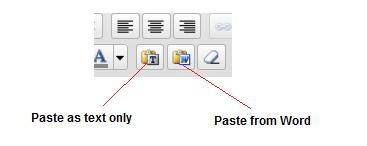
    The solution to this problem is to only paste text into the WordPress, and fortunately WordPress has a solution for you.  If you check out the toolbar you will see two clipboard icons, one with a T and one with a W (see image below).

    This takes the contents of the clipboard and pastes them into the editor.  The T clipboard takes the clipboard content and strips all encoding pasting only text, the second clipboard takes the contents and teats them as a word document, converting this to the appropriate HTML retaining any enhancements you have made; bold, italic, H1-H6 headings etc.

    paste

    Writing Your Posts OffLine

    If you prefer to write your posts offline, you may want to check out my post How to Write WordPress Posts Remotely this shows you a number of techniques to write posts outside of your visual editor without the need to cut and paste text.

    Testimonial

    So happy was my client he gave me the following testimonial:

    Neil Matthews came to the rescue with my WordPress problem. He was not only swift, professional and courteous, but he was very determined to do whatever it took to make my website work again (I had some major issues not working on my WP site).

    Neil would constantly check in with me to show me that he had identified the issues and was working on them, not just leave me wondering and hoping that he was “on it.” He went above and beyond my expectations and treated me the
    way a customer wants to be treated — like a real person who is in a bad situation and needs help right away. He DID NOT just treat me like some anonymous customer out in cyberspace who he just wanted to collect a payment from for the minimal amount of effort and move on to the next guy.

    Thanks, Neil. I will definitely be calling on you in the future with any WP issues (even though I hope I don’t have any more).

    Doug R, Los Angeles, CA – USA


  • WordPress SEO Secrets Review

    I was planning to develop an information product to teach WordPress blog owners all about SEO with a particular emphasis on how to setup the various plugins and settings of WordPress.

    As part of my research I began to look at the various products already out there, I was feeling quite good, the majority of products were generic seo not wordPress specific so I thought I had a good chance of finding a market niche.

    That was until I found out that Michael Martine of Remarkablogger fame had already beaten me to the market with his e-book and webinars product WordPress SEO Secrets.

    I was very downhearted I had done a lot of research for my own e-book and so I decided to download and read Michael’s work to see if I was going to continue with my info product, and the answer is no.

    Mr Martine has done such a thorough job I don’t see the point in writing a wordpress seo book, I am just going to tell you about his instead and encourage you to buy it if you are looking to improve your WordPress seo.

    Who Is Michael Martine

    Michael is one of those bloggers who is always being talked about by other cool bloggers.  He gets mentioned in one of those name dropping list, you know what I mean:

    I was tweeting with Naomi, Dazza, Dav-o, Yaro and Mike the other day and we decided to re-write the paradigm of how you live

    He gets mentioned a) because he knows his shit b) The content he produces for free on this blog and for a fee via his information products is first rate.

    I’m a subscriber to his blog and I rate what he has to say very highly.  This is why I was a little down when I saw I woudl be competing with him in WordPress seo info product circles.

    Who Is SEO Secrets For?

    I’ll cut and paste the section from the book that tells  you exactly that:

    WordPress SEO Secrets is for bloggers using WordPress. No other blogging systems are covered
    in this book. You still might get some great info if you‘re using Blogger or TypePad, but none of
    the step-by-step instructions cover those blogging platforms. Only WordPress. Why? Because
    WordPress is far more customizable and controllable than the other guys. Between the zillions
    of themes for its design and bazillions of plugins for its functionality, WordPress WINS for SEO.
    Period.

    WordPress SEO Secrets is for beginners who aren‘t afraid to learn new stuff and get their hands
    dirty. I‘m not going to talk down to you, but I am going to assume you‘re computer and internet
    literate. You should know a little HTML. If you have already been learning about SEO,
    WordPress SEO Secrets will help fill in some gaps at both the conceptual and at the practical
    levels. If you‘re more advanced, it will at least confirm what you already know (hopefully with
    some great tips and tools you hadn‘t yet encountered).

    WordPress SEO Secrets – Michael Martine

    My Review

    So here us my review of WordPress SEO Secrets., all links are affiliate links, I think I deserve a few quid for my research 🙂

    The product comes in two formats, the book only version, which I bought, costs $47 or the book and a series of acompanying audio and video walkthroughs of how to implement the changes required which costs $127.

    The book is only 38 pages long (mine was going to be 39, so much more value) but it is packed with focused WordPress seo tips.  It talks about the plugins you need for best result,  something I touched upon in my All In One SEO Pack review.

    WordPress SEO Secrets also goes into some detail about changing your permalinks, keyword density in posts and it also talks  about offsite SEO techniques, keyword research and the various tools available to help your SEO efforts.

    The most striking thing about this book is the ongoing statements that SEO should be secondary to quality content, I cannot agree more, you are not writing for a search engine or for a click, you are writing for real people.  If you can solve someones problem, then they are engaged and more likely to come back and click on your adsense links, buy your info product or take out your wordpress coaching services.  Write for people first then tweak it for the search engines to give your content a nudge in the right direcion..

    Did I learn something new from this e-book? The answer is  yes.  Something I had not considered but will now is my outbound linking strategy, if you link to poor quality sites you will, by association, be treated as a poor quality site, if you link to authoratitive and quality sites, that will rub off on you too.

    Are there any downsides to this book, yes, you need a certain level of technical skill to implement any of the changes recommended, my second small concern is that whilst it has razor sharp focus on WordPress SEO, some of the more general SEO topics are treated lightly.  My recommendation, read Naomi Dunfords Seo School first (Parental guidance she swears like a trooper), this can be your SEO primer, then move onto the more involved aspects of WordPress SEO Secrets. which is designed specifically for WordPress owners.

    Here is my key recommendation, I use the techniques Michael talks about here at wpdude and I know they work, I rank for the keywords I want.  I was planning to write this very same information product, I coach my clients on wordpress seo using these techniques.  This is what you need to do.

    Funny story – I bought a copy of the e-book, but unfortunately I had set a cookie on my affiliate link before I bought it.  This then generated a commission sale for me.  Not long after the download an email drops into my box from Mr Martine, clearly unhappy that I had used my own affilaite link to buy his product and thereby get a discount.  He wanted to know what was going on.  Tail between legs I ‘fessed up what I was doing.  He seemed okay with that, but that is definetly not the way you want to be having first contact with an influential member of your niche.

    Back To The Drawing Board

    So it’s back to the drawing board researching my own info product, but if you want to learn how to optimuse your wordpress blog to get the maximum amount of organic search traffic then I recommend WordPress SEO Secrets.

    It comes with a 100% money back guarantee, so there is nothing to loose, only organic search traffic to gain.

  • Integrate WordPress, Twitter and Facebook

    Integrate WordPress, Twitter and Facebook

    A few months ago I wrote about Integrating WordPress with twitter, today I want to expand on that and tell you how you can integrate WordPress, Twitter, LinkedIn and Facebook in one seamless operation.

    UPDATE June 2012: Video Tutoral

    Feel free to read the whole blog post, but I’ve created a free video tutorial to show you how to do all this.


    [leadplayer_vid id=”50350ABA9C653″]


    OutPosts and Home Base

    I am a firm believer in Darren Rowse’s idea of home bases and outposts. My home base is here at wpdude.com where I bring you my blog posts and hopefully interest you in some WordPress Technical Support I own this property and I can do whatever I want here.  The content is mine.

    The outposts I use are Twitter, Facebook and LinkedIn. I don’t own the content I create on twitter et al and I could be thrown off the site if I contravene any of their rules or regulations, so the activity I do there and the content I create, whilst still important, is expendable if I choose not to continue tweeting or stumbling.

    What I hope to accomplish at the outposts is to meet other people build relationships and if they care,for them to visit my home base site.

    The problem is social media is that it can be a huge time suck.  I want to concentrate on my home base and update my outposts as easily as possible.

    Create Quality Content And Syndicate

    What I want is to create quality content then syndicate it to as wide an audience as possible as easily as possible.  To do that I do the following:

    • Create blog posts here at wpdude.com
    • Syndicate news of the bl0g post via twitter tools
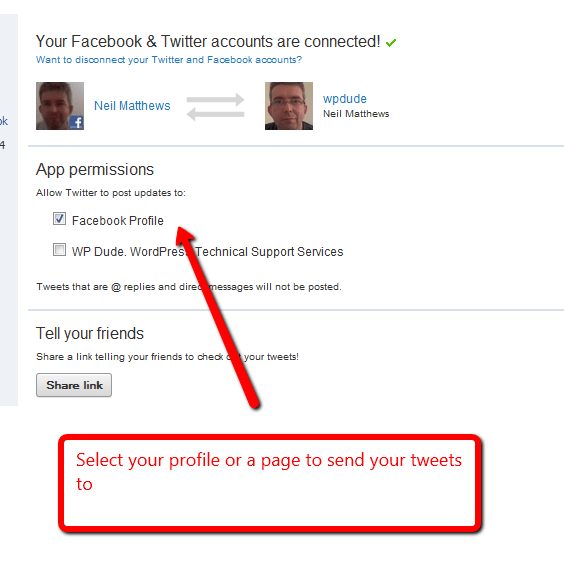
    • Integrate my twitter updates with Facebook using the twitter Facebook Application.
    • Integrate my LinkedIn updates with Twitter  so my updates are posted there too.
    • Concentrate all of my social media efforts on Twitter using Tweetdeck, knowing it will be replicated on Facebook and LInkedIn

    Integrate WordPress and Twitter

    I use twitter tools  to integrate WordPress and twitter, I’ve already written a detailed blog post about that, you can read it here.  The key to my whole integration policy is to push once to twitter and then to link FB and LinkedIn to my twitter account to pull in that information.

    Read this post on details of installing and configuring twitter tools see Integrating WordPress with Twitter

    Integrate WordPress and linkedIn

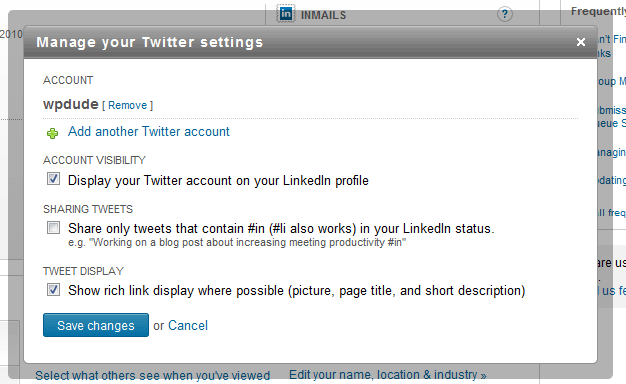
    Half of the hard work is already done if you integrate  WP and Twitter as I suggest above.  inside of your LinkedIn profile it a twitter option, you can set this to automatically pull your tweets into your LinkedIn account.  NOTE uncheck the box using the #in hashtag so all tweets go into twitter.

    Twitter Facebook Application

    The twitter Facebook application takes your tweets and adds them as an update on your Facebook profile.  YOu can also set those updates to go to a particular page if you prefer

    The twitter FB application is available at http://apps.facebook.com/twitter/

    Once you have added the application to your FB profile, you are asked to enter your Twitter ID and password.  Then any updates you make on twitter will add an entry on your profile.  This is a two way integration so any updates you add to FB will also be pushed to Twitter.

    Free Video Tutorial

    I’ve got a video tutorial to show you how to do this in my members only site,


    I’ve got a free video tutorial to show you how to do all of these tasks.

  • Plugin Review: All In One Seo Pack

    WordPress does a greate job of SEO out of the box, but when you add in a dash of All In One Seo Pack, and a sprinkling of SEO theory, you are heading for organic search heaven.

    Many of the new breed of plugins such as Thesis and Headway are SEO ready out of the box, but in case you are not using one of these themes, you should check out all in one seo.

    What Is All In One SEO Pack

    It’s a plugin which takes the key areas of your site and allows you to add the keywords which will bring visitors to your site.

    Just in case you are not 100% sure about keywords, this is the word or phrase that someone will type into Google which should match them to your site.  For example if you run the red widget blog, you may want to attract peoples attention with the keyword “metal red widget”  If you can optimise key areas of your site with that phrase.

    Where you Need To Optimise

    Here are the areas you need to consider and optimise with your keywords.

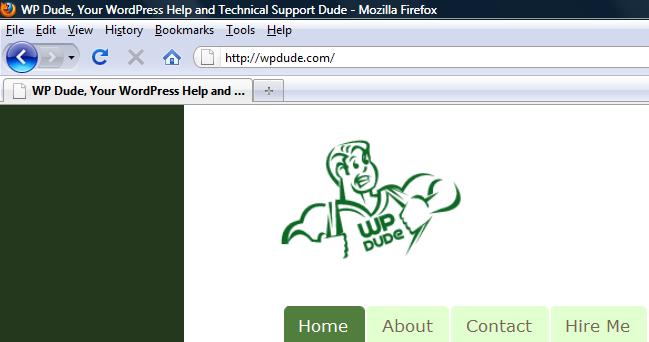
    Page Title – This as the name suggests is the title of the particular page of your site, this is the single most important area where you need to optimise yoru site,.  You can see it from the top of your browser bar, here is the page title of the root of my site.  Here is the game, can you tell what my desired keyword is?  Leave a comment.

    pagetitle

    Site Meta Description – This is the description which appears on the results page of a search on Google or one of the other search engines.  Here is the meta description for my home page

    metadescriptionAre you any closer to my main keyword yet?

    Site Meta Keywords – There is a lot of discussion in the SEO world that adding keywords to your site no longer works.  People caught onto this, stuffing  hundreds of keywords in their code and “gamed” the system, but still it does no harm to add your keywords here,.   The meta keywords are pieces of code on your page which are not displayed but tell the search engine something about that pagee, if you do a view source of my home page you will see my keywords meta as

    <meta name="keywords" content="wordpress help, wordpress support, wordpress technical support" />

    Come on I’ve spelled it out for you now.

    How All In One SEO Pack Can Help

    Once you have installed and activated the plugin, you can begin to optimise your site as described above and add descriptions and titles which are useful both to your readers and contain your desired keywords using an easy GUI tool.

    There are two ways to modify your site, on a post by post basis or site wide.

    Site Wide Settings

    From the settings -> all in one seo pack menu, you are given an area where you can set your home title, site metas description and keywords.

    The plugin comes with some other advanced options such as canonial URL support to stop duplicate content problems but using the 80/20 rule, put your effort into the areas mentioned above for the most effect.

    Per Post SEO Settings

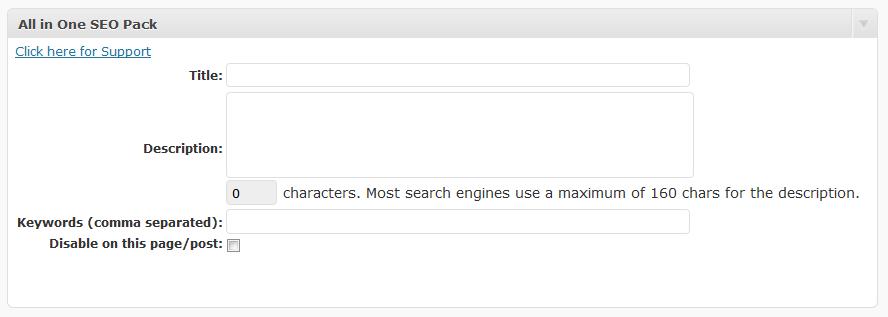
    You can change your posts individually, SEO pack allows you to create a keyword rich title and description.  This will overide the title you set when writing your post.

    The following SEO section is shown at the bottom of post editor screen.

    perpostseo

    How I Use All In One SEO Pack

    This is my seo plugin of choice, I have my site optimised for a particular keyword and I am working on my offsite configurations to rank for this, at the time of writing I am on page three and climbing.

    I also pay particular attention to my per post configurations to get my keywords into titles and metadescriptions.

    KeyWord Research

    One more thing to consider before you stuff your sections with keywords is the competitiveness of the keyword you are planning to use.  you may think your widget site needs to rank for widget, but in reality you only sell red widgets.  Go for the more specific keywords relating to your site.  The second thing to consider is the competitiveness of your keyword.  If everyone and their dog is trying ot rank for widget and have been for years, you as a newbie to SEO will not have much of a chance without years of hard work.

    Here are some tools to help you research your keywords:

    Google Adwords KeyWord Tool – inside of the adwords pay per click systme you can research keywords to see how often they are called from the google index, and how many other people are advertising on them to get an idea of hte competitive nature of the keyword

    Wordtracker – use this tool to anaylse prospective keywords and use it to give you less competitive search phrases.  This is a paid tool, but there is a seven day trial period.

    Get All In One SEO Pack

    The plugin is available to download and install from http://wordpress.org/extend/plugins/all-in-one-seo-pack/

    A Disclaimer On SEO

    The search algorithm used by Google is one of the most closely guarded secrets, it’s like what herbs and spices go into KFC coating or the recipe for Coke.  No-one really knows what Google looks for, rather all of the suposition is from testing done by people trying to decipher this riddle and what they have seen work.

    Google changes their algorythm on occasions so what is SEO best practise now will not be in the future.  The information provided here is the current thinking of what makes up good on site optimisation.

    Further Reading

    SEO is a huge topic and there are other areas you need to consider over and above what All In One SEO Pack does.  I have not touched on permalinks, keyword density, optimising images alt text, use of keywords with your h1 .. h6 header titles.  Lastly I have not touched on off page SEO, getting links to you with the correct anchor text to backup your work.

    You may want to check out my post on changing your slug for SEO, this is another very important area

    The man who wrote the book or blog post on WordPress SEO is Yoast, he takes these ideas and add some more tweaks over and above what all in one seo does.   Here’s an idea of how good he is, type wordpress seo into Google and see who comes out tops.  Say no more

    Lastly I would like to point you to a couple of paid resources, Namoi Dunford the potty mouthed owner of Ittybiz wrote the e-book Seo School, this is the resource which finally gave me the lightbulb moment on seo.  The other resource I want to point you to is Michael Martine and his e-book WordPress SEO Secrets.  Either of these will help you to get seo for WordPress.

    My Final Thought On SEO

    Write for people not for search engines, but where you can tweak for search engine spiders, if you stuff your titles and descriptions with keywords and it makes no sense, what use is that to your readers?

    We blog for people not rankings.

    UPDATE: WordPress SEO Training Available

    I have recorded a video training session about WordPress SEO for my WordPress training and support community the WP Owners Club.

    I’ve got a 14 day free trial at the moment, why not take out trial membership and check out the training, here’s what you need to do

    1) Sigup for a 14 day free trial account at wpownersclub.com/sign-up

    2) Go to http://wpownersclub.com/wordpress-seo and watch your training

  • How To Use WordPress As A CMS

    Did you know that WordPress can be used as the content management system (CMS) for “real websites”? I want to take a look at how post and blogging functions of WP can be repackaged to work as a back end content creation management and placement system for a traditional non-blogging web sites.

    I have worked with professional CMS tools from companies such as IBM which cost tens of thousands of dollars per processor not per license, and in my opinion, a certain level of this can be done with humble, free WordPress.

    What Is The Difference Between A Blog and A CMS

    A blog publishes posts in reverse chronological order usually with a list of previous posts available to read from the front page, whilst a CMS is a system to create content easily and then publish it in a predefined section of a web site.

    For example all news articles will appear in a news section of a site, all special sales offers may appear on the front page. It’s all about easily creating content and pushing it to it’s predefined location on the site.

    Static Home Pages

    If you are building a CMS the likelihood is that you will not need a series of blog posts on your front page, rather you will have a static front page and have content or posts pushed into their own container.

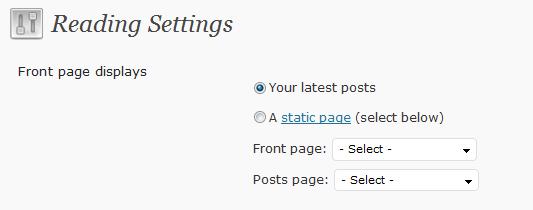
    WordPress allows you to change the front page of your site to do exactly this. From your dashboard goto settings -> reading, and you will see the following options:

    blog_static

    Change the setting from your latest posts to a static page, create a page with your home page content and you are good to go, it’s as easy as that.

    CMS Theme

    The selection of your theme will probably make or break your CMS installation. You are looking for something with lots of sidebars into which you can push content. The task will be made easier if the theme is widget ready.

    Check out the WordPress theme directory at http://wordpress.org/extend/themes/, you can search for themes by the number of sidebars and widgetization (is that a real word?). Your other options are to buy a premium theme or have one tailored made for you by a theme designer. A search on google for CMS wordpress theme will return a large number of pre-made themes ready to act as a CMS.

    The use of the term sidebar is a bit of a misnomer, think of a sidebar as a slot into which you can place widgets. An example of this misnoner can be seen on my site, I have four sidebars in my configuration, and only one runs down the side of my site, the other three are in the footer.

    Organise By Categories

    Once you have a static front page and a theme of your choosing you need to start pushing content into its correct container. I think the best way is to orgnanise your content is by category.

    For example you may have a section on your site for your sales team, put all of their content into a wordpress sales category, this can then be extracted and published to the correct location using the techniques outlined below.

    Widgets to Push the Content

    Once your data is categorised, you can then use widgets to position your content. Using the “list category post” widget you can push a list of posts from a particular category in your sidebars.

    This is done from your wordpress dashboard -> appearance -> widgets, then drag and drop your widgets onto the appropriate sidebar.

    Plugins to Organise Content

    You may want to position content in locations where widgets don’t easily work, for example you may want a static page called news into which news items about your organisation are displayed. To do this there are a number of plugins out there, the one I use is Sobek’s post In Category plugin. Using this I can pull all of the posts in a particular category and display them as a linked list for people to click through to the acutal post. These can be shown on pages or posts.

    Using plugins in this fashion allows you to extend the WordPress page function to act as a new container for content.

    User Management

    You may want your CMS to be updated by many people, WordPress has the functionality to allow multiple authors and editors of your content. Using the roles built into WP you can allow people to write content but not publish it, create editor level users who have the permission to edit and then publish the posts.

    Full details of the roles available can be seen at http://codex.wordpress.org/Roles_and_Capabilities the roles are fairly granular so control over what your contributors can or can not do is available to you.

    Controlling Who Sees Content

    Another function of a CMS is controlling how can see which content, with the addition of a plugin or two, WordPress can do this .

    For example you may have a customer only area on your site where they can read order information. Using the user management functionality areas of your CMS could be password protected.

    Check out my post How To Integrate Paypal with Your WordPress Blog whilst this is about monetising your site with paypal, it also discusses the various membership site plugins available. Using these type of plugins you can create login IDs to protect certain pages or posts making them available to a subset of your site users.

    Time Delayed Posts

    Using the scheduled posting function of WordPress the site can be updated at set times. An example of this may be a sale. Write up details and set the post to appear in the appropriate container when the sale begins.

    Check out my post Write Now Post Later for the mechanics of this process.

    Removing Old Content

    You may find that you want to add content to the site then remove it when it is not valid, not like us lazy bloggers who just want to pump out more and more content and leave it online for posterity. Using the post editor, content can be marked as draft or deleted very easily to make visible or remove content on the site.

    When Is A Blog Not A Blog

    .. when its a CMS, WordPress is not just a blogging tool it can be used to update and present content on a traditional more static site. Your usage of WordPress as a CMS is limited only to your imagination for organising content into containers.

    I hope this posts has prompted you to think of WordPress as more than just a blogging tool.

    Examples Of WordPress as A CMS

    I put a call out on twitter to find out who was using WordPress as a CMS, here is a list of sites configured in this way, have a look and get inspiration.

    Special thanks to Charlene Polanosky, she not only sent me links to sites but detailed desciptions from her own site on building sites using WordPress as your CMS

    Planning To Use WordPress as Your CMS?

    If you need some assistance making WordPress work as your CMS, please visit my WordPress coaching page.

  • WordPress 2.8.1 Released

    When you logged into your blog today, you probably saw a new banner running across the top like this:

    2.8.1jpg


    This is an announcement that the latest version of WordPress is available for you to download and install.

    This release is a bug fix to the version 2.8 release which was sent out about a month ago.  Here is a link to the fixes and changes available in this new version just in case you are into that kind of thing http://wordpress.org/development/2009/07/wordpress-2-8-1/

    With this in mind I thought I would link up all of my posts on updating to the latest version of wordpress.

    Please remember to backup thoroughly before you upgrade.

  • CASE STUDY: When Comment Spam Bots Kill

    Gather round the camp fire kids, I have a scary tale to tell.  It’s a story from a sci-fi nightmare of crazed bots running amok in the blogosphere.  I call the story “When Comment Spam Bots Kill” .. da-da dahhhhh!

    I was working with a client recently who’s WordPress blog was killed by comment spam.  I thought I would write it up and give you some tips to stop this happening to other blogs.

    The Problem

    My clients database was stuffed full of comments, when I looked at the issue there were more than 140K comments in the moderation queue.  This was exacerbated by a plugin called BAStats which was creating log entries for all activity, this table had over 1 million entries.

    The blog was running on a standard hosting installation the database was just too big and cumbersome.  As as result whenever anyone tried to access the front end, they were timed out, a database connection could not be made, and if anyone tried to access the backend dashboard the same happened, the blog was unreadable from the fron end and unmanageable from the back end, a pretty pickle to be in.

    A review of the comments from the backend database showed them to be comment spam, someone was running a comment spam bot to inject huge numbers of spammy links into the system.

    phpMyAdmin

    I am going to talk about phpMyAdmin and modifying backend database a lot in this post, so I thought a quick note on phpMyAdmin was in order.

    phpMyAdmin is a MYSQL admin tool which allows you to perform functions on your database.  You will probably find this on your hosting control panel.

    This is a GUI tool which allows you to tweak your database, it is not for the faint hearted, you can do real damage if you don’t know what you are doing, you have been warned!

    The Solution

    I disabled the BAstats plugin by renaming all of the php files , I could not do this from the back end because I could not log in.  Using my ftp client I navigated to the plugin directory and manually renamed the php files so they were not called.   This stopped the stats package from working and reduced load on the database a little giving me some breathing space.

    The next step is a little radical, but it was all I could do, and that was to delete all comments in the moderation queue.  First I made a backup of the table wp_{prefix}_comments, then ran the following SQL command from within phpMyAdmin.

    delete from wp_{prefix}_comments where comment_approved=0

    This is a radical approach which will delete all comments held in the moderation queue regardless of whether they are spam or ham (good comments).  My client felt is best to start a-fresh with no comments held for moderation.  The query removed all of the comments held for moderation.

    As a final step I also disabled comments on the blog temporarily to prevent further comment injection.

    Preventative Measures

    That fixed the problem, the front and back end were now accessible, but I felt preventative measures were in order to stop the issue re-occuring.  I delved into the backend.

    The route cause of the problem was that spam capture was disabled.  Akismet was not automatically deleting and spamming comments.  I re-enabled this and ran the “check for spam” routine, another couple of hundred approved comments were spammed.

    Do you remember I said that I disabled commenting, spam comments were still coming in!  My client was running an old version of WP and I suspected that a spam bot script was pushing comments into a WordPress vulnerability or plugin loophole, my recommendation to my client was to upgrade to the latest stable version of WordPress and to download and reapply the plugins they used only from legitimate sources, in the hope of sealing teh vulnerability.  This is in progress.

    Your Reputation Is In Danger

    There is a long term danger if you do not moderate your comments well, and that is loss of reputation through your page rank.  Your site will be demoted and traffic may dry up.

    A real life analogy is if you start hanging with the dangerous kids at school smoking, taking drugs and bullying kids, you will be marked as one of these type pf people.  The same goes if you give out a link to a dodgy site, you are seen as giving them an endorsement and your site is marked down.

    Wrapping Up

    Moderate brutally, keep your comment spam plugins in place, tighten up your moderation policy and give my posts on comment spam a read: What is Comment Spam and How To Control Your WordPress Comment Spam

  • My Adsense For RSS Trial – The Results

    A few days ago I wrote about the trial I was interested in conducting on RSS advertising.  Adding Google adsense to your RSS feed has been around for some time now, but no-one is saying how well it performs as they do with on-site Adsense.

    This post is the result of my great RSS experiment.

    My One Word Conclusion

    Indifference.

    My Thought On RSS Advertising

    People taking RSS subscriptions are pretty tech savvy and they want to read content not respond to advertising messages.  I think people are ad blind and not interested in clicking on the offers put before them.

    I think you need a large number of subscribers and some compelling ads (perhaps graphical ads) to get the clicks required to make this worthwhile.

    There are bloggers in my RSS reader who use RSS advertising, but I have never clicked on an ad what about you?

    Income

    I have a modest RSS following, and the ads have had a relatively large number of impressions, I was expecting some action, let me give you the numbers …

    It is against the rules of the adsense program to discuss your earnings but since I earned nothing I am happy to report my income was zero.  No clicks no cents nada zip.

    Drop Of Subscribers

    As I said I think people are indifferent to the ads, my subscription rate has continued to gently climb, there has been no drop off of subscribers that I have noticed.

    People just don’t care about the ads.

    Moving Forward

    <shrugs shoulders> I don-know I’m indifferent about it all.  I don’t think there will be an impact if I remove the ads or leave them there.  My spidey senses are saying get rid of the ads in case   I alienate anyone into unsubscription.

    Please leave me some comments before apathy on the subject overtakes me completely 🙂

  • Adding Adsense To Your RSS Feed

    Advertising in your RSS feed has been around for a while, but I have not seen anyone crying from  the rooftops on how effective it is.  There are not images of people holding up their cheques for $$$$ sayng RSS advertising is the best (as they do for traditional AdSense).  Since no one is saying how effective it is, I thought I would run an experiment on my own feed to see how effective it is.

    I’m not a fan of traditional AdSense, the idea that someones comes to your site to read your quality content and then clicks away for a couple of cents does not sit very well with me.  I have yet to make my mind up about RSS feeds, and I will probably only leave it up for a couple of weeks.

    So I’ve laid my cards in the table and full disclosure has been made, now lets move forward this post is all about adding AdSense to your blog’s RSS feed.

    If you want a quick lesson on RSS, you can check my post on the subject Beginers Guide to WordPRess RSS.

    Step One Get and AdSense Account

    The first step is to sign-up for an adsense account at http://adsense.google.com

    Once you are in go to adsense setup and then to adsense for feeds.

    Why Google Bought Feedburner

    You can only add adsense to RSS feeds which are served up by Feedburner.  Feedburner developed itself as the leading RSS hosting company before being acquired by Google a couple of years ago.  It has taken some time but finally they have fully integrated the adsense platform with Feedburner.

    Google bought the top platform with a ready made user base to serve up ads.

    Change the Look’n’Feel

    So your have decided to add RSS, there are a number of options you can set:

    Ad type – you can specify that text and image ads or text only ads are shown on your feed.  I have selected text only.  Since I have very little control of knowledge of what will be advertised, I thought text will be less disturbing to you my jolly readers if something unpleasant is pushed upon you.

    Post interval – a nice touch is to control how often ads are served.  You can select every post, or set an interval of every x posts so part of your content can be ad free.

    Post length – you can specify ads over a certain word count to only display ads.  I was thinking why Google would do this and my thought is that a reader needs to be completely engaged to read a long post, and perhaps they are more inclined to click on an ad at the.  I’m not sure but the massive heads at Google will have done that for a reason.

    Location – you can serve your ads at the top of bottom of the page

    Colours – you can let adsense detect the colours of your feed, or you can setup a custom palette.

    Assign this configuration to your feed from Feedburner and click save, it really is as simple as that.

    Beware Click Fraud

    Click fraud is a cancer on pay per click advertising, do not click on my feed ads unless they are of real value.

    In case you did not know click fraud is the process of clicking on paid ads without a desire to review or buy the products.  Click fraud is done by bloggers trying to increase their income or by advertisers competitors trying to deplete advertising budgets.

    Watch This Space

    I will report back in a couple of weeks on how effective RSS advertising has been (or not been).  I would love to hear your opinion on advertising in RSS, it’s something I know will polarise people.

    Many people subscribe to RSS to get away from the ads, how do you feel about them coming after you.

    Are you tempted to unsubscribe from my blog because of it?  Please let me know before you click unsubscribe  this is just an experiment I don’t want to fall out over this :).

    Tell me your stories about adsense, show me that RSS advertising can work or not in the comments section.