Neil Matthews

Blog

  • Backup and Recovery: Backing Up Your Database

    In later posts in this series I want to talk about using plugins to backup your database, but in this post I want to go back to basics and take you through manually backing up your database with the MYSQL tools your hosting company provides.

    I want to do this to give you an understanding of the database and what is required of a manual backup before we move onto automating this process with plugins.

    What To backup

    WordPress uses a database system called MYSQL to store all of the variable data of your site.

    To create an adequate database backup you need to backup all of the system tables created by WordPress and all of the additional tables created by plugin installs or related but none WordPress systems such as forums or affiliate software.

    A quick glossary of terms, a database is a container for all of your data, you will have one database per WordPress install.  The database will contain many tables, tables are containers of collections of data organised by purpose.  For example there is a table for your posts, a table for your users and passwords etc.

    Why You Need To Backup Your Database

    Your blog is a dynamic thing, every time you add a post, receive a comment , get a link, changes are made to your database.  All variable options of your site such as users, revision history of your posts, categories, plugin data and tags are all stored in tables inside of your database.  This needs to be archived on a regular basis so you can recover in the event of a system failure.

    How It Is Backed Up

    My Preferred method is to save an export of the database.  This is a file containing all of the commands necessary to recreate the tables and then to populate the tables with data and to setup any relationships such as indexes.

    For the rest of this tutorial I will focus on using the phpmyadmin utility.  This is the most widespread MYSQL admin tool supplied by hosting companies.  Please contact your hosting company for details on accessing phpmyadmin.

    For full details of this tool please visit www.phpmyadmin.net

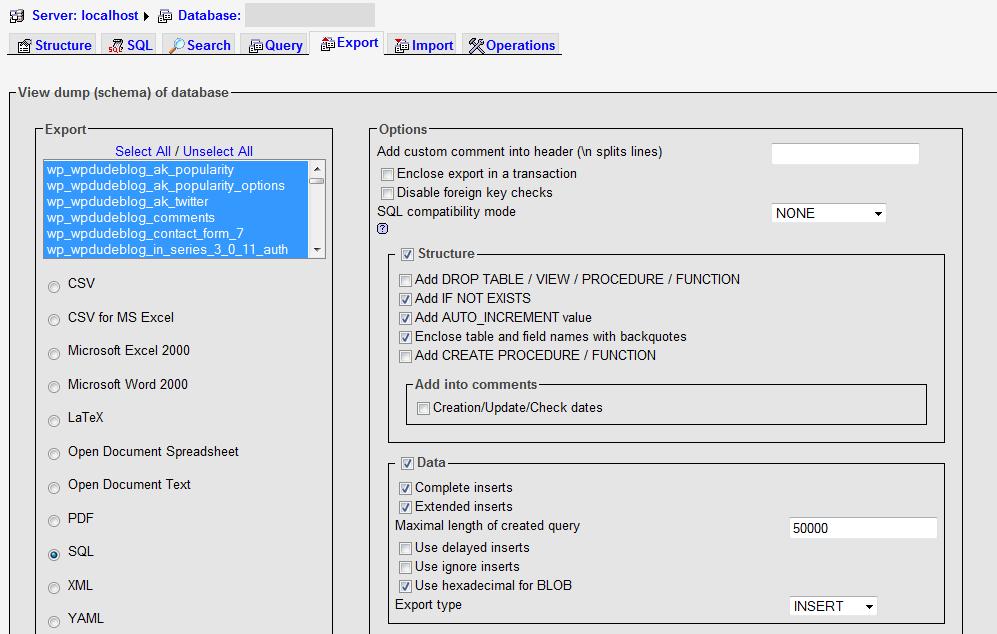
    Once in your phpmyadmin tool, select the database your wordpress install uses and then navigate to the export tab, you will see the screen shown below:
    phpmyadminexport

    Make sure that you check the Add DROP TABLE /VIEW/PROCEDURE options to make recovery in the event of a catastrophe easier.

    As I have said I like to export the database as a SQL file of commands, this is selected in the left hand column, lastly I like to save the file to my local file system, this is done by clicking on save as file near the bottom of the page.

    Once done, click on go and an export file will be created, this will take a certain amount of time dependant upon the size of your database.

    VIDEO: BackingUp Your WordPress Database

    Running time for this video is approximately 6 minutes.

    [S3 bucket=wpocbackupdatabase text=View the video>>]backupdaatabase.html[/s3]

    Discuss this Post

    If you would like to discuss this topic, please  leave a comment.

    Next In the Series

    The next part of the backup and recovery tutorial looks at backup using plugins.
  • Backup and Recovery: Backing Up Your File Base

    In this post I want to talk about backing up your file base, what the file base is, it’s content and why this needs special treatment.

    This post comes with a screencast video to show you exactly how to backup the files in question.

    What Is The File Base

    It is my name to distinguish the physical files which make up WordPress as opposed to the Database which contains all of your content such as posts, pages, comment, tags and categories.

    The following directories make up your files base:

    • wp-content
    • wp-admin
    • wp-include
    • Blog Root

    Why Back This Up I Can Download the files

    Yes you can, but the file base also contains variable information that is not easily downloaded from the WordPress.org site such as configuration files, themes and any changes you made to your theme, all of your plugins and any media files uploaded to your blog such as images or video.  You need to archives all of these alongside your WordPress scripts.

    How To Backup Your File Base

    Take one FTP client of your choosing, my favourites are Filezilla or the Firefox plugin FireFTP, and navigate to the root of your blog install, select all of the files there including all the sub-directories and make a copy of them to a local file system on your computer.

    I like to copy them into a date stamped directory so I can create multiple copies of my filebase.

    Archiving Your Backup

    You have a backup of your files on your machine, not to make you paranoid, but what happens if you PC crashes, you loose all of your backups, can I suggest you make an archive of your archives.

    Save them to a CD, upload them to an online storage site, check out Google docs, that’s free or attach them to an email and send them to yourself if you use a service like Gmail.

    VIDEO: How To Backup Your File Base manually

    Here is the screencast video to show you exactly how to backup your file base.  Running time approx 5 minutes.

    [S3 bucket=backupfilebase text=View the video>>]backupfiles.html[/s3]

    Discuss this Post

    If you would like to discuss this topic, please  leave a comment.

    Next In the Series

    The next part of the backup and recovery tutorial looks at backing up your database.

  • Backup and Recovery: An Introduction

    In a series of blog posts, I would like to take you through the process of backing up, and then recovering your WordPress blog.  I will look at why this process is so important, all of the components required to make a full backup, how to do a backup, then I will look at the most important aspect, how to recover your archived data and files.

    The first part of this tutorial takes you through an introduction to the backup and recovery processes.

    Why Do I Need A Backup?

    Computer systems go phutt on an all too regular basis, having a backup allows you to rebuild your blog with the minimum effort.  Consider the time and effort you have put into developing your posts and your cool theme,  how many people have taken the trouble to leave a comment and the links you have built up on Google, all of this needs to be archived so you can recover it in the event of a catastrophic failure, hacking attack, hardware failure or user error.

    If you have to recover your blog from scratch without a backup, this will take a huge amount of time (time equals money) , you will loose a lot of your blog’s traction and any authority you have built with the search engines may be affected.

    Take a moment to work out the cost to you or your organisation if your blog fails and cannot be recovered quickly.

    What You Need To Backup

    There are two components you need to consider when doing a WordPress backup, the data in your MYSQL database and what I call the filebase or the files which make up a WordPress install.

    The database is commonly backed up by most people, but who considers their filebase?  The filebase includes all of your uploaded media (images, video, podcast etc), your theme, your plugins and the files which make Wordporess run; the scripts and configuration files.

    A partial backup of only one of these components is of little use, you need to backup both.

    How Often Should You Backup?

    The frequency of your backups should be done in line with how often you update your blog, if you write posts daily, backup daily, if you are uploading lots of media, backup the filebase frequently.  Do it often, and do it early.

    My preference is once daily for my database and weekly for my code base.

    You should also perform a backup before any major change to your blog.  You should backup before you update the code, add plugins, change the theme or add a third party product such as a forum which will share the same database.

    Keep Multiple Copies of Your Archive

    Having multiple point in time backups allows me to restore to a particular period before my failure happened. If you only keep one archive you may reimport the problem when you do your restore.

    An example is probably helpful here. Imagine your blog has been hacked on Monday and rogue code has been added to your site, then imagine you only notice the hack on Wednesday, your single point in time archive from Tuesday will still contain the rogue code from Monday, you need an archive from Sunday to sucessfully recover to an operational point in time.

    A good example of a retention policy is to keep a weeks worth of daily backups, then to keep four weekly backups.  This means you can recover up to a month in the past.

    Archiving My Backups

    If you keep all of your archives on your local hard drive, there is a change you could loose these, I recommend you archive your archives.  This can be done by copying your data sets to cd, or to an online service such as Google docs.  Just make sure you have  an archive you can recover from if your pc or mac crashes.

    I use Gmail as a sneaky way to archive my backups, I have setup a rule to move my backup files directly to a storage area  automatically, this means I have a number of checkpoints with my backups so I can do a point in time recovery.  I use plugins to send me those emails, I will explain more about this in the backup plugins section later in this course.

    Testing Your Backup

    It is all well and good having a backup, but have you tested your recovery process, I wrote a guest post on Problogger about this subject, check it out at http://www.problogger.net/archives/2009/02/12/testing-your-blog-backup.

    What’s Next in the Series?

    The rest of this series is much more practical, I will take you through backing up and recovering your system.

    Backing up the file base and the database manually

    I will show you how to manually create an archive of your file base, or the files which make up your install such as wordpress scripts, theme files, plugin files and any media you upload such as images or video.

    I will then move onto backing up your database.  This is where your blog content is saved your posts, paghes, comments, tags categories and the variable data which allow syou system to run such as user information, plugin configuration or blog options.

    Backup Plugins

    I have shown you how to manually back your database and file base, this is an important learning process to understand what is required for a good backup, but manual backups are not very efficient, I will move onto a section on using plugins to automate your backup procedure.

    Recovering The Files and Database

    I was once told by a system administrator that you are only as good as your last backup, I agree, but add the caveat, you are only as good as your last backup your know how to recover.

    The last parts of this tutorial will show you how to recover your two types of archive.  This is often overlooked.  Having the knowlege to recover your blog when it has crashed is very important.

    Discuss this Post

    If you would like to discuss this topic, please  leave a comment

    Next In the Series

    The next part of the backup and recovery tutorial looks at backing up the code base.

  • Martin Godden – http://e2012predictions.com

    After spending countless hours trying to fix a problem on one of my Word Press blogs I had the good fortune to find WPDUDE.Neil very quickly found and fixed the problem.What impressed me was the personal service and patience to deal with any query that I had as a non techie.So if you have a problem with your blog don’t despair -help is there.
    Martin Godden http://e2012predictions.com

  • Fixing 404 Errors

    In my post yesterday I wrote about taking 404 errors and using them to your advantage, in this post I want to build on that and talk about tracking down 404 problems and fixing them.

    What is A 404 and Why Fix It?

    404 is the error returned by web servers to browsers if a file cannot be found.  This is a standard error and is usually a dead-end on a website.

    We need to fix certain 404 errors because people are coming to your site expecting to find content but are getting errors instead, this does not look good to fickle blog readers, the slightest thing can make people unsubscribe or not come back to your site.

    Finding 404 Errors

    How do you find what URLS are causing 404 errors on your site?  You look in your logs.   You should have  a log file of all the accesses of your site, these will show what page, the referer, what user agent (browser) and many more things.  The thing we are interested in is the http return code, searching for 404 will show your problem URLS.

    Each hosting provider will have a different config for their logs, please refer to their documentation on how to review your access logs.

    Here is a sample from my log file, I have highlighted the 404 error message and the page/post name.

    “150.70.xxx.xxx – – [19/Nov/2009:10:28:25 -0700] “GET /hire-me HTTP/1.0″ 404 17600 “-” “Mozilla/4.0 (compatible; MSIE 6.0; Windows NT 5.1)”

    Here I can see that there was a file not found error trying to retrieve the page hire-me.  This is not good, a potential client is getting a 404 because I have renamed that particular page.

    Fixing That Problem

    Once I find a 404 error I want to fix it by redirecting to a live page.  I know what you are thinking, he is about to tell us about a plugin after he had us ferreting about in our log files, you are quite correct, and it’s only because I care and want to give you a holistic view of your 404 problems that I asked you to look in your logs 🙂

    Redirection Plugin

    I use a plugin called redirection which (as the name suggests) redirects URLs to other URLS. Check it out at http://urbangiraffe.com/plugins/redirection/

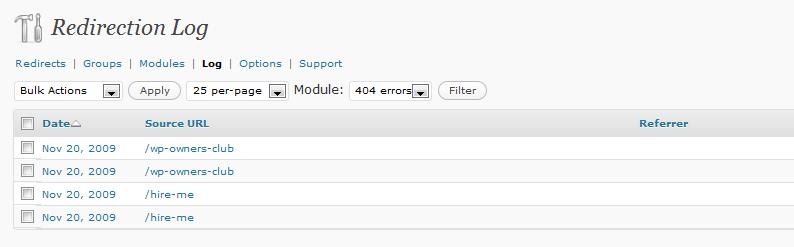
    The beauty of this plugin is that it has a 404 detection function.  Using that I can very quickly find out which URLs are causing me problems and then fix them.  Below is a screenshot of my 404 for today.

    redirection

    Both of  these URLs are ones I have renamed, I want to fix the 404 errors by redirecting them to the new page.

    301 Redirection

    Using the redirection plugin I can set up a URL interceptor which will capture all visits to the 404 URL and do a 301 redirect to a new page or post.  301 redirects are cool if the visitor came from a search engine, because next time you site is indexed, the incorrect URL will be updated to the new one.

    See It In Action

    I have setup a redirection for /hire-me, see what happens if you click on

    https://dev.neilmatthews.com/hire-me (hint check the browsser bar for the new URL)

    Don’t Fix Them All

    If people are getting 404s because of typos or things like that I do not recommend creating redirects, only redirect things which are real issues like renamed pages

    404 No-More

    Get your 404 errors fixed, it makes you look more click and professional with an increased chance of subscription or other action.

  • Turn A 404 Error To Your Advantage

    The dreaded 404 error is the scourge of most websites, in this blog posts I want to tell you how to re-purpose the 404 error and use it to your advantage.

    What Is A 404 Error

    404 is the error returned by web servers to browsers if a file cannot be found.  This is a standard error and is usually a dead-end on a website.

    Why Are 404s Returned?

    You site will return a 404 for one of the following reasons:

    • Typo in the URL e.g. wpdude.com/aboutt instead of wpdude.com/about
    • The pages really does not exist e.g. wpdude.com/how-to-build-joomla-sites
    • You created the page, it got into the search engines indexes, then you took it down
    • You renamed the page

    Create a Custom 404 page

    Most WordPress themes have a page called 404.php, this is designed to handle any file not found errors and display a dull yet nicely themed message saying you went to the wrong page.  What I want to suggest is that you take this page, and transform it into a springboard to other live pages on your site.

    Editing 404.php required some coding skill, if you feel up to it, put on your code monkey hat, order a dozen pizzas, loose your social skills and follow me.

    Add A Search Box

    Why not add a search box to your 404 page this gives people the chance to search your posts for the title they want.  Here is the code to add a basic search box to your 404.php file.

     <form id="searchform" method="get" action="/index.php">
          <div>
             <input type="text" name="s" id="s" size="15" /><br />
             <input type="submit" value="Search" />
          </div>
         </form>

    Contact

    Another good way to springboard people to the content they want, or to bring your attention to the problem is to add a contact form.  I use the plugin contact form 7, which does not support forms in themes, so I provide an email address to contact me on.

    Give Up Your Pillar Content

    Why not give them something excellent ot read anyway, give them a list of your pillar content or your most popular posts.  In my case I am using the popularity contest post plugins to display my most popular posts judged by the number of times a post has been read.  To do this I add the following php command to my 404.php file:

    akpc_most_popular()

    See It In Action

    I have implemented these on my own 404.php file you can see this in action by visiting wpdude.com/zzzzzz

    Don’t Make The 404 A Deadend

    A 404 is usually a dead-end, the wrong page to be on.  Why not repurpose this into a useful experience for your site visitor.  Push them to your key content or give them a call to action so they can find what they want, small actions like this turn casual visitors into subscribers.

    If you need help implementing a useful 404 page, please contact me via my service page.

  • Plugin Review: After the Deadline

    I was griping the other day on Twitter that the default spell checker that comes with WordPress throws a typo up for each instance of WordPress I type, this irony was not lost on me.

    When I shake my fist at the universe and have a good old grump on Twitter, I usually find someone who will tell me a solution, this time I was not disappointed.

    Stop The Presses

    I have found a replacement for the standard visual editor spell checker, and this is called After The DeadLine.  The name comes from a review process the Times runs which picks up and highlights typos, grammatical errors and style errors which have gone to print, the deadline has gone, so the errors were published.

    Letter To The Editor

    After the deadline has been acquired recently by Automattic the lovely people who wrote WordPress, so you know it is going to be good.  I’m reading between the lines here, but I guess they saw the need for a better spell check solution.

    You are not going to cough up your hard-earned money to buy a solution if it is not up to par.

    Hold The Front Page

    After the deadline is a spell check and  plugin for WordPress with a little more added on, it also has a grammar checker and a style guide.

    You are probably familiar with spell checkers and grammar checkers, but style guide for those of you who have not studied journalism is a standard style of writing something so it is consistent across your publication.  For example if you date style if October 21st, an incorrect style would be 21st of October.

    Is Your Source Reliable?

    You can download After The Deadline here http://afterthedeadline.com/

    Installation Insanity Ensues

    Installation is a standard affair, upload th plugin to your wp-content directory and activate it.  The plugin requires an API key, this is where I cam a little unstuck.  I presumed since it was an Automattic plugin it would be the usual API key I use for Akismet and WordPress.com stats, but no it is a separate api that you need to register at afterthedeadline.com to retrieve.

    Come on Automattic, how you make my life difficult, I am of course joking,I am sure this will be transitioned in due course, this is a fairly new acquisition for Automattic.

    What The Plugin Does, More On Page 13

    The plugin is a direct replacement for the existing spell checker and is activated from the visual editor by clicking on the spell check icon

    spellcheck

    The plugin will underline the perceived errors, red for typos, green for grammar and blue for style issues.

    Clicking on teh highlighted word or phrase provides a drop down of suggested replacements, standard fare for a spellchecker.

    My Two Cents The Weekly Column of WP Dude

    I really like this replacement spell checker, it has a slicker interface, and a bigger database of words.  As an Englishman, is appears to cater for my spelling style (s instead of z in words like utilise) and the style guide will help to keep my “blog voice” standardised.

    Using After the deadline is more like the spellchecker of a word processors than an after thought to the visual editor.  Check it out you will not be disappointed.

    Other Plugins By Automattic, Struggling to Get A Print Journalism Cliche in Here

    Here are some of the other excellent plugins supplied by Automattic

  • 10 Things To Turn Your Vanilla Install Into Double Choc Chip

    An out of the box install of WordPress is okay, but you can spice up your vanilla install and make it extra tasty by following these ten steps:

    1 Permalinks

    The default permalink structure of WordPress has a lot to be desired, change this to a custom one and you can improve your SEO and make your posts more meaningful to search engine users.  Change your default permalinks to %postname% in the custom section.

    I wrote an article How To Change Your Slug For SEOon this subject.

    2 Jazz Up Your Admin Account

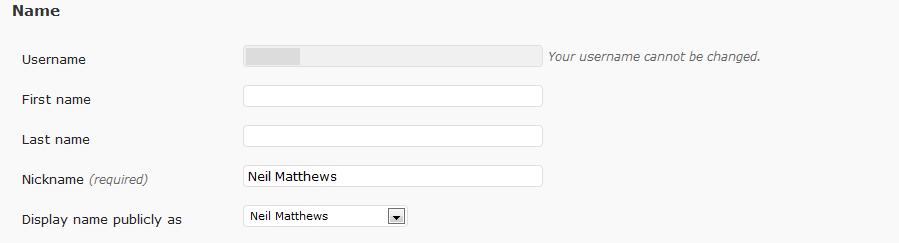
    The first user created by WordPress is usually admin, make your blog a bit more personal by giving admin a nick name, give it your name, put a personal touch to your posts.  This is done from users and subscribers section.

    nickname

    3 Add a Liberal Dash Of Plugins

    Plugins rock, they extend a dull old WordPress install and make it sing,  here are my “must have” plugins

    4 Put On A Pretty Dress

    Figuratively speaking, don’t use dull default themes, go shopping for a new theme, if you are serious about blogging, check out a premium theme, better still check out one of the cool breed of new themes like Headway which allows you to design your own look and feel without any coding skills.

    5 The Key To A Good Blog is An API Key

    Stop reading and go over to wordpress.com.  Create a free account and get yourself and API key, this will be used to register visits for your wordpress stats and combat comment spam.

    6 Get Yourself Noticed

    You’ve got a fancy new blog, now you need readers, get yourself noticed on the search engines by first getting your self indexed.  Step one is to add a sitemap, a text file on your site which tells Google and Co all about your blog posts and pages, read more about sitemaps in my article Getting Your WordPress Posts Into Google Using Sitemaps

    7 Set A Comment Policy

    The best time to set a comment policy is when your blog is new and you have no comments.  Check out How To Control You WordPress Comments

    8 Feed Me, Feed Me Now

    Get yourself a feedbuner account and stream yoru rss feed into it.  Feedburner gives you statistics on how many people are subscribing to your blog, and how people are using the content you publish. You can setup a feedbuner account at  http://feedburner.google.com.

    9 Backup Your Blog

    Learn how to backup and recover your blog before you have too much content.

    10 Get Writing

    You are thinking I couldn’t think up tenth config item so I threw in get writing, you are wrong, this is the most important item, get writting your pillar content, the important stuff for your niche, have something cool to read when your first visitors begin to arrive.

  • I’m A Raving Fan Of WishList Member

    The name of the game when you run an online business is trust and establishing yourself as an authority in your niche.  When you work over the net as I do, chances are you will never see the people you are doing business with, most of the communication is via email, IM, Twitter or on the odd occasion via a telephone (you remember the thing on your desk that makes a noise, no not your iPod the other thing, yes that’s the one).

    One of the ways I do this is to over deliver when supplying my WordPress services, it makes people talk about you and  you establish a reputation as someone client focused, not just in it for a quick buck. People give you testimonials, tweet about you, tell their friends link to your site and all of that good word of mouth for the Internet age stuff.

    With that in mind I am going to rave about the customer service I have just received from the tech support team at  WishList Products.

    I am using their membership site plugin to power the WordPress Owners Club, and I was having an issue when potential members were returned from Paypal, it was not registering their details correctly and giving people access t0 their content.  A potential show stopper for me.

    I dropped a tech support request onto their ticketing system, and I was very quickly given various support steps to try.  None of these worked. I was then passed an incredibly detailed step by step( with videos and screen dumps) document to work through,  The effort that has gone into the support docs of WishList Products is very high indeed.

    Again none of this worked, the final solution, talk about going the extra mile, they requested login details and did a review of my configuration.  They gave me a suggestion, which I implemented and which fixed my problem. I hasten to add it was a clash with another plugin not a bug with WishList member.

    The bells and whistles on teh sales page make you buy the product, but quality after sales support make you go out of your way to sing the praises of a company from the rooftop or in my case write a blog post.

    If you are interested in creating a membership site with WordPress wishlist member is my recommended solution, it has all of the features you could need from a membership site solution

    • Integration with payment processors
    • Integration with email list
    • Time released content protection
    • Multiple levels of membership and updating of members to those levels
    • The list goes on.

    I could have been supplied lack lustre support, dug into the code, and figured it out myself, and come away with a neutral or negative opinion about Wishlist Products, but now I am a raving fanboy.

    Check Out WishList Member NOW!!

  • Poll: What Is Your WordPress Expertise Level

    It is very important for every blog owner to be in-tune with their readers, are you pitchng your blog posts at the correct level and interest of your average reader?

    With this in mind, every now and again I like to poll you the readers of this blog to make sure I am pitching my posts at the correct level, I want to run that poll again to find out what the majority of readers class their expertise in WordPress at.

    If you could take the time to quickly click on your level it will help me to write future blog posts with you in mind.  If I am writing beginners guides, and most of you are code masters, then my blog needs to change direction,  or the other way if most of you class yourself as beginners, posts on writing plugins would not be appropriate.

    If you are reading this from your RSS reader you will need to come over to the site, the url of this post is https://dev.neilmatthews.com/what-is-your-wordpress-level

    Thanks for taking the time.

    [poll id=”2″]

    If you would like to know how to add a poll to your blog like this, I’ve written a post about it at https://dev.neilmatthews.com/adding-poll-blog

  • Integrating WordPress with phpBB

    I came across a fabulous integration tool for WordPress and phpBB that I though I would like to share with you.

    UPDATE March 2011: Please see comments, it looks like this project has been closed down, I recommend SimplePress forum if you need a WordPress forum

    The problem many blog owners have is that they want to share the user database of WordPress with a forum so they only have to administer one set of users.  This is possible via a WordPress forum plugin, bit these are often quite cumbersome and effect performace , or using Automattic’s own forum solution bbPress (Automattic are the company behind WordPress), but one of the leading and most robust forum systems is phpBB, people want an integration solution for that.

    I wrote a post called Case Study: Adding A Forum To Your WordPress Blog about the various forum solutions for WordPress.  This may act as a good primer for this post.

    wp-united

    It sound like an English football team, but it is actually a plugin for phpBB which allows you to share the users and theme of wordpress with phpBB.

    The plugin is available to download for free at www.wp-united.com.

    Installation

    Please note, this install is not for the faint hearted, you will need to be happy editing html and php code.  Please remember to backup your install before begining a complex integration project such as this.

    This plugin is a php mod not a WordPress mod, it is assumed that you have an existing WordPress and phpBB installation.

    I downloaded the package from www.wp-united.com and uploaded the files to the root of the forum as instructed, next there is a tedious task of editing about a dozen files from the bulletin board installation to work with the new mod.  The documentation is fairly good to walk you through the process but take your time. It is fiddly, and an incorrect change may effect how your bulletin board works.

    Once the upload and edit are complete an installation script is run from the root of the forum, this then creates a new integration tab on the bulletin board’s dashboard.

    Integration

    There are numerous integration options. including:

    • Integrating users, add a new user to WordPress when a phpBB user registers and vice versa
    • Import existing WordPress Users to phpBB
    • Share the phpBB theme with WordPress or imbed the forum unside of the WordPress header and footer
    • Create automatic forum posts when a new blog post is added

    My Opinion

    I used this plugin because a client had an existing phpBB install, I would no go this route if I was begining a new installation, rather, I would go with bbPress which is already closely tied to WP and will only be more closely integrated in the future, but that is my personal preference.  PhpBB is an extremely powerful, and well supported product, think WordPress plugins and themes for a forum solution.  Many people swear by it over the simplicity of BBPress.

    I found the installation a bit tricky, not as smooth as working with WordPress.

    If you have an existing phpBB installation that you want to integrate with WordPress then you cannot go wrong than to use wp-united.

  • Run A StumbleUpon Ad Campaign To Increase Your Blog Readership

    Many of you will be aware of the social bookmarking site Stumbleupon, but do you know that it has a paid advertising option?

    Running a stumleupon campaign is a good way to bring a lot of people to your blog in a short space of time  and hopefully convert them to readesr or buyers of your products/services.

    Pay Per Stumble

    The advertising model used by SU is a pay per stumble model, that is, you pay for the priviledge of having your selected page presented before someone using the SU system.

    What Is A Stumble

    Stumbleupon is a bookmarking service which allows you to share content with your “friends” and to stumble over pages which you may find of interest.

    You tell SU what you are interested in, install a toolbar on your browser and click stumble.  This then presents a random page to you.  You can read it and perhaps engage with the site or click stumble again for another page.  Are you up to speed yet?  No, check out this video

    http://www.stumbleupon.com/productdemo/

    I think ofStumbling (as it is know) as channel surfing on the net.

    Fixed Price

    There is no bidding price war as there is on pay per click advertising you pay 5 cents per display.  You charge up your account in advance using paypal and the campaign runs until your funds are depleted.

    You can control your daily spend by setting how many displays per day you want, for example 500 views is $25

    Demographic Targeting

    You can target your audience with the following demograpohic items:

    • A stumbleupon category – these are created by SU and can be limiting
    • Sex of stumbler
    • Age of stumbler
    • Country
    • State
    • City

    Large Amounts of Traffic Quickly

    If you place your campaign in a popular category and set your number of views to be high, you can rapidly expose your blog to a new very large audience.

    Thumbs Up or Down

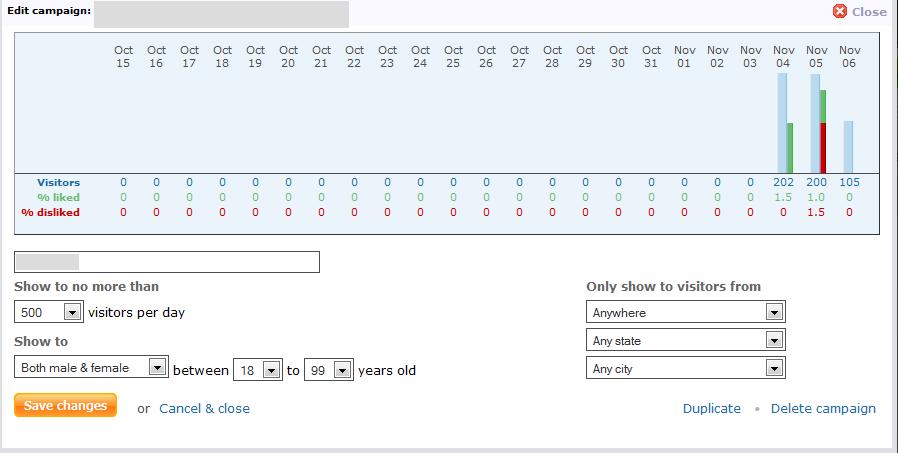
    You can monitor how well your audience are reacting to your page by the number of thums up or down it receives:

    su

    Don’t Go Straight for The Services Page Jugular

    Stumbleupon is a bit sniffy about service promtion (but they are happy to take a payment for a visit – go figure) so you may be better dropping people into your sneeze page or to a piece of pillar content. Then use your standard blogging techniques to bring them to your services page.

    Quality Of Visits

    This is a tough one to call, it is all dependant upon your niche and whether there is a StumbleUpon category to match.  I used to own a mountainboarding site, I matched this to the exteme sport category and got greate results. I also used to have a very specialised site on pay per click, click fraud , this bombed on SU because there is not match.

    I wrote a blog post on Problogger about monitoring the quality of yoru SU monitoring the quality of paid stumbleupon campaigns, check this out for more details on monitoring quality.

    Conclusion

    It’s not for everyone, if you niche does not match the Stumbleupon categories, it will be hard to find your right people.  But if you can get the match you can very quickly bring lots of targeted people to your blog a lot cheaper than pay per click.

    Check out the service at stumbleupon.com/ads