Neil Matthews

Blog

  • Susan Fantle, The Copy Works, San Diego, CA

    “When my WordPress blog got hacked I’m so glad I had Neil to turn to. He moved the site to a new, more secure host for me, then added tons of security to help protect the site in the future. He’s there for me when I need to learn a simple WordPress how-to and to help me through some of the more technically complex WordPress upgrades. He knows his stuff and is always very responsive to my requests. I recommend his services without hesitation.”

    Susan Fantle, The Copy Works, San Diego, CA

  • Mass Update Your Out Of Date Plugins

    Mass Update Your Out Of Date Plugins

    A very useful,but not very well advertised function of WordPress has been added with version 2.9.x.  I thought a quick blog post to show people how to use it was in order.

    As of 2.9.x you can now to a mass update of all your out of date plugins.

    Tell Me Where it Is

    It would seem logical to place the mass update under the plugins section of the dashboard, perhaps under the plugins requiring update section, but no, that would be too obvious.

    This very useful function has been positioned on the same page where you perform an update of your core wordpress files.

    http://{YOUBLOG}/wp-admin/update-core.php

    What Does It Look Like

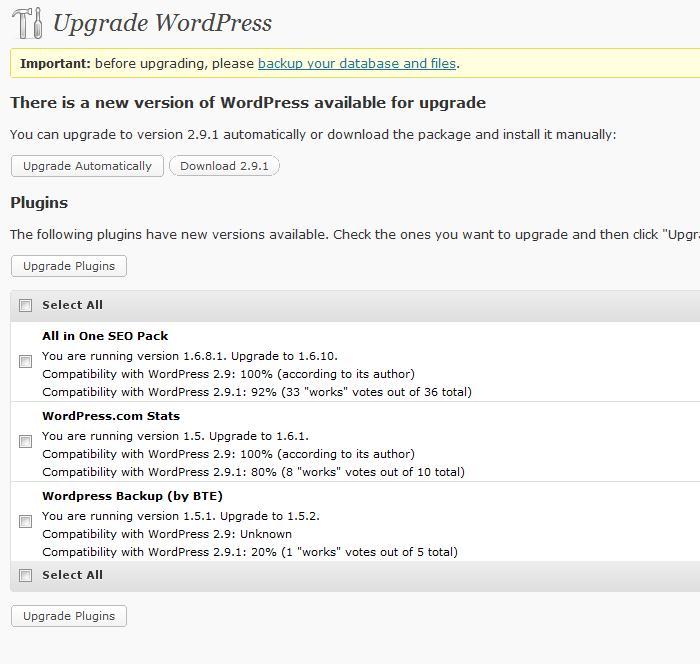
    Here  is a screen dump of the page from my blog:

    How Does It Work?

    Click on select all, or manually choose all plugins to update and then click on upgrade plugins and it does the whole shooting match in on fell swoop.  Excellent,  if you have a lot of plugins to update this eases the maintenance burden.

    Backup

    It’s probably a good idea to backup your system before you click update.

    Wrap Up

    There have been plugins to do this for quite some time, I am glad to see this added to the core functionality but why conceal it in such a weird location.

  • How To Display Weather On A WordPress Blog

    How To Display Weather On A WordPress Blog

    I am working with the owners of a blog who provide a news service to a resort island in the southern henisphere, and part of hteir requirements was a weather update on the top of their blog.

    This is the first time I have been called upon to do this, so I though I would share my findings with you lot.

    Weather Services

    There are a number of weather services out there who coallate reports and make them available as web services.  This seemed the best bet, plugin to one of these services and use their data.

    The eventual service I chose was http://www.accuweather.com/

    Match Weather Services with a plugin

    Once I had selected my weather service, the next step was to either write some code to pull in the data from Accuweather or to find a plugin that did it already.  I’m all for not re-inventing the wheel, and I found a number of plugins that used Accuweather.  I finally selected wp-forecast http://wordpress.org/extend/plugins/wp-forecast/

    I chose this because it had the ability to code the weather into the theme through php calls along with widgets.  The level of data provided was very good, and it looked great on my clients site.

    Configuration

    WP_forecast is a fairly simple thing to use, install it in the normal plugin fashion, then retrieve your location from Accuweather.  It will come in a format similar to this:

    EUR|UK|UK179|NEWCASTLE|

    I simply searched on the homepage for my city, and this code was appended to the end of the URL, a quick cut and paste, and I had weather for cold old Newcastle-upon-Tyne.

    There is a lot of data to add from temperature, wind speed and direction, humidity and loads more.  A very thorough service.

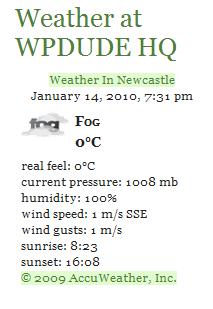
    The Current Eeather In Sunny Newcastle UK Is:

    I installed wp-forecast on my blog and screen captured a view of the widget so you can see what it looks like

    And That’s The Weather For Today

    Having a weather forecast may not be everyone’s thing, but if your blog is the front end for a bricks and mortar site, where people come and do things (can I be more vague) then this may be for you.

  • Guest Posting Like A Pro

    When Chris Garret of AuthorityBlogger.com and co-author of the ProBlogger book with Darren Rowse launches something, I usually sit up and take notice

    Guest Posting Info Product

    Chris has release a new e-book / membership site which takes you through the process of guest posting to build up high quality links, build your authority in niches where no-one knows you and much more.

    Cheap As Chips But Full of Info

    The e-book is currently selling for the huge sum of $7, but this introductory offer is set to end on the 11th January,  so grab it now while it

    Do I LIke Guest Posting?

    Yes i do, my guest posts on ProBlogger have served me very well, generating links from an authoritative site and attention of it’s readers, guest posting is an excellent way to market your blog.

    Check out my blog post on guest posting Guest Posting Makes You Attractive To The Opposite Sex – Fact!!!

    Get Your Copy Now

    For more information and  details of the e-book click on the link below – full disclosure, this is an affiliate link, Chris Garret is an authority in the blogging world, I recommend him wholeheartedly.

    GUESTPOSTING.INFO>>

  • New Year Blog Tidy Up

    Happy New Year to you all, it’s the time of year when people are embarking on New Year’s resolutions to change habits or accomplish new things.

    I thought it might be a good time to give your blog a quick health check and get into some new year blog maintenance habits,  here is my list of blog resolutions you could make.

    Keep Your Site Up To Date

    Make it a priority to keep your WordPress code and plugin code up to date.  The updates that are released are for security, bug fix and additional functionality reasons, all of these are good things for your blog.

    New Habit – Once a week check for update to plugins and WordPress, install them as required.  Please remember to back up first.

    Get Rid Of Unused Plugins

    There is a more than even chance that you have installed a plugin and are not using the functionality it provides.  Goto your dashboard and look through your list of plugins, find the ones you don’t recognise, don’t use, are not really that important, and delete them.  Plugins cause an overhead on your site’s performance

    New Habit – Every few months audit your plugins and delete the ones you don’t use or need.

    Tidy Your Database

    This tidy up tip goes hand in hand with removing plugins.  You will find as you add and remove plugins additional tables and options are added to your database.  This can increase the size of your DB, in turn causing a performance overhead.

    New Habit – review you database and remove any fields or tables you do not need.  WARNING this is an advanced topic, backup your database.

    Tidy Your Categories

    This is something often forgotten about, you create a new category, you add one blog post to it and never use that category again.  It’s time to reconcile for ease of navigating your site.

    New Habit – review you categories, and remove any unnecessary ones, re-categorising your posts as you go.

    Backup

    Are you doing it enough, can you recover from a crash?  It doesn’t need much more than that, as a blogger you are only as good as your last backup.

    New Habit – backup, go now, install plugins, backup, I mean it now, are you still here?

    Tighten The Security

    I see a lot of blogs that have been hacked, do yourself a favour

    • change your default table prefix
    • harden your passwords
    • change your admin login name
    • Apply security patches/updates as they appear
    • obfuscate your WordPress version
    • .. the list goes on, install the following plugin to see any known gaps you have. http://wordpress.org/extend/plugins/wp-security-scan/

    New habit – be ware that hackers target WordPress sites, they are a low hanging fruit because there are so many, keep your site secure.

    Rounding It All Up

    Give your blog the tech. equivalent of a new years detox ready for the coming years content. If you are not up to it book a health check at Dr WP Dude’s Colonic Flushing Clinic

  • Headway Theme Visual Editor

    You have probably heard me banging on about the new framework theme Headway in other posts, but I just want to tell you about a new development in the theme introduced in the 1.5 beta and now live in version 1.5.6, and that is the visual editor.

    The first version I saw during the beta phase was a bit clunky, and I preferred the old version of setting options via the appearance tab like traditional themes, but the later releases have taken on board these issues and I have really grown to like the way I can design on the fly with the visual editor.

    What Is The Visual Editor

    As the name suggests it’s a visual CSS editor which allows you to change the look and feel of your site and see the changes as the are made, rather than editing CSS code files.

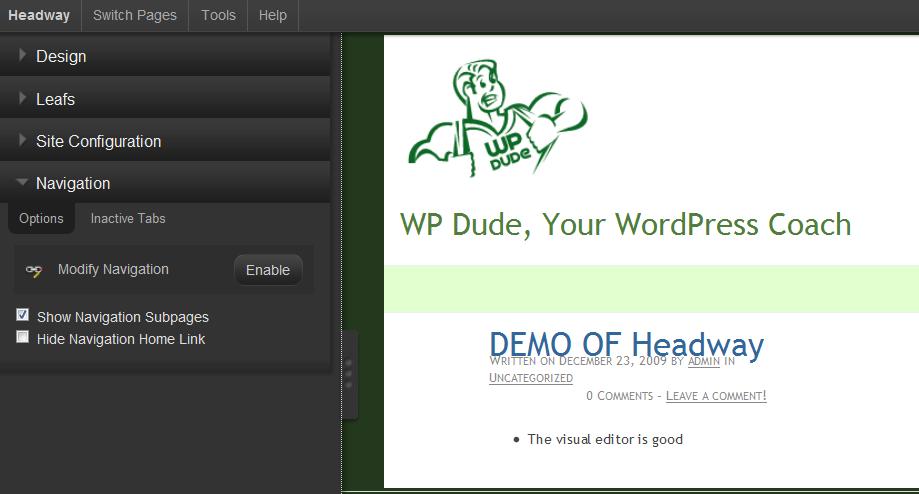
    Using the visual editor, when you are logged on as an authorised VE user, there will be a tab on the top right of your site home page which says enter visual editor.  Click on this opens up a series of menus and widgets which allow you to change the look and feel of your site before your very eyes.  See screen dump below to get a feel of the editor. the various options available to you are:

    Site Design

    You can set the colours,fonts, borders background and all that good stuff from this section, it also has a very useful call out function which highlights the components you are working on just in case you are unsure of what it is.

    Leaves – Sorry Headway people, the Plural of Leaf is not Leafs Where I Live

    Probably the most powerful function of the Headway system is its leaf function.  Using leaves, you can place components on the page, drag and drop to resize and relocated.

    You can then set the content of the leaves, this can be a wide variety of things from image rotators, featured posts, standard content from posts or pages, RSS feeds , widget ready sidebars and many more.

    Leaves allow you to build the layout of your content, and show different pieces as you like, you can have different leaves on different pages for example you can set one sidebar widget on the home page and have a second sidebar on the contact page, in the past this was some complex coding to do this.

    The flexibility of leaves makes Headway the excellent choice for CMS as well as blog sites.

    Site Wide Settings

    You can change site wide settings like width, header and footer details

    Navigation

    There is a visual editor to set up the navigation, it;s location, alignment, whether a page is displayed and much more.

    Does It Do Everything

    No, but it has a custom CSS option as well, so if the little tweak you want is not available in the GUI, head over to the custom

    An example of this is a client of mine who was asking if they can change the default behavior of the navigation to have tabs instead of boxes the only format of navigation visual customisation, and the answer is yes, you simply add that particular CSS into the custom css file.

    The Future For Headway

    I have been privy to a few emails talking about future releases of Headway and there is some really great stuff coming down the line, the good people at Headway HQ are pulling out the stops.  This continued development and maintanance of their product is excellent, this means I am happy to invest time and effort into learning Headway and building sites with a theme that has a road map into the future, rather than a fly by night theme supplier.

    My Recommendation

    I recommend headway for the ease of use to change the look and feel of your site, the investment in development the guys are making, the configurability (is that a real word?) and the support from the team.

    I don’t slap up affiliate links to products unless I really recommend them, and I am redesigning my site, my info product sub domains and my client theme builds using Headway, if you want what is in my opinion the best WordPress theme on the market, click on the link below to see videos of the visual editor or to get your copy.

    Get The Headway Theme

  • When Themes Go Rogue

    An imaginary person, not me honest, was working on a WordPress site.  This person (who is very charming and handsome BTW) made a change to the code in the theme, coded the change incorrectly and brough the site crashing down, I just thought I would share with you a quick way to work around a problem with my how to on disabling a WordPress theme manually.

    Does This Sound Familiar?

    Here’s the scenario, you have added some code to the theme files, the code is incorrect, and an error is thrown, it then gets worse, as the same error is thrown as you attempt to get back into your dashboard to fix the error.  How are you going to get around this?

    Here is My Quick Fix

    A very quick fix to get your site back up and running is to delete the theme.

    When you delete your theme, WordPress does a double takes realises that the files aren’t there and begins to work without a theme, your site’s front end will throw a white screen, but no error message, and best of all you can now access your back end.

    You can then go in an activate a default theme or fix any error you may have inadvertently introduced.

    Fool It Into Thinking The Theme is Not There

    You probably don’t want to delete your theme is you are working on it, so a little cheat is to make the theme disappear by changing the file permissions.

    Using your ftp client of choice, connect to your site and browse to wp-content/themes and change the files permissions of your chosen theme directory to 000.  This prevents WordPress from access this directory and makes it think the active theme is not available, again the system will be back with a blank front end.

    Remember to change the permissions back so you can work on the files.

    Wrap Up

    Hope this little nugget helps someone in the same predicament.

    UPDATE: WordPress TroubleShooting Training 

    I have recorded a video training session on troubleshooting WordPress for my WordPress training and support community the WP Owners Club.

    [leadplayer_vid id=”50753A7F726BC”]

  • Backup and Recovery: Restoring Your Database

    In the final training post of this tutorial I would like to take you through recovering the database archive you created in Backup and Recovery: Backing Up Your Database.

    I will discuss the times when you should consider a database restore, what tools to use for the restore and lastly a video showing how to do that restore.

    When to Restore Your Database

    The times when you recover your database will be very similar to restoring your file base namely

    • Migrating your blog
    • Hardware or system failure causing data corruption
    • Roll back a failed update of WordPress
    • Recovering from a hacking attack
    • User error – you accidentally deleted yourdatabase for example
    • As part of a test of your backup

    The only difference is that you must spot where the error lies, if you have corrupt posts, restore the database, if you cannot find theme files restore the file base.

    Stop Before You Do Anything Else

    Backup the database as it is now.  This gives you a stable poitn to return to if you cause issues with your recovery.  You know it cannot get anyworse than it already is.

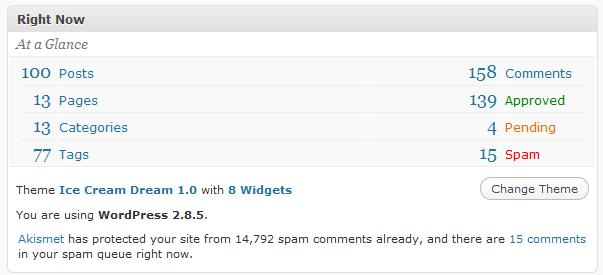
    If you can, collect metrics, how many posts, comments, tags and categories do you have,  this can be obtained from the dashboard of your blog.  This will be used to help you test that recovery has worked correctly.

    dashboard

    How To Restore Your Database

    In our backup process we created a SQL archive file.  The contents will look something like this


    — Database: `wpowners`

    — ——————————————————–


    — Table structure for table `wp_wpoc_comments`

    CREATE TABLE IF NOT EXISTS `wp_wpoc_comments` (
    `comment_ID` bigint(20) unsigned NOT NULL auto_increment,
    `comment_post_ID` bigint(20) unsigned NOT NULL default ‘0’,
    `comment_author` tinytext NOT NULL,
    `comment_author_email` varchar(100) NOT NULL default ”,
    `comment_author_url` varchar(200) NOT NULL default ”,
    `comment_author_IP` varchar(100) NOT NULL default ”,
    `comment_date` datetime NOT NULL default ‘0000-00-00 00:00:00’,
    `comment_date_gmt` datetime NOT NULL default ‘0000-00-00 00:00:00’,
    `comment_content` text NOT NULL,
    `comment_karma` int(11) NOT NULL default ‘0’,
    `comment_approved` varchar(20) NOT NULL default ‘1’,
    `comment_agent` varchar(255) NOT NULL default ”,
    `comment_type` varchar(20) NOT NULL default ”,
    `comment_parent` bigint(20) unsigned NOT NULL default ‘0’,
    `user_id` bigint(20) unsigned NOT NULL default ‘0’,
    PRIMARY KEY  (`comment_ID`),
    KEY `comment_approved` (`comment_approved`),
    KEY `comment_post_ID` (`comment_post_ID`),
    KEY `comment_approved_date_gmt` (`comment_approved`,`comment_date_gmt`),
    KEY `comment_date_gmt` (`comment_date_gmt`)
    ) ENGINE=MyISAM  DEFAULT CHARSET=utf8 AUTO_INCREMENT=2 ;


    — Dumping data for table `wp_wpoc_comments`

    INSERT INTO `wp_wpoc_comments` (`comment_ID`, `comment_post_ID`, `comment_author`, `comment_author_email`, `comment_author_url`, `comment_author_IP`, `comment_date`, `comment_date_gmt`, `comment_content`, `comment_karma`, `comment_approved`, `comment_agent`, `comment_type`, `comment_parent`, `user_id`) VALUES
    (1, 1, ‘Mr WordPress’, ”, ‘http://wordpress.org/’, ”, ‘2009-09-29 04:26:45’, ‘2009-09-29 11:26:45’, ‘Hi, this is a comment.<br />To delete a comment, just log in and view the post&#039;s comments. There you will have the option to edit or delete them.’, 0, ‘1’, ”, ”, 0, 0);

    ….AND MANY MORE

    This extract from my archive files show the comamnds which will recover my comments table.  First the file recreates the tables, then it runs a series of insert commands which will add the data back into that recreated table.

    It may not seem very technical, but essentiually, the recovery process is a series of reacreating tables and the placing the data back into the tables one row at a time.

    PhPMYAdmin Restore

    We used phpmyadmin to build the archive file and we are going to use it again to restore the data.  Load up phpmyadmin acording to the instructions supplied by your hosting company.

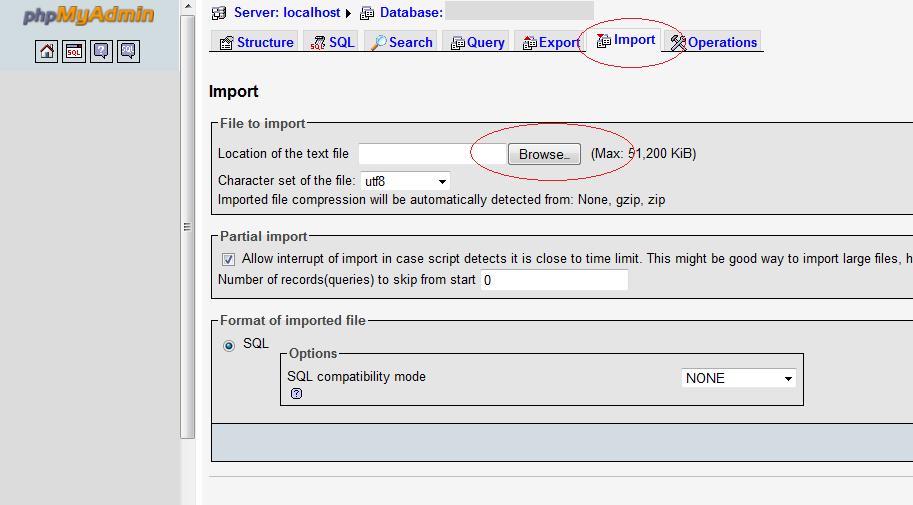
    Navigate to your database and select the import function.  Browse to your saved archive file and click on go, your import and recovery will now begin.

    phpmyadminimport

    How Long Will The Recovery Take

    That all depends upon how big your blog is.  In the video acompanying this post, it takes less than a minute,  but a production blog with hundrerd of posts and many plugins will take far longer.

    PANIC POINT!

    When doing the recovery, your system will go off and appear to do nothing, you will panic that your recovery is not working, this is okay, I recommend that you practise your recovery so that you know how long it takes so you will not panic during a real recovery scenario.

    Upon completion of the process phpmyadmin will return a status update of how may tables and records were recovered, this is when you know that the process is completed.

    Keeping Your File Base and Database In Line

    If you have restored your database to a point before a WordPress update you will need to run the update process again.  This can be done by running the following script

    http://{YOUR DOMAIN}/wp-admin/upgrade.php

    Testing the Recovery

    Using the metrics we collected earlier, you should log into your site and ensure you have recovered the correct number of posts, comments etc.

    VIDEO: Recovering the WordPress Database

    Running time for this video is approximately 3 minutes.

    [S3 bucket=wpocrestoredb text=View the video>>]restoreDB.html[/s3]

    Discuss this Post

    If you would like to discuss this topic, please  leave a comment

  • Backup and Recovery: Restoring Your File Base

    In this tutorial I would like to take you through the process of recovering the file base archive we created in the tutorial Backup and Recovery: Restoring Your File Base.  I will look at when to recover, how to do that recovery and show you the process in the associated video screen cast.

    When To Recover

    Here are some of the scenarios you will encounter which may require a backup recovery.  It’s my guess you will know when to recover, you will not be able to access your blog or the backend, that’s when to begin.

    • Migrating your blog
    • Hardware failure causing file corruption
    • Roll back a failed update of WordPress
    • Hacking attack
    • User error – you accidentally deleted your file base for example
    • As part of a test of your backup

    Don’t Panic

    When you are in a recovery scenario, the most important thing is not to panic, you need to slowly and methodically recover the file base and database, this tutorial is equipping you with the knowledge to do that process.  At the end of this series there are some exercises to test this knowledge so you do not enter a recovery situation cold without prior experience of the process.

    Counter Intuitive Moment

    Make a backup of your problematic file base, before you start the recovery.  This give you a position to fall back to if your recovery process causes more problems.  It will not get any worse than it is now thinking.

    Keeping the Database and File base In Line

    Just a quick point to say you need to keep your filebase version and your database version in line.  For example if you have just updated your version of WP it is very likely that the database has been updated too, please recover the database before recovering the file base to keep the two systems in line, you can have issues if you are using an updated database and an old file base.

    How To Recover Your File Base

    Recovering your file base is the reverse operation to backing it up, using an FTP client in SFTP mode, go to your saved archive and upload the files back to your hosting account.  You can recover the full archive by uploading it to your hosting account, or you can just upload a part of it.  For example you have have been editing your theme, and caused an issue, you cann select just the files under wp-content/themes to recover.

    VIDEO: Recovering the WordPress File Base

    Running time for this video is approximately 2.5 minutes.

    [S3 bucket=wpocrestorefb text=View the video>>]restorefilebase.html[/s3]

    Discuss this Post

    If you would like to discuss this topic, please leave a coment

    Next In the Series

    The next part of the backup and recovery tutorial looks at restoring your database archive.

  • Tiny Changes Huge Repercussions

    There has been a tiny change to my blog which has had huge repercussions to my site, I thought I would share this tale of stupidity with you as a warning of how little things can snowball into larger problems.

    The Issue

    There is a line in my theme header file which looks like this:

    <meta http-equiv="Content-Type" content="text/html; charset=UTF-8"

    Have you spotted the problem yet?  What do you mean you cannot see the glaring error!

    That particular statement needs to be suffixed with a “/>”

    Big Deal, Why are You Draining My life-force With this Sad Little Detail?

    Because I had, for some reason unknown, deleted a couple of characters, my HTML was badly formed and this had a knock on effect which seriously effected my site

    The Snowball Effect

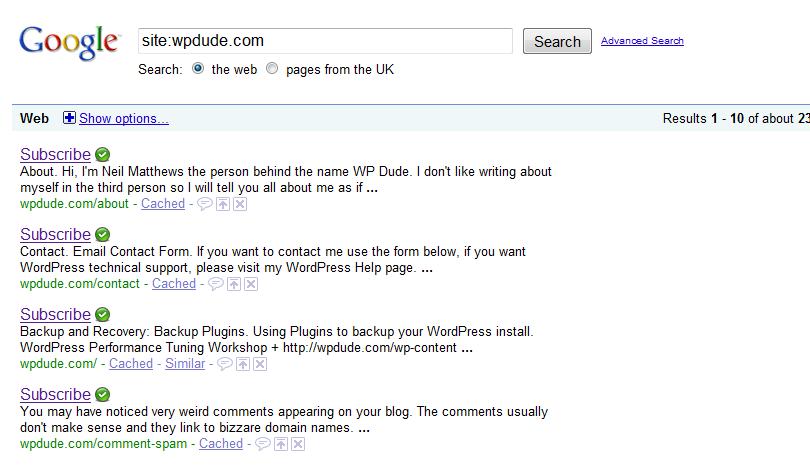
    The line underneath the content type was my title tag, the badly formed html means that this line was not readable.

    The title tag is read by google when they index my site.

    All of my content now had the title Subscribe  see the image below.

    A few weeks ago my site took a Page rank drop, probably because of this issue, Google cannot ascertain what the hell my posts are about.

    There is a very good chance that people are not clicking on my links from the search engines due to this teeny tiny error.

    I have probably missed the chance to gain new readers, subscribers and clients.

    Bugger, and all for a bloody back slash and greater than sign.

    Come On Where is the Moral Lessons In All This Like At The End Of A Disney Movie?

    Gather round kids, here is the lesson for the day.

    There is a fantastic tool in the Google webmasters site which has been telling me for months that I have 130 pages with missing title tags.  I thought it was talking rubbish so I just ignored it.  Check out the tools at:

    google.com/webmasters diagnostics -> html suggestions

    So when Google tells you there is a problem sit up and listen.  They are quite good at all this internet stuff.

    I’m About To Swear Like Hugh Grant Now, Please Block Your Ears if Easily Offended

    Bugger, bugger, bugger, bugger, bugger, bugger, bugger, bugger, bugger, bugger, bugger, bugger, bugger, bugger, bugger, bugger, bugger, bugger, bugger, bugger, bugger, bugger, bugger, bugger, bugger, bugger, bugger, bugger, bugger, bugger, bugger, bugger, bugger, bugger, bugger, bugger, bugger, bugger, bugger, bugger, bugger, bugger, bugger, bugger, bugger, bugger, bugger, bugger, bugger, bugger, bugger, bugger, bugger, bugger, bugger, bugger, bugger, bugger, bugger, bugger, bugger, bugger, bugger, bugger, bugger, bugger, bugger, bugger, bugger, bugger, bugger, bugger, bugger, bugger, bugger, bugger, bugger, bugger, bugger, bugger, bugger, bugger, bugger, bugger, bugger, bugger, bugger, bugger, bugger, bugger, bugger, bugger, bugger, bugger, bugger, bugger, BUGGER!

    Exhibit A
    bugger

  • Backup and Recovery: Backup Plugins

    In the previous posts on backing up your blog I showed you the manual way to backup your WordPress install, I want to move on and talk about using plugins to automate this process.

    This post comes with a screencast to show you how to install and use these plugins.

    Manual Versus Automatic

    I spent time taking your through the manual backup process before I showed you the plugins so you have a thorough understanding of what to backup and how to do a one off manual backup, but now I want to show you how to automate the process using plugins and timed backups.

    Automating the process of backup is very important, if you are anything like me, repetitive jobs become very dull, very quickly and as a result repetitive jobs are often overlooked.  It will be at that exact moment that you need to recover and you have forgotten or neglected to do a full backup.

    Using my recommended plugins you can setup a backup schedule and have hourly, daily or weekly backups sent to your email address.  All you then need to do is archive those backups for later use when/if required.

    The Plugins ..

    I use the following two plugins to automate the backup of my blogs:

    WordPress Backup (By BTE) – for file base backup

    WordPress Database Backup – for database backup

    There are many more at the WordPress plugin directory, have a look at http://wordpress.org/extend/plugins/tags/backup

    WordPress Baclup (By BTE)

    This is a great little plugin which takes a copy of your plugin, theme and upload directories and copies them into a directory under wp-content as a zip file.  The zip file is then sent out via email.

    I have this set to run once a week, but you can set it to daily or monthly.  There is no on-demand option.

    WordPress Database Backup

    WP Database backup allows you to backup all, or a selection of your MYSQL tables, and have that backup saved to your hosting server, downloaded or sent via email.   Like WordPress backup there is a scheduler but there is also an on-demand function, useful if you want a quick backup before a change to your blog.,

    The output is a SQL command file which when run against the database to recreate the tables and data.  Please note a certain level of MYSQL knowledge is required to recover from this method.  This will be covered in the recovery modules.

    The Missing Link

    My complete WordPress install i.e. wp-includes, wp-admin and the files in my blog root are not backed up by these two plugins so I keep a copy of my latest WordPress install files to hand, just in case.

    VIDEO: Using backup plugins

    I will show you how to install, configure and create backups using my recommended plugins, running time aprox 6 mins

    [S3 bucket=backupplugins text=View the video>>]backupplugins.html[/s3]

    Discuss this Post

    If you would like to discuss this topic, please  leave a comment.

    Next In the Series

    The next part of the backup and recovery tutorial looks at restoring the file base.

  • WordPress Performance Tuning Workshop

    I am planning to run  a workshop to show people how to performance tune their WordPress blog.

    If you want to improve the speed of your site or protect it from the dreaded slashdot effect then this is the workshop for you.

    UPDATE 22 DECEMBER 2009

    I will be making this available as a members only section of my site so you can watch the videos and read the content at your own pace

    What’s The Format

    I will deliver the workshop as a webinar using Gotomeeting.com It will be part presentation part live demonstration of me tuning a blog.  There will be ample time to ask questions throughout the session.

    I will save the webinar as a screencast video and make it available for download after the event so you can refresh your memory when you come to tune your own blog.

    The topics I am planning to cover are:

    • Finding the bottlenecks
    • Tuning plugins
    • Tuning Themes
    • WordPress cache plugins
    • MYSQL Query Cache

    Limited Seats

    I can only take 15 people on the workshop. This is not an internet marketers statement to create a false sense of scarcity, rather it is the limit of seats the software can offer.  So first come first served I’m afraid.

    If I get a good response to this workshop I will run multiple sessions at different times for different timezones.

    When

    This is the wrong time of year to be planning a live event with the holiday season about to descend upon us,  with this in mind I have created a survey below, if the majority of you want the session before chritsmas I will arrange it, otherwise it will be in the first week of the new year.

    Cost

    The session will cost $77 for that you will receive the live training, a recording of the event and follow up support via email when you come to tune your own site.

    Early Notification list

    Help me to find the best time to run the event by completing the survey below and I will give you a priority notification when I take bookings :