Neil Matthews

Blog

  • The WordPress Work Flow System

    The WordPress Work Flow System

    WordPress has a built in work flow system so you can take a new post (or page) from a draft stage through an editorial process to a final publication status.

    This post will take you through the four work flow stages.

    The Work Flow Tool

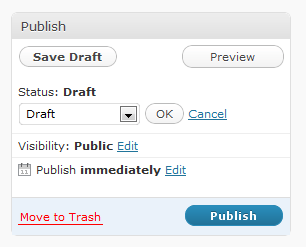
    The work flow tool is located in the post or page editor usually on the top of the right hand sidebar. This allows you to set a posts status as we move through the work flow system.
    Draft

    The first status in the work flow system is draft.  When a post or page is marked as draft you are able to work on it, but it does not appear on the front end of your site.

    Think on this as a work in progress.  It is also the default state of a new post or page.

    Pending Review

    The next stage is only applicable to multi author sites.  A contributor role only has permission to write a post and then mark it as pending review (not published).

    A post marked as pending review requires an editor level or above to review that post and move it onto the published state.

    Pending review allows a work flow where multiple contributors to your site create content and pass it to others as an editorial process.

    Published

    Click on the publish button and a post is moved to the state of published.  This means that a post is visible on the front end of your site.

    This is the final stage of work flow and the content is made available to your end users.

    Scheduled

    Another work flow status is that of scheduled, if you set the publish date on a post, to a date in the future and click on publish, the post does not appear on the front page, rather it is marked as scheduled and will not appear until the date and time you set.

    This is an excellent way to drip feed content to your readers without you being present to publish a post.

    Changing State

    Once you have moved a post through the work flow system it is not set in stone, you can move posts back to draft status to remove it from the front page, change published dates to the past or future.  The system is very flexible.

    Wrap Up

    The WordPress work flow system, although simple allows you to control the status of your content with ease.


  • Plugin Review: Jetpack

    Plugin Review: Jetpack

    I’ve installed a plugin called Jetpack to fix some recent problems I was having with my WordPress.com stats package.  I was seeing this issue.

    Your WordPress.com account is not authorized to view the stats of this blog

    The solution to this problem was to upgrade wordpress.com stats (I will not camel back your name today I’m in a mood) to a new plugin called jetpack which lumps a number of WordPress.com plugins into one package that can be installed on self hosted blogs.

    For the record I’m not that happy being forced to change a plugin for a much more bloaty plugin I think both streams should be kept active, but hey ho why listen to me or even ask your users what they want.

    Onwards What Is Jetpack

    It’s a packaging of a number of very popular plugins used on the WordPress.com hosted platofrm that are now available to self hosted WordPress users, this one plugins gives you

    Download JetPack

    You can download jetpack from this URL http://wordpress.org/extend/plugins/jetpack/

    I’m using two of the functions

    To get my stats back I have been forced to upgrade to a suit of functions I don’t need or want.  I am only really interested in stats and after the deadline.

    Buggy

    I’ve seen a number of connection problems with my stats, where I could not retrieve the results I wanted to view, not a good start.  WordPress.com stats worked fine.

    Future

    Here comes the money shot, expect jetpack to be extended to some of the premium options available to wordpress.com sites such as vaultpress , akismet and videopress,. once you have the plugin installed it is easier to introduce these premium services and make some dosh off the self hosted community.

    Wrap Up

    I’m a little grouchy about Jetpack, lets see where it goes in the future.  What are your feelings about this enforced upgrade.

    I know I’m getting excellent free services from these plugins but I’m aloud a rant every now and again.

    Image by spezz

  • How To Fix: Briefly unavailable for scheduled maintenance. Check back in a minute.

    How To Fix: Briefly unavailable for scheduled maintenance. Check back in a minute.

    If you have recently done some upgrade work on your WordPress site, and you cannot login due to the following message, I have the fix for you.

    Briefly unavailable for scheduled maintenance. Check back in a minute.

    What Causes This Problem

    This problem is caused by a failed automatic update on one or more parts of your WordPress site.

    When WordPress is automatically updating the core WordPress files, plugins or themes, your site is marked as under maintenance.

    This problem occurs when the under maintenance is not marked as done at the end of the process.  This can be caused by an interrupted update, the updating taking so long that it times out or browser crashes.

    How To Fix It

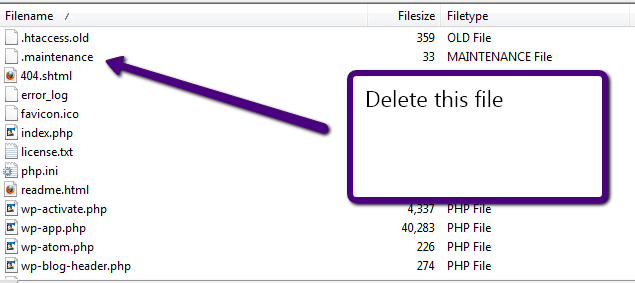
    Fortunately the fix is fairly simple, you need to attach to your site using ftp or with the file manager in your hosting account, and in the root of your installation you will see a file called .maintenance, simply delete this file and you site will come back to life.

    SPECIAL NOTE: files which start with a full stop/period are marked as hidden files on unix/linux, you may need to enable show hidden files on your FTP client before you can see this file, for example on filezilla you need to go to server->force show hidden files.

    If At First You Don’t Succeed

    Once you have deleted the .maintenance file it is a good idea to re-apply the updates you were doing to make sure they have been completed correctly.

  • Case Study: Migrating From WordPress.com

    Case Study: Migrating From WordPress.com

    In recent months I have been asked by a number of clients to migrate them from hosted WordPress.com sites to their own self hosted versions.

    This post is designed to talk you through that process and to point out any pitfalls.

    Why Move?

    Good questions, hosted WordPress takes all of the burden of supporting your site, applying updates, fighting with miss behaving plugins and the whole shebang. If you want a low overhead, no trouble site where you create content and publish I suggest you stay with wp.com.

    You only need to move to wordpress.org if you want the flexibility of your own themes, any plugins you want and ownership of your data.  (WP.com has been guilty of censoring any sites which don’t comply with their T & Cs).

    Themes

    You should have no problems keeping the look and feel of your site as most of the themes available on wp.com are available to download and install on wp.org.  Check the bottom of you site to get the theme name from the footer and search in http://wordpress.org/extend/themes/ for that theme.

    I say this with a small caveat, nearly all of the projects I have worked on required small tweaks on the theme to make them exactly the same, for some reason the code used on wp.,com is not the same as the downloadable version.  These are very minor typographic things usually, but my clients have noticed them immediately and asked for fixes.  Not a game stopper but a little annoying.

    Plugins

    WP.com limits the number of plugins available to you, and all of the plugins on .com are available to download from http://wordpress.org/extend/plugins/ and a whole lot more.  Don’t get too giddy .com’ers when you see how many new plugins are available to you :).

    Export/Import of Data

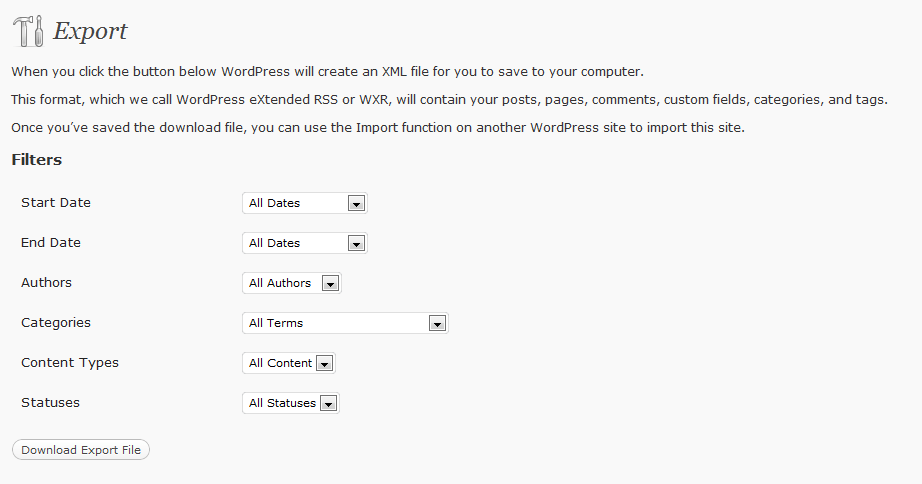
    WordPress has a built in export and import function.  Using the export function on your wp.com site you can greate an XML file which contains all of your posts, pages, categories, comments and tags in fact all of your user generated data.

    This is under the tools -> export function.

    You can export all of the data, or subsets on authors, dates, categories etc

    Click to see full size image


    Take this import file to your new wp.org site and run the import from tools->import.

    If it is a new site you will need to go through a process to install the importer, this is just like adding a plugin.

    During the install process there is an option to download and import any attachments, click on this to bring over any images / other content on your old site.

    Something to note, you can import wp.com data to an existing site so this can also be used as a tool to reconcile two sites.

    Things to watch; if you have a lot of data on your wp.com site and the export file is large, some hosting companies have a cap on the file upload size and you may need to make multiple exports using the export function, for example export two files of different date ranges.

    Redirection

    Once you have moved all of your data, the last thing to consider is a redirection to send all of your site traffic from wp.com to your new shiny.org site.

    This is much easier to do than it once was, WordPress have created an upgrade option for $12 to do this for you.  Purchase the update and setup the redirect to your new site.

    This is a 301 redirect so any listings in the search engine indexes will be updated with your new location.

    Wrap Up

    Moving to self hosted has been made deliberately simple, it is the obvious next step for bloggers as they become more confident with WordPress, follow this process and not much can go wrong.

    If you are still a little unsure of this process feel free to get a quote from my on my WordPress technical support page.

    Image by jmichaeltracy

  • WP Owner Club Webinar Replay

    WP Owner Club Webinar Replay

    Last week I ran a live webinar to re-launch my WordPress training program the WP Owners Club.

    If you were NOT able to attend the live event, I have uploaded a recording of the webinar at the following link.

    https://dev.neilmatthews.com/webinar-replay

    The replay will be available until Wednesday 16th March or until all 20 places on the course are filled so please take action now if you are interested in securing a place.

  • WP Owners Club Re-Opens Soon

    WP Owners Club Re-Opens Soon

    My WordPress training program the WP Owners club will be opening it’s doors to new members on March the 17th, and I would like to invite you to a free webinar to explain how my training works.

    “WP Owners Club Launch”

    Thursday 10th March  11-12am Pacific, 2-3pm Eastern and 7-8pm UK (duration 30-45 mins)

    It is no cost but lines are limited.

    https://www1.gotomeeting.com/register/763066081

    The session will be recorded, so even if you cannot attend teh live event, signup and I will send you the recording.

    What Is The WP Owners Club?

    It is a group coaching program designed to teach WordPress site owners more about the backend of their site.

    What’s In the Coaching?

    The coaching is comprised of six modules which run one per week for six weeks.  Here is a break down of the modules:

    Module One – WordPress Overview

    In this module I will give you an overview of the WordPress system, a tour of the dashboard and an introduction to the various layers that make up WordPress.

    Module Two – Content; Posts, Pages and Comments

    Learn all about the main content areas of your site posts, pages and comments, learn how to manage, create and use the tools available to you.

    Module Three – Understanding Themes

    Learn how to manage the look and feel of your site, learn all about the various types of theme available, how to install and customise your theme.

    Module Four – Plugins Masterclass

    Plugins allow you to extend the functionality of WordPress, in this module I will teach you how to source, install and manage your plugins.

    Module Five – Users and Roles

    You can have more than one user maintaining and adding content to your site, learn how to manage and control their access.

    Module Six – WordPress Maintenance

    There are various maintenance tasks that need to be done to all WordPress sites, learn how to update and keep your site running smoothly.

    Who Is The Coaching Aimed At?

    This coaching is aimed at people fairly new to WordPress who want to gain a more thorough understanding of how the back end of their sites works.

    How Is It Delivered

    The coaching is delivered via live weekly webinars where I will present the material and also show you live examples on my test WordPress site.

    The sessions will also be recorded and be made available to you to view again in a members only section of my site.  This means that if you miss anything in the live webinar you can review it again in your own time.

    Launch Webinar

    I’m inviting you to join a free launch webinar where I can show you how to coaching works, how much the course will cost, a look behind the scenes in the members area and a chance to answer any questions you may have on the WP Owners Club.

    Join my launch webinar

    Thursday 10th March  11-12am Pacific, 2-3pm Eastern and 7-8 UK (duration 30-45 mins)

    It is no cost but lines are limited, so reserve your place now  by  clicking on the link below:

    https://www1.gotomeeting.com/register/763066081

    The session will be recorded, so even if you cannot attend teh live event, signup and I will send you the recording.

    I look forward to seeing you on the webinar.

    Neil


  • My Musings Over At Neil-Matthews.com

    My Musings Over At Neil-Matthews.com

    I mentioned a couple of weeks ago that I was spinning off a new site to write about building digital careers or Digital Personas as I call them over at neil-matthews.com

    Here is a link list of the things I am writing about:

    I’m hoping you can stop by and take a look.

    Image by regi_a

  • Plugin Review: WP-Overview

    Plugin Review: WP-Overview

    This one is for the techies out there, WP-Overview is an excellent plugin which give you an overview of the memory usage and configuration of your site.  This in turn helps you to diagnose any problem you may be having.

    What It Does

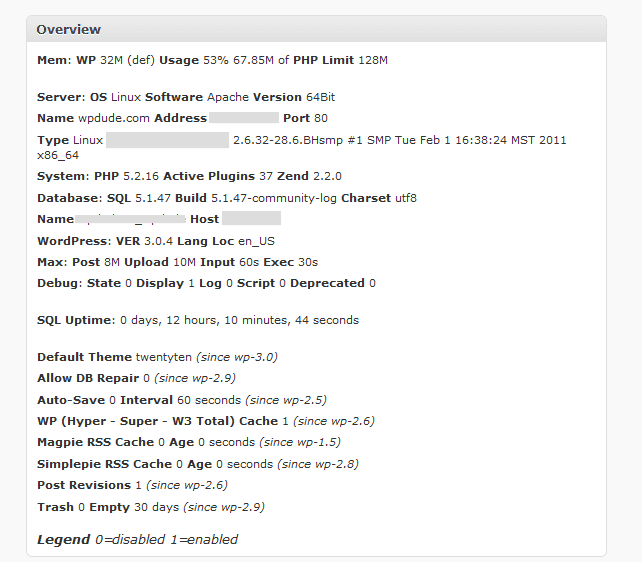
    Once you have installed WP_Overview it give you a new dashboard widget which gives you a point in time report on memory usage, and various other configuration options for your site.

    Download WP-Overview

    You can get a copy of wp-overview from the following URL

    http://wordpress.org/extend/plugins/wp-overview-lite/

    Installation

    There is no special inssallation instructions for this plugin simply upload or search for wp-overview

    Here’s What You Get.

    Here is a screenshot of wp-overview from my site.  I’ve blank out some of the sensitive information

    Click on image for full size view

    How I Use WP-Overview

    I use it on performance or memory troubleshooting projects.  This give me a feel for the available memory and how much is being allocated to WordPress.

    WP Troubleshooting

    There will be a detailed video on using wp-overview in my WP Troubleshooting course along with detailed instructions on how to diagnose memory errors.

    Image by wilcozpics

  • Survey: Would A Forum Be Of Use

    Survey: Would A Forum Be Of Use

    I would just like to perform a quick survey of the readers of wpdude.  I would appreciate 20 seconds of your time to complete the survey

    Helping Intermediate/Advanced Users

    The majority of the products and services I have here are for beginners or for people wanting to hand over the support of their site to me.

    I know from other feedback that there are a number of more advanced WordPress users also reading my blog and I was wondering how I can help that segment of my readership.

    My idea is to create a members only forum for more advanced users where they can get WordPress support from me to find solutions to the problems you are having.

    This would obviously take a lot of my time so I would need to charge a membership fee.  I am thinking that founder members of the community could get forum support from me for $15 per month.

    Feedback Please.

    Please complete the survey below and let me know if this is of interest to you.

    [gravityform id=56 name=WPDudeForum]

  • Case Study: Change Your URL Kill Your Site

    Case Study: Change Your URL Kill Your Site

    I get the odd email from anxious people wanting to hire me because they have changed the domain name of their site and suddenly they cannot login in any more.

    Here’s What They Do

    They think that by changing the site URL and leaving the files where they are, they can change the URL structure of their site, this is wrong, you need to copy your files to the new location before you make the changes.  If you don’t WordPress redirects requests to fields that do not exist and your site will crash.

    These are the options under settings->general

    Here’s The Fix

    To get your site back online you need to edit the wp-config.php files, this is in the root of your WordPress install, and add the following two lines with your original URL. These options overwrite anything in your database added by accident.

    define(‘WP_SITEURL’, ‘http://{your original URL.com}’);
    define(‘WP_HOME’, ‘http://{your original URL.com}’);

    Connect to your site with ftp, or use the file manager in your hosting account, and edit the file wp-config.php

    Now You Need to Edit the Database

    If you want to revert back to your previous entries permanently you need to edit your database.  If you go to settings -> general now, you will see that your site and blog URL options are greyed out you cannot change these back.

    Load up phpmyadmin or other tool provided by your hosting company, and open up the wp-options table and look for the siteurl and home options, edit these and roll back to the old URL.

    WPTroubleshooting Will Feature This Fix

    If you sign up for my WPTRoubleshooting members only course, I will be adding a screen cast video on fixing this issue very soon.

    Image by rhysasplundh

  • Introducing Neil-Matthews.com

    Introducing Neil-Matthews.com

    In my post building a digital career, I hinted at the fact that I was planning on building a new site on the domain name neil-matthews.com, I’ve pulled off the wrappers off that site and I would like to announce it here first.

    What Neil-Matthews.com is about

    I’m going to be writing all about the idea of a digital persona on neil-matthews.com, a topic that doesn’t really sit that well on a WordPress site so I have branched my writing off onto another site to allow me to write about WordPress here and a wider range of online topics at neil-matthews.com

    What Is A DP

    I’ve created a sticky post explaining what I think this is on the home page of Neil-Matthews.com but in brief I think of it as your online presence.

    It is part technical; your website config, hosting provider, your email list setup etc, and it is part content, the blog posts you write, the email newsletter you send out and the products and service you may or may not supply within that persona.

    The point is, I truly belive that people should be investing time building a DP so they can work effectively online in the future.  The contents of your DP will help people to know like and trust you, help to build your authority and develop whatever business(es) you want inside of your DP. Using online tools you can build a career and support yourself in an unconventional manner outside of the traditional employment setup.  I’ve been doing this for years and I truly believe it is the components of my digital persona that allow me to work like this.

    I’ve seen people build amazing digital careers working online, but only if their DP is in place and configure correctly. That is what I will be writing about and that will be the focus of the services and products I will produce at n-m.com

    What Does That Mean to WPDude.com

    Nothing really, I consider wpdude.com to be one of the assets in my digital portfolio, read Adding Assets to Your Digital Persona for more details.  I will be running wpdude.com as normal, I will still  be supplying WordPress technical support services and blogging here, I’m just creating additional streams of work outside of the WPDude brand to work on none WordPress projects.

    I’ve wanted to work under my own name for some time and to write on topics outside of WordPress, this site will give me that forum.  I’m going to be 40 on the 25th February and I just don’t feel like a dude anymore 🙂

    Come On Over

    I don’t expect this to be for everyone reading wpdude.com, which is fine,  that’s why I’m splitting the steams, but I would like to think it would appeal to many of you, so I hope to see you over there.

    Neil of wpdude.com and neil-matthews.com

  • FireBug, A CSS plugin for Firefox

    FireBug, A CSS plugin for Firefox

    One of the most useful plugins I have ever found is one called Firebug,  Let me quickly qualify this by saying this is a Firefox plugin not a WordPress plugin

    What Does FireBug Do?

    It gives you a visual representation of the CSS that is used to code your site.  It shows you which css files particular components use.

    In other words it is a brilliant tool to help you write and code up WordPress themes.

    It’s not the easiest thing to explain so I have recorded a quick screen cast video of me using Firebug where all will (I hope) become clear.

    Download Firebug

    You can download and install Firebug from this location http://getfirebug.com/

    What I Use It For

    I use it all the time to edit CSS on clients sites, for example they may come to me and say I want to increase the font size on my sidebar.  Using firebug I would scan through the css, find the item to change, perhaps test the change dynamically in Firebug and then edit the CSS file directly.

    Screen Cast Video

    [media id=15 width=512 height=384]

    Wrap Up

    It’s a brilliant tool I use daily on my client’s sites give it a go.