Neil Matthews

Blog

  • Slow Sites Turn Off Customers

    Slow Sites Turn Off Customers

    Yesterday I wrote about Why Google places so much importance on site speed, in my post Why Does Google Place Importance On Load Speed For Ranking.

    In this post I want to talk about the more important reason why you should speed up your site and that is user or customer experience.

    Google has done a lot of research into site load speeds and how that affects the number of funnel completions made.

    To translate that from Google Geek into normal speak that means that Google has analysed the correlation between site load speed and people actually buying something, or completing some other call to action on a site.  Slow loading sites consistently fail to achieve their call to action.

    In the case of Google it is clicks on their ads  see this post http://googleresearch.blogspot.com/2009/06/speed-matters.html.

    Here Comes the Sales Pitch

    Just in case it is not 100% clear I am running a Workshop on performance tuning on Thursday 12th May to teach people how to improve the speed of their site. For full details of the workshop, check out this post.

    Here is why I think load speed is so important to your customer’s visit.

    User Experience

    Offline business knows that the user experience is very important.  If you walk into a shop, the assistants are attentive (usually 🙂  ) they have been trained to give you a good user experience when using the store.  They will efficiently point you in the direction of the widgets you want, take time to explain how the Widget Meister 3000 works.

    Having a slow loading site is like having surly teenagers server you in a fast food restaurant, all they want to do is slam the plastic tray over the counter and take your money.  A slow loading site says you don’t care about the user experience of your site visitor, just get to my sales page so we can move onto the real service or product delivery.

    If you work online you will probably never meet your clients, you need to give a great impression, that is not just excellent site design, beautifully crafted copy, but also a positive user experience.

    Unprofessional

    A slow site comes across as an unprofessional, poorly put together site.   Is you site visitor thinking “What is their service or product like if their front of house website is so slow?”

    Don’t let an excellent service or product be mired by a slow site.

    Frustrating

    Your potential customer does not need to be frustrated before they have even requested a quote, what kind of impression are you giving that person?

    Make it easy and painless to get to that call to action on your site, don’t leave them sitting whilst your browser churns away loading up pages.

    First Impressions Count

    It’s a cliché because it is true, people aren’t coming back to you site a second time if they are turned off my site load speed.

    Can You Speed Up A WordPress Site?

    In a word yes, there are a number of techniques you can use to speed up your WordPress site. They involve tweaking your site, optimising plugins and theme files. removing unnecessary code and caching your system with plugins.

    I’m running a workhop on Thursday 12th May to teach people how to improve the speed of their site. For full details of the workshop, check out this post.

  • Why Does Google Place Importance on Load Speed For Ranking?

    Why Does Google Place Importance on Load Speed For Ranking?

    Google uses site load speed as one of the factors when ranking your site, check out this post from the official google webmasters site for confirmation

    http://googlewebmastercentral.blogspot.com/2010/04/using-site-speed-in-web-search-ranking.html

    This post looks into the reasons why Google would take site load speed so seriously and penalise slow loading sites.

    User Experience

    Google’s mission is to give the best search results for any given query,slow sites give a poor user browsing experience.

    If you site loads slowly people will click away without reading your results (it’s true google have tested it in depth. more about that in tomorrow’s post) this means the search result google served up is not providing the best result to the query as no content was consumed. This is not in Google’s best interest.

    Efficiency of the Google indexing

    I’ve got no evidence on this one, it’s just my gut feel, but if Google is slowed down when trying to index your site, they are missing other sites, and their whole process is imapcted, they want slick sites which load quickly so they can index teh content and move on.

    Slapping a penatly on slows sites will make you imrpce the speed and make their proicesses more efficient.

    Slow Site = Less Visitors

    Google make the rules I’m afraid, so a slow site will mean lower rankings which means less visitors to your site from the search engines.

    Less visitors means less people reading your site, clicking on ads, visiting your sales page, joining your newsletter, promoting your art in social media, or whatever your reason is for keeping a site online.

    How Does This Effect me As A WordPress Site Owner?

    The majoroty of poeple I work with are small business owners or solo bloggers, you don’t have huge deep pockets to host your site on high speed servers.

    You don’t have the cash to employ a staff of perforance tuning specialist like big business do.  I’ve worked on projects for multinationsl corporation before and they throw hundreds of thousands of dollars at high spec servers, parallel processing, and code optimised to the nth degree.  That is not something my average client can do, technically or financially.

    If you use standard hosting, can you spped your site to avoid a hit from Google …

    Can You Speed Up A WordPress Site?

    In a word yes, there are a number of techniques you can use to speed up your WordPress site. They involve tweaking your site, optimising plugins and theme files. removing unnecessary code and caching your system with plugins.

    I’m running a workhop on Thursday 12th May to teach people how to improve the speed of their site. For full details of the workshop, check out this post.

    Image by photomonkey

  • WordPress Performance Tuning Workshop

    WordPress Performance Tuning Workshop

    I’m running a WordPress performance tuning workshop next Thursday 12th May and I would like to invite you to attend.

    WorkShop Details

    The workshop will be run as an online webinar on Thursday 12th May at the following times and will last 60-70 minutes

    • Pacific:11:00am-12:-00pm
    • Eastern: 14:00pm-15:00pm
    • UK Time: 19:00pm-20:00pm

    The session will be recorded for review if you cannot attend at these times.

    Why Performance Is Important

    If your WordPress site is running slowly you could be impacting your business in a number of ways. Performance is important for two key reasons:

    User Satisfaction – if you site loads slowly, your site visitors will become frustrated and click away before you can present your call to action to them.

    Search Engine Rankings – site load speed is one of the factors which helps to rank your site, a slow running site will not rank as well as a speedy site regardless of your content.

    My Methodology

    I will be teaching the performance tuning methodology I use to fix my clients slow loading site, this includes:

    Baselining performance

    You need to know how fast your site is running so you can monitor your improvements as you performance tune your site, I will show you the tools I use to see how long a site takes to load and where the bottlenecks are.

    Minimising overhead of plugins & Themes

    A bloated site with slow running themes and many plugins is a slow running site, this is the first stop on performance tuning your site.  I will show you how to rule out theme  and plugins as bottlenecks, and how to audit and tidy up plugin database debris.

    Checking Memory Allocation

    Does you site have enough memory available to it? I will show you how to diagnose memory bottlenecks and how to increase available memory.

    Installing and configuring Caching

    I will take you through the process if installing and configuring caching on your site to minimise the number of times a page needs to be build from scratch.  This will include

    • Page caching
    • Object caching
    • Database caching
    • Parallelising with a CDN (translation server up your content from multiple locations so it is streamed in parallel not serially)
    • Browser caching & compression with gzip
    • Minifying javascript and css files (translation make your javascript and css smaller and more streamlined)

    Hosting Considerations

    Some hosting packages are just not up to the job, I will take you through identifying your hosting package as teh bottlneck to site performance

    Format

    The course will be a live webinar, which will be part presentation, part live demonstration to take you through my methodology.

    This is an intermediate level workshop you should have an understanding of WordPress, what is javascript and CSS files to gain full benefit of this workshop.

    Cost

    The cost of the workshop is $77.

    For that price you get the live training, support from me during the session, a recording of the session to keep along with all associated downloads and follow up email support when you apply my methodology on your own sites.

    Limited Slots

    Seats are limited due to the webinar software I use, book your seat now to avoid disappointment.

    Book Your Place

    To book your place click on the buy now button, and make your payment, IMPORTANT you will then be redorected to gotowebinar to book your seat on the training course.


  • Case Study: Security Hardening WordPress

    Case Study: Security Hardening WordPress

    I’m often asked by clients to perform security reviews and security hardening procedures on their WordPress sites.  In this post I want to tell you what I think the key areas are that need to be addressed when securing your site.

    WordPress security is an issue, I have fixed dozens of hacked sites, by following this guide (and the videos that acompany this post) you can make your site much less attractive to the would-be hacker.

    Video Coaching

    I have a free video coaching guide to show you how to make all of these changes I mention below, simply join my mailing list in the sidebar to the right for details of the coaching videos.

    The processes are quite long and drawn out, so a video explains it in much more detail.

    Before You Start

    You are going to make fundamental changes to your site if you follow this guide, please take a backup and know how to restore before you start, you have been warned 🙂

    Keep Your Site Up To Date

    The first and most important step if to keep your core wordPress file and all plugins up to date.  Many updates to WordPress are security patches, so whenever the banner pops up at the top of your dashboard, take action and update your site.

    The only caveat I would add is to check that any critical plugins (e-commerce etc) are compatible with the latest update before you do that.

    Change Default Table Prefix

    By default the WordPress tables are called wp_, so a hacker knows that the users are held in wp_users table, they already have part of the puzzle if they try an SQL injection.

    Change the default table prefix to wp_{somethinghardtoguess}_

    Change Default Admin Name

    On earlier versions of WordPress you were forced to accept admin as the default super user name, this had thankfully changed with newer installs, you can choose your admin user name.

    If you are using admin as your super user, consider changing it for something more difficult to guess, the hacker already has half the puzzle if he know your admin login name, a brute force attempt to send thousands of passwords to yoru site is made much easier.

    Security Keys

    WordPress has the facility to encrpy a lot of the security information it holds in browser cookies to stop people gaining access to those credentials, but you need to add some encryption keys to wp-config to make this work.

    Look for teh following section

    define(‘AUTH_KEY’,        ‘LONG STRING’);

    define(‘SECURE_AUTH_KEY’, ‘LONG STRING);

    define(‘LOGGED_IN_KEY’,   ‘LONG STRING’);

    define(‘NONCE_KEY’,       ‘LONG STRING`’);

    define( ‘AUTH_SALT’, ‘LONG STRINGl’ );

    etc etc

    Use the following tool to set random encrypted keys https://api.wordpress.org/secret-key/1.1/

    Use Strong Passwords Throughout

    Make sure you are using strong passwords over all of the important layers of your site.  WordPress users have a password strength guide, but you may want to use this tool for the other layers http://www.pctools.com/guides/password/

    The passwords you need to check are

    • WordPress admin logins
    • The WordPress database password (held in wp-config)
    • FTP users
    • The login to your hosting panel

    Don’t use the same password on all layers, and consider changing hte password on a regular basis

    Hide WordPress versions

    If a hacker knows what version you are running, it makes it easier to find vulnerabilities.  Hide the version of WordPress you are running.  It can be found in two key areas

    The file yourdomain.com/readme.html, delete this file.  Note this will be re-isntalled with each new version installed, I like to set the file permissions to 000 on this file.

    If you view source of your wordpress page you will see the version written into the source code, this is a good plugin to remove that loop hole http://wordpress.org/extend/plugins/replace-wp-version/

    Access Backend via HTTPS

    To ensure all access to your backend dashboard is encrypted, I like to do the following

    Ensure I can access my site via https, check with your hosting company, you may need to buy an SSL certificate.

    Enable the force ssl options,you can either force all logins to be encrypted or all backend activity to be encrypted by adding one of the following commands to yoru wp-config file.

    • define(‘FORCE_SSL_ADMIN’, true);
    • define(‘FORCE_SSL_LOGIN’, true);

    For more details on SSL admin see http://codex.wordpress.org/Administration_Over_SSL

    Only FTP To Your Site Using SFTP

    Not really a WordPress security fucntion, but only upload and download files to yoru site using SFTp not FTP, your ftp password will be sent in the clear over the net if you use FTP.Check with your hosting company on how to configure SFTP.

    For more details on using SFTP see this post https://dev.neilmatthews.com/sftp-flip-sake

    Security Plugins

    There are a couple of additional security plugins I like to install

    wp-malwatch, kind of an anti virus plugin for your site to spot malware

    Login lockdown – stops incorrect logins after three attempts and locks the user ID

    Want A Secure WordPress Install

    If you want me to secure your site, get a quote for a security review from my WordPress technical support page

  • WordPress Multisite Webinar Replay

    WordPress Multisite Webinar Replay

    Thanks to everyone who joiined the live session last night I hope you learned something about WordPress multisite.

    If you were unable to join my webinar Yesterday on WordPress Multisite, here is a recording of the session for you.

    Video

    Click on the play button to watch the video


    [flowplayer src=’https://s3.amazonaws.com/wpdudewebinar/multisitewebinarreplay.mp4′ width=640 height=480]

    To Join the WP Owners Club

    To join the WP Owners Club to take advantage of the training, click on the following link

    wpdude.com/signup

  • WordPress Multisite Training

    WordPress Multisite Training

    I would like to invite you to a free webinar to learn about the WordPress training course I am running on WordPress multisite.

    Webinar Details

    Thursday 28th April, duration 40-50 minutes.

    • Pacific 1am-12pm
    • Eastern 2pm-3pm
    • UK 7pm-8pm

    What Is WordPress Multisite?

    Multisite is a way to run multiple wordpress sites from one installation of WordPress reducing maintenance overhead by managing and maintaining only one set of WordPress files.

    In the webinar I will tell you:

    • What is multisite in more details
    • What it can be used for
    • Details of my multi-site training course
    • How to sign up for the live training

    Book Your Seat Now

    Seats are limited so please click on the link below now to reserve your place.

    https://www1.gotomeeting.com/register/542699065

  • Things To Consider When Hiring WordPress Technical Support

    Things To Consider When Hiring WordPress Technical Support

    You may not have hired someone to perform technical support work on your WordPress site before.  This post is designed to give you a feel for what you should consider when selecting WordPress help.

    Why Hire Technical Support?

    You may be able to struggle through and fix your own issues, but brining in technical support for the more complex tasks on your site can save you a lot of time and effort, time which can be better spent on your core business or blogging activities.

    I could probably do many of the jobs a plumber can do, but the plumber has the years of experience, an eye for where problems may occur and all of the correct tools for the job.  They will do it faster, better and more efficiently than I could.  This is why you should consider bringing on technical support for your WordPress project.

    Type Of Tasks To Outsource

    I would say that 80% of the day to day tasks required to look after a WordPress site can be performed by people with little or no technical skills.  WordPress was designed that way.  People write plugins and develop themes to remove that layer of complexity, there is however a final 20% that requires an understanding of the core technologies behind WordPress; php, css and mysql, these can include:

    • Tweaking theme code
    • Integrating plugins and themes
    • Fixing hacked sites
    • Building new sites
    • Fixing crashed sites
    • Optimising and fixing database issues

    These are the types of tasks people don’t have the skills or inclination to attempt.

    Assessing Your Potential Contractor

    The rest of this post is all about the types of things you should be asking of your potential WordPress contractor.

    Translate Your Request Into A Technical Project

    Will your contractor translate your requirements into a viable project or will they take you at your word and do exactly what you ask rather than what is best for your site?  You are probably not a WordPress “techie” if you are hiring contractors to fix your issues, you want someone who can take your request and translate that into what is really required to fix your site.

    This is done through experience of WordPress, an ability to translate a request to a technical specification and a desire to be open and honest.  If there is a free plugin to solve a problem tell the client that rather than attempt to sell your services to write some custom code.  I often loose projects by telling potential clients that there is a quick fix, but people appreciate this and the I’m pretty sure I will hear from them again in the future.

    Backup & Recovery Plans

    Will your contractor backup your site and have a recovery plan before they even start on your project.  Even the best techies sometimes break sites by accident when performing complex technical work, make sure they put in place a backup and recovery plan before they begin work.

    Testimonials & Client Track Record

    The barrier for entry into the technical support world is not high, WordPress is free the ability to learn and become proficient is realtively easy.  Check that your potential contactor has testimonials from real live projects they have worked on.  Do they have a track record of treating their clients well, do they fix sites on time and to budget?  Are they personable and professional or are they nerds speaking gibberish who cannnot express what needs to be done without resorting to jargon.

    Go for seasoned professionals every time.

    Fixed Bid

    Try to work with someone who will give you a fixed bid for your work, rather than someone working by the hour.  Those hours will very quickly mount up and you will find yourself with an unexpectedly large bill.

    Guaranteed Work

    Does their technical work come with a guarantee or warranty?  Many people work on a by the hour basis, so every hour spent on your site is another hour billed, even if it is time spent fixing issues they have created or not fixed with the first pass.

    Payment Upon Satisfaction Rather Than Completion

    Do you have to pay up front or are payment terms upon completion.  This is a big deal for me, I only bill once my clients are satisfied, I have seen numerous clients coming to me after someone has taken their cash done half the job and disappeared into the internet ether.  There is very little recourse for someone hiring people over the net, I like to bridge this trust gap by not invoicing until they have signed off the project.

    Post Project Support

    Will your contractor give you post project support?  Will they answer your emails about the work they have done, will the log back in and make a few five minute tweaks?  I hate to see people who are billed for even the most trivial piece of work, I want to build long term relationships with my clients not suck them dry of cash.

    Hire Me and My Team

    This is of course how my team and I work, check out the video on my services pages on how me and my team conduct our business, so if you are in need of technical support for your site why not request a fixed bid no obligation quote.

  • Paul Dixon – Macsessed.com

    Although I have used WordPress to build a number of websites in the past, I recently discovered a problem where the layout of one of my latest projects was breaking when viewed in Firefox. After spending a frustrating afternoon trying to resolve the issue myself and getting nowhere, I decided to contact Neil. Besides fixing the problem promptly, he was a pleasure to work with. I would happily recommend Neil to anyone who needs some help with their site, and I am sure I will be using his services again in the future.

    Paul Dixon – www.macsessed.com

  • Elsewhere in My Digital Empire

    Elsewhere in My Digital Empire

    I’ve been out and about creating other content on other properties not just WPDude.com, here is a list of some other stuff you may like to read.

    Guest Post At Problogger.net

    I was lucky enough to score some guest posting slots over at Darren Rowse’ Problogger.net site.  I wrote

    How to trouble shoot WordPress

    Are You Protecting Your Blogs Most Valuable Asset

    Posts at Neil-Matthews.com

    If you are new to my writings at Neil-Matthews.com you may want to check out start here for an overview

    Building A Businesss Not A Job

    Monetisign Your DP With Ads

    Digital Persona Liabilities

    It’s Never Too Early To Start A Digital Legacy

    Knowledge From 1 to 10

    The Asset Snowball Effect

    Are You Building An Evergreen Business

    Image by archana3k1

  • Validating Plugins

    Validating Plugins

    One of the biggest problems with plugins in my opinion, is that they are not certified in any way.  It is hard to tell what is a good plugin, and what will cause you issues.

    The majority of crashed sites I am called upon to fix are caused by plugin problems.  The good news is that there is a community moderation process so you can get other WordPress users’ opinions on particular plugins.

    Only Get Plugins From WordPress.Org

    The community moderation only happens on WordPress.org, and my recommendation is that you only download or install plugins from that site not a plugin authors site.

    If a plugin is not hosted on Wp.org this should raise a red flag in your mind, why are they not submitting their plugin for peer review, is it of poor quality, does it contain malware, legitimate plugins will be on WordPress.org.

    The exception to this are premium plugins, they will generally not make their plugins freely available on WordPress.org

    The Moderation System

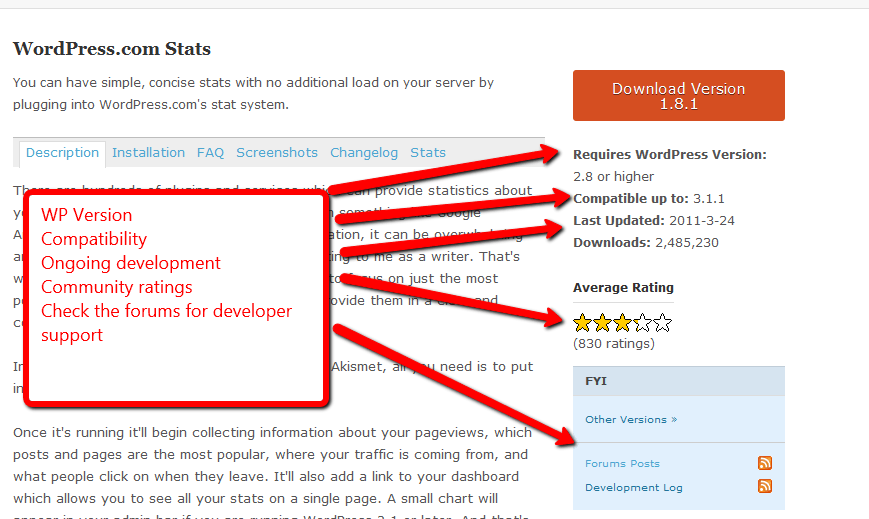
    On WordPress.org next to each plugin held in wordpress.org/extend/plugins you will see the moderation system,see the screen dump below to see how you can check on a plugins quality.


    Click to see full size image


    WordPress Version

    YOu can check to see if the plugin you are about to use is compatible with your current version of WordPress.  This is a good indicator of the on-going development of the plugin.  If the author is not keeping their plugin in line with new releases of WordPress this could be an issue.

    Around about WordPress 2.5 there was a fundamental change in the core WordPress files and I saw many plugins fail because their authors did not keep their plugins in line with WordPress releases.

    Last Updated

    If a plugin is not being actively developed and frequent updates uploaded to WordPress.org (be it bug fixes or new functionality).

    A plugin more than 12 months without an update should make you cautious.

    Number Of Downloads

    High quality plugins are downloaded more frequently as word of mouth marketing gets out about a plugin and more people opt to use  it.

    Average Rating

    This is the key community indicator in my opinion, this is the average rating of a plugin.  Visitors to WordPress.org leave a rating from 1-5 on the quality of that particular plugin

    On another note, please register and start leaving votes for your favourite and less than favourite plugins so the number of valid votes help to increase the voting population to give more accurate results.

    Forums

    The majority of plugins available to download from wp.org also have their own support forum on wp.org, visit the forum and get a feel for the support available. Ask yourself the following questions

    • Are replies timely
    • Are replies courteous, or are they brusque expecting a certain level of expertise
    • Are problem being fixed or do people come back complaining
    • Are requesting going without a reply/solution
    • Are there a large number of requests

    You can get a good feel for the quality of a plugin and it’s authors suport from teh support area.

    Authors Site Forum

    Sometimes you will see that plugin authors host their own support forums on their own sites, it is well worth this trouble to check this forum too.

    In the case of premium plugins this is crucial, you are paying for support as part of the ourchase price, check that the support is frequent and of good quality, are people waiting a long time for responses?

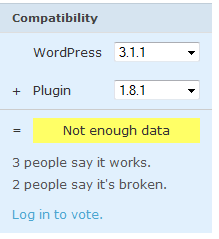
    Compatibility Voting

    A second way wordpres.org visitors can vote on a plugin is to leave a comment if a plugin works or is broken at a particular version.  Check to see if other people are experiencing problems at teh same WP version you are using.

    There is always more than one Solution

    There is always more than one plugin to fix a problem, if you find a plugin and any red flags are raised, move on and find another.

    Installing Over The Net

    If you install your plugins from your WordPress dashboard, you also have access to the modeation system, and you are also assuring your self that you are downloading code from WordPress.org.  If you search and install over the net, please use these processes to check the quality of the plugins you are about to install.

    Plugins Are Free

    Plugins are suppplied as is, and at no cost you should not expect support, but the majority of plugins are well supported by their authors.

    The WP Owners Club

    I have an entire module all about understanding plugins and a video demonstrtation of the concepts I talk about here.  The WP Owners club is my WordPress support and training community, you can get more details including how to join at my WP Owners Club Page.

    Image by andymangold

  • Jacqueline Stewart

    I asked Neil to look at an WordPress security problem that has been bugging me for quite a while and needed some help with.

    I was very impressed with the quick and professional help that I received and would not hesitate to recommend Neil to anyone needing help with their WordPress installation.

    He even pointed out and installed an excellent security plugin that I hadn’t heard of, which I think is great customer service.

    If I need any WordPress help, in the future, I will be contacting Neil again.

    Jacqueline Stewart

  • What Is WordPress Multisite?

    What Is WordPress Multisite?

    Did you know that WordPress has the ability to run multiple websites from one installation of WordPress? This type of configuration is called WordPress Multisite.

    In the past there were two versions of WordPress; standard WP that we all know and love and WordPress MU (Multi User) were distinct downloads.  With the release of WordPress 3.x those two versions were brought together.

    What Is Multisite?

    After a making a couple of configuration changes, you can make your current installation of WordPress manage multiple WordPress sites.  Each site will have it’s own content, users, plugins and themes.

    The benefit is you only have one installation of WordPress to manage and maintain, a brilliant time saver for owners of multiple WordPress sites.

    UPDATE June 2012: Video Tutoral

    Feel free to read the whole blog post, but I’ve created a free video tutorial to show you how to build a multisite installation.

    [leadplayer_vid id=”5051A07EB75E9″]

    Making A Single Site Multisite

    This post is an overview of multi site, so I’m not going to go into the technical details of configuring a network in this post (if there is enough demand I may setup a training session, leave a comment if you would like this type of session).

    There is a very good tutorial over at WordPress.org which will take you through the process.

    http://codex.wordpress.org/Create_A_Network

    Compatibility

    The first thing to consider before moving to MS is the question of compatibility.  Not all themes and plugins will work on Multisite.  Check with your theme and plugin suppliers to see if it is compatible first.  For example my favourite back plugin Backupbuddy it not MS compatible when I last checked,

    A great source of premium WordPress multisite training, plugins and themes is WPMUDEV.org (aff)

    A second compatibility consideration is your hosting.  WordPress MS works in a different way to normal WP, please check with your hosting supplier to see if they support the requirements from http://codex.wordpress.org/Create_A_Network

    More Difficult To Admin

    Administration of WP MS is a little more difficult, there is the concept of a network administrator, who installs and enabled themes, plugins and site wide settings, next level down there is a site admin who can then admin only aspects of their own site.

    This additional layer of administer has caused confusion in me, so be aware of this if you decide to go down this route.

    Easier to manage multiple sites

    This is the main benefit of MS, with one installation of WordPress, you can administer multiple WordPress sites.

    Install a plugin once, and it is available to all sites it you network activate it.

    Update WordPress once, and all of your sites are updated.

    Sub Directories or Subdomains

    When you install MS you get to control how your sites are configured. There are two options sub directories (the easiest method) or subdomains.

    Subdirectories install your sites in the following fashion yourdomain.com/site1 yourdomain.com.site2

    Sub domains create configurations like this site1.yourdomain.com site2.yourdomain.com.

    There are also domain mapping plugins available for MS, which allow you to map a site to an alternative domain, for example you could setup yourdomain.com/site1 to map to the domain name mysecondcomain.com.  This allows you to manage multiple domains from one install of WP.  This is brilliant if you run multiple domains and want to reduce your admin overhead.

    Are You Going Multisite

    Are you going multisite?  Just to recap you need more technical skills to manage a network, some of your plugins may not work, and lastly check out your hosting is compatible. Feel free to ask me any questions on multisite in the comments.