Neil Matthews

Blog

  • WordPress Multisite WorkShop

    WordPress Multisite WorkShop

    Did you know that WordPress has an in-built function which allows you to run multiple sites from one install of WordPress? This is called WordPress multisite.

    The beauty of this functionality is that you can have multiple sites, but only one set of WordPress code, plugins and themes. You can greatly reduce your maintenance burden if you have lots of sites update and administer.

    I’m running a webinar this week to introduce people to WordPress multisite. I will cover the following topics.

    • What Is Multisite
    • Building a network
    • Network models
    • Domain mapping
    • Managing your new sites
    • Network themes and plugins
    • The super admin user
    • Q & A

    This webinar is part of my members only WordPress training and support community the WP Owners Club.

    I would like to give you a 14 day free trial of the WP Owners Club so you can attend the multisite webinar and test drive the rest of the members benefits at no cost.

    For full details of the WP Owners Club including how to sign up for your free trial go to

    https://dev.neilmatthews.com/wp-owners-club

    I hope to see you in the club house.

  • Plugin Review: Serverbuddy

    Plugin Review: Serverbuddy

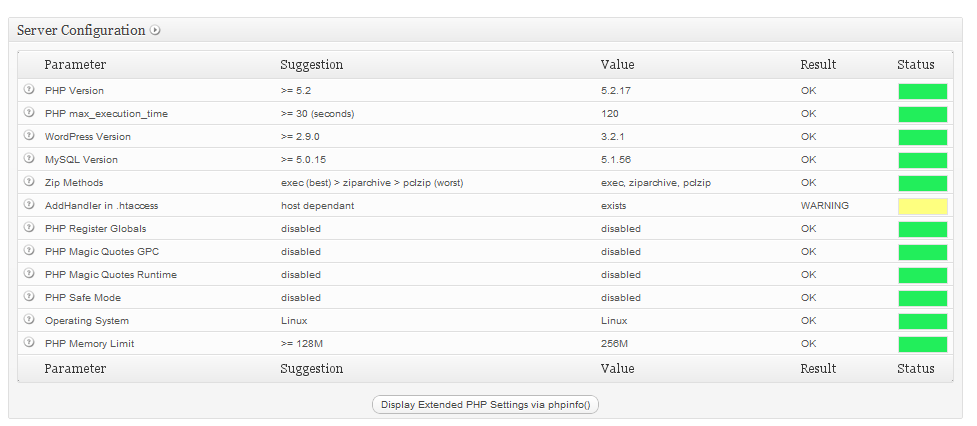
    One of my favourite techie plugins is serverbuddy.  This excellent little plugin collects a load of information from your hosting and WordPress config

    What Does It Do?

    Serverbuddy collects a series of server configurations from your hosting setup and makes them available for you to review them.

    This is very handy if you are troubleshooting setup configuration issues such as out of memory problems.

    It also gives you a dashboard and highlights any problematic configurations it finds, the dashboards and ranks them like a traffic light green being good, yellow being suspect and red as a problem (see screen dump).


    Click for full size image

    How I Use It

    I use it in a number of ways, here are the main things I do

    • Memory Usage and Available Memory
    • Quick security check on file permissions
    • Check The PHP config of a client site
    • Check the cron for upcoming items.

    Get A Copy Of ServerBuddy

    Serverbuddy is a free plugin from the premium plugin shop http://pluginbuddy.com, you can download the plugin from the WordPress.org plugin repository at:

    http://wordpress.org/extend/plugins/serverbuddy-by-pluginbuddy/

  • 14 Day Free Trial Of My WordPress Training and Support Community

    14 Day Free Trial Of My WordPress Training and Support Community

    I’m offering you the good readers of my site a 14 day free trial of my WordPress training and support community the WP Owners Club

    What Is The WP Owners Club

    The WP Owners Club is my members only training and support environment.  When you join the club you get access to my expertise in three ways

    1. Twice monthly live training webinars
    2. An ever growing library of self paced training video in the members area
    3. Access to me for ad-hoc support via the members only helpdesk

    It’s probably Easier If You Come And See

    People don’t quiet get how effective group coaching is until they give it a try on a webinar that’s why I have setup this 14 day free trial.

    Hop Over And Sign Up For Your Trial

    Full details of the community including how to sign up can be seen at

    https://dev.neilmatthews.com/wp-owners-club

    I hope to see you in the club house.

    Image by fragiletender

  • WordPress SEO

    WordPress SEO

    Course Details

    In this course I will show you how to make your site as friendly as possible for the search engines to help get more people to your site.

    All 0f the techniques I show are white hat, and will not get your site barred.

    (more…)

  • WordPress SEO Webinar Replay

    WordPress SEO Webinar Replay

    Thanks to everyone who joined me yesterday on my WordPress SEO, the questions and the interaction made it a great event. I hoped you learned something new and will be implementing that on your site.

    Here is a replay of the webinar if you could not attend the live event or if you want to review the session. I will keep this replay up until 12pm Sunday before moving it into the members only area in the WP Owners Club.

    Something I missed was details of the sitemap, the WordPress SEO by Yoast plugin uses. It does not create a file called sitemap.xml it creates a file called sitemap_index.xml, see this post for full details http://yoast.com/xml-sitemap-in-the-wordpress-seo-plugin/

    Video Replay

    SORRY YOU MISSED THE DEADLINE THE REPLAY HAS BEEN MOVED INTO THE MEMBERS AREA, LEARN HOW TO GET A 14 DAY FREE TRIAL AND SEE THE WEBINAR AT

    wpdude.com/wp-owners-club

  • Mary Beth Gaiarin -Gaiarin.com

    Neil does good work, is fast and responsive. He understood my problem and fixed it. I highly recommend him!

    Mary Beth Gaiarin -Gaiarin.com

  • WordPress How To: Add An Image

    WordPress How To: Add An Image

    WordPress How To Add An Image

    In this tutorial I will show you how to add an image into a WordPress post or page.

    Download the how to tutorial  WordPress How To: Add An Image

    What Are My WordPress How To Posts?

    I am building a library of small how to tutorials to solve common WordPress issues, check out the library of how to tutorials.

    If you need a particular how to just drop me a line using the contact form above.

    Pictures Tell A Thousand Words

    Adding images into your blog posts and pages adds a huge visual impact to your text only post or pages.  Images can be used to add a graphic into your post or   a product shot or one of a hundred different applications.

    The following screen shots show you how to add images into a post

    Download the how to tutorial  WordPress How To: Add An Image


  • Test Drive My Coaching Program

    Test Drive My Coaching Program

    I’ve come to the conclusion that it is very hard to write a ales page for WordPress group coaching so I think the easiest way to explain what it is, is to invite you to a free coaching session.

    Join A coaching Session For Free

    I am inviting all readers of wpdude to attend a free coaching session to get a feel for what I do inside of the WP Owners Club.

    This Months Free Coaching

    This months free coaching is all about configuring your site for the search engines and is called the WordPress SEO Workshop.

    Join The Coaching

    For full details of the coaching including how to join the session check out this page.

    wpdude.com/group-coaching

    Image by 34128007 Care of Wells Fargo Illinois for the Calamity Jane fans.

  • Hosting Video For WordPress Use

    Hosting Video For WordPress Use

    This is the second part of a three part series on using video with WordPress.  In part one I talked about Using Video With WordPress. Why you should use video and the benefits it gives.

    In this part I would like to talk about where to host your videos.

    Videos Are Big

    Videos pack a lot of data into their files and as a result they are huge.  You need to give extra special consideration to where to host these very large files.

    Slow loading or juddery (is that a real word) videos are very annoying to watch, and your quality video content could be impacted by poor service from your hosting choice and turn off your viewers.

    Host It Locally

    You could upload your videos to your local hosting account and serve them up from there, but if you have a limited use hosting service you may use up all of your space and bandwidth, worse you could incur huge overuse charges,  please check your hosting agreement before you host video files locally.

    The extra bandwidth and resource you use could also slow down your entire site, so hosting your video files locally is not recommended.

    Video Services

    There are a number of video hosting services out there.  A far better idea is to upload your video to one of them and let them take the bandwidth hit and resource usage.  Let them stream your video smoothly, it’s what they do, their hardware is design to cache and play video correctly.

    Here are some of the major video services out there.

    YouTube – The big player in the video hosting world, YouTube is a great palce to host your videos.  It’s free but the downside is that you can only have videos of up to 10 minutes, if you want longer videos, you need to look at something else.

    Viddler & Vimeo– these are premium video hosting services, with a free option for shorter videos.  This may be a good altenative to YouTube if you want longer videos, but you will have to pay for the subscription.

    Amazon S3 – I bet you didn’t know the online retailer Amazon also sells storage and hosting solutions.  I use Amazon S3 to host my videos for the WP Owners Club.  These videos are typically up to an hour long so YouTube is no good to me, so I have opted for them.  It’s a premium service that you pay by usage rather than a subscription.  I host huge files and pay a fraction of the price for a viddler or vimeo account.

    Keep Copies

    If you are hosting your videos on third party sites I always recommend that you keep copies of your content.  If you break T & Cs you may find your account closed down and your videos lost to the world.

    Next Up

    The next post in the series will show you the plugins and tricks I use to add video to WordPres posts, pages and into your theme files.

    Image by adpowers

  • Using Video On WordPress

    Using Video On WordPress

    In this three part series I will be talking about using video on your WordPress site.

    In part one I will talk about why you should use video on your site, in part two I will talk about the hosting considerations of video and in the lat part I will show you how to add videos to your posts pages and theme.

    Why Use Video?

    There are a number of reasons why you should use video on your site, including:

    • If a picture tells a thousand words, then a video is the unabridged version of War and Peace, video enables you to pack so much information so densely into a short format.
    • A large percentage of our communication is none-verbal, when you appear on a “talking head” video, people can clue into your nonverbal communication and your message can be conveyed much more clearly.
    • The ability to show someone how to do something should never be underestimated, here’s an example, try writing a text only blog post on how to tie your shoe laces. No images or videos, text only description of looping and swooping your shoe laces.  Not an easy thing, now consider a short thirty second video that demonstrates the process and you get an idea of the power of video.
    • Video can be your unique selling point.  If everyone in your niche is creating text only content, and you start a vlog (video blog) you are going to immediately differentiate yourself from your competition.
    • It’s easier to stand out with video.  There are not as many videos as there are text pages, so search engine ranking is not as difficult as text only rankings.
    • It enables people to put a face to a site, this is an incredibly powerful trust tool if you are selling good or services over the internet.

    Types Of Video

    There are three main types of video you can add to your WordPress site.

    The Talking Head

    This is when you or another presenter talks at the camera to present your content, think of the classic scenario of a news show, where the talking heads tell us the days news.

    Behind The Camera

    This is when you create a video shooting footage of content and provide a voice over to annotate the footage, think of a wildlife show or a sports event with a commentator

    The Screencast

    Record the content of your computer screen to demonstrate some process of record a presentation

    Other Peoples Videos.

    I have talked about the three types of video you could create for yourself, but you can also use other people’s content to enhance your own site.  YouTube and the other video hosting sites are a treasure trove of content, much of which you can use and embed on your own site.

    I used to run a site called mountainboard.net, a magazine style site for the mountainboard community (think of the love child of a snowboard and a skateboard).  As a feature at the top of my site I would add a weekly video from YouTube.

    I was curating content from YouTube with full attribution and presenting it to my readers in an easy to view format. Curating is the new black apparently, others people’s content is king (but don’t get me started on that one).

    It Doesn’t Have To Be Broadcast Quality

    Don’t get stuck up on broadcast quality content.  People are not expecting 3D/HD Hollywood blockbuster from your blog, they just want content in a

    This means a web cam, a cheap microphone or a few hundred dollars on a flipcam.

    Throw into the mix video editing software like camtasia and you have recorded and edited together a video you can add to your blog.  More about the hosting options in the next post.

    Video As A Product

    Video is not only free content, it can be a very powerful product you can sell from your site.

    Many people are creating information products using video which they can sell and people can download or stream from their sites.  The density of content and the relatively easy way in which it can be produced in contrast to an e-book for example makes it an ideal tool for those of you out there who procrastinate over writing a 100 page e-book.

    The Success Of YouTube

    YouTube is one of the busiest sites on the net, this proves the popularity of on-line video.  I think all WordPress site owners should be embracing multimedia in their content, a combination of text, images and videos help to get your message out much more effectively.

    Video Works; My Examples

    I talk from personal experience that video works, here are my examples.

    My Services Sales Page

    People come to me cold when they are hiring me for my WordPress technical support services. They may not have hired someone to work on their site before and I wanted to show people how my services work.

    I added a talking heads video of me explaining how working with me operates.  I give potential customers a chance to see me “in person” and let them know there is a real person at the other end of the site. I explain what I will need from them, what the expected turn around will be and how my payment process works.

    The result, I saw a definite increase in teh number of quote requests I receive, I put this down to establishing trust with people through the video.

    It’s not great quality, the sounds not great it’s jsut me talking into my webcam, but it puts a human face into the equation and we as humans are much happier dealing with people than yellow highlighted sales letters

    My Coaching

    Part of the service I offer my group coaching clients in the WP Owners Club is a library of recorded video tutorials.   These are screencasts from my live webinar events.  I take the recording, and run it through an editing process to add zooms and close ups to help highlight the presentation and demonstrations I am giving about WordPress.

    This give my coaching clients a permanent record of the live events they attended, along with an ability to review their trainings in their own time.

    I have found that video is an excellent coaching tool, far more effective than text only or screendumps.

    Next Up

    Next up in this series I will talk about hosting your videos.

    Lets talk about your plans to use video in the comments, are you using video yet?  Is it in your plans, let me know.

  • Case Study: Finding Out How Much Memory Is Available to WordPress

    Case Study: Finding Out How Much Memory Is Available to WordPress

    A number of projects we work on as part of our WordPress Technical Support service we find that there is not enough memory to run WordPress correctly.  Your site will display out of memory errors and stop working correctly.

    Hosting Companies Are Mean By Default

    It has been my experience that hosting companies will be mean with their memory allocation by default.  It is not uncommon for hosting companies to give you 32mb of memory.

    This may be fine for a static site, but throw in a couple of complex plugins and your site will very quickly run out of memory.

    Testing Memory Limit

    The quickest way to test your memory limit is to run the PHP command phpinfo().  Please click on the link to download a zipped copy of phpinfo.php which will run the command for you.

    Download phpinfo.zip>>

    Upload the unzipped php file to the root of your site and run http://yourdomain.com/phpinfo.php.  You will see a screen filled with various PHP config variables, the one we are looking for is memory_limit.  You will see your current memory value, as you can see from my example, it is 32M (32 megabytes).

    NB: This exposes a lot of your site config information which could be useful to a hacker so delete this file once you’re done.

    Increasing Memory

    This will really depend upon your hosting company, but many allow you to edit the memory value, look for a file called php.ini on your site, edit and increase the memory_limit to 48 or 64M and see if that stop your out of memory issues.

    If you are not happy editing your config files I would refer this to your hosting company, the majority are more than happy to help you do this.

    Image by brainblogger

  • WordPress How To: Find Page ID

    WordPress How To: Find Page ID

    WordPress How To: Find Page ID

    In this post I will show you how to find the page ID of a WordPress Page.

    What Are My WordPress How To Posts?

    I am building a library of small how to tutorials to solve common WordPress issues, check out the library of how to tutorials.

    If you need a particular how to just drop me a line using the contact form above.

    Why Would I need A Page ID?

    Pages IDs are used by a number of themes to control postition of co ntent, or to control which pages appear in the navigation.

    How To Find A WordPress Page ID.

    Use the following process to find your desired page ID.

    1. Edit your page page ->edit
    2. Open Up The Visual editor
    3. The Page ID will be shown in the URL of the page in question.
    4. See the image below for details on finding the page ID.
    Click on image for full size view

    Image by horiavarlan