They have looked into their cavernous store of data and deducted that more and more web searches are done from mobile devices.
They are threatening to penalise websites that do not have an optimised mobile site!
Are you mobile enough for Google?
Google Webmaster Errors
A number of my clients have received warnign messages from Google along these lines.
Google systems have tested 67 pages from your site and found that 100% of them have critical mobile usability errors. The errors on these 67 pages severely affect how mobile users are able to experience your website. These pages will not be seen as mobile-friendly by Google Search, and will therefore be displayed and ranked appropriately for smartphone users.
I think the telling statement is that you will be “ranked appropriately” , get a decent mobile site or have the fawcet of Google juice turned off.
How To Tell If You Are Mobile Enough For Google
The easiest way to check you are mobile friendly is to use Google mobile friendly test
You need to make your site responsive. This means your site will resize to fit a mobile screen.
There are three main option that I can see to fix your site if it fails.
1) Re-Code Your Existing Theme
The first and most expensive option is to hire a developer to recode your theme and make it responsive.
Pros
You will get a mobile match for your existing site
You will get exactly the theme and layout you desire.
Cons
This is very much the most expensive option.
It will take some time to code and test, there are rumours that Google are implementing their penalty in April.
2) Buy A New Responsive Theme
Go to on of the theme markets such as themeforest.net and buy a new responsive theme. You can demo most themes so enter the demo URL into the Google tester URL to make sure it passes their test. The vast majority of new themes are responsive already.
Pros
Much cheaper than custom coding, expect to pay less than $100
Cons
You will need to setup a new premium theme, and change the existing look of your site. Depending upon the theme some setups can be complex.
3) Install One of The Mobile Ready Plugins
The quickest route to a mobile friendly website and the route I have suggested to my clients who have been impacted,is to install one of the mobile theme plugins. These plugins detect when a site visitor is from a mobile device and show a different mobile ready theme.
Here are some of the plugins that can do this work:
Quick, about an hours work to install and configure.
Cheap, from free to approx $59 for a premium version.
Cons
You are limited to the look and feel the plugins provide. These themes are pre-built, you can change colours and add logos but your design options are limited.
Further Reading
Here is Google’s very own documentation on configuring a mobile ready WordPress site.
As we start to consume more and more of our content from phones, we need to make content readable and usable from small screens. Google know this and that is why they are penalising people without responsive sites. I strongly recommend you embrace mobile browsing.
We can implement a premium theme (option 2) or install a mobile plugin (option 3) as one of our $99 jobs if you need help.
We are currently going through an evolution here at WP Dude.
We are changing from being a single Freelancer (me Neil ) to a firm of WordPress developers. The tools we used to get us to our current position are not going to take us where we need to be.
In this post I want to talk about how we are using the Groove Helpdesk Software to grow our startup business.
Growth Issue
We have been suffering growth issues, and I’m completely to blame for this as a bit of a control freak.
All client correspondence came through me and was responded to by me.
All feedback from my team to the end client again came through me and was forwarded to them. I was the classical pinch in the hour glass.
The results were; lost calls from clients, slow responses, a long time to send quotes (again often lost) and a general lowering of quality in customer support.
It was causing me lots of stress and stopping the growth of my business. I needed to stop being the control freak, trust my team with client correspondence and get myself out of the loop.
Mindset Change & Business Model Change
I’m in startup mode now, I’m not thinking like a freelancer I’m thinking about someone growing a business and team. I’m trying to get “off the tools” as we say in the UK and be a manger not a developers (but you’ll know I’m not doing a good job if you have raised a call with us lately).
Instead of the old agency model of quote => acceptance => deposit => service delivery => QA => final invoice & project close, I’m doing something different.
I analysed what we do and found that 80% of our work was small one off projects. Smaller tasks such as fix a crash, install a plugin or theme, tweak the css of a theme, the list goes on.
So instead of quoting number of hours I’m doing fixed price per job project (see wpdude.com/hire-wpdude for details). We will not be taking on complete site development jobs or plugin development jobs any more, just small jobs for existing sites.
We will be doing lots of small jobs, so I was looking for a tool to match that model but one that also got me out of the way.
Tools I tried
Over the years I’ve tried numerous tools on the market.
I love and still love Basecamp, but that’s for big ongoing projects, not the small half day jobs we are specialising in. It is too cumbersomeness to add and update individual projects for my clients when you job is done in a few hours.
I tried Trello. which works really well with my project flow, but dialling in clients means them creating an account and joining Trello, I’m not going to get buy in from people for that. I’m still using Trello for my internal business development tasks.
I tried a number of other help desk solutions
Zendesk – too bulky and expensive
Helpscout – excellent and very very similar to Groove, but I kept losing tickets, that might just have been me mis-using the tool, but if I’m losing tickets that makes me unhappy
Freshdesk – really really good, but heavy on features I don’t need such as gamification and more expensive than Groove.
Rhinosupport – Good, but I don’t get a good vibe about their long term future (sorry guys, stick to Wishlist Member)
So after numerous trials and searches I eventually found Groove.
What I Need From My Support Tool
I had a picture in my mind of what I needed
Integration with Gravity forms so I could collect client requests but keep my other Gravity form integrations with Mailchimp and Freshbooks.
Simple for the client, no signups no logins, I wanted something as simple as email.
The canned responses I have in gmail available to all the team.
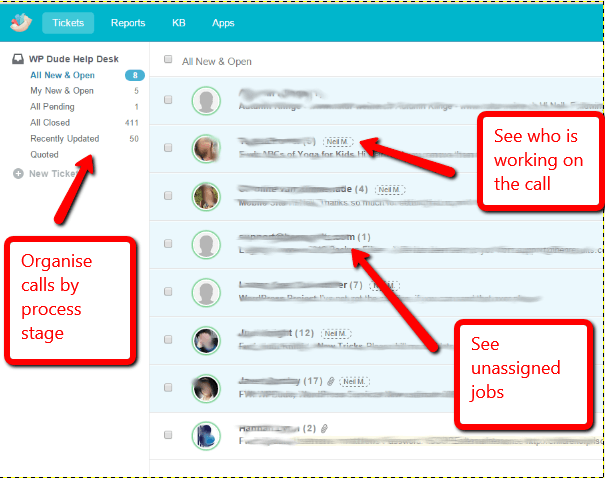
A view of calls as they move through our process of estimates, service delivery, QA and close down of projects.
How We Are Using Groove
Groove obviously met our requirements so I thought I would give you a feel for what we are doing.
Click for full size image
Canned Responses
Canned responses in Groove are called common replies and they are really speeding up how the team deals with your requests.
The beauty of canned responses is they allow the control freak in me to set the tone of our replies to you the end client but allows the team to communicate with the client they are working with and remove me as the bottleneck.
Some of the canned resonses I’m using are for:
Getting login details to WordPress sites
Letting you know a team member is starting work on your project
End of day update – this is an excellent thing for us and our clients. If a project runs over onto the next day, we can send a quick canned response saying what we have done today and what will be done tomorrow. Consider that we have team members in Europe and Asia and clients in US, Canada, Europe, Japan, Australia and New Zealand you can see how time zones get messy so a status update at end of play is crucial.
Project complete and asking for client review and feedback
Groove has a simple but very effective rules engine to automate tickets.
I’ve used rules engines before in Zendesk but found them cumbersome, Groove’s solution seems far simpler to me.
An example of a rule we are running is one where we move tickets into a folder if they originate from Wordfence, the security plugin we use, and are saying plugins need an update. We do plugin updates daily anyway for our maintance clients so we don’t need a ticket for each plugin that requires an update so we mark those as closed.
Feedback
As other people do the service delivery in my business my finder is not on the pulse of feedback on the quality of the work done and if a client is happy or not. When I was fielding the emails I knew when a client was unhappy.
Groove has a rating system, I’ll be using that more and more to make sure we are delivery the best service we can.
Integrations
Like all SaaS products Groove cannot sit alone and all companies will want to integrate with other products.
Groove has a suite of integrations, the only one I’m using at the moment is an integration with Mailchimp, where I can see what mailing lists a client is one.
Zapier
The really useful tool for me is Groove’s integration with Zapier. I’ve written about Zapier in depth here.
The way I’m using Zapier and Groove is to capture requests from my forms using Gravity Forms, I then push a full client request into Zapier with all the appropriate fields pre-filled – excellent.
I’m also pushing notifications of accepted quotes from my older jobs into Groove so I can action pending jobs.
Metrics To Measure Growth
Something I’m very concerned about as we grow is speed of service. That’s always something I have strived to do. I want people to talk about how quickly we solved their problems.
When I was “on the tools” as a solo freelancer I would juggle multiple projects so people could see fast results.
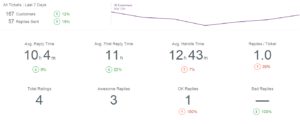
What I will be doing is using the reporting tools in Groove and setting up some KPIs for internal performance. I’m thinking I can use Average time to first response and Average handle time (the time before the ticket is closed) to get a feel for how longs things are taking.
If those KPIs begin to drop and call volume is going up it’s time to recruit again.
Click for a full size image
Cost
I’ve touched on other help desks being too expensive, but Groove seems just right at $15 per agents where Freshdesk starts at that cost and Zendesk is mega bucks.
Groove don’t have an affiliate scheme so I don’t get anything for sharing this story
Most Importantly Why It’s Good For My Clients
They don’t know it’s there. It just looks like email to them.
They don’t login, they don’t signup.
All they get is a better customer service experience.
Nullam dictum felis eu pede mollis pretium. Integer tincidunt. Cras dapibus. Vivamus elementum semper nisi. Aenean vulputate eleifend tellus. Aenean leo ligula, porttitor eu, consequat vitae, eleifend ac, enim. Aliquam lorem ante, dapibus in, viverra quis, feugiat a, tellus.
Lorem ipsum dolor sit amet, consectetur adipiscing elit. Morbi sagittis, sem quis lacinia faucibus, orci ipsum gravida tortor, vel interdum mi sapien ut justo. Nulla varius consequat magna, id molestie ipsum volutpat quis. Suspendisse consectetur fringilla luctus. Fusce id mi diam, non ornare orci. Pellentesque ipsum erat, facilisis ut venenatis eu, sodales vel dolor.
Nullam dictum felis eu pede mollis pretium. Integer tincidunt. Cras dapibus. Vivamus elementum semper nisi. Aenean vulputate eleifend tellus. Aenean leo ligula, porttitor eu, consequat vitae, eleifend ac, enim. Aliquam lorem ante, dapibus in, viverra quis, feugiat a, tellus.
One of my clients came to me with an interesting issue. She was embedding ads into her blog posts. they were wide ads 728 x 9 px and these looked great on desktop devices, but terrible on mobile devices. Most of the ad was being cut off.
She wanted a way to easily embed both mobile and desktop versions of her ads in her posts.
You Can Code it up
It’s a relatively simple job for a code monkey like me to write some scripts to do this, WordPress has a built-in function call wp_is_mobile that does exactly that.
My client wanted to do this easily without coding so following my mantra of “there’s always a plugin to do that” I went hunting.
What this clever little plugin does is to provide a series of short codes that let you show or hide content based upon the device a user is using .
You can target phones, desktops or tablets. You can target operating systems like Android, iOS or Windows mobile. You can also have combinations of them too.
How It works
You add a short code into your post wrapping the content you want to change, I’m not using the plugin on my site but here is an example
[phone]
This text would be displayed on phones
[/phone]
[notphone]
This text would be displayed on desktops and tablets
[/notphone]
Other Short Code Available
As I have mentioned there were other combinations available, here is a list of what you can do.
[phone]Put content here that you only want displayed on Phones NOT Tablets or Desktops[/phone]
[tablet]Put content here that you only want displayed on Tablets NOT Phones or Desktops[/tablet]
[device]Put content here that you only want displayed on Phones OR Tablets NOT Desktops[/device]
[notphone]Put content here that you only want displayed on Tablets OR Desktops NOT Phones[/notphone]
[nottab]Put content here that you only want displayed on Phones OR Desktops NOT Tablets[/nottab]
[notdevice]Put content here that you only want displayed on Desktops NOT Phones OR Tablets[/notdevice]
[ios]Put content here that you only want displayed on iOS devices[/ios]
[iPhone]Put content here, that you only want displayed on iPhones[/iPhone]
[iPad]Put content here, that you only want displayed on iPads[/iPad]
[android]Put content here, that you only want displayed on Android devices[/android]
[windowsmobile]Put content here, that you only want displayed on Windows Mobile devices[/windowsmobile]
Not Just For Ads
You can wrap any type of content in these short codes, for example a mobile friendly contact form as opposed to a long form that would be difficult to fill in on a phone.
You could have a click to call button that only appears on phones that would be useless on desktop.
Outro
I love the fact that the WordPress community is developing solutions for nearly every issue there is and then distributing it as a free plugin.
90% of the time building and maintaining a WordPress site is very easy, it’s the final 10% we are here for.
One of my maintenance clients was having an issue with a scraper stealing his content and
posting it on their site as original content without attribution, he asked me via email how to stop scrapers stealing his content.
What Is A Scraper?
A scraper is one of the dark denizens of the internet along with trolls and spammers.
Scrapers steal other people’s content and add it to their own site passing it off as original content, and usually monetise it in some way.
They might sell it as original guest post content or they may own the target site and wrap it in ads or sell products or services.
Steps To Stopping A Scraper
The first step is to identify that you are being scraped.
One good way is to setup a Google alert for you content. You can go this at google.com/alerts. With google alerts you can get an email alert if certain things appear on the net. Add an alert for something you have in your content such as a post title of your most popular post and you will be alerted if a scraper takes your content without asking.
Once you have a hit record the URL of the offending site
Look at your logs. In your hosting account there will be an option to look at your webserver logs, search for referrers of the offending URLs and you will be able to find the IP address of the scrapers. Record these for the next step.
Plugins To Stop Them
RSS Footer – the majority of scrapers will grab your content with one of the autoblogging plugins out there. This will grab your rss feed and add it to their site automatically. I personally use rss footer on my site and add an image link advert back to my hire me page so the scraper becomes my unpaid advertiser. But you can use this plugin to add a footer to your rss posts so people know it’s from your site.
WP Ban – once you know a scrapers IP address or referral site, you can add them to wp-ban a plugin that locks particular IP addresses out of your site and stops them scraping your content.
.htaccess – if you are more tech savvy you can do exactly the same thing by adding the following statement.
order allow,deny
deny from 192.168.44.201
deny from 224.39.163.12
deny from 172.16.7.92
allow from all
Getting Scraped Content Removed From The Internet
Probably the best way to get scraped content removed is to send a DCMA notice to the offender.
If that doesn’t work approach the hosting company and get them to remove it. Remember you have copyright of all your content, here is my hosting companies policy https://www.bluehost.com/copyright-claims-policy
Please note if the offender is outside of your Jurisdiction you probably won’t get remedy.
My Personal View – Let It Go
In the words of Elsa from Disney’s Frozen, I let it go … (an apology to any parents of Girls from the age of 0-10 you’ve heard enough of this already 🙂 )
The effort of monitoring for and chasing down people who are scraping your content is just too much, I’ve already got too many things on my plate and policing the internet is not one I want to take on.
Adopt the mindset that it’s a compliment, people only steal good content and that the massive heads at Google will be able to spot a real authority site rather than a shoddy pasted together one. They will know when article X was published and when article X+scrape is indexes I’m sure they can see through it.
Wrap Up
This kind of email consulting / help is something I offer to all my maintenance clients, so not only are you getting backups, updates security and monitoring, you also get a WordPress expert on your team for consults via email at a very reasonable fee.
Photo Credit: Tjook via Compfightcc
I’ve been using a plugin that is new to me called Plugin Organizer to speed up slow loading client sites and my own sites.
I just wanted to share this knowledge with you, if you have a slow loading site.
What Is Plugin Organizer?
Plugin organizer is a plugin (no Sh!t Sherlock) that allows you to control where and when plugin are loaded.
It allows you to control the order plugins are loaded, load plugins only for particular post types or not load a plugin on particular URLs.
I’m writing a couple of posts to cover what it does, but in this on I want to look at excluding plugins to speed up page load times.
Using Plugin Organizer to Speed Up Sites
The way WordPress normally works is to load plugin code for a plugin across all pages, the more plugin code loaded, the longer a page takes to render in a web browser.
Why not stop plugins loading where they are not required. Less plugin code = faster page load time.
Finding What Plugins Are Loading On Your Page
So the next challenge is to find out what plugins are loading on particular pages.
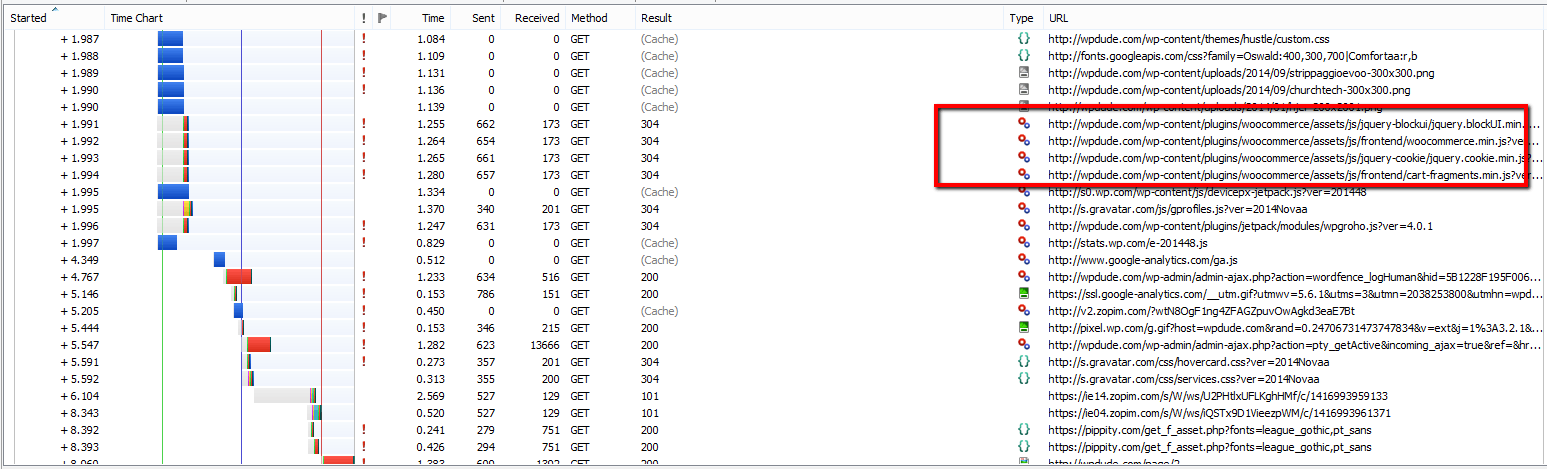
There are lots of in-browser add-ons that allow you to see what plugins are being loaded, but my favourite is httpwatch.com. You only need the free version BTW.
Once loaded into your browser you can record what scripts and components are being loaded. Use this list and search for anything under wp-content/plugins/{PLUGIN-NAME} and you will see plugin code. Here is a screen dump from my home page with some plugin code highlighted.
Click for full size image
Example
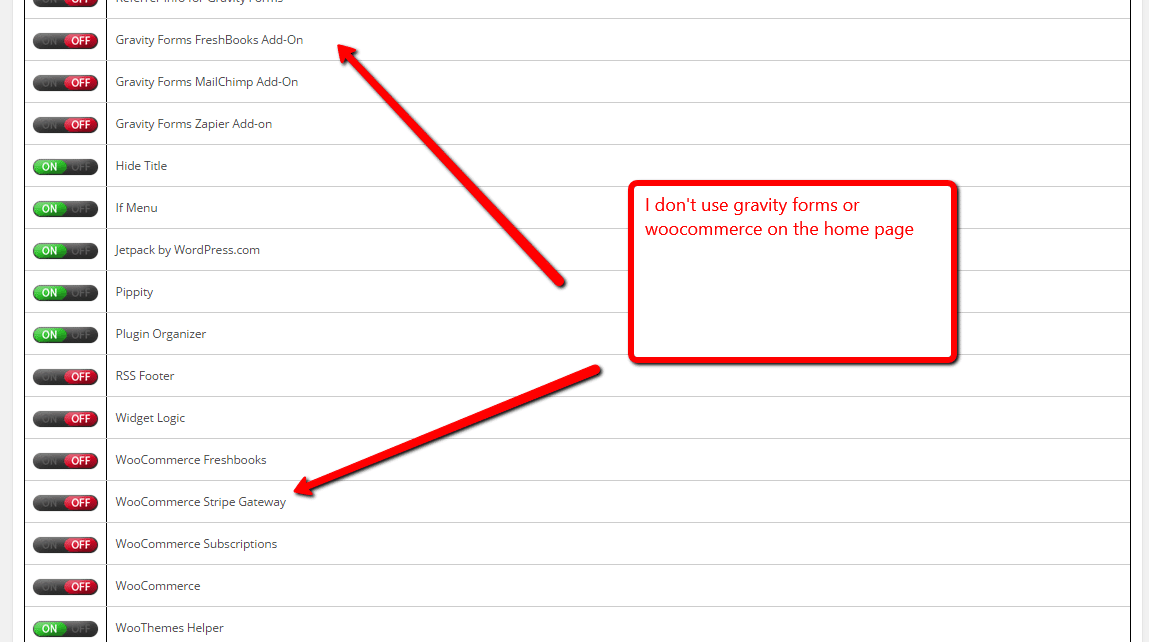
On my site I use Woocommerce, but I don’t need Woocommerce to load on my main pages such as home, about hire us etc. So I set about excluding this plugin from certain URLs.
Step One – Install the plugin
Step Two – Enable selective plugin loading, go to Plugin Organizer -> Settings, and check the box Enable -> Selective Plugin Loading:
Step Three – Add a plugin filter, go to Plugin Organizer -> Plugin Filter, add a new filter, give it a name, set the page URL and deselect the plugins from the list. I was able to disable a large number for my home page
Click for full size image
Test Test Test
We are fundamentally changing the way plugins work with these changes so this knowledge comes with a caveat to test, test and test again to make sure you posts and pages retain the functionality you need after excluding plugins.
Wrap Up
Next up I’ll show you another cool way to use plugin organizer when you get a plugin clash.
If you are looking to speed up your WordPress site, I have a performance tuning package, why not get a no obligation quote for my fixed price performacne tunining package
Hat tip to David Risley for alerting me to Plugin Organiser on this post
In this case study I want to show you how I created a set of widgets for mobile devices and a different set for desktop and tablet devices. Building widgets for mobile devices is not too hard once you know the procedure.
Background
We all know that mobile device browsing is growing at a huge rate, and that your website had better support mobile devices. It is incredibly important that your site has a good responsive theme, but sometimes settings for a desktop site aren’t quiet right on the responsive side of things.
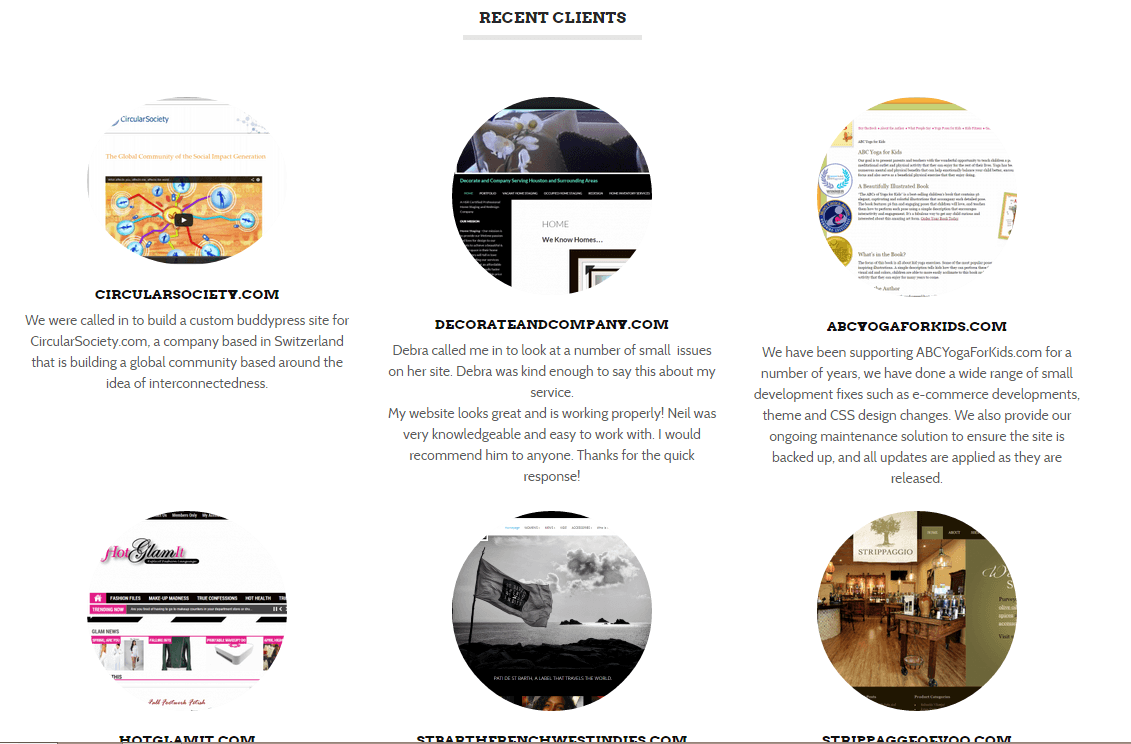
This case study is for my own site wpdude.com, on the home page I have a series of widgets, I use them to show my client portfolio and my recent blog posts. I’ve got nine random client listings, which looks great on a desktop or tablet.
Click for full size image
You can very easily scroll down through the nine items with a wheeled mouse, the problem arises when I look at my site on my phone, I’m scrolling through acres of screen real estate to get past nine testimonials, so my problem was how to limit that number on mobile phones only and keep that valuable social proof for larger screens.
Enter Widget Logic
I’ve written about the great plugin widget login in this post, but in summary widget logic allows you to apply logical conditions to sidebar or in my case home page widgets and only show those widgets when the condition is met.
If only there was a condition that allows me to show only when a device is mobile …
Enter WP_IS_MOBILE()
There is a function inside of WordPress called wp_is_mobile(), what this does is examine the user agent of the device browsing a website and will return TRUE or FALSE depending upon whether the device is a mobile one.
The user agent is a piece of data all browser send to a website, so you desktop will send the fact you are using Google chrome from windows machines, your Mac will say safari, and your phone does exactly the same. This is how WordPress knows there is a phone browsing your site.
WP_IS_MOBILE() defines mobile devices as phones only, larger screen tablets will return FALSE.
What I Did
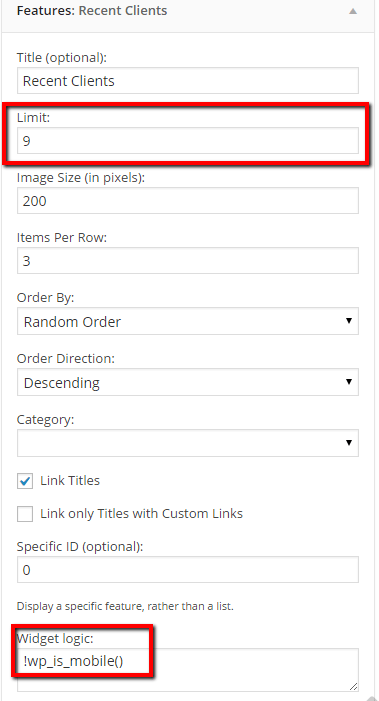
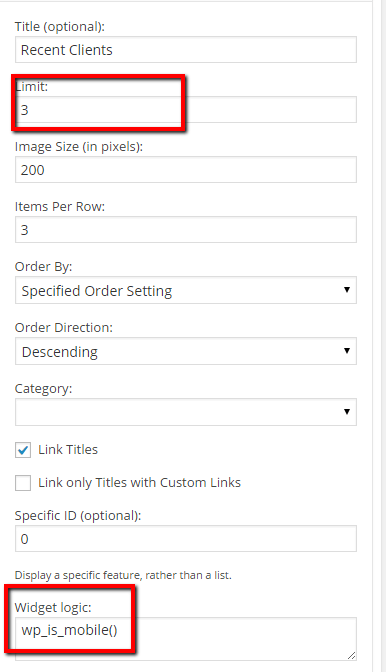
I created two widgets to show testimonials, one had widget logic set to !wp_is_mobile() and the other set to wp_is_mobile(), it might not be immediately apparent what the difference is, but adding ! translates to IS NOT mobile. Here are screen dumps of both widgets
click for full size imageClick for full size image
If you check my site on a mobile device you will only see three featured clients. What is happening is that the wp_is_mobile is returning TRUE so that widget is displayed.
Wrap Up
Mobile is incredibly important, ignore configuring your site for optimal mobile browsing and you risk loosing potential customers for your products or services.
Photo Credit: rmtx via Compfightcc
I’m a huge fan of automating those tedious repetitive tasks that are part of everyday business. If I don’t automate them, they will get stockpiled and sometimes not done at all, my brain is hard wired to look for the shiny new object and repetitive tasks are a real problem with me.
What’s that got to do with WordPress I hear you cry, what is Neil spouting on about …
There’s A Cool Service That Lets You Automate almost Anything (Digitally Anyway)
I’ve been using a great software as a service tool called Zapier that lets me automated all those tedious little data entry jobs between the various software tools I use.
It has automated many of the tasks that bore me stupid, but are an essential part of running a business, the type of thin that takes up lots of our time by stealth.
Enough of that onto my Zapier review.
How It Works
Once you sign up for Zapier you can create something called a zap, a zap is an integration between two services.
Service A sends it’s data into the zap, and the zap then sends that same data automatically to service B so you don’t have to retype that data.
No data is lost, and no effort is expended at your end. The robots are taking over the world at last and our jobs are at stake :).
Examples
I’m always a fan of an example to help understanding. Here is an example of a Zap I’m using.
When you sign up for my maintenance service you create a recurring subscription in Paypal. I want that data to be sent to my accounting service Freshbooks.
I’ve created a zap so that when a payment is processed for me by Paypal that data is sent into zapier. That data is then processed and sent to Freshbooks as a new invoice. It adds a new customer, the invoice amount and then marks it as paid, as the money is already in my PayPal account.
The invoice is added into the sales section of my accounting package and the tax man is kept happy, all automatically, all without me lifting a finger to my keyboard.
Many of my paypal invoices are already added to freshbooks so part of the zap allows to me filter what is sent to Freshbooks. I check to see if the item description in paypal matches a certain string and only then data is sent to my accounts.
Loads Of Integration Services
At the time of writing there are 300+ apps that are integrated with Zapier, There are a vast array of service types covered:
The pricing model is based upon how many zaps you create and how often that zap is called per month . It starts at $0 and goes up to $125 per month for the big package, here is the pricing page https://zapier.com/app/pricing
The free entry level pricing option is a bit of a con, only certain services are available on the free plan, Paypal for example is not included boo to Zapier on that little stunt.
In My Day We Had To Program Our Own Integrations
Back in the day * we would have to program our own integrations using the API or application programming interface of each service. I’ve done this for my own business and clients, and it costs a lot in time and effort to code up robust solutions like this.
To me $20 per month is a huge saving in programming time and manually data entry time.
*circa 2012
Wrap Up
Running a small business as a solopreneur is all about running lean and keeping your operation as stream lined as possible, automating small repetitive tasks is one of my favourite ways to do this and zapier.com provides a great solution to those data integration problems.
If you need help bringing your disparate systems together why not get a no obligation quote.
I was working on the site of one of my regular maintenance clients, his site was running very slowly, both on the front end and the back end dashboard.
I was also unable to run a backup correctly so I began to dig a little deeper to keep the site on-line. This is when I found the site was not cleaning up comment spam correctly.
Dodgy Database
It’s long been my experience that if the dashboard of a WordPress site is running slowly, there is probably an issue with the database so that’s where I began my investigation.
I opened up the database and found something very unusual …
Comments Meta Table
The comments meta table was absolutely massive.
The comments meta table contains the actual text content of the comment. There is a corresponding part of the comments system which contains email, date left etc, but comment meta contains the actual message.
The total size of the database was approx 250MB and the comments meta table took up over 220MB of that space.
When there are lots of spam comments with heavy amounts of comment content, it ends up the in the comments meta table creating a big performance hit on your site.
Deleting Spam Comments
Now the difficult part of the problem was this, there were very few comments in the system, all the spam comments had been caught and deleted BUT the comments meta table was not tidied and optimized.
There were tens of thousands of orphaned meta entries taking up all that space.
This plugin allows you to see a list of tables and how large they are. Here is a screen dump of my comments tables, you can see I have 13MB in my comments meta table (security note always hide your table prefix).
wp-optimize is a cool little plugin, it does a great job of cleaning up orphaned data which is left in the database, I’ve written more about it here when I talk about optimising your database. Check out that post on details on how to use wp-optimize.
Super Speedy Site
Once the orphaned meta data was removed, the site kicked back into normal speed, I could take my maintenance backups, “Jobs a good un” as they say in the north of England where I live.
Wrap Up
If you are suffering from a slow loading website in the dashboard as well as on the front end of a site, it may be an issue with your database, check out these optimisation procedures.
If you want a team of pros to manage little issues like this then why not take out a maintenance plan. There is a lot more than just updating plugins in this service package.
I want to present a case study from a project I did with one of my clients where standard WordPress roles were not enough and we needed to extend the editor role. I’ll show you the process for extending WordPress roles in this post.
What Are Roles
Roles are the access control system of a WordPress site, they say what a person can do once they are logged into the dashboard, for example the admin role can do anything on your site, but the editor role can do anything regarding content, but cannot do admin style tasks such as installing plugins or themes.
Standard Roles
WordPress has a number of predefined roles that users of your site can be assigned to, from most permissions down to least, the default roles are:
Administrator
Editor
Author
Contributor
Subscriber
One Size Does Not Fit All
For the vast majority of people the six standard roles are more than enough, but there are certain scenarios where they are not quiet right, that is where we need to create a new role or extend an existing one.
The Editor That Needed More
In the case of my client, they were building a multi language site, they had a number of people on staff to create content for their site, and organised them into admin and editor roles.
The problem was that they wanted to send out content for translation to a third party translation company that was integrated into their site. Because there is a cost involved in this, the plugin in question WPML sets this function as an admin level task.
What we needed to do was extend the editor role and grant them a capability of wpml_manage_translation_management.
Capabilities
WordPress roles are assigned capabilities, there a hundreds of capabilities, some are default WordPress ones like activate_plugins whilst others are added by plugins and sometimes themes.
Here is a list of default capabilities to give you a feel for the granularity of control in WordPress.
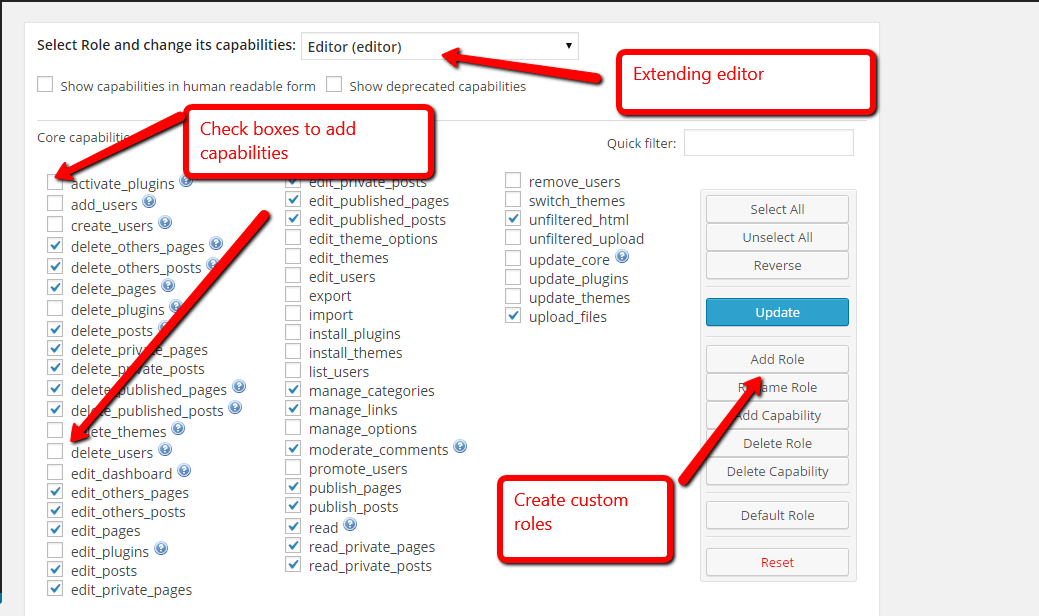
The plugin I like to use to create custom roles is User Role Editor, This is a great little visual tool that allows us to create new roles or extend what we already have.
Once installed, under users -> user role editor you get this screen
Click for full size image
To fix my clients problem, I simply opened up the editor role, and under the custom capabilities section I checked wpml_manage_translation_management. Simple as that.
Editors could see the translaton tool set and send out jobs for translation.
Wrap Up
The roles ad capability system within WordPress allows for a lot of granularity on what someone can and more importantly cannot do once they are logged in. Consider using roles to stop the less technically able members of your team from breaking your WordPress site.
If you need help setting up custom roles for you WordPress site please feel free to request a quote from us.
I’ve been doing a lot of research recently into systems that take WordPress content and package them as apps for iPhone, iPad and Android devices. So who wins in the apps versus responsive themes for WordPress battle?
The reason I am doing this is because I think native apps are a far better solution for mobile devices than responsive themes.
Don’t believe me read on.
First Some definitions
Let’s define the differences between a native app (app from now on) and a responsive theme.
Responsive Theme – there is some coding in your standard WordPress theme that recognises you are accessing the site on a mobile device and it automatically resizes your site. Check out WPDude on a mobile phone to see a responsive theme in action.
A Native App – this is a piece of code that is generally distributed from the apps stores such as iTunes or the Google play store. It is specifically written for mobile devices. It’s not a website but in the examples I’m going to show you it can pull content from your existing WordPress site to populate the app. The app can also tap into the features of your phone, something responsive themes cannot do.
My own native app is in development, I’ll update this post once it is in the apps stores.
I’m not talking about the next Angry Birds, what I’m talking about is a marketing tool for you business much like your website but specifically tailored for a mobile device.
They Do The Same job
Apps and responsive theme do essentially the same job, they make your content and marketing messages easier to read on a mobile device, but I think apps trump responsive themes in a number of ways, and that is why I’m planning to pin my digital future to apps not mobile themes and I think you should too.
It’s A Smaller Pond
There are tens of millions of websites but only a few hundred thousands apps, get in early and you can corner your market.
My experience has been that people are searching for app solutions, if you can offer that and get your app on people’s devices you will be at the top of people’s minds and get that business.
Mobile Device Marketing Features
I bet you didn’t realised your mobile phone or iPad have built in marketing tools that your business can utilise. Responsive themes cannot tap into these features only native apps written in the specific language of the devices can do this.
Some of the marketing features are:
Push Notifications – send messages to the device people nearly always have about their person. you can make your app send notifications when you update content, or when you have a special offer. Think of it as email direct to a device people hardly ever ignore. Inboxes are swamped but people don’t ignore their mobile notifications (yet but this may change).
Push To call – It’s a phone, you can create a massively simple and literal call to action, have a big button saying call us to take bookings and leads for your business.
Carry With You Features
The portability of your mobile device should also not be underestimated. There are ways you can tap into the “always with the customer” mode.
Loyalty app – people check in with their mobile phone to get benefits such as money off building brand loyalty.
GPS Features – the positioning system built in to most smartphones allows you access to a persons location, using that you can market to people in a number of special ways
Directions – give me a map and step by step instructions to get to your physical location.
Geo-Fencing – If you have a message you want to push out to your app, but only to a set location, you can use geo-fencing. Geo-fencing is a pretty new field of marketing, but essentially you set a fence around a physical location and only send push notifications in that area, perhaps an example is in order. Say you have four physical locations and you are having a special offer in location A. Set up a geo-fence or catchment area and send out messages only to people in that area about your offer.
GPS Couponing – if someone is in your location with their app, you can target them and send out a coupon. With many bricks and mortar business, it’s all about bringing people through the door. Targeting people in your current area can do this.
Photo capture – smart phones are also cameras, you can use camera functions to have your customers send you images. For example if you run a Law Practise you could get your clients to photograph a car accident to add to your case file.
The Lay Back Device
I first heard this phrase describing iPads a couple of years ago, and I cannot agree more. We are using our tablets for more detailed reading where we can step away from our desktop machines and really absorb text or video.
You settle down or lay back to consume stuff on your tablet, websites are fine for this, but if you have an app specifically designed for a tablet you can make that information consumption a better experience.
Control The Layout For The Device
When you code up a native app, one of the best features is the ability to exactly control the user experience. Using buttons and gestures people are familiar with on their other apps makes your app wrapped website work really well.
Can you think of a time when you have been frustrated with a mobile website, I can, apps stop that frustration because they are designed and coded to work on that particular platform.
Other Things You Can Do With An App
The solutions I have been investigating also allow you to do the following:
Display content from your website, YouTube, podcasts etc
Capture emails into Mailchimp aweber etc
Sell things online
Coupons and offers
loyalty schemes
GPS functions such as route finders
Social media integration
Mobile scheduling for services or restaurants
Email forms to collect leads
Event attendance
Social media functions – think Facebook wall on your own app
… the list is growing as these systems advance.
You Have To Deliver Value With An App
Getting an app download requires a little more effort than visiting a website so you need to answer the question “what’s in it for me” loud and clear.
It could be money off with a loyalty app or discounts
It could be education with videos or posts
It could be ease of use such as mobile booking
what ever it is you need to add value before you can start to market to people via apps.
Once you have that download you have a great new avenue to sell your business through.
The Shiny New Thing Factor
There is definitely an aspect of shiny new thing, and an app is shinier than a website but does a very similar job. but I recommend you get into the app game now so your app is on people’s phones before your competitions. Stake your claim to a piece of their screen real estate now. I particularly recommend this if your target demographic is youthful and uses their mobile a lot.
Advertising Revenue
If you are a producer of content rather than a business with products or services, then mobile advertising may be for you,
In my experience, mobile ads perform much better than website ads by a large factor.
My Own Experience
– if there is an app for my preferred sites I’ll use that over a browser experience. Here are some of the apps I use over the website
Basecamp
Freshbooks
Evernote
Mailchimp
WoedPress
Skype
Paypal
Domino’s Pizza (yes I know that says a lot about me)
Odeon (that’s our local cinema app)
Feedly – so I can consume feeds in my lay back mode.
That’s The Why Now The How
I know this has been a long posts and I have only just scratched the surface of apps for business, I’ll be going much deeper on the topics in the coming month if there is an appetite for this topic.
In my next post on the subject I’ll tell you the various tools I have been experimenting with, and how you can get your very own business app.
Are you interested in apps for your business? Leave your comments below if you have any questions about apps that I can answer from my research.
Something that is often overlooked in the multi language build process are multi language error messages.
If there is a problem with your site the vast majority of sites report issues in their base language, but how does this convey the issue to your site visitor that reads a different language?
What Is The Problem?
The problem is, there is a problem and you need to convey this to your visitors in their own language.
If you throw up a random error message in a language someone does not understand how can they possibly know what to do. If you are running a commercial website there is a very real chance you will lose that visitor as a potential customer/client forever.
You only get one chance to make an impression. Take an hour to ensure your error messages are in all the languages you support.
Example
A good example is the 404 page not found message. Websites are fluid things, pages are added and deleted frequently. Links get broken and people are sent to pages that do not exist.
Any website worth it’s salt will throw a 404 page not found message. Here are mine in English and French.
I’ve coded my site up to recognise the language a visitor is using and show error messages in that language.
How I Solve This Problem
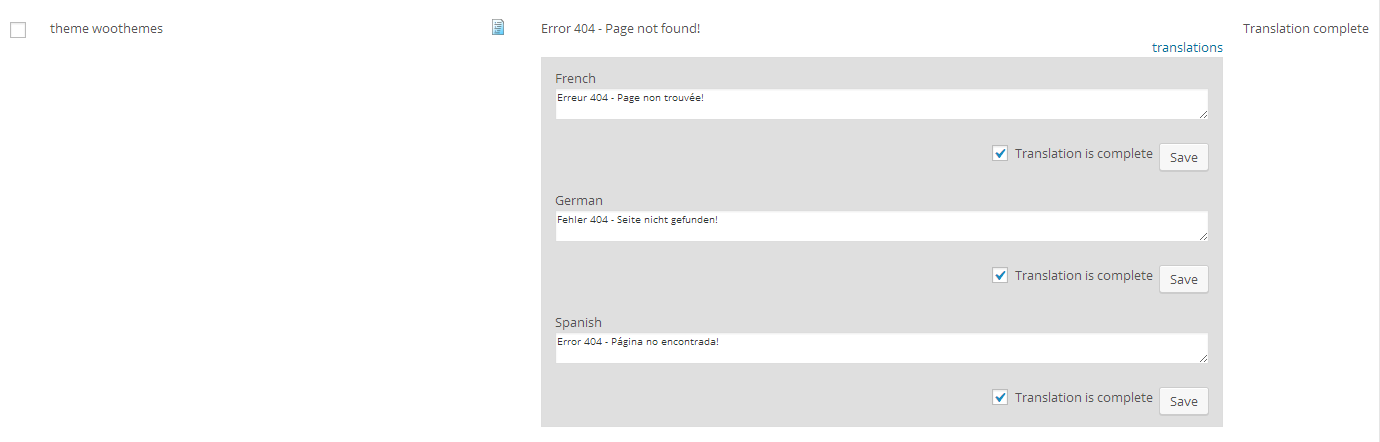
I solve this problem on my clients sites using my old friend the WPML plugin. For those not up to speed with WPML this is a comprehensive multi language solution, but one of it’s functions is called string translation. We can use this to translate error messages.
If your theme is coded correctly, string translation allows you to search for specific text strings such as “Error 404 – Page not found!” and add a translation, then when that string is displayed it checks for the language and shows the appropriate translation.
Click to see full size image
Super simple IF your theme is coded correctly.
If you theme is not coded correctly to output strings with a context, this will not work and some re-coding of the theme is required.
If you check your themes 404 file and see:
echo “Error 404 – Page not found!”; this will not work.
But if you see:
_e(“Error 404 – Page not found!” ,”webpolyglot”); this will work, we are outputting the string but instead of echoing the string directly we are sending the string through the translate() function.
Error Messages You Need To Think About
Here is a list of things you should be thinking about:
404 file not found
Error messages on any contact forms, submission okay and submission not okay
Login errors
Search results returning no results
Wrap Up
If you need help making sure all your error and customer facing messages are translated why not get a no obligation quote.