Neil Matthews

Blog

  • How To Edit WordPress Files Without FTP

    How To Edit WordPress Files Without FTP

    UPDATE APRIL 2017 – This is a better plugin https://en-gb.wordpress.org/plugins/file-manager/

    Sometimes you need to edit some system files on your WordPress site, but how do you do this without access to FTP, the answer is a great plugin called WP-Filemanager.

    https://wordpress.org/plugins/wp-filemanager/

    In this post I will show you how to edit WordPress files without FTP.

    What Is FTP

    Just in  case you have not used FTP before, it stands for file transfer protocol, which is a techy way of saying we can upload / download , edit and delete files from your website using an FTP client such as filezilla.

    Think of it as a file manager for your Website where you can upload / download files, edit them and delete them.  The problem is you need to know your your host name, login name and password, sometimes you don’t have access to this information, or don’t know how to use FTP.

    Files Your May Need To Edit

    When we talk about editing files for WordPress, we are not talking about data for posts and pages, that is all held in your database, but WordPress also has a series of files that you upload which may need to be edited, they include.

    • wp-config.php – the configuration file which controls your site.
    • .htaccess – often update for specialised plugins.
    • theme files – if you need to edit your theme files, some files are buried deep and cannot be edited from appearance -> editor.
    • Plugin files – if you want to custom code plugins.

    My Usual Warning

    I’m giving away guild secrets here, if you are not 100% sure what you are doing hire a certain company to do your WordPress techinical support.

    Please backup, and please be aware you can crash your site if you edit files incorrectly like .htaccess or wp-c0nfig.php  To this day I’m crashing WordPress sites by editing theme files and adding incorrect php statements, you have been warned it happens to the pros too.

    Installing And Configuring WP-Filemanager

    Installing WP-Filemanager is like any other plugin, install it in the usual manner, BUT there is some technical configuration required.  I’ll show you exactly how to do this in the video, but to configure the files you need to know the document root of your website.

    I like to use serverbuddy to find out the document root, you can download this at https://wordpress.org/plugins/serverbuddy-by-pluginbuddy/

    Security Concerns

    By adding wp-filemaager you are quiet literally leaving your keys in your car while you go to the shops, it’s not a good idea to leave this installed if you have multiple users on your site who could access and edit files.

    If a hacker gets in they will thank you greatly for making their job that much easier.

    Install and delete wp-filemanager as you need it.

    VIDEO – How To Edit WordPress Files Without FTP.

    Here is our video tutorial to install, configure and use wp-filemanager.

    https://youtu.be/zSOpaRYMUf8


    Video Notes

    In server buddy we are searching for DOCUMENT_ROOT

    Photo Credit: Vegansoldier via Compfight cc

  • Controlling How Facebook Sees Your WordPress Posts

    Controlling How Facebook Sees Your WordPress Posts

    I was recently hired by one of my clients to help control the way his shared posts looked on Facebook.

    I thought it might be useful to share the information I learned on that project in a blog post on controlling how Facebook sees your WordPress posts.

    Your Theme Has No Say Here

    Once you share a post on Facebook, your lovingly crafted theme no longer comes into play.

    Facebook gathers information from a series of meta tags called open graph.  If you don’t have any tools in place to set the appropriate open graph information, Facebook will make a best guess and grab the information it can, this is often not how you want to display your posts.

    Open graph is a set of instructions that are hidden in your page that tells Facebook (and the other social media sites) what to show, I’ll refer to these as OG information going forward.  Here are some examples:

    <meta property="og:title" content="Workday Sets Price Range for I.P.O." />
    <meta property="og:url" content="http://www.myfavnews.com/2013/1/1/workday-price-range" />

    Plugins To Set OG: Information

    You are probably already using a tool that will set OG tags for you, but didn’t realise it. The big SEO plugins already do this for you if configured correctly.

    The plugins I’m talking about All on One SEO pack and Yoast SEO.

    All in One SEO – Best WordPress SEO Plugin – Easily Improve SEO Rankings & Increase Traffic

    Yoast SEO

    I’m going to focus on Yoast SEO in this post but both do the same job.

    Enabling OG Tags

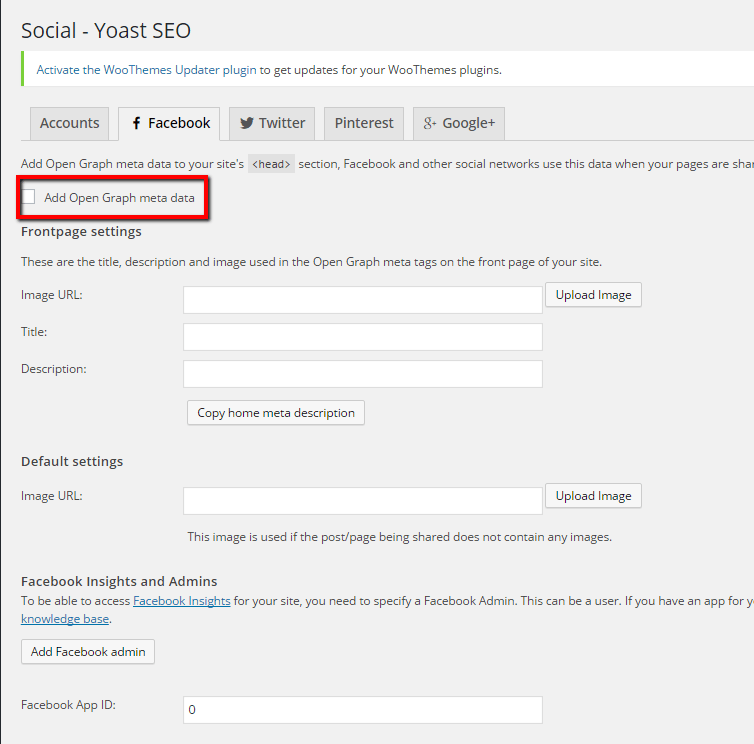
    To enable your OG tags in Yoast SEO go to  SEO -> Social and click on the Facebook tab, under there is an option to enable OG data

    2015-11-05_0953
    Click for full size image

    As you can see we can also set the default information for your home page, this is very useful if your theme generated the homepage page.

    We also get the option to set a default image to be used if one is not set on a post or page.

    Once this is set any SEO information you set on your posts and pages will also be used as the title and description for Facebook shares.  In the case of this post, this is what will be added to OG information

    Click for full size image
    Click for full size image


    Image Styling Sizes

    A quick word on image sizes and how they are displayed on Facebook.

    By default the plugins take the featured image of your post or page and uses that as the share image.

    Images need to be at least 600 x 315 pixels to display full width on your share, if they are smaller they will be displayed as a thumbnail.

    If your image is less than 200 x 200px it will not be displayed at all.

    See this link for full width and thumbnail examples. https://developers.facebook.com/docs/sharing/best-practices#images

    My recommendation is you decide which look you prefer and always upload your featured images at a standard size for consistency.

    Debugging How Your Pages Look

    A really useful tool to debug your pages and see how Facebook see them is the developers debug tool.

    https://developers.facebook.com/tools/debug/

    This tool will show you the OG information Facebook is using.

    One thing to note, this uses cached data so it can be a little frustrating to use if you are making changes.

    Wrap Up

    By adding a few little changes to your site you can greatly increase the control you have over social shares and keep your brand on course.


    Photo Credit: FACEBOOK(LET) via Compfight cc

  • Plugin Review: Better Search And Replace

    Plugin Review: Better Search And Replace

    In a previous post about migrating to WP Engine I talked about having to do a search and replace across the whole database to change a temporary URL wpdude.wpengine.com to wpdude.com, to do this I used a plugin called Better Search And Replace.

    https://wordpress.org/plugins/better-search-replace/

    What Is Better Search And Replace

    You have probably used search and replace in a word processing document where you can select  a phrase in a document and change it for something else with a bulk exercise.

    Better search and replace does the same thing, but across then entire database of your WordPress site.

    So I can search for the name Neil and replace it with Bob, we can choose to do this on just the content of your site, or across everything, so any mention of Neil is our posts or pages will be updated and perhaps any users called Neil will also be updated.

    When You May Need To Do A Search And Replace

    There have been a number of cases where I’ve needed to run a search and replace:

    • When migrating my site (or clients sites)
    • When moving a staging development site live
    • When I’m bulk changing URLs, for example one of the products I’m an affiliate for changed the URL of their affiliate link.
    • When I found corruptions with characters sets and needed to do a bulk change on the corrupt characters.
    • The list goes on.

    Warning

    Search and replace will change your database directly, please please take a full backup first.

    Video Demo

    Here is a video demo to show you how to use Better Search And Replace, please note the video dies for about 15 seconds around the 4 minute mark and there is audio only.

    Tables To Edit

    As mentioned in the video, the post and page tables are wp_{TABLE_PREFIX}_posts and wp_{TABLE_PREFIX}_postmeta

    Photo Credit: Todd Chandler via Compfight cc

  • Migrating To WPEngine

    Migrating To WPEngine

    I’ve finally bitten the bullet and migrated to a grown up hosting provider (WPEngine) after Bluehost shafted me one time too many.

    I am migrating to WP Engine.

    Why I Migrated To WPEngine

    I was previously using Bluehost and there were three main reasons I moved over:

    1. Site getting closed down with little warning for using too many database tables
    2. Constant downtime, the Jetpack monitor would tell me of outages 2 -3 times per week
    3. Snarky comments from the support team

    I went to WP Engine for the excellent security and speed I had seen when moving clients over.

    The Migration Process

    I’m not going to bang on about the pros or cons of WP Engine, what I really want to highlight in this post is how simple it is to migrate all your content, migration is a real headache and WP Engine has done a great job of making this as easy as possible.

    I’ve done a number of manual migrations for clients in the past and it has been a bit of a pain, but there new system is super simple.

    Migration is one of the biggest barriers to entry to it makes sense for WP Engine to make the process as smooth as possible.

    Install Plugin

    The migration process is as simple as installing a plugin, download this from your wpengine account, install it on your existing account.

    Populate the plugin with some migrate SFTP details to copy  over your

    Sit Back And Migrate

    It will take some time to do the migration, it was about an hour for WP Dude, but I did nothing in that time but watch a progress bar.

    WP Engines Migration Video

    Check out WP Engines migration video to see how simple this process is.


    One Small Issue

    I did notice one small issue, a number of internal links on my site were pointing to wpdude.wpegine.com the test URL of my site before I migrated my domain, I installed a plugin called Better Search And Replace and did a search and replace (surprisingly) to change then all back, I’ll record a video tutorial soon on better search and replace.

    Wrap Up

    If you were thinking about moving over to WP Engine, but were wary because of the effort to move over your database and files, don’t be it was super simple and required no technical skill.

    WP Engine is  not cheap but it is super fast and secure and their on-boarding was exceptional.


  • [VIDEO] Understanding WordPress Users And Roles

    [VIDEO] Understanding WordPress Users And Roles

    Here is a video tutorial I recorded a few years back on understanding WordPress users and Roles.

    If you have a multi user site and want to delegate content creation tasks, then understanding users and the roles they have is very important, in this video I talk about the main roles in WordPress and what tasks they can and cannot do in the WordPress dashboard.

    We will look at the following roles:

    • administrator
    • editor
    • author
    • contributor
    • subscriber

    Downloads

    Feel free to download a copy of the webinar slides

    Download slides
    Photo Credit: a God’s Child via Compfight cc

  • Adventures With Lead Magnets

    Adventures With Lead Magnets

    I’ve created a new lead magnet for WP Dude, a five part e-course on the essentials of maintaining a WordPress site, you can get it hear.

    Protect Your Content Marketing Efforts; Essential WordPress Maintenance Tasks

    I’ve tried lots of different types of lead magnet over the year with mixed success, I thought you might be interested in learning what has worked and what has not worked for me.

    What Is A Lead Magnet

    A lead magnet is a “thing” you use to entice people to hand over their email address when visiting your site.

    The thing is usually something of value given away in return for that address, an ethical bribe to start an email conversation.

    It can be a downloadable e-book, video course, audio, coupons or email courses.   I have even tried giving away my most valuable asset; time.

    What Is It Meant To Do

    Once the site visitor has handed over their email address you provide the “thing” and an ongoing conversation via email can being, you can send them updates from your site, make marketing offers the list goes on.

    The point is the lead magnet breaks the ice and a relationship begins, they turn from anonymous site visitor to a person who begins to know, like and trust you and your business.

    My Success Or Lack There Of With Lead Magnets

    I’ve not had a great deal of success with my lead magnets over the years, perhaps my offer is just not interesting enough, perhaps

    Here are the lead magnets I have tried over the years, and details of my success.

    Video Training

    I’ve got a suite of video training tutorials, I’ve had some success offering troubleshooting training, but not a huge amount, I don’t know if it’s the content or the way I presented it people e-shrugged their shoulders and said “Meh!” and moved past the pop up.

    One thing I do get is lots of YouTube subscriptions, but they all come from YouTube not on site.

    Membership Site

    A number of years ago I started a paid membership site called the WP Owners Club, that ran it’s course and as a lead magnet I made this available as a freebie.

    This was my resounding success, loads of people signed up for that for free protected content.

    In then end this become untenable for me, the time needed to create new content took me away from doing billable client work, as my business became busier I just couldn’t keep it up.

    Webinars

    I love webinars they are an amazing way to offer value to a large number of people.

    In exchange for their email for future marketing you can get people on-board and show them your value through a training session.

    Trouble is, webinars are everywhere, people have become cynical, they know there will be a sale at the end.

    Plus webinars force you to turn up at the appointed time, if you are time poor, it’s hard to run a weekly session to ensure emails keep coming in.

    E-Books

    I’ve written a number of downloadable e-books, and these have worked well for me.

    In particular the one I wrote for the sister site of this one WebPolyglot.com,  “The 10 things you need to know before you build your multi language website”.

    Packaging up your expertise in a free e-book is a great way to collect email addresses and show your expertise.

    My Time

    My most valuable none renewable resource.  I was offering people a chunk of my life force in exchange for their email address.

    I’ve offered free site health checks, free security reviews, guess what I cannot give it away.

    I had zero takers for any of my free consulting offers. It’s hard to hand over passwords to someone you don’t know yet.

    E-Course

    The current band wagon I’m jumping on is a multi part e-course. Do I sound cynical?  I’m a little jaded because I cannot find that nice balance of valuable resource for my potential clients and not taking up huge amounts of my time.

    I love the way e-courses keep you front and centre in someone’s mind over a period of days.  I’ve joined e-courses myself and have bought products and services as a result.

    Over a series of emails 5 in my part you get to introduce yourself to someone, show them your expertise and make an offering in a none sleazy manner.

    Wrap Up

    If you want to checkout my latest lead magnet, you can sign up from this link

    On my 5 day e-course ” Protect Your Content Marketing Efforts; Essential Maintenance Tasks For Your WordPress Site” you will learn

    • Why You Need to maintain your site
    • How to backup
    • How to Update
    • How to secure
    • How to optimize

    What are you preferred lead magnets, lets extend this discussion to the comments below.

    Photo Credit: Mario’s Planet via Compfight cc

  • Our No Fix No Fee Guarantee

    Our No Fix No Fee Guarantee

    When you work exclusively on-line as I do at WPDude.com, creating comfort with your clients so they will pay you is a huge thing.

    Once people have worked with you once, they see you are legitimate the task is not so big, but bringing on board new clients who have never worked with you is a tough thing, you need to create a feeling of ease.

    One of the ways I create client comfort is with our no fix no fee guarantee.

    How Our Guarantee Works

    It’s pretty simple, if after we have accepted your project and taken our standard 50% deposit we find that we cannot fix your problem,  I will refund your deposit payment.

    Times When I Have Invoked The Guarantee

    I’ve refunded clients for a few reasons, and they are:

    • We misunderstood the request, we recently worked on a plugin configuration project but the client wanted a plugin redevelopment
    • The site configuration does not allow us to create a fix, an example of this was with a performance tuning project, we simply could not speed up the site due to the hosting configuration.
    • The estimate we gave was wrong for the job, sometimes I’ll send out a quote believing the problem was X but in fact it it Y, where  Y is a much larger project, rather than trying to weasel out of a fixed price deal, I will give a refund.
    • We don’t have the technical skills to fix the problem, very rarely do we see this, but one time I was working on a custom plugin coding issue, and I simply did not have the technical chops to solve this woocommerce issue.  So I found a WooCoomerce extension expert, refunded the deposit and sent my client to someone who could fix it for them.

    Has A Client Asked for It?

    I’m struggling to think of a time when a client has initiated the guarantee, it has mostly been from our end.

    A number of clients double check this is true when ordering services from us but I cannot remember anyone asking for their money back.

    How Often Have We Done This?

    Unscientifically I’ve logged into Paypal and searched for the number of refunds I have made since 2008, the total was 17.

    This is a tiny tiny percentage of the jobs we have completed I’m happy to say.

    Other Ways We Create Comfort

    Our guarantee is not the only way we create client comfort, here are some of the other methods we use

    • Deposit / final payment, the final payment is only due when the client is completely happy
    • Client testimonials, we can prove we know what we are doing and our current clients like us
    • Blog full of case studies, I write up lots of real world case studies of problems we have solved
    • Fixed price quotes, no price creapage
    • Longevity, we’ve been doing this since 2008 we are not a fly by night organisation

    Does Comfort Work?

    I think so, this week I sent out my 4000th quote, so we must be doing something correct and creating ease and comfort in our potential clients.

    Wrap Up

    How do you overcome any objections with your online clients?   I would love to know other techiques people use.

    Photo Credit: Spin Spin via Compfight cc

  • Experiments With SumoMe

    Experiments With SumoMe

    I’ve been experimenting with a suite of marketing tools called SumoMe and I wanted to share my findings with you.

    What Is Sumo Me?

    Think of SumoMe as a series of small apps for your website that do a number of marketing and analytic tasks for you.

    You can install as few or as many of the apps as you like.

    You install the sumo me plugin, then very quickly you can create an account from inside WordPress (hat tip to the Sumo team this is one of the most seamless  SaaS sign-ups I have ever experienced).

    The apps can be classified into three sections email collection, analytics and sharing.

    Email Collection

    Sumo me comes with four ways to entice people to leave their emails

    • List builder – an email popup with some clever intent code so it pops up when people leave
    • Scroll box – a popup that shows when people are reading your content and are actually engaged.  So it shows when people scroll down 80 % of a post for example
    • Smart Bar – an email request bar along the top of your site
    • Welcome Mat – a full screen pop down that appears after 60 seconds (this is the feature I’m currently experimenting with).

    All methods have a series of pre-made templates that look great so it’s a very simple matter to get your opt-ins setup very quickly.

    All of these apps connect very easily to a huge number of mail apps. I’m linking it to Mailchimp.

    Analytics

    Sumo me also has a series of analytics tools so you can see how people are interacting with your site.

    • Google analytics – as you can imagine this just pulls your GA details into WordPress so you can see them rather than going to Google.  My thought was Meh! so what.
    • Content analytics – this is a good one, it allows you to measure how far into your content people are going, are they truly engaging or clicking away after a few paragraphs, powerful stuff.
    • Heat Maps – see where people are clicking on your site.  It provides a visual representation of what people are clicking.
    heat_map
    Click for full size image

    Sharing

    Sumo Me comes with a couple of apps to share content and images.

    • Share – this imaginatively named tool is a share bar, it  adds a floating share bar to your site, you should see that to your left if you area reading this from our site.
    • Image Share – allows site visitors to share your images with their peeps.  I’m not into pInterest but I imagine this will work well with that crowd.
    • Highlighter – allows site visitors to highlight text from your site and share that.

    I’ve only lightly touched on the share tools so I’ve not much to report on how effective they are.

    Free & Premium

    Sumo Me comes with free versions of all it’s apps and premium versions with added bells and whistles, I’m running with the free versions during my experiment.

    My Results

    In a word I’m impressed.  Here are the things that stood out for me:

    Sumo Me doesn’t bring anything new to the table in terms of functionality, there are any number of popup and sharing tools out there, but what it does win with is its analytics.

    The heat map tool is great, it is giving me real insight into what people are clicking and where I need to focus my attentions.  I can see redudant links and areas of my site I can removed.

    The graphs I get to show number of popups shown versus signups are great.

    To get a feel for how far down a page (in particular my sales page) people go is useful, and a new area for me. I’m thinking about putting contact forms at the top rather than at the bottom so people don’t abandon so quickly.

    I have had an increase in signups on both wpdude.com and webpolyglot.com. Webpolyglot.com has had better results but I think that is due to a better lead magnet on that site over wpdude.  I’m planning to split test wpdude with a different free offer to see if I can get more signups.

    It works well with paid facebook ads, I’ve been testing paid ads from Facebook (more about that in later posts) and Sumo Me works well with people clicking over from

    There are a lot of apps so I suggest testing one at a time so you don’t bombard your visitors with welcome mat popups, normal popups and sweep ins.

    The A/B testing is really really good too, I can see what works and what does not.

    A very neat thing is I can switch off double optin, so no need for the site visitor to click on a confirmation email, once they signup they are on your list.

    Wrap Up

    If you want more insight into your marketing efforts I would give Sumo Me a go.


    Photo Credit: hitthatswitch via Compfight cc

  • Have We Reached Peak Podcast?

    Have We Reached Peak Podcast?

    If you are considering starting a podcast to market your business? I encourage you to read this post, I think we have reached peak podcast.

    Peak podcast is a term I’ve concocted from another phase peak oil:

    Peak oil, an event based on M. King Hubbert’s theory, is the point in time when the maximum rate of extraction of petroleum is reached, after which the rate of production is expected to enter terminal decline.

    I think we have reached a saturation point of podcasts where the ecosystem cannot take any more episodes.  There is not enough attention to go around.

    Podcast Engagement

    People are starting podcasts because it is a truly amazing way to interact with your audience. No one can deny that, people look forward to their next installment, people make connections with the podcasters on an almost personal level.

    If you subscribe to a podcast and listen you are giving your most finite resource time away to the team your time.

    And this is why soooo many people are starting podcasts, it is excellent marketing.

    Sinking Feeling From Your Feed Reader

    I’ve started to get a sinking feeling when I open my feed reader and yet another blogger is changing medium from text to podcast.

    I subscribed to your blog to read text, don’t flip medium on me.

    Can’t You Just Play It In The Background

    Yes I can but when I multi task there  is no real engagement with the content, I miss details and I don’t get the benefit fo the topic being discussed.

    Perhaps that’s just me, b ut multi tasking is not something I’m great at. I need to give my whole attention to what I’m listening to.

    Podcast Is Not Scannable

    There may be an overview of the episode content, but bullet points dont give me the feel for the content, not like scanning a blog post which I can skip over very easily.

    I Don’t Have Any More Time For More Podcasts!!

    This is the crux of the problem I only have so much time per week to give over to podcasts.

    I like to listen to them and engage with the content. I cannot give any one else 30 minutes of my time, my time is already allocated to my wife and kids, my team, my clients and all the other 1001 things we all need to do.

    Podcast treats

    I consider my podcasting time a treat, I end the week on Friday a little early and I take 60 – 90 minutes of downtime to listen to and enjoy my chosen podcasts.

    I limit my podcasting intake to two excellent podcasts,

    The Unpodcast 

    The Fizzleshow

    I’m so deeply engaged with these podcasts I will sh!t in the tall cotton and climb Moron Mountain to listen to their work (see you need to be part of the community to understand that).

    These two companies get 90 minutes of my time per week, I buy their stuff I love what they do.

    You, as a noob to podcasting why would I give you that time?  How can I create more time for you and  your new podcast?

    The answer is I can’t that’s why I’m at peak podcast, and I’m asking are we all at peak podcast?

    Over To You

    This is just my opinion but I think you have missed the boat on podcasting, there are too many, there is not enough attention left, we are at peak podcast.

    What do you think, lets extend this to the comments I would love to hear your take on this.

    Photo Credit: mtneer_man via Compfight cc

  • Can I Smush It, Yes You Can!

    Can I Smush It, Yes You Can!

    Large images slow down the load speed of your WordPress site.

    Clients and Google don’t like slow sites, clients get impatient and click away, Google will affect your rankings if you have a slow site.

    There is a way to compress your images and make them smaller so they load more quickly.  You can do this with the plugin WP Smush https://wordpress.org/plugins/wp-smushit/

    We were asked to tune the performance of one of our maintenance clients sites and one of the things we did was optimize his images.

    How Do I Know If I Have The Issue

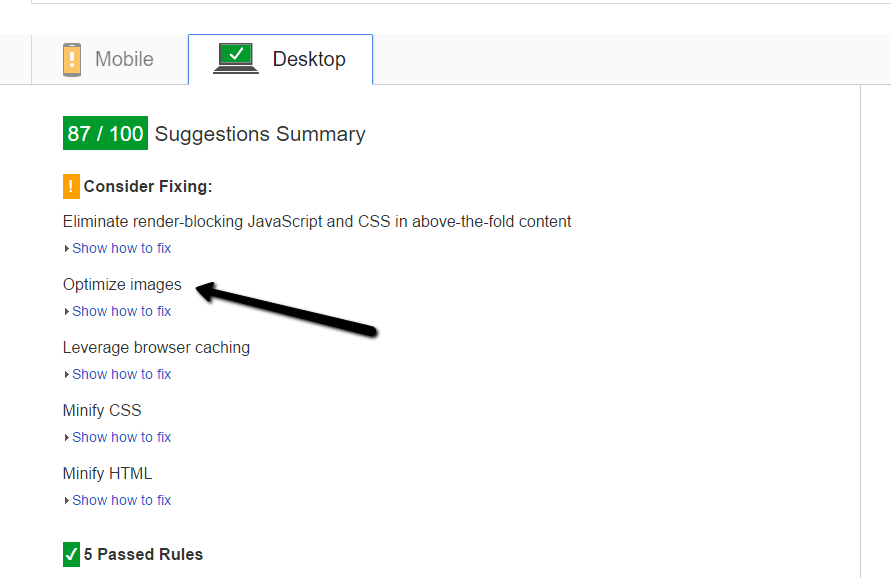
    A quick test to see if you have image load problems is to go to the Google page speed insight page and test your site

    https://developers.google.com/speed/pagespeed/insights/

    If you are told to optimize your images, WP Smush will help.

    pagespeed

    What It Does

    WP Smush losslessly (is that even a real word) compresses your images files.

    Say again; WP Smush removes all the unnecessary stuff contained in your images files such as date and time stamps, device used to take a picture etc, there is a lot of meta data in an image that can be stripped out without affecting image quality, that is why it is lossless compression.

    How It Does It

    Once you have installed WP Smush a new menu item is added under media -> wp smush.

    In there you can batch smush your existing images.

    It’s a pretty slow process, so settle down for the long haul with a nice cup of the beverage of your choice.

    The free version smushes 50 files per pass, the pro version smushes everything in one go.  I’m cheap so I just clicked the smush button 16 times.

    Ongoing Smushing

    As you add new image into your site, they are smushed automatically on upload so the initial bulk smush is a one off process.

    The Result

    Our clients site load speed increased a lot.

    Performance tuning WordPress sites is a bit of a dark art not a science, with a mixture of cache plugins, CDNs, smushed images and decent hosting you can get great speed gains.

    WP Smush is definitely now part of my tuning tool box.

    Wrap Up

    If you need help speeding up your WordPress site check out our maintenance plan, as a matter of course we optimize our clients site speed.

    Photo Credit: Dorsetfella via Compfight cc

  • Plugin Review: Download Monitor

    Plugin Review: Download Monitor

    One of our maintenance clients came to us with a little challenge and asked us to recommend a plugin that counts downloads of PDF files they make available to their customers.

    Added this she wanted to know which individual logged in users also downloaded the file.

    This type of detailed knowledge of what people are doing with your downloads is important in many ways, how are clients using your information?  Is it useful enough that people even want to download it.

    We went on a search and found Download Monitor to fit the bill.

    What Is Download Monitor

    It’s a plugin that lets you create a series of downloadable files in the backend of WordPress.

    It controls who can download them, any user or logged in users.

    It creates a shortcode so you can embed those files in posts or pages

    Finally any most importantly it allows us to log and record downloads as a total per file and by user.

    Adding A File

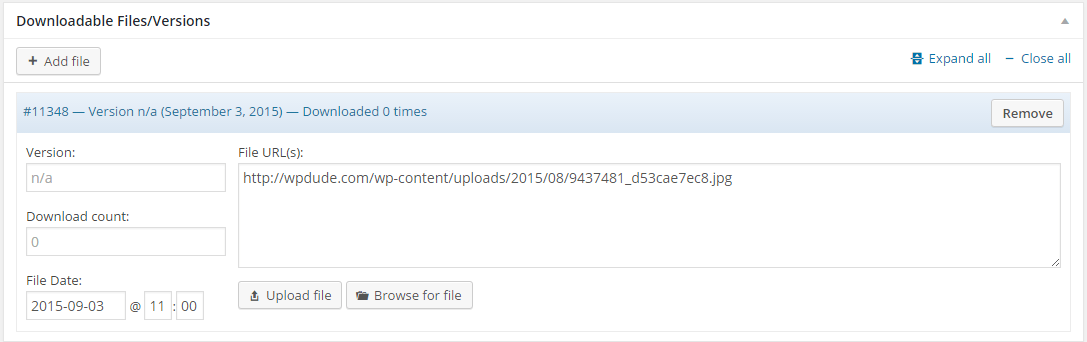
    Adding a download file is much like creating a new blog post, give it a title, add some descriptive text about the file to be displayed.

    Then you upload the actual media file.

    Click for full size image
    Click for full size image

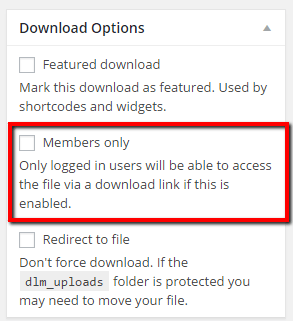
    Once added you can set various options for the file, one very useful one is to restrict logged in users to download only.

    Click for full size image
    Click for full size image

    Embedding A File / Download Links

    The file to be downloaded can be added as a shortcode into a post or page  as an example.

    [download id="11347"]

    Or you can send out a special download link to the file rather than a direct link so downloads can be recorded, here is an example of this.

    https://dev.neilmatthews.com/download/11347/ (don’t click the plugin has been deactivated)

    Logs

    This was the main feature my client needed, a log of who had downloaded a file.  We can see a log of total downloads or we can see a list of individual downloads by user

    Click For Full Size Image
    Click For Full Size Image
    total_downloads
    Click For Full Size Image


    All of this data can be downloaded as a CSV file for deeper analysis.

    Wrap Up

    If you want insights into what is being downloaded by your site visitors or logged in customers Download Monitor is the best out there.  We tested about 12 other plugins and this came out tops for reporting.  Many can create the total download number but none gave us per user logs.

    One of the services we offer to our maintenance clients is a plugin finding and testing service, why not give us a go.

    Photo Credit: 5500km via Compfight cc

  • Plugin Review: Revive Old Posts

    Plugin Review: Revive Old Posts

    Lets admit it, feeding the social media beast with new content is a huge time suck.

    I don’t have time to be continually sending links to Twitter, Facebook et al, so I’ve been experimenting with an automation tool to keep a continual stream of content going into my social media accounts.

    That tool is a plugin called Revive Old Posts https://wordpress.org/plugins/tweet-old-post/

    How Revive Old Posts Works

    Once installed a number of links are created to the application programming interface (API) of the social media platform of your choosing.

    The free version gives you Twitter and Facebook, the pro version gives you Linked In, Tumblr and Xing (no I’ve got no idea either).  I’ve only used the free version so I’m not going to dig into pro features at all.

    Twitter is a simple setup, login to your account and authorise the app

    Facebook is a bit more complex, you need to create an app on Facebook and link your website to it, sounds complex but there is a pretty good step by step guide to get you setup.

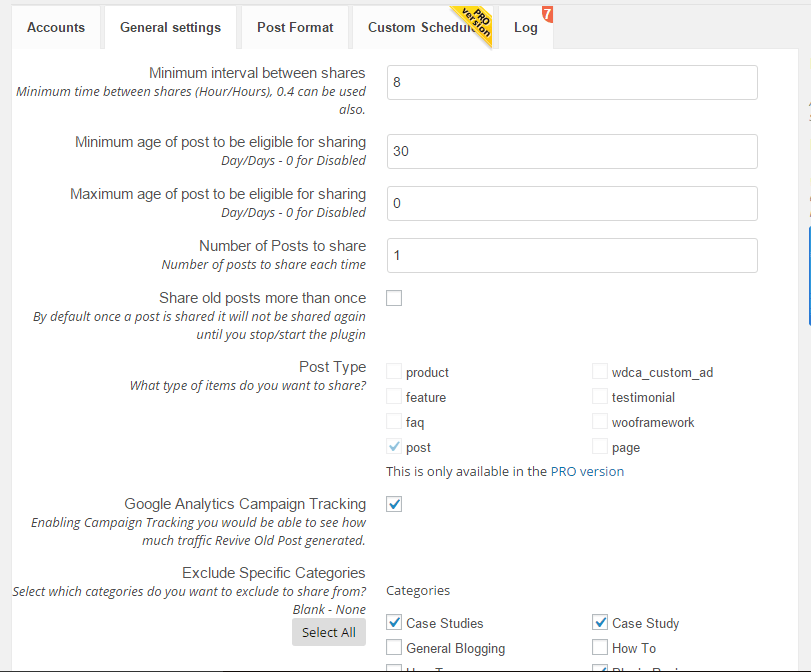
    Scheduling Posts

    Once you have linked up your accounts it’s time to select your content and set a schedule.

    You can select posts pages or any custom posts types.

    You can select one or more categories for your posts.

    You can set minimum age of your content, so, for example only post content more than 30 days old.

    You can set how many to post.

    You can set the hourly interval between posts.

    Click for full size image
    Click for full size image

    The Pros

    The plugin works flawlessly, posts were pushed up to Twitter and Facebook as expected.  I cannot fault the plugin.

    The Cons

    If you have hundreds of posts, not all of your content is suitable for automatic revival. I had posts about offers I’m no longer offering pushed up.

    I had posts about plugins that have been sunsetted and are no longer available. I had old members only content pushed to Facebook.

    I had to go through a laborious process of setting up a category of classic posts I wanted to revive.  It was pretty tedious but only a one time thing.

    I was running a test using webpolyglot too and I don’t have a huge number of posts so the revivals were getting a little repetitive.

    People know it’s old stuff so you had better be present to make some in person social posts or it looks a little canned.

    Don’t go mad, one post a day is more than enough.  I had it scheduled to push every 7 hours and there was a lot of automation and not much social chatter it didn’t look great.

    As you can see the cons are about content not Revive Old Posts the plugin.

    Wrap Up

    If like me you are too busy doing client work to spend huge amounts of time feeding content to the social media beast revive old posts is a great tool,

    Spend a little time to curate your old content to only push your best stuff out.  Then sit back and enjoy one less thing on your daily to-do list.

    Will I continue using Revive Old Posts? Yes, but I’m planning on creating a group of my top 50 posts and pushing them out one per day as part of my broader Facebook marketing plan.

    Photo Credit: bbaltimore via Compfight cc