Neil Matthews

Blog

  • What Is Jetpack Photon?

    What Is Jetpack Photon?

    Jetpack photon, she’s a character from the new Star Wars film isn’t she?

    No Jetpack photon is an image accelerator you can use to speed up the load times of your WordPress site.

    You can add photon to your site by installing the Jetpack plugin.

    Jetpack – WP Security, Backup, Speed, and Growth


    How It Works

    Images uploaded to your posts and pages are duplicated to a super fast content delivery network hosted on the WordPress.com servers.

    Filters are added and your images are served up in parallel from that server rather than your local hosting server speeding up image delivery.

    As your page loads the scripts and files from wpdude.com for example, images will be loaded in parallel from wp.com reducing load and speeding up the total page load time.

    See it in Action

    The image attached to this post has been uploaded to wp.com via the photon plugin, it’s URL looks like this

    https://i1.wp.com/wpdude.com/wp-content/uploads/2017/03/14479013777_0c1abb1ccf_b-200x200.jpg

    Activating Photon

    To enable photon, install jetpack, and then go to jetpack -> settings, click on the appearance tab and enable photon.
    jetpack photon

    That’s it, Photon is a simple way to speed up your page load speed.

    There is a Downside

    Once they are uploaded that’s it, you cannot clear the cache if you need to edit the image you will need to rename the image and re-upload it.

    I have worked with a couple of clients where Photon has messed up posts because of this.

    No Compression

    Photon does not losslessly compress your images so it’s a good idea to do that before they are sent to the cloud (see my post on WP Smush)

    Wrap Up: Jetpack Photon

    Google rewards fast loading websites with better listing position.  Any thing you can do to improve page load speed is a good thing.

    Jetpack is super simple but if it messes up the only way to fix it is to disable the feature on the plugin.

    Photo Credit: IPASadelaide Flickr via Compfight cc

  • [INFOGRAPHIC] Troubleshooting WordPress The WPDude Way

    [INFOGRAPHIC] Troubleshooting WordPress The WPDude Way

    I’ve created a new downloadable infographic that shows you how to trouble shoot a WordPress site the WP Dude way,  if it crashes.

    You may not need this information right now, but it’s better to be prepared and have the knowledge to hand should your site crash.

    Imagine the scene, you are in panic mode, your site is not working and you are losing business.  Now imagine an alternative where you have a step by step guide to calmly troubleshoot your website to get it back online.

    Course

    The infographic give you the steps to troubleshoot a WordPress crash but I have also created a 6 step email course on how to do each of those steps.  Keep the info graphic and the email course in your archive for a rainy WordPress crashy day.

    Download The Infographic & Get The Course

    [gravityform id=”122″ title=”false” description=”false”]

    Photo Credit: Nicholas Erwin Flickr via Compfight cc

  • Uptime Monitoring For WordPress

    Uptime Monitoring For WordPress

    Let’s face it you are not monitoring your WordPress site 24/7 for uptime, you are running a business and having a life.

    Today I want to talk about some automated uptime monitoring tools for your site which will alert you if it goes down.

    Downtime Is Not A Good Time

    Having a potential customer / client visit your site only to find error messages or the site completely offline is not good, your reputation could be ruined and you could lose new business or repeat orders.

    Being the first to know your site is down is pretty important, so I’ll tell you some good tools to use.

    Don’t remind me of the day I was running Facebook ads and the site was crashing, It would have felt better to set fire to a pile of cash. I know from first hand experience what downtime without alerts is like.

    Two Types Of Monitoring

    There are two main types of uptime monitoring available, we need both in place for a good monitoring solution.

    Ping monitoring – this is where a tool connects to your website and checks for a valid return code. “Oh no he’s bibbling in techie again !”I can hear you say.  Each time your browser connects to a website it also returns a code to the browser along with the content.  Everthing below 400 means every thing is okay, 404 means the page is missing, 500 mean an error there are a whole long raft of these return codes, uptime monitors check for and alert if an error code is returned.

    Content Monitoring – sometimes websites return error codes, but they also return site okay codes so we need to do a double team of a ping with a content monitor.  This tells your uptime monitor to look for specific content in the page.  Let me give you an example, half way down my home page is the following string, if my monitor cannot detect that, then there is definitely a problem with my home page and an alert should be raised.

    Let me do the WordPress technical support
    while you get on with building your business

    Multiple Page Monitoring

    I tend to focus on the home page of sites for monitoring but if you have a high value e-commerce store you should  also consider monitoring the cart page and the checkout page too, the home page could be up but internal pages could be down.

    Alerting

    Most of the tools send email alerts, but some also alert to slack or even SMS, you can decide how critical uptime is.

    Repeat Checks

    It is important that the tool you choose keeps checking and alerts you if your site comes back online, it is not unknown for a host to crash and be back up in a few minutes.  Guess what they won’t tell you there has been an outage (Godaddy I’m looking at you here).

    Uptime Monitoring Tools

    All uptime monitoring needs to be external to your site, it will send pings and content monitor pulls from an external server as if a client was connecting to your site.

    Here are the tools I recommend:

    Jetpack

    The multipurpose plugin created by the team at Automattic.  One of the features is a monitor.

    You will need an account at WordPress.com for this system to work.  Jetpack is a ping only monitor, there is no content monitoring, read this for more details on how they monitor https://jetpack.com/support/monitor/

    Cost – free

    URL – https://en-gb.wordpress.org/plugins/jetpack/

    Uptime Robot

    This is an external system where you setup one or more sites or multiple pages within one site, I used this for many years.

    It has pings and content monitoring, the pro version has SMS alerts.  There are some advanced monitors such as ports and http specific monitors.

    There is a plugin for WordPress where you can pull in uptime stats into your WordPress dashboard.

    Cost – the first 50 monitors are free then you pay for pro versions at about $5 per 50 monitors.  A monitor is a single check, so on one site ping would be 1, a content check would be another.

    URL – uptimerobot.com

    ManageWP

    My preferred uptime monitor for my own and maintenance client sites.

    Managewp uptime monitor checks for http codes and for custom strings on a page, it sends alerts via email, SMS or slack if that is your thang.

    Cost – managewp is free but the uptime monitor is an addon at approx $1.50 per month (managewp billing is super complex).

    URL – managewp.com

    Wrap Up

    I recommend an uptime monitor even the free ones above are really good and the 5 minutes it takes to activate can help your online reputation.

    Photo Credit: MaartenB Flickr via Compfight cc

  • SPACE

    SPACE

    I’ve just come up for air.  I need more space.

    It’s a week into March already and I have been working none stop since the start of 2017.  I don’t ask for applauds or sympathy rather an understanding that working like this is a symptom of a broken project management system.

    I need space.

    I don’t buy into the Gary Vee “hustle” mentality, I work for myself so I make a great living and can choose the lifestyle I want.

    The problem is the bloke I work for is mental and pressures me relentlessly

    The Bloke I Work For

    The bloke I work for is a people pleaser he never wants to say no to a client, he never wants to make a client wait.

    As a result he loads me up with client work and I end up working late into the evening to fit everything in, I’m exhausted and stressed to hell.

    That bloke is me.

    I Did Not Allow Space

    The reason I was running around like a headless chicken was SPACE, I was not allowing any space between projects and as a result things were stacking up and  had to much work.

    Thin Slicing

    I felt the need to give my clients some of my time so I ended up thing slicing which made it even worse.

    Thing slicing is my term for giving a client part of my time but not all of the time they require, so a one day job gets half a day today and the rest tomorrow meaning I’ve got even more time deficit and this flows down to other projects.

    Clients

    Some of my clients noticed and were given sub standard service whilst others were blissfully unaware I was spinning too many plates, you only notice if the plate comes crashing down.

    What I Did  To Solve This

    I stopped taking on new projects for a couple of weeks so I could clear down my backlog.

    I hired a contractor to help clear some of my backlog.  I aim to do all technical work for my clients to keep quality high, so I had the additional contractor work on less technical items I could outsource.

    I then looked at what I was doing and what was causing this issue.  I needed to space out my projects.

    I created space between projects. I’m booking myself at 50-60% capacity  and leaving the space for the inevitable things that come up (see below).

    I’m making clients wait a little bit longer, guess what no-one is really bothered unless their site is down, the issue was just an issue in the mind of the bloke I work for :).

    I’m saying not to certain types of project that are not a good fit for me.  The bloke I work for is still alarmed about this but he needs to get over this.

    I’m adding this mantra to my daily plan to make sure I keep the space:

    What Fills Up The Space

    Now that I have created space between my projects I can use the space for the inevitable issues that arise.  Here is what the space is used for:

    Q & A – when i send a project back to a client for review there are sometimes items that come back as feedback that was unplanned but still needs to be done.

    Timezones – I like to brag about having clients on all continents except Antarctica, communication across timezones creates delays.

    Client Response Times – hey guess what, my clients are not sitting there waiting for me to email them so they can respond instantaneously, they are running their own businesses too, the space takes into account this feedback loop.

    Unexpected Project Complexity – sometimes you open a can of worms when you start digging into a project

    Emergencies – sites crash the space allows me to help people with urgent issues.

    Working ON my business – time to build systems, work with my team, market and even write blog posts.

    Life – sometimes I want to do other stuff

    Wrap Up

    There is no course at college on this sort of thing (perhaps I need to create a course) it all made up as I go along.  I thought I could book myself solid, all I did was book myself mental.

    Working in the way I do is shiny and new so I’m keen to share the lessons I learn from the trenches, please share your experience of working with clients and making your schedule fit.

    Photo Credit: NASA’s Marshall Space Flight Center Flickr via Compfight cc

    What do you do when you see a space man?  Park in it man!

  • WP Owners Club

    WP Owners Club

    I’ve created a new Facebook group for my clients and readers of WP Dude called the WP Owners Club.

    It’s a closed group but I’m inviting all my clients and everyone who reads WP Dude to join.

    Gain Membership

    To join the club follow this link and request membership, I’ll approve everyone

    Join WP Owners Club>>

    What Your Can Expect

    It’s very early days but I expect to provide the following to club members.

    • Answer any technical questions posed to me
    • Upload video tutorials
    • Live webinar events on how to fix your big issues with WordPress
    • Club member website reviews
    • The list goes on just let me know

    It Your Club

    Tell me your struggles with WordPress as a website owner and I will create content that solves your issues.

    It’s All Free

    All the content, tutorials and live events will be 100% free.

    Is It Completely Altruistic?

    Of course not, if there are any major technical issues with your site I hope the WP Owners Club will promote you to request a quote for my services.

    Wrap Up – WP Owners Club

    I hope to see you in the club house over at Facebook

    When you join I need you to tell me what your biggest problem with WordPress is so I can tailor the tutoruals and free vents I provide.

    Join WP Owners Club>>

    Photo Credit: Basic LA Flickr via Compfight cc

  • It’s The Most Websity Time Of The Year

    It’s The Most Websity Time Of The Year

    Has another year streaked past us again? It’s The Most Websity Time Of The Year.

    It’s becoming a bit of a Christmas tradition in the WPDude e-household to write a blog post about the latest festive plugins out there.

    I’ve hung up the decorations on my home page and thought I would share my favoruite Christmas plugins to decorate your site.

    Xmas Lights

    My personal favourite, I jazz up the header of my website with this every year

    https://en-gb.wordpress.org/plugins/xmas-lights/

    WP Super Snow

    Add a snow fall effect to your site.

    https://en-gb.wordpress.org/plugins/wp-super-snow

    Xmas Decoration

    Add a classy festive banner to the top of yoru site with a jolly on-hover effect.

    https://en-gb.wordpress.org/plugins/xmas-decoration/

    Christmas Music

    Drive your site visitors to the very edge of madness with Jingle Bells on a recurring loop.

    https://en-gb.wordpress.org/plugins/christmas-music/

    Christmasify

    If you want to go the whole hog we have music, snow, Santa, festive fonts, the full monty.  Please send me a link if you use this one on your site please please please.

    Christmasify!

    VIDEO

    See these garish plugins in action in terrible hi-def video.


    Wrap Up

    If you cannot have a little bit of fun on your website at Christmas when can you, Merry Christmas or Happy Holidays whichever you prefer.

    If you need help with your WordPress site get a no obligation quote.

    Photo Credit: DaPuglet Flickr via Compfight cc

  • Canva Review

    Canva Review

    I’ve started to use an excellent tool called Canva.com to create images for blog posts, ads and other online needs, here is my video Canva review.

    Canva is a freemium online  image manipulation tool, I have been using it for about one month and as a non-designer I am very very happy with the results.  It is free to sign-up but there are some advanced options which costs $11 per month.

    I’ve struggled with very expensive and complicated image manipulation tools such as Photoshop. Canva solves that.

    I’m no designer, Canva also solves that with pre-made look and feels.

    Lets get into the meat of the review and check out my video review

    Video

    Wrap Up – Canva Review

    Canva has changed the way I create images for the web and for my clients, it’s simple and convenient, there is no endorsement or affiliate gain here, it’s just a tool I’m using regularly.

    Remember the attribution I mentioned in the video you can see that below.

    Photo Credit: archer10 (Dennis) 84M Views Flickr via Compfight cc

  • How To Add A Facebook Page Plugin To WordPress

    How To Add A Facebook Page Plugin To WordPress

    The Facebook page plugin (or like box as it used to be called) is a way to showbcase your Facebook page on your website away from Facebook itself.

    In today’s video tutorial I am going to show you how to add the plugin into your site. The facebook page plugin is some code that needs to be ibntegrated and not a plugin int he WordPress sense.

    The page you need to visit to grab your code is:

    https://developers.facebook.com/docs/plugins/page-plugin

    If you need help implementing a Facebook page plugin, get a no obligation quote.

    Photo Credit: Jonathan Rolande Flickr via Compfight cc

  • Plugin Review: Activity Log

    Plugin Review: Activity Log

    Do you need an activity log for your WordPress site?

    Are weird things happening on your website?

    Are things changing, but you never did anything?

    Is someone messing with your sites config?

    A great tool to monitor what is happening on your site is a plugin called Activity Log.

    https://wordpress.org/plugins/aryo-activity-log/

    What It Does

    It captures all activity on your site.  New posts, edits, starting and stopping plugins etc etc.

    It records the time and date, what happened, the user that made the activity and the IP address.  The IP address can be used to pinpoint the location of the user geographically if weird things are happening.

    It saves this data to your dashboard so you can review what is happening.

    Video

    See the plugin in action.

    When I’ve Used This Plugin

    • Hacks – I use this plugin when fixing hacked sites to monitor for the hackers getting back in
    • Multi user / admin sites – if there are multiple people editing or “admining” a site it is useful to know who did what./
    • Cover My Arse – This is a great fix for the you touched it last syndrome, using activity log you can see exactly who did what and when.
    • Bizzare plugin activity – one client was having their blog posts edited and no-one knew why, we found that an editorial calendar plugin was making changes

    Options

    There are a number of options for this plugin, the first is how much data to keep, this log will get large so having unlimited logging in place is a bad idea, the default is to keep 30 days.

    There is a notification engine where you can set email alerts when certain things happen, for example if you are monitoring when a user logs in, you can setup a

    Wrap Up – Activity Log

    If you need to monitor who is doing what and when on your site check out Activity Log https://wordpress.org/plugins/aryo-activity-log/

    Photo Credit: Kevan Flickr via Compfight cc

  • Debugging Your WordPress Site

    Debugging Your WordPress Site

    Most of the time your WordPress site will chug along happily, but when it breaks, the information available to you is limited. Debugging your WordPress site to find errors is a pretty simple thing.

    Trouble shooting any issues on your WordPress site becomes much easier if you put your site in debug mode.  In this post I will tell you how to do that so you can get to the root of your problems more quickly.

    Hidden Messages

    By default WordPress or more correctly the underlying scriptng language php, hides it’s error and warning messages.  It does this because many of the messages are just warnings and don’t need to be seen.

    Enabling debug shows all these messages and more importantly shows any real errors that are happening on your site.

    Frustrating White Screen Of Death

    One of the most frustrating things that WordPress does is it’s white screen of death, when WordPress crashes it closes down and only shows a white screen, no messages, no warnings just a white screen.

    When you enable debugging it shows those messages, it tells you which plugin is causing issues, it will tell you if you are out of memory, it will say which theme file is causing problems.

    How To Enable Debugging

    To enable debugging on your site you need to edit a file in the root of your site called wp-config.php.

    Connect to your site using ftp and go to the root, you will see the file wp-config.php, edit that file and look for this entry

    define( ‘WP_DEBUG’, false );

    Change the false to true and debug is active.

    Plugins

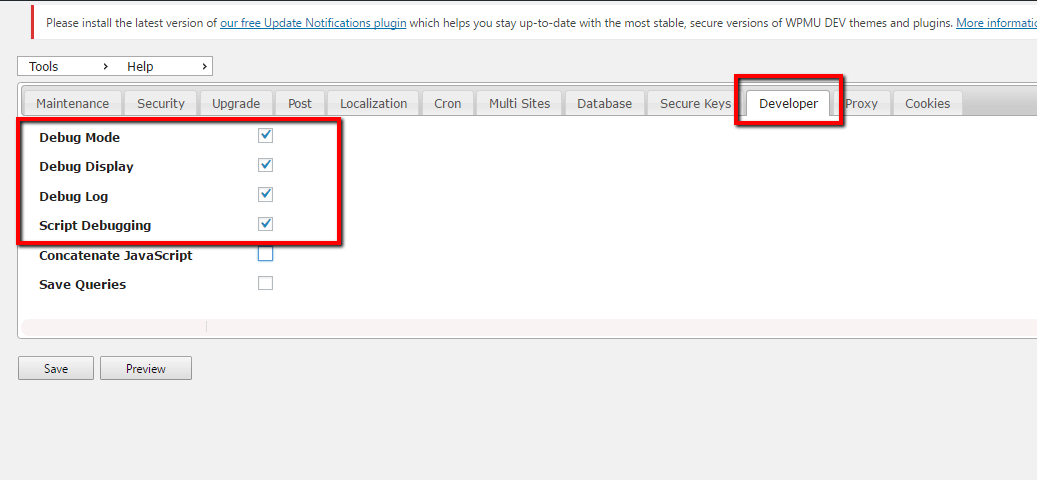
    If you are not happy editing your wp-config there is a plugin that will enable debugging for you, it’s called WP Config File editor and can be downloaded from this link,.

    https://en-gb.wordpress.org/plugins/wp-config-file-editor/

    Once installed go to WPCF Editor menu -> Developer and click the following options, debug will be activated.

    wpcfdebug

    What You Will See

    First up don’t panic, your site will start to throw out lots of messages (a lot of messages) your site will look terrible, enabling debug is designed to be a temporary measure to debug your site.

    All messages will be output, the important thing to note is the last message to appear on your screen will be the offending one, usually a fatal error message.

    It’s hard to go into depth about the message but it will point to a theme file, plugin file or other error message.

    Log File

    If you have an intermittent issue, then you can enable a logging option and all messages will be sent to a log file at /wp-content/debug.log so you can review it at leisure when an error happens.

    The important thing to note is that messages are sent to the log not to the screen so your site will look normal while collecting data.  To do this add some additional content to your wp-config file

    // Enable Debug logging to the /wp-content/debug.log file
    define( ‘WP_DEBUG_LOG’, true );

    // Disable display of errors and warnings
    define( ‘WP_DEBUG_DISPLAY’, false );
    @ini_set( ‘display_errors’, 0 );

    // Use dev versions of core JS and CSS files (only needed if you are modifying these core files)
    define( ‘SCRIPT_DEBUG’, true );

    All message will then be sent to a file called /wp-content/debug.log.

    Please note a lot of information is sent to the log and hte file can get pretty large pretty quickly.

    A useful plugin to read the log from inside your wordpress dashboard is https://wordpress.org/plugins/debug-bar/

    Wrap Up – Debugging Your WordPress Site

    Debugging your WordPress site helps  troubleshoot your WordPress issue, if you are still stuck, tell us the problem and we can fix it as on of our  WordPress technical support jobs.

    Photo Credit: wplynn Flickr via Compfight cc

  • How We Deal With The “You Touched It Last” Syndrome

    How We Deal With The “You Touched It Last” Syndrome

    It is a very common thing for us to get comments after we have worked on a clients site along the lines of “Since you did X with our site Y no longer works, you touched it last”.

    It sparks a deep seated human reaction when you get criticism like this, but I’ve trained myself and my team to handle these situations like this.

    Don’t Be Defensive to “You Touched It Last”

    I’m working hard on this, but it’s a natural reaction to immediately go on the defensive when your work is questioned.

    Whenever I get an email like this the defences still go up, my mind goes something like this “How can adding a contact form possibly impact the colours of their about page button”. I’m immediately thinking it’s not us why should I give over our precious time to help.

    It’s a natural thing, the emails come across to us as a criticism, even though it is really a call for “Help!!!”.

    Now, I put the email aside for a moment,  go and do another task, make a cup of tea and let the initial adrenaline spike go.  Then I address the problem.

    Take Ownership

    The first thing I do when we get a “you touched it last” is to take ownership of the problem.

    We do this because customer service is important our client wants a fix not a “pass the buck”.

    I say take ownership with a caveat,  I’ve had “you touched it lasts” along the lines of six months ago you did Y and now X has broken.  I will add the caveat that we are happy to roll back the changes we have made and test to see if it is causing the issues, but other things could have caused the problem.  Take ownership but at the same time don’t be a doormat.

    Roll Back The Changes

    You did take a full recoverable back before you made the changes didn’t you :)?  I’ve said it before but I’ll say it again you are only as good as your last backup.  I hammer this into my team in our processes and procedures, the first thing we ever do is take a backup.

    If possible we do our work on a cloned staging site so we can test in development before making things live.

    Roll back to a point in time before the changes were made and test to see if the situation still exists.  If it does not our changes were to NOT blame, if the issues goes away …

    Fess Up If We Have caused An Problem

    We never try to cover up an issues we have introduced, we “fess” up to the problem and plan a solution to fix the issue whilst also fixing the original tech support call.

    Trying to cover our ass with excuses and double speak never works, we own our mistakes and fix them.

    Find  A Solution

    Even if we did not cause the issue, the client still has a problem, our job is to find a solution not pass the buck.

    We will trouble shoot the problem find what is causing the issue, if it is commercially viable we will fix it for free, then re-apply our new changes, if not we can give the client an idea of the cost to fix the problem.

    Just to reiterate if we caused the problem we fix it free of charge.

    Too often companies try to pass the buck if it’s not their issue (I’m looking at you hosting companies) our thinking is if we can help, our client, they will come back for more work in the future, if we try to pass the buck it leave a nasty taste in our client’s mouth.

    Put Yourself in your Clients Shoes

    If you are a the subject matter expert it’s all to easy to see that your work could not possibly have impacted another area, but your client needs your expertise to see this, all they see are your sticky finger prints all over their X and now something is not working.

    How To Give Out You Touched It last Feedback.

    If you are ever in the position to give feedback to an employee or supplier in a “you touched it last” scenario, can I make a suggestion?

    To make  the fix as painless as possible for everyone involved,   don’t  go on the attack with pointy e-fingers and acidic emails. Simply say we noticed an issues after the last update, can you roll it back to see if the changes have caused that problem.

    It’s neutral non-accusational and it stops the fight or flight response in the recipient of the email and you will get better results.

    Wrap Up

    It’s not nice to have your professionalism questioned, but at the end of the day you are the expert and your client has a problem, step up and fix it, is my motto ( well that’s not 100% true  it’s Carpe Pizza but that doesn’t end the blog post very well).

    Photo Credit: boiled40 via Compfight cc

  • Making Your WordPress Site Run Over HTTPS

    Making Your WordPress Site Run Over HTTPS

    Google have announced that running your site over https will improve your search rankings, see this post for more details. In this post I will take you through making your WordPress site run over HTTPS.

    I’ve decided to make wpdude.com run over https in its entirety, this post will show you how to do this.

    What Is HTTPS

    HTTPS is the secure form of https or hyper text transfer protocol, the way web pages are served from your webserver to your browser.

    When you move to https everything is encrypted between your web server and your browser so no one can intercept and read what is happening on your web session.

    Get An SSL Certificate

    The first step in your quest to encrypt is to get an ssl certificate.  An SSL certificate is added to your webserver and

    This is what the interwebs has to say about SSL certificates:

    SSL Certificates are small data files that digitally bind a cryptographic key to an organization’s details. When installed on a web server, it activates the padlock and the https protocol (over port 443) and allows secure connections from a web server to a browser.

    Your hosting provider will add a certificate to your site, there will be a small cost involved, speak to your host about getting and installing

    Force HTTPS

    Once your certificate is installed it’s time to make your site run over https, the easiest way (as always) is to install a plugin to do this for you, my preferred one is:

    https://wordpress.org/plugins/force-https/

    Once that plugin is installed that’s it, there are no configuration options.

    The beauty of this plugin is it forces all connections over HTTPS and tells the search engines that all links have changes and the index needs to be updated, for the techies that’s a 301 redirect.

    Testing It Has Worked

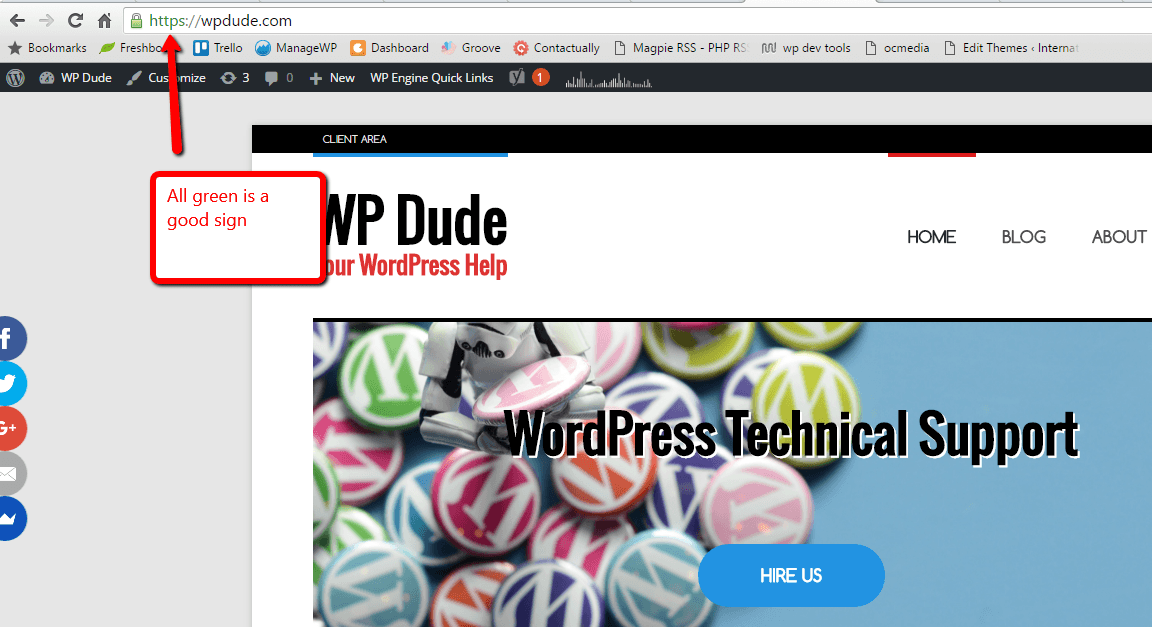
    To test the SSL is working as expected, you need to access the from end of your site, if the browser redirects you to the https version things are working as expected.

    Click for full size image
    Click for full size image


    If you are seeing red errors on your link there are issues.

    Fixing Mixed Content Issues

    You have probably added a lot of links into your site over HTTP over the years,  it’s a good idea to fix those links to stop your posts and pages serving up mixed content over http and https.

    The best way to do this is with a search and replace on your database.  I wrote a post on the plugin Better Search and Replace.  I used this to search for and change links in my posts.

    Other areas to investigate are custom menu links, my home link was pointing to http://neilm.wpengine.com/ and any widgets.  Here is a video to show you how to spot mixed content.

    Encryption Impacts Performance (a little)

    Encrypting you pages add a little bit of performance overhead, but not a huge amount, I think it is worth taking this hit to improve security.

    Wrap Up

    Things went relatively smoothly for me, I’ve done this for clients and sometimes plugins are hard coded with URLs and I have had to do some coding for their site.

    Adding a little more security will keep Google happy and help secure the interwebs.

    Photo Credit: Davis.L3 via Compfight cc