Neil Matthews

Blog

  • Woocommerce subscription products

    Woocommerce subscription products

    Overview – Woocommerce subscription products

    I worked with a client that wanted to offer their products as a single purchase and as recurring WooCommerce subscription products purchased over 1,2 or 3 months.

    Using the WooCommerce subscription plugin and another plugin which make a subscription selectable I was able to build our their products with a recurring income feature.

    A customer can buy the single product and then make it into a subscription of they are happy.

    The my account page has a feature to cancel a particular re-subscription if the customer has too much of the product on hand at home.

    Video

    Here’s a video walk through of the resulting subscription products

    Wrap Up

    If you need help setting up products that can be subscribed to please contact me.

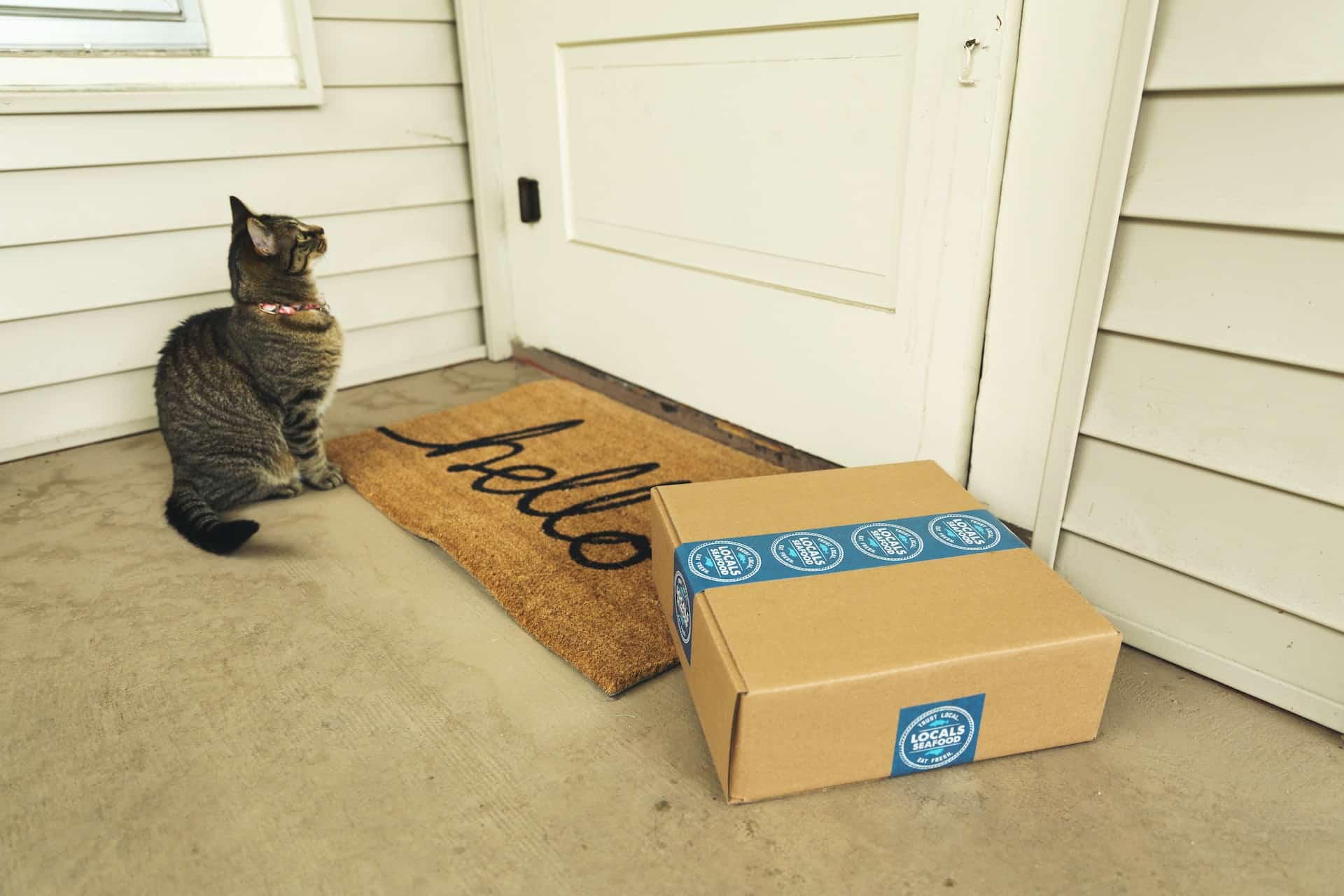
    Photo by Sticker Mule on Unsplash

  • Multi language woocommerce store

    Multi language woocommerce store

    Introduction – Multi language WooCommerce store

    I was asked by my client to make a Multi language WooCommerce store. They have a Canadian part of their business and it’s a legal requirement to have the site in French and English.

    Using the Polylang plugin were were able to add translations for the store in both languages so all the product pages, checkout cart and thankyou pages were in both languages

    The after sale emails were also translated depending upon which language the customer check out in.

    I’ve built with multi language / multi currency sites using WPML, but we were forced to use Polylang due to the host we were using,

    It worked seamlessly in the end after some custom coding of the way we output strings.

    We used the pro version of Polylang to take into account their WooCommerce extension. I also use this third part tool to show translatable strings in the back end of WordPress.

    Video

    Here’s a video walk through of the multilanguage site I built using Polylang

    Wrap up – Multi language WooCommerce store

    If you need help building a multi landguage / multi currency WooCommmerce store please visit the work with me page.

  • Integrating Woocommerce with a flutter app

    Integrating Woocommerce with a flutter app

    Overview – integrating WOocommerce with a flutter app

    I was asked by my client to work closely with the App development team integrating WooCommerce with a flutter app.

    App store links to the apps can be seen here Apple and Google.

    The app would allow a customer to browse their catalogue of agricultural product and add to cart directly from the app then checkout. The back end processing and payment processing was all done via WooCommerce. The app serves as a front end to the service.

    We used the WooCommerce rest API to pull products in real time from the WooCommerce store, and show prices, availability.

    I created a custom authentication process so a customer could use single sign on from the app to authenticate to the store via Microsoft Azure. This was one the the main challenges of the project, I setup custom code to create a SSO between the app and WooCommerce including creating a new user if one did not already exist.

    The app would use the WooCommerce rest API to push items to the cart once a user was authenticated.

    Once they were ready to checkout the app opened a WebView to a custom checkout view which removed all heading and footer data and allowed checkout and the thankyou page to be displayed on the app as if checkout had happened natively.

    Video

    Here is a video walk through of the app in action. Sorry for the portrait view, it was recorded directly from my iPhone.

    Wrap Up – integrating WooCommerce with a flutter app

    If you need help integrating your app with WooCommerce or any other integration, please get in touch.

    I offer a consultation service where we can discuss how to integrate your Flutter app with the WooCommerce rest API and more importantly how to integrate the WooCommerce checkout with a webview, which is the real challenge of this integration get in touch.

  • adding a custom fee to woocommerce checkout

    adding a custom fee to woocommerce checkout

    Overview – adding a custom fee to woocommerce checkout

    I was hired to add a custom fee to a WooCommerce checkout when certain conditions were met.

    The site roofrazor.com sells tools to remove snow from a roof. These innovative products allow customers from northern latitudes in the US and Canada to remove snow from their roof before it becomes a hazard to people walking below the eaves of the roof.

    It has a wholesale side to it’s business and as part of that they allow their dealers to drop ship product to their end users.

    The dropping shipping process has a custom handling fee of $4.00 to package and send off the products.

    I added some custom code that checks the woocommerce_cart_calculate_fees action hook. If the user has the role dealer and they “do you want to drop ship” check box is checked then the fee is added to the cart.

    The customer comes to the site, and logs in as a wholesale user, they have been allocated the user role “wcwp_dealer”.

    If the user is a wholesale user a new checkbox is presented at the top the checkout page to select if this is a drop shipping order, if that is checked my code kicks in and a custom handling fee of $4.00 is added to the order.

    One of the challenges of this code is to ensure the fees are added to the cart if a customer refreshed the checkout page without the correct hook being called the code was disappearing on checkout page reload.

    Video

    Here’s a walk through vide to show how the process works.

    Wrap up

    If you need help adding custom fees to your WooCommerce store then why not get in touch by visiting my work with me page.

    Photo by Markus Spiske on Unsplash

  • How To Debug WooCommerce Payment Gateways

    How To Debug WooCommerce Payment Gateways

    In this video tutorial I’ll show you how to debug WooCommerce payment gateways.

    Imagine the scenario, your customers are complaining that they cannot checkout, there is a problem with their gateway but you have no idea what is going wrong.

    In this video tutorial I will show you how to enable debugging and get greater visibility of what is going wrong.

    Wrap Up – How To Debug WooCommerce Payment Gateways

    If you are having issues with customer checkout, use this process to debug your gateway, if you need help fixing any issues why not get a no obligation quote.

    Photo by Igal Ness on Unsplash

  • debugging WooCommerce Shipping Classes: A Comprehensive Debugging Guide

    debugging WooCommerce Shipping Classes: A Comprehensive Debugging Guide

    Introduction – debugging WooCommerce Shipping

    Shipping classes play a pivotal role in the success of any WooCommerce-based online store. They allow you to categorize and assign shipping rates to different types of products in your inventory. However, like any other component of an e-commerce platform, shipping classes can sometimes be the source of headaches when things go awry. In this guide, we’ll explore the ins and outs of debugging WooCommerce shipping classes, helping you ensure that your customers enjoy a seamless shopping and shipping experience.

    Understanding WooCommerce Shipping Classes

    Before diving into debugging, it’s essential to grasp the basics of WooCommerce shipping classes:

    • What Are Shipping Classes? Shipping classes are a way to group products with similar shipping requirements. For example, you might have different classes for “Standard,” “Express,” and “Fragile” products.
    • How Do They Work? Shipping classes enable you to assign specific shipping methods and rates to different product groups. This flexibility is especially useful for stores with diverse product types.

    Now that you have a basic understanding, let’s explore common issues and debugging strategies.

    Debugging WooCommerce Shipping Classes

    1. Misconfigured Shipping Classes
    • Issue: If your shipping classes are misconfigured, it can lead to incorrect shipping rates or, in some cases, prevent customers from checking out.
    • Solution: Double-check your shipping class settings. Ensure that each product has the correct class assigned to it. Also, review the cost settings for each class to make sure they align with your shipping strategy.
    1. Conflict with Shipping Zones and Methods
    • Issue: Sometimes, conflicts can arise between your shipping classes, zones, and methods. This can result in unexpected shipping costs or unavailable shipping options.
    • Solution: Review your shipping zones and methods. Ensure that there are no overlaps or conflicts between shipping classes, zones, and methods. You may need to adjust the conditions and priorities.
    1. Product Not Assigned to a Shipping Class
    • Issue: If a product isn’t assigned to any shipping class, WooCommerce may not calculate shipping costs correctly.
    • Solution: Go through your product catalog and ensure that every product is assigned to an appropriate shipping class. If a product doesn’t fit any existing class, create a new one.
    1. Incorrect Shipping Cost Calculations
    • Issue: Shipping classes are used to calculate shipping costs. If these calculations are off, you might overcharge or undercharge your customers.
    • Solution: Review the shipping cost formulas associated with your shipping classes. Ensure that they accurately represent your shipping strategy. Also, consider testing your store with various products to verify that the costs are calculated correctly.
    1. Plugin or Theme Conflicts
    • Issue: Conflicts with third-party plugins or themes can interfere with the proper functioning of your shipping classes.
    • Solution: Temporarily deactivate all plugins and switch to a default WordPress theme (like Twenty Twenty-One). If the issue is resolved, reactivate each plugin/theme one by one to identify the culprit. Once you find the conflicting element, contact its developer for support or look for alternative solutions.

    Conclusion

    Debugging WooCommerce shipping classes may seem daunting, but it’s a crucial aspect of running a successful online store. By understanding how shipping classes work and following these debugging strategies, you can ensure that your shipping rates are accurate, your customers are satisfied, and your store thrives. Remember, a seamless shopping and shipping experience can be a key factor in retaining loyal customers and boosting your e-commerce business.

    Photo by Peter Pryharski on Unsplash

  • Mastering WooCommerce Order Debugging: A Comprehensive Guide

    Mastering WooCommerce Order Debugging: A Comprehensive Guide

    Introduction – WooCommerce Order Debugging

    Running an online store with WooCommerce can be a highly profitable venture, but it also comes with its fair share of challenges. One common issue that online store owners face is dealing with order-related problems. Whether it’s missing orders, payment failures, or other order-related issues, debugging WooCommerce orders is a critical skill for any e-commerce business owner. In this comprehensive guide, we will explore the most common WooCommerce order issues and provide you with effective strategies to debug and resolve them.

    1. Missing Orders

    One of the most frustrating issues store owners encounter is missing orders. These are orders that customers believe they have placed, but for some reason, they do not appear in your WooCommerce dashboard. Here’s how to tackle this problem:

    a. Check Payment Gateways: Start by verifying that your payment gateways are configured correctly. Ensure that customers can complete the payment process without any issues.

    b. Payment Failures: Sometimes, payment failures can lead to orders not being recorded. Check your payment gateway logs for any failed transactions and address them accordingly.

    c. Server Logs: Examine your server logs for any errors or issues that might be preventing orders from being processed. This could be related to server resources or configuration.

    1. Order Status Errors

    Order statuses are crucial for tracking the progress of an order. If you’re experiencing issues with order statuses, follow these steps:

    a. Review Settings: Go to WooCommerce > Settings > General and verify that your order status settings are correctly configured.

    b. Plugin Conflicts: Sometimes, conflicts with other plugins can interfere with order status updates. Deactivate plugins one by one to identify the culprit.

    c. Database Checks: Corrupted databases can also cause order status problems. Use plugins like “WooCommerce Status” to check your database health.

    1. Payment Gateway Issues

    Payment gateways are a critical part of the online shopping process. If you’re facing payment gateway problems, try the following:

    a. Test Payments: Make test purchases using various payment methods to ensure that they are working correctly.

    b. Compatibility: Check if your payment gateway plugins are compatible with the current version of WooCommerce. Update or replace outdated plugins as needed.

    c. API Keys and Credentials: Ensure that you have the correct API keys and credentials for your payment gateway. These details can sometimes become outdated or invalid.

    1. Shipping Problems

    Shipping issues can lead to customer dissatisfaction. To debug shipping-related problems:

    a. Shipping Zones: Verify that your shipping zones and methods are set up correctly. Double-check the shipping costs, classes, and conditions.

    b. Weight and Dimensions: Ensure that your product weight and dimensions are accurately entered. Incorrect data can lead to unexpected shipping costs.

    c. Shipping Labels: If you use shipping label plugins, check for compatibility issues and ensure that they are correctly configured.

    Conclusion

    Debugging WooCommerce orders can be challenging, but with the right strategies and a systematic approach, you can overcome these issues and provide a smooth shopping experience for your customers. Remember to regularly update your WooCommerce and plugin versions, maintain backups, and monitor your store’s health to catch and resolve issues before they affect your customers. By mastering the art of order debugging, you can ensure that your online store continues to thrive and grow.

    Photo by David Clode on Unsplash

  • Should I Buy a Premade Theme or Get a Custom Design for My WooCommerce Store?

    Should I Buy a Premade Theme or Get a Custom Design for My WooCommerce Store?

    The Case for Buying a Premade Theme

    Pros:

    1. Cost-Effective: Premade themes are generally more budget-friendly than custom designs. Many good-quality themes are available for a one-time purchase or a reasonable annual fee.
    2. Time-Efficient: Using a premade theme can save you a significant amount of time. These themes come with pre-designed layouts and features, reducing the need for extensive development work.
    3. Wide Variety: You have a vast selection of premade themes to choose from. Whether you’re looking for a minimalist design, an e-commerce-specific theme, or something flashy, you’re likely to find a premade option that suits your needs.
    4. Continuous Updates: Most reputable theme providers offer regular updates, ensuring your website remains compatible with the latest versions of WooCommerce and WordPress.

    Cons:

    1. Lack of Uniqueness: Premade themes are available to anyone who purchases them. Your website may look similar to others using the same theme, making it challenging to stand out.
    2. Limited Customization: While premade themes are customizable to some extent, you might encounter limitations when trying to achieve a highly unique or specific design.
    3. Potentially Bloated Code: Some premade themes come with excess code and features you may not need, which can affect website performance.

    The Case for Getting a Custom Design

    Pros:

    1. Unique Branding: A custom design allows you to create a unique and memorable brand identity. Your website will stand out from the crowd and better reflect your brand’s personality.
    2. Tailored Functionality: Custom designs can be built to meet your exact requirements. If you have specific features or functionality in mind, a custom design can make it a reality.
    3. Optimized Performance: Custom-designed websites can be optimized for speed and performance, enhancing the user experience and SEO rankings.
    4. Scalability: As your business grows, a custom design can easily adapt to your evolving needs, ensuring that your website continues to meet your goals.

    Cons:

    1. Higher Cost: Custom designs are typically more expensive than premade themes. The investment may be significant, especially for small businesses or startups.
    2. Time-Consuming: Building a custom design takes time, from initial planning and design to development and testing. It may delay the launch of your website.
    3. Ongoing Maintenance: Custom websites often require ongoing maintenance and updates, which can add to the long-term cost.

    Conclusion: Which Is Right for You?

    The choice between a premade theme and a custom design ultimately depends on your specific needs, budget, and long-term goals. If you’re just starting and have limited resources, a premade theme can provide a solid foundation to get your store up and running quickly. However, if you value uniqueness, have specific design and functionality requirements, and are willing to invest in your brand’s long-term success, a custom design may be the better choice.

    In some cases, a middle ground might work as well. You can start with a premade theme and then customize it to better align with your brand and unique requirements. Ultimately, your decision should align with your business goals and budget constraints, keeping in mind that your website’s design is a critical element in the success of your WooCommerce store.

    Photo by Robert Katzki on Unsplash

  • Tax Reporting and Compliance: WooCommerce Best Practices

    Tax Reporting and Compliance: WooCommerce Best Practices

    Introduction – Tax Reporting and Compliance: WooCommerce Best Practices:
    Tax reporting and compliance are vital aspects of running an e-commerce business. WooCommerce, as a versatile and widely-used platform, offers various tools and features to help you manage your taxes effectively. In this blog post, we’ll explore the best practices for tax reporting and compliance within WooCommerce, ensuring that you can navigate the complexities of taxation with ease.

    Chapter 1: Keep Accurate Records

    Accurate record-keeping is the cornerstone of tax reporting and compliance. Here’s how you can ensure your records are impeccable:

    • Regularly Update Sales Records: Keep track of all your sales, including dates, order numbers, customer information, and tax amounts. WooCommerce provides detailed sales reports that can help you with this task.
    • Maintain Purchase Records: Record all your expenses, including invoices, receipts, and purchase orders. This information is crucial for calculating your taxable income.
    • Organize Financial Statements: Use accounting software or tools to create well-organized financial statements that summarize your income, expenses, and profits. WooCommerce can integrate with various accounting plugins for seamless data synchronization.

    Chapter 2: Understand Tax Laws and Regulations

    Tax laws and regulations can vary greatly depending on your location and the type of products you sell. Staying informed is essential:

    • Local Tax Regulations: Research and understand the specific tax laws in your region, including sales tax, VAT, GST, and other applicable taxes.
    • Product Taxation: Be aware of any product-specific tax rules. Some products may be exempt from certain taxes or subject to reduced rates.
    • International Sales: If you sell globally, educate yourself on cross-border taxation and import/export regulations that may apply to your business.

    Chapter 3: Configure WooCommerce Tax Settings Properly

    WooCommerce offers a comprehensive set of tax settings that you can customize to meet your business needs. Here’s how to configure them correctly:

    • Set the Base Location: Ensure that your store’s base location is correctly configured in WooCommerce settings. This information is used as the starting point for tax calculations.
    • Create Tax Zones: Set up tax zones for different regions or countries where you have a tax obligation. Configure tax rates and classes for each zone.
    • Assign Tax Classes: Define tax classes for your products to specify which items are taxable and which are tax-exempt. Assign the appropriate tax class to each product in your catalog.

    Chapter 4: Automate Tax Calculation

    WooCommerce offers several plugins and integrations that can automate tax calculations based on the customer’s location. These automation tools can save you time and reduce the risk of errors.

    • Use Tax Calculation Plugins: Explore tax calculation plugins that are compatible with WooCommerce, such as TaxJar or Avalara. These tools can automatically determine the correct tax rates for each transaction.

    Chapter 5: Regularly Update Tax Rates

    Tax rates can change due to legislative updates or changes in your business operations. To stay compliant:

    • Regularly Review Tax Rates: Set a schedule to review and update your tax rates to ensure they align with current regulations. WooCommerce allows you to import tax rate tables or use APIs to stay up to date.

    Conclusion:

    WooCommerce provides robust tools to help you with tax reporting and compliance, but it’s essential to take a proactive approach. By maintaining accurate records, staying informed about tax laws, configuring your WooCommerce tax settings correctly, automating tax calculations, and regularly updating tax rates, you can ensure that your online store operates in full compliance with tax regulations. Proper tax reporting not only keeps you on the right side of the law but also helps you manage your finances efficiently, making your e-commerce business more successful in the long run.

    Photo by StellrWeb on Unsplash

  • Common WooCommerce Tax Mistakes and How to Avoid Them

    Common WooCommerce Tax Mistakes and How to Avoid Them

    Introduction – Common WooCommerce Tax Mistakes and How to Avoid Them:
    WooCommerce is a fantastic platform for creating and managing your online store, but when it comes to taxes, even seasoned e-commerce entrepreneurs can stumble. Taxation can be a tricky subject, and mistakes can lead to financial penalties and headaches. In this blog post, we’ll explore some common WooCommerce tax mistakes and, more importantly, provide you with insights on how to avoid them.

    Mistake #1: Incorrect Store Location Setup

    One of the most fundamental aspects of WooCommerce tax configuration is setting up your store’s location accurately. Many users overlook this crucial step or get it wrong. Here’s how to avoid this mistake:

    • Solution: Double-check your store’s base location in WooCommerce settings, ensuring it matches your actual business location. This forms the foundation for tax calculation.

    Mistake #2: Ignoring Tax Nexus Rules

    Tax nexus refers to the connection between your business and a particular taxing jurisdiction. Ignoring these rules can lead to underreporting or overreporting taxes. To avoid this mistake:

    • Solution: Research tax nexus rules for the areas where you have a significant presence (e.g., physical stores, warehouses, employees) and configure WooCommerce tax settings accordingly.

    Mistake #3: Using Incorrect Tax Rates

    Using the wrong tax rates can result in inaccurate calculations and potential legal issues. Avoid this mistake by:

    • Solution: Regularly update your tax rates to account for changes in tax laws, especially if you sell to different regions with varying tax rates. WooCommerce offers automatic tax rate calculation options for many areas.

    Mistake #4: Not Applying Tax Classes Correctly

    Tax classes in WooCommerce help you categorize products and apply taxes accordingly. Failing to set tax classes can lead to inconsistent tax calculations. Here’s how to get it right:

    • Solution: Assign the appropriate tax class to each product in your inventory, specifying whether a product is taxable or tax-exempt. Be consistent and review your product settings regularly.

    Mistake #5: Overlooking Product Tax Status

    Sometimes, WooCommerce users forget to set the tax status for their products, assuming that all products are taxable. This can lead to errors in tax calculations. To prevent this:

    • Solution: For each product, clearly define its tax status as “Taxable” or “None” based on its classification and the applicable tax rules.

    Mistake #6: Neglecting Customer Tax Exemptions

    Customers may have tax exemptions for various reasons, such as non-profit status or specific product categories. Failing to account for these exemptions can result in overcharging. To address this:

    • Solution: Set up and maintain a system for handling tax-exempt customers in WooCommerce. Verify customer eligibility for tax exemptions and apply them when necessary.

    Mistake #7: Lack of Regular Tax Audits

    Ignoring regular tax audits of your WooCommerce store can lead to long-term issues. To avoid this:

    • Solution: Conduct periodic tax audits to ensure that your tax settings are accurate and up to date. This proactive approach can save you from potential compliance problems down the road.

    Conclusion:

    In the world of e-commerce, WooCommerce tax mistakes are common but entirely avoidable with careful planning and attention to detail. By taking the time to set up your store correctly, staying informed about tax regulations, and regularly auditing your tax settings, you can ensure smooth sailing when it comes to taxes and focus on growing your online business without tax-related headaches.

    Photo by Daniela Holzer on Unsplash

  • My Journey into Understanding First Contentful Paint (FCP)

    My Journey into Understanding First Contentful Paint (FCP)

    INtroduction – First Contentful Paint

    As a web developer, I’ve always been fascinated by the intricate world of web performance metrics. One metric that has consistently piqued my interest is “First Contentful Paint” or FCP. In this blog post, I’ll take you on a journey to demystify FCP, explaining what it is, why it matters, and how it influences the user experience.

    What Exactly is First Contentful Paint (FCP)?

    Let’s begin with the basics. FCP is a critical metric used to gauge a website’s loading performance. It marks the moment when the first meaningful content element appears on the user’s screen as a webpage loads. This content element can take various forms, such as text, images, or graphics, but it’s always something that adds value to the user’s experience.

    Why Does FCP Matter?

    1. Enhancing User Experience

    User experience is at the core of web development, and FCP plays a pivotal role in shaping it. FCP determines how quickly users perceive your website to load. A swift FCP can create a positive impression, making users feel like your site is responsive and user-friendly. Conversely, a slow FCP can lead to user frustration and potentially drive them away.

    2. Perceived Speed

    FCP contributes to the perceived loading speed of your webpage. Even if the entire page isn’t fully loaded, a rapid FCP can give users the impression that your site is loading quickly and efficiently. This perception is crucial for keeping users engaged and satisfied.

    3. SEO and Search Engine Rankings

    In the competitive online landscape, search engine optimization (SEO) is vital for website visibility. Search engines like Google consider page speed and user experience as ranking factors. Websites with faster loading times, including a speedy FCP, are more likely to rank higher in search results, increasing their chances of attracting organic traffic.

    How is FCP Measured?

    Understanding how FCP is measured can shed light on how to improve it:

    1. Rendering Time

    FCP is measured during the rendering process, precisely when the first content element becomes visible on the user’s screen. It captures the moment of truth when the user begins to see something meaningful.

    2. Element Selection

    The browser identifies the first content element by assessing its layout dimensions, including width and height, within the viewport. This ensures that FCP reflects what’s visible to the user.

    3. Time Measurement

    FCP is typically measured in seconds. The ideal FCP time frame falls within the first 1 to 2 seconds of page loading. Achieving this swift FCP ensures a seamless user experience.

    Strategies to Improve First Contentful Paint

    To enhance FCP and overall webpage performance, consider implementing the following strategies:

    1. Optimize Images and Assets

    Compress and optimize images and other assets to reduce their loading times. Ensure you’re using the right image formats and resolutions for various devices to minimize unnecessary resource consumption.

    2. Prioritize Critical Resources

    Load critical resources, such as CSS and JavaScript, early in the page loading process to expedite rendering. Minimize render-blocking resources that can delay FCP.

    3. Minimize Server Response Times

    Optimize server response times by choosing efficient hosting solutions, implementing content caching, and reducing server-side processing. A faster server response time can contribute to a quicker FCP.

    4. Use Content Delivery Networks (CDNs)

    Leverage CDNs to distribute content across multiple servers globally, reducing the physical distance between users and the server. This geographical optimization can significantly decrease load times, including FCP.

    Conclusion

    First Contentful Paint (FCP) isn’t just a technical metric; it’s a key driver of user satisfaction, SEO performance, and the overall success of your website. By focusing on improving FCP, you can ensure that users have a positive initial experience, boost your site’s search engine rankings, and build a website that keeps visitors engaged. In today’s digital world, speed matters, and FCP plays a pivotal role in delivering a fast and captivating user experience.

    Photo by Possessed Photography on Unsplash
  • Understanding Largest Contentful Paint

    Understanding Largest Contentful Paint

    Introduction -Understanding Largest Contentful Paint

    In the digital age, where attention spans are short and competition is fierce, website performance plays a pivotal role in delivering a seamless user experience. Slow-loading websites can frustrate users and deter them from engaging with your content or products. To address this issue and help developers optimize their websites, Google introduced a set of user-centric performance metrics, one of which is Largest Contentful Paint (LCP). In this blog post, we’ll explore what LCP is, why it matters, and how to improve it to give you a thorough understanding largest contentful paint.

    What is Largest Contentful Paint (LCP)?

    Largest Contentful Paint (LCP) is a crucial performance metric used to measure how fast the largest and most important content element becomes visible on a web page during its loading process. This content element is often a text block, image, or video – something that holds significance for the user experience. LCP provides valuable insights into the perceived loading speed of a webpage, helping developers identify and address performance bottlenecks.

    Why does LCP matter?

    1. User Experience: LCP is directly related to the user’s perception of a webpage’s loading speed. A fast LCP contributes to a positive user experience, while a slow LCP can lead to frustration and increased bounce rates. Users expect websites to load quickly, and a delay in rendering critical content can deter them from staying on your site.
    2. SEO Impact: Search engines like Google consider page speed as a ranking factor. Websites with faster loading times, including a quick LCP, are more likely to rank higher in search results. Therefore, optimizing LCP can have a positive impact on your website’s search engine visibility.
    3. Conversion Rates: Slow-loading pages can significantly affect conversion rates. Whether you’re running an e-commerce site or trying to capture leads, a quick LCP can help increase conversions by keeping visitors engaged and interested in your content or products.

    How is LCP measured?

    LCP is measured using real user data, making it a user-centric performance metric. The key elements in determining LCP include:

    1. Rendering: LCP is measured during the page rendering process. It tracks the time it takes for the largest content element to render on the user’s screen.
    2. Element Selection: The browser identifies the largest content element based on its layout dimensions (width and height) on the viewport.
    3. Time Measurement: LCP is measured in seconds, and the ideal LCP time should be below 2.5 seconds to ensure a smooth user experience.

    How to Improve LCP

    To enhance LCP and overall website performance, consider the following strategies:

    1. Optimize Images and Videos: Compress and resize images and videos to reduce their loading time. Use responsive images to ensure they adapt to various screen sizes.
    2. Prioritize Critical Resources: Load critical resources (CSS, JavaScript) as early as possible to speed up rendering. Eliminate render-blocking resources that can hinder LCP.
    3. Use Content Delivery Networks (CDNs): CDNs distribute content across multiple servers globally, reducing the physical distance between users and the server, thus decreasing load times.
    4. Minimize Server Response Times: Optimize server response times by using efficient hosting, content caching, and reducing server-side processing.
    5. Lazy Loading: Implement lazy loading for non-critical content, ensuring that resources are loaded only when they are needed.
    6. Efficient Web Design: Design your website with performance in mind. Use efficient code, limit the use of third-party scripts, and avoid excessive ads.

    Conclusion

    Largest Contentful Paint (LCP) is a vital metric for assessing and improving website performance. By focusing on optimizing LCP, you can enhance user experiences, boost SEO rankings, and increase conversion rates. Keep in mind that LCP is just one part of a broader effort to deliver fast-loading, responsive websites, but it’s a key indicator of your site’s overall performance. Stay vigilant, regularly test your website’s performance, and employ the best practices mentioned above to ensure a smooth and efficient online experience for your users.

    Why not book a free speed audit to see what your current LCP score is.

    Photo by Anna Kolosyuk on Unsplash