Neil Matthews

Blog

  • How WooCommerce Protects Downloadable Files

    How WooCommerce Protects Downloadable Files

    Selling digital products like eBooks, software, or music requires strong file protection to prevent unauthorized access and sharing. WooCommerce, as the leading WordPress eCommerce platform, offers effective ways to safeguard downloadable files and ensure only paying customers can access them.

    Here’s how WooCommerce protects your digital assets:

    1. Restricted Access to Downloads

    WooCommerce restricts access to downloadable files to customers who have successfully completed the purchase. Once the order is marked as “Completed,” customers receive a unique, secure download link.

    2. Download Permissions

    You can control how many times a customer can download a file by setting a limit per product. This prevents overuse or sharing of download links.

    3. Expiring Download Links

    WooCommerce lets you set expiration times for download links. Once the link expires, customers can no longer access the file, providing an extra layer of protection.

    4. File Delivery Methods

    WooCommerce offers two ways to deliver files:

    • Force Downloads: Files are served to the customer through PHP scripts, making it harder for them to access the file URL directly.
    • X-Accel-Redirect/X-Sendfile: A more efficient server-based method that protects files while improving performance.

    5. Secure File Storage

    WooCommerce stores downloadable files outside the public directory by default, so the files are inaccessible directly through the URL. This prevents unauthorized access to files through brute-force URL discovery.

    Enhancing Security

    To further strengthen security:

    • Use strong file names and avoid easily guessable URLs.
    • Consider using a third-party digital rights management (DRM) solution for sensitive files.

    By combining these features, WooCommerce ensures that your digital products remain secure, limiting unauthorized downloads and protecting your business.


    Feel free to explore these settings in WooCommerce to keep your downloadable products safe!

    Photo by Markus Spiske on Unsplash

  • HPOS Full Text Search Is Available As An Experimental feature

    HPOS Full Text Search Is Available As An Experimental feature

    In WooCommerce v9 and above an experimental feature has been added in the shape of full text searches for HPOS or WooCommerce high performance order storage.

    So what is the big deal about HPOS Full text search? Watch this video .

    Video

    More Details

    Check out this update from WooCommerce.com for more details and some baseline details on how much faster the searches are.

    Wrap Up

    This is an EXPERIMENTAL feature, only implement this in staging as this point, you have been warned.

    If you need help implementing HPOS on your WooCommerce store get in touch.

    Photo by Thomas Kelley on Unsplash

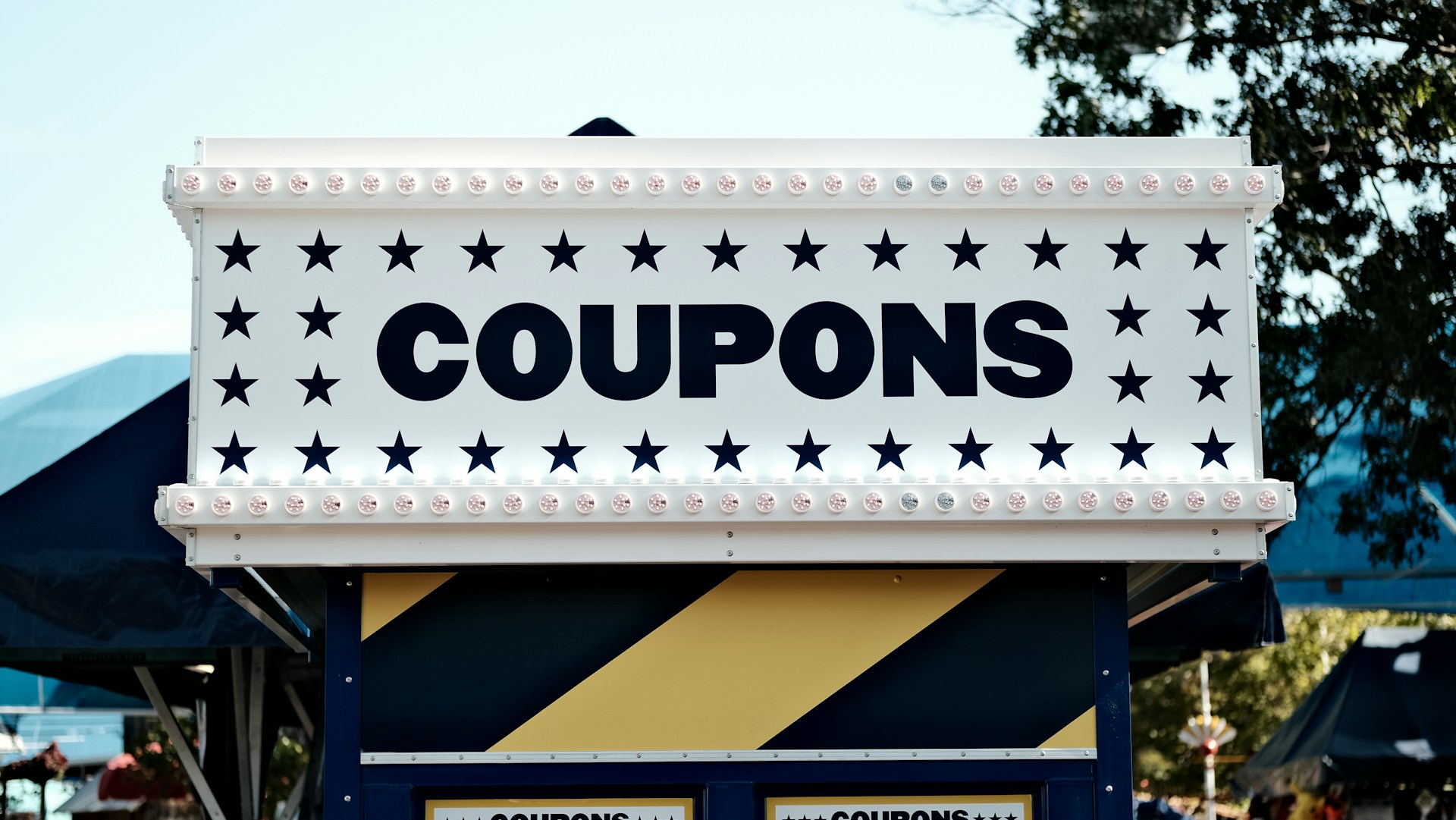
  • Controlling Access to WooCommerce Coupons by Email Address, Usage Limits, Expiry Date, Products, and Categories

    Controlling Access to WooCommerce Coupons by Email Address, Usage Limits, Expiry Date, Products, and Categories

    In WooCommerce, coupons are a useful way to offer discounts and promotions, but it’s important to set limits and restrictions to control their use effectively. As of recent updates, coupons have been moved to the Marketing menu in WooCommerce, allowing easier access and management. This post will walk you through how to control access to coupons by setting limits based on usage, expiry date, and specific products or categories, using WooCommerce’s native features without additional plugins.

    1. Setting Usage Limits for Coupons

    WooCommerce allows you to limit how many times a coupon can be used by individual customers or across all customers. This is useful to prevent overuse or abuse of the coupon.

    Setting General Usage Limits:
    1. Go to Marketing > Coupons > Add Coupon.
    2. In the Usage Limits tab, you can set:
    • Usage limit per coupon: Limits the total number of times the coupon can be used across all customers.
    • Usage limit per user: Limits how many times each individual customer can use the coupon.

    This helps you control how many times the discount is applied, either across the board or per user.

    Limiting Coupon Use by Product Quantity:

    If you want to restrict the coupon to only apply when a certain number of items are in the cart:

    1. In the same Usage Limits tab, use the Limit usage to X items field to define the number of products the coupon will apply to.

    This option is useful if you want to control the scope of the discount based on the number of items purchased.

    2. Setting an Expiry Date for Coupons

    To ensure that a coupon is only valid for a certain period, you can set an expiry date. This is especially useful for time-sensitive promotions, like holiday or seasonal sales.

    Adding an Expiry Date:
    1. While creating or editing a coupon, go to the General tab.
    2. In the Coupon expiry date field, choose the date when the coupon will no longer be valid.

    Once this date passes, customers will not be able to apply the coupon, even if they have the code.

    3. Restricting Coupons to Specific Products

    If you want the coupon to only apply to certain products, WooCommerce allows you to limit its use to those items. This is helpful for product-specific promotions or clearance sales.

    Restricting by Product:
    1. In the Usage Restriction tab, you will see options to control where the coupon is applied.
    • Products: Select specific products where the coupon will be valid. The discount will only apply to these products when the coupon is used.
    • Exclude products: You can also specify products where the coupon should not be applied. This helps protect high-margin or premium items from unintended discounts.

    4. Restricting Coupons by Product Categories

    WooCommerce also allows you to limit coupons to specific product categories, which is helpful for category-wide promotions or sales.

    Restricting by Product Category:
    1. In the Usage Restriction tab, use the Product categories field to choose the categories where the coupon can be used.
    2. Alternatively, use the Exclude categories option to prevent the coupon from applying to certain categories.

    This is useful for applying discounts on broader groups of items while excluding others, like premium or seasonal collections.

    5. Limiting Coupons by Email Address (Workaround with Native WooCommerce)

    While WooCommerce doesn’t provide a direct option to limit coupon use by email address without plugins, there’s a simple workaround using user roles or customer data:

    • Usage limit per user: This option indirectly controls email-based restrictions, as each registered user is linked to a unique email address. Setting a usage limit per user ensures that the coupon is only applied to a specific customer (based on their email).
    • For better control, consider offering coupons only to registered users or using manual processes to email specific coupons to chosen customers.

    Conclusion

    With WooCommerce’s built-in tools, you can control access to coupons without relying on additional plugins. By setting limits on usage, expiry dates, and restricting them to specific products or categories, you can create more targeted promotions. While limiting coupons by email address may require some manual handling, the other options provide flexible, native ways to manage your WooCommerce coupons effectively.

    Do you need help with WooCommerce? Get in touch.

    Photo by Alberto Bigoni on Unsplash

  • How to Set Up Minimum Spend Coupons in WooCommerce

    How to Set Up Minimum Spend Coupons in WooCommerce

    Offering discounts through coupons can be an effective way to encourage customers to make a purchase in your WooCommerce store. One common strategy is to set up a minimum spend coupon, which requires customers to reach a certain cart total before applying a discount. This can help increase the average order value while providing customers with an incentive to buy more. In this post, we’ll cover how to create and use minimum spend coupons in WooCommerce.

    What is a Minimum Spend Coupon?

    A minimum spend coupon is a discount that only applies when a customer’s cart reaches a specified amount. For example, you might offer a 10% discount if the cart total is $50 or more. This type of coupon is useful for encouraging larger orders while still offering a discount as an incentive.

    Steps to Create a Minimum Spend Coupon in WooCommerce

    Creating a minimum spend coupon in WooCommerce is straightforward. Follow these steps:

    1. Access the Coupon Settings
    • In your WordPress dashboard, go to WooCommerce > Coupons.
    • Click Add Coupon to create a new coupon.
    2. Enter the Coupon Details
    • Coupon Code: Create a code that customers will enter at checkout. Keep it simple and easy to remember, such as “SAVE10” or “SPEND50”.
    • Description: You can add a brief description of the coupon for your reference, though this is optional.
    3. Configure the Coupon Discount
    • In the General tab, choose the type of discount. You can select from:
    • Percentage discount: A discount based on the percentage of the cart total (e.g., 10% off).
    • Fixed cart discount: A fixed amount discount applied to the entire cart (e.g., $10 off).
    • Fixed product discount: A discount applied to specific products or product categories.
    4. Set the Minimum Spend Requirement
    • Switch to the Usage Restriction tab.
    • Find the Minimum Spend field and enter the amount customers need to spend for the coupon to be valid (e.g., $50).
    • If you want to, you can also set a Maximum Spend limit, though this is optional.
    5. Additional Coupon Options

    In the Usage Restrictions tab, you can further refine how the coupon can be used:

    • Individual use only: Prevents customers from using this coupon in combination with other coupons.
    • Exclude sale items: Ensures that the coupon doesn’t apply to items already on sale.
    • Product or category restrictions: Limit the coupon’s use to certain products or categories.
    6. Set Usage Limits (Optional)

    In the Usage Limits tab, you can control how many times the coupon can be used:

    • Usage limit per coupon: Total number of times this coupon can be used across all customers.
    • Limit usage to X items: Number of items in the cart the coupon can be applied to.
    • Usage limit per user: How many times an individual customer can use the coupon.
    7. Save and Test the Coupon

    Once everything is set up, save your coupon. It’s a good idea to test it on your store by adding products to the cart and applying the coupon to make sure it works as expected.

    Best Practices for Using Minimum Spend Coupons

    When using minimum spend coupons, there are a few things to keep in mind:

    • Set a Reasonable Threshold: Ensure that the minimum spend requirement is achievable for your target customers. If it’s too high, it may discourage people from making a purchase.
    • Combine with Free Shipping: Offering free shipping alongside a minimum spend coupon can make the offer more appealing to customers.
    • Promote the Offer Clearly: Make sure customers know about the minimum spend coupon by promoting it on your homepage, product pages, and during the checkout process.
    • Review Performance: Track the performance of your coupons using WooCommerce’s built-in reporting tools. This will help you see if the coupon is driving larger orders and whether any adjustments are needed.

    Conclusion

    Minimum spend coupons are a simple but effective way to increase the average order value on your WooCommerce store. By encouraging customers to spend more to qualify for a discount, you can boost sales while maintaining a level of control over your margins. Setting up these coupons in WooCommerce is easy and offers flexibility in how you configure them to suit your business needs.

    Do you need help developing your WooCommerce store? Get in touch for a no obligation quote.

    Photo by Julia Morales on Unsplash

  • WooCommerce Free Shipping Coupons

    WooCommerce Free Shipping Coupons

    In the highly competitive world of e-commerce, businesses constantly seek ways to attract and retain customers. One powerful tool in your arsenal is offering free shipping. It’s one of the most effective incentives to increase conversions and reduce cart abandonment rates. If you’re using WooCommerce for your online store, you can easily create and manage free shipping coupons to entice more customers. Let’s dive into how WooCommerce free shipping coupons work, their benefits, and how you can set them up to drive more sales!

    Why Offer Free Shipping?

    Free shipping is a perk that customers have come to expect from online shopping. In fact, studies have shown that unexpected shipping costs are one of the biggest reasons for abandoned shopping carts. Offering free shipping can:

    • Increase Conversion Rates: Many shoppers abandon their carts when they see high shipping costs at checkout. Offering free shipping can prevent this.
    • Build Customer Loyalty: Customers love deals, and free shipping often feels like getting something extra.
    • Increase Average Order Value (AOV): You can strategically offer free shipping only when customers spend above a certain threshold, encouraging them to add more to their cart.

    Now, let’s explore how you can offer free shipping using WooCommerce.

    How to Set Up Free Shipping Coupons in WooCommerce

    Creating free shipping coupons in WooCommerce is simple, and the platform provides a range of options to customize your promotions. Here’s a step-by-step guide to setting them up.

    Step 1: Enable Free Shipping Method

    Before you create a coupon, you need to enable the free shipping option in WooCommerce.

    1. Go to WooCommerce Settings > Shipping.
    2. Select the Shipping Zone where you want to offer free shipping.
    3. Click on Add Shipping Method, choose Free Shipping, and save your changes.
    4. Configure the method settings (e.g., set a minimum order amount or require a coupon).

    Step 2: Create a Free Shipping Coupon

    Now that free shipping is enabled, you can create a coupon to offer this discount to customers.

    1. Go to WooCommerce > Coupons > Add New.
    2. Enter a coupon code: Choose a simple, memorable code that reflects the offer, such as “FREESHIP” or “SHIPFREE”.
    3. Coupon data: In the General tab, set the Discount type to “Percentage Discount,” “Fixed Cart Discount,” or “Fixed Product Discount,” depending on your campaign strategy. Since we’re focusing on free shipping, you can leave the discount amount as zero if free shipping is the sole incentive.
    4. Free shipping checkbox: Enable the “Allow free shipping” checkbox, as this is crucial for activating free shipping with this coupon code.
    5. Usage restrictions: You can set limits on the coupon, such as a minimum or maximum spend, or restrict it to certain products, categories, or user roles. This can help prevent abuse and encourage higher sales (e.g., offering free shipping for orders above $50).
    6. Usage limits: You can limit how many times the coupon can be used per user or per total usage across all customers.

    Step 3: Test the Coupon

    After saving the coupon, it’s essential to test it before promoting it to customers. Add products to your cart, apply the coupon, and ensure that the free shipping option appears as expected.

    Pro Tips for WooCommerce Free Shipping Coupons

    Here are some tips to make the most out of your free shipping promotions:

    1. Set a Minimum Purchase Requirement: Offer free shipping only for orders over a certain amount. This encourages customers to spend more to qualify for free shipping.
    2. Create Time-Limited Offers: Adding a sense of urgency by offering free shipping for a limited time (e.g., 48 hours or during holiday promotions) can drive faster conversions.
    3. Target Specific Customers: Use WooCommerce’s advanced coupon restrictions to offer free shipping only to first-time buyers, VIP customers, or those in a specific geographic region.
    4. Bundle Free Shipping with Other Discounts: You can combine free shipping with percentage-based discounts or fixed discounts to create an irresistible offer.
    5. Advertise the Offer: Ensure that your free shipping offer is clearly visible on your homepage, product pages, and checkout page. Promote it across your social media channels and email newsletters to maximize its reach.

    How to Track the Success of Your Free Shipping Coupons

    WooCommerce comes with built-in reports that allow you to monitor the performance of your coupons. You can track how many times a coupon was used, its impact on sales, and whether it led to an increase in average order value.

    1. Go to WooCommerce > Reports > Coupons.
    2. Filter the data by the specific coupon code to see how well it’s performing.

    Based on these insights, you can tweak your strategy—whether that means setting different thresholds, testing other coupon offers, or adjusting the coupon duration.

    Common Mistakes to Avoid with Free Shipping Coupons

    While free shipping is a powerful incentive, there are a few pitfalls you’ll want to avoid:

    • Not setting a minimum order value: Offering free shipping with no minimum purchase can lead to reduced profits, especially on low-margin items.
    • Over-promoting the coupon: Offering free shipping too frequently can make customers expect it all the time, reducing the sense of urgency and perceived value.
    • Neglecting to factor in shipping costs: Always ensure that your margins can absorb the shipping costs, particularly for international orders or large, heavy items.

    Conclusion

    WooCommerce free shipping coupons are a great way to attract new customers, reduce cart abandonment, and boost sales. By carefully crafting your coupon strategy—setting usage restrictions, creating urgency, and tracking performance—you can optimize the effectiveness of your promotions.

    Ready to start driving more sales with free shipping? Log in to your WooCommerce store today and start creating irresistible free shipping offers for your customers!

    If you need help developing your WooCommerce store please get in touch.

    Photo by Perry Merrity II on Unsplash

  • The WooCommerce HPOS CLI

    The WooCommerce HPOS CLI

    In this video I want to walk you through the command line interface (CLI) that is available to control migrating to HPOS.

    The benefit of using the CLI over the user interface is speed of processing the migration and and trackiong of orders migrated.

    The graphic interface in teh back of Woo does this via the scheduler actions so this can be very slow.

    I recommend sites with a lot of orders uses the CLI.

    Here’s a link to the list of CLI commands available I show in the video https://developer.woocommerce.com/docs/hpos-cli-tools/

    Video

    Wrap Up

    If you need help migrating your WooCommerce orders to HPOS using the CLI please get in touch.

    Photo by Quaritsch Photography on Unsplash

  • How to Enable Reviews for WooCommerce Products and Restrict Reviews to Verified Purchasers Only

    How to Enable Reviews for WooCommerce Products and Restrict Reviews to Verified Purchasers Only

    Product reviews play a critical role in building trust and encouraging potential customers to make a purchase. In WooCommerce, reviews are a built-in feature that allows customers to share their experiences and feedback directly on the product page. However, to prevent spam or unverified reviews, WooCommerce also gives you the option to allow only verified purchasers to leave reviews.

    In this post, we’ll walk you through the steps to enable reviews for your WooCommerce products and show you how to restrict reviews to verified customers only.


    Why Enable Reviews on WooCommerce?

    Product reviews can:

    • Boost credibility: Customers trust peer reviews more than product descriptions written by the business.
    • Increase conversion rates: Positive reviews can encourage other visitors to buy your products.
    • Improve SEO: Search engines like Google favor sites that feature user-generated content such as reviews.

    With these benefits in mind, enabling reviews for your WooCommerce products is a no-brainer for most online stores.


    Step 1: How to Enable Product Reviews in WooCommerce

    Enabling product reviews in WooCommerce is straightforward and can be done directly from your WordPress dashboard.

    Steps to Enable Reviews for WooCommerce Products

    1. Navigate to WooCommerce Settings:
    • In your WordPress admin panel, go to WooCommerce > Settings.
    1. Access the Products Tab:
    • Click on the Products tab at the top of the settings page.
    1. Enable Reviews:
    • Scroll down to the Reviews section.
    • Check the box that says Enable product reviews.
    1. Optional: Star Ratings:
    • You can also enable star ratings by checking the box next to Enable star rating on reviews. You can further specify that star ratings are required and must accompany a review.
    1. Save Changes:
    • After enabling reviews, click the Save changes button.

    Once this is done, your product pages will display a reviews tab where customers can leave their feedback.


    Step 2: How to Allow Only Verified Purchasers to Leave Reviews

    Allowing only verified purchasers to leave reviews is a great way to ensure the authenticity of the reviews posted on your site. Verified purchasers are customers who have bought the product from your store, ensuring that reviews are genuine and based on real experiences.

    Steps to Restrict Reviews to Verified Purchasers Only:

    1. Go to WooCommerce Settings:
    • From the WordPress dashboard, navigate to WooCommerce > Settings.
    1. Access the Products Tab:
    • Click on the Products tab at the top of the WooCommerce settings page.
    1. Enable Verified Purchasers Only:
    • In the Reviews section, look for the option that says Reviews can only be left by “verified owners”. Check this box.
    • Verified owners are customers who have purchased the product via the same WooCommerce store.
    1. Save Changes:
    • After enabling this setting, click the Save changes button.

    Now, only customers who have purchased the product from your store will be able to leave a review, significantly reducing the risk of spam reviews.


    Step 3: How to Customize Review Settings Further

    WooCommerce also offers several other review-related settings that can enhance the review system on your site. Below are a few additional options you can consider tweaking:

    1. Moderate Reviews Before Publishing

    You might want to approve reviews manually to ensure they meet your quality standards. To enable review moderation:

    • Navigate to Settings > Discussion in your WordPress dashboard.
    • Under Before a comment appears, check the box that says Comment must be manually approved.

    This setting applies to both comments and reviews, allowing you to approve each review before it appears on your site.

    2. Display Verified Purchaser Badge

    WooCommerce automatically displays a “Verified owner” badge next to the names of customers who purchased the product. This makes it clear to other shoppers that the review was left by a genuine buyer.

    You don’t have to do anything to enable this, as it’s on by default, but it’s worth knowing that this badge will automatically display when the verified purchaser setting is active.


    Bonus: How to Use a Plugin to Improve WooCommerce Reviews

    If you want to take your reviews to the next level, you might want to consider using a plugin to enhance WooCommerce’s default review system. Here are some popular plugins that provide advanced review features:

    1. Customer Reviews for WooCommerce

    This free plugin enhances WooCommerce’s default review system with features like:

    • Verified buyer badges.
    • Review reminders to encourage customers to leave a review.
    • Rich review forms with additional fields like title, pros, cons, and images.

    2. YITH WooCommerce Advanced Reviews

    A premium plugin that improves the appearance and functionality of WooCommerce reviews by allowing:

    • Enhanced review summaries.
    • Review filters (e.g., most helpful, highest rated).
    • Customizable review forms.

    3. WooCommerce Product Reviews Pro

    This is a premium extension from WooCommerce that adds features like:

    • Product review filtering by verified owners.
    • Image and video uploads with reviews.
    • Question and answer sections on product pages.

    These plugins can improve customer interaction, boost sales, and provide more insights into your products through detailed reviews.


    Conclusion

    Enabling product reviews in WooCommerce is essential for building customer trust and improving your store’s overall credibility. Restricting reviews to verified purchasers ensures that your reviews are genuine, preventing spam and boosting customer confidence in the authenticity of the feedback.

    Quick Summary:

    • Enable product reviews from the WooCommerce > Settings > Products tab.
    • Allow only verified purchasers to leave reviews to ensure authenticity.
    • Use plugins like Customer Reviews for WooCommerce or WooCommerce Product Reviews Pro to add advanced features and enhance your review system.

    By following these steps, you can easily manage and customize WooCommerce reviews, ensuring a positive shopping experience for your customers while maintaining the integrity of your product reviews.

    If you need help with your WooCommerce store, get a no obligation quote.

    Photo by Diane Helentjaris on Unsplash

  • What Is HPOS Compatibility Mode?

    What Is HPOS Compatibility Mode?

    When you migrate to HPOS you can keep your site in compatibility mode while testing.

    This video takes you through the testing and compatibility mode settings of HPOS.

    Video

    Wrap Up

    Leaving your site in compatibility mode defeats the point of HPOS, migrate over and get out of compatibility mode as soon as you can, and don’t forget to clean up the legacy data.

    If you need help migrating your site to HPOS I have a fixed price done for you packaged service. Get in touch for details.

  • Before You Migrate To HPOS Do This

    Before You Migrate To HPOS Do This

    Before you migrate your WooCommerce order data to HPOS do this logging task.

    Using the technique detailed in this video you will be able to see if there are any incompatible services accessing your order data BEFORE you migrate to HPOS.

    Capture the issues before you migrate your data.

    Video

    Legacy Endpoints

    The WooCommerce Legacy REST API endpoints are part of the older version of the WooCommerce API. These endpoints allow developers to interact with a WooCommerce store via HTTP requests. The base URL structure for these endpoints follows a standard pattern:

    Version 1 (v1) Legacy API

    • Base URL: /wc-api/v1/
    • Example URL for Products:
      https://yourstore.com/wc-api/v1/products

    Common Endpoints for All Versions:

    • Products: /products
    • Example: https://yourstore.com/wc-api/v3/products
    • Orders: /orders
    • Example: https://yourstore.com/wc-api/v2/orders
    • Customers: /customers
    • Example: https://yourstore.com/wc-api/v3/customers
    • Coupons: /coupons
    • Example: https://yourstore.com/wc-api/v3/coupons
    • Reports: /reports
    • Example: https://yourstore.com/wc-api/v3/reports

    You can append any of the endpoints like /products, /orders, etc., to the base URL to perform specific actions (GET, POST, PUT, DELETE) depending on your requirement.

    Note: WooCommerce REST API has moved to a newer version since WooCommerce 3.5, using /wp-json/wc/v3/ format for the current API.

    Wrap Up

    Implement this logging plugin and capture a couple of days with of API data BEFORE migrating to HPOS

    If you need help migrating your site to HPOS get in touch.

  • How To Remove HPOS Legacy Data

    How To Remove HPOS Legacy Data

    In this video I’ll show you how to get rid of the legacy order data from your database and reduce the size of your post and post_meta tables.

    Video

    Wrap Up

    Don’t forget this final step of the process, I’ve seen many site that keep the old data lying around in post tables and defeating the point of migrating order data to it’s own set of tables.

    If you need help migrating to HPOS please get in touch.

  • What Is WooCommerce HPOS (High Performance Order Storage)

    What Is WooCommerce HPOS (High Performance Order Storage)

    In this video post I’ll explain what WooCommerce HPOS (high performance order storage is) and why it is beneficial for your WooCommerce store.

    Hint it’s all about performance.

    Faster loading sites, lead to better SEO which in turn brings in more site visitors who become customers.

    TLDR: Implement HPOS for more customers.

    Video

    Wrap Up

    I recommend most WooCommerce store owners move away from legacy order storage to the new HPOS for better site load speeds and a more robust order database.

    If you need help implementing HPOS I have a fixed price, done for you package. Get in touch for details.

  • How I Control Access To The WooCommerce REST API

    How I Control Access To The WooCommerce REST API

    In this video post I’ll show you the plugin I like to use to control access to the WooCommerce REST API endpoints.

    Using the following plugin I can deny access, grant full access to grant granular access to an endpoint depending upon whether you are logged in or have a certain role on my site.

    Disable Rest API Plugin

    Video

    Wrap Up

    The same results can be achieved by adding code to your site, but I find this plugin allows you to monitor for new endpoints, if you add a new plugin for example and doesn’t require constant updates to code, jsut the click of a toggle box on an endpoint.

    If you need help developing a rest API solution for your WordPress site please get in touch.

    Photo by Eduardo Soares on Unsplash