[private_upgrading]
In this part of the upgrade tutorial I would like to take you through the process of upgrading your core WordPress files and database.
Why Upgrade?
As I have already mentioned WordPress is a constantly evolving system. New functions are added, bugs in existing code are fixed and security loopholes are filled almost as quickly as the hackers discover them.
It is because of this that it is advisable to keep your WordPress installation at the latest version.
When To Upgrade
Like an obidient automaton, you will upgrade when you are told to 🙂
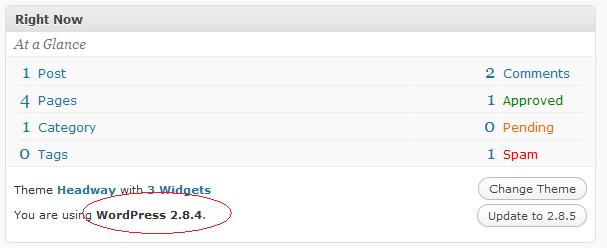
WordPress has an update notification system which compares your current version with the currently available latest release and adds an upgrade available banner at the top of your dashboard like the one below when an update is available.

Some people don’t like the intrusive nature of this notification and install plugins to disable this feature, I think it is still very important to keep up to date with the latest version, so I recommend signing up for an email notiffcation when the latest stable version is released. This can be done from http://wordpress.org/download/
What Happens During An Update
When WordPress release an update to the code, you will need to replace all of the files in your blog root, wp-admin, wp-includes and to a lesser extend wp-content. There will then be a script to run which will make any updates to the database.
Before You Begin
Before you begin to upgrade your core WordPress install please backup your installation. Please refer to module one backup and recovery for details.
Automatically Updating WordPress
The latest versions of WordPress have an automatic update facility. Using this process the new files are downloaded to your hosting serverand saved into the directory /wp-content/upgrade. The files are unpacked and a script is run to move them to their required location. Lastly a script will be run to update the back end database
All of this happens seamlessly whilst your blog is online, and excellent advance in WordPress administration in my opinion. The downside is you have zero control of the process. Whilst I have never had a failure using automatic update, I wonder what would happen if the process fell over mid way through the procedure leaving you with a partially updated and possibly not working blog. Thats is why I am also teaching you how to to a manual update. Also I have noticed a number of hosting companies do not allow you to download the required files for an automatic update, so you may be forced to use the manual method detailed below.
Manually Updating WordPress
Same thing goes as the automatic update, please do a backup first.
Download and uncompess the latest version of WordPress from http://wordpress.org/download/ The files will come as either a zip file or as a .tar.gz. These are both archive file types, if you are planning to do you work from a PC or MAC, zip is probably best (Mac users please feel free to tell me I am wrong in the forums ,are tar files a beter option for the Mac?). If you are going straight to linux/unix with your WordPress install then tar.gz is probably a better format.
Unarchive the files and prepare to copy them to your WordPress hosting server.
Things to note before you start renaming and overwriting files:
- Once you start this process your site will not work correctly until you are done, schedule the upgrade at a quiet time
- Have your backups handy
HANDY HINT: Create a file called index.html in your blog root containing a message saying your site is down, this will capture all visitors to the root of your blog and let them know you are updating it. Remember to delete this at the end of the process.
The first stage of the manual update process is to delete or (my preferred method) to rename the directories wp-admin and wp-includes. This will remove all of the old system files and ensure only the most up to date file are left. I rename my directories using my ftp client filezilla.
Next I upload the WordPress files overwriting the existing install, paying particular attention NOT to overwrite wp-config.php. If you do this your intall will not know how to connect to the database. If you are using one of the default themes please note they will be updated too so any changes you have made will be overwritten.
Once the file are all uploaded, you need to run the upgrade script. This is located at http://{YOURBLOG}/wp-admin/upgrade.php
The script will be run and any updates requried to the database made. The upgrade is now complete.
Test, test and retest your blog to ensure everything is okay, pay particular attention to you plugins to see if they are working as expected.
Manual Update Resources
Check out the following pages from WordPress on installing and updateing your system http://codex.wordpress.org/Upgrading_WordPress
Rolling Back An Update
If you have problems with the update, either manual or automatic, you must roll back your system to the previous version, to do this:
- Restore your database
- Restore your filebase
I guess you now see why backup and recovery was the first topic of this training course. We will be doing many things which may require a restore. Refer to those modules to see how to do this. Both have been updated so both need to be recovered, do not be tempted to only restore your filebase.
VIDEO: How To Upgrade Your WordPress Core Files
Here is the screencast video to show you exactly how to update your core system. Running time approx 5 minutes.
[S3 bucket=wpoc text=View the video>>]corefiles.mp4[/s3]
Discuss This Post
If you would like to discuss this tutorial in more detail, please leave a comment below.
Next In the series
The next post in this series takes you through updating your plugins.
[/private_upgrading]