Neil Matthews

Author: Neil Matthews

  • Building a Multi Media Blog: Introduction

    [private_multi media]

    Modern blogs are so much more than text.  I will teach you how to use video, podcasts, images and visual effects on your blog in this series of posts.

    As always I will expand on my posts with screen casts to show you exactly how to use multimedia on your site as part of the WordPress Owners Club.

    What Other Media Can WordPress Serve Up?

    [/private_multi media]

  • Plugins Like A Pro: Introduction

    [private_plugins]

    Plugins are extensiosn to the base functionality of WordPress.  There are hundreds of them out there, I want to teach you how to find them, install them, update them and work with them

    This wordpress tutorial comes with screen casts to show you exactly how to work with plugins as part of the WordPress Owners club.

    Using Plugins Like A Pro

    [/private_plugins]

  • Theme Masterclass: Introduction

    [private_themes]

    The theme masterclass is designed to take you through all of the compoents of WordPress themes.  Choosing a theme, installing, tweaking adding widgets, in fact all aspects of the look and feel of your blog.

    These tutorials come with screencasts as part of the WordPress Owners Club.

    What Your Theme Does

    [/private_themes]

  • Tags ‘n’ Categories: Introduction

    [private_tagsandcategories]

    Your posts are organised with tags and categories, in this series I hope to clear up the differnence between the two, teach you how to use them and more importantly how now to use them.

    I will show you in glorious wpdude-a-rama full colour screencasts how to use tags and categories.

    [/private_tagsandcategories]

  • Managing Your Content: Exercise

    [private_managing content]

    [/private_managing content]

  • Managing Your Content: Comments and Trackbacks

    [private_managing content]

    [/private_managing content]

  • Managin Your Content: Posts

    [private_managing content]

    [/private_managing content]

  • Managing Your Content: Pages

    [private_managing content]

    [/private_managing content]

  • Managing Your Content: Introduction

    [private_managing content]

    In this tutorial I will take you through managing the various types of content on your blog.

    I will show you how to work with posts, pages and comments in their various guises

    PROTECTED CONTENT

    [/private_managing content]

  • Upgrading WordPress: Exercise

    [private_upgrading]

    Here is your exercise to go with this tutorial:

    Remember to do a full backup before you start.

    • Find out what your current version of WordPress is, find out what the latest release of WordPress is, hint the main wordpress.org site.
    • If applicable upgrade to the latest version of WordPress
    • Check if any of your plugins are out of date, is so update them.  Do some manually and some using the automatic method
    • Ask your theme developer if your theme is updated to work with your current version of WordPress, if not obtain the latest version and apply it.  NOTE if you have made changes to the theme code, you will need to reflect these in the latest version.

    Discuss This Post

    Lets discuss this module in the comments section below.
    [/private_upgrading]

  • Upgrading WordPress: Upgrading Your Theme

    [private_upgrading]

    It is a very rare thing that a theme needs to be updated in line with an upgrade to WordPress, but it does happen, the significant changes to WordPress between 2.5 and 2.6 were one occasion, many themes were left running redundant code and as a result needed to be updated.

    Identifying A Theme Upgrade

    Unlike core files and plugins, there is no notification that your theme needs to be updated.  You will need to be aware of changes to your site, parts of the theme not working after an upgrade to your WordPress core file or plugins.

    I recommend that you get into the habit of giving your theme a quick once over after updating WordPress or plugins.

    So You’ve updated WP and It All Looks Terrible

    So you have updated a component of WordPress and something is broken on your theme, what do you do?

    First up, your theme developers should be taking part in the beta testing  programme of WordPress if they are worth their salt.  They should be testing and upgrading their offering in line with a WP change, and should have those fixes ready when the upgrades come out if their themes stops working.

    When you spot the problem visit your theme suppliers support forum, they may have a theme update, download and apply this.

    If there is no fix, notify the theme developer of your situation, again if they are any good they should analyse your problem an provide a fix.

    If there is no support forthcoming in a timely fashion I recommend you roll back your recent upgrade using the backup you took (you did do a backup didn’t you 🙂 )  Then hold off doing the upgrade until your theme is compatible with the version you want to use.

    Plugin Problems

    Many themes rely on plugins to provide specific functionality, sometimes after upgrading a plugin part of the theme will stop running,  You need to take similar step as you did for a problem with core WordPress files.

    • Check on the theme developers site for a fix to teh plugin problem
    • Report the problem if no fix is available
    • Roll back the plugin to an earlier version NOTE plugin developers usually keep a number of versions of their plugins available to download

    Have You Modified Your Theme?

    If you have made manual changes to your theme please remember these will not be reflected in the new theme you install so you should take note of any changes and re-implement these on your updated instllation.

    How To Update Your Theme

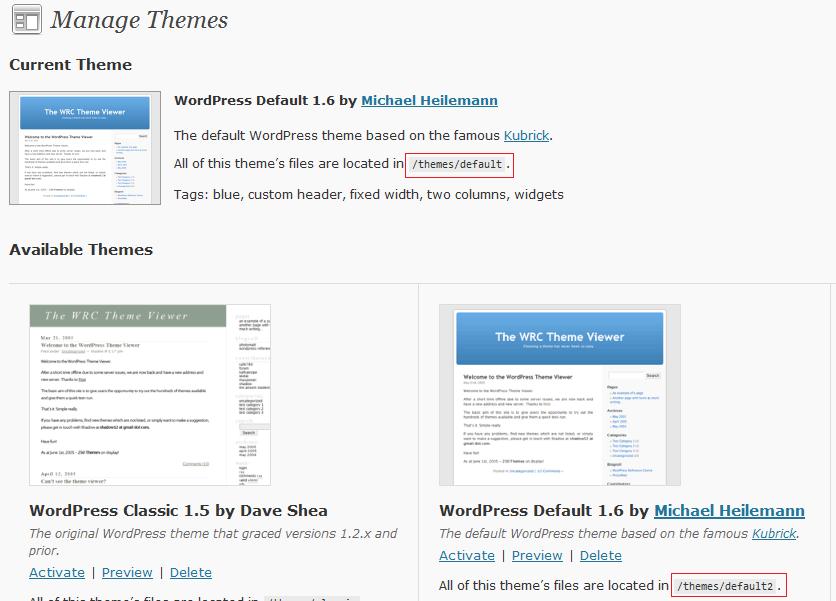
    Using the ftp client of your choice, navigate to wp-content/themes and create a new directory such as themename_v2, then upload your files to that directory, return to the dashboard of your site and navigate to appearance -> themes, and select the new theme being careful to look for the correct path.

    multiplethemes

    VIDEO: Updating Your Theme

    There is no video for this part of the tutorial, a whole module in the course is dedicated to updating, and installing themes, this will be in week 5.

    Discuss This Post

    Lets discuss this module in the comments section below.

    Next In The Series

    Next in the series is a practical exercise to ensure you have your site up to date.

    [/private_upgrading]

  • Upgrading WordPress: Keeping Your Plugins Up To Date

    [private_upgrading]

    Plugins are one of the most exciting part of WordPress, thousands of developers are writing plugins which extend the base functionality of WordPress to do many interesting things.  If you have a problem with WordPress chances are that there is a plugin for that problem.

    With the huge flexibility of the plugin system comes an administration overhead,  you must keep your plugins up to date.  This tutorial and associated screencast videos will take you through the process of keeping them up to date.

    Please note I will talk at length about plugins in the module plugins like a pro week week 6.

    Why Update Your Plugjns

    Plugins are updated to add new functionality, to patch bugs and to keep up with changes to the underlying WordPress code.  As wordpress functions are updated, plugins which rely on these functions must also be updated.

    When To Update Your Plugins

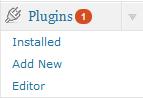
    The majority of your plugins will tell you when an update is available.  A red icon will appear next to the plugin tab on your dashboard as shown.
    updateplugin

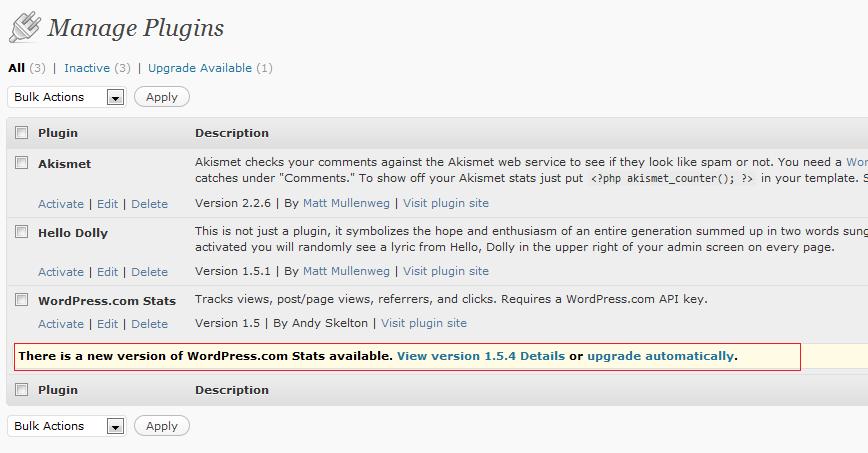
    If you go to the plugins->installed  section, and you will be able to see the plugin(s) requiring attention.
    updateplugindetail

    How To Update Manual/Automatic

    In the same way that the WordPress core files can be automatically or manually updated, you can update your plugins in two ways.  I wil take you through both methods.

    Don’t Touch That Dial Until You Have Heard This Important Message

    You will get sick of me saying this before the end of this course, but please perform a backup before you update your plugins, a partial backup of wp-content/plugins will do,  Remember plugins often change the database so a backup of that is useful too.

    Automatically Updating Plugins

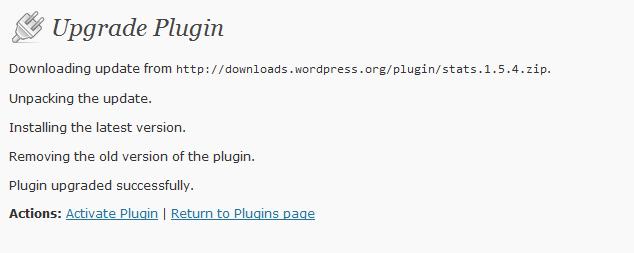
    To automatically update a plugin navigate to the plugin in question from plugins->installed and then click on the upgrade automatically link.  WordPress will go off and download the new plugin files, unpack them and install them.  It will remove the old version of the plugin and activate the plugin if it is already running or give you an option to activate if it is not currently running.
    pluginafterupdate

    Manually Updating A Plugin

    To manually update a plugin, you need to obtain a copy of the plugin files and upload them to your site.

    The plugin files will be available to downbload from the developers site or from the WordPress plugin directory.  To get the download goto plugins -> installed from the  dashboard and then click on view version link (see below) and navigate to either the wordpress.org page for the plugin or plugin homepage, take note of the new version and download that.
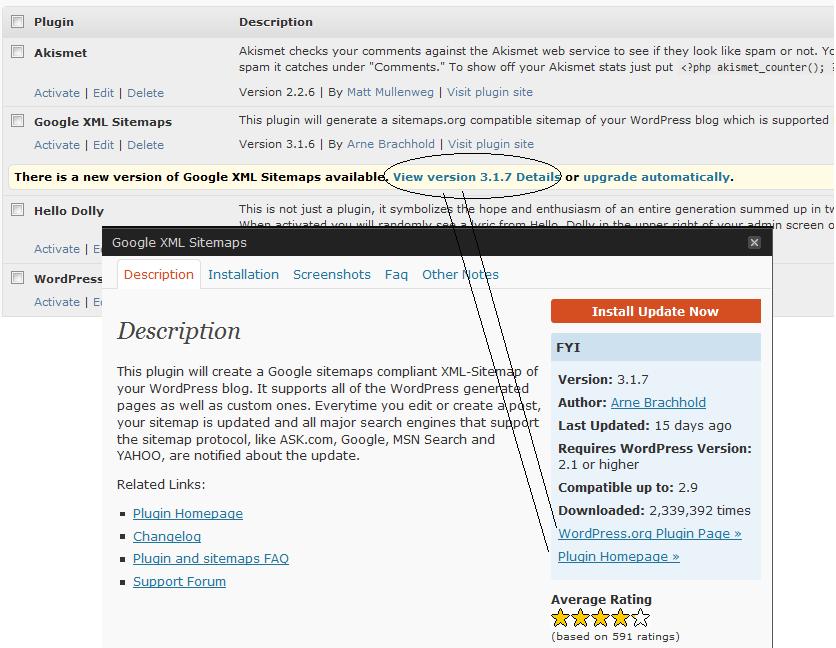
    manulaupdateplugin

    Once you have downloaded the plugin update, uncompress it and upload it to your hosting service using your preferred FTP client.  I like to disable the plugin first before uploading the new files.

    Please read the installation instuctions which come with the plugin, there may be some additional steps such as running a configuration process in the dashboard,  an example of htis is the “excellent all in one SEO plugin”  you need to re-nebale the plugin from the dashboard after updating it.

    Once you have uploaded the files return to the plugin dashboard and re-enable the chosen plugin.  The upgrade available messages will be gone if the installatio is a sucess.

    VIDEO: Updating Your Plugins

    Here is the screencast video to show you how to keep all 0f your plugins up to date.  Running time approx 7 minutes.

    [S3 bucket=wpoc text=View the video>>]upgradingplugins.mp4[/s3]

    Discuss This Post

    Lets discuss this module in the comments section below.

    Next In The Series

    In the next session in this tutorial we will be discussing upgrading your theme

    [/private_upgrading]