
[poll id=”3″]
[poll id=”3″]

I’ve been added to the Automattic list of WordPress consultants.
Automattic are the company behind WordPress. They have this to say about their list:
In response to a steady stream of requests, we’ve compiled a list of web design and software development firms who have experience with WordPress based projects.

I’m a plugin junkie, I am forever installing new plugins to test them out and see if they can help my blog.
The trouble with my obsession is that I install and often do not use the plugins. As a result I need to give my blog a regular plugin audit. Any plugins I am not using, I deactivate and delete.
Every plugin you add to you blog comes with an overhead. The overhead can come in three types:
Certain plugins add additional components to the page, and every extension of the normal page load will comewith an ocerhead. If you don’t need it remove it and speed up page loads.
There is school of though in SEO land that Google will rank a fast loading page over a slow loading page.
Plugins with database functions will write data to tables, and increase the size of your database. The bigger the database, the longer it will take to recover data, backup and require more disk space.
If your hosting company limits your database size, you may exceed your quota more quickly with the plugins installed.
The more plugins you stuff onto your blog, the more disk space they will require. Some plkugins are tiny, but others are quite large, your disk quote may be at risk if you don’t keep an eye on your plugins.
Once you have have identified the unwatned plugins, deactivate and delete them. Disabling a plugin still leaves the files on disk, so not all of your problems are fixed.
When you remove plugins they don’t always delete the tables from your database. Using an admin tools such as MyPHPAdmin, review your database and delete any unwanted tables.
CAUTION: If You don’t understand the WordPress database layout, do not delet tables without the help of a techie chum.
Audit on a regular basis and you will be surprised how many redundant plugins you have installed over time.

Most users of WordPress are fairly well acustomed with the plugin tab glowing red telling them to update on of their plugins, but do you know why it is important to keep your plugin versions up to date?
There are a number of reasons a plugin developer will update their code they are:
As you can imagine, a plugin which has bugs is not a good thing, once a developer finds a bug in his or her code, they will develop a fix and then deploy it to the community. If a plugin requires a bug fix, update it to the new version ASAP or you risk having a failing plugin.
It is not necessatry to update a plugin for a feature release, this is an expansion of existing functionality. If you are happy with your plugin as is don’t update, but lets admit it, bloggers love their tech, and if there is a new watch-u-me-callit we want it. You will probably be updating.
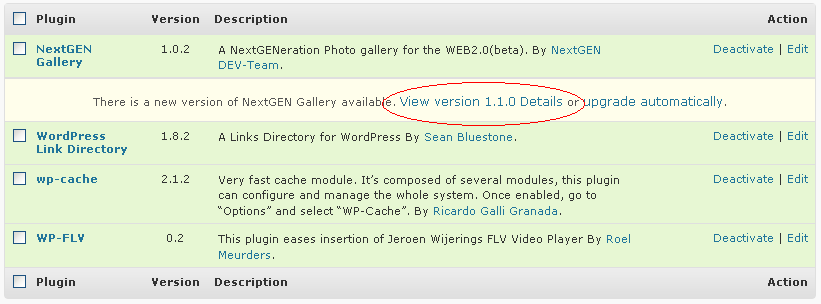
When you view the plugin page, underneath the plugin to be upgraded will be a link saying something along the lines of View version x.y.z details, click on the link and all will be revealed.
I have seen a number of plugins fail after an upgrade of WordPress. The plugins use depreciated functions within WordPress which means that when an upgrade occurs, the functions they call will fail and the plugin will no longer work.
If your plugins stop working after an upgrade check your plugin devlopers site, see of there is a know issue with the WordPress version and update to the version they recommend, note this may require a manual install.
Backup your system before you update any plugins. A few plugins make changes to your database. It is highly advisable to have a backup of your database before installing or updating a plugin which could potentially corrupt your database. Check out my post 6 Key times you should backup your blog.
After WordPress 2.7, updating your plugins is an incredibly simple process, once the alert is raised, click on teh button, the plugin is downloaded to your server and automatically installed, it’s as easy as pie.
If a plugin tab goes red backup and then update. If you have problems with software the developer will always say upgrade to the latest version.

There was a time (not too long ago) when a WordPress theme was a very simple thing. You uploaded a few files, selected the theme and bingo you had a new look and feel for your blog.
Things have changed, battalions of dedicated and skilled theme designers are creating more and more excellent, but complicated looks for your WordPress blog. I thought a post was in order to talk about how these advanced themes should be used.
RTFM or read the “effing” manual is something I advise to everyone who has purchased a premium theme with a wide range of functionality. The small print will show you how to use your shiny new theme to the best of it’s ability. I have had a number of clients pulling their hair out trying to get a theme to work, thinking it is just like their old install and forget look and feel.
Many of these themes are reliant on plugins. The plugins are usually packaged with the theme, so install and activate them as instructed.
Another popular thing amongst theme designers is to use custom properties. Next time you write a post, scroll down to the bottom of the page and you will see an area to create custom properties. These are little pieces of variable information which are specific to the post, in the case of my theme design (Ice Cream Dream from WordPrezzie), they are used to add little flourished to each post. My theme may look fairly simple, but to have the list of thumbnail images running down the page, I need to add a custom property called thumbnail to each post, this is populated with the URL of my thumbnail images so.
Many themes take advantage of certain categories to place content in specific areas, pay attention to these cats, and remember the spell the category name exactly as it says in the documentation, I recently spent hours trying to fix a theme which required videos to be in a videos category rather than video as had been configured by the blog owner.
Themes are hugely important to entice readers into your blog, spend time on the initial build of your blog to get the right look and feel, and then let it go, spend time on your content rather than tweaking every little nuance of design. It is important to understand that your long term readers will probably sign up for your RSS feed, and this never looks pretty.

I have been away for a week with my family and when I check my stats,I noticed traffic coming in from a link on the Blog WP Themes Gallery. I checked it out and I have been added to their top 40 blogs about WordPress. I am pretty stoked about this.
I would just like to thank my manager, my agent (WP Dude begins to cry) my wife, my family without whom none of this would be possible .. {FULL ACCEPTANCE SPEECH AVAILABLE FOR DOWNLOAD FROM ITUNES}
Check out the list at:
http://wpthemesgallery.com/top-blogs-about-wordpress-update-021509/
Thanks again to the very nice people at WP Themes Gallery, this type of recognition is really touching.

It”s a piece of p!ss migrating from blogger to a self hosted WordPress installation. I have done it for a couple of my own blogs and for clients, so I speak from experience.
If you scroll down the menus in your WordPress dashboard, you will see the tools section, and under there is an import function, and under the import is a huge list of competing blog platforms from which you can import, it should comes as no great mental leap to know that blogger is one of these platforms.
It’s spelled with an S for flip sake.
Once you reach the point of import, the first stage is to authorise your new WordPress blog with the Blogger API. This means you are giving permission to Blogger to allow access to your posts from a remote server namely your new WordPress host.
Once authorised, you simple click on the go button and a progress bar of the import is shown. Once it is complete, a notification of the number of posts and other data imported is shown. As long as you have the number you can reconcile the export/import.
If you have built up some links to your Blogger blog and are getting organic search traffic (AKA Google juice) then you don’t want to loose it. There are ways to redirect this traffic to your new site.
I use a 301 redirection javascript. From your Blogger dashboard, add a javascript widget which does a 301 redirect to your new site. A 301 tells the search engines your data has been moved.
Never one to re-invent the wheel, I found an excellent article on this subject:
http://laffers.net/howtos/howto-redirect-blogger-to-wordpress
It is a stroke of absolute genious to make migrating from the competing blog to WordPress as easy as can be. Remove all obstacles to using your code and people will flock to it. Make the move to WordPress you know it makes sense.
Many of you have probably noticed that the upgrade bar has appeared at the top of your WordPress blog notifying you to update to 2.7.1
I have written in the past about the imporance of keeping your code base at the highest level in Should You Update Your Version of WordPress. I want to expand about this and talk about the automatic upgrade process.
I feel like a broken record, recently all I have done is write about backup. Back it up before you do any upgrade [link to 6 times]
I just thought I would spend a few minutes writing about a new utility I am using to do my blog backups.
The tool is Site Vault, and excellent little utilty which backs up your code base and database in one go.
You setup the utility to backup ftp and upload a small script to backup your database. One click backup and one click restore – excellent.
It costs $19 for a full version, but comes with a 30 day trial, check it out, it comes highly recommended by me.
Site Vault Demo (p.s. I don’t do affiliate links)
Part of the new 2.7 fucntionality is an automatic upgrade. Normally I am a bit jittery allowing systems to upgrade automatically, I am old school I guess and like to see exactly what is being changed, and have the power to roll it back easily.
But intrepid exploter that I am, I dedided to do it automatically so you dear readers can learn of my exciting voyage.
I clicked on the button with my fingers crossed hoping that nothing would go wrong and to my extreme pleasure nothing did, the files were downloaded and applied to my code base with no fuss.
The automaic upgrade does exactly what it says on the tin, one click automatic upgrade.
Upgrading is a very simple process now, very much like upgrading plugins, I was very very impressed by the whole process, it takes a lot of the administrative burden away from maintaining your blog.
I would like to see some sort of rollback process to take your blog back to the previous version, but I guess that may be in the future.
I will definetly be using the automatic upgrade from now on. Did I mention to backup before you start?

The most amiable Darren Rowse of Problogger.net gave me the opportunity to write a guest post on testing your backup strategy.
I want to encourage people to test their backups before they need to do an emergency restore.
See the full post at:
http://www.problogger.net/archives/2009/02/12/testing-your-blog-backup

One of the greatest things about WordPress is the huge community of individuals developing and supporting thousands of plugins for free.
I am a plugin junkie, as soon as I notice a new plugin it’s downloaded and installed before you can say “Backup your database“.
A problem I have seen with plugins is the support for them is provided free and on a best endeavours basis. What happens when the support is withdrawn and your plugin stops working.
A client of mine was very keen to use a particular plugin, but it was not working as it should have on his blog. The plugin installed and was activated correctly, certains parts of the code worked, but the principal part of the add-on did not work. I was called in to make the plugin work.
I thought this would be a very simple fix, find the root cause, search the developers support forum and apply the fix, but to my horror, I found that the support site was down, and it was down in a particularly weird manner, when I accessed the site, it returned a 403 forbidden error. This means the owner of the site had secured the site so only authorised users could access the information.
I suspected something was amiss with the plugin and the developer had shut down support after an avalanche of support calls.
I could not find out what the problem was, or contact the developer, so how could I fix the problem?
If you are using a free plugin, and have not paid for a support contract, your use of the plugin is “as is”. You cannot expect support. Remember the developer has spent many hours developing this solution for free.
Most plugins are released with a GNU license and the plugin in question states:
This program is free software; you can redistribute it and/or modify it under the terms of the GNU General Public License as published by the Free Software Foundation; either version 2 of the License, or (at your option) any later version.
This program is distributed in the hope that it will be useful, but WITHOUT ANY WARRANTY; without even the implied warranty of MERCHANTABILITY or FITNESS FOR A PARTICULAR PURPOSE. See the GNU General Public License for more details.
You should have received a copy of the GNU General Public License along with this program; if not, write to the Free Software Foundation, Inc., 51 Franklin St, Fifth Floor, Boston, MA 02110-1301 USA
The first thing I did was to search on Google for a solution to the problem, there are two possible outcomes to this:
The majority of bloggers also participate in social networks, why not fire out a question to your social network to see if anyone else has had the problem.
I participate in Twitter and quite happily help people with WordPress problems if they stick a tweet out into the Twittersphere, fire off the question to your social network, you never know what will come back.
Plugins are developed in PHP, a widely understood and used programming language, why not bring in an expert to reverse engineer the plugin and fix the problems you are having, post your problem to the many sites with freelance programmers such as Elance and get your problem solved.
<shocking self promotion>
If you need help with wordpress support problems check out my service page
</shocking self promotion> 🙂
As I have mentioned there are thounsands of plugins out there. A quick search will show that most problems requiring a plugin have been solved more than once. If you cannot get support for your plugin, ditch it and install the competition.
I’m taking it one day at a time, for example today I delete three unsed plugins, I think I am on the mend, well until I look at the little widget pumping new plugin news into my head.

I was approached by an artist in residence to a library in the US, he was developing a novel use of wordpress on a shared host which requested library users to leave comments.
Using worcpress he was inviting users to review his artisit blog/site and to leave comments.
The problme was that the shared machine in the library was leaving the comments of previous users visible to the next user. The comments were to be approved before display so seeing un-approved comments was not acceptable,
The problem is that comments are held in a cookie and displayed to the commentor. Because differnt users are using the same machine (and theref0re the same cookie) he data needs to be cleared down somehow.
No easy fix to this one, it was down and dirty and editing the wordpress code base to fix this one.
A cookie is set in the file wp-comment-post.php, I edited this and added three lines to set the timeout of the cookies. These lines set the timeout to a point in the past. I did it this way rather than removing the cookies as I was unsure how they were used in other parts of the code.
I added the following three lines just before the wp_redirect command at the bottom of the file
setcookie(‘comment_author_’. COOKIEHASH,””, time() – 3600);
setcookie(‘comment_author_email_’. COOKIEHASH,””, time() – 3600);
setcookie(‘comment_author_url_’ . COOKIEHASH, “”, time() -3600 );
Whenever you update the wordpress code base with the next release of WordPress you will need to update the php file. If the functionaltity I “hacked” is ever changed, a new solution will be required.
Of course it did, my client was very happy with this neat solution, and I was frankly amazed it worked first time!

In my opinion there are six key times you should perform a backup of your wordpress blog.
The WordPress code is updated regularly, but before you even consider FTPing the latest shiny version up to your host, backup the existing code base and database.
I am guilty of plugin addiction and I install loads of new and glittery plugins to my blogs all of hte time, and I often do not backup before I do this. YOU SHOULD backup befire installing plugins. Some of them amend your wordpress database, some drastically chaneg how your blog works. Have a checkpoint to return to if the plugin causes problems.
Changing your theme may not seem like a huge event, but consider that many people customise their themes, take a backup of your changes before you change themes and delete your hard design work.
The last post you clicked publish on was awesome and went straight to the front page of Digg. You need to protect this asset by backing up your content.
Many blogs have systems other than WordPress installed on their websites. I am thinking of things like forums and affiliate systems. Many of these will share the MYSQL database that WordPress uses. Backup your WP config and data before begining the install process.
This is n0t really a point in time, but my last key timing for backups is to backup regularly. Check out the many backup plugins such as Filosofo’s excellent utility and create a scheduled job to backup your blog. I have my plugin create the backup and send it via email to me. Then I simply skip the email to my archive. I know I have a daily backup ready for any eventuiality.
As a parting note backup often and soon. Keep a number of checkpoints so you can recover to a point in time.