Neil Matthews

Author: Neil Matthews

  • Plugin Review: All In One Seo Pack

    WordPress does a greate job of SEO out of the box, but when you add in a dash of All In One Seo Pack, and a sprinkling of SEO theory, you are heading for organic search heaven.

    Many of the new breed of plugins such as Thesis and Headway are SEO ready out of the box, but in case you are not using one of these themes, you should check out all in one seo.

    What Is All In One SEO Pack

    It’s a plugin which takes the key areas of your site and allows you to add the keywords which will bring visitors to your site.

    Just in case you are not 100% sure about keywords, this is the word or phrase that someone will type into Google which should match them to your site.  For example if you run the red widget blog, you may want to attract peoples attention with the keyword “metal red widget”  If you can optimise key areas of your site with that phrase.

    Where you Need To Optimise

    Here are the areas you need to consider and optimise with your keywords.

    Page Title – This as the name suggests is the title of the particular page of your site, this is the single most important area where you need to optimise yoru site,.  You can see it from the top of your browser bar, here is the page title of the root of my site.  Here is the game, can you tell what my desired keyword is?  Leave a comment.
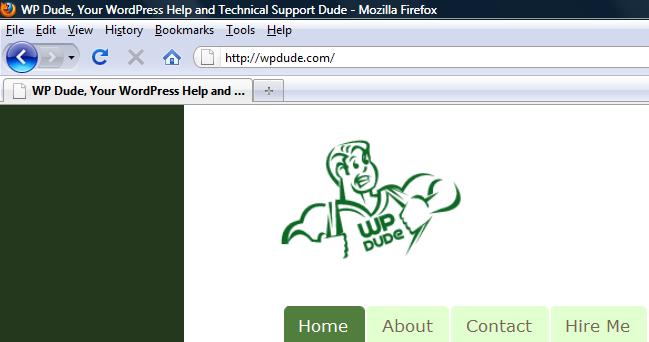
    pagetitle

    Site Meta Description – This is the description which appears on the results page of a search on Google or one of the other search engines.  Here is the meta description for my home page

    metadescriptionAre you any closer to my main keyword yet?

    Site Meta Keywords – There is a lot of discussion in the SEO world that adding keywords to your site no longer works.  People caught onto this, stuffing  hundreds of keywords in their code and “gamed” the system, but still it does no harm to add your keywords here,.   The meta keywords are pieces of code on your page which are not displayed but tell the search engine something about that pagee, if you do a view source of my home page you will see my keywords meta as

    <meta name="keywords" content="wordpress help, wordpress support, wordpress technical support" />

    Come on I’ve spelled it out for you now.

    How All In One SEO Pack Can Help

    Once you have installed and activated the plugin, you can begin to optimise your site as described above and add descriptions and titles which are useful both to your readers and contain your desired keywords using an easy GUI tool.

    There are two ways to modify your site, on a post by post basis or site wide.

    Site Wide Settings

    From the settings -> all in one seo pack menu, you are given an area where you can set your home title, site metas description and keywords.

    The plugin comes with some other advanced options such as canonial URL support to stop duplicate content problems but using the 80/20 rule, put your effort into the areas mentioned above for the most effect.

    Per Post SEO Settings

    You can change your posts individually, SEO pack allows you to create a keyword rich title and description.  This will overide the title you set when writing your post.

    The following SEO section is shown at the bottom of post editor screen.
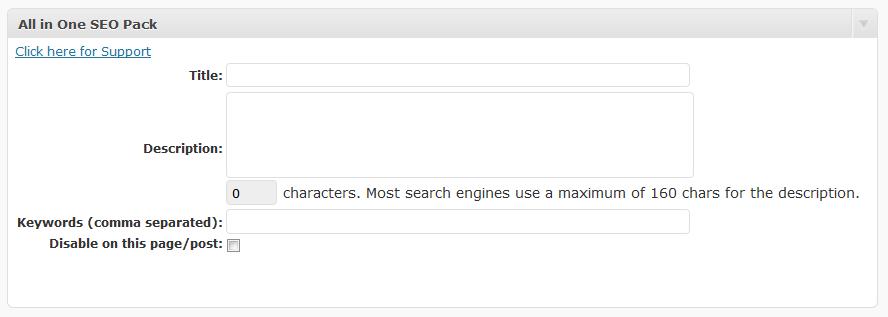
    perpostseo

    How I Use All In One SEO Pack

    This is my seo plugin of choice, I have my site optimised for a particular keyword and I am working on my offsite configurations to rank for this, at the time of writing I am on page three and climbing.

    I also pay particular attention to my per post configurations to get my keywords into titles and metadescriptions.

    KeyWord Research

    One more thing to consider before you stuff your sections with keywords is the competitiveness of the keyword you are planning to use.  you may think your widget site needs to rank for widget, but in reality you only sell red widgets.  Go for the more specific keywords relating to your site.  The second thing to consider is the competitiveness of your keyword.  If everyone and their dog is trying ot rank for widget and have been for years, you as a newbie to SEO will not have much of a chance without years of hard work.

    Here are some tools to help you research your keywords:

    Google Adwords KeyWord Tool – inside of the adwords pay per click systme you can research keywords to see how often they are called from the google index, and how many other people are advertising on them to get an idea of hte competitive nature of the keyword

    Wordtracker – use this tool to anaylse prospective keywords and use it to give you less competitive search phrases.  This is a paid tool, but there is a seven day trial period.

    Get All In One SEO Pack

    The plugin is available to download and install from http://wordpress.org/extend/plugins/all-in-one-seo-pack/

    A Disclaimer On SEO

    The search algorithm used by Google is one of the most closely guarded secrets, it’s like what herbs and spices go into KFC coating or the recipe for Coke.  No-one really knows what Google looks for, rather all of the suposition is from testing done by people trying to decipher this riddle and what they have seen work.

    Google changes their algorythm on occasions so what is SEO best practise now will not be in the future.  The information provided here is the current thinking of what makes up good on site optimisation.

    Further Reading

    SEO is a huge topic and there are other areas you need to consider over and above what All In One SEO Pack does.  I have not touched on permalinks, keyword density, optimising images alt text, use of keywords with your h1 .. h6 header titles.  Lastly I have not touched on off page SEO, getting links to you with the correct anchor text to backup your work.

    You may want to check out my post on changing your slug for SEO, this is another very important area

    The man who wrote the book or blog post on WordPress SEO is Yoast, he takes these ideas and add some more tweaks over and above what all in one seo does.   Here’s an idea of how good he is, type wordpress seo into Google and see who comes out tops.  Say no more

    Lastly I would like to point you to a couple of paid resources, Namoi Dunford the potty mouthed owner of Ittybiz wrote the e-book Seo School, this is the resource which finally gave me the lightbulb moment on seo.  The other resource I want to point you to is Michael Martine and his e-book WordPress SEO Secrets.  Either of these will help you to get seo for WordPress.

    My Final Thought On SEO

    Write for people not for search engines, but where you can tweak for search engine spiders, if you stuff your titles and descriptions with keywords and it makes no sense, what use is that to your readers?

    We blog for people not rankings.

    UPDATE: WordPress SEO Training Available

    I have recorded a video training session about WordPress SEO for my WordPress training and support community the WP Owners Club.

    I’ve got a 14 day free trial at the moment, why not take out trial membership and check out the training, here’s what you need to do

    1) Sigup for a 14 day free trial account at wpownersclub.com/sign-up

    2) Go to http://wpownersclub.com/wordpress-seo and watch your training
  • How To Use WordPress As A CMS

    Did you know that WordPress can be used as the content management system (CMS) for “real websites”? I want to take a look at how post and blogging functions of WP can be repackaged to work as a back end content creation management and placement system for a traditional non-blogging web sites.

    I have worked with professional CMS tools from companies such as IBM which cost tens of thousands of dollars per processor not per license, and in my opinion, a certain level of this can be done with humble, free WordPress.

    What Is The Difference Between A Blog and A CMS

    A blog publishes posts in reverse chronological order usually with a list of previous posts available to read from the front page, whilst a CMS is a system to create content easily and then publish it in a predefined section of a web site.

    For example all news articles will appear in a news section of a site, all special sales offers may appear on the front page. It’s all about easily creating content and pushing it to it’s predefined location on the site.

    Static Home Pages

    If you are building a CMS the likelihood is that you will not need a series of blog posts on your front page, rather you will have a static front page and have content or posts pushed into their own container.

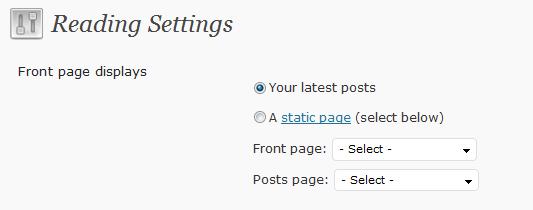
    WordPress allows you to change the front page of your site to do exactly this. From your dashboard goto settings -> reading, and you will see the following options:

    blog_static

    Change the setting from your latest posts to a static page, create a page with your home page content and you are good to go, it’s as easy as that.

    CMS Theme

    The selection of your theme will probably make or break your CMS installation. You are looking for something with lots of sidebars into which you can push content. The task will be made easier if the theme is widget ready.

    Check out the WordPress theme directory at http://wordpress.org/extend/themes/, you can search for themes by the number of sidebars and widgetization (is that a real word?). Your other options are to buy a premium theme or have one tailored made for you by a theme designer. A search on google for CMS wordpress theme will return a large number of pre-made themes ready to act as a CMS.

    The use of the term sidebar is a bit of a misnomer, think of a sidebar as a slot into which you can place widgets. An example of this misnoner can be seen on my site, I have four sidebars in my configuration, and only one runs down the side of my site, the other three are in the footer.

    Organise By Categories

    Once you have a static front page and a theme of your choosing you need to start pushing content into its correct container. I think the best way is to orgnanise your content is by category.

    For example you may have a section on your site for your sales team, put all of their content into a wordpress sales category, this can then be extracted and published to the correct location using the techniques outlined below.

    Widgets to Push the Content

    Once your data is categorised, you can then use widgets to position your content. Using the “list category post” widget you can push a list of posts from a particular category in your sidebars.

    This is done from your wordpress dashboard -> appearance -> widgets, then drag and drop your widgets onto the appropriate sidebar.

    Plugins to Organise Content

    You may want to position content in locations where widgets don’t easily work, for example you may want a static page called news into which news items about your organisation are displayed. To do this there are a number of plugins out there, the one I use is Sobek’s post In Category plugin. Using this I can pull all of the posts in a particular category and display them as a linked list for people to click through to the acutal post. These can be shown on pages or posts.

    Using plugins in this fashion allows you to extend the WordPress page function to act as a new container for content.

    User Management

    You may want your CMS to be updated by many people, WordPress has the functionality to allow multiple authors and editors of your content. Using the roles built into WP you can allow people to write content but not publish it, create editor level users who have the permission to edit and then publish the posts.

    Full details of the roles available can be seen at http://codex.wordpress.org/Roles_and_Capabilities the roles are fairly granular so control over what your contributors can or can not do is available to you.

    Controlling Who Sees Content

    Another function of a CMS is controlling how can see which content, with the addition of a plugin or two, WordPress can do this .

    For example you may have a customer only area on your site where they can read order information. Using the user management functionality areas of your CMS could be password protected.

    Check out my post How To Integrate Paypal with Your WordPress Blog whilst this is about monetising your site with paypal, it also discusses the various membership site plugins available. Using these type of plugins you can create login IDs to protect certain pages or posts making them available to a subset of your site users.

    Time Delayed Posts

    Using the scheduled posting function of WordPress the site can be updated at set times. An example of this may be a sale. Write up details and set the post to appear in the appropriate container when the sale begins.

    Check out my post Write Now Post Later for the mechanics of this process.

    Removing Old Content

    You may find that you want to add content to the site then remove it when it is not valid, not like us lazy bloggers who just want to pump out more and more content and leave it online for posterity. Using the post editor, content can be marked as draft or deleted very easily to make visible or remove content on the site.

    When Is A Blog Not A Blog

    .. when its a CMS, WordPress is not just a blogging tool it can be used to update and present content on a traditional more static site. Your usage of WordPress as a CMS is limited only to your imagination for organising content into containers.

    I hope this posts has prompted you to think of WordPress as more than just a blogging tool.

    Examples Of WordPress as A CMS

    I put a call out on twitter to find out who was using WordPress as a CMS, here is a list of sites configured in this way, have a look and get inspiration.

    Special thanks to Charlene Polanosky, she not only sent me links to sites but detailed desciptions from her own site on building sites using WordPress as your CMS

    Planning To Use WordPress as Your CMS?

    If you need some assistance making WordPress work as your CMS, please visit my WordPress coaching page.

  • WordPress 2.8.1 Released

    When you logged into your blog today, you probably saw a new banner running across the top like this:

    2.8.1jpg


    This is an announcement that the latest version of WordPress is available for you to download and install.

    This release is a bug fix to the version 2.8 release which was sent out about a month ago.  Here is a link to the fixes and changes available in this new version just in case you are into that kind of thing http://wordpress.org/development/2009/07/wordpress-2-8-1/

    With this in mind I thought I would link up all of my posts on updating to the latest version of wordpress.

    Please remember to backup thoroughly before you upgrade.

  • CASE STUDY: When Comment Spam Bots Kill

    Gather round the camp fire kids, I have a scary tale to tell.  It’s a story from a sci-fi nightmare of crazed bots running amok in the blogosphere.  I call the story “When Comment Spam Bots Kill” .. da-da dahhhhh!

    I was working with a client recently who’s WordPress blog was killed by comment spam.  I thought I would write it up and give you some tips to stop this happening to other blogs.

    The Problem

    My clients database was stuffed full of comments, when I looked at the issue there were more than 140K comments in the moderation queue.  This was exacerbated by a plugin called BAStats which was creating log entries for all activity, this table had over 1 million entries.

    The blog was running on a standard hosting installation the database was just too big and cumbersome.  As as result whenever anyone tried to access the front end, they were timed out, a database connection could not be made, and if anyone tried to access the backend dashboard the same happened, the blog was unreadable from the fron end and unmanageable from the back end, a pretty pickle to be in.

    A review of the comments from the backend database showed them to be comment spam, someone was running a comment spam bot to inject huge numbers of spammy links into the system.

    phpMyAdmin

    I am going to talk about phpMyAdmin and modifying backend database a lot in this post, so I thought a quick note on phpMyAdmin was in order.

    phpMyAdmin is a MYSQL admin tool which allows you to perform functions on your database.  You will probably find this on your hosting control panel.

    This is a GUI tool which allows you to tweak your database, it is not for the faint hearted, you can do real damage if you don’t know what you are doing, you have been warned!

    The Solution

    I disabled the BAstats plugin by renaming all of the php files , I could not do this from the back end because I could not log in.  Using my ftp client I navigated to the plugin directory and manually renamed the php files so they were not called.   This stopped the stats package from working and reduced load on the database a little giving me some breathing space.

    The next step is a little radical, but it was all I could do, and that was to delete all comments in the moderation queue.  First I made a backup of the table wp_{prefix}_comments, then ran the following SQL command from within phpMyAdmin.

    delete from wp_{prefix}_comments where comment_approved=0

    This is a radical approach which will delete all comments held in the moderation queue regardless of whether they are spam or ham (good comments).  My client felt is best to start a-fresh with no comments held for moderation.  The query removed all of the comments held for moderation.

    As a final step I also disabled comments on the blog temporarily to prevent further comment injection.

    Preventative Measures

    That fixed the problem, the front and back end were now accessible, but I felt preventative measures were in order to stop the issue re-occuring.  I delved into the backend.

    The route cause of the problem was that spam capture was disabled.  Akismet was not automatically deleting and spamming comments.  I re-enabled this and ran the “check for spam” routine, another couple of hundred approved comments were spammed.

    Do you remember I said that I disabled commenting, spam comments were still coming in!  My client was running an old version of WP and I suspected that a spam bot script was pushing comments into a WordPress vulnerability or plugin loophole, my recommendation to my client was to upgrade to the latest stable version of WordPress and to download and reapply the plugins they used only from legitimate sources, in the hope of sealing teh vulnerability.  This is in progress.

    Your Reputation Is In Danger

    There is a long term danger if you do not moderate your comments well, and that is loss of reputation through your page rank.  Your site will be demoted and traffic may dry up.

    A real life analogy is if you start hanging with the dangerous kids at school smoking, taking drugs and bullying kids, you will be marked as one of these type pf people.  The same goes if you give out a link to a dodgy site, you are seen as giving them an endorsement and your site is marked down.

    Wrapping Up

    Moderate brutally, keep your comment spam plugins in place, tighten up your moderation policy and give my posts on comment spam a read: What is Comment Spam and How To Control Your WordPress Comment Spam

  • My Adsense For RSS Trial – The Results

    A few days ago I wrote about the trial I was interested in conducting on RSS advertising.  Adding Google adsense to your RSS feed has been around for some time now, but no-one is saying how well it performs as they do with on-site Adsense.

    This post is the result of my great RSS experiment.

    My One Word Conclusion

    Indifference.

    My Thought On RSS Advertising

    People taking RSS subscriptions are pretty tech savvy and they want to read content not respond to advertising messages.  I think people are ad blind and not interested in clicking on the offers put before them.

    I think you need a large number of subscribers and some compelling ads (perhaps graphical ads) to get the clicks required to make this worthwhile.

    There are bloggers in my RSS reader who use RSS advertising, but I have never clicked on an ad what about you?

    Income

    I have a modest RSS following, and the ads have had a relatively large number of impressions, I was expecting some action, let me give you the numbers …

    It is against the rules of the adsense program to discuss your earnings but since I earned nothing I am happy to report my income was zero.  No clicks no cents nada zip.

    Drop Of Subscribers

    As I said I think people are indifferent to the ads, my subscription rate has continued to gently climb, there has been no drop off of subscribers that I have noticed.

    People just don’t care about the ads.

    Moving Forward

    <shrugs shoulders> I don-know I’m indifferent about it all.  I don’t think there will be an impact if I remove the ads or leave them there.  My spidey senses are saying get rid of the ads in case   I alienate anyone into unsubscription.

    Please leave me some comments before apathy on the subject overtakes me completely 🙂

  • Adding Adsense To Your RSS Feed

    Advertising in your RSS feed has been around for a while, but I have not seen anyone crying from  the rooftops on how effective it is.  There are not images of people holding up their cheques for $$$$ sayng RSS advertising is the best (as they do for traditional AdSense).  Since no one is saying how effective it is, I thought I would run an experiment on my own feed to see how effective it is.

    I’m not a fan of traditional AdSense, the idea that someones comes to your site to read your quality content and then clicks away for a couple of cents does not sit very well with me.  I have yet to make my mind up about RSS feeds, and I will probably only leave it up for a couple of weeks.

    So I’ve laid my cards in the table and full disclosure has been made, now lets move forward this post is all about adding AdSense to your blog’s RSS feed.

    If you want a quick lesson on RSS, you can check my post on the subject Beginers Guide to WordPRess RSS.

    Step One Get and AdSense Account

    The first step is to sign-up for an adsense account at http://adsense.google.com

    Once you are in go to adsense setup and then to adsense for feeds.

    Why Google Bought Feedburner

    You can only add adsense to RSS feeds which are served up by Feedburner.  Feedburner developed itself as the leading RSS hosting company before being acquired by Google a couple of years ago.  It has taken some time but finally they have fully integrated the adsense platform with Feedburner.

    Google bought the top platform with a ready made user base to serve up ads.

    Change the Look’n’Feel

    So your have decided to add RSS, there are a number of options you can set:

    Ad type – you can specify that text and image ads or text only ads are shown on your feed.  I have selected text only.  Since I have very little control of knowledge of what will be advertised, I thought text will be less disturbing to you my jolly readers if something unpleasant is pushed upon you.

    Post interval – a nice touch is to control how often ads are served.  You can select every post, or set an interval of every x posts so part of your content can be ad free.

    Post length – you can specify ads over a certain word count to only display ads.  I was thinking why Google would do this and my thought is that a reader needs to be completely engaged to read a long post, and perhaps they are more inclined to click on an ad at the.  I’m not sure but the massive heads at Google will have done that for a reason.

    Location – you can serve your ads at the top of bottom of the page

    Colours – you can let adsense detect the colours of your feed, or you can setup a custom palette.

    Assign this configuration to your feed from Feedburner and click save, it really is as simple as that.

    Beware Click Fraud

    Click fraud is a cancer on pay per click advertising, do not click on my feed ads unless they are of real value.

    In case you did not know click fraud is the process of clicking on paid ads without a desire to review or buy the products.  Click fraud is done by bloggers trying to increase their income or by advertisers competitors trying to deplete advertising budgets.

    Watch This Space

    I will report back in a couple of weeks on how effective RSS advertising has been (or not been).  I would love to hear your opinion on advertising in RSS, it’s something I know will polarise people.

    Many people subscribe to RSS to get away from the ads, how do you feel about them coming after you.

    Are you tempted to unsubscribe from my blog because of it?  Please let me know before you click unsubscribe  this is just an experiment I don’t want to fall out over this :).

    Tell me your stories about adsense, show me that RSS advertising can work or not in the comments section.

  • So You’ve Bought Your First Premium WordPress Theme …

    I think it is a big step on your journey as a blogger when you hand over your hard earned for your first premium theme .  It says you are serious about your blog and you want it to stand out from the also ran free themes.

    The problem is, premium themes look excellent and with that excellence comes a complexity of use.  I have been working with a couple of clients recently to coach them using their new themes.  From this experience I thought I would documents the common pit falls premium themes can spring upon you.

    What’s A Premium Theme

    A premium theme is a professionally developed template for your WordPress blog.  They tend to be of a high quality with lots of wizzy features such as video players and featured post rotators.

    They are the middle ground between free themes and custom developed setups, they tend to cost around $100 and for that you will get a customisable theme, support and usually updates.  You will get a fairly unique looking blog, add to that your own logo and bingo a less than ordinary blog look and feel.

    My site uses a premium theme Ice Cream Dream, it’s not as busy as many premium themes but the cleanness and efficiency is something I could never ahve done myseld, I have very little graphic design skill.  That’s why I handed over my money for a premium theme.

    Here is a short list of companies creating premium themes so you can get an idea of what is available, no affiliate links here, just companies themes I have used:

    Premium themes are for bloggers wanting a unique look without the skills or budget to develop their own custom theme.

    RTFM

    The first thing to do when you get hold of your premium theme is to read the f*cking manual.  This sounds obvious but the devil is in the detail, I don’t know how many times I have steamed ahead, installing themes only to have to go back to the PDF packaged in the zip file to learn how to use a complex theme.

    The documentation is usually packaged with the zip as well as being available on the plugin site.  Check out the sites forum as well as the documentation so you are up to speed with any issues before you install.

    A quick tip, look for documentation on the plugin developers site before you buy.  If it is incomprehensible, I recommend you take the advice of Dionne Warwick and walk on by.   If the documentation is poor, it is a sign that the support will be equally poor.  On the same note if documentation on how to install your theme is not on the site, consider if you want to buy this theme.  I learned this from hard experience I was installing a premium theme for a client and the documentation was so poor I had to pull apart the code to understand how it worked.  Techies are notoriously poor communicators, they just expect you to understand what is obvious to them.   If I am paying for a theme I want support and quality documentation.

    Plugins

    Often a premium theme will rely on certain plugins to work properly.  Make sure you have downloaded and activated these or your theme will not work as expected . The plugins will either be included with the theme zip file or be documented in the readme file.   Take notice of versions, sometimes updates to plugins can make themes fall over.

    Custom Fields

    This is one which catches out many people.  A custom field is a small piece of information which you pass into the theme for it to perform a function.  An example of custom field usage from my site is the thumbnail on the front page. For each post I create,  a custom field needs to be created too called thumb which contains the URL of the thumbnail image to be displayed on the front page.

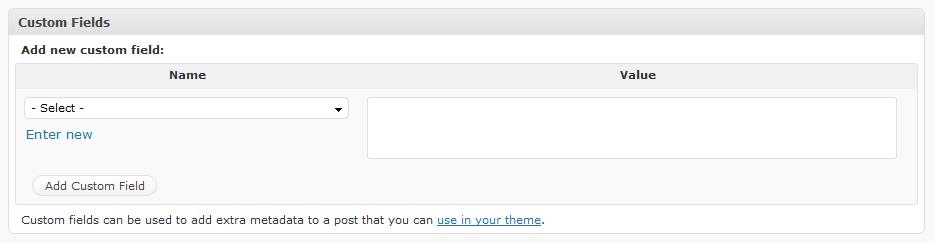
    Custom fields are added from the edit post page, scroll down and near the bottom of the page you will see a section like this:

    customfields

    Enter a new custom field name, then add the value as specified in your documentation, don’t forget to activate it by pressing “add custom field” . Please be aware of the case Thumbnail is not the same as thumbnail with custom fields.  As you add custom fields they are saved (see the drop down) so you can easily create new fields for your posts.

    Categories

    Many premium themes use categories to position items on the page.  For example many of the look and feels will have a featured post section, to get posts into the featured section, you need to add them to a category named featured.

    Again watch the case, I spent hours trying to get some videos to appear by adding the to a category called video instead of Video.

    I Love Premium Themes I Do..

    A premium theme says you are serious about your blogging, but please remember content is still king and your true fans will probably subscribe to RSS and never see you day-glo rotating doo-dad from that point on.  Don’t get too hung up about your look’n’feel.

    Just to re-iterate, read the manual and do exactly as the developer tells you and you site will look as smart as a carrot .

  • Adding a Poll to Your Blog

    When you want to ask your readers a question or are stuck for a quality post nothing beats a poll. In this post I will show you how to add a poll to your WordPress blog.

    What Will a Poll Bring to My Blog?

    A poll is a very easy way to engage your readers, there is not the in-depth need to write a reply like a comment, a simple click on a yes or no answer is far more likely to generate feedback. It helps to engage your audience and make your blog feel more like a conversation than a lecture. Consider this; if someone asks your opinion in a conversation rather than talking at you during the intercourse, what feels better? I think polls add a pause to your conversation where your readers can give their opinion.

    Polls are good for asking questions about your niche, getting feedback from your readers or even for marketing purposes e.g. a poll asking if your readers are interested in a membership side to your blog can be excellent market research.

    I have used polls as way to test if my blog content is pitched at the correct level by asking the technical expertise of my readers, I have used it to test if people want particular services from me.

    Add One Polling Plugin

    Where there’s a poll there is plugin that’s my motto of the minute. Adding a poll to your blog is as easy as finding the right plugin. Below I list the things to consider when choosing your plugin.

    Widget or Post

    If you are running you poll over a number of days it maybe more appropriate to add a widget to your blog’s sidebar rather than containing your poll in a post. This is because posts may drop off the front page of your blog and potential poll results may be missed.

    Check with your particular plugin to see if it is widget ready. I like a plugin which gives me the flexibilty of adding it to a post or page as well as having a ready made widget.

    Posting the Results

    I like a poll plugin which automatically calculates the results at the end of my polling period as well as an ongoing count displayed to my readers. Check to see if your polling plugin presents results to your users or only on the backend to your the administrator.

    My Preferred Polling Preference

    Alliteration always makes me happy 🙂

    As always I would encourage you to check out the available poll plugins from the plugin repository and see which one matches your requirements, there are a number to test at http://wordpress.org/extend/plugins/tags/polls.

    The poll widget I use is called WP-Polls, it is available for download http://lesterchan.net/portfolio/programming/php/#wp-polls

    The plugin has an admin interface where you create your poll, then it is inserted into a post using a tag [~poll id=”n”] the tag is then replaced and the poll inserted for all to see. It comes with a widget built in to drop polls onto your sidebar(s).

    WP-Polls has a template editor so you can match polls to the look and feel of your site and It has a really handy interface in the dashboard so you can analyse the results of your polls.

    I can set a time limit for my poll, and at the end it marks it as closed and only the results are shown. It allows you to set who can vote i.e. guest or registered users, I would not recommend using the registered users option, any barrier to entry will stop people voting in your poll.

    The only thing missing for me is free form fields which would allow me to get more than a yes or no answer to my poll.

    Offsite Polling Solutions

    There are various solutions out there which allow you to host a poll off-site and then display it on your site. Solutions such as Poll Daddy will host your poll. This is of benefit if you poll is a huge multi page thing and you expect housands of results. Of course these tend to work under the freemium model with more advanced options available at a fee.

    Have you used any offsite polling solutions let me know in the comments.

    Other Ideas

    If you want a very quick poll with immediate results, I can wholeheartedly recommend the combination of twitter and polldaddy, in a couple of seconds you can create a poll and put it in front of your twitter followers. This is excellent for asking a quick question and having the results correlated for you. This can be done from http://twitter.polldaddy.com/

    The lazy writers guide to Polls

    I’ll let you into the secret, polls help to fill gaps in your posting schedule if you are stuck for something to write about, first of all you set the poll with a couple of paragraphs of why you are running the poll, post one – check.

    Next you get the result post where you analyse the post bingo two posts, not a great deal of effort. Post two -check, see how it fills the gaps.

    Are You Going to Add a Poll?

    Here’s a sample poll for you, I would appreciate your feedback:

    [poll id=”7″]

  • The WordPress 2.8 50% off Mad Sale

    Mad WPDude here, and have I got a sale for you …. no cannot do it, just cannot be a US car salesman.

    WordPress 2.8 Released

    WordPress 2.8 has eventually been released after much too-ing and fro-ing with bug fixing and slippage in the project.  It was originally due for release last month but that date passed.  The slippage is a good thing it means bugs were spotted (and fixed) before the code was sent into the Blogosphere.

    You will probably see update notifications on your dashboard right now.

    What’s New in 2.8

    Full details of what is new in 2.8 can be seen at http://codex.wordpress.org/Version_2.8, but my particular highlights of this update are:

    • Install theme from dashboard instead of using FTP
    • Hot key to save posts ctrl+s

    What’s the sale about

    I am offerning to update your site including installation of backup plugins,  taking a complete and tested backup, update, post update testing and rollback if required for one hour instead of my usual two that I would quote for this job.

    If you want me to upgrade your site to WordPress 2.8, drop me a line from wpdude.com/hire-wpdude quoting Crazy WPDudes Sale, or just say please update my site, whatever you are more comfortable with.

  • How To Write WordPress Posts Remotely

    Connecting to your blog and writing posts through your dashboard is not the only way to craft your content.  I am going to tell you of a few other methods to write posts and publish them on your blog.

    Why Do I need to Publish Posts Remotely?

    You may not be at your computer or only have a mobile device with you, you may be researching a topic away from your Blog dashboard or you may just hate writing from the WordPress editor.  The ability to publish from sources other than your blog has many uses.

    Email Your Posts

    WordPress has the ability to receive emails as posts to your blog for publication.  In essence you setup a secret email account know only to you and your blog, then any email received by the blog to that account will be accepted as a post.  I am a very lazy man so rather than reinventing the wheel, here is a link to the resource written by the good people at WordPress http://codex.wordpress.org/Blog_by_Email

    Remote Clients

    There are a number of clients out there which allow you to write your posts offline and push them up to your blog at the click of a button.  These tend to be more like client based word processors, and as a result they are more feature rich than the default wordpress editor.

    The remote clients all0w you to draft and prepare posts offline.  Perhaps you like to switch off your net connection when you write to minimise distraction, then this is a method for you.

    The tool I have tried is Windows Live Writer, it is an excellent gui writing tool which allows you to download your theme to give you an idea of what your posts will look like.  Write your posts, save them offline as drafts, then click on publish when you are ready.

    I am a windows boy, are there are mac remote posting clients? Please let me know in comments section.

    Browser Plugins

    There are quite a few browser plugins available for free download which allow you to post directly from your browser.  I guess the idea is that when you are doing your browsing, the idea for a posts comes to you and the plugin allows you to write the posts during your peak of creative musing.  The two plugins I have used are:

    ScribeFire – a firefox plugin which at the press of the f8 button becomes a blog client.  You create an account to your blog and you can write a post directly from firefox.

    Press This – a bookmarklet produced by WordPress, from your blog goto Turbo  and drag the Press This link onto your toolbar, when you have the urge click on it and blog from your browser.

    As always I am always open to new experiences, let me know if there is a blogging browser extension which rocks your world in the comment section.

    Mobile Devices

    All the kids with their new fangled what-ji-mi-call-its are blogging from their handsets.  There are a couple of ways this works:

    For the uber-trendy there are iPhone applications which act as clients on your Appley doodad.  This was developed by the good people at WordPress, just go to the app store and search for WordPress, it is a free app.  It gives you the ability to write posts, and pages as well as moderate your comments.

    The second alternative for smart phones with slower browsers (I am thinking Blackberrys or Windows CE devices) is to adapt your blog to create a reduced interface.  Using the WordPress Mobile Pack plugin you can do this along with creating a mobile device compatible front end.

    A Word About XMLRPC & Security

    If you allow remote updating, you are opening holes in your blog for potential security attacks.  Think about this before you allow remote publishing.  You may wake up one morning and find your site full of posts linking to viagra companies.

    Most of the methods above use something called xmlrpc, which is a standard for remote procedure calls (RPC , did you see what I did there) using XML (stunning RPC + XML = xmlrpc).  In English this means a remote call can be sent to your blog with the data wrapped up as a formatted text file and an update, delete or amend of a blog post can be done.

    By default xmlrpc is disabled on a WordPress installation, to enable it goto settings->writing and click on XML-RPC to enable it.

    I once used hosting company which disabled XMLRPC at a low level by blocking the WordPress php file xmlrpc.php from running. To get around this I renamed the file xmlrpc-remote.php and it worked fine, something to consider if your hosting company is being overzealous with your security.  Most of the remote tools allow you to setup where the xmlrpc file is located.

    Where Am I Writing This Post from ….

    .. you guessed it from the dashboard, I have used many of the methods above, but more as a blog post development tools, I throw my ideas together remotely and sit down in front of the dashboard to write up my post.  You may be different and like to write from your iPhone during your commute, give them a go.

  • PLUGIN REVIEW: My Backup Plugins

    I am always harping on that you need to backup your WordPress installation, check out my post on when I think you need to backup your blog at 6 Key Times You Should Backup Your WordPress Blog

    This posts is a review of  the two plugins I use to backup my blog.

    Why Do I Need A Backup

    Computer systems go phutt on an all too regular basis, having a backup allows you to rebuild your blog with the minimum effort.  Consider the time and effort you have put into developing your posts and your cool theme, this needs to be archived so you can recover in the event of a catastrophic failure, hacking attack or user error – bugger did I really click drop from my MYSQL console.

    What You Need To Backup

    There are two components you need to consider when doing a WordPress backup, the data in your MYSQL database and what I call the codebase or the files which make up a WordPress install.

    The database is commonly backed up by most people, but who considers their codebase?  This includes all of your uploaded media, any mods you make to your theme or your blog code and the latest natty plugin you added to your blog.

    How Often

    The frequency of backup should be done in line with how often you update your blog, if you write posts daily, backup daily, if you are uploading lots of media, backup the codebase frequently.  Do it often, and do it early.

    My preference is once daily for my database and weekly for my code base.

    The Plugins ..

    I use the following two plugins:

    WordPress Backup (By BTE) – for codebase backup

    WordPress Database Backup – for database backup (no shit Sherlock, I can tell that from the name)

    There are many more at the WordPress plugin directory, have a look at http://wordpress.org/extend/plugins/tags/backup

    WordPress Baclup (By BTE)

    This is a great little plugin which takes a copy of my plugin, theme and upload directories and copies them into a directory under wp-content as a zip file.  The zip file is then sent out via email.

    I have this set to run once a week, but you can set it to daily or monthly.  There is no on-demand option.

    To restore from this backup, unzip the files and FTP them back to your host.

    WordPress Database Backup

    I did a quick straw poll on Twitter and the majority of repliers were using this plugin to backup their database.  The same poll suggests people are not backing up their codebase.

    WP Database backup allows you to backup all, or a selction of your MYSQL tables, and have that backup saved to your hosting server, downloaded or sent via email.   Like WordPress backup there is a scheduler but there is also an on-demand function, useful if you want a quick back before a change to your blog.,

    The output is a SQL command file which when run against the database to recreate the tables and data.  Please note a certain level of MYSQL knowlege is required to recover from this method.

    Archiving My Backups

    I use Gmail as a sneaky way to archive my backups, I have a rule to move the emails to my archive automatically, this means I have a number of checkpoitns with my backups so I can do a point in time recovery.

    Testing Your Backup

    It is all well and good having a backup, but have you tested your recovery process, I wrote a guest post on Problogger about this subject, check it out at http://www.problogger.net/archives/2009/02/12/testing-your-blog-backup.

    The Missing Link

    My complete WordPress install i..e wp-includes, wp-admin and the files in my blog root are not backed up by these two plugins so I keep a copy of my latest WordPress install files to hand, just in case.

    Conclusion

    There are a number of backup plugins out there, please please get some installed before your blog goes tits up and you end up attempting to recover your blog using this technique – Feck Arse and Google Cache

  • Find That Plugin

    I am often asked is there a plugin for task X in WordPress, nine times out of ten there is, here is how I go about finding plugins.

    What Are Plugins

    Plugins are extensions of WordPress which allow blog owners to perform a multitude of functions, there are thousands of developers out there beavering away developing code for nearly every eventuallity, they extend WordPress, usually for free, but how do you find the one for your job?

    The WordPress Plugin Directory

    Here is a link to the offical WordPress repository of all things plugable http://wordpress.org/extend/plugins/

    This is a huge database of plugins here are the stats when this post was written:

    5,365plugins, 32,374,772 downloads, and counting

    The directory has a searchable database and a tagging system, so if you know what yiou want you can search for it, or if you have a rough idea use the tags, for example if you want a video player, check out the video tag and review the various offerings.

    Plugins come with recommendations or star ratings from other users , this is very helpful finding really good plugins.

    The same directory can be accessed straight from your WordPress dashboard, if you click on plugins-> add new , there is a search box which feeds into the directory.

    Google It

    I have found that the WordPress plugin directory search function is a little cumbersome so I prefer to use Google for my searches, try a search in the following format, it will usually bring back some hits that will help:

    wordpress plugin {your needs go here}

    There is usually a developers site as well as a entry in the directory for the plugin which is indexed more readily in Google than the WordPress directory.

    Ask Your Network

    I am always asking my social network for hints and tips on WordPress plugins, and I frequently answer others queries on what is the best .  Throw out a tweet on twitter, send out an email, do whatever it is you kids do on Facebook.  There are loads of sociable people wanting to build connections by being helpful to others.

    If you need help finding the right fit plugin, tweet me  @wpdude I will do my best to help you.

    When All Else Fails

    Get one written to your exact specification.  If there is not a cat herding plugin for WordPress write up a specification and post it on one of the freelance sites such as  Elance or Rent-A-Coder.  The pizza munching code monkeys will happily slap togeter some code for you for a reasonable fee.

    Professional Finder

    I’ve just thought I should charge a fee as a plugin finder, I will find install and test plugins to your specification, this time next year I’ll be a millionaire :). 

    Have fun searching for those plugins, but be careful you can get adicted and install too many plugins – what do you mean, of course I need a plugin to capitalise the third e in every sentence.