Neil Matthews

Author: Neil Matthews

  • Plugin Review: Login Lockdown

    Plugin Review: Login Lockdown

    Here’s a screen cast presentation demonstrating the security plugin login lockdown.  This is one of my recommended security plugins

    This is my first attempt at screen casts to demonstrate plugins, please let me know how this format works for you.

    About Login LockDown

    Security plugin to stop mullitple unauthorised access attemps

    Download from http://wordpress.org/extend/plugins/login-lockdown/

    Image by chrissy575

  • Webinar: WordPress SEO Copywriting

    Webinar: WordPress SEO Copywriting

    I’d like to invite you to a webinar entitled

    “WordPress SEO Copywriting with Scribe SEO”
    Tuesday , 5th October 12:30 – 13:30 Eastern (45-60 minutes)

    It is no cost but lines are limited.

    https://www2.gotomeeting.com/register/692597651

    In this webinar I want to show you how changing your blog post copy can increase your chances of the search engines ranking your content.  Using the Scribe SEO plugin you can be sure you have the right copy techniques working every time.

    Here is a taste of what I will cover …

    • What is SEO copywriting
    • Installing Scribe SEO
    • Analysing your content
    • Understanding the results
    • Optimising your copy
    • Q & A Session

    Follow the presentation using your computer and speakers or
    using the telephone. All the details are sent to you after
    you register using the following link …

    https://www2.gotomeeting.com/register/692597651

    Looking forward to seeing you on the call 🙂

  • WordPress Training

    WordPress Training

    One of the things I like most about my business is teaching people how to use WordPress.

    I often get people coming to me and asking for a  session to teach them how to solve a problem rather than passing the problem to me to solve.  I’ve always been happy to oblige.

    I am seeing more and more demand from people asking me to help them learn how to solve their WordPress issues, so I am adding a new service to my portfolio; WordPress training.

    How My Training Works

    I use a tool called GotoMeeting to create a virtual meeting between us.  This tool allows me to share my computer screen with you over the internet,  Using this feature I can take you through your problem area and show you how to solve your problem.  If you like we can connect to your live site and I will show you how to fix the problem in real-time.

    All of my training sessions are bespoke and tailored to you so you get exactly the training session you need.

    Book A Session

    If you would like a training session, check out my new services page

  • WordPress Hacked! How Do I Fix It?

    WordPress Hacked! How Do I Fix It?

    WordPress hacked?  Don’t panic, this post will help you fixyour hacked site.   In a previous post I wrote about 10 signs you have been hacked, I want to extend this post and tell you how to clean up a hacked site.

    Don’t Panic!

    I say don’t panic because people immediately go into crisis mode when their site has been hacked, they think the world is out to get them. I’m here to tell you it’s probably not personal and it can be fixed.  WordPress is so widespread that people spend time probing and trying to find weaknesses in WP and hosting companies that host WordPress.  It’s an easy target, that is probably why your site has been attacked.

    It’s only a website, and it can be fixed, we can get this back up and running quickly.  Take a deep breath and read on, Uncle WP Dude is gonna make it all better …

    UPDATE November 2012 

    Feel free to read the whole post, but I recently starting working with a hack recovery specialist.

    I’ve been working with Sucuri.net on a number of hacked WordPress sites for my clients.  At $80 their hack recovery and security monitoring package is absolutely excellent, get them on the case for a fast hack recovery.

    Sucuri.net


    Stop The Rot

    The first thing to do is stop your site from upsetting any of your readers or clients, often a hack attack will contain a payload your site visitor does not want such as a redirection to a dubious site or a malware download.

    I recommend installing the plugin Maintenance Mode, it will close down access to your site and only give a maintenance message.

    If you are still getting issues, rename the file index.php in the root of your site.  Your visitors will get errors, but that is better than malware downloads.

    Change Your Passwords

    Your passwords may have been compromised, so immediately change all passwords.  Here is a list to check off

    • Your hosting account password – see hosting account for details
    • Your ftp password – see hosting account for details
    • All admin level WordPress passwords – change in the dashboard -> users section
    • Your WordPress database password – this will be changed on your hosting account and needs to be updated in wp-config.php

    I also recommend you use strong passwords that are hard to guess, I like to use this site to create random passwords http://www.pctools.com/guides/password/

    Backup The Site As-Is

    Create a backup of your database and files as they are now, the rest of this process will require files to be edited and deleted, we need a fall back point just in case, even if it is to a hacked state.

    Backup your database, this can be done from your hosting account

    Connect to your site using FTP and copy all of the WordPress files to your pc.

    WARNING: We are going to be doing some fundamental changes to WordPress you could damage your site if you do some of these changes incorrectly, you have been warned.

    Install a Clean version of WP

    Download a clean copy of WordPress from http://wordpress.org.  We are not going to do any auto-upgrades, we need complete control of this process to ensure all infected files are removed.

    Connect to your site using ftp and delete wp-admin and wp-includes, this will make sure any rogue files in these directories are removed.  DO NOT delete wp-content, this is where all your theme, plugin and uploads are held.  We will deal with these separately.

    Unpack and upload your clean version of WordPress to your site overwriting all of the existing files.

    Disinfect Your Plugins

    Go into the dashboard and disable all of the plugins you have installed, taking care to make a note of which are active.

    Download clean versions of your plugins.

    Connect to your site using ftp and delete the contents of the directory wp-content/plugins

    Re-install all of your plugins, and then re-activate them from the dashboard.

    Disinfect Your Theme

    Get clean copies of your theme files from your theme developer.

    NOTE:  If you have made changes to your theme, adding plugin code, changing footer code etc this will be removed, and will need to be re-created./

    Make a note of what makes up your sidebar widgets, take copies of any code, and what types of widgets you are using.

    connect to your site using ftp, and delete your theme files from wp-content/themes

    Upload the clean theme files and make sure it is activated correctly, if it is not goto appearance -> themes and activate the files.

    Check and correct your widgets, and re-add any changes you have made.

    Check your wp-config & .htaccess files

    Review all wp-config and .htaccess files on your site to ensure they do not have rogue code inserted.  Remove any unwanted code.

    Audit your Uploads Directory

    Sometimes hackers leave malware scripts in the uploads directory.   This is because there are so many sub directories amd files

    Install WP-Malwatch

    I wrote a plugin review of wp-malwatch, get this installed as soon as possible and do a scan, this is particularly helpful to audit your uploads directory.  This plugin will check various files and locations for known hack attack signature and inform you.

    Audit Your Database

    Get access to your database and review it for unusual entries

    Things to look for

    • Unusual tables,
    • Unusual users in th wp_users tables
    • Unusual entries in wp-options table

    I’m sorry I cannot be more specific, you need an understanding of the WordPress tables and what plugins you have installed to spot issues.

    Re-Check after a couple of days

    Re-check your site after a couple of days, you may have missed a back door and your site can get re-infected.

    Do A Post Mortem

    Shout at your hosting company, ask them to analyse your logs, ask them to identify how the hackers got in.  Many of the hack attacks I have fixed recently have been because of poor hosting security, the hackers found a back door on the hosting setup, and infiltrate many sites.  If it was an issue with hosting, consider migrating to a new company.

    Check you logs to look for unusual activity, try and see how they got in.

    Secure your system

    Once the hack attack and it’s payload it gone, you need to secure your system, but that is for another post.  Please subsrive be my RSS feed or join my mailing list to be informed when that post is available.

    Do You Still Need Help?

    I offer a wordpress hack recovery and security review package, I would love to help you solve your WordPress hacked issue.


  • Andy Ellwood – Iquate.com

    Neil was flexible, knowledgeable and very easy to deal with.  He tailored the initial session to our specific requirements and then was able to respond to all questions that arose during it.  This was a very efficient and effective mechanism for us to quickly get the information we needed to help us in a major web development project

    Andy Ellwood – Iquate.com

  • WordPress Inbuilt URL Shortner

    WordPress Inbuilt URL Shortner

    I guess we are all very familiar with URL shortening services which shrink the length of a URL, but did you know that WordPress has a built in shortlink service?

    In this post I will show you how to use this, and give some examples of why you may want to do this.

    Why Shorten A URL?

    There are a couple of good reasons to shorten a URL and they are:

    To save character space, if you are using services such s twitter with limited space, shortening a URL allows you to get your message over in a more complete fashion.

    To cloak a URL; if you are sending out an affiliate link for example you may want to cloak the link to hide the ugly nature (or even hide the fact it’s an aff link) so all you target sees is the end URL.

    Creating A Shortlink

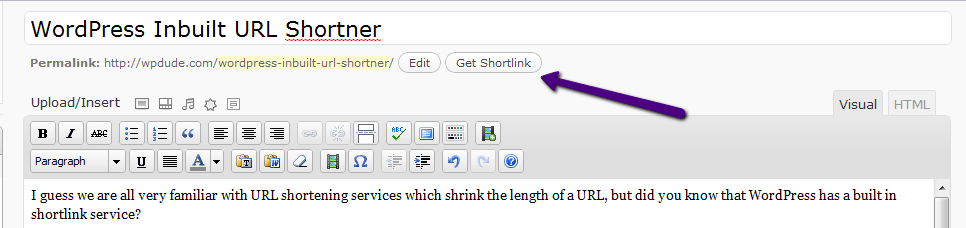
    TO create a shortlink inside of WordPress, you need to go to the post editor and create a new post or edit an existing one.  At the top of the screen you will see a button

    When you first create a new posts, the button does not show up, you need to save a draft first.

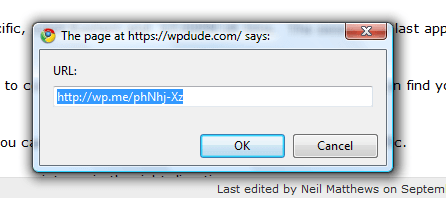
    Click on the link, and a popup will appear with your shortened URL ready for use.

    How Does IT Work

    A redirection is created on the wp.me domain, which matches your unique URL, when this URL is entered into a browser, you are taken to the wp.em website and an immediate re-direction occurs taking you to the full URL on your WordPress site.

    The links are monitored for SPAM so anyone planning to use this service to blast offers to people should be wary, your spam activities may affect your legitimate blog posts in the future.

    The link does not have a set lifetime, so as long as WordPress is around, your shortened link will be around so there should be no concerns with broken links in the future.

    Missing Link

    There is one missing link in all of this configuration, and that is a monitoring option.  I like to use bit.ly because it allows me to monitor how many clicks I am getting on my shortened URL, perhaps this is in the pipeline I don’t know, but if you need a simple URL shortner that can be used inside of your WordPress dashboard, then you cannot go wrong with Get Shortlink.

  • Webinar: WordPress SEO

    Webinar: WordPress SEO

    I’d like to invite you to a webinar entitled

    WordPress SEO Copywriting with Scribe SEO
    Tuesday , 5th October 12:30 – 13:30 Eastern (45-60 minutes)

    It is no cost but lines are limited.

    https://www2.gotomeeting.com/register/692597651

    In this webinar I want to show you how changing your blog post copy can increase your chances of the search engines ranking your content.

    Here is a taste of what I will cover …

    • What is SEO copywriting
    • Installing Scribe SEO
    • Analysing your content
    • Understanding the results
    • Optimising your copy
    • Q & A Session

    Follow the presentation using your computer and speakers or
    using the telephone. All the details are sent to you after
    you register using the following link …

    https://www2.gotomeeting.com/register/692597651

    Looking forward to seeing you on the call 🙂

  • Webinar: Integrating WordPress and Twitter

    I am holding a live group coaching webinar on Thursday 2nd September and I would like to invite you to join me.

    The coaching session will take place at 9AM Pacific, 12pm Eastern and 17:00PM UK time.  The session will last approximately 70 minutes.

    Webinar Integrating WordPress and Twitter

    I will be giving a group coaching session on how to integrate your WordPress site with twitter to take advantage of this booming social media platform.

    How The Webinar Works

    It will be part presentation, part live tutorial so I can show you how to configure integration between your site and twitter.  I will also give you some tools to help promote your blog posts on twitter

    The beauty of the webinar system I use is that we can interact via chat sessions so you can ask questions while I show you how to integrate the systems.

    The Agenda

    Here is the agenda for the session.

    • Why integrate WordPress with twitter
    • Tools to automate the process
    • WordPress Post to Tweets
    • Tweets to Posts
    • Promoting blog posts on twitter
    • Promoting your archives on twitter
    • Twitter welcome page
    • Q & A

    It’s Free For This Week Only

    This is the first of my new weekly group coaching sessions, and I will be providing this first session free of charge to give you a feel for the group coaching format.

    Limited Spaces

    This is not some internet marketing scarcity ploy, but my webinar software has limited slots available  so sign up as soon as you can to avoid disappointment.

    Join Now

    Space is limited.
    Reserve your Webinar seat now at:
    https://www2.gotomeeting.com/register/136183426

  • Plugin Review: wp-malwatch

    Plugin Review: wp-malwatch

    A plugin I have found recently is wp-malwatch, and it has quickly gone onto my must have list of plugins.  Let me tell you about it and urge you to get it installed on your system.

    What is wp-malwatch?

    It’s like an anti virus scanner for the files on your WordPress install.  So if someone has hacked your site and installed malware code on your system, wp-malwatch will help you find it.

    Installation

    wp-malwatch is much like any other plugin, you can either search for it and install it or download it from here http://wordpress.org/extend/plugins/wp-malwatch/

    Configuration

    Once installed there are a number of config options, plus one special hint I will give you.

    To configure the plugin goto the wp-malwatch-> configure option.

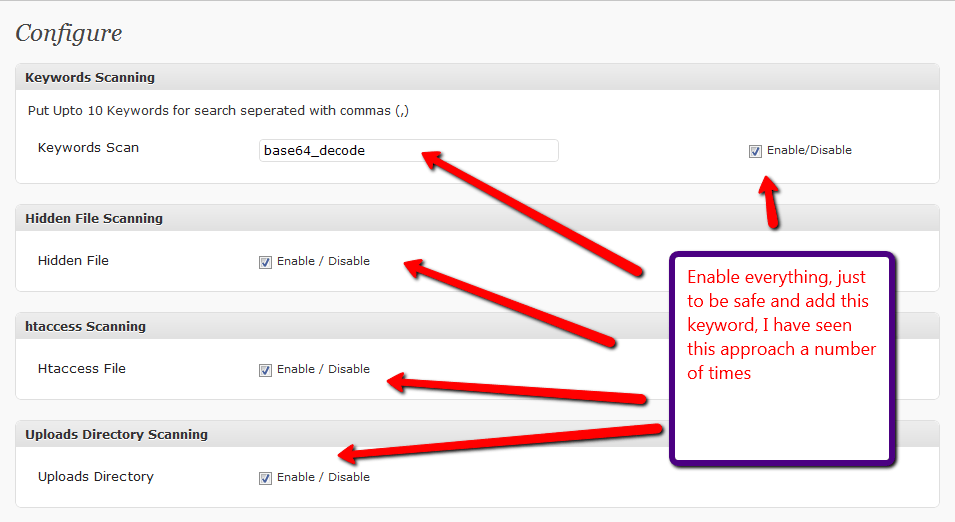
    bizarrely, not all of the options are enabled, I say switch everything on.  See the screen dumps.

    Keyword scan – this check inside of your WordPress files for particular strings, as you can see from the screen dump I have added base654_decode.  An increasingly popular way to hide hackers code is to encrypt it, if you see files with base64_decode and huge strings, this is probably malware code.

    Hidden files scan – hackers often setup hidden files which contain suspect code, this option will find those files.

    .htaccess scanning – another trick is to add malicious re-directions to .htaccess files, wordpress normally has these files, but you should be wary of the contents of these files, and any additional .htaccess files you find

    uploads directory – this is a favoured technique to hide php script files deep within your upload file structure, this is not an easy thing to find, but this excellent plugins searches for the miscreants.  This has found issues on a couple of my clients sites and saved me hours of searching.

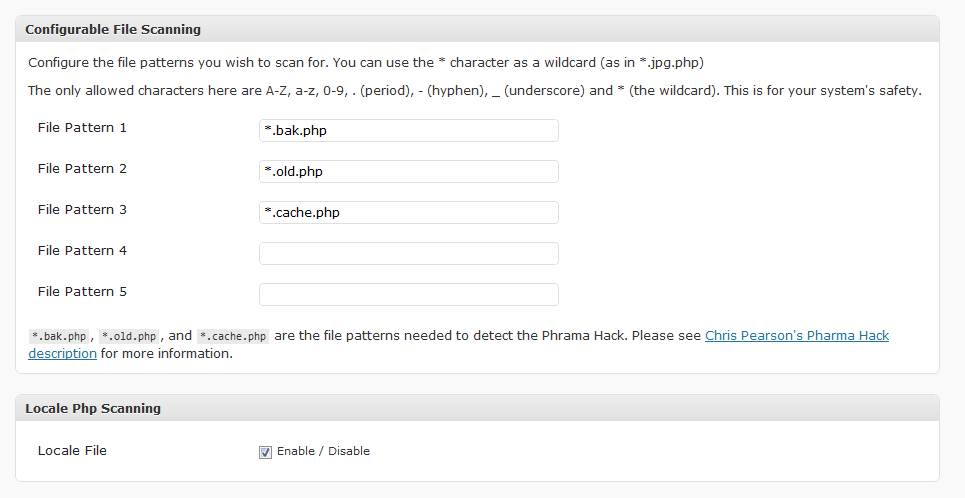
    File pattern scanning – like virus signatures, some hack attacks have specific file patterns, these are the known attack signatures.

    Locale scanning – the file locale.php is often targeted by hackers and rogue redirects added, this needs to be scanned

    Running the Scan

    A widget is added to the dashboard home page of your site, or you can run the scan from wp-malwatch->detailed report.

    IT WILL RETURN HITS DON’T PANIC

    The plugin will now return a list of files which are suspicious, review each file, and view it’s contents.

    False Positives

    WP-Malwatch errs on the side of caution and brings back anything matching  your search patterns, which is good, but requires that you have the ability to review and understand what it has returned.  There will be some false positive results.

    For example there will be a .htaccess file in the root of your site, this will be flagged up.

    Remove Malware Files

    If you have been infected, I recommend re-installing a clean version of WordPress, and any plugins or themes that have been infected, and deleting any files which should not be there for example in the uploads directory.

    Then change all of your passwords; database, ftp and WordPress users.

    How Often should Your Test Your Site

    I recommend once a week, it does not take very long.  A function I would like to see on the plugin is an automated weekly or monthly check that send you an email of the results, but hey you cannot have everything in a free plugin.

    My  Results Are Freaking Me Out!!

    If you need help translating the results of wp-malwatch to see if you have been infected, why not book a coaching session with me and I can take you through the results.

    Image by jlwalker

  • Lightweight WordPress Visitor Stats

    Lightweight WordPress Visitor Stats

    If you are anything like me, you like to look at the stats on your site.  Which posts are popular, where your visitors are coming from.  I want to tell you about a nice lightweight stats package that I use to give you this information at a glance.

    Google Analytics

    I have google analytics installed on my site, and I will use this less than once a month.  It gives you very detailed and in-depth stats about your sites, and I DO recommend that you use GA, it’s free and easy to install, but for at  a glance day-to-day stats I want something less detailed and easier to use.

    WordPress.com stats

    I have the wordpress.com stats plugin installed on my system.  This plugin was developed for hosted wordpress.com blogs, but has been made available to the wider WordPress community.

    You install it like any other plugin, and it gives you a dashboard widget and a more detailed site stats page.

    The plugin can be downloaded from http://wordpress.org/extend/plugins/stats/

    API Key

    The stats program uses your wordpress.com api key, the same one used by Akismet.  To get an API key visit wordpress.com and sign up for a free account, then go to the dashboard and retrieve your API key.

    It is not he easiest thing to find, have fun.

    So what does it give me?

    Using WordPress .com stats I can get an “at a glance” overview of my sites performance.  I can then drill down on the various stats to get more details information.  My at a glance screen gives me

    • Total site visitors for the last 30 days
    • Top ten referrers (where the  traffic came from) for yesterday and today
    • Top ten posts or pages for yesterday and today
    • Top ten search engine terms for yesterday and today
    • Top then click aways (useful for people watching affiliate sales) for yesterday and today
    • Recent incoming links

    For me this is more than enough information to get a quick overview of how my site is working, if a new blog posts is resonating with people, if my marketing is bringing people to my services page.

    Check out these screen dumps for an idea of the graphs and stats http://wordpress.org/extend/plugins/stats/screenshots/

    You can click into any of the stats and get more detailed over time results.

    Give It A Go

    It is not the most powerful stats package out there, if you need details such as bounce rate or segments from where your visitors are coming from you definitely need something like google analytics, but a quick check to see if people are reading your stuff, and wordpress.com stats will suit you down to the ground.

    I’m keen to know which other stats packages people use, drop me a line in the comments if you are using something not mentioned.

    Image by kevinzhengli

  • 1Shopping Cart and WishList Member

    1Shopping Cart and WishList Member

    This post will be of interest to those of you using the WishList member plugin (WLM) and the 1Shopping Cart (1SC).

    1SC has announced that they have changed the way their recurring payments work, and this will enable a much tighter integration with WLM.

    The Current problem

    1SC only provides what WLM call a simple integration.  This means that there is no notification back to your site if the 1SC recurring payment is cancelled.

    When someone cancels a membership, you need to manually remove them from the WLM system, as you can imagine if you have a decent sized membership site this overhead can be quiet a burden.

    What 1Shopping Cart Are Saying

    Here is the notification I was sent from 1SC

    Professional Cart Solutions is extremely pleased to announce the release of the long anticipated re-write of our Recurring Billing engine.

    Our engineers have been diligently working on improving this feature over the past year, and now we are ready to launch!

    The V2 Recurring billing engine will look and function exactly the same as the current and familiar tool, but watch for the following enhancements:

    • Faster, more reliable processing
    • Receive recurring orders on both the Desktop and Mobile Notifiers
    • Access to recurring orders through the API
    • Ability to retrieve notifications of recurring orders through the API

    We will begin migrating users to the new recurring billing system as of August 10th, 2010; your account will be migrated on or after that date. Note that this change will be seamless and there will be no disruption to your recurring billing.

    For those who have been inquiring about an integration between our system and WishList Member, you will be particularly happy to know that this release is the final step in their integration with our service.

    Due to impending changes in the policies of major credit card providers, we must also inform you of the deprecation of the “Update Payment Information for all Recurring Events” feature. This is comes as a result of a decision by the Payment Card Industry deeming any non-customer initiated payment changes as unacceptable.

    When Will THis Integration Happen

    I don;t have any details from WLM on the time the re-code will take, what I recommend is that you keep any eye on the news page from WLM http://wishlistproducts.com/category/news/

    You should also keep an eye on your WLM dashboard, this will alert you when new versions of the plugin are available, they do not update through the normal plugin route because it is a premium product.

    Hat Tip

    A big hat tip to Jenna Avery for giving me the heads up on this update.

  • WordPress and Your Hosting Setup

    WordPress and Your Hosting Setup

    I’m on holiday this week (or vacation as you say in Americaland) so here is a guest post from Jonas Bates . He works for webhostgear.com, a well-respected web hosting guide.

    Blogging and WordPress Hosting

    Does your business have a blog? If not, it may be the only one left that doesn’t. Blogging is a key part of any Internet marketing strategy, and many companies are benefitting tremendously from a combination of blogging and WordPress hosting that keeps fresh content associated with your business and directs traffic back to your primary website.

    How to Make Blogging and WordPress Hosting Work for Your Business

    The Internet is all about fresh content. As the saying goes “content is king.” To get people to your website, you need something new. To bring them back, you need to keep people talking. A blog can serve both of these purposes. Even if your main site needs to stay static by necessity (because you have a lot of offers, for example), your blog can always be changing, and can be a great source of link building too. Don’t shortchange the power of the blog.

    But What About the WordPress Hosting? Where Does That Come In?

    WordPress hosting is simply the easiest and most effective platform for blogging. A WordPress blog with a WordPress host is easy to set up, easy to use, and easy to optimize. You can have a WordPress blog hosted on a non-WordPress server, but why would you? WordPress hosts
    are already set up with the right operating system, the right programming language, the right everything for a functional, efficient, eye-catching WordPress blog. There are already plenty of great WordPress features to choose from, and since WordPress is an open source application,
    new ones are popping up all the time. WordPress is compatible with any web hosting.

    Benefitting from Blogging and WordPress Hosting

    Once you have your WordPress blog set up with your WordPress host, use it! Don’t let all that functionality go to waste. Make sure you’re posting every day, or at least a few times a week. If necessary, get some of your employees to contribute. As soon as people realize you’re not updating that blog regularly, they’ll stop coming back, and that can cost you big. So set it up and start blogging!

    Image by tomandemma