Neil Matthews

Author: Neil Matthews

  • WordPress Performance Tuning Course

    WordPress Performance Tuning Course

    I get called in a lot to help speed up slow loading WordPress sites.  This is important for both user perception and for search engine rankings(Google doesn’t like slow sites).

    I thought it would be a good idea to create a video course to show people how to move through the step by step process I use to speed up slow loading sites.

    This post is a toe in the water to see if this course is required. If I get enough response I’ll create the course and make it available as a downloadable video course.

    What Will I Be Teaching?

    I’ll be showing people who sign up my proven method for moving through a WordPress site and speeding up the various layers of a site..

    This is what I have done on numerous client sites, I know it works, and I have been able to successfully get sites to run at a much faster speed.

    Who Is It For?

    This course will be for people who’s WordPress site is running slowly and need it to run more responsively.

    This course is also for professionals who want to speed up their clients site.  If you would like to supply this type of service this is for you

    It will require a certain level of technical knowledge so this is not for the absolute beginner.

    Planned Modules

    Here are the seven modules I’m planning on covering:

    Performance Tuning Methodology – I will take you through my proven methodology to speed up sites layer by layer

    Finding theme bottlenecks – This module takes you through performance tuning your theme.

    Finding plugin bottlenecks – plugins often don’t play well together I’ll show you how to troubleshoot your plugins.

    Finding WordPress Core & Database bottlenecks – the final layer to test is WordPress itself and the database.

    Trouble shooting your hosting account – sometimes cheap hosting is the root of your problem I’ll show you how to check this out

    Cache plugins & CDN Usage – in the final module I will show you how to speed up your site with cache plugins and offload content with a CDN

    Do You Want To Know More?

    If I get enough response I will be inviting a small group of pioneer members to work with me very closely.  I’ll build the course out and make it available as a stand alone product.

    Would you be willing to join me for this course.  All I’m asking for right now is your email address, join the list below to let me know the level of interest.

    [gravityform id=”83″ name=”Performance Tuning Course” title=”false” description=”false”]

  • Plugin Review: Embed Plus

    Plugin Review: Embed Plus

    This is a guest post by Tay Omojokun, the developer of this plugin so he may be a little biased in his reporting, take it away Tay:

    EmbedPlus: Advanced YouTube Embedding in WordPress

    Bloggers looking to customize video embedding in WordPress should check out a unique plugin for YouTube offered by EmbedPlus. Beyond the basic ability to embed a YouTube video using links, EmbedPlus adds several customizable features that the standard YouTube player does not provide. Below is a couple of screenshot illustrating some of these features.

    The EmbedPlus player with a call-to-action annotation

    Sweet spot marking adds social chapters

    Features

    Here are the important features listed:

    • DVD-like controls
      • Chapters (custom and social)
      • Instant Replay
      • Slow Motion
      • Looping (scene and whole video)
    • Video Reactions/Comments (optional)
      • Reddit (Highest scoring submissions)
      • Google+ (Most recent posts)
      • Twitter (Most recent posts)
      • Digg (Most “Dugg”)
      • YouTube (Most recent comments)
    • Timed-Annotations (with link support for calls-to-action)

    Demo

    Before installing the plugin, take a look at the demo provided on the EmbedPlus homepage that enhances a popular TED Talk video on deep sea creatures. There, you can directly play with the listed features and see how they might help engage your visitors. For example, as the home page demo and screenshot above show, the annotations feature can be used to support calls-to-action that can motivate visitors to take part in a given campaign (e.g. mail list signup).

    Beyond the demo, you can experience these features with other videos using the service’s new Chrome Extension for YouTube and a video-rich language learning project the team is exploring: How to pronounce words / Pronunciación en Inglés / Pronuncia in Inglese

    Usage

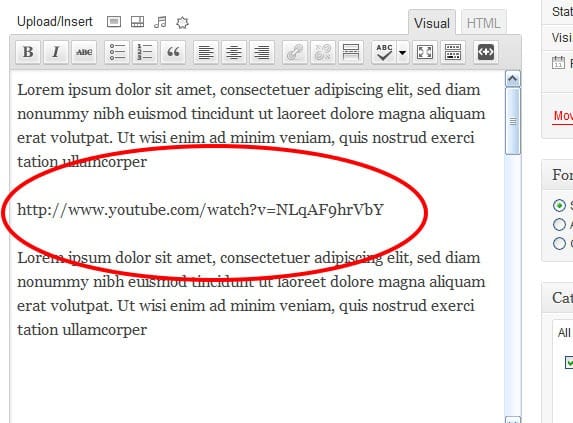
    To install the plugin, simply download it from here and within seconds, you’re up and running. Using it becomes a matter of just pasting links in the rich-text editor as displayed below.

    Paste a YouTube link like oEmbed

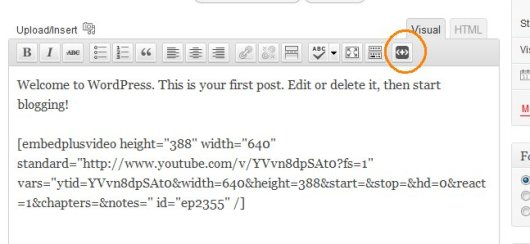
    To make customizations like annotations and chapters, simply click the added EmbedPlus button on the editor toolbar and a wizard is launched right within your WordPress interface. After entering your edits (e.g. chapter times), you’ll get short code to paste on your blog that encapsulates them. Below, you’ll see a screenshot of the wizard’s start button and an example short code that is generated at the end of the wizard.

    Example smart code generated by our wizard to paste

    The EmbedPlus team is eager to get feedback here. You’ll see a Google chat badge that the team will be checking for questions, frequently and periodically.

    Neil’s Two Pennys’ Worth

    I wish I had seen this plugin when I was first building my coaching videos.  They are an hour long and the ability to skip to a chapter would be brilliant for my coaching clients.  Is it youtube Only??  Perhaps I could chunk up my videos and upload them to youtube so I can save on Amazon S3 costs.

    Thanks Tay I’ll be giving this a trial very soon.


  • Elegant Themes Give Away

    Elegant Themes Give Away

    UPDATE: The competion is now closed

    I used a random number generator to select the winners because there were so many great answers,  They came out with comment number 7 and comment number 12, so Metta Zetty  and Brian C are the winners congratulations.

    Nick over at Elegant Themes has offered you, the good readers of WP Dude  two free passes to all of their premium themes for a year.

    This amazing prize valued at $39 … sorry I lapsed into cheesy game show host for a moment 🙂

    I’ve Worked With These Themes In The Field

    A number of my clients have used Nick’s themes on their own projects and I have spent time under the hood building child themes from them, so I know the quality of the coding is sound.

    I’ve worked with Simplepress (not to be confused with the forum plugin) and Chameleon and both are very good themes, but more importantly they look great. Check out the portfolio the team at elegant themes has put together.

    They have over 70 very well designed WordPress themes just waiting for our lucky readers to win.

    How To Win Free Theme Membership

    Simple leave a comment below on why you think premium themes have changed the face of website design I will pick the two best comments and the winners get access to all of the beutiful designs at Elegant Themes .

  • Google Suggest And WordPress SEO

    Google Suggest And WordPress SEO

    Did you know that you can use the Google suggest function on a search to improve SEO and match blog post titles to what people are actually searching for?

    Match Your Blog Post Titles To Real Searches

    Imagine this, you go to Google and search for something, and the title of the page that is returned exactly matches what you have typed in.  That is the link you will click first not some related search result Google has seen fit to provide you with.

    Using the technique I’m about to explain that is what you can do for all your blog posts.

    Use What People Are Searching for, Not What You Think They Are Searching for.

    You may spend hours crafting quality content, but if you don’t match your SEO settings such as title and meta description to what people are actually typing in as search queries there is very little chance you will get click throughs from Google and Co.

    What you think people will be searching for when trying to match up your content and what they actually type are sometimes completely different.

    Google suggest give you real time data on what people are typing.

    How It Works

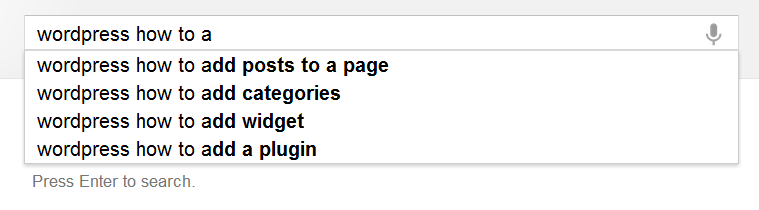
    If you go to a Google search page and start typing, you will see a suggestion appear, see this screen grab where I started to typing in “WordPress How To”.  The top four most searched for queries are shown to me.

    I can see that “WordPress how to use” is the top search and I could use this as my post title, and match my content directly to the most popular search. Google indexes my content and serves it up (hopefully) when that query is typed in.

    Using This Technique To Plan Content

    Not only can I use this technique to give my post a relevant title, I can also use this to plan my content.  If, for example, I was writing a series of WordPress how to articles, I can get a series of relevant posts titles using this technique, but adding a – z onto the end of my “WordPress how to”  query and I suddenly get 26*4 article suggestions.

    WordPress How To A give me these, continue with WordPress How To B, etc etc.

    Caveat

    As with all SEO techniques, make sure you are writing for humans first and for the search engines second, if you post titles don’t make sense, people will notice and assume you are gaming the search engines rather than creating content for people.  Here is an example, if I’m writing my WordPress how to series, by adding some abbreviation (human readable, but ignored by the search engines) I can make the post title make sense.

    “WordPress How To: Add A Widget”

    instead of

    “WordPress How To Add A Widget”

    Hat Tip

    A huge hat tip to Skelliewag who first suggested this technique in one of her blog posts.  Sorry I cannot find the original, but she proposed that you use this when creating a brand new blog to get traction with posts that match what people are search for in your niche.

    WordPress SEO Workshop

    I’m running a WordPress SEO workshop on Thursday 21st June where I will show you how to use this technique along with many other tips and techniques.

    The workshop is no cost, but seats are limited, check out this post for details.

    SORRY WEBINAR CLOSED


    Image by jeffanddayna

  • WordPress SEO Course

    WordPress SEO Course

    WordPress is a great tool for publishing your content, but out of the box it is NOT 100% optimised for SEO or Search Engine Optimisation.

    I thought it would be a good idea to create a video course to show people how to move through the step by step process I use to setup my clients sites for the best SEO.

    This post is a toe in the water to see if this course is required. If I get enough response I’ll create the course and make it available as a downloadable video course.

    What Will I Be Teaching?

    I’ll be showing people who sign up my step by step approach to making your site as appealing to the search engines as possible.

    This is what I have done on my own and numerous client sites, I know it works, I’ve got multiple posts at position one in Google.  These posts send me a ton of free traffic.

    Who Is It For?

    This course will be for people who’s want more organic traffic to their site through on-site white hat only techniques (no spamming or underhand tactics here).

    It’s not technically demanding, but it involves a number of techniques that change the way your site talks to the search engines.

    The Format

    I will be building a members only site where you can get access to the video tutorials, supporting content and support from me.

    Planned Modules

    Here are the  five modules I’m planning on covering:

    SEO Overview – what is it and how it can help you bring more people to your site

    WordPress SEO Config –  the WordPress config changes and plugins that make all the difference

    Optimising Posts and Pages – how to ensure your message is correctly understood by the search engines, whilst maintaining human being readability

    Keyword Research – learn what keywords people are searching for in your niche, and plug them into your site.

    Monitoring Your Efforts – once you’ve done all the hard work, how can you be sure your changes have made a difference, I’ll show you how to monitor your SEO efforts.

    UPDATE: Course Running This Week

    You can sign up for this no cost webinar from the register link below

    https://dev.neilmatthews.com/members/webinar/


  • Securing WordPress With HTTPS

    Securing WordPress With HTTPS

    I’ve worked with a number of clients when providing WordPress technical support who need secure post or  pages on their WordPress site to collect sensitive information.  In this post I want to show you how to setup HTTPS on WordPress.

    What Is HTTPS

    HTTP stands for hyper text transfer protocol, or the standard way web pages are transferred between your browser and the web server you connect to.  HTTPS is HTTP with SSL or secure socket layer.  This is an encrypted and secure way of sending data between your browser and the web server.

    Enough with the “bibbling” techie speak, what does that mean? It means that the information in your web page is sent back to the web server over an encrypted channel rather than in the clear so hackers cannot intercept that data and use it for nefarious reasons.

    Why Would I Want To Use It?

    If you are capturing sensitive information on your post or page and then sending it back to the web server in a normal fashion that information will be sent in “the clear” and as a result it can be intercepted by sniffers or people who setup software to capture internet data and try to extract relevant items such as credit card or login details.

    wherever you need to capture sensitive information, you need to use https not http.

    Two Examples

    You are running a health clinic and part of your process is to collect details of the patients symptoms in a web form before booking an appointment.  Sending confidential patient information in the clear is a terrible idea.

    You capture credit card information on a form before sending it to your payment processor.  Part of your agreement will be to have your pages secured via https before you can accept payments.

    Prerequisite: The Certificate

    The first thing you will need is a certificate on your hosting platform.  This post is a bit of a cop out onm that respect, because this is the hardest part of this process, but each hosting company does it a little differently, so I cannot give you detailed information.

    Bluehost for example allows you to buy a certificate for approx. $50 per year, and Godaddy also has a certificate add-on/upsell.

    If you have your own VPS you will need to create a CSR (certificate signing request) and send that off to a certificate authority and have a custom certificate for your domain created.

    As you can see there are many different ways to get and install a certificate, please consult with your hosting company to find the best way to get an SSL certificate, they will be able to help.

    What The Certificate Does

    The certificate allows you to negotiate a secure channel between your browser and the web server by sending and receiving encryption keys.  I’m not going any deeper than that, but if you want a more thorough understanding check out this article http://www.domainledger.com/secure-ssl-certificate.html

    Posts and Pages Via SSL

    Once your certificate is installed and working we can start securing WordPress resources.

    You can check HTTPS is working  by typing in https://yourdomain.com.  If it returns a valid certificate you will see a padlock in your browser bar.

    To secure particular post or pages I like this plugin.

    http://wordpress.org/extend/plugins/wordpress-https/

    It very simply and neatly adds a force https check box on the post editor.  Click on this and the plugin will redirect any visitors to this page to the https version rather than http.

    There are also additional options to make your entire site run over https, but unless you are running a bank via WordPress the performance hit will slow down your site considerably as each page will need to be encrypted.

    Admin Via SSL

    Another option you may want to consider is securing the admin dashboard of your site.   All passwords and admin commands are sent in the clear.  You may want to consider forcing all admin work over HTTPS.

    Please note the above plugin also does this, but here is an alternative  using wp-config.

    By adding two commands to the wp-config file you can secure the admin or login areas.

    a) Force all admin work over https

    b) Force just logins over https.

    define(‘FORCE_SSL_LOGIN’, true);
    define(‘FORCE_SSL_ADMIN’, true);

    For further information, please see this article on wordpress.org http://codex.wordpress.org/Administration_Over_SSL

    Wrap Up

    If you need to collect sensitive information on a WordPress please consider installing a certificate and forcing HTTPS on your posts, pages or admin dashboard.

    Image by declanjewell

  • Plugin Review: Compfight

    Plugin Review: Compfight

    If you are anything like me,  finding free quality images for your blog posts is a real pain.  Enter Compfight an image search engine for Flickr.

    What Is Compfight?

    It is an image search engine that allows you to find images from the Flickr photo sharing service against a keyword that matches your content.

    That is Compfight.com. there is also a WordPress plugin for Compfight which allows you to do all of this inside of WordPress and to give the correct attribution to the person that created the image.

    http://wordpress.org/extend/plugins/compfight/

    Licensing

    All of the images are licensed under the creative commons license, so they are free to use as long as you give an attribution link back to the original creator of the image.

    There is a standard creative commons and a commercial license, since this is a business site I opted for the commercial license, this means the images are still free, but I have fewer images to choose from.

    Settings

    There are a series of settings you can make on the plugins to control which images are returned.  This is done from settings -> compfight.

    You can set the license as discussed above, set safe search so adult content is never returned, and lastly the most useful function is to set image sizes you want.  I use a standard image size for all my posts of 240 x 180 pixels, setting this as my preference ensures I am only shown images that fit in my theme correctly.

    Getting Images

    There is a new camera icon in the insert tool bar, click on that and you are granted access to a search panel.

    Click for larger image


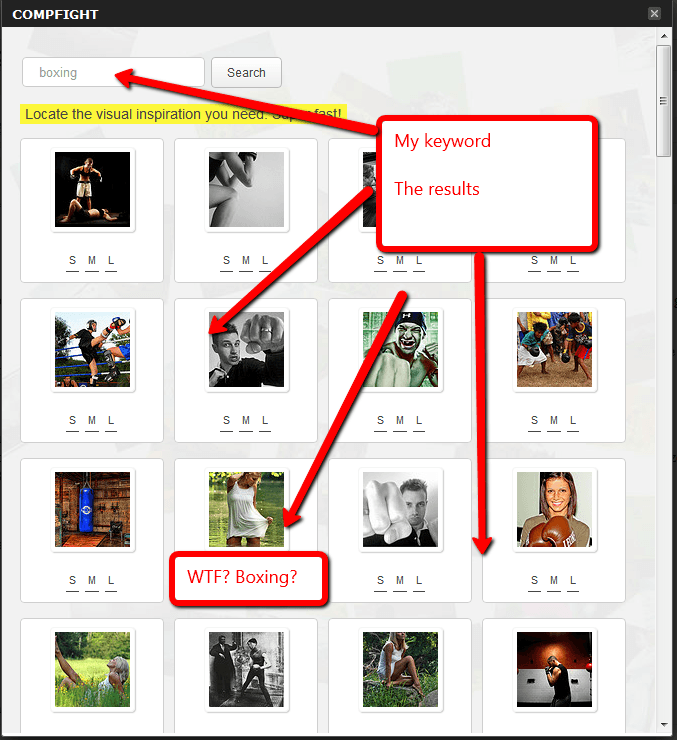
    Type your desired keyword in that panel and your search results are presented.  The algorithm may need some work, but it is far better than the existing search function that comes with Flickr.  If you have ever used that, you will know the search results are very random.

    Click for larger image

    Review the images retrieved for you, click on the one you like, with the size you like and it is automatically inserted into your post or page.  An automatic attribution link will also be added so you comply with the appropriate licensing.

    Major Downside

    One major flaw of the plugin, in my opinion, is that you cannot add an image to the featured image section of a post, only insert it into the body.

    The way my theme works is to take the featured image and show it next to a post and on the blog home page.

    As a result downloading files from compfight.com instead of using the plugin is far more effective for me.

    Wrap Up

    If you struggle to find high quality images to go with your high quality posts then this is a brilliant service or plugin for you .

    Image via Compfight by davehogg

  • The Rise Of WordPress Managed Hosting

    The Rise Of WordPress Managed Hosting

    I’m seeing an interesting development in the hosting world and that is the rise of specialised managed WordPress hosting. If you are having trouble with hacks, slow performance or poor support from your hosting company read on…

    What Is Managed Hosting?

    This is where a hosting setup is created and optimised just for WordPress sites.

    There are 1001 different types of hosting and website packages, a commodity hosting company like Godaddy or even the one I use Bluehost, is configured to keep as many people happy as possible.

    WordPress managed hosting companies focus on WordPress, and WordPress alone.  They provide a highly optimised service just for good old WP.

    Here are the ways managed hosting companies are optimised:

    Security

    Hacking of WordPress sites is a major problem, I’m called in all too often to tidy up hacked WordPress sites.  It’s expensive, time consuming and embarrassing for site owners.

    These hosting companies monitor for and repair any hack attacks as they happen.  They are also very tightly secured to stop the hackers getting access in the first place.

    All of the services I mention below also offer a full backup and recovery services.  There is no need to manage your own backup it’s done for you.  Peace of mind in a working archive of your site is priceless.

    Performance

    Many commodity hosting platforms are slow, they are slow because they share resources (often limited resources) with a large number of sites.  The web servers are not optimised or cached for WordPress requests.

    Once your site begins to get some traffic you need to upgrade and this begins to costs.

    These hosting services are optimised and performance tuned just for WordPress.  They are all very fast.

    Load time matters both to your site visitors and Google.

    Support

    Have you ever contacted your hosting support only to be treated like an idiot, or find that they have no understanding of your site config?

    WordPress managed hosting companies are staffed by WP techies who understand how WordPress works.  They will be able to help you solve your problems because they understand your platform.

    Plus there webservers are optimised for WordPress and only run WordPress so they will do exactly what it says on the tin – host a WordPress site correctly.

    Managed Migration

    All of the companies below offer a managed migration service, they will take your site and migrate it into their platform (for a fee) so you know the migration will go smoothly.  This is a sticking point with many people they don’t know how to move hosting so they stick with the shitty old system they are used to.

    The Downside

    Specialisation costs, these managed hosting companies have created a none standard environment.  Expect to pay 2-3 times the amount you would for a commodity hosting package.  If you have a more advanced hosting package you will find these companies comparable.

    Charge per domains is a common model whereas a standard hosting company lets you host as many domains as you like.

    The Players

    There are three key players that I can see at the moment and they are:

    • wpengine.com – my preferred company
    • page.ly (no link added I do not recommend this company see below)
    • websynthesis.com/ – this is operated by the people who built Genesis theme, and as a result it is super optimised for

    My Recommendation

    I was pretty blown away by what I saw at wpengine.com, I migrated a client’s site into their environment and immediately it was super fast and optimised for WordPress and their support was great.

    I’ve seen a lot of hosting companies and I am very, very reticent to recommend one but wpengine.com comes with my stamp of approval.

    When my Bluehost hosting is up for renewal I will probably be moving over to wpengine.com.

    If you have been hacked, your site is running slowly and want technical support from people who understand your site go for a WordPress managed hosting solution.

    A word about Page.ly – I had nothing but trouble working with their technical support and the domain getting “domain provisioning errors” this may just be my experience, but when someone is joining your premium hosting for the first time I expect it to work first time you dropped the ball Page.ly guys.  I’m more than happy to heare positive page.ly reviews from people in the comments, but I cannot recommend something that fell over (several times) during the migration.

     Image by bluesparrowhawk2008

  • 11 Principles to keep in mind while Designing a Great WordPress Theme

    11 Principles to keep in mind while Designing a Great WordPress Theme

    This is a guest post from Claudia Sommerfield see here bio at the bottom of the post.

    While creating web pages on WordPress, the assortment of capabilities can make you a proud owner of one of the best designed websites on the Internet. However, if you forget to look into some simple basics, you may find yourself on the receiving end. This makes it extremely vital to remember some vital points while designing a web page on the WordPress platform.

    Listed here are certain principles to follow before you design an awesome WordPress theme:

    1. Validate your code properly

    This is one of the basic principles to follow before designing a WordPress theme. You need to validate your work and ensure proper validation of the code too. HTML, CSS is the other areas to pay attention to where proper validation is concerned. This will be definitely appreciated by a knowledgeable surfer who is on the lookout for great and systematic validation of the WordPress themes.

    2. Make your design work across browsers

    It is always wise to make your WordPress theme work well in any of the popular browsers. You need to keep in mind the important browsers such as Internet Explorer, Firefox, Opera while preparing your WordPress theme. It is a well known fact that compatibility with popular browsers will fetch you an increasing number of visits across various browser platforms.

    3. Comment your code regularly

    This is a healthy practice in WordPress theme especially if you have made major modifications to your basic WP theme. This is akin to regularly servicing your code, so that you know what changes you have made along the way from the initial designing of the WordPress theme.

    4. Be original

    It is always wise to come up with something original if you want to attract visitors to your web pages. Internet surfers are more intelligent than you think and can easily identify a basic WordPress theme that is simply modified to the basics. This makes it unimpressive and the net savvy users may simply ignore your website. With thousands of websites built on the WordPress platform, you cannot expect web surfers to visit your page unless there is something eye catching or unique about your theme.

    5. Be prepared for a test run

    While formatting your content code, make sure it can handle all the default content of the Wordpress theme without any hassles. This can be achieved by a Test Run that will give an accurate feedback of your newly designed WP theme. If you feel that your design looks awkward in the Test Run then it definitely needs to be given a second look.

    6. Make content a top priority

    A beautifully designed WordPress theme with no quality content is like an empty vessel that makes more noise. Therefore, it is extremely important to put in some valuable content and quality stuff on your WordPress theme, if you want to run a long race. It is pointless having too many images with hardly any content to match it. Give top priority to the content on your WP.

    The latest trend is to make your WP theme widget ready to keep up with the stiff competition amongst good websites. Most of the techno savvy web users love to use widgets and are impressed if you provide them with the same. Widgets have become an important means of cross communication and reference on the Internet and need to be given their place.

    8. Customize the 404 page

    This is one of the most vital principles to be followed since any bad experience by the user will keep him or her away from further ventures to your website. You should make it a point to always customize the 404 page to improve the user experience. Remember, once bitten, twice shy!

    9. Provide Support and quick response

    It makes sense to follow user response in order to keep upgrading your themes. For this, you need to provide the user with a quick user response and adequate support. If you respond quickly, chances are that the ser will keep coming back to your page and remain there for a longer time. You can do this by constantly administering your web pages and regularly reviewing them.

    10. Customize unimportant pages

    To have a good WP theme, you need to customize all the easy pages such as main index templates, search result page, attachment template etc. Make a detailed check list and customize all the easy to forget and unimportant pages for a better user experience. All these pages are always required but remain in the background. However, lack of customizing these pages may result in shoddy work and keep visitors away from your website.

    11. Like it yourself

    Before finalizing your theme, make a trial run and visit it yourself through any browser to check whether you like it or not. Simply put, unless you like what you have designed, chances are that other users may not like it too. This will give you positive feedback and you can make the necessary changes that are required. Following this principle will definitely help you in bringing out the best in you and give way to an increased web viewership to your WordPress themes.

    To design a great and outstanding WordPress theme requires you to follow certain guidelines before you come up with the final theme. This will not only bring out the best in your creativity and innovation, but it will also help in attracting the choosy customers.

    About the author: Claudia is a blogger by profession. She loves writing on luxury and technology. She recently read an article on nautical theme that attracted her attention. These days she is busy in writing an article on facebook themes.

  • When Google Marks You As Suspect

    When Google Marks You As Suspect

    Did you know that when Google indexes your site and copies your content for the index, it also checks your site for malware?

    If you are marked as suspect,  you get a suspect site tag, and it will affect your sites rankings.

    A common side effect of a WordPress hack is malware being inserted into your site to download viruses or redirect your innocent site visitors to a nefarious site.

    Chaka Khan Let Me Rock You

    Singer Chaka Kkan’s site was hacked and marked as suspect, when this happens, you will see this additional line added to your search results


    Click for full size image

    Browsers

    Certain browsers like Google chrome and Firefox are keyed into this suspect site system and if you click through to a site marked with malware a huge red screen appears warning you that malware may infect your machine.

    Imagine if your clients or site visitors see that?  It only takes seconds to ruin your reputation and that definitely would ruin you.

    Check To See If You Are Marked As Suspect

    There is a very simple way to see if Google has marked you as suspect, and that is to use the following URL, replacing the red text with your own domain.

    http://www.google.com/safebrowsing/diagnostic?site=http://neilm.wpengine.com/

    What Do You Need To Do

    You need to clean the malware from your site and then ask Google to reconsider your site and remove the malware stigma.

    If you open a Google webmasters account from google.com/webmasters, under the diagnostics->malware tab is a reconsideration request form.

    Hack Recovery Course

    I cover this topic in much more depth in module nine of my hack recovery course.  Check out this page for full details WordPress Hack Recovery Course

  • Plugin Review: WordPress Editorial Calendar

    Plugin Review: WordPress Editorial Calendar

    I would like to give you a review of the WordPress editorial calendar,  an excellent new plugin I’m using.  Download it at the following URL WordPress Editorial Calendar

    WordPress editorial calendar; What Does It Do?

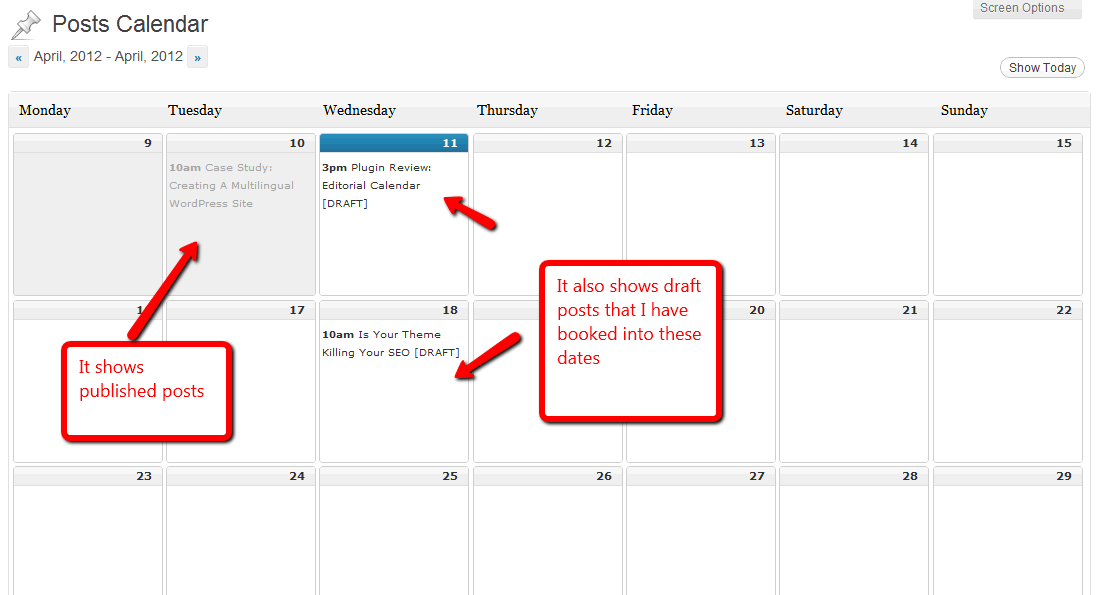
    The WordPress editorial calendar allows you to setup a schedule of posts to publish or write in the future.  It also allows you to create a schedule of posts that are in outline or draft that you intend to write at a later date.

    A new tab is added to the posts menu called calendar, and underneath that you have a wordpress editorial calendar layout of posts, these can be draft, scheduled or published.  You can editr you posts from this screen but I don’t recommend this, rather use editorial calendar as a drafting tool and edit your posts from the normal post editor.

    The Problem Is Solves

    I often get excellent ideas for a blog post and I immediately drop it into WordPress as a draft post, it will sit there for some time and often it is forgotten about.

    Once it drops off the front page of the list of posts, that idea is lost, but with editorial calendar I can set a time when I want to write that post and I’m reminded about it from the visual editor.

    I can drag and drop my ideas to different dates if I change my mind, a great post publishing tool all in all.

    If you have time sensitive offers or content that needs to go out at a particular time of the year the WordPress editorial calendar will be an excellent tool for you.

    Imagine sitting down at the start of the year and planning out all of your content and dropping it into the editorial calendar.

    Here’s What It Looks Like

    Click for full size image

    How I’ve Been Using It

    I use it to draft out an idea, and drop it into a publishing slot, you can then spread your ideas out over a period of time.

    I brainstorm lots of posts and leave them as drafts and the trouble I have is that they drop off the front page of the post editor and they are lost.

    I have not been scheduling my posts through it, but I can see how that would be very useful if I had time sensitive content that I could write now and drop into a calendar in the future (of course you can also use the schedule date function on the normal post editor).

    Get A Copy

    Editorial calendar is a free plugin available at the plugin repository at this URL

    http://wordpress.org/extend/plugins/editorial-calendar/

    Image by 42931449@N07

  • Case Study: Creating A Multilingual WordPress Site

    Case Study: Creating A Multilingual WordPress Site

    In this post I want to give you a case study on how to build a multi language blog to serve site visitors who do not speak your base language.

    I’ve been called in by a number of clients recently to build these types of sites and I want to share with you the easiest way to do this.

    (more…)