Neil Matthews

Author: Neil Matthews

  • The Power Of The Case Study

    The Power Of The Case Study

    I love writing case study style blog posts for my business. They are a great way to provide great value to people through helpful content whilst at the same time marketing your business with some great under the radar techniques that don’t come across as pushy sales tactics.  let me tell you about The Power Of The  Case Study

    How I Do Case Studies

    I will highlight a particular problem a client has had and write a detailed study on how I fixed it.

    My aim is to provide information about my services and a fix to people searching for solutions to their own problems.

    Sounds simple but the elegance of the marketing underneath it is often missed.

    The Marketing Begins

    This is where content meets marketing and stealth selling begins. Not in a sleazy yellow highlighter stylie but in a useful way that can help people to solve their problems.

    It Proves I Can Do X

    I have performed service X for a client, then I write up a detailed report on how to implement X.

    This is definite proof that I have the technical skills to do X and possibly the related task Y that may be in a clients mind.

    Social Proof

    By writing a case study I am providing social proof about my services.  It lets people know:

    • People have hired me.
    • People trust me
    • People consider me an expert at performing that service.
    • They can see how I work and that I won’t be a nightmare contractor

    Assume The Role of Authority

    Authority is too often bandied about in my opinion, but the ability to write a decent post about a subject, highlighting how you accomplished a solution will setup you up as an authority or content area specialists in the minds of your reader.

    If you can confidently supply a solution in a blog post it means you can definitely supply that solution to a client.

    Don’t Be A Douche

    It’s very easy to write up a false case study based on the premise of “This is how I would do it if I had any clients” people will see through it.

    Write from experience and real client interactions.

    Doesn’t This Prevent People Hiring You?

    The argument goes, if I open the Kimono won’t everyone then have the solution and not hire me.  In short no.  People will hire me because

    a) They don’t like the look of the effort required to implement the solution from the case study. Perhaps it is too technical or they don’t have the confidence to do it themselves.

    b) Are too busy to implement the solution.

    c) It’s not something they can do themselves, if an acupuncturist provides a case study on healing migraine by sticking needles in points a -z, you are not rushing to your sewing kit.

    Either way people see that I can provide solution X for them and hire me to do it.

    Wrap Up – Power Of The Case Study

    Get some case studies of the work you have done for your clients and see it turn into business.  It’s great none pushy and helpful marketing.

    I’m always interested in writing posts about blogging, not just posts about WordPress technical stuff.  If you want more content like this leave me a comment and I’ll publish more about marketing with your blog.

    Need help with your WordPress site get a no obligation quote.

    My keyword density is down so the power of the case study

    Photo Credit: etharooni via Compfight cc

  • Regular WordPress Maintenance – Optimisation

    Regular WordPress Maintenance – Optimisation

    In the third part of my series about the regular maintenance tasks you need to perform on your WordPress site,  I’m going to talk about optimising your WordPress site (in the UK we optimise never optimize 🙂 ).

    See the base of this posts for the other articles in this series.

    What Is Optimisation?

    Optimisation is my fancy way of saying spring cleaning your WordPress site.  During an optimisation process you would clean up your database,  any unwanted files, any unwanted comments and remove any unused plugins or themes.

    Here are the things I recommend you do every 3-6 months on your WordPress site.

    Clear Plugin Tables

    If you are anything like me, you are constantly testing new plugins on your site.  This is fine, but there is a downside to this, and that is the orphaned database tables that are left over.

    Very few plugins are written to remove their data once they are deactivated.  As a result lots of tables can be left over creating an overhead on your database.

    I recommend you run a plugin garbage collection every few months using this plugin:

    http://wordpress.org/plugins/plugins-garbage-collector/

    WARNING: this is a complex process please read this post before doing this https://dev.neilmatthews.com/year-blog-tidy-up-version.

    Optimise Your Database Tables

    Your WordPress database is also creating overhead for itself during it’s day to day work.  It add entries to it’s index and creates a working file which can grow in size if not truncated regularly.

    If this file grows too big it can have an adverse affect on your site performance.  To fix this, I recommend the following plugin, but please remember as with all major database changes,take a backup first and know how to recover that backup.

    http://wordpress.org/plugins/wp-optimize/

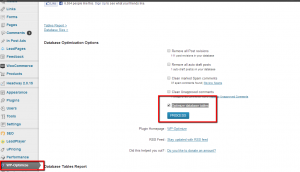
    Install and configure this plugin as you would any other plugin and scroll down to the wp-optimize menu.

    Select optimize tables (there spelling not mine) and click on process

    Click for ful
    Click for full size image


    I’m going to use this plugin for a number of other optimisation jobs so they can all be batched into one session.

    Remove Revision History

    WordPress create a revision copy of all posts, pages and custom post types every time you go into edit them.  This is great if you want to roll back to a previous version, but not great for database performance.  It is holding multiple version of each bit of content on your site.

    It’s a good idea to purge post history every few months as it clogs up your database.

    Turning back to our good friend wp-optimize,  click on remove post revisions and process the queue.

    If you have lots of unwanted draft posts you can also do that at the same time with the check box to remove unwanted drafts.

    Remove Unused Plugins

    During an optimisation it’s a good idea to review your plugin list and remove any unwanted plugins.

    First review your list for plugin functionality that you do not use any more and disable those plugins.

    Next up,  review your plugins for redundant functionality e.g. I see lots of people with SEO plugins install that provide google sitemaps, but they will also have a sitemap plugin installed.  Same goes for security plugins, choose one and go with that, it’s not a good idea to install multiple security plugins thinking it will add additional layers of security, often it just causes conflicts.

    Disabling plugins frees up memory for the rest of your site to use.

    Then delete the plugins to free up disk space, and of course don’t forget to run plugin garbage collection to remove those database tables.

    If you have plugins that are not used very often but you still need them, it’s good practise to disable them and only activate them as required, an example is the maintenance mode plugin, which you only need when your site is being worked on.

    Remove Unused Theme Files

    You can only really use one theme at a time, I recommend you delete any unused theme files to free up disk space.

    Word of warning, if you have a child theme, you will also need to have a copy of the parent theme installed, don’t delete that.  A good example of this is Genesis, you will need the genesis files and your child theme files to make this work.

    Unused Files Can Harbour Malware

    Just a note on security (which we will be touching on in the next post). If you have a series of unused themes or plugins installed they could be harbouring out of date code which is vulnerable or infected with malware.  Deleting old code is also good security practise.

    An example this would be the timthumb script, which  allows people to upload malware very easily unless patched.  I come across many many sites with old abandoned themes which include this script and can let hackers in.  Just because a theme is not active does not mean a theme script cannot be run.

    Clear Spam Comments

    Many site owners have anti-spam plugins in place, but often they do not clear out the spam.

    Just because the comment is spammed, does not mean it has been removed from the database, I can think of four sites that have crashed or have had major performance issues due to huge spam comment backlogs.

    A quick spam comment optimise with wp-optimize can save you a few hundred dollars in maintenance charges from a company like mine..

    If you have a huge number of spam comments (tens of thousands) sometimes clearing out spam takes a long time and scripts can timeout  with a 500 error, if this happens to you, don’t worry simply re-run the scripts and clear them out in batches.  Akismet commonly does this for large backlogs.

    Check your anti spam plugin, often they will clear out spam automatically for you.

    Wrap Up

    Optimisation like this doesn’t need to be done as often as backups and standard updates but I do recommend you visit your site every 2-3 months with this in mind.

    Anyone who has signed up for our regular WordPress maintenance service gets all of these things done as a matter of course.

    If you would like us to look after your backups, updates to WordPress, theme and plugins, regular optimisation, security and uptime monitoring, crash recovery then please check out our WordPress maintenance page, we are offering new clients a 15 day free trial.


     See the other posts In This Series

    Photo Credit: It’sGreg via Compfight cc

  • Multi Language Email Marketing

    It’s a very over used term, but the money is in the list, but how do you do multi language email marketing?

    How can you get the Dollars, Euros, Pounds or Yen from your list when the people on it are using multiple languages.

    The Sign Up Form

    The first port of call is the signup form.  Depending upon which provider you use signup forms are a little different. Aweber for example, asks you to embed a script for the form that is designed in their system and cannot be translated, whereas Mailchimp allows you to embed an HTML which can be edited per language.

    Either way what I suggest is you create multiple signup forms in the appropriate language then show them in your sidebar or other areas of your site based upon chosen language.

    Controlling content in your sidebar is a video post all of it’s own, I’ll create that soon, but using a plugin called widget logic we can set sidebar widgets and signup forms based on language, see this document while you are waiting for my video post:

    http://wpml.org/2011/03/howto-display-different-widgets-per-language/

    Popups

    Following up from sign up, we have the ubiquitous popup.  Love them of hate them, they do help to get people onto your mailing list.  Does your popup provider allow you to show a particular popup based upon location?

    I did some research on this and it looks like only Pippity has the tools to check for URL strings and popup dependant upon language,  Using their power filters functionality we could check for a language string in a URL e.g. /fr/ and show a popup based on that.

    http://pippity.com/how-to-get-help-in-pippity#/how-to-filter-your-popups

    We would create multiple popups in different languages and show them based on language strings.

    The Lead Magnet

    The lead magnet is that little carrot at the end of a stick to make people join your list.

    It could be an eb0ok, video series, email course, the list goes on.  Have you made a promise in language A only to deliver a lead magnet that they cannot read or understand in language b?

    Perhaps you could offer multiple downloads or control the lead magnet download based upon the popup or sign-up form you show above.

    The Messages

    The real problem with email marketing across languages are the email messages you send out to your list.  How are you going to ensure people get your marketing messages in the language they selected?

    There are two solutions to this problem, you can segment a single list into language or you can create multiple lists one per language.

    Segmentation

    Segmenting your email list is when you divide your list as a whole into groups of email addresses that are interested in different things.  One way to segment is via language. Segmenting is like adding a tag to each of your email signups to put them into a group, you can then send out email messages to these groups.

    Most email providers like Aweber or Mailchimp allow you to embed hidden fields in the signup forms which allow us to segment people at signup, one of these fields could be language.

    Once segmented you can create multiple emails for that list and end the French version to the French segment, German to the Deutsch segment etc.

    The downside of segmentation is that many features such as initial emails, redirect pages etc are limited to one setting per list,  which makes me think it’s better to run …

    Multiple Lists

    A better way to segment your email subscribers is with multiple lists.

    Instead of one big list, have multiple smaller but dedicated lists per language.  This ensures all autoresponders, welcome emails, redirect pages and email templates are in the correct language.

    You can control how people join lists from the signup form,  If you display a different signup form that links to dedicated language lists you can be sure that someone from language X gets their content and responses in that language.

    Often Forgotten

    Each email list has a number of forgotten areas that may need a revisit if you go multi language.

    • The auto responder sequence you set-up years ago,  what language is it in?
    • The unsubscribe links at the bottom of your emails is it perfectly clear in every language you support how to get off your list?
    • Once people join your list, they are often redirected to a page on your website, is this translated, will people know what to expect when they have joined, do they know they need to click the double opt in link?

    I highlighted the importance of testing in my recent post Importance Of Testing Across Languages, it couldn’t be more true with your email lists, join each list or segment, test the emails and responses you get at each step, stay on your lists so you can test what is being sent out over time.

    End Note

    The money is in the list, but you need to know how to speak to your list members using their desired language?

    Photo Credit: idogcow via Compfight cc

  • Importance Of Testing Across Languages

    Something happened on my own site here at Web Polyglot, that has highlighted the importance of testing across languages as you initially build your site and as you apply changes over time.

    The Angry Spaniard And The Missing Contact Form

    I got a very angry email from a Spanish chap because there was no contact form on the Spanish version of my quotation page .  A complete stranger felt the need to tear me a new one because he was unable to get a quote from me.

    What I learned from this is that people are very territorial about their language choice and if your site is under performing in their language you are going to annoy them and miss sales.

    Imagine you had a single language site and it did not work correctly, what sort of message is that sending to your potential clients or customers, it’s exactly the same if, when, someone clicks over to another language and they find missing content and or functionality missing or not working.

    It makes them think they were a secondary thought tagged onto the main site, not a real concern of the business.

    Invisibility Of Secondary Languages

    It is very easy to miss changes on secondary languages if you don’t speak or read that language yourself.

    We think once the site is built that is it, we don’t need to check the other languages but you are wrong, a website is an ever evolving thing, new content is added, new marketing techniques and social media platforms arise requiring changes.

    I know exactly what happened, I was translating my contact form and forgot to re-add the new form on all pages. School boy error!

    If, as I am, you concentrate on one language, the others become invisible, ask yourself when was the last time I flipped the language switch and tested my site?

    Website Audit

    On the back of this I’m running a details website audit to ensure I have multi language compatibility across my site, and this is something I suggest you do also to make sure you have not missed anything.

    I’ve created a list of pages and posts and website functions, I’m going to manually test each one and tick it off my list.

    Wrap Up

    Treat your secondary languages as well or better than your main language, ensure everything is working correctly and test test test as you add new functionality.

    Sorry angry Spanish dude.

    Photo Credit: thebarrowboy via Compfight cc

  • Regular WordPress Maintenance – Updates

    Regular WordPress Maintenance – Updates

    In the second part of my series about the regular maintenance tasks you need to perform on your WordPress site, I’m going to talk about applying updates to WordPress, plugins and themes.

    See the base of this posts for the other posts in this series.

    Why Does WordPress Have So Many Updates?

    The quick answer is it doesn’t, the core WordPress files are only updated a few times a year on a regular release program, the only interim fixes that need to be applied are security updates.

    The update problem is due to the brilliant eco system around WordPress that allows developers to extend WordPress with plugins and theme.  The majority of sites I work with have 10 or more plugins, this code needs to bd patched and fixed on a regular basis.

    Why Do We Need Updates

    WordPress and it’s related plugins and themes are in a constant state of development.  New features are being added, fixes to bug are being released and most importantly of all patches to security loop holes are discovered and

    We need to keep up with updates to ensure your site is secure,  bug free and lastly to take advantage of new functionality that has been added.

    My preferred Way To Apply Updates

    This is the method I use before applying updates

    • Full backup of site
    • Disable all plugins
    • Enable default theme
    • Update core
    • Update plugins where applicable
    • Updates theme if applicable
    • Re-activate plugins
    • Re-active theme

    Rather than get into too  much detail, here is a video to show you the process

    [leadplayer_vid id=”5229A6F939930″]

    Updates Do Cause Problems

    Because the developers or plugins, themes and WordPress core cannot test every permutation of installs there are sometimes issues after an update, so there are some cases when you need to roll back to previous versions of code.  This is when your backup comes into play and your knowledge of how to recover from your archive.

    The “white screen of death” is a common problem after updates, WordPress crashes out and you cannot login until you deactivate your plugins or theme that is causing the problem.

    A Word Of Caution

    If you have made changes to your plugins or themes, when you apply updates those changes will be overwritten

    Check out this post on stopping a plugin auto updating, or if you have customised your theme, you should consider moving those changes into a child theme

    Next Up

    In the next post in this series I will talk about the often overlooked maintenance task of  optimisation and clear outs of unused files and database content/

    Need Help?

    We are now offering an ongoing WordPress maintenance package.   As we go through this series of posts you will see that the maintenance tasks required to keep your site running smoothly do take up a lot of time, we can do that for you and free up that time to work on your website not in it updating and managing code.

     See the other posts In This Series


    Photo Credit: Kaptain Kobold via Compfight cc

  • Regular WordPress Maintenance – Backups

    In this series of posts I want to talk about the regular maintenance tasks you need to do as a WordPress site owner.

    Maintenance tasks are often the dull and repetitive stuff that doesn’t really propel your business forward but are a MUST of you want a healthy WordPress site to serve your customers or readers.

    In this post I’m going to talk about THE most important thing you need to do; backup your site.

    You Are Taking Backups Aren’t You?

    All too often I will work with clients who have had major issues with their site, and I ask them do you have a backup.

    The answer is often:

    “No, but I’ll check with my hosting company”.

    It will go quiet for a couple of days and they will come back to tell me that the hosting company said backup was my responsibility and there was no backup, pleading in their voice:

    “Can you fix it Neil?”

    Most often I can (I’m pretty mega like that) but sometimes nothing can be done without a good backup.

    There are a few good hosting companies that will backup your site but the majority do not.  You need to setup your own backups.

    You Are Only As Good As Your Last Backup!

    When I was working in corporate IT, that used to be the mantra of an old boss of mine, and I 100% agree, but lets paraphrase it a little

    Your blog is only as good as it’s last backup.

    Think about all the hard work you have put into posts and pages, think about the money spent on custom coding and plugins.  Think about the links and comments made.

    If you don’t have a backup all of that effort and expense can go in an instant.

    What Needs To Be Backed Up?

    There are two areas of a WordPress site that need backup attention

    1) WordPress database – this contains all your content; posts, pages, comments, tags, categories etc, along with all dynamic data such as what plugins are installed which theme are you using, what are your user details and much more.

    2) File system – these are the  files you upload to make your site work, including WordPress core script files, themes, plugins and uploaded data like images, video, pdfs etc.

    Both Need to be backed up to have a full and complete archive.  Many people think they have a backup but they only have a database backup.

    How Often Should I backup?

    I recommend a daily database backup and a weekly full backup of everything.

    If you have a catastrophic failure, you can recover all your posts and pages and in a worst case scenario you will loose one week of updated plugins themes and uploaded items.

    Off Site Backups

    In the good old days of the nineties when I was a wage slave in corporate IT departments we used to backup everything to magnetic tape, then pack those tapes up in a strong box and send them offiste to a data storage facility.

    We kept backups offsite so we had a copy of our data away from the data centre just in case the was a fire or disaster where the tapes were kept.

    There is no need to go to these lengths for a WordPress site, but modern services like Amazon S3 or Dropbox allow us to copy our backup archive and automatically keep it off site just in case there is a hardware failure at your hosting company and your archives are unavailable.

    Know How To Recover

    This is the next problem, people have multiple backup archives but have no idea how to extract the appropriate scripts files and recover their site.

    It’s beyond the scope of this posts to talk about recovery, but check with your backup system to understand how to recover your database and file system from an archive.

    Test Your Archives

    Here’s something no-one does , and that is validate your archives.

    You may have setup a plugin to take backups, but do you occasionally select and archive, open it make sure it uncompress correctly and inspect the contents to make sure it contains the data and files you need?

    When it comes time to recover there is nothing like the sinking feeling when you realised the backup archive has nothing in it.

    Backup Plugins

    There are some great backup plugins out there, my favourite is BackwpUp, click on the previous link to see my review of that  plugin.

    These plugins create regular scheduled backups to ensure you have a backup, they allow file system and database backup and they will allow you to create an offiste backup too, so all of hte above points are covered.  The only downside is that you need some technical skills to do the recovery.

    Need A Nightmare Story?

    A client’s son was building a blog, needless to say he had no backup.  The hosting company he was using went bust and the hardware was repossessed to pay creditors.

    Three years of his young son’s blogging work was gone in an instant.  If he had a backup this could have been ported to a new hosting company.

    Nothing like a nightmare scenario to make you think about backups;

    Next Up

    Next up we are going to talk about regular updates to WordPress core files, themes and plugins.

    Need Help?

    We are now offering an ongoing WordPress maintenance package.  We will look after all the tasks we talk about in this series of posts.

    This service comes from a person with a background in IT operations, it is big IT maintenance condensed into a cheap package for small site owners.

    See the other posts In This Series

    Photo Credit: rpongsaj via Compfight cc

  • Comm100

    Comm100

    This is a guest post by Kevin Gao from Comm100, see Kevin’s Bio at the bottom of this post

    One of the first things many people do when starting up a new WordPress website is to begin building a communication channel with web visitors. This almost always involves putting a generic contact form on a “Contact Us” page. Indeed, contact form is an effective way of letting your web visitors keep in touch with you, but there are also other options available to WordPress powered websites such as live chat plugin.

    What is Live Chat Plugin?

    Live chat plugin, as the name suggests is a plugin that embeds live chat feature into your WordPress powered websites. By adding a live chat plugin, you can keep connected with web visitors and offer real time assistance to them. Whatever your WordPress powered website is, a commercial site or a personal blog, there is a good chance that your website can be enhanced by live chat plugin. Here I’ll take  Comm100 Live Chat WordPress Plugin as an example to explain how live chat plugin can benefit your blog or online business.

    1. Reach Your Visitors in a Timely Manner With Comm100 Live Chat, your visitors can start a chat with you immediately and they don’t need to provide their emails or any other details as when filling in contact forms to connect with you. Even when you are offline, your visitors can leave messages and these messages can be directly delivered to your inbox. For a business website, this can help you improve you conversion and customer satisfaction. And for personal bloggers, the ability to make it easier for your readers to reach out can strengthen your relationships with them and enhance the personal aspect of your website.
    2. Track Your Visitors in Real Time Along with providing live support to your web visitors, Comm100 Live Chat also keeps you updated about your web visitors’ footprints and activities. You can see where your web visitors come from, what they are viewing currently, how long they have stayed on your website, what keywords they use, how many times they have come and many more. This can give personal bloggers a bird’s-eye-view of the blog readers. As for online businesses, you can easily have an insight of what your web visitors are interested in and identify your potential customers, thus formulating your marketing campaigns and carving your offers in a better way to win more customers.
    3. Invite Your Visitors Proactively Instead of re-actively waiting for web visitors to connect with you, proactive invitation allows personal bloggers to engage readers proactively to exchange thoughts and ideas, exploring ways of improving blogs. This feature is especially useful for
      online businesses as you can not only spot the best prospects, but also have the ability to actively reach out to them. For example, when you notice your web visitors have been on a certain page for a while without taking any action, chances are they
      are interested in your products on the page or need help with something. If you can get them into a live chat, you will have a great opportunity to turn them into your customers. To make things easier, the invitation can be done automatically
      based on rules you predefine. There are a lot of parameters such as visit times, referring page, search keywords etc. available for you to design your invitation program based on your own needs. By far, the most important practice of proactive invitation is to treat it like a science ¨C to test a wide variety of implementations, make changes, and continue measuring.

    Wrap it up:

    Live chat plugin can be an alternative to engage your web visitors beyond the traditional emails and contact forms. Whether you are a personal blogger looking to connect with your audience or a business owner using WordPress to build your website, live chat plugin should be able to help you.

    Author Bio:

    Kevin Gao is the founder and CEO of Comm100, a leading provider of live chat software for business. As a software developer as well as a small business expert, he’s always ambitious to revolutionize the way of online customer service and communication.

  • Multi Language Contact Forms

    For the vast majority of us, our website is a marketing tool and we want to generate leads from it for our business.

    The main way most people do this is via some sort of contact form, but how do you make multi language contact forms?

    I’ll teach you how I do it for my clients.

    Gravity Forms

    I use WordPress for all my client sites, so if you are into one of the other content management systems then this post is probably not for you.  As an aside, give WordPress a go for your multi language sites, the support for multiple languages is great.

    The process starts with a top quality contact form plugin.  I use gravity forms.  It’s a premium plugin and prices start at $39,  but this plugin is so useful I use it on all my sites and my clients’ sites too and the investment is well worth while.

    Not only will it solve your multi language issues, but it will link to your email provider, create quotes in things like Freshbooks, add the users to your CRM, the list goes on and on it’s the best contact form out there full stop.

    Multi Language Contact Forms Add-On

    I use a plugin called WPML for all of my multi language sites.  It’s a great tool and speeds up the development process greatly.

    The good people at WPML have also developed a multi language add on for gravity forms which makes it very easy to translate your forms. The addon is free and available here Gravity Forms multilingual.

    Making Your Form Fields Available To Translate

    The main thing the plugin does is to make your form fields available to translate.

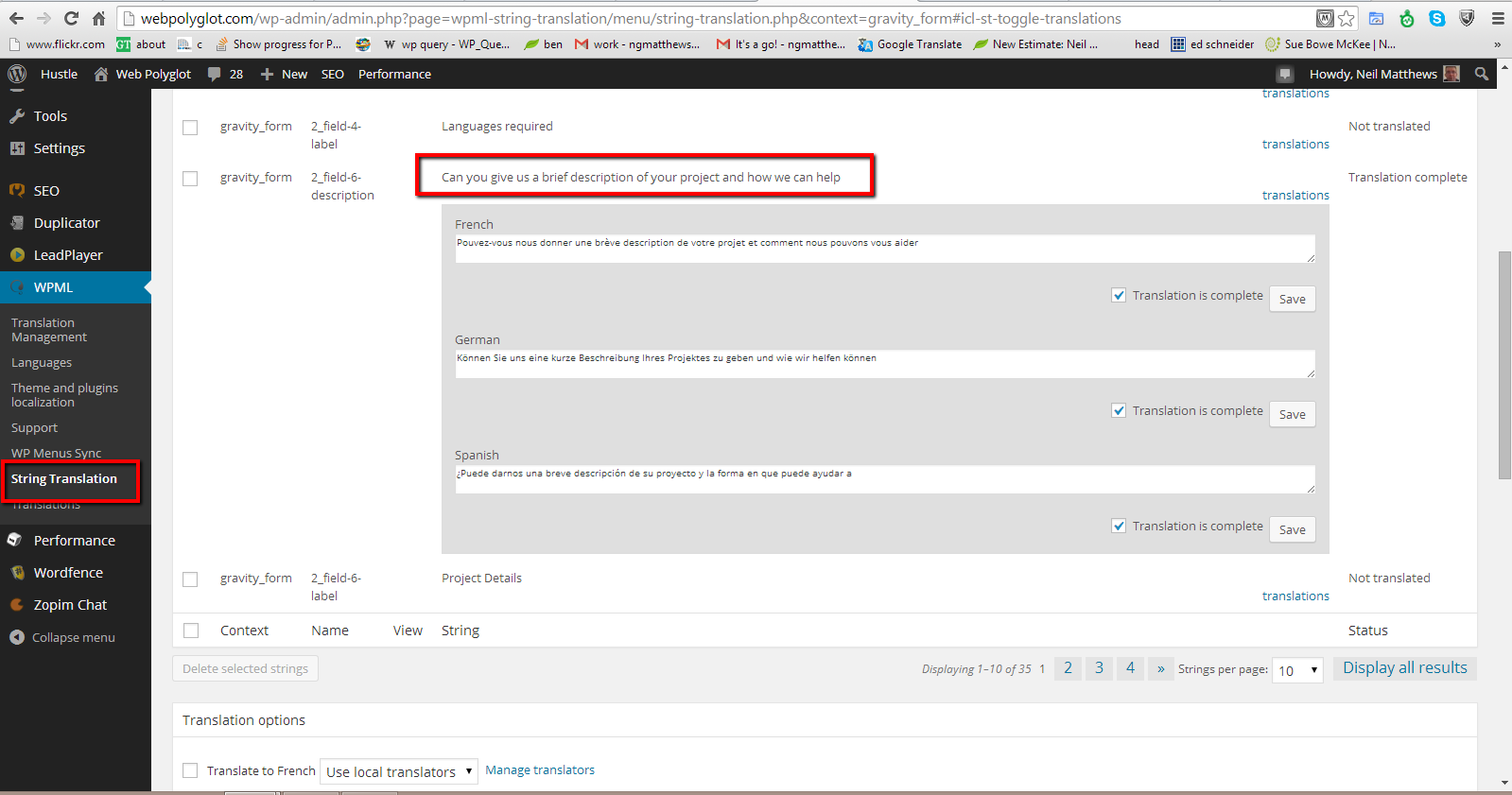
    As an example I have description on my hire us form that says  “Can you give us a brief description of your project and how we can help”.

    In WPML there is a string translation section, I simply go into that and search for the string above and I can add my French, German and Spanish translations.

    Click for full size image
    Click for full size image

    Sending Your Forms Out To Translation

    Another benefit of WPML is that you can send the content of your website out to freelance translators.  They receive text files and translate then, sending them back to your site in a seamless process.

    You can also do this with your forms so you can build multi language forms even if you have no language skills for your target translation.

    Route Responses Based Upon Language

    So you form is up and running in multiple language and the stream of leads is coming in as expected now what?

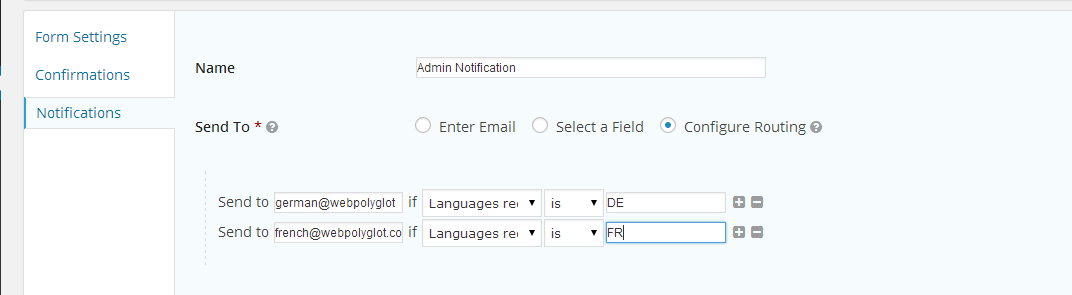
    You can route your leads to different addresses based upon the language selected when the form was completed.

    This is great if you have multiple team members dealing with leads from different countries.  Here’s a screen shot of the routing screen where I send forms to different addresses.

    Click to see full size image
    Click to see full size image


    The Only Thing Missing

    The only thing missing from this process is the ability to send form entries out for translation as we can for the forms themselves.

    My quick and dirty solution is to run any forms sent to me that are not English through translate.google.com.   The results are weird but I always get the gist of what is required.

    If anyone from WPML reads this please leave a comment to let me know if translating entries is on the development plan .

    Wrap Up

    For most websites, collecting leads is the main function, make sure this crucial part of your process is translated and easy for your site visitors to contact your business.

    What not jump over to my hire us page and see the contact form in action at the bottom of the page.

    Photo Credit: Robots are Stupid via Compfight cc

  • We Are Launching Our New Ongoing Maintenance Program

    We Are Launching Our New Ongoing Maintenance Program

    I’m happy to announce that we are launching our new ongoing WordPress maintenance service today.

    If you would like me and my team to look after your site then this is the service for you.

    Ongoing Maintenance

    As you are no doubt aware WordPress is not a static thing and needs constant maintenance and management, that is why we created this service to look after clients sites on an ongoing basis so you can concentrate on running your business not managing a website.

    Here’s What We Offer

    Here’s an overview of the service we are offering.

    • Full backups (including offsite storage)
    • Security & Hack protection
    • Uptime Monitoring (and fixes if you crash)
    • Updates (WordPress plugins and themes)
    • Email support (got questions about wordpress or your site we can help).
    • Troubleshooting any issues that occur

    Full Details

    If you want full details including pricing and how to subscribe check out this page

    Hire A WP Dude>>

    Photo Credit: Josep Ma. Rosell via Compfight cc

  • Are Attachment Pages Affecting Your SEO

    Are Attachment Pages Affecting Your SEO

    Something  WordPress does by default that Google does not like for SEO reasons came to my attention recently. In this post I want to tell you about a potential SEO hit you may be taking but you may be completly unaware of. Are attachment pages affecting your SEO

    Attachment Pages

    Every time you upload and attach an image to a post or page it creates a new page called an attachment page.  For example the image attached to this post creates this page.

    https://dev.neilmatthews.com/?attachment_id=8978

    The problem is that Google can also index these pages and add hundreds of very low quality pages into the index for your site.

    Thin Content

    If you add 1-2 images per post that is an additional 100-200% of pages that are classed as thin content by Google.

    On these pages you will see  a single image, a few lines of title text and that is all, if Google sees your site stuffed with thin content pages it will assume your site is of low quality and apply a penalty.

    To add context it is recommended that there are at least 300 words per page to keep Google happy.

    How To Fix It

    The way to fix this problem is to create a redirect from your attachment pages back to the parent page where the image is attached.

    Enter WordPress SEO Plugin

    I strongly recommend you install and configure the WordPress SEO Plugin by Yoast, http://wordpress.org/plugins/wordpress-seo/ .

    One of the functions of this plugin is to redirect to the parent page.

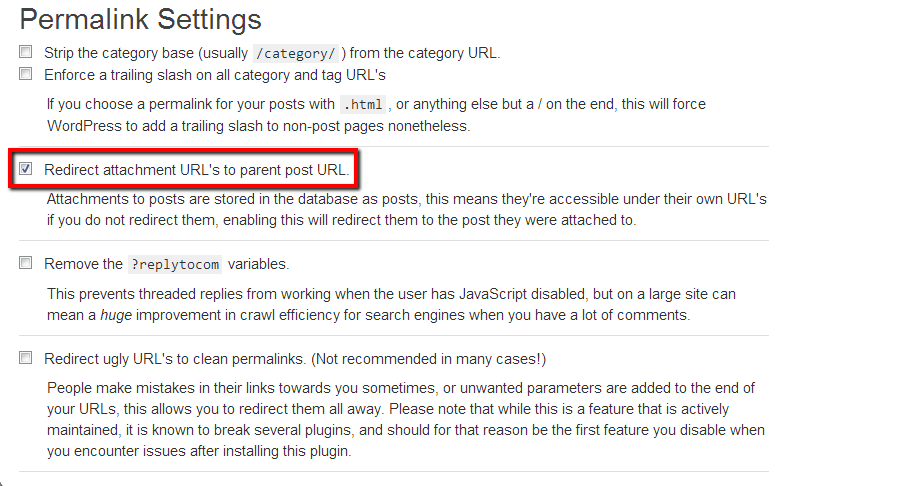
    Go to SEO -> permalinks and on that page check Redirect attachment URL’s to parent post URL

    imageattachments


    What happens is that the plugin sets up a 301 redirect from the attachment page which in turn tells the Google index that the page has been moved and to update the index to point at the parent page thereby removing all the unwanted image attachment pages from your index.

    It’s a five second fix that could increase your traffic.

    Wrap Up – Are Attachment Pages Affecting Your SEO

    My organic traffic has taken a hit in recent months due to the recent Panda update at the end of May and I’m slowly working through the cause, I’ll be writing more about my findings in later posts that will hopefully help you if you have seen a reduction in traffic.

    Further Reading

    Here is a very good article which I’ve been using in my reasearch.

    http://arwebzone.com/google-panda-effect-on-wordpress-causes-and-solutions/

    Photo Credit: Keith Marshall via Compfight cc

  • We Do Do Apps

    We Do Do Apps

    I’m often been asked by clients:

    “Do you do apps?”

    In the past my answer was always “no” we didn’t have the in-house experience or expertise to develop apps for Iphone, Ipad and all of the Android devices out there.  This is always something I regret having to say.

    Apps Are The Future

    The more I use apps myself the more important I see them becoming to us as a community than consumes digital information.

    We want our info on our devices in a way we can use on our devices, not a cut down website with poor functionality.  We want to swipe and pinch and double tap just like we do on our other apps.

    I decided about six months ago that I wanted to offer app development services to my clients to compliment the web development work we do.

    I’ve been forming a team behind the scenes of app developers and designers.  And we have been quietly working on a few app projects and it is working really well.

    So now when someone asks:

    “Do you do apps?”

    The answer is:

    “Yes, we do do apps!”

    There’s An App Inside Everyone

    It used to be that there was a novel inside everyone, now whenever I mention app development, everyone has a great app idea inside them, the problem is getting it out and getting it coded, this is the problem we are trying to solve by offering app development services.

    Most People Don’t Know Anyone Developing Apps

    If you ask someone

    “Do you know a website developer”

    Most people can refer you, but if you ask:

    “Do you know an app developer”

    Not many people do know any app developers, it a new growing field, not as widespread as web development yet, but growing.  Hopefully when someone asks or you decide to develop an app you will think of us.

    Most People Have No Idea Of The App Development Process

    This is another stumbling block, most people simply have no idea how an app is developed, and this brings me to the real crux of this blog post.

    I’m running a webinar next week to show potential “Appreneurs” how we develop apps here at wpdude.

    If you are interested in the idea of developing your own App and would like to understand the development process, then this webinar is for you.  I’ll show you our process and answer any of your app development questions.

    Book Your Seat

    The webinar is no cost, but seats are limited to 100, so click on the button below for full details, and I hope to “see” you on the webinar.

     Book Your Seat>>


    Photo Credit: Daniel Y. Go via Compfight cc

  • How To Verify Your WordPress Site On Pinterest

    How To Verify Your WordPress Site On Pinterest

    How To Verify WordPress On Pinterest

    In this video post I will show you how to verify WordPress on Pinterest.  It’s a short three minute tutorial to take you through adding a meta tag to  your site.

    Verifying your site shows that you are a trustworthy source, for more details check out the Pinterest page on this subject.

    http://business.pinterest.com/verify/

    Video

    [leadplayer_vid id=”51B993ABC4295″]

    Files Mentioned

    header.php

    Step By Step Guide – how to verify wordpress on pinterest

    1. Login to Pinterest
    2. Click Profile
    3. Click Pencil
    4. Click verify by meta tag
    5. Copy tag
    6. Paste Tag into header.php or script area
    7. Click on verify website

    Photo Credit: Jon McGovern via Compfight cc