Neil Matthews

Author: Neil Matthews

  • Detox Your Website

    Detox Your Website

    It’s that time of year again, waist bands are a little too tight and we are feeling the results of holiday over indulgence. Many people turn to a body detox in January, but can I also suggest a detox of your website.

    Why Detox Your Website?

    Just like a body, a website can accumulate waste that it does not need, this waste takes up disk space, database space and can impact the performance of your site.

    Here are four areas of website detox and some health checks you can do to start 2016 with a sprightly clean website.

    Remove Unwanted Plugins And Themes

    Look through your installed plugin and theme list, and delete any that are unused. Even if they are not in use they are taking up disk space and harbouring potentially harmful code if not updated regularly.

    Look at your list of active plugins and ask your self “Do I really need this functionality”?

    If not disable and delete the plugin in question.  Every plugin enabled is taking a small slice of your available memory.

    Delete Old Content

    I’m currently in the middle of removing old content that does not serve my business any more.  I’m removing things such as:

    • Old sales offers.
    • Offers for services I’m no longer doing (custom plugin development anyone).
    • Reviews of plugins that are no longer available.
    • Anything from my old archive (pre 2010) that is not evergreen.

    Optimize Your Database

    Your poor old database goes through a hard time, and is very often neglected. I recommend at least on a quarterly basis you optimize your database.

    I wrote a detailed article on optimizing your database so I’ll not cover ground I’ve already walked.

    Check For Broken Links

    The interwebs are a fluid place, and links out from your site to other articles can sometimes break.

    We also change links internally on our site (for example when deleting post for detox purposes)

    Links break so it is good practise to check your links on a regular basis.  The good news is that there is a plugin called Broken Link Checker which will trawl through all your pages and create a list of broken links for you to fix. Here is a video to show you how.

    https://en-gb.wordpress.org/plugins/broken-link-checker/

    Three Site Health Checks

    Once you have done your tidy, here are three health checks to ensure your site is in top top condition.

    Google mobile check – run your site through this checker to make sure it is mobile compliant and works effectively on phones

    Google page speed insights – is your site loading fast enough in the eyes of Google

    Google malware checker – has your site been hacked or is your site free of malware?

    Wrap Up

    Start 2016 with a fit and healthy website to power your business through this coming year. Why not detox your website.

    Photo Credit: Robert Gourley via Compfight cc

  • Deck The Website With Plugins Of Holly

    Deck The Website With Plugins Of Holly

    It’s the most wonderful time of the year, or so the song tells us.  The majority of us decorate our homes this time of year, why not spruce up your website with some festive cheer.

    Deck The Website With Plugins Of Holly

    The team at WPDude have been working tirelessly all year, and this does not stop at Christmas, we have scoured the interwebs to bring cheer to your website this Yuletide.

    In this post I’ll show you some plugins to add some Christmas bling to your site.

    Tinsel Time

    Fancy adding a decorative touch to the header of your site, you can with Christmas Ball On Branch.

    This plugin adds a tiny splash of festive cheer in the top corner of your site (here is where the kids go Ooooooh! when they see your site).

    christmasball
    Click to see full festive feast for the eyes

    https://wordpress.org/plugins/christmas-ball-on-branch/screenshots/

    Snow Balloons And More

    It’s does exactly what is says on the tin, is pours festive fun all down your site, want Santas? Got that, want Christmas trees? Check.  The “and more” feels like a special present waiting to be opened.

    snowbaloonsandmore
    I imagine the metting went like this”We need Santas ‘n’ shit cascading down the screen”.

    Sing-A-Long-A-Website

    Even the most hardened Grinch cannot resist a sing-a-long, why not start the singing off from your website.

    Christmas Music plugin plays some jaunty Christmas tunes as people browser your site

    https://wordpress.org/plugins/christmas-music/

    Christmas Lights

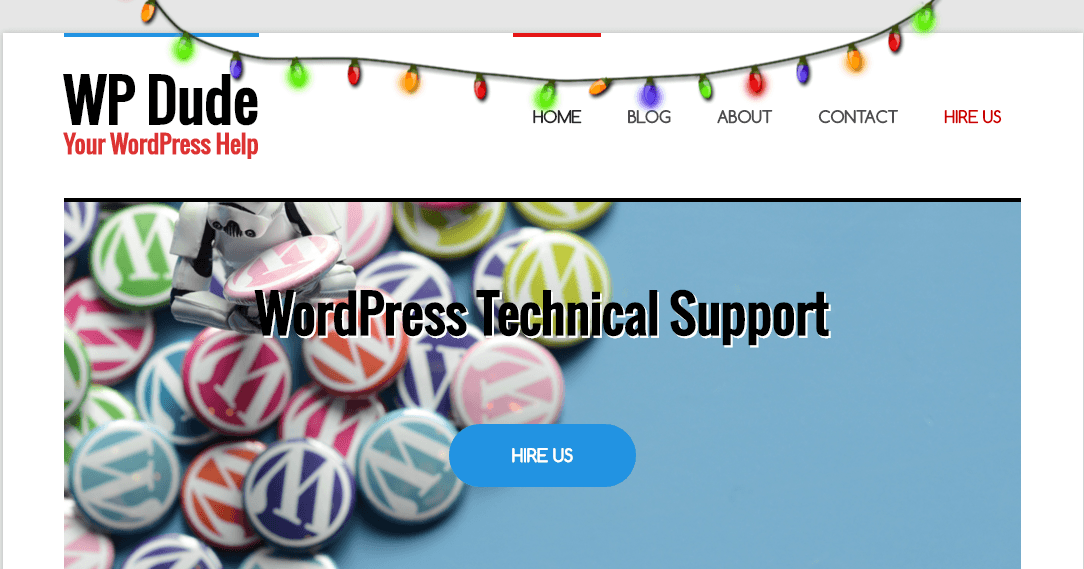
    My own personal favourite and the one I perk up wpdude.com with is  Xmas lights.  It adds a simple string of gaudy Christmas lights at the top of your site, no untangling, no annoying bulb checks just lashings of Christmas fun.

    xmaslights
    I don’t care if WPCurve has an entire Nativity scene on the front of their website Margory, we put up these Crumy lights every year and that’s the way it’s going to be, Christmas is about tradition damn it!

    I’m deliberately going for a cheap fun look, I like to think if it had audio it would be going Fzzzz as if the bulbs are about to pop:)

    https://wordpress.org/plugins/xmas-lights/

    Bringing It all Together

    And on three ! Two ! One click the video (if only you could hear the music better).

    Need More!!!

    These are my favourite plugins, but believe me there are more, for a full cast list check out:

    https://wordpress.org/plugins/tags/christmas

    Wrap Up

    Not very professional I know, but jollying up your website shows to the outside world you can have some fun and injects a little personality into your business, add the screen shots of your decorated website to the comments, the tackiest will get a free website job in 2016.

    Merry Christmas!

    Photo Credit: donielle via Compfight cc

  • How To Build A WordPress Staging Site

    How To Build A WordPress Staging Site

    Something I recommend if you are experimenting with new themes or plugins is a staging site. In this post I’ll share how to build a WordPress staging site.

    What Is A Staging Site?

    A staging site is a clone of your live site, in a development area where you can experiment with changes without it impacting on your live site.

    Staging sites are also know as sandboxes or development sites.

    It will be an exact clone of your live site but will use  a separate database and set of files from your real site.

    The point of a staging site is that you can throw in a new theme or a raft of new plugins without the worry that it will crash your live site.

    Staging sites are very common in corporate IT environments, but have not trickled down to the owner of small business sites, which is a shame, having a staging site where you can test changes can save a lot of heartache from crashes.

    Making A WordPress Staging Site

    There are three main ways to create a staging site, they are

    • Using a host with staging capabilities
    • Staging Plugins
    • Manually Creating One

    Using A Host With Staging Capabilites

    The new breed of WordPress managed hosting companies are increasingly offering staging solutions.

    For example I use WPEngine and they have a one click staging feature.  I ask for a clone of my current live site to be made, and their automated processes go off and make an exact duplicate at http://neilm.wpengine.com/

    This is probably the easiest (but not cheapest) way to create a staging site for your installation.

    Costs – starting at $29 per month

    Staging Plugins

    If your hosting does not offer a staging solution, the next method to look at are the staging plugins out there.

    One that I have encountered is WP Stage Coach.

    This plugin clones your site onto their infrastructure so it is completely separate from yours, you then make your changes there and when fully tested you can push those chnages back to your live site.

    Cost – from $4 per month

    Manual Build

    The cheapest but most labour intensive would be to build a manual staging area.

    You can install the site into a subdirectory of your current site e.g. yoursite.com/staging or create a new sub domain staging.yoursite.com and install your cloned files there.

    I wrote a step by step process in this post Building A Development Environment so I’ll not rehash those steps here.

    In essence get a copy of the Duplicator plugin, clone your site and move it to the appropriate place. Run the installer that comes with Duplicator and a new site is built.

    I recommend you create a new database in your hosting control panel to keep all data separate.

    Cost – $0 just some of your time.

    Making Your Staging Live

    Hosting staging site and WP Stage coach pull your live site into staging area at the click of a button, and then push it back to live, with the new changes again at the click of a button.  This makes it incredibly easy to keep your development and live site aligned.

    For the bootstrappers, using a manual build you will have to reverse the process, take your new duplicator files push then to your live environment and make your changes live, this is why methods 1 and 2 appeal to less technical site owners.

    Wrap Up

    If you site is mission critical, making changes in live is not a bad idea, consider build a WordPress staging site and make your mistakes there not in live.

    Photo Credit: Brian Rinker via Compfight cc

  • [VIDEO] Fixing Google Page Speed Insights Issues

    [VIDEO] Fixing Google Page Speed Insights Issues

    If you visit Google page speed insights, you will be shown a page speed load score and a series of solutions to make your site load more quickly.

    This video tutorial will show you how to fix the common issues returned.

    Why Speed Up Your Site?

    Google has stated that page load time is one of the metrics it uses to rank your site.  Their studies have shown that people abandon slow sites more often than quickly loading sites.

    It is a good idea to keep your site visitors and Google happy by making your site load as quickly as possible.

    What Is Google Page Speed Insights

    This is a tool provided by Google to analyse the way your site loads and where there are problems.

    More importantly it gives us a clue to bottlenecks, this video shows how to fix them.

    How Can We Fix The Issues

    In the video I will show you how to fix the most common page load speed issue.

    We will be installing a number of plugins and tuning page load speed.

    Video – Fixing Common Performance Problems

    Wrap Up

    Here are the plugins we used and the URLs mentioned in the video:

    Google page speed insights – https://developers.google.com/speed/pagespeed/insights

    w3-total-cache –  https://wordpress.org/plugins/w3-total-cache/

    WP Smush – https://en-gb.wordpress.org/plugins/wp-smushit/

    Scripts to Footer – https://wordpress.org/plugins/scripts-to-footerphp/

    If you need help optimising your site for speed, we have a fixed price performance tuning package, please check out our WordPress technical support page to get a no obligation quote.

    Photo Credit: Tilemahos Efthimiadis via Compfight cc

  • Experiments With Live Chat Software

    Experiments With Live Chat Software

    I’ve been making experiments with live chat software as a way of increasing the number of conversions we get for our WordPress technical support services.

    In this post I want to tell you about what has worked and what hasn’t for me in my experiments with live chat software.

    What Is Live Chat?

    It’s real time chat messenger where you can “speak” with an agent at a company.  Look at the bottom right hand corner of your screen and you will see a subtle indicator 🙂 start a chat with me if I’m online.

    I’ve experimented with a number of solutions, my two favourites are Zopim and LiveChat, I’ll explain why I went with Livechat over Zopim a little later.

    LiveChat costs from $19 per month, there is a 30 day free trial to try it out, I’m coming to the end of my free trial as I write this and will be signing up for an account.

    Installation

    Most of the live chat systems have a WordPress plugin, simply validate against your account and the chat box is added.

    There are lots of options to customise the look and feel, you can change colours, location, add photos of agents.

    You can control where your livechat appear e.g. only have chat on specific pages such as sales pages.

    You can control when the chat popup appears, you can customise messages for new and returning visitors.

    There are analytics and back-end tools to see who is on your site in real time.

    How I’m Using Live Chat

    When a visitor comes to the site, my live chat kicks in after 20 seconds and an invitation to chat is made, this is automatic, I’m not involved with the chat at this point.

    I have three chat invitations, if you are on a none sales page you will see “Hello, is there anything I can help you with?”.

    If you are on my WordPress technical support page you will see “Hello, can I give you more details about our WordPress technical support services?”

    If you are on our WP Insure page you will see “Hello, can I give you more details about our WP Insure service?”.

    If a site visitor interacts with the chat and replies I get a ping on whatever device I’m logged into and I can start chatting with my site visitor.

    Making Myself Available For Chat

    I can make my self available for chat, so I don’t have to be online 24/7 if I need to do something else.

    There are apps for desktop, phone and tablet.  I simply login to the appropriate app and make myself available or not.

    If I’m online chats come to the app if I’m not chats are saved and send to an email supplied. I send these emails into our helpdesk for action whenI’m online.

    Integrations

    LiveChat has a huge number of integrations. two I have added are Freshbooks so I can create a quotation directly from a chat session and Mailchimp so I can add a chat client into my mailing list if they are interested.

    I mentioned help desk integration above, LiveChat doesn’t directly integration with Groove my helpdesk software, but I can forward chats and transcripts to an email address associated with my help desk.

    Results

    The results of using live chat have been exceptional.  It gives me a chance to explain how our services work, how much things cost and overcome any objections potential customers may have .

    I’ve converted site visitors to client on the spot by being available to answer their questions. I’m pretty sure potential clients would have left the site never to return if I was not available to chat.

    Live chat creates a sense of trust in a potential client, you communicate with them directly, they get a feel for your “voice” in the chat and know there is a real human on the other side of the inter-webs.  Bare in mind I’m based in the UK and most of my clients are international.

    I can pre-qualify potential customers, this is great from my point of view sending quotes and following up takes up a lot of my time.  I can see the country of the visitors so I can guess if they can afford our prices or not.  If you have a local company this is even more useful to qualify visitors.

    Converting visitors to leads not just clients. I hate to classify people like this, but using live chat you can turn casual visitors into email list subscribers and potentially down the road into customers.

    Availability Across All Devices

    There are apps for desktop, mobile and tablet, I can be available on live chat wherever I am not just in the office.  My business stretches across multiple time zones I’m not always at my desk when requests come in.

    I said I trialled Zopim and LiveChat earlier and the reason I went with LiveChat was the quality of the chat box on mobile devices compared to Zopim.  The zopim popup was barely visible compared to LiveChat I was not getting any chat sessions from mobile visitors.

    Negative Feedback

    There are a few downsides to offering a live chat on your site.

    Time suck; answering queries takes time and there are a lot of tyre kickers out there.  I’m also offering to help people who have come to the site to read a blog post and clarifying issues in  a post takes time.  Some site visitors expect a lot from a live chat.

    I get that live chat needs to be staffed correctly as I act more as a project manager for WPDude, this is part of my job . One visitor even asked why I offer help like that for free, my answer to be seen as an authority with the potential

    Having the audacity to offer services on a none sales page!  I used to have a generic popup saying “Can I tell you about our services”, a guy from Australia was reading my post on migration to WP Engine and he lost his sh1t with me because I dared to try and sell him services, so I changed to more neutral can I help for none sales pages, sorry angry Aussie guy.

    Leaving myself logged in when I’m not available has caused some issues.  People understand what live chat is and if you mark yourself as online they want a chat now.  I’ve had negative feedback for note reposing to a chat request, the solution I’ve set office hours to automatically log me out after 7pm UK time.

    Wrap Up

    So those were my experiments with live chat software, live chat will pay for itself over and over.

    I love the way I can answer any objections to using our services almost instantaneously and I am positive it has increased sales.  BUT staff it properly be ready to answer questions.

    Check out a free trial of LiveChat.



  • Will That New Plugin Break your Site?

    Will That New Plugin Break your Site?

    Here’s the scenario, you need to add feature X to your website, and you have found plugin Y that looks like it will do exactly what you need,will that new plugin break your site? How can you be sure it won’t break your website before you install it?

    There are a huge number of plugins out there, some are excellently coded and won’t cause you any issues, others are not so great.  There is no peer review of plugins before they are uploaded to the plugin repository how can you tell what is good and what is not?

    As a techie, I can review code and spot dud plugins, but how does a business owner with a website as opposed to a website developer check the validity of plugins with limited technical skills?

    Here is my 6 step plugin check list.

    Where Are You Downloading The Plugin From?

    The source of your plugin can impact on the quality, I strongly recommend you only download plugins from the legitimate WordPress repository

    If you search for and install a plugin from your WordPress dashboard it will always come from the repository wordpress.com/plugins.

    Installing plugins from none-trusted sources also opens up the e-door to malware installs and hack attacks.

    The exception to this rule is premium plugins that are supplied to you after you have paid. I’ll talk about that a little later.

    If the plugin is uploaded to the repository it is scrutinised by the wider WordPress community, developers will see if the code is good, the will rate it and  provide you with a suite of validation tools which I will talk about now.

    Reviewing Plugins On The Repository

    Before you add a new plugin to your site, take a little time to review the plugin page on wordpress.org and check a few indicators to see if it is well written and supported.

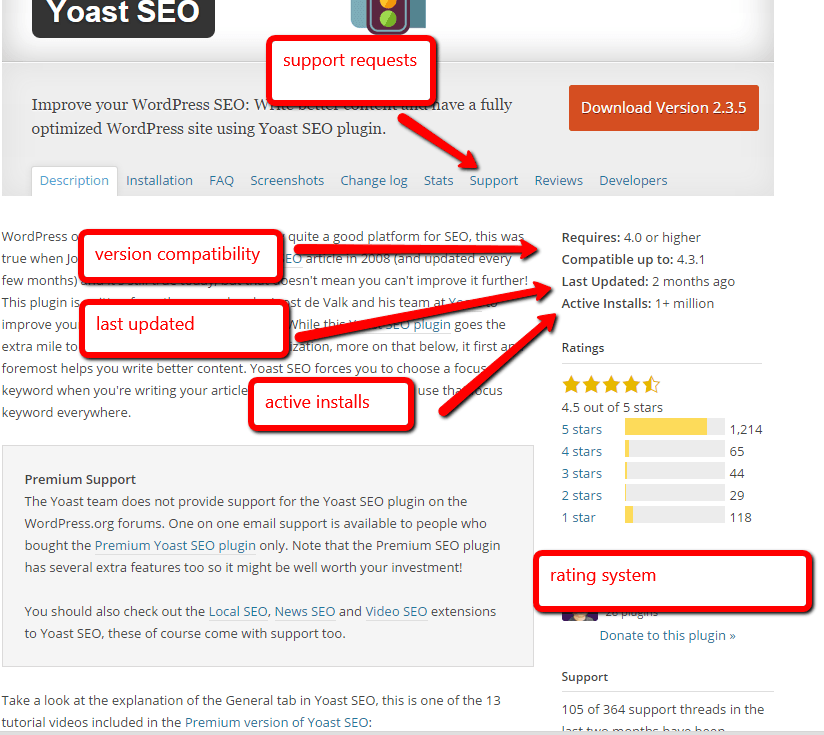
    Here is a sample page for a really well written and supported plugin Yoast SEO.

    2015-11-12_1032


    1) When Was It last Updated

    The first thing to check is when was it last updated, is the plugin being actively developed.

    As WordPress is developed, so plugins need to be developed to be kept in-line.  Security breaches are noted and things need to be constantly updated.

    If a plugin has not been updated in the past year that should raise alarm,  plugins that have not been updated in two years also get a banner alert at the top of the page.

    2) Has It Been Tested Against your Version Of WordPress?

    There are two indicators to look at here, version compatibility and compatible up to (see image above) if they do not meet your current version of WP there may be issues.

    3) Active Installs

    If your desired plugin has only been installed on one other site, there is probably a very good reason.

    Look for plugins that have a large user base.

    If your plugin is very niche. you may have to take a chance and go with a low install number, that plugin to monitor penguin migration may only be used by you and tbe British Antarctic Survey.  You should probably test it in a staging area before using it in live.

    4) Ratings

    Have a look at the rating people are giving to the plugin.  Are they mostly above 3 stars?

    Rating systems can be rigged so I like to look at 4 star ratings, they tend to give a more rounded view of the plugins performance.

    5) Documentation

    Is the documentation on how to install and configure the plugin good?

    Quality documentation can be a good indication of how good a coder the person is.

    6) Support

    Is the plugin being actively supported by the developer?

    Do they respond to queries quickly and provide solutions.

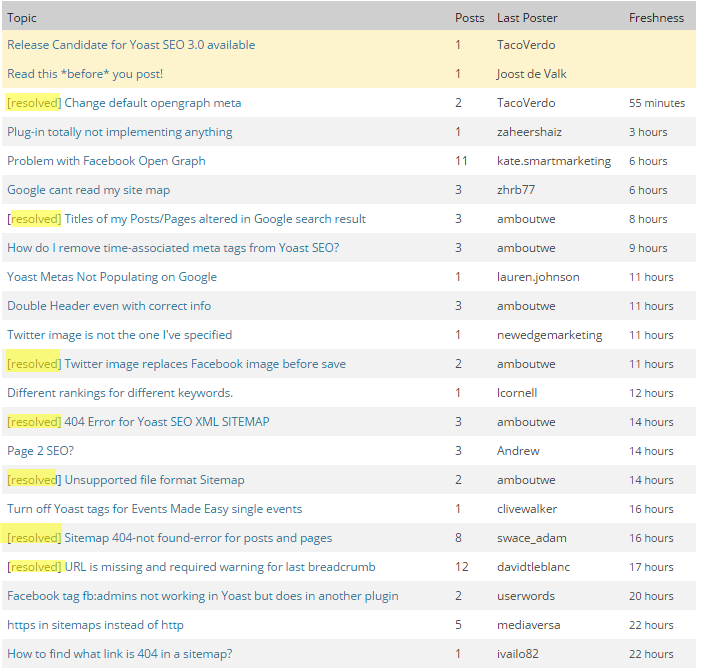
    Here is the support forum for our test plugin https://wordpress.org/support/plugin/wordpress-seo.  We can see that lots of requests are coming in and being resolved quickly, this looks like good support.

    2015-11-12_1046

    Look at the tone of the replies by the developer are they being helpful or dismissive.

    A point to note, most plugins are free and so is the support, sometimes developers can get snappy with people who are not helping themselves first by demanding support as if it is a right.

    You can tell if the respondent is the developer of a plugin, they will have  a badge against their name.

    2015-11-12_1048If They Fail The Test

    In the words of the great song smith Burt Bacharach and Chanteuse Dione Warwick, simply Walk On By.

    For every plugin out there, there is nearly always another one doing the same job, look for the similar one that passes the 6 point test.

    Emergency Fix

    So you have installed a plugin and it crashes your site, and you cannot login to delete it, what now.

    If you have access to FTP or a file manager on your hosting account, navigate to wp-content/plugins and simply delete the offending plugin directory.

    Staging Area

    It’s a good idea to setup a staging area so you can test new plugins before installing them to your live site.

    A staging area is a duplicate of your live site with the same, plugins, theme and content, it allow you to add new feature without worry.

    Many of the new hosting companies such as WP Engine offer staging areas, or you could look at WP Stagecoach or manually build a development area with plugins.

    Wrap Up

    The massive diversity of WordPress plugins is what makes WordPress so powerful, there is always a plugin out there to do that thing you want to do.

    Quality varies, will that new plugin break your site? Use this 6 point check list to only install high quality code.

    Photo Credit: garryknight via Compfight cc

  • How To Edit WordPress Files Without FTP

    How To Edit WordPress Files Without FTP

    UPDATE APRIL 2017 – This is a better plugin https://en-gb.wordpress.org/plugins/file-manager/

    Sometimes you need to edit some system files on your WordPress site, but how do you do this without access to FTP, the answer is a great plugin called WP-Filemanager.

    https://wordpress.org/plugins/wp-filemanager/

    In this post I will show you how to edit WordPress files without FTP.

    What Is FTP

    Just in  case you have not used FTP before, it stands for file transfer protocol, which is a techy way of saying we can upload / download , edit and delete files from your website using an FTP client such as filezilla.

    Think of it as a file manager for your Website where you can upload / download files, edit them and delete them.  The problem is you need to know your your host name, login name and password, sometimes you don’t have access to this information, or don’t know how to use FTP.

    Files Your May Need To Edit

    When we talk about editing files for WordPress, we are not talking about data for posts and pages, that is all held in your database, but WordPress also has a series of files that you upload which may need to be edited, they include.

    • wp-config.php – the configuration file which controls your site.
    • .htaccess – often update for specialised plugins.
    • theme files – if you need to edit your theme files, some files are buried deep and cannot be edited from appearance -> editor.
    • Plugin files – if you want to custom code plugins.

    My Usual Warning

    I’m giving away guild secrets here, if you are not 100% sure what you are doing hire a certain company to do your WordPress techinical support.

    Please backup, and please be aware you can crash your site if you edit files incorrectly like .htaccess or wp-c0nfig.php  To this day I’m crashing WordPress sites by editing theme files and adding incorrect php statements, you have been warned it happens to the pros too.

    Installing And Configuring WP-Filemanager

    Installing WP-Filemanager is like any other plugin, install it in the usual manner, BUT there is some technical configuration required.  I’ll show you exactly how to do this in the video, but to configure the files you need to know the document root of your website.

    I like to use serverbuddy to find out the document root, you can download this at https://wordpress.org/plugins/serverbuddy-by-pluginbuddy/

    Security Concerns

    By adding wp-filemaager you are quiet literally leaving your keys in your car while you go to the shops, it’s not a good idea to leave this installed if you have multiple users on your site who could access and edit files.

    If a hacker gets in they will thank you greatly for making their job that much easier.

    Install and delete wp-filemanager as you need it.

    VIDEO – How To Edit WordPress Files Without FTP.

    Here is our video tutorial to install, configure and use wp-filemanager.

    https://youtu.be/zSOpaRYMUf8


    Video Notes

    In server buddy we are searching for DOCUMENT_ROOT

    Photo Credit: Vegansoldier via Compfight cc

  • Controlling How Facebook Sees Your WordPress Posts

    Controlling How Facebook Sees Your WordPress Posts

    I was recently hired by one of my clients to help control the way his shared posts looked on Facebook.

    I thought it might be useful to share the information I learned on that project in a blog post on controlling how Facebook sees your WordPress posts.

    Your Theme Has No Say Here

    Once you share a post on Facebook, your lovingly crafted theme no longer comes into play.

    Facebook gathers information from a series of meta tags called open graph.  If you don’t have any tools in place to set the appropriate open graph information, Facebook will make a best guess and grab the information it can, this is often not how you want to display your posts.

    Open graph is a set of instructions that are hidden in your page that tells Facebook (and the other social media sites) what to show, I’ll refer to these as OG information going forward.  Here are some examples:

    <meta property="og:title" content="Workday Sets Price Range for I.P.O." />
    <meta property="og:url" content="http://www.myfavnews.com/2013/1/1/workday-price-range" />

    Plugins To Set OG: Information

    You are probably already using a tool that will set OG tags for you, but didn’t realise it. The big SEO plugins already do this for you if configured correctly.

    The plugins I’m talking about All on One SEO pack and Yoast SEO.

    All in One SEO – Best WordPress SEO Plugin – Easily Improve SEO Rankings & Increase Traffic

    Yoast SEO

    I’m going to focus on Yoast SEO in this post but both do the same job.

    Enabling OG Tags

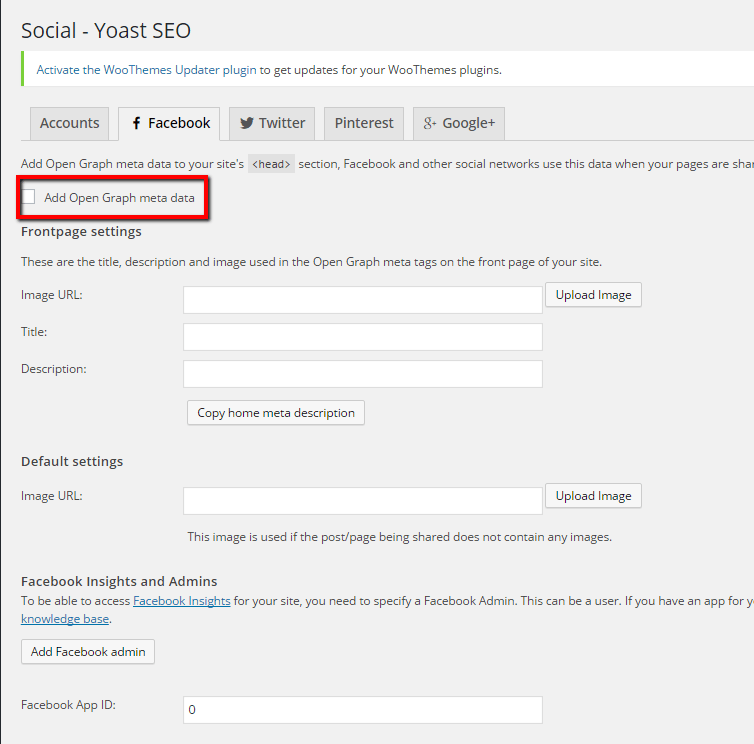
    To enable your OG tags in Yoast SEO go to  SEO -> Social and click on the Facebook tab, under there is an option to enable OG data

    2015-11-05_0953
    Click for full size image

    As you can see we can also set the default information for your home page, this is very useful if your theme generated the homepage page.

    We also get the option to set a default image to be used if one is not set on a post or page.

    Once this is set any SEO information you set on your posts and pages will also be used as the title and description for Facebook shares.  In the case of this post, this is what will be added to OG information

    Click for full size image
    Click for full size image


    Image Styling Sizes

    A quick word on image sizes and how they are displayed on Facebook.

    By default the plugins take the featured image of your post or page and uses that as the share image.

    Images need to be at least 600 x 315 pixels to display full width on your share, if they are smaller they will be displayed as a thumbnail.

    If your image is less than 200 x 200px it will not be displayed at all.

    See this link for full width and thumbnail examples. https://developers.facebook.com/docs/sharing/best-practices#images

    My recommendation is you decide which look you prefer and always upload your featured images at a standard size for consistency.

    Debugging How Your Pages Look

    A really useful tool to debug your pages and see how Facebook see them is the developers debug tool.

    https://developers.facebook.com/tools/debug/

    This tool will show you the OG information Facebook is using.

    One thing to note, this uses cached data so it can be a little frustrating to use if you are making changes.

    Wrap Up

    By adding a few little changes to your site you can greatly increase the control you have over social shares and keep your brand on course.


    Photo Credit: FACEBOOK(LET) via Compfight cc

  • Plugin Review: Better Search And Replace

    Plugin Review: Better Search And Replace

    In a previous post about migrating to WP Engine I talked about having to do a search and replace across the whole database to change a temporary URL wpdude.wpengine.com to wpdude.com, to do this I used a plugin called Better Search And Replace.

    https://wordpress.org/plugins/better-search-replace/

    What Is Better Search And Replace

    You have probably used search and replace in a word processing document where you can select  a phrase in a document and change it for something else with a bulk exercise.

    Better search and replace does the same thing, but across then entire database of your WordPress site.

    So I can search for the name Neil and replace it with Bob, we can choose to do this on just the content of your site, or across everything, so any mention of Neil is our posts or pages will be updated and perhaps any users called Neil will also be updated.

    When You May Need To Do A Search And Replace

    There have been a number of cases where I’ve needed to run a search and replace:

    • When migrating my site (or clients sites)
    • When moving a staging development site live
    • When I’m bulk changing URLs, for example one of the products I’m an affiliate for changed the URL of their affiliate link.
    • When I found corruptions with characters sets and needed to do a bulk change on the corrupt characters.
    • The list goes on.

    Warning

    Search and replace will change your database directly, please please take a full backup first.

    Video Demo

    Here is a video demo to show you how to use Better Search And Replace, please note the video dies for about 15 seconds around the 4 minute mark and there is audio only.

    Tables To Edit

    As mentioned in the video, the post and page tables are wp_{TABLE_PREFIX}_posts and wp_{TABLE_PREFIX}_postmeta

    Photo Credit: Todd Chandler via Compfight cc

  • Migrating To WPEngine

    Migrating To WPEngine

    I’ve finally bitten the bullet and migrated to a grown up hosting provider (WPEngine) after Bluehost shafted me one time too many.

    I am migrating to WP Engine.

    Why I Migrated To WPEngine

    I was previously using Bluehost and there were three main reasons I moved over:

    1. Site getting closed down with little warning for using too many database tables
    2. Constant downtime, the Jetpack monitor would tell me of outages 2 -3 times per week
    3. Snarky comments from the support team

    I went to WP Engine for the excellent security and speed I had seen when moving clients over.

    The Migration Process

    I’m not going to bang on about the pros or cons of WP Engine, what I really want to highlight in this post is how simple it is to migrate all your content, migration is a real headache and WP Engine has done a great job of making this as easy as possible.

    I’ve done a number of manual migrations for clients in the past and it has been a bit of a pain, but there new system is super simple.

    Migration is one of the biggest barriers to entry to it makes sense for WP Engine to make the process as smooth as possible.

    Install Plugin

    The migration process is as simple as installing a plugin, download this from your wpengine account, install it on your existing account.

    Populate the plugin with some migrate SFTP details to copy  over your

    Sit Back And Migrate

    It will take some time to do the migration, it was about an hour for WP Dude, but I did nothing in that time but watch a progress bar.

    WP Engines Migration Video

    Check out WP Engines migration video to see how simple this process is.


    One Small Issue

    I did notice one small issue, a number of internal links on my site were pointing to wpdude.wpegine.com the test URL of my site before I migrated my domain, I installed a plugin called Better Search And Replace and did a search and replace (surprisingly) to change then all back, I’ll record a video tutorial soon on better search and replace.

    Wrap Up

    If you were thinking about moving over to WP Engine, but were wary because of the effort to move over your database and files, don’t be it was super simple and required no technical skill.

    WP Engine is  not cheap but it is super fast and secure and their on-boarding was exceptional.


  • [VIDEO] Understanding WordPress Users And Roles

    [VIDEO] Understanding WordPress Users And Roles

    Here is a video tutorial I recorded a few years back on understanding WordPress users and Roles.

    If you have a multi user site and want to delegate content creation tasks, then understanding users and the roles they have is very important, in this video I talk about the main roles in WordPress and what tasks they can and cannot do in the WordPress dashboard.

    We will look at the following roles:

    • administrator
    • editor
    • author
    • contributor
    • subscriber

    Downloads

    Feel free to download a copy of the webinar slides

    Download slides
    Photo Credit: a God’s Child via Compfight cc

  • Adventures With Lead Magnets

    Adventures With Lead Magnets

    I’ve created a new lead magnet for WP Dude, a five part e-course on the essentials of maintaining a WordPress site, you can get it hear.

    Protect Your Content Marketing Efforts; Essential WordPress Maintenance Tasks

    I’ve tried lots of different types of lead magnet over the year with mixed success, I thought you might be interested in learning what has worked and what has not worked for me.

    What Is A Lead Magnet

    A lead magnet is a “thing” you use to entice people to hand over their email address when visiting your site.

    The thing is usually something of value given away in return for that address, an ethical bribe to start an email conversation.

    It can be a downloadable e-book, video course, audio, coupons or email courses.   I have even tried giving away my most valuable asset; time.

    What Is It Meant To Do

    Once the site visitor has handed over their email address you provide the “thing” and an ongoing conversation via email can being, you can send them updates from your site, make marketing offers the list goes on.

    The point is the lead magnet breaks the ice and a relationship begins, they turn from anonymous site visitor to a person who begins to know, like and trust you and your business.

    My Success Or Lack There Of With Lead Magnets

    I’ve not had a great deal of success with my lead magnets over the years, perhaps my offer is just not interesting enough, perhaps

    Here are the lead magnets I have tried over the years, and details of my success.

    Video Training

    I’ve got a suite of video training tutorials, I’ve had some success offering troubleshooting training, but not a huge amount, I don’t know if it’s the content or the way I presented it people e-shrugged their shoulders and said “Meh!” and moved past the pop up.

    One thing I do get is lots of YouTube subscriptions, but they all come from YouTube not on site.

    Membership Site

    A number of years ago I started a paid membership site called the WP Owners Club, that ran it’s course and as a lead magnet I made this available as a freebie.

    This was my resounding success, loads of people signed up for that for free protected content.

    In then end this become untenable for me, the time needed to create new content took me away from doing billable client work, as my business became busier I just couldn’t keep it up.

    Webinars

    I love webinars they are an amazing way to offer value to a large number of people.

    In exchange for their email for future marketing you can get people on-board and show them your value through a training session.

    Trouble is, webinars are everywhere, people have become cynical, they know there will be a sale at the end.

    Plus webinars force you to turn up at the appointed time, if you are time poor, it’s hard to run a weekly session to ensure emails keep coming in.

    E-Books

    I’ve written a number of downloadable e-books, and these have worked well for me.

    In particular the one I wrote for the sister site of this one WebPolyglot.com,  “The 10 things you need to know before you build your multi language website”.

    Packaging up your expertise in a free e-book is a great way to collect email addresses and show your expertise.

    My Time

    My most valuable none renewable resource.  I was offering people a chunk of my life force in exchange for their email address.

    I’ve offered free site health checks, free security reviews, guess what I cannot give it away.

    I had zero takers for any of my free consulting offers. It’s hard to hand over passwords to someone you don’t know yet.

    E-Course

    The current band wagon I’m jumping on is a multi part e-course. Do I sound cynical?  I’m a little jaded because I cannot find that nice balance of valuable resource for my potential clients and not taking up huge amounts of my time.

    I love the way e-courses keep you front and centre in someone’s mind over a period of days.  I’ve joined e-courses myself and have bought products and services as a result.

    Over a series of emails 5 in my part you get to introduce yourself to someone, show them your expertise and make an offering in a none sleazy manner.

    Wrap Up

    If you want to checkout my latest lead magnet, you can sign up from this link

    On my 5 day e-course ” Protect Your Content Marketing Efforts; Essential Maintenance Tasks For Your WordPress Site” you will learn

    • Why You Need to maintain your site
    • How to backup
    • How to Update
    • How to secure
    • How to optimize

    What are you preferred lead magnets, lets extend this discussion to the comments below.

    Photo Credit: Mario’s Planet via Compfight cc