Neil Matthews

Author: Neil Matthews

  • R.I.P. WordPress Comments

    R.I.P. WordPress Comments

    Are WordPress comments dying?

    I think they are, lets have a discussion about this.

    What I’m Seeing

    I’m getting fewer and fewer comments on my blog posts.  I’m not suggesting I’m the greatest writer, generating thoughtful work that the whole internet wants to engage with, but I can see that I’m getting fewer comments on each post I publish.

    Personally I am not leaving any comments on blog posts anymore.

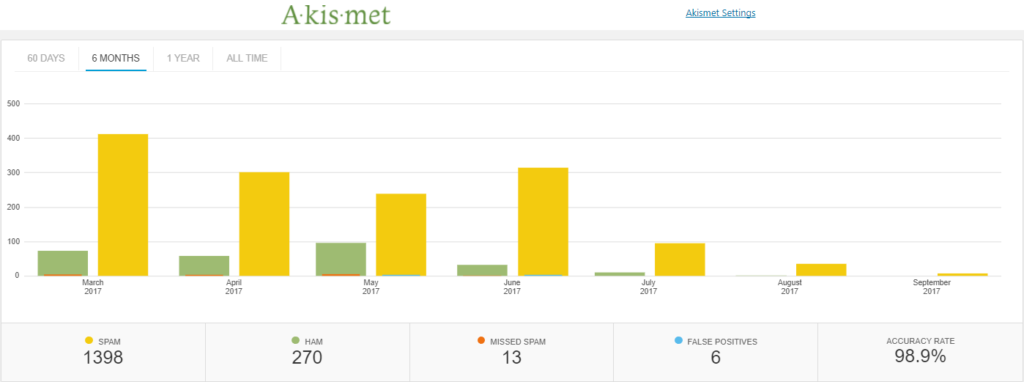
    Spam is going down.  I am seeing a trend on my comment spam that shows attempts to leave comments on my site that are spammy.  Here is a six month graph from Akismet,

    RIP wordpress comments
    click for full size image

    People are installing plugins to move comments away from their sites into the wider social sphere such as this one https://wordpress.org/plugins/comments-from-facebook/, or the are moving to centralised commenting systems such as Disqus.

    This is not a scientific study, but I’ve just visited Problogger, one of the most popular blogging sites out there and a post from the 4th (2 days ago at the time of writing) has zero comments, and other posts have less than 10 comments, in the past each post on Problogger would receive hundreds of comments.

    Why I Think This Is Happening

    People are still distributing great content they like, and sharing it with their circle, but they are sharing and discussing from social media hubs such as Facebook or twitter.  The distribution hub has also become the discussion hub in my opinion.  They will click through read your content and return to the distribution channel to comment.

    Dude! People need to keep their social feeds current, they need to be adding more content into the howling storm of the internet,why would they leave a comment on your backwater of the internet when they could leave a comment on their social media site of choice and build their own profile (please like my post).  Who is going to see their insightful thoughts on your site, 🙂

    My previous statement is a little tongue in cheek, but I do think people want their discussion to be seen more widely, where will this happen on social or at your site?

    Comment links are no follow so there is no benefit SEO wise for leaving comments.

    Comments were often used as a method to engage with the author, but this can be done on social more effectively.

    Wrap Up – R.I.P. WordPress Comments

    I think comments have moved to the distribution channel not the source.  I don’t think this is a bad thing, as long as discussion is happening does it really matter where is it hosted?

    What do you think? These are only my opinions,

    <irony>Let me know in the comments</irony> or the social platform of your choice @nmatthews on twitter, or on Facebook.

    Need help with your WordPress site? Get a no obligation quote.

    Photo Credit: benekliz Flickr via Compfight cc

  • WoodPecker Review

    WoodPecker Review

    I’ve been trialling a new tool to reach out to old clients this month and I wanted to share my Woodpecker Review.

    What Is WoodPecker?

    It’s an email outreach system where you can contact people on your list.

    It has a drip facility where you can send a series of emails, if someone replies they are taken out of the drip.

    It sends like a human would, a few requests per day not a bulk outreach.

    It sends from your gmail account.

    It monitors replies, auto replies, bounces and cleans your list up.

    I’m using woodpecker to reach out to old clients I have not contacted in some time, so it’s a “warmish” email to generate leads.  My main goal is to send out new quotes for WordPress technical support.

    Setup

    I exported all the entries from my gravity form database.  This contains a list of people who have contacted me in the past to get a quote for WordPress technical support.

    I took their name, email, WordPress site URL and the body of their last request (more about this a little later).

    The import process was really simple and I was able to quickly build a database of prospects to contact.

    It sanitised my contacts and removed duplicates.

    Campaigns

    At the core of Woodpecker is a campaign. A campaign is one ore more emails that are sent out to your list.

    You can control when the email is sent and upon which day.  I’m sending Monday to Friday 9am – 7pm my time.  I’ve set a block of time so I’m available to reply to any responses I get in a timely manner.  I’ve excluded weekends for the same reason.

    The campaign has a sending limit of 25 people per day.  The reasons for this are:

    1. It looks more like a human is sending the messages.
    2. It does not get me banned from gmail for sending too many emails, they limit to 250 per day.
    3. I am able to cope with the number of replies, generating quotes and the work this creates.

    A campaign can contain a series of emails, they are sent out in a drip fashion.  A really useful feature is that if someones replies they are not sent the nexy email in the series.

    I’m trying to generate leads, if I get the lead I don’t want to bug the client with another email.

    A gentle drip with a nudge is a great way to get on the radar of busy people who may need help but

    Personalisation

    The key to this type of outreach is personalisation.  I’ve got the persons name, website and their last interaction with me.  Using this information I can make the outreach much more personal.

    I’m personalising the email like this:

    Subject

    Do you need any help with {WEBSITE URL}

    Body

    Hi {FIRST NAME}

    I’m reaching out to see if you need any help with your WordPress site {WEBSITE URL}.
    If you do simply reply do this email with details of your project and I’ll send you a no obligation quote.
    Thanks
    Neil Matthews
    WPDude.com
    You are getting this email because you have requested a quote or worked with me on a previous project, see your last request to my business:
    {{SNIPPET_1}}

    The last bit is important for cold outreach, some people on my list have not been in contact for a few years and they might not even remember working wiht me

    Where It Beats Other CRMs I’ve Used

    There are a number of really good features which makes Woodpecker stand out from the crowd of other CRMs

    It manages bouces – people change emails all teh time, and old emails bounce, Woodpecker detects this and marks the contact.  This makes the quality of yoru prospect list that much better.

    It has an easy to use drip campaign system, that stops on reply.

    It has a unsubscribe feature.  CRMs don’t allow your list members to opt out for some reason, I’ve spent a lot of time managing contacts that don’t want or need my services.

    Stats, Woodpecker has really good stats on the performance of your campaign.

    Why This Beats Mailchimp Or Other Email Provider

    Setting up automation in mailchimp will give me the same results but they are really difficult to create in my experience.

    Mailchimp sends in one big batch, whereas Woodpecker is more graceful and sends in small batches which allows for control over creating quotes and replying properly to client requests.

    Integrations

    Although I’m not using the integrations, Woodpecker works with Zapier so potentially I could automate reachout to clients by adding people who reequest a quote to a campaign to reach out every 6 months or so.

    Pricing

    It’s about the same as other CRMs I’ve used in the past I’m on the $40 per month plan.  There is a $50 plan for the integration option.

    One thing I did not like was their charge per email I want to send from. Two emails = 2 x $40.

    Does It Work?

    I’m running two campaigns in tandem to test if Woodpecker works for my offerings,  One campaign is for a one off project quote, the other is for my maintenance service.

    I’ve generated 16 leads for quotes and several have been confirmed into live projects.

    I’ve had 21 requests for details of my maintenance plan and 9 signups.

    Does it work, YES!

    Downside

    I did not validate my list very well and I’ve reach out to people who have unsubscribed or do not wish to work with me.

    I’ve had a couple of angry replies, sorry about that if you are reading this, I hold my hands up I’m at fault there.

    14 Day Free Trial

    Woodpecker has a 14 days free trial, I would recommend you run a test campaign to see if this service will work for you.

    Wrap Up – WoodPecker Review

    I’m enjoying this, it is automated unlike my old CRM, it looks at replies and bounces and auto updates my list which was a huge time suck and it works, I’ve generated leads and new business.  It’s still early days but I’m liking what I have seen so far.

    I think the data I’m collecting on who opens and replies will make my future campaigns even more effective.

    Long term I think this will be a very useful tool to automate reach out to past clients to keep my name in their mind if they need WordPress help.

    If you are a service business with a list of past clients, reaching out to them regularlly with a check in to see if they need help is a no brainer.  This software automates that.

    Disclosure, all links to woodpecker are affiliate links and I’ll get a referral fee if you become a paying customer.

    Photo Credit: mjeedelbr Flickr via Compfight cc

    SEO nonsense to increase Woodpecker review density, woodpecker review 🙂

  • Why You Need To Store Your Backup Archive Off Site

    Why You Need To Store Your Backup Archive Off Site


    You are only as good as your last backup!

    That’s the phrase that was drilled into me over and over when I was a young systems engineer looking after huge corporate databases.

    Backup was such an important thing to us, we had rotas where it was someone’s sole job was to ensure backups were taken, they were valid and they were stored correctly.

    Part of that storage was to bundle up magnetic tapes into a fireproof box and send it offsite to a secure storage location.  It was physically offsite.

    As the owner of a WordPress site you need to ensure your backups are also stored off site but in the sense they are stored virtually off your website.

    The Majority Of Backups I See

    You do have a backup plugin installed don’t you?

    The majority of the backup plugins I see installed are taking backups each day or each week.  These backup archives are then stored locally under wp-content.

    Why Store Offsite

    Let me paint a doomsday scenario.  Your site has crashed.

    All of the files on your site have been deleted.

    Your archives are gone.

    Your hosting company cannot help you.

    You are stuffed!

    That’s why we keep a copy of your archive offsite so we can restore in a worst case scenario situation.

    Off Site Storage Options

    Your offsite storage options will be dictated by the backup plugin you use, but here are some of the more common options:

    Dropbox – not only can you save the pictures from your phone but you can also save you backups there too.  Large sites can be into the GB sized archives

    Amazon S3 – the good folk at Amazon not only sell you everything under the sun, but you can also rent part of their storage too.  It’s cheap and secure.

    Microsoft Azure – always late to the game it seems, but Microsoft have storage solution too.

    FTP – You can setup a manual process to FTP your archive files to a second location offsite.  Not my preferred method but definitely.

    Email – if your archive is small you can attach it to an email and send it to yourself each day.  Gmail for example, only allows a max file attachment of 25MB, so email will not be the best for a large site.

    Recommended Plugins/Services

    Here are some plugins that offer an offsite storage solutions that I recommend.

    • Backwpup – free
    • BackupBuddy – premium plugin
    • Managewp – freemium service
    • Vaultpress – premium service.

    What We Do For Our Clients

    We manage the backups for hundreds of our clients, we take a daily full backup of their site and we store it off site on Amazon S3 servers.  The backups are secured and encrypted.

    We get to select where, geographically we save the backups, so we store them as close to the clients physical location as possible.  We can select Amazon data centres in North America, Europe, the Far East or Australia.  This speeds up upload and restore times.

    We’ve had to restore from this solution numerous times and it works.  That’s the important part of backup, not taking a backup, not saving it offsite, being able to restore when the SHTF.

    Wrap Up – Why You Need To Store Your Backup Archive Off Site

    I would like you to review your backup solution today and make sure you are also storing you backups offsite, you will thank me if things go pear shaped.

    We have backup solutions starting at $9 per month, can we backup your site for you?  Get in touch.

    Photo Credit: Dave ‘FBI’ Gibbons Flickr via Compfight cc

  • The Difference Between Categories And Tags

    The Difference Between Categories And Tags

    There are two main ways to categorise WordPress blog posts, tags and categories, in this post I want to explain the difference between categories and tags.

    In this post I want to explain the differences between category and tags.

    What Are Tags & Categories?

    Both are ways to group related posts together, if someone is interested in your post about a cat, drop it into a tag or category about cats and people can find more content on your site about kitties.

    Adding a post into a cat or tag, adds it to the category page linking all the other posts together for example, I’m putting this post in General Blogging, you can also see it in this page https://dev.neilmatthews.com/category/general-blogging

    The Cook Book Analogy

    The best analogy I have heard for the difference between categories and tags is the cook book.

    Imagine the front of a cook book there are chapter listings with page numbers, think of categories are chapter lists.  The chapters in our analogy are breakfast, lunch, dinner and snacks.

    Now think of your blog post as a recipe, our post is a breakfast dish huevo rancheros, it is in the chapter / category breakfast.

    At the back of the book is an appendix, the appendix lists all the recipes by their main ingredients, this is a tag and helps to give much more detailed information about a post.  We would tag huevo ranchero with eggs, peppers, totillas etc.

    Both do the same thing to help you find a recipe but they both do it in slightly different ways. Tag are more detailed where as categories are more general.

    Do You Need Both?

    Each post needs to go into at least one category, that is why there is a default uncategorized category that all posts are added to by default, but you do not need to use tags, they are optional.

    What Is Best For SEO

    Having both for SEO is best, it increases the number of indexed pages you have in Google.  for each category or tag you add a new archive page is added, s there would be oursite.com/category/breakfast and oursite.com/tag/eggs, oursite.com/tag/tortillas.  The more tags and categories we have the more keyword rich links we have.

    Are There A Limit To The Number Of Tags / Categories

    Technically no, but there is a suggestion to limit the number to no more than 15 for anti-spam and seo reasons.

    Wrap Up – The Difference Between Categories And Tags

    Further reading, here is what the good people at WordPress.com have to say on this subject Categories Vs Tags.

    Photo Credit: ubrayj02 Flickr via Compfight cc

  • Blogging With The WordPress iPhone App

    As part of my holiday blogging efforts I decided to write a blog post 100% with the WordPreas iPhone app.

    You can download the WordPress app from your App Store of choice there is an iOS and android version.

    Writing Experience

    As you would expect the writing experience is the same as writing a text message.

    If you have young nimble fingers, used to sending large amounts of mobile text, you will be able to quickly knock out a blog post.

    This correspondent's fat middle age thumbs are not as Rapide as they could be but I'm coping writing this post.

    Personally give me a keyboard for anything over a short form post like this one.

    Adding Images

    You can post images from your camera which is a huge benefit for personal bloggers.

    You can add them inline and also save a featured post image.

    I'm in a water park as I write this so here is a random image of my kids.

    I'm going to download an image from compfight save that to my phone and add it as a featured image.

    Error correction

    Something really positive is the predictive text editing as my fat man fingers mash out this post, it's correcting as I go I've not had to type an apostrophe yet.

    When I create a typo the content is underlined, tap on it to correct.

    Downside

    If your theme has features that need to be set from the editor you cannot do that from the app, it's completely theme agnostic.

    It also ignores any plugins you have that add posts options, for example I use Yoast SEO to set my post options, I'll have to wait until I get home to optimise this.

    The menu was not very intuitive and I had to google how to add HTML for the image credit at the bottom of the post.

    People get really stroppy if you don't camel back WordPress but the app does not pick that up just saying some I don't plan to correct those typos.

    Wrap Up – WordPress iPhone app

    The app has surpassed my expectations, I've written a decent enough length post from my phone and yet another shackle of desktop work has been shed.

    If you need help with your WordPress site please request a quote when I get back on the 5th 😀

    Photo Credit: imherbsoap Flickr via Compfightcc

  • Scheduling Posts To Publish In The Future

    Scheduling Posts To Publish In The Future

    As you read this post I’m on holiday (vacation for my American chums) in Spain.  I’m probably on a beach, or taking a boat ride on the glorious Mediterranean sea.

    This post was written on the 19th July, but using a technique built into WordPress,  I can schedule the post to publish in the future (or was it the past because I did this work last week, even Dr Who will get a headache with this).

    In this post I want to take you through the process of scheduling posts for future publication.

    Setting Publish Date

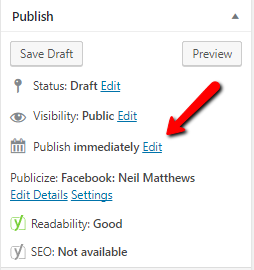
    On the right hand side of the post editor you will see this section


    Where is says publish immediately, click on edit and you can set the time and date.  Click on the schedule button and your posts will go live on that date and time.

    The WordPress cron or scheduler is a little weird, a person needs to visit your site to kick off the schedule checker, so it might not be exactly the time you say, rather when the next visitor hits your site after the date and time set.

    Wrap Up – Scheduling Posts To Publish In The Future

    Scheduling posts is a great way to keep your content fresh even when you are not available to click publish. anyway I’m off for a glass of sangria, this relaxing ain’t going to get done by itself.

    I may be on holiday but I’m still sending out quotes for projects when I get home, get a no obligation quote to fix thay annoying WordPress issue now.

    Photo Credit: Winniepix Flickr via Compfight cc

  • My Musings On Lead Magnets

    My Musings On Lead Magnets

    I’ve been musing about lead magnets lately and if they are worth while for my business.  My conclusion is NO.

    At present if you visit my site there is no email signup to get a download or drip email course, and this is intentional because lead magnets don’t appear to generated much business for me.

    What Are lead Magnets

    Lead magnets are free giveaways that a site owner gives you in exchange for your email contact details.

    The thinking is that the site owner can build up rapport over a period of time, send out email newsletters proving their expertise, it’s all part of the content marketing dance.

    Once trust is established you can ask the site visitor for a sale.

    What I’ve Tried

    Over the years I’ve tried a number of lead magnets including:

    • Simple offer to join my newsletter for updates
    • Drip campaigns with email training
    • Infographics
    • Free site checkups
    • Ebooks

    The take a large initial investment of time to create but I don’t think I’ve had a return on that time investment with the number of signups which convert into client sales..

    Who Downloaded My Lead Magnets Most?

    Casual site visitors did not result in huge numbers of email signups whatever I tried.

    The people who did download my stuff were existing clients, people who come to me for help already not new clients.  That sounds a little bitter when I reread this, I’m more than happy to provide content for free for my clients, but the real aim of a lead magnet is to bring new people into your sales funnel.

    The One Lead Magnet That Did Work

    Then it occurred to me, the one lead magnet I have, that has worked consistently over time.  As a result I have gone all in on generating contacts via this and dropping lead magnet freebies.

    My lead magnet is providing no obligation quotes.

    Why I Didn’t See This As  a Lead Magnet

    I was not seeing the act of generating a quote as a lead magnet, rather i was seeing it as the start of the sales process, but after some thought it is a type of lead magnet.

    I can capture a persons email address, I can provide value to them with a customised email on how I their issue can be fix t and the cost to do that.. This is not scaleable

    like a download or a drip email, it needs an individual touch, I get that, but it’s gotten way better results than my infographic.

    It is a self qualifying system, if a site visitor is reading my content and would NOT hire a WordPress developer then they are unlikely to make a request. So my time is spent educating real prospects on my process.

    This lead magnet has generated over 6000 signups over the years why fix something that is not broken.

    How I Get Leads

    I’ve recently added a new theme to my site and it’s sole purpose is to funnel people into my “lead magnet”.  My site  has one call to action, ask for a quote.

    I funnel people into that lead magnet with the following CTA (call to actions).

    • Home page – two calls to action, details of the services I provide.
    • Sidebar – get a no obligation quote widget
    • In post ads – after X posts there is a link to y quote page
    • Blog post footer, I add a link in each post
    • Highlighted menu item, top right

    All of these drive people to my WordPress Technical Support page where people are offered a no obligation quote, and a small description on how I have fixed issues like this in the past and how I will fix their problem.

    If you are reading this via email or RSS come on over to my home page to see this in action.

    Wrap Up – My Musings On Lead Magnets

    There are people who swear by the lead magnet model and freebie giveaway, but it has not worked for me. What has your experience been of this highly touted approach to marketing, I would love to know in the comments section.

    If you need help with your WordPress site, why not signup for my no obligation quote lead magnet, I’ll send you a price and details on how I can fix your site.

    Photo Credit: Mario’s Planet Flickr via Compfight cc

  • Gravity Forms Dynamic Content

    Gravity Forms Dynamic Content

    Last week I wrote about a client project where I setup gravity form routing, today I want to write about gravity forms dynamic content.

    We can dynamically pass data into a form to add to an entry, this is how you can do this.

    What Is Dynamic Content?

    Dynamic data is content that changes each time the form is loaded, it can be used on the display of the form or on the notification sent out when the form is completed.

    An example; my client has a single form but wants to send a different PDF to form completors based upon which page they complete the form on, so we dynamically pass this data into the form so the notifications can be different.

    Types Of Dynamic Content

    There are two ways to pass data into a form and use them dynamically, query strings an via the shortcode.

    Query String

    A query string is a piece of data passed into the form on the URL of the page, here is an example.

    https://dev.neilmatthews.com/wordpress-technical-support?referrer=somedata

    In this example we are passing in a parameter name called referrer, and the data will be “somedata”.

    The time you would use query string is if there is a single contact form page and you want to vary the data.

    Shortcode

    We can also pass data into the form via the shortcode we use to embed the form, again here is an example.

    gravityforms id=1 field_values='referrer=somedata'

    Again we are passing in some referrer data and that is “somedata”.

    You would use the shortcode id if you had one form used on several pages and wanted different data based upon where it is embeded.

    Setting Up  A Field For Dynamic Content

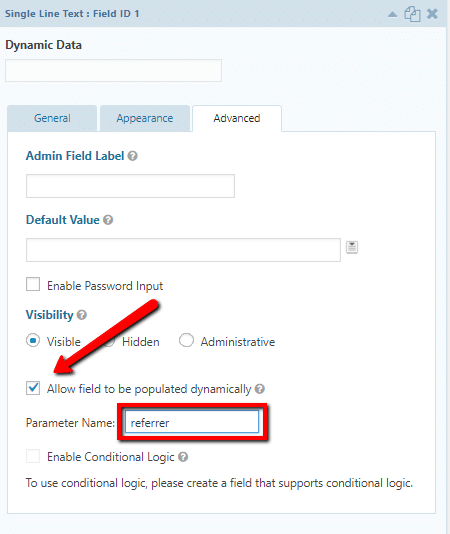
    When you add a field into a form you can make it populated dynamically.

    Go to the advanced settings and there is a check box to make it dynamic then you add the parameter name you want to collect data from.


    gravity forms dynamic data

    You can have multiple dynamic data fields on a site.

    Using Dynamic Data

    Once you have captured your dynamic data you can use it in logic on the form for example to set prices, or pass it into notifications.

    In my example above I passed a download link to the customer notification email

    Wrap Up – Gravity Forms Dynamic Content

    If you need to pass data into your form before it is submitted dynamic data fields is the thing you need.

    If you need help setting up a complicated gravity forms get a no obligation quote.

    Photo Credit: Diari La Veu – http://diarilaveu.com Flickr via Compfight cc

  • Routing Gravity Forms Notifications A Case Study

    Routing Gravity Forms Notifications A Case Study

    I was working on a client project recently where they wanted to send notifications to different teams depending upon a selection made in the form, in this post I want to talk about routing gravity forms notifications.

    The client is a property developer and they need to route emails to the sales team of each scheme   This is where we are two countries divided by a common language, I think this would be described as a housing sub division in USA speak.  When I read route it sounds like root in my head not rowt.

    What Is Routing?

    Routing is the process of testing fields from your form and then sending notifications to different emails based upon form content.

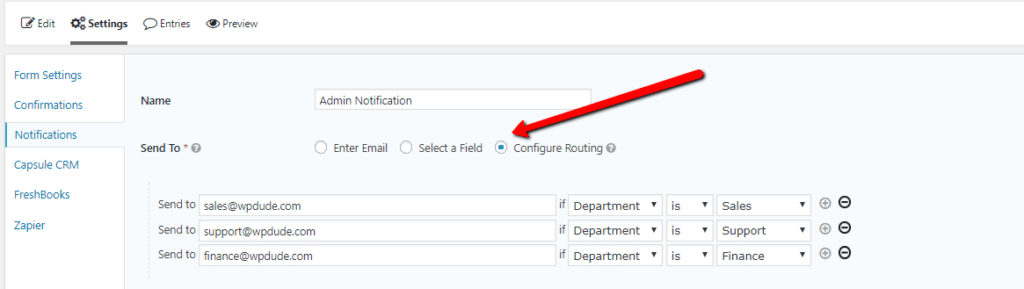
    I’ve created a test form on my site to highlight this.  There is a drop down for department.  The options are sales, support and finance.

    Once the form has been built move over to the notification section of the gravity form setup, that’s where the routing magic happens.  On “send to”, click routing then you can add the options to route to an email address based upon the drop down value.

    routing gravity form


    Bonus Tip

    If you want the email to also go to a central place such as a CRM system or a central support desk, add a BCC email address.

    Wrap Up – Routing Gravity Forms

    The same project also needed a PDF download based upon the scheme, but I’ll tell you how to dynamically pass data into a form in my next post.

    Gravity form never ceases to amaze me with it’s great features and integrations, if you are still dabbling with free form plugins like Contact form 7 please give Gravity Forms a look.

    If you need help developing a complex gravity form setup, get in touch for a no obligation quote.

    Photo Credit: Pikaluk Flickr via Compfight cc

  • Managing Holidays When You Work Globally

    Managing Holidays When You Work Globally

    A big US holiday is bearing down on us next week and it has prompted me to write a post about managing holidays when you work globally.

    I’m based in the UK, the majority of my clients are from the US and Canada.  My team are based in the Philippines, there are a lot of holidays to manage.

    Know When The Holidays Happen

    I was tripped up on Monday this week it was a an End of Ramadan holiday in the Philippines. I was sending over project updates when a very polite response came in along the lines of “You do remember we are on holiday today?”.  No I had not remembered.

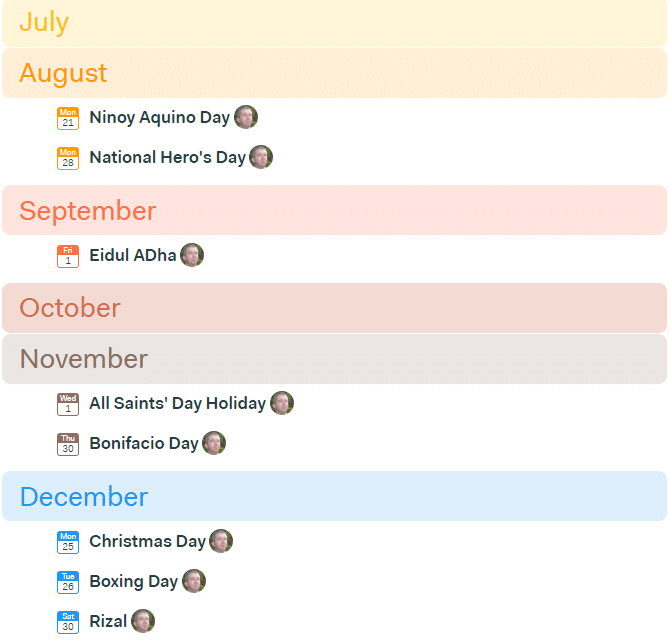
    The most useful tool I have found is to import national holiday calendars into my Google calendar profile, there are public holiday lists for most countries, I have created a short video to show you how to add international holidays.

    Client Communication

    I’ve not found any issue telling clients I’m unavailable due to a national holiday.  Clear client communication that you are not available on August 28th because it’s a bank holiday in the UK is usually enough.

    If you go off on holiday and a client is left in limbo with a=unanswered emails can cause issues.

    Team Communication

    We have a central team calendar and I’ve added all the national holidays of the UK and Philippines into it (implemented last Tuesday ahhem! ) so we can see when holidays are coming up and when me, or my team members will not be available.

    When I’m out the office I tell my team and let them know I’ll not be around for IM and everything will go into out project management system.

    Likewise if my team are unavailable and a project is open I ask for an update so I can deal with client requests.

    Use The Space

    Rather than seeing this is an issue I suggest you embrace the space holidays create in your calendar, for example each year I take a day out on the US holiday of Thanksgiving as a planning day.  I know client emails will be slow and I can afford not to book any work in.

    It’s become an annual ritual that I really look forward to each year.

    Highlight The Benefits

    You can also highlight the benefits to clients that you can be working on their issue while they are enjoying a well deserved holiday.

    People like the idea that changes can be made when their sites are not busy on a holiday.

    What Do The British Call The Fourth Of July?

    Well this Brit calls it Tuesday this year where he will have time to catch up with some admin and work on a French client’s site.

    Wrap Up – Managing Holidays When You Work Globally

    It’s never been a big deal managing my time, my teams time and client communication across countries as long as you

    There have been occasions when I have fired off an email and I can hear the crickets chirping, it’s at times like this I consult my holiday calendar only to find the recipient is probably not available.

    If you need help with your WordPress site get a no obligation quote.

    Photo Credit: shock264 Flickr via Compfight cc

  • Compressing Images For WordPress

    Compressing Images For WordPress

    A lot of my clients have been getting reports from Google about page speed performance recently.  This tells me Google are taking site performance as an increasingly important factor in their ranking algorithm.

    You can get a feel for your site performance by running a test from Google Page Speed Insights.

    One of the indicators nearly every site is being flagged with is image optimisation or image compression.  In this post I’ll talk about some options you have to compress your images.

    Compression Types

    There are two types of image compress lossy and losslessly.  These are not real words I’m 100% sure but they are used routinely when talking about image compression.

    Lossy – this is a compression type that will reduce your file size and impact a little on quality.

    Losslessly – this compression type removed meta information and compresses the file but retains quality.

    Resizing Images

    No amount of compression is going to fix a massive image 5000 pixels wide that is uploaded to your site.

    Before you add an image into your site, scale it down using your image manipulation software.

    Compression Plugins

    There are a number of plugins out there which compress images as they are uploaded to WordPress.   I highly recommend you install one to compress files as you upload them automatically.

    wp-smush – I’ll not talk too much about this plugin in this post I wrote a full write up Can I Smush It, Yes I Can

    kraken.io – this is a new premium service to me, it has a plugin like wp-smush that comprsses images as you upload them, but it also has an online service where you can compress images offline before uploaded.  I’m using this for my clients when I speed up wordpress sites.  This has a free trial plan and starts at $5 per month based on the amount of images compressed per month.

    Online Image Compression Services

    Sometimes images are outside of your media library and cannot be compressed by plugins.  Examples of this are images held inside of your theme directory or inside of plugins.

    For a number of clients I have been using a great free service called Compressor.io.

    Simply upload your image, select the compression type lossy or lossless and your image will be compressed.  Download it and re-upload it to your theme or plugin directory.

    I’ve been getting some really good results with this tool.

    Wrap Up – Compressing Images For WordPress

    Google are taking image compression as a ranking indicator, I strongly advise you to compress your images.

    I offer a fixed price top to bottom performance tuning service, including image compression,  if you would like a quote please let me know.

    Photo Credit: will668 Flickr via Compfight cc

  • Help Scout Review: How I Use Help Scout As A Project Management Tool

    Help Scout Review: How I Use Help Scout As A Project Management Tool

    I migrated my help desk away from Groove last year with a deep heart, it was great, but the mobile support was shocking.  Here is my Help Scout review.

    If my team and I were not on a desktop it was almost impossible to update tickets.

    I thought it was time to write up a review about the replacement system I now use Help Scout.

    Why I Use A Help Desk

    I’ve tried a number of solutions to manage the work at WP Dude. Project management software like Basecamp and Trello, email systems like Sortd, task managers like Asana, but I found that the nature of the work we do does not lend itself to that type of software.

    We do small technical support jobs and maintenance, I don’t want my clients signing up for software they will not know how to use, and probably never use again.  I want what we do to appear seamless, I want it to look like we are exchanging emails, no signup required.

    I’ve got a team of three so we need to co-ordinate and share work between us.  Our work cannot be stuck in someone’s email account, everything needs to be in a central place.

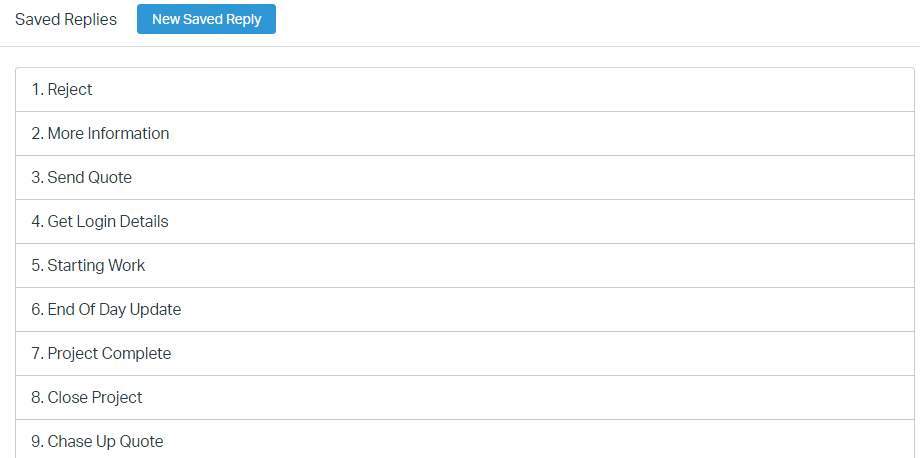
    The last reason I use help desk software is that I can build in processes via canned responses (more on that later).  We have a standard way we work, I have built a project management system using a series of canned responses.

    If you raise a technical support project via my gravity form or, if you are a maintenance client and send me an email at [email protected] , it will land in our help desk.

    Canned Responses

    The most useful thing about a help desk is that we can create a process for our clients via canned responses, Let me step you through it.

    A new project request hits my help desk …

    1. Do I want the project? If not I send a polite “no thanks” canned response
    2. Is there enough information to send a quot? If not send “ask for more information canned response”
    3. I want to take the project, send a “quote” canned response
    4. When the quote is accepted, send “get login details & deposit payment” canned response
    5. Just before starting work send “starting work” canned response
    6. Once the work is done send “project complete” canned response
    7. “Close project” canned response when everything is done

    I have others but as you can see I have a process built into the help desk so we handle all projects in the same way.

    click for full size image

    Gravity Form Support

    Help Scout has support for gravity forms, which is great for me, all of my contact forms are powered by Gravity forms.

    When a client submits a request it is automatically added into Help Scout, previously with Groove I had to create an integration using Zapier.

    Assigning Tickets

    A great feature of Help Scout is the ability to assign tickets to team members and have it drop off my queue.

    There is a lot of psychological baggage with a huge, long list of to-do items, when I assign a ticket to a member of my team it goes into their queue and off mine, until they need to pass it back to me.  That feels like a load off my shoulders.

    Once assigned I get an overview of who is doing what and who is available for new tasks.

    Mobile App – Woo Hoo!!

    Help Scout has a great mobile app.  I can work when I’m not at my desktop.

    Using the app and canned responses I can reply to clients, assign to team member and keep things running when out of the office

    Huge Number Of Integrations

    Help Scout has a huge number of integrations https://www.helpscout.net/help-desk-integration/

    I integrate with Freshbooks so I have an overview of a clients financial account next to a ticket

    I integrated with a number of chat software solutions such as Chatra so chat history was raised as a ticket.

    I use the beacon software from Help Scout on my WordPress site (see the question mark icon bottom right) so people can ask my pre-sales questions and that is sent into Help Scout automatically.

    Internal Knowledge Base

    Help Scout has a knowledge base that you could use as a client facing self service solution, but I don’t use it that way, I have my processes and procedures in a private knowledge base for team access.

    I also have a library to technical how to documents on how to fix common WordPress problems that my team can tap into.  I add new ones as issue occur.

    Cost

    Help Scout is charged per seat.  The current cost is $20 per seat.

    Downsides

    With groove I was able to add a star to a ticket and it made it sticky and bubbled that ticket to the top of my queue, these tickets were the ones I was currently working on.

    I like to do that because I often send a project back to clients for review and there can be some time between communications I can start and un-star as a ticket is worked on or waiting for a response.

    There is no calendar, this is not a Help Scout issue but a help desk software issue, I would love to be able to add a calendar event to a ticket to say when we are working on that project, and to have a calendar view.

    Wrap Up – Help Scout Review

    I only recommend software I use all the time and help scout is at the core of my business, all client communication flows through Help Scout.  All delegation of work is through Help Scout.

    This gets a big thumbs up from me.

    No affiliate links were harmed during the filming of this Help Scout review. This Help Scout Review needs more keyword exposure for SEO 🙂

    Photo Credit: SSAVE w/ over 7.5 MILLION views THX Flickr via Compfight cc