Neil Matthews

Author: Neil Matthews

  • How to Integrate Your WooCommerce Store with Australia Post

    How to Integrate Your WooCommerce Store with Australia Post

    Introduction:
    Integrating your WooCommerce store with Australia Post can streamline your shipping process, providing accurate rates, label generation, and tracking capabilities. By automating these tasks, you can efficiently manage your shipping operations and deliver a superior customer experience. In this blog post, we will guide you through the steps to integrate your WooCommerce store with Australia Post and recommend some helpful plugins to simplify the process. Let’s get started!

    1. Register for an Australia Post Business Account:
      To initiate the integration, you need to register for an Australia Post Business Account. Visit the Australia Post website (https://auspost.com.au/business) and follow the registration process. Once registered, you will gain access to the necessary credentials and tools to integrate with their services.
    2. Install and Activate the WooCommerce Australia Post Shipping Plugin:
      To integrate your WooCommerce store with Australia Post, we recommend using the WooCommerce Australia Post Shipping plugin. Install and activate the plugin on your WooCommerce store.
    3. Configure the WooCommerce Australia Post Shipping Plugin:
      Once the plugin is activated, navigate to WooCommerce > Settings > Shipping > Australia Post. Enter your Australia Post account details and configure the shipping options according to your business requirements. You can specify services, package sizes, and additional settings to customize the shipping experience.
    4. Set Up Shipping Zones and Methods:
      To enable Australia Post shipping for specific regions, navigate to WooCommerce > Settings > Shipping > Shipping Zones. Create a new shipping zone and assign the desired areas. Add a shipping method and select “Australia Post” from the dropdown menu. Customize the method options, such as service types and package dimensions, to align with Australia Post’s offerings.
    5. Test and Verify:
      To ensure accurate shipping calculations and rates, it is crucial to test the integration. Add test products to your cart, proceed to checkout, and enter a valid shipping address. Verify that Australia Post shipping options and rates are displayed correctly. Conduct multiple tests with various product weights and dimensions to validate the accuracy of the calculations.
    6. Additional Australia Post Integration Plugins:
      In addition to the WooCommerce Australia Post Shipping plugin, you may explore other plugins to further enhance the integration with Australia Post. Consider plugins like WooCommerce Shipping Tracking, WooCommerce Shipment Tracking, and WooCommerce Australia Post Parcel Send to streamline your shipping process and provide tracking capabilities to your customers.
    7. Monitor and Optimize:
      Once your WooCommerce store is integrated with Australia Post, regularly monitor your shipping operations and gather customer feedback. Ensure that the shipping rates and methods align with your business requirements. Continuously optimize your packaging and shipping strategies to minimize costs and improve delivery efficiency.

    Conclusion:
    Integrating your WooCommerce store with Australia Post streamlines your shipping process, providing accurate rates, label generation, and tracking capabilities. By following the steps outlined in this blog post, you can seamlessly integrate your store with Australia Post, enhance your shipping operations, and deliver exceptional service to your customers. Install the WooCommerce Australia Post Shipping plugin, register for an Australia Post Business Account, and start reaping the benefits of a streamlined shipping experience.

    Simplify your shipping operations and provide accurate rates with the integration of your WooCommerce store and Australia Post. Start streamlining your shipping process today and deliver a seamless customer experience.

    Note: Ensure that you comply with Australia Post guidelines and regulations while using their services and APIs.

    Any of my mates from Aus need help with their shipping give us a shout.

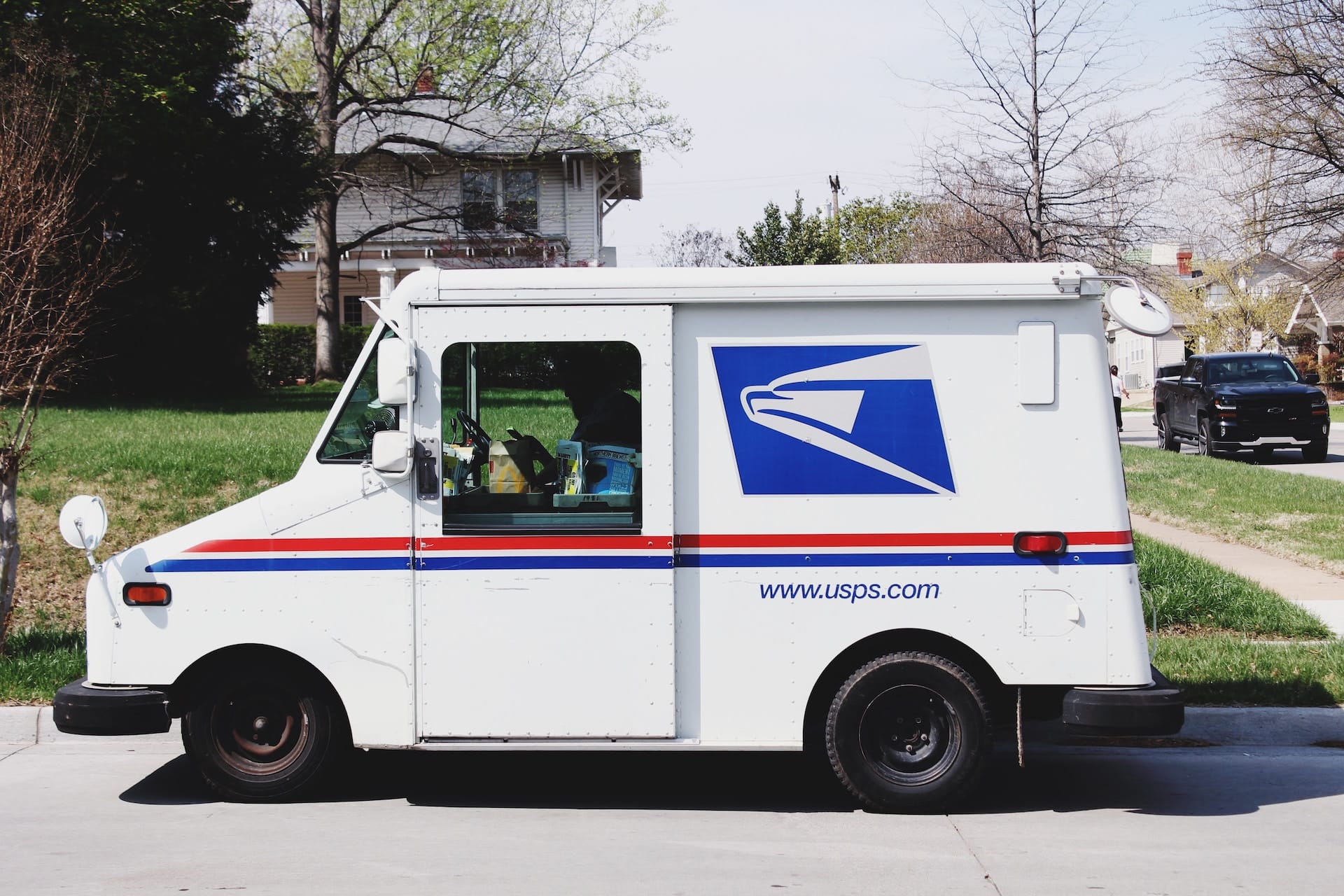
    Photo by Artsy Vibes on Unsplash
  • Simplify Shipping: How to Integrate Your WooCommerce Store with Canada Post

    Simplify Shipping: How to Integrate Your WooCommerce Store with Canada Post

    Introduction:
    Integrating your WooCommerce store with Canada Post can greatly streamline your shipping process, providing accurate rates, label generation, and tracking capabilities. By automating these tasks, you can efficiently manage your shipping operations and deliver a superior customer experience. In this blog post, we will guide you through the steps to integrate your WooCommerce store with Canada Post and recommend some helpful plugins to simplify the process. Let’s get started!

    1. Register for a Canada Post Business Account:
      To initiate the integration, you need to register for a Canada Post Business Account. Visit the Canada Post website (https://www.canadapost.ca/) and follow the registration process. Once registered, you will gain access to the necessary credentials and tools to integrate with their services.
    2. Install and Activate the WooCommerce Canada Post Shipping Plugin:
      To integrate your WooCommerce store with Canada Post, we recommend using the WooCommerce Canada Post Shipping plugin. Install and activate the plugin on your WooCommerce store.
    3. Configure the WooCommerce Canada Post Shipping Plugin:
      Once the plugin is activated, navigate to WooCommerce > Settings > Shipping > Canada Post. Enter your Canada Post account details and configure the shipping options according to your business requirements. You can specify services, package sizes, and additional settings to customize the shipping experience.
    4. Set Up Shipping Zones and Methods:
      To enable Canada Post shipping for specific regions, navigate to WooCommerce > Settings > Shipping > Shipping Zones. Create a new shipping zone and assign the desired areas. Add a shipping method and select “Canada Post” from the dropdown menu. Customize the method options, such as service types and package dimensions, to align with Canada Post’s offerings.
    5. Test and Verify:
      To ensure accurate shipping calculations and rates, it is crucial to test the integration. Add test products to your cart, proceed to checkout, and enter a valid shipping address. Verify that Canada Post shipping options and rates are displayed correctly. Conduct multiple tests with various product weights and dimensions to validate the accuracy of the calculations.
    6. Additional Canada Post Integration Plugins:
      In addition to the WooCommerce Canada Post Shipping plugin, you may explore other plugins to further enhance the integration with Canada Post. Consider plugins like WooCommerce Shipping Tracking, WooCommerce Shipment Tracking, and WooCommerce Canada Post Shipping Labels to streamline your shipping process and provide tracking capabilities to your customers.
    7. Monitor and Optimize:
      Once your WooCommerce store is integrated with Canada Post, regularly monitor your shipping operations and gather customer feedback. Ensure that the shipping rates and methods align with your business requirements. Continuously optimize your packaging and shipping strategies to minimize costs and improve delivery efficiency.

    Conclusion:
    Integrating your WooCommerce store with Canada Post streamlines your shipping process, providing accurate rates, label generation, and tracking capabilities. By following the steps outlined in this blog post, you can seamlessly integrate your store with Canada Post, enhance your shipping operations, and deliver exceptional service to your customers. Install the WooCommerce Canada Post Shipping plugin, register for a Canada Post Business Account, and start reaping the benefits of a streamlined shipping experience.

    Simplify your shipping operations and provide accurate rates with the integration of your WooCommerce store and Canada Post. Start streamlining your shipping process today and deliver a seamless customer experience.

    Note: Ensure that you comply with Canada Post guidelines and regulations while using their services and APIs.

    If any of our Canadian readers need help with their shipping, please check out our webmaster plans

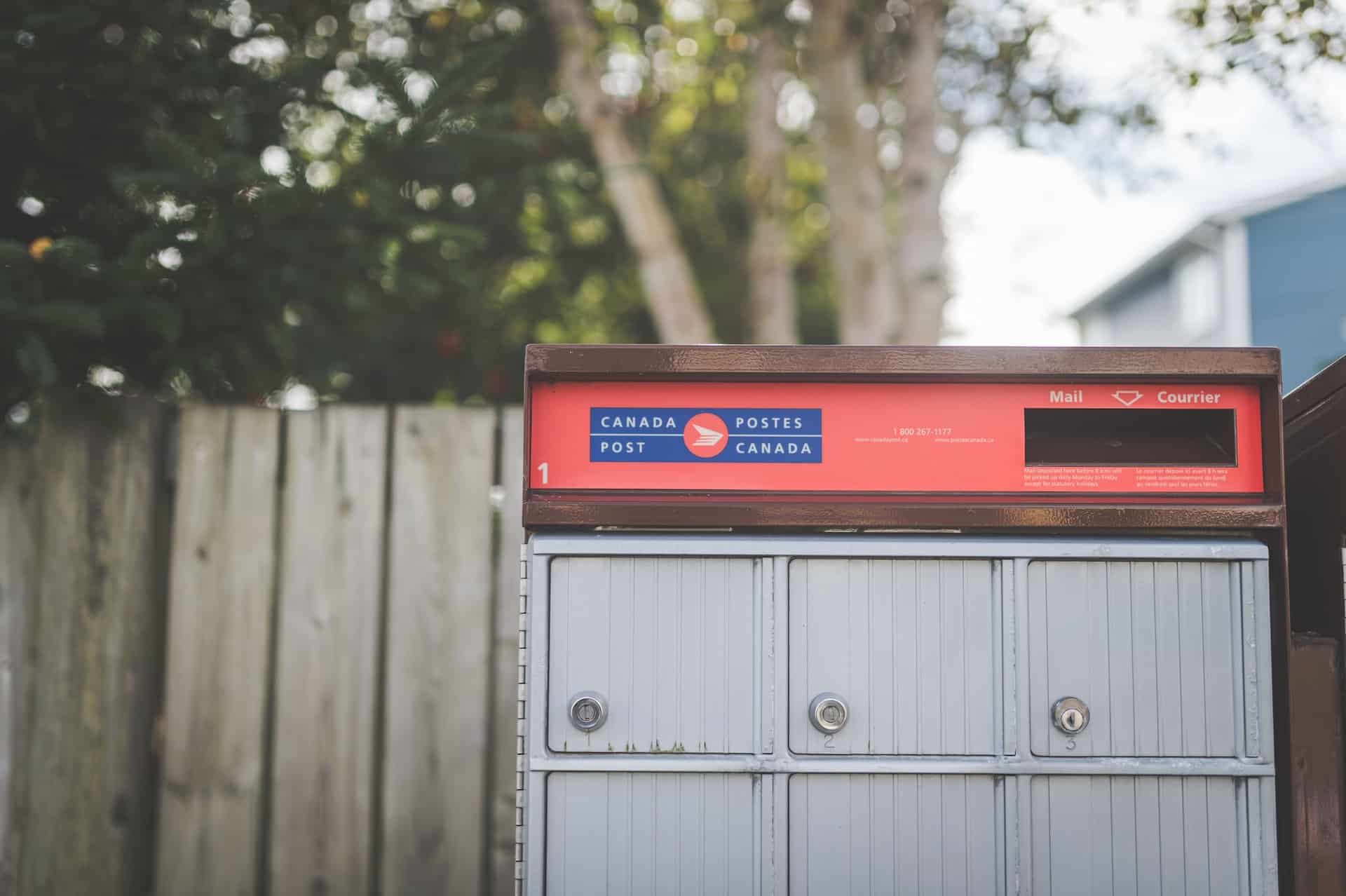
    Photo by Stephen Andrews on Unsplash.

  • The Best WooCommerce Plugin for Selling Subscriptions: A Comprehensive Review

    The Best WooCommerce Plugin for Selling Subscriptions: A Comprehensive Review

    Introduction – The Best WooCommerce Plugin for Selling Subscriptions

    Recurring income is the promised land for many businesses, here is a review of several subscription plugins for WooCommerce so you can sell once and gain a recurring income.


    Selling subscriptions can be a lucrative business model for online stores, offering recurring revenue and customer loyalty. WooCommerce, being one of the most popular e-commerce platforms, provides numerous plugins to help you sell subscriptions effectively. In this blog post, we will review some of the best WooCommerce plugins for selling subscriptions, comparing their features, pricing, and ease of use. Let’s dive in and find the perfect plugin to power your subscription-based business!

    1. WooCommerce Subscriptions by WooCommerce (https://woocommerce.com/products/woocommerce-subscriptions/):
      WooCommerce Subscriptions is the official subscription plugin developed by WooCommerce. It offers comprehensive features for selling subscriptions, including flexible billing schedules, free trials, subscription management, and automatic recurring payments. The plugin integrates seamlessly with other WooCommerce extensions, providing a solid foundation for subscription-based businesses. However, it should be noted that this plugin requires a separate payment gateway to process recurring payments.
    2. Subscriptions for WooCommerce by Prospress (https://woocommerce.com/products/woocommerce-subscriptions/):
      Subscriptions for WooCommerce by Prospress is another popular plugin that provides robust subscription management capabilities. It offers flexible subscription options, including different billing intervals, customizable renewal periods, and the ability to sell both physical and digital products as subscriptions. This plugin also integrates with popular payment gateways and provides tools for managing subscription changes, upgrades, and cancellations.
    3. YITH WooCommerce Subscription by YITH (https://yithemes.com/themes/plugins/yith-woocommerce-subscription/):
      YITH WooCommerce Subscription is a feature-rich plugin that enables you to sell both physical and digital products as subscriptions. It supports various billing cycles, including daily, weekly, monthly, and yearly subscriptions. The plugin offers advanced features like multiple subscription options, pause/resume subscriptions, trial periods, and automatic email notifications. YITH WooCommerce Subscription integrates well with popular payment gateways and includes tools for managing subscription renewals and cancellations.
    4. WooCommerce Subscriptions and Memberships by RightPress (https://www.rightpress.net/products/woocommerce-subscriptions-and-memberships/):
      WooCommerce Subscriptions and Memberships by RightPress is a powerful plugin that combines subscription-based selling with membership functionality. This plugin allows you to create subscription plans and restrict content or products based on membership levels. It offers flexible subscription pricing, recurring payments, and integration with popular payment gateways. Additionally, it provides tools for managing customer subscriptions, upgrades, and downgrades.

    Wrap up – The Best WooCommerce Plugin for Selling Subscriptions
    Choosing the right WooCommerce plugin for selling subscriptions is crucial to the success of your subscription-based business. Each of the plugins mentioned above has its unique features and strengths, catering to different business requirements. Whether you prefer the official WooCommerce Subscriptions plugin for its seamless integration or opt for specialized features offered by third-party plugins like Subscriptions for WooCommerce, YITH WooCommerce Subscription, or WooCommerce Subscriptions and Memberships, you have plenty of options to explore.

    Consider your specific needs, such as billing intervals, trial periods, payment gateway compatibility, and subscription management tools, to make an informed decision. Weigh the pros and cons of each plugin based on your business goals and budget. By selecting the right WooCommerce plugin for selling subscriptions, you can effectively manage recurring revenue, build customer loyalty, and grow your subscription-based business.

    We’ve setup several subscription systems for our clients, from membership sites to recurring box businesses, if you need help with subscriptions why not hire us.

    Photo by Erda Estremera on Unsplash

  • How to Integrate WooCommerce with ConvertKit

    How to Integrate WooCommerce with ConvertKit

    Introduction – How to Integrate WooCommerce with ConvertKit
    Integrating your WooCommerce store with ConvertKit can enhance your email marketing efforts by allowing you to automate personalized email campaigns and nurture your customers effectively. In this tutorial, we will guide you through the process of integrating WooCommerce with ConvertKit, enabling you to sync customer data, automate email sequences, and drive conversions. Let’s get started!

    Step 1: Set Up a ConvertKit Account
    If you don’t have a ConvertKit account already, visit the ConvertKit website (https://convertkit.com/) and sign up for an account. Follow the on-screen instructions to create your account.

    Step 2: Install and Activate the ConvertKit for WooCommerce Plugin
    To facilitate the integration between WooCommerce and ConvertKit, we will use the “ConvertKit for WooCommerce” plugin. Here’s how to install and activate the plugin:

    1. Log in to your WordPress admin dashboard.
    2. Navigate to “Plugins” > “Add New.”
    3. Search for “ConvertKit for WooCommerce.”
    4. Click on “Install Now” next to the plugin and then “Activate.”

    Step 3: Connect ConvertKit with WooCommerce
    Once the plugin is activated, you need to connect your ConvertKit account with WooCommerce. Follow these steps:

    1. From your WordPress admin dashboard, go to “WooCommerce” > “Settings.”
    2. Click on the “Integration” tab.
    3. Locate “ConvertKit” in the available integrations and click on the “Settings” button.

    Step 4: Generate an API Key in ConvertKit
    To establish the connection between WooCommerce and ConvertKit, you will need an API key from ConvertKit. Here’s how you can generate one:

    1. Log in to your ConvertKit account.
    2. Go to “Account Settings” > “API Keys.”
    3. Click on the “Create API Key” button to generate a new API key.
    4. Copy the generated API key.

    Step 5: Configure the ConvertKit for WooCommerce Plugin
    Back in your WordPress admin dashboard, configure the ConvertKit for WooCommerce plugin with the API key you obtained. Follow these instructions:

    1. Paste the API key in the provided field.
    2. Click on the “Save changes” button.

    Step 6: Set Up ConvertKit Automation
    Once the connection is established, you can start setting up automation sequences in ConvertKit. The ConvertKit for WooCommerce plugin offers various features, such as:

    • Syncing customer information: Enable the sync options to transfer customer data to your ConvertKit account, including names, email addresses, purchase history, and more.
    • Order-based automation: Create automation sequences triggered by specific actions, such as a purchase, abandoned cart, or specific product purchases.
    • Personalized email sequences: Set up automated email sequences to engage and nurture customers based on their purchase behavior and interests.
    • Product recommendations: Use ConvertKit’s personalization features to recommend relevant products to your customers based on their preferences and past purchases.

    Explore the ConvertKit automation features and create tailored email sequences that align with your marketing goals and strategies.

    Step 7: Test and Monitor
    After configuring the integration and automation, it’s important to test the functionality to ensure everything is working as expected. Place test orders, verify that customer data is synced, and check if the automated email sequences are triggered correctly.

    Additionally, regularly monitor the performance of your email campaigns in your ConvertKit account. Analyze open rates, click-through rates, and conversion rates to refine your strategies and optimize your marketing efforts.

    Wrap Up – How to Integrate WooCommerce with ConvertKit
    By integrating WooCommerce with ConvertKit, you can leverage the power of email marketing automation to nurture your customers, drive conversions, and build strong relationships. By following the steps outlined in this tutorial and using the ConvertKit for WooCommerce plugin, you can seamlessly sync

    If you need help integrating your WooCommerce store with Convertkit give our WooCommerce maintenance plans a go.

    Photo by Clem Onojeghuo on Unsplash

  • How to Add a Custom fields to the woocommmerce checkout

    How to Add a Custom fields to the woocommmerce checkout

    Introduction – How To Add Custom fields to the woocommmerce checkout
    In this video tutorial I will show you how to add a custom fields to the WooCommerce checkout As an example I have decided to add a customer reference number and save that against a customer user meta.

    Video

    Why Add a Customer Reference Number?
    A customer reference number is a unique identifier that can be assigned to each customer, allowing you to track and organize orders efficiently. It serves as a valuable tool for customer support, order management, and streamlining business processes. By integrating a customer reference number into your WooCommerce store, you can enhance customer experience and gain valuable insights into your sales.

    Step 1: Install and Activate Woo Checkout Field Editor Pro
    Before we begin, make sure you have WooCommerce and WordPress installed and activated on your website. Then, head over to the WordPress plugin directory or navigate to https://wordpress.org/plugins/woo-checkout-field-editor-pro/ to download the Woo Checkout Field Editor Pro plugin. Once downloaded, follow these steps to install and activate the plugin:

    1. Log in to your WordPress admin dashboard.
    2. Go to “Plugins” > “Add New.”
    3. Click on the “Upload Plugin” button.
    4. Choose the downloaded ZIP file of Woo Checkout Field Editor Pro.
    5. Click “Install Now” and then “Activate.”

    Step 2: Access the Woo Checkout Field Editor Pro Settings
    After successfully activating the plugin, you can access its settings by following these steps:

    1. From your WordPress admin dashboard, go to “WooCommerce” > “Checkout Fields.”
    2. Here, you will find various customization options and settings for your checkout page.

    Step 3: Add a Customer Reference Number Field
    To add a customer reference number field using Woo Checkout Field Editor Pro, follow these instructions:

    1. In the “Fields” tab, click on the “Add Field” button.
    2. Specify the field label as “Customer Reference Number” or any desired name.
    3. Set the field type to “Text” or “Number,” depending on your preference.
    4. Configure other options such as field visibility, required status, and validation rules as needed.
    5. Save the changes.

    Step 4: Customize the Customer Reference Number Field
    Now that you’ve added the customer reference number field, you may want to customize its appearance and functionality. Woo Checkout Field Editor Pro offers a range of customization options, including field placement, conditional logic, styling, and more. Explore these settings to tailor the field to your specific requirements.

    Step 5: Test and Implement
    Once you have configured the customer reference number field to your satisfaction, it’s essential to test its functionality. Create a test order on your WooCommerce store to ensure that the customer reference number is generated and displayed correctly.

    Wrap up – Add a Custom fields to the woocommmerce checkout
    Customizing your WooCommerce store can greatly enhance your business operations and improve the overall customer experience. With the Woo Checkout Field Editor Pro plugin, adding a customer reference number to your checkout page becomes a breeze. By following the step-by-step instructions outlined in this blog post, you can effortlessly incorporate this crucial feature into your online store. Utilize the customer reference number to streamline your order management process, provide better customer support, and gain valuable insights into your sales data.

    If you need help setting up custom fields on your WooCommerce checkout why not start a trial of our WooCommerce Webmaster plans and we’ll do that for you.

    Photo by Nick Hillier on Unsplash

  • Effortless Integration: How to Integrate Your WooCommerce Store with Royal Mail

    Effortless Integration: How to Integrate Your WooCommerce Store with Royal Mail

    Introduction:
    Integrating your WooCommerce store with Royal Mail can greatly enhance your shipping process, providing accurate shipping rates and seamless label generation. By automating these tasks, you can efficiently manage your shipping operations and deliver a superior customer experience. In this blog post, we will guide you through the steps to integrate your WooCommerce store with Royal Mail and recommend some helpful plugins to simplify the process. Let’s get started!

    1. Register for a Royal Mail Business Account:
      To initiate the integration, you need to register for a Royal Mail Business Account. Visit the Royal Mail website (https://www.royalmail.com/business/) and follow the registration process. Once registered, you will gain access to the necessary credentials and tools to integrate with their services.
    2. Install and Activate the WooCommerce Royal Mail Shipping Plugin:
      To integrate your WooCommerce store with Royal Mail, we recommend using the WooCommerce Royal Mail Shipping plugin. Install and activate the plugin on your WooCommerce store.
    3. Configure the WooCommerce Royal Mail Shipping Plugin:
      Once the plugin is activated, navigate to WooCommerce > Settings > Shipping > Royal Mail. Enter your Royal Mail account details and configure the shipping options according to your business requirements. You can specify services, package sizes, and additional settings to customize the shipping experience.
    4. Set Up Shipping Zones and Methods:
      To enable Royal Mail shipping for specific regions, navigate to WooCommerce > Settings > Shipping > Shipping Zones. Create a new shipping zone and assign the desired areas. Add a shipping method and select “Royal Mail” from the dropdown menu. Customize the method options, such as service types and package dimensions, to align with Royal Mail’s offerings.
    5. Test and Verify:
      To ensure accurate shipping calculations and rates, it is crucial to test the integration. Add test products to your cart, proceed to checkout, and enter a valid shipping address. Verify that Royal Mail shipping options and rates are displayed correctly. Conduct multiple tests with various product weights and dimensions to validate the accuracy of the calculations.
    6. Additional Royal Mail Integration Plugins:
      In addition to the WooCommerce Royal Mail Shipping plugin, you may explore other plugins to further enhance the integration with Royal Mail. Consider plugins like WooCommerce Shipping Tracking, WooCommerce Shipment Tracking, and WooCommerce Royal Mail Click & Drop Integration to streamline your shipping process and provide tracking capabilities to your customers.
    7. Monitor and Optimize:
      Once your WooCommerce store is integrated with Royal Mail, regularly monitor your shipping operations and gather customer feedback. Ensure that the shipping rates and methods align with your business requirements. Continuously optimize your packaging and shipping strategies to minimize costs and improve delivery efficiency.

    Conclusion:
    Integrating your WooCommerce store with Royal Mail streamlines your shipping process, providing accurate rates and efficient label generation. By following the steps outlined in this blog post, you can seamlessly integrate your store with Royal Mail, enhance your shipping operations, and deliver exceptional service to your customers. Install the WooCommerce Royal Mail Shipping plugin, register for a Royal Mail Business Account, and start reaping the benefits of a streamlined shipping experience.

    Simplify your shipping operations and provide accurate rates with the integration of your WooCommerce store and Royal Mail. Start streamlining your shipping process today and deliver a seamless customer experience.

    Note: Ensure that you comply with Royal Mail guidelines and regulations while using their services and APIs.

    This week is all about shipping, do you need help setting up your WooCommerce shipping?

    Photo by Brett Jordan on Unsplash

  • WooCommerce : Adding Custom Tabs to the My Account Page

    WooCommerce : Adding Custom Tabs to the My Account Page

    Introduction:

    A number of our clients have asked for custom data in their my account page, we do this by adding custom code and embedding the appropriate data into the new tab.

    We had a client who wanted a customer support form which linked to a gravity form connected to their HelpScout database. We added a new tab, created the gravity form, extended gravity forms with the Helpscout addon and bingo we have a neat integration.

    Here’s a simpler no-code way to add a custom tab to the my account page.

    Step 1: Install and Activate a Custom Tabs Plugin
    To begin, you will need a reliable and feature-rich plugin that allows you to add custom tabs to your My Account page. One highly recommended plugin is “WooCommerce Custom My Account Tabs,” which can be found in the WordPress plugin directory. Here’s how to install and activate the plugin:

    1. Log in to your WordPress admin dashboard.
    2. Navigate to “Plugins” > “Add New.”
    3. Search for “WooCommerce Custom My Account Tabs.”
    4. Click on “Install Now” next to the plugin and then “Activate.”

    Step 2: Access the Plugin Settings
    After activating the plugin, you can access its settings and configure the custom tabs for your My Account page. Follow these steps:

    1. From your WordPress admin dashboard, go to “WooCommerce” > “Custom My Account.”
    2. Here, you will find options to create, manage, and customize your custom tabs.

    Step 3: Create a New Custom Tab
    To add a custom tab to your My Account page, follow these instructions:

    1. In the “Custom My Account” settings, click on the “Add New” button.
    2. Provide a title for your custom tab, such as “My Rewards,” “My Subscriptions,” or any relevant label.
    3. Configure the content of the tab using the available options. You can add text, images, shortcodes, or even embed external content.
    4. Customize the tab’s position by specifying a priority number. Lower values place the tab higher on the page.
    5. Save the changes.

    Step 4: Customize the Display and Styling
    To ensure your custom tabs blend seamlessly with the overall design of your My Account page, the plugin offers several customization options:

    1. In the “Custom My Account” settings, click on the “Styling” tab.
    2. Here, you can modify the appearance of your custom tabs using CSS styling or predefined themes.
    3. Adjust the colors, fonts, and other visual elements to match your store’s branding.
    4. Save the changes.

    Step 5: Test and Implement
    After creating and customizing your custom tabs, it’s crucial to test them to ensure they function as intended. Log in as a customer on your WooCommerce store and navigate to the My Account page to verify that the custom tabs appear correctly and display the desired content.

    Wrap Up – woocommerce custom tabs
    By incorporating custom tabs into your My Account page on WooCommerce, you can elevate the shopping experience for your customers. The ability to add personalized sections such as reward programs, subscriptions, or additional account information empowers you to provide a tailored experience that aligns with your business objectives. With the WooCommerce Custom My Account Tabs plugin and the simple steps outlined in this blog post, you can effortlessly enhance your store’s functionality and create a more engaging and user-friendly environment for your customers.

    If you need help adding tabs to your my account page why not hire us as your webmaster.

    Photo by Wesley Tingey on Unsplash

  • Seamless Integration: How to Integrate Your WooCommerce Store with the US Postal Service

    Seamless Integration: How to Integrate Your WooCommerce Store with the US Postal Service

    Introduction:
    Integrating your WooCommerce store with the US Postal Service (USPS) can significantly streamline your shipping process, save time, and provide accurate shipping rates to your customers. By automating the shipping calculations and label generation, you can efficiently manage your shipping operations. In this blog post, we will guide you through the steps to integrate your WooCommerce store with the USPS and recommend some helpful plugins to simplify the process. Let’s dive in!

    1. Create a USPS Web Tools Account:
      To begin the integration, you need to create a USPS Web Tools account. Visit the USPS Web Tools Registration page (https://registration.shippingapis.com/) and follow the registration process. Once registered, you will receive the necessary credentials to access the USPS API.
    2. Install and Activate the WooCommerce USPS Shipping Plugin:
      To integrate your WooCommerce store with the USPS, we recommend using the WooCommerce USPS Shipping plugin. Install and activate the plugin on your WooCommerce store.
    3. Configure the WooCommerce USPS Shipping Plugin:
      Once the plugin is activated, navigate to WooCommerce > Settings > Shipping > USPS. Enter your USPS Web Tools username and API key in the respective fields. Configure other settings, such as package dimensions, weight units, and shipping methods. Save the changes.
    4. Set Up Shipping Zones and Methods:
      To enable USPS shipping for specific zones, navigate to WooCommerce > Settings > Shipping > Shipping Zones. Create a new shipping zone and assign the desired regions. Add a shipping method and select “USPS” from the dropdown menu. Customize the shipping method options, such as service types and packaging preferences.
    5. Test and Verify:
      It’s crucial to test the integration to ensure accurate shipping calculations and rates. Add a test product to your cart, proceed to checkout, and enter a valid shipping address. Verify that the USPS shipping options and rates are displayed correctly. Conduct multiple tests with various product weights and dimensions to confirm the accuracy of the calculations.
    6. Additional USPS Integration Plugins:
      Apart from the WooCommerce USPS Shipping plugin, there are other useful plugins that can enhance your integration with the USPS. Consider exploring plugins like WooCommerce Advanced Shipping, WooCommerce Shipping Tracking, and WooCommerce Shipment Tracking to further streamline your shipping process and provide order tracking capabilities for your customers.
    7. Monitor and Optimize:
      After integrating your WooCommerce store with the USPS, regularly monitor your shipping operations and customer feedback. Ensure that the shipping rates and methods are aligned with your business requirements. Optimize your packaging and shipping strategies to minimize costs and improve delivery times.

    Conclusion:
    Integrating your WooCommerce store with the US Postal Service offers numerous benefits, such as automated shipping calculations, accurate rates, and streamlined label generation. By following the steps outlined in this blog post, you can seamlessly integrate your store with the USPS and enhance your shipping process. Install the WooCommerce USPS Shipping plugin, create a USPS Web Tools account, and start reaping the benefits of a streamlined shipping experience for your customers.

    Simplify your shipping operations and provide accurate shipping rates with the integration of your WooCommerce store and the US Postal Service. Streamline your shipping process today and deliver exceptional service to your customers.

    Note: Ensure that you comply with USPS guidelines and regulations while using their services and APIs.

    If you need help setting up a shipping plugin like this check out our webmaster plans.

    Photo by Joel Moysuh on Unsplash

  • How to Integrate WooCommerce with Mailchimp

    How to Integrate WooCommerce with Mailchimp

    Introduction – How to Integrate WooCommerce with Mailchimp

    Mailchimp has deep integration with WooCommerce, you can recover abandoned carts, send customers automated marketing emails about related products and even do recovery campaigns to bring cooling customers back, Here’s a tutorial on integrating the two systems.


    Integrating your WooCommerce store with Mailchimp can be a powerful combination to effectively manage your email marketing campaigns and engage with your customers. In this tutorial, we will guide you through the process of integrating WooCommerce with Mailchimp, enabling you to sync customer data, automate email marketing, and boost your sales. Let’s get started!

    Step 1: Set Up a Mailchimp Account
    If you don’t have a Mailchimp account already, visit the Mailchimp website (https://mailchimp.com/) and sign up for an account. Follow the on-screen instructions to create your account.

    Step 2: Install and Activate the Mailchimp for WooCommerce Plugin
    To facilitate the integration between WooCommerce and Mailchimp, we will use the official “Mailchimp for WooCommerce” plugin. Here’s how to install and activate the plugin:

    1. Log in to your WordPress admin dashboard.
    2. Navigate to “Plugins” > “Add New.”
    3. Search for “Mailchimp for WooCommerce.”
    4. Click on “Install Now” next to the plugin and then “Activate.”

    Step 3: Connect Mailchimp with WooCommerce
    Once the plugin is activated, you need to connect your Mailchimp account with WooCommerce. Follow these steps:

    1. From your WordPress admin dashboard, go to “WooCommerce” > “Settings.”
    2. Click on the “Integration” tab.
    3. Locate “Mailchimp” in the available integrations and click on the “Set up” button.

    Step 4: Generate an API Key in Mailchimp
    To establish the connection between WooCommerce and Mailchimp, you will need an API key from Mailchimp. Here’s how you can generate one:

    1. Log in to your Mailchimp account.
    2. Go to the Account Dashboard.
    3. Navigate to “Extras” > “API Keys.”
    4. Click on the “Create A Key” button to generate a new API key.
    5. Copy the generated API key.

    Step 5: Configure the Mailchimp for WooCommerce Plugin
    Back in your WordPress admin dashboard, configure the Mailchimp for WooCommerce plugin with the API key you obtained. Follow these instructions:

    1. Paste the API key in the provided field.
    2. Click on the “Save changes” button.

    Step 6: Sync Data and Set Up Marketing Automation
    Once the connection is established, you can start syncing customer data and setting up marketing automation. The Mailchimp for WooCommerce plugin offers various features, such as:

    • Syncing customer information: Enable the sync options to transfer customer data to your Mailchimp account, including names, email addresses, purchase history, and more.
    • Abandoned cart emails: Set up automated emails to be sent to customers who have abandoned their carts, encouraging them to complete their purchase.
    • Product retargeting emails: Create campaigns targeting customers who have shown interest in specific products and send them personalized emails to drive conversions.
    • Post-purchase follow-ups: Automate emails to be sent after a customer completes a purchase, thanking them and providing related product recommendations.

    Explore the plugin settings and customize the automation features according to your marketing goals and strategies.

    Step 7: Test and Monitor
    After configuring the integration and automation, it’s important to test the functionality to ensure everything is working as expected. Place test orders, verify that customer data is synced, and check if the automated emails are triggered correctly.

    Additionally, regularly monitor the performance of your email campaigns in your Mailchimp account. Analyze open rates, click-through rates, and conversion rates to refine your strategies and optimize your marketing efforts.

    Wrap up – How to Integrate WooCommerce with Mailchimp

    By integrating WooCommerce with Mailchimp, you can leverage the power of email marketing to engage with your customers, drive sales, and build lasting relationships. By following the steps outlined in this

    If you need help integrating WooCommerce and Mailchimp checkout a 15 day free trial of our WooCommerce support plans.

    Photo by Rishi Ragunathan on Unsplash

  • How to Change “Add to Cart” to “Buy Now” in WooCommerce

    How to Change “Add to Cart” to “Buy Now” in WooCommerce

    Introduction:
    In WooCommerce, the default button text for adding products to the cart is “Add to Cart.” However, you may want to experiment with different call-to-action labels to optimize your conversion rates and create a sense of urgency. In this blog post, we will guide you through the process of changing the “Add to Cart” button text to “Buy Now” in WooCommerce. By making this simple adjustment, you can potentially encourage more immediate purchases and improve your overall sales. Let’s dive in!

    Video

    1. Install and Activate a Customization Plugin:
      To modify the button text in WooCommerce, we recommend using the WooCommerce Customizer plugin. Install and activate the plugin on your WordPress site.
    2. Access the WooCommerce Customizer Settings:
      Once the plugin is activated, navigate to WooCommerce > Customizer in your WordPress dashboard. The WooCommerce Customizer provides an intuitive interface for making various customizations to your WooCommerce store.
    3. Modify the Button Text:
      In the WooCommerce Customizer settings, locate the option to customize the “Add to Cart” button text. It may be under a section like “Button Labels” or “Product Display.” Enter “Buy Now” or any other desired text in the designated field.
    4. Save and Preview Changes:
      After updating the button text, click the “Save” or “Publish” button to save your changes. To see the modifications in action, visit your WooCommerce store and browse a product page. You should now see the updated button text reflecting the new label, such as “Buy Now.”
    5. Test and Monitor Conversion Rates:
      Once the button text is changed, it’s essential to monitor the impact on your conversion rates. Track the performance of your product pages and compare the conversion rates before and after the modification. Analyze the data to determine if the “Buy Now” button text positively influences customer behavior and purchasing decisions.
    6. Experiment with Different Button Texts:
      Changing the button text to “Buy Now” is just one option. Feel free to experiment with other actionable phrases like “Get It Now,” “Shop Now,” or “Add to Bag.” Consider A/B testing different button texts to gather more insights into what resonates best with your audience.

    Conclusion:
    By changing the “Add to Cart” button text to “Buy Now” in WooCommerce, you can create a sense of urgency and encourage more immediate purchases. Install the WooCommerce Customizer plugin, customize the button text, and monitor the impact on your conversion rates. Remember to experiment with different call-to-action labels to find what works best for your specific audience. Start optimizing your WooCommerce store today and drive more sales with a compelling “Buy Now” button.

    Optimize your conversion rates by changing the “Add to Cart” button text to “Buy Now” in WooCommerce. Make the buying process more enticing and seamless for your customers, and watch your sales soar.

    Note: Keep in mind that altering button text is just one aspect of optimizing your store’s conversion rates. Consider other factors such as pricing, product descriptions, and overall user experience to create a compelling shopping environment.

    If you need help customising your buttons you can hire us as your webmaster to do that for you.

    Photo by Kelly Sikkema on Unsplash

  • SIMPLIFY the Shopping Experience: Going Straight to Checkout in WooCommerce

    SIMPLIFY the Shopping Experience: Going Straight to Checkout in WooCommerce

    Introduction:
    In the world of e-commerce, optimizing the shopping experience is crucial to maximize conversions and provide a seamless journey for customers. One effective way to streamline the process is by allowing customers to go straight to the checkout page when they add a product to their cart in WooCommerce. In this blog post, we will explore how to implement this feature and enhance the user experience on your WooCommerce store. Let’s get started!

    1. Installing the WooCommerce Direct Checkout Plugin:
      To enable the “add to cart to checkout” functionality, we recommend using the WooCommerce Direct Checkout plugin. Visit the WordPress repository and search for the WooCommerce Direct Checkout plugin. Install and activate the plugin on your WooCommerce store.
    2. Configuring the Direct Checkout Settings:
      Once the WooCommerce Direct Checkout plugin is activated, navigate to the plugin settings in your WordPress dashboard. You will find various options to customize the direct checkout behavior. Choose the “Add to Cart” option as the trigger to redirect customers directly to the checkout page when they add a product to their cart.
    3. Customizing the Checkout Page:
      To create a seamless and user-friendly checkout experience, it’s essential to customize the checkout page. WooCommerce provides built-in options to control the fields and sections displayed on the checkout page. Navigate to WooCommerce Settings > Checkout to modify the checkout fields, enable guest checkout, and configure other settings according to your business requirements.
    4. Optimizing the Checkout Process:
      To further optimize the checkout process, consider implementing additional features and enhancements. For example, you can offer guest checkout to simplify the purchase process for first-time customers. Enable one-click ordering for returning customers by utilizing plugins like WooCommerce Quick Buy. Additionally, provide clear and intuitive navigation elements throughout the checkout journey to minimize distractions and friction.
    5. Testing and Monitoring:
      After implementing the “add to cart to checkout” feature, it’s crucial to test and monitor its effectiveness. Add products to the cart and ensure that the checkout page is correctly displayed. Test the functionality on various devices and browsers to guarantee a consistent experience. Monitor conversion rates, abandoned carts, and customer feedback to identify any potential issues or areas for improvement.
    6. Considering the Impact on Upselling and Cross-selling:
      It’s worth noting that by bypassing the cart page and going straight to checkout, you may miss out on opportunities for upselling and cross-selling. Evaluate your sales strategy and determine if you want to incorporate upsell and cross-sell options on the checkout page or explore alternative methods, such as order confirmation pages or follow-up emails.

    Conclusion:
    By implementing the “add to cart to checkout” feature in your WooCommerce store, you can streamline the shopping experience for your customers. Simplifying the process and reducing steps can lead to increased conversions and improved user satisfaction. Install the WooCommerce Direct Checkout plugin, configure the settings, and optimize the checkout process to provide a seamless journey for your customers. Enhance your store’s performance and drive sales by going straight to checkout!

    Ensure a smooth and efficient shopping experience on your WooCommerce store – implement the “add to cart to checkout” functionality today and start reaping the benefits of a streamlined checkout process.

    Note: While going straight to checkout can be beneficial in certain scenarios, it’s important to carefully consider your specific business needs and customer expectations before implementing this feature.

    If you prefer not to add another plugin to your store give us a shout we can do it via a code snippet

    Photo by Matias Contreras on Unsplash

  • Recover Lost Sales: Setting Up Cart Abandonment with Shop Magic Plugin

    Recover Lost Sales: Setting Up Cart Abandonment with Shop Magic Plugin

    Introduction:
    Cart abandonment is a common challenge for online store owners, but it doesn’t have to be a lost opportunity. By implementing effective cart abandonment strategies, you can recover potential sales and increase your revenue. In this blog post, we will explore how to set up cart abandonment functionality using the Shop Magic plugin for WooCommerce. With its powerful features, this plugin enables you to capture abandoned carts and re-engage with customers to drive conversions. Let’s dive in!

    1. Installing the Shop Magic Plugin:
      To get started, visit the WordPress repository and search for the Shop Magic plugin. Install and activate the plugin on your WooCommerce store. Shop Magic offers a comprehensive set of tools to optimize your store’s performance and enhance customer engagement.
    2. Enabling Cart Abandonment Feature:
      Once the Shop Magic plugin is activated, navigate to the plugin settings in your WordPress dashboard. Locate the cart abandonment feature and ensure it is enabled. This feature will track abandoned carts and trigger automated follow-up actions.
    3. Configuring Cart Abandonment Settings:
      In the Shop Magic settings, configure the cart abandonment options according to your preferences. You can set the time duration after which an abandoned cart is considered, customize the follow-up emails, and define the frequency of sending reminders. Tailor the settings to align with your store’s branding and communication style.
    4. Crafting Engaging Follow-up Emails:
      Shop Magic allows you to create personalized and engaging follow-up emails to entice customers back to complete their purchase. Craft compelling subject lines and content that highlights the benefits of completing the purchase, offers incentives like discounts or free shipping, and provides clear call-to-action buttons. Customize the email templates to match your store’s branding and tone.
    5. Utilizing Dynamic Variables:
      Leverage the power of dynamic variables in your follow-up emails. Shop Magic provides dynamic tags that automatically populate with customer and cart-related information, such as the customer’s name, items left in the cart, and discount codes. Personalizing the emails with dynamic variables creates a more personalized and relevant experience for the customer.
    6. A/B Testing and Optimization:
      To maximize the effectiveness of your cart abandonment strategy, conduct A/B testing on different email variations. Test different subject lines, content, incentives, and sending times to identify the most impactful combinations. Continuously monitor and optimize your follow-up emails based on the performance metrics, such as open rates, click-through rates, and conversion rates.
    7. Analyzing Cart Abandonment Data:
      Shop Magic provides insightful analytics and reporting features to help you understand cart abandonment patterns. Monitor the abandonment rate, identify common reasons for abandonment, and make data-driven decisions to optimize your store’s checkout process. Use this data to refine your marketing strategies and improve the overall shopping experience.
    8. Leveraging Other Shop Magic Features:
      Shop Magic offers additional features beyond cart abandonment, such as upsells, cross-sells, and exit-intent popups. Explore these features to further enhance your customer engagement and increase sales opportunities. Utilize upsells and cross-sells to recommend related products and encourage customers to add more items to their cart.

    Conclusion:
    With the Shop Magic plugin, you can set up a robust cart abandonment strategy to recover lost sales and boost your online store’s revenue. By tracking abandoned carts and sending personalized follow-up emails, you can re-engage with customers and encourage them to complete their purchase. Install the Shop Magic plugin today and leverage its powerful features to optimize your store’s performance and drive conversions.

    Don’t miss out on potential sales – implement cart abandonment recovery with the Shop Magic plugin and start recapturing lost revenue now!

    If you need help setting up Shop Magic signup for a webmaster plan.

    Photo by Rhett Wesley on Unsplash